Flameshot is a powerful yet easy-to-use screenshot software, known in Chinese as 火焰截图.
Flameshot is simple to use and has a CLI version, allowing you to take screenshots from the command line. Flameshot is a completely free and open-source screenshot tool available in Linux distributions.
Typically, Linux distributions come with a default screenshot tool, but its functionality is limited, often only allowing basic screenshots without the ability to edit, annotate, or mark text on the screenshots.
The strength of Flameshot lies in its ability not only to take screenshots but also to provide extensive editing, annotation, and marking capabilities, surpassing those of QQ screenshot.
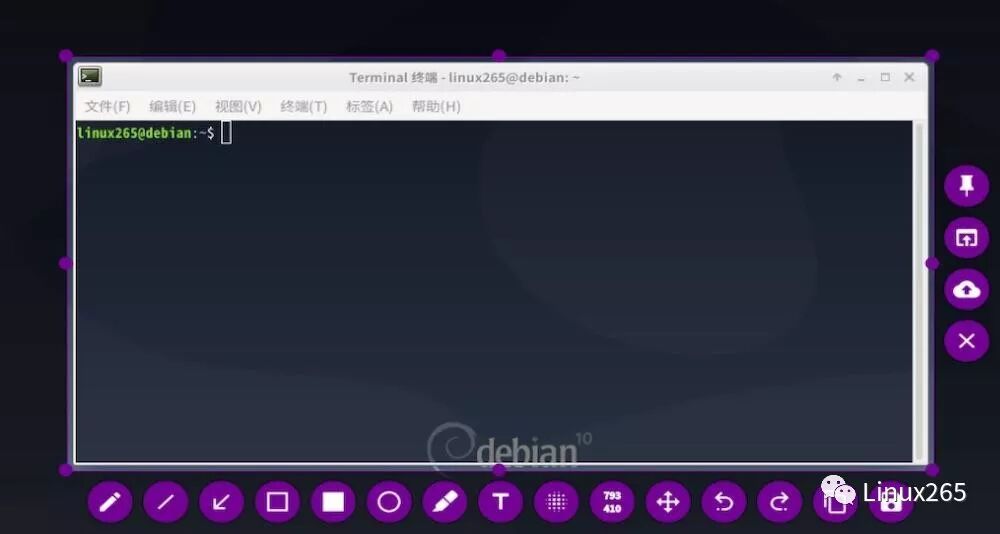
From the screenshot, we can see that each button represents a function, fully meeting your screenshot needs in the Linux system.
Flameshot comes with a range of excellent features, such as:
-
Handwriting capability
-
Ability to draw straight lines
-
Ability to draw rectangular or circular frames
-
Rectangular area selection
-
Ability to draw arrows
-
Annotation capability
-
Text addition
-
Blurring of images or text
-
Display of image dimensions
-
Undo and redo operations while editing images
-
Copy selected items to clipboard
-
Save selections
-
Exit screenshot mode
-
Select another app to open the image
-
Upload images to Imgur
-
Pin images to the desktop
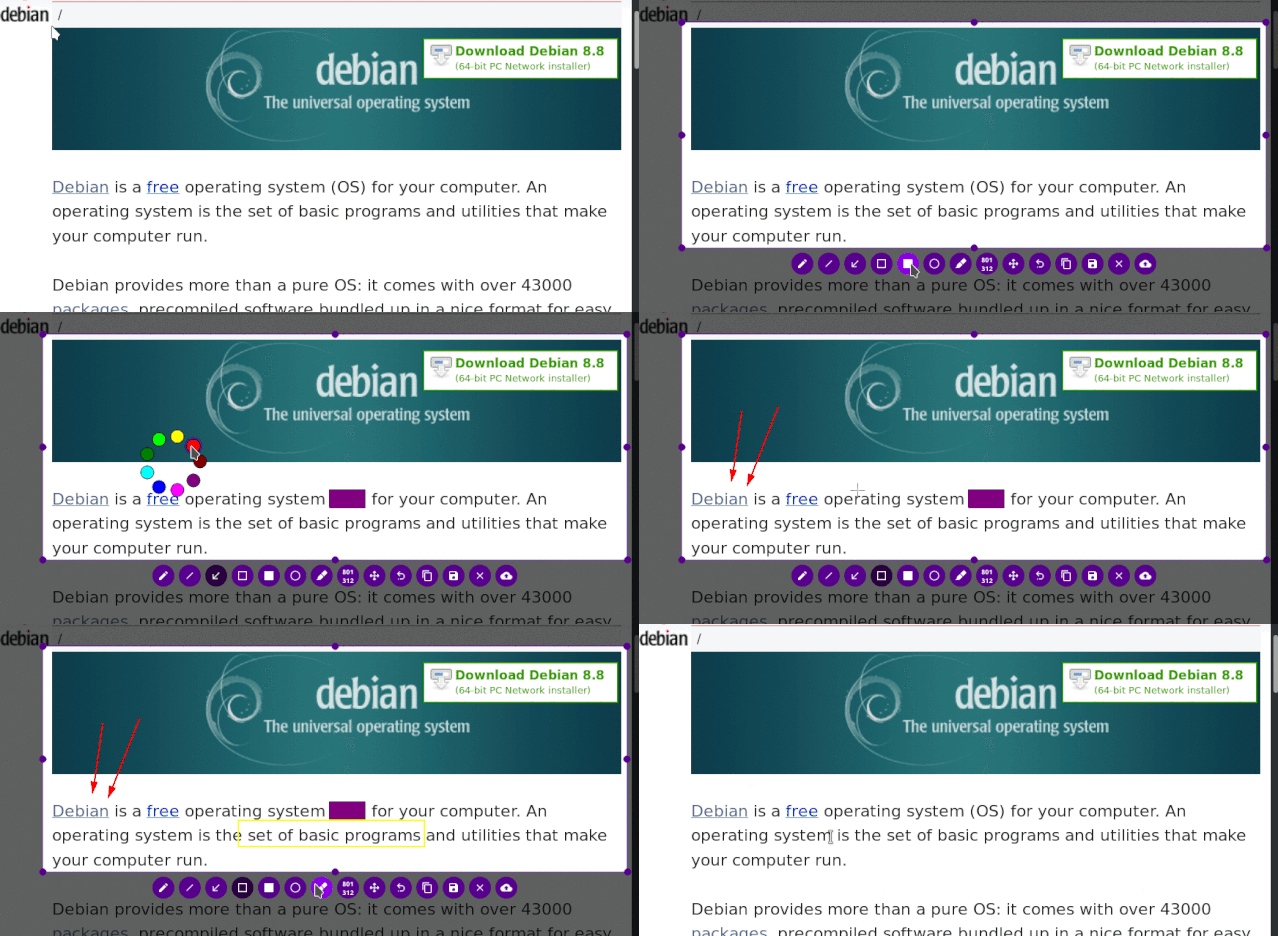
Check out the GIF animation of the operation:
How to Install Flameshot
ArchLinux
Flameshot can be obtained from the [community] repository of Arch Linux. Ensure that you have enabled the community repository, and then you can use pacman to install Flameshot as shown below:
sudo pacman -S flameshot
Fedora
sudo dnf install flameshot
On Debian 10+ and Ubuntu 18.04+, you can use the APT package manager to install it:
sudo apt install flameshot
openSUSE
sudo zypper install flameshot
On other Linux distributions, you can compile and install it from source. The compilation process requires Qt version 5.3 and GCC 4.9.2 or higher versions.
For specific installation methods on other Linux distributions, please refer to the official website.
How to Use
After installing Flameshot, you can launch it from the menu or application launcher. It is usually found under “Applications -> Graphics”.
Once opened, you will see the Flameshot tray icon in the system panel.
If you are using the Gnome desktop environment, you need to install the TopIcons extension to see the system tray icon.
Right-click on the Flameshot tray icon, and you will see several menu items, such as opening the configuration window, information window, and exiting the application.
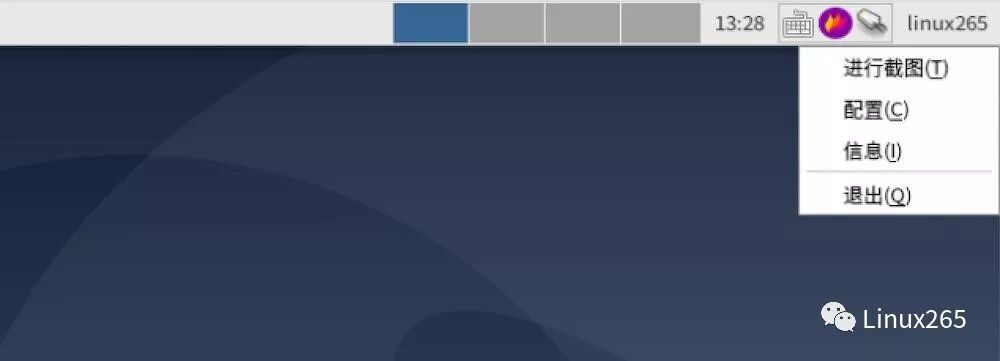
To take a screenshot, simply click the tray icon.
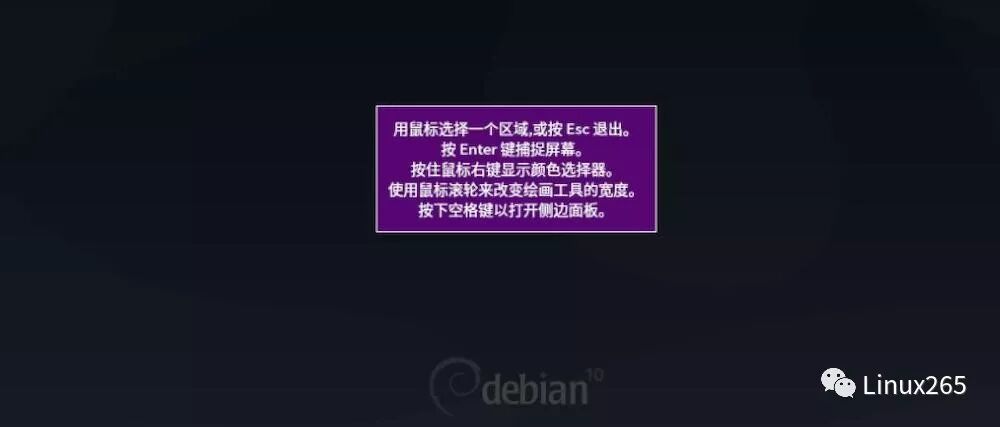
Then you will see the help window on how to use Flameshot. Select a screenshot area and press the Enter key to take the screenshot; right-click to see the color picker, and press the spacebar to view the panel on the side of the screen.
You can use the mouse wheel to increase or decrease the width of the pointer.
Flameshot Keyboard Shortcuts
Flameshot supports keyboard shortcuts. Right-click on the Flameshot tray icon and click on the “Information” window to see all available shortcuts in GUI mode. Below is a list of shortcuts available in GUI mode.
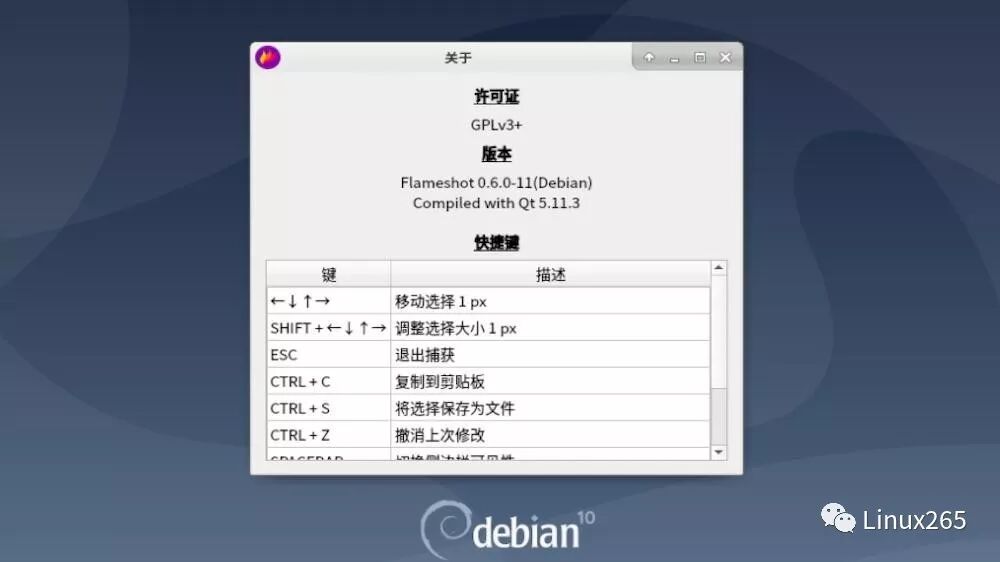
| Shortcut | Description |
|---|---|
<span><span>← 、</span></span><code><span><span>↓</span></span>、<span><span>↑</span></span>、<span><span>→</span></span> |
Move selection area 1px |
<span><span>Shift + </span></span><code><span><span>←</span></span>、<span><span>↓</span></span>、<span><span>↑</span></span>、<span><span>→</span></span> |
Change selection area size by 1px |
<span><span>Esc</span></span> |
Exit screenshot |
<span><span>Ctrl + </span></span><code><span><span>C</span></span> |
Copy to clipboard |
<span><span>Ctrl + </span></span><code><span><span>S</span></span> |
Save selection area as a file |
<span><span>Ctrl + </span></span><code><span><span>Z</span></span> |
Undo the last operation |
| Right mouse button | Show color picker |
| Mouse wheel | Change tool width |
Holding down the <span><span>Shift</span></span> key and dragging one of the control points of the selection area will perform a similar drag operation on the opposite control point.
Flameshot Command Line Options
Flameshot supports a range of command line options for delayed screenshots and saving images to custom paths.
To use Flameshot in GUI mode, run:
flameshot gui
To take a screenshot in GUI mode and save the selected area to a custom path, run:
flameshot gui -p ~/myStuff/captures
To open GUI mode after a delay of 2 seconds, use:
flameshot gui -d 2000
To delay for 2 seconds and save the screenshot to a custom path (without GUI), use:
flameshot full -p ~/myStuff/captures -d 2000
To take a full-screen screenshot and save it to a custom path and clipboard, use:
flameshot full -c -p ~/myStuff/captures
To take a screenshot of screen 1 and copy it to the clipboard, run:
flameshot screen -n 1 -c
In Conclusion
Flameshot has almost all the features for screenshotting: adding annotations, editing images, blurring, or highlighting key points, among others.
Give it a try; you won’t be disappointed.
 Homebrew on Linux is also great!You don’t need to be an expert in Linux; start as a beginner.How to take long screenshots of web pages in the browserOld friend, remember to 🌟star it, so it’s easier to find me next time!