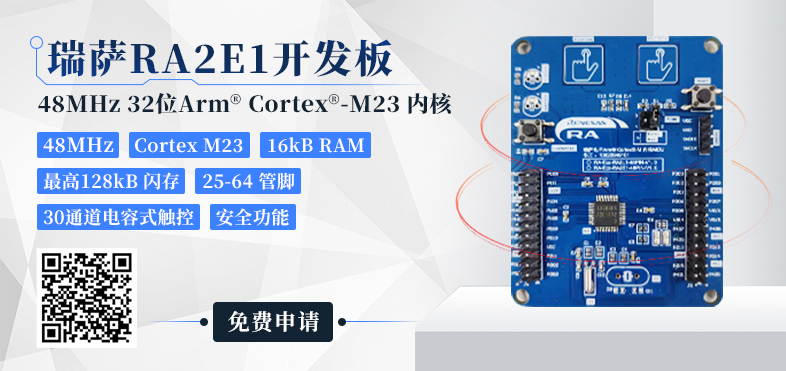
A few days ago, I received the Renesas RA2E1 development board sent by the Breadboard community. I saw someone asking: Is the Renesas microcontroller hard to learn? First, you need to have such a board, and then I will explain slowly.
Scan the QR code to go to the Breadboard community and apply for a Renesas development board for free.
Actually, getting started is very simple; it just takes a few steps (just click a bit with the mouse) to light up the LED. In other words, getting started with microcontrollers is a matter of minutes.
Today, I will share with you how to light up the first LED with Renesas MCU from scratch:
-
Setting up the development environment: Downloading and installing e2studio
-
Creating a project in e2studio: Lighting up an LED
Setting Up the Development Environment
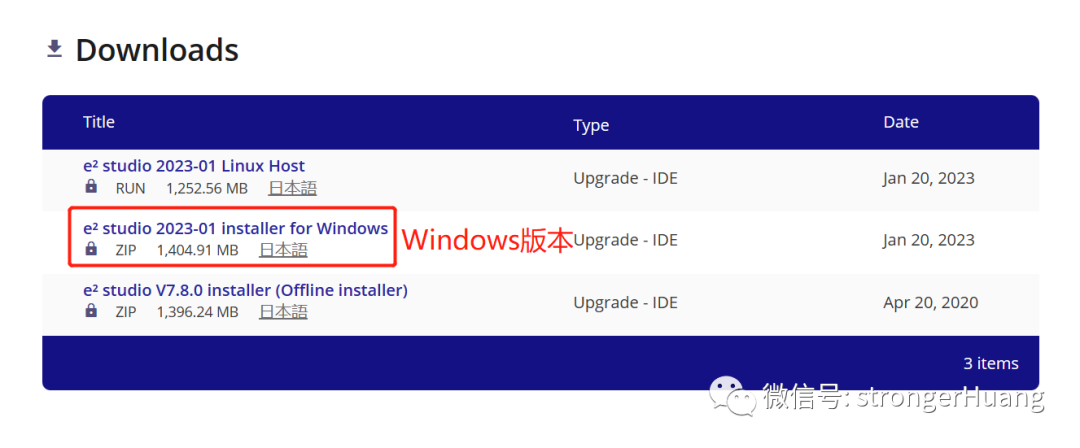
There are many tools (IDEs) for developing Renesas MCU, such as traditional Keil and IAR, which all support Renesas MCU. However, the official recommendation is to use their own tool: e2 studio
e2_studio: It is Renesas’s own integrated development environment (IDE), similar to Keil MDK.
FSP: Flexible Software Package, which is the software package for Renesas MCU, similar to the packages that need to be installed in Keil MDK (Keil.STM32F1xx_DFP.2.4.0.pack).
Currently, e2_studio supports Windows and Linux operating systems; here I will take Windows 10 as an example.
You can refer to the video I shared for this section:
You can download it from the Renesas official website or the Renesas Chinese website.
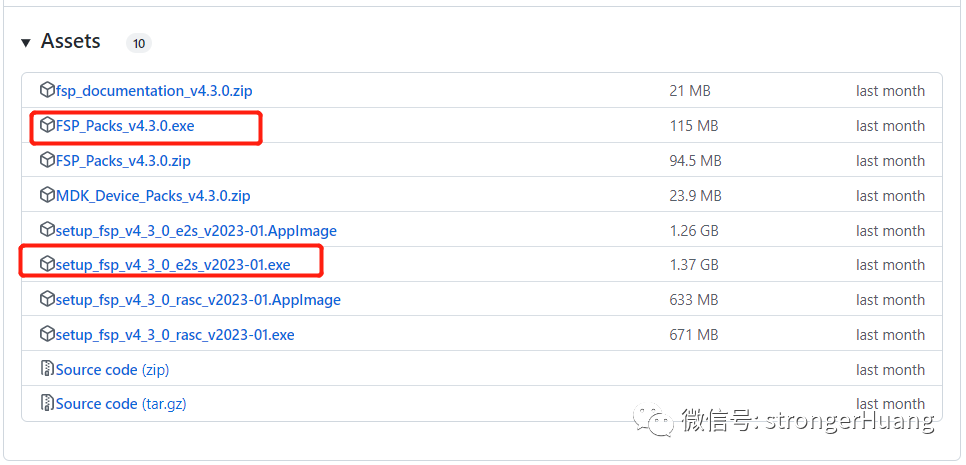
Renesas Official Website:
https://www.renesas.com/us/en/software-tool/e-studio
https://github.com/renesas/fsp/releases
Renesas Domestic Ecological Community:
https://ramcu.cn/lists/21.html
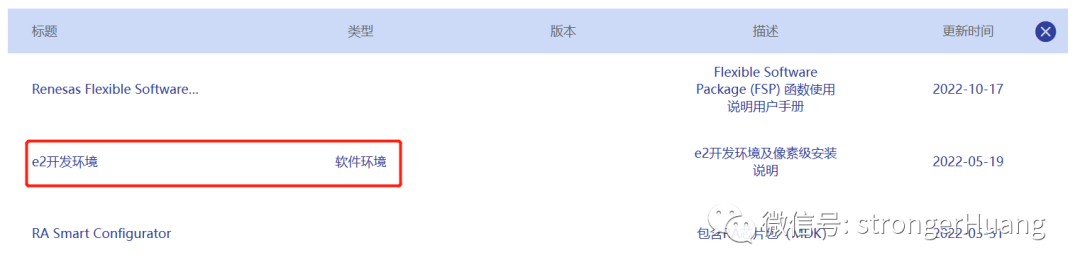
The version on the official website may be newer, but downloading from the official website requires registration, which can be cumbersome, so you can download it from the domestic ecological community.
Tip:The domestic ecological community provides Baidu Cloud downloads, and there are many old versions; just download the latest version (don’t download all, it’s a bit large).
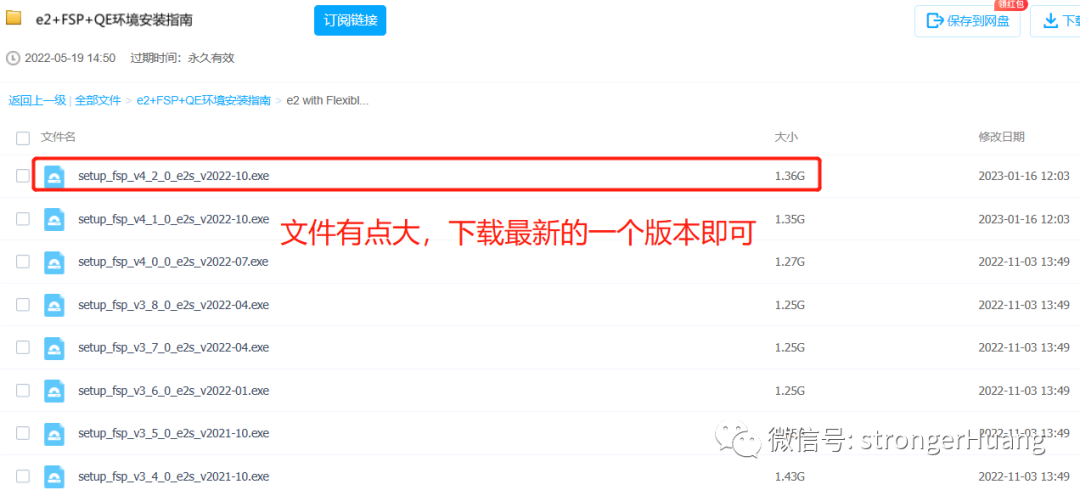
The installation method is very simple; both the official website and the community website provide installation methods that you can refer to.
For Windows-based software, it is basically a matter of clicking a few times to install; just be selective about what you click according to your needs.
The earlier part of the installation process is straightforward, but later on, you will install some 【plugins】, such as the C++ library, gcc compiler tools, etc.
At the same time, it will 【download online】 installation packages for gcc, FSP, etc., and you may fail to download them online.
Solution for gcc online installation failure:
Open the software -> Help -> Add Renesas Toolchains -> Renesas -> Renesas Toolchain Management···
This is the online installation in the software; see the animation below for details:
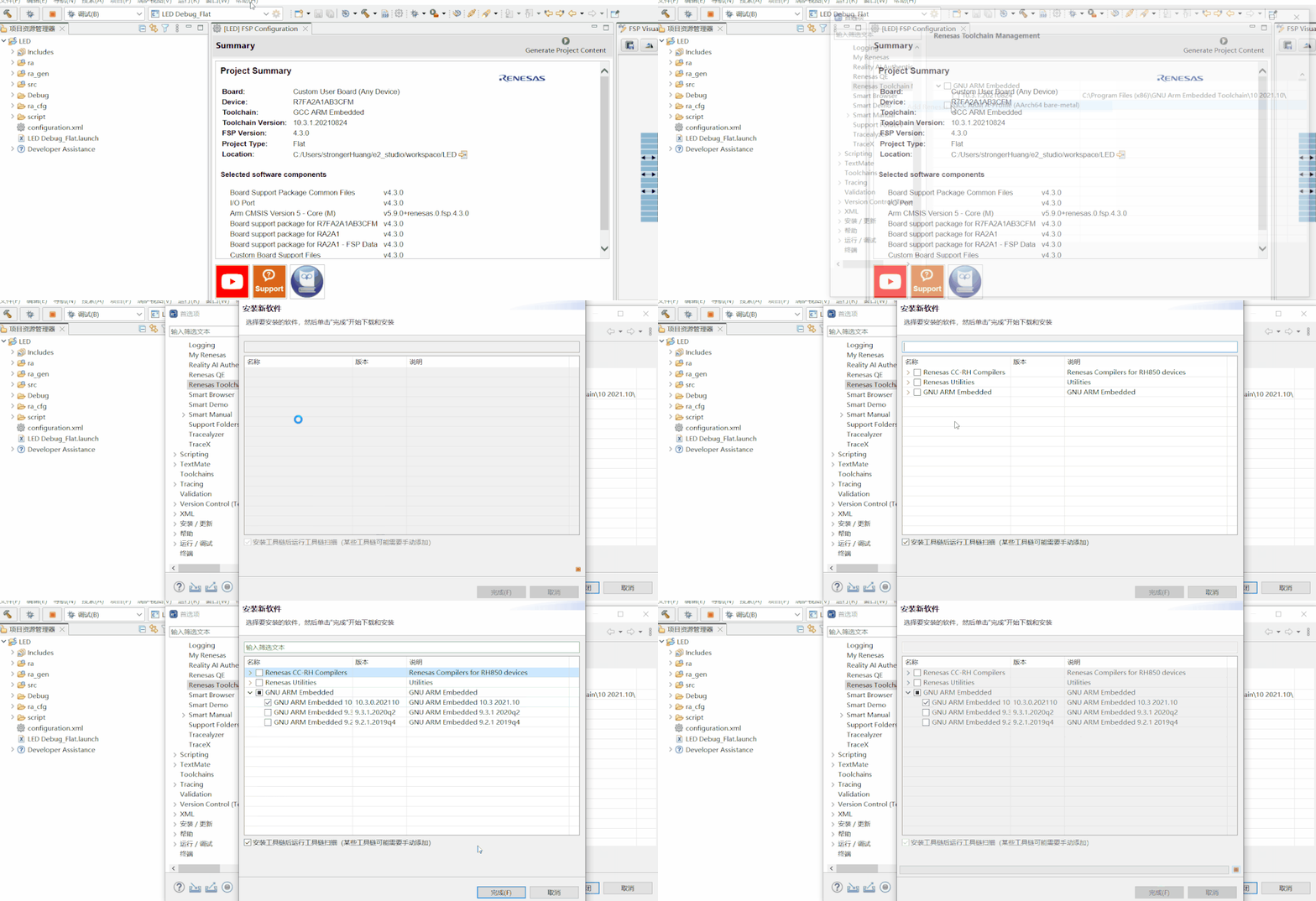
FSP Software Package Online Installation Failure Solution:
Most people will probably try to install online; the solution is simple: download the FSP software package and install it offline.
For specific details on downloads and installations related to this section, you can refer to the video I shared:
Creating a Project in e2studio
e2studio is an integrated development environment (IDE) that allows graphical configuration; you just need to click a few times to create a project, similar to STM32CubeIDE.
This tool is much simpler for creating projects compared to Keil and IAR, so the official recommendation is to use their own tool (easier for beginners).
The prerequisite for creating a project is that the development environment of e2studio must be set up (as described in the previous section); if some “plugins” are not installed correctly (for example, if the C++ library installation fails), the project creation may fail here.
This section will use the classic case: lighting up an LED.
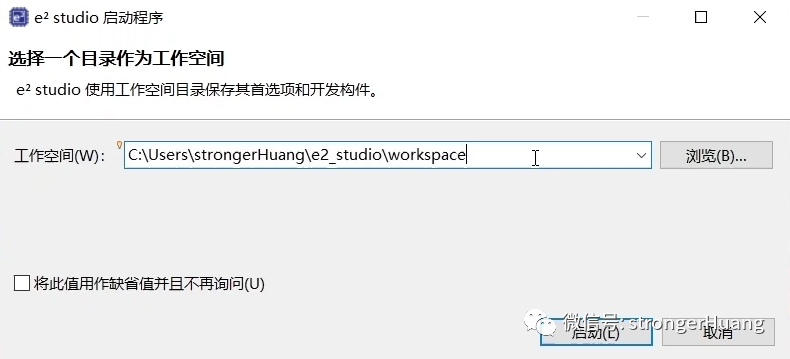
When you first open e2studio, it will prompt you to set the workspace save address (the default address is fine):
Fortunately, it reminds you to register (just click to register):
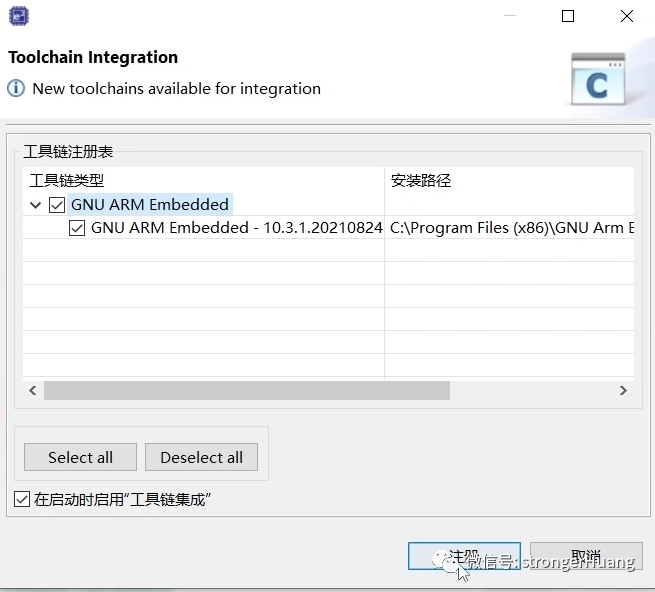
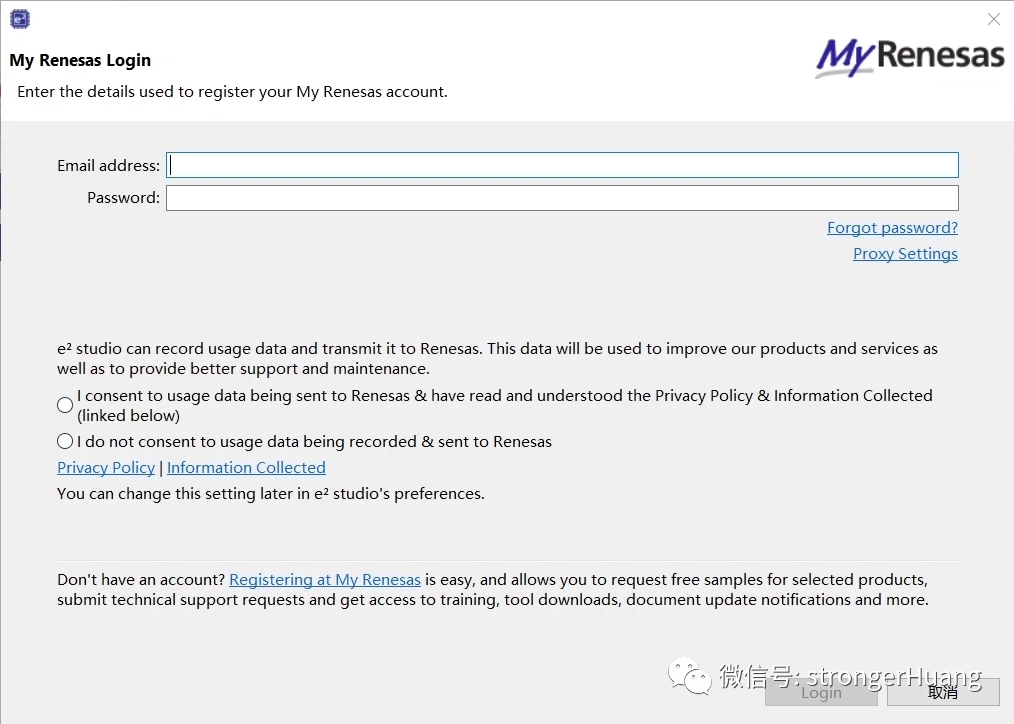
It will also remind you to log in (if you have an account, log in; if not, you can close it and still use it):
After preparing the previous work, creating a project is a very simple task; with graphical configuration, you just need to click the mouse a few times to generate a project that can be used directly.
You can refer to the video I shared for this section:
How simple is it to create a project? So simple that you can light up an LED without writing code:
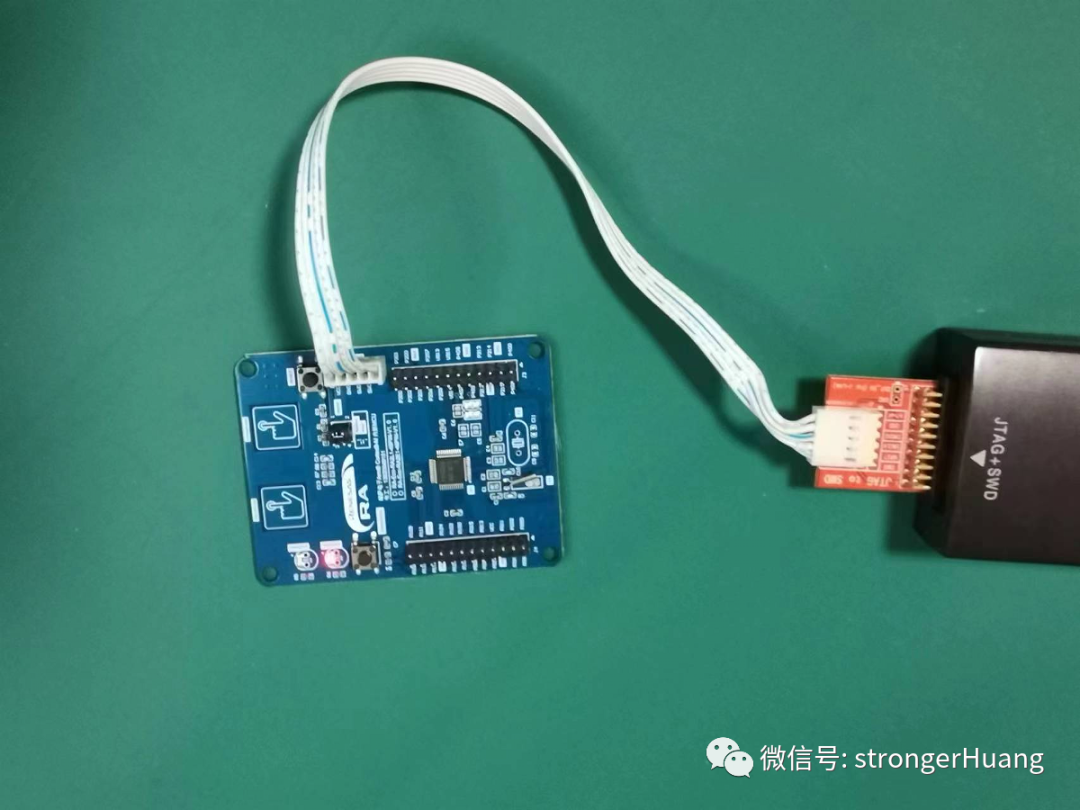
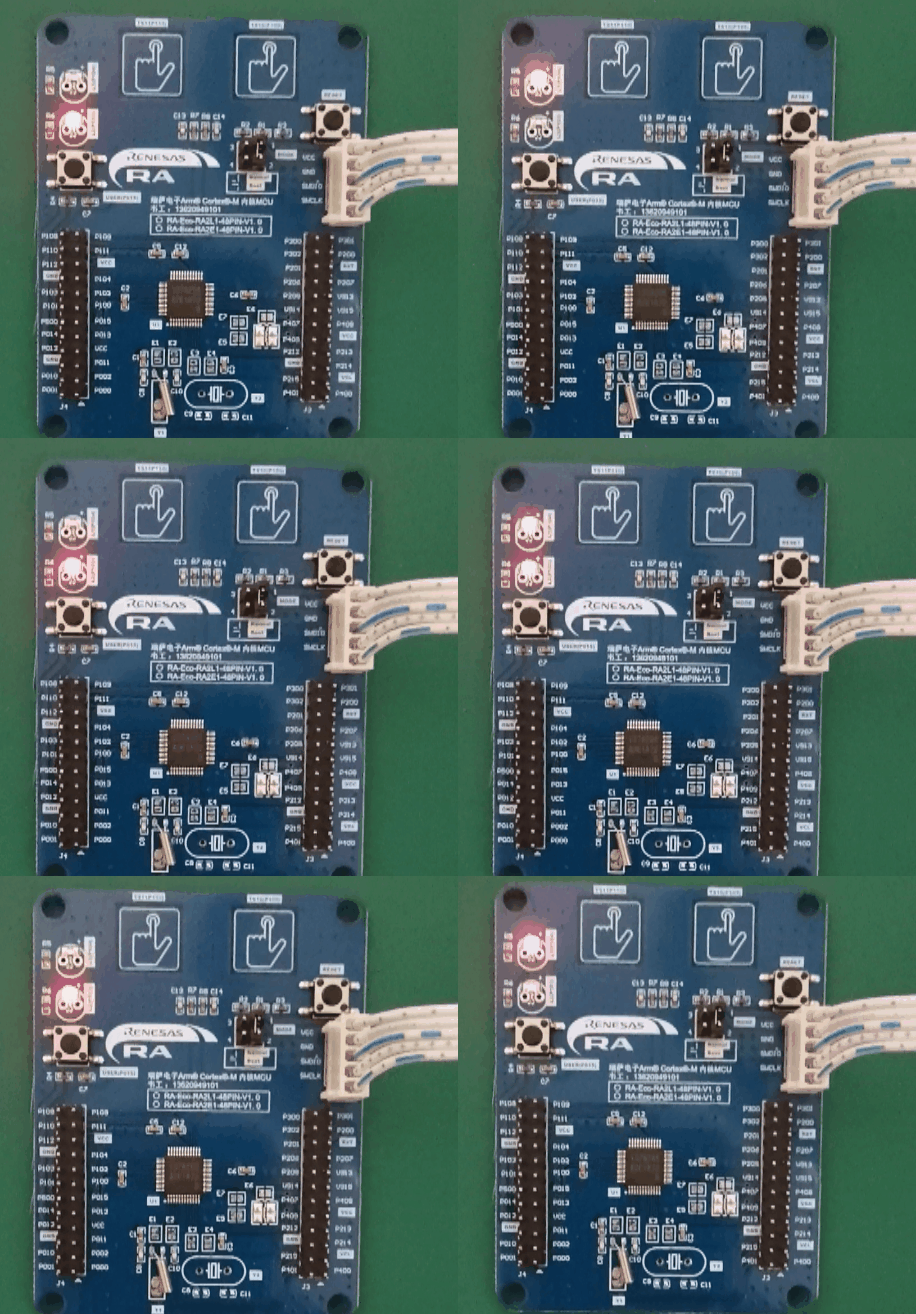
In the video, I also added a piece of code to make two LEDs blink alternately:
while(1){ R_BSP_SoftwareDelay(100, BSP_DELAY_UNITS_MILLISECONDS); // NOLINT R_IOPORT_PinWrite(&g_ioport_ctrl, BSP_IO_PORT_01_PIN_03, BSP_IO_LEVEL_LOW); R_IOPORT_PinWrite(&g_ioport_ctrl, BSP_IO_PORT_01_PIN_04, BSP_IO_LEVEL_HIGH); R_BSP_SoftwareDelay(100, BSP_DELAY_UNITS_MILLISECONDS); // NOLINT R_IOPORT_PinWrite(&g_ioport_ctrl, BSP_IO_PORT_01_PIN_03, BSP_IO_LEVEL_HIGH); R_IOPORT_PinWrite(&g_ioport_ctrl, BSP_IO_PORT_01_PIN_04, BSP_IO_LEVEL_LOW);}
Alright, that’s all for this article. I want to say to beginners: the current development tools are very “user-friendly” and easy to get started with, so don’t be intimidated.
Of course, what you create after getting started depends on yourself.
WeChat Official Account | strongerHuang
↓↓ For the Renesas development board, long press to scan the code for free application ↓↓