Introduction
Code formatting is one of the important means to improve code quality and readability. However, there is no built-in code formatting tool in Keil MDK5, so it is necessary to look for third-party tools to solve this problem. The open-source code formatting tool Astyle can be integrated into Keil as a plugin to meet our code formatting needs.
This article will detail how to download, configure Astyle, set it up in Keil, and use keyboard shortcuts to invoke Astyle.
1. Introduction to Astyle
Astyle official website: https://astyle.sourceforge.net/
Artistic Style is a source code indenter, formatter, and beautifier for C, C++, C++/CLI, Objective-C, C#, and Java programming languages. It is written in C++ and can be used from the command line or embedded into another program as a library. Options can be input from the command line or option files. The library version can be called from programs written in other languages.
Artistic Style is open-source software and can be used and distributed under the MIT License. The MIT License is a permissive license with minimal restrictions on software use. It is compatible with the GNU General Public License (GPL) and most other licenses.
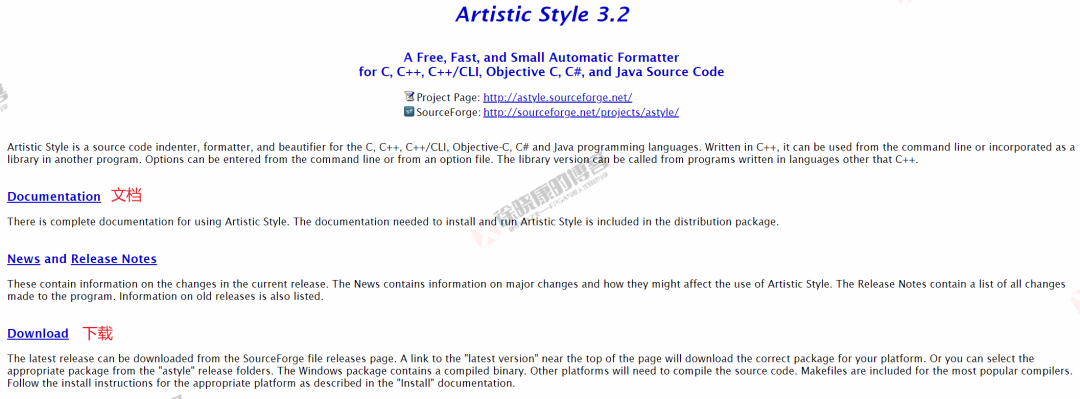
You can access the Astyle documentation and download page from the official website.
2. Common Astyle Configurations
This section is entirely based on Astyle’s Documentation, but only lists the configuration options for C language that I am personally interested in. Other C language configuration options and options for other languages are not listed. Those interested in all configuration options can refer to the official documentation.
2.1 Brace Style Options
1. –style=allman / –style=bsd / –style=break / -A1
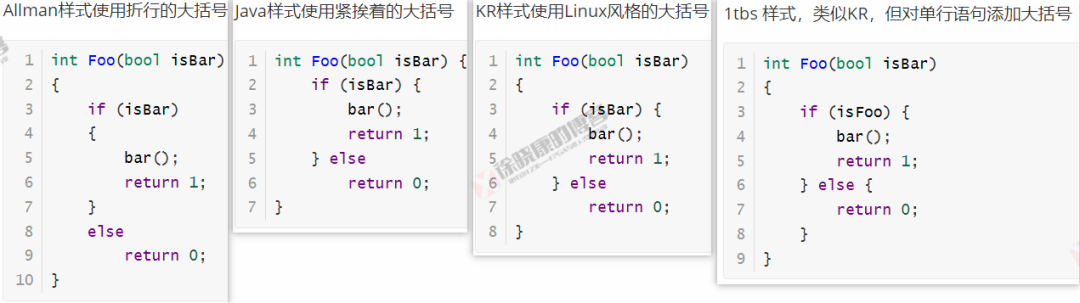
The Allman style uses line-wrapped braces.
2. –style=java / –style=attach / -A2
The Java style uses braces that are attached closely.
3. –style=kr / –style=k&r / –style=k/r / -A3
The Kernighan & Ritchie style uses Linux-style braces. The left brace for namespace, class, and function definitions is on a separate line. The braces are connected to everything else, including arrays, structures, enumerations, and statements within functions.
Using the k&r option may cause issues due to the & symbol. This can be resolved by enclosing k&r in quotes (e.g., ‑‑style=”k&r”) or using one of the alternatives (‑‑style=kr or ‑‑style=k/r).
4. –style=1tbs / –style=otbs / -A10
“One True Brace Style” uses Linux-style braces and adds braces to single-line conditional statements that do not have braces. The left brace for namespace, class, and function definitions is on a separate line. The braces are connected to everything else, including arrays, structures, enumerations, and statements within functions.
The comparison of the four styles is shown in the image below. I personally prefer the 1tbs style.
2.2 Tab Options
The default option: –indent=spaces=4 or -s4, which means to replace Tab with 4 spaces, so this part can remain as default, no need to set.
2.3 Brace Modify Options
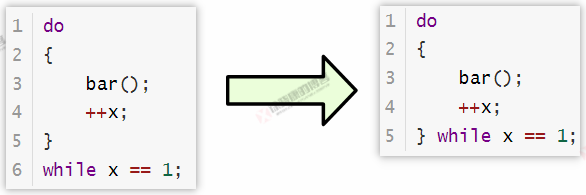
1. –attach-closing-while
Attaches the “while” of the “do-while” loop statement to the closing brace. This option takes precedence over brace style and the “break closing braces” option.
2.4 Indentation Options
1. –indent-preproc-define
Defines the indentation for multi-line defines.

2. –indent-col1-comments / -Y
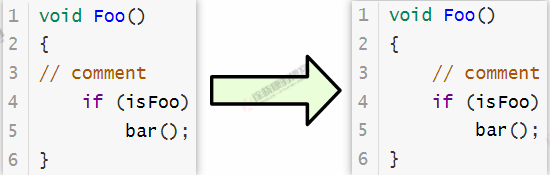
Indents C++ comments that start in the first column. By default, comments starting in the first column in C++ are treated as commented-out code and are not indented. Using this option allows these comments to be indented along with the code.
2.5 Padding Options
1. –break-blocks / -f
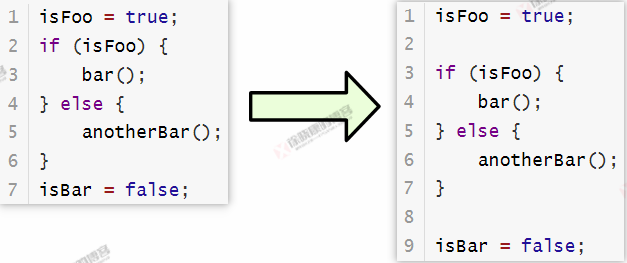
Adds empty lines around control blocks (e.g., ‘if’, ‘for’, ‘while’…).
2. –pad-oper / -p
Inserts space padding around operators. This will also add space around commas. Any end-of-line comments will be preserved in their original column as much as possible. Note that there are no options to remove padding. Once padded, they remain padded.

3. –pad-comma / -xg
Inserts space padding after commas. This is not necessary if using pad-oper. Any end-of-line comments will be preserved in their original column as much as possible. Note that there are no options to remove padding. Once padded, they remain padded.

4. –pad-header / -H
Inserts space padding between the header (e.g., ‘if’, ‘for’, ‘while’…) and the following parentheses. Any end-of-line comments will be preserved in their original column as much as possible. This can be used with unpad-paren to remove unnecessary spaces.

5. –unpad-paren / -U
Removes extra space padding inside and outside parentheses. Any end-of-line comments will be preserved in their original column as much as possible. This option can be used with the above paren padding options pad‑paren, pad‑paren‑out, pad‑paren‑in, and pad‑header. It will only remove padding that was not requested by other options.
For example, if there is padding inside and outside parentheses in the source code, and you only want to keep the internal padding. You need to use unpad-paren to remove the external padding, and then use pad‑paren‑in to keep the internal padding. Simply using pad‑paren‑in may not remove the external padding.

6. –delete-empty-lines / -xe
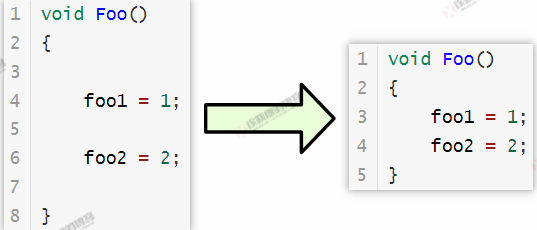
Removes empty lines within functions or methods. Empty lines outside of functions or methods will not be removed. If used with break-blocks or break-blocks = all, it will remove all lines except those added by the break-blocks option.
7. –align-pointer=name / -k3
Aligns pointer or reference operators (*, & or ^) close to the variable name, which is a better C language style, especially when declaring multiple variables on the same line, making it clearer.

2.6 Formatting Options
1. –break-one-line-headers / -xb
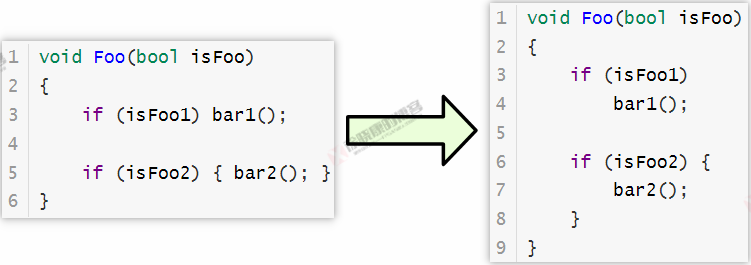
Breaks one-line headers from statements that are on the same line (e.g., ‘if’, ‘while’, ‘else’,…). If the statement is enclosed in braces, the braces will be formatted according to the requested brace style.
If the keep-one-line-statements option is requested, it will not break multi-statement lines. If the keep-one-line-blocks option is requested and the header is contained within a block, it will not break one-line blocks.
2. –add-braces / -j
Adds braces to single-line conditional statements (e.g., ‘if’, ‘for’, ‘while’…) that do not have braces. The statement must be on a single line. The braces will be added according to the requested brace style. If no style is requested, braces will be added. If the –style=1tbs option is selected, this option may not be necessary.
If the keep-one-line-statements option is requested, braces will not be added to multi-statement lines. If the keep-one-line-blocks option is requested, braces will not be added to one-line blocks. If used with –add-one-line-braces, the result will be a one-line brace.

3. –max-code-length=# / -xC#
The max-code-length option will break the line when the code exceeds # characters. Valid values are from 50 to 200. Lines without logical conditions will break at logical conditions (||, &&, …), commas, parentheses, semicolons, or spaces.
Some code will not be broken, such as comments, quotes, and arrays. If used with keep-one-line-blocks or add-one-line-braces, it will not break blocks. If used with keep-one-line-statements, if the line exceeds the maximum length, the statement will break at the semicolon. If there are no available breakpoints within the maximum code length, the line will break at the first available breakpoint after the maximum code length.

It is recommended to set –max-code-length=120.
3. Effects That Astyle Cannot Achieve
1. Cannot achieve the effect of merging two short lines into one long line.

2. Cannot remove extra spaces outside of parentheses
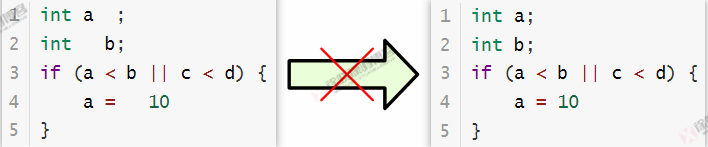
Other effects that cannot be achieved (to be supplemented)…
Overall, Astyle’s code formatting functionality is still not very complete, and the formatting effect of Clang-format is better, with the main advantage being its simplicity and convenience of use.
4. Setting Up Astyle in Keil
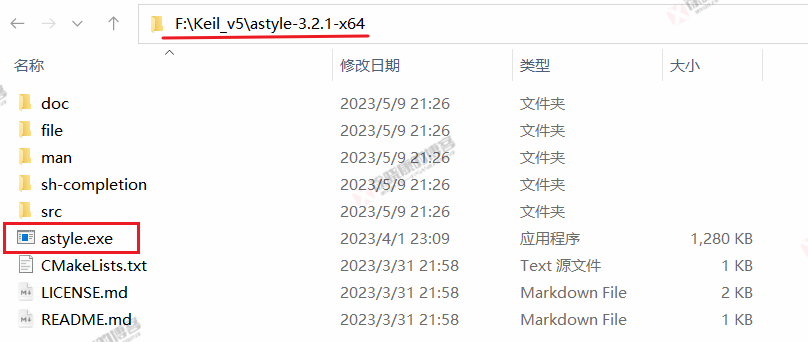
Unzip the downloaded installation package and place it in the Keil installation directory, such as F:\Keil_v5\, as shown in the figure below.
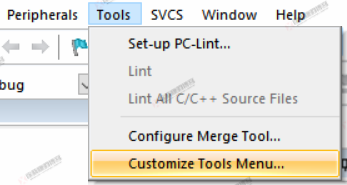
Open Keil, Tools->Customize Tools Menu...,
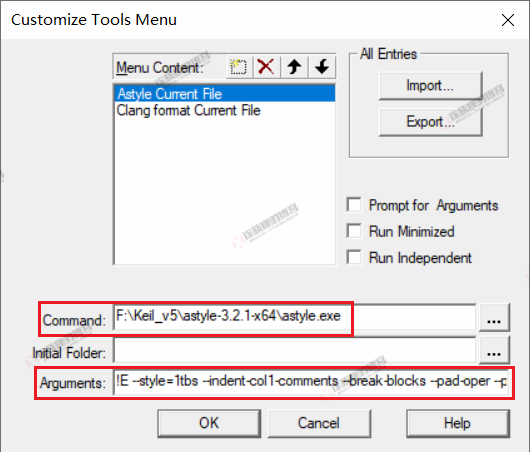
Fill in the absolute path of astyle.exe in the Command line.
Fill in the configuration options in the Arguments line, as follows:
!E --style=1tbs --indent-col1-comments --break-blocks --pad-oper --pad-comma --pad-header --unpad-paren --delete-empty-lines --align-pointer=name --break-one-line-headers --add-braces --max-code-length=120
For those who find it inconvenient to copy from the article, you can follow my public account: Xu Xiaokang’s Blog, and reply with the following four digits to get the configuration.
3567
It is recommended to copy it to avoid typos!
After setting up, you can invoke Astyle to format the current file through Tools->Astyle Current File, as shown in the figure below.
Note that you must save changes with Ctrl + S before invoking Astyle, otherwise the invocation will be ineffective.
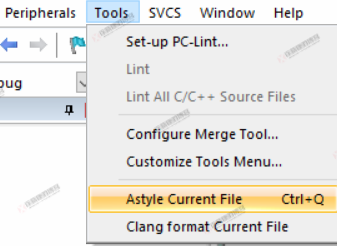
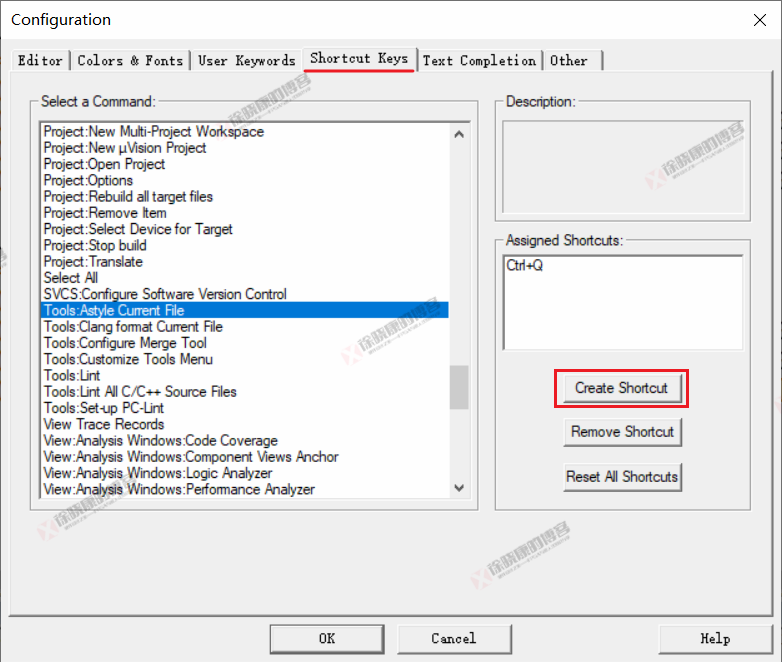
If you want to invoke Astyle more conveniently, you can set a shortcut key, as follows:
Edit->Configuration..., open the configuration window, find Tools:Astyle Current File in the Shortcut Keys interface, click Create Shortcut, and enter the desired shortcut key.

Xu Xiaokang’s Blog continues to share high-quality hardware, FPGA, and embedded knowledge, software, tools, and other content. Everyone is welcome to follow.