Using Arduino to Develop on Milk-V DuoS
Arduino is a very popular open-source hardware platform known for its simplicity, ease of use, and openness. It provides a rich set of libraries and example codes, allowing even those without programming experience to get started quickly. Additionally, the Arduino community is very active, making it easy to access various project tutorials, documentation, and support.
The Milk-V Duo series now supports Arduino development, allowing you to use the Arduino IDE directly with simple configuration.
The Duo series CPU adopts a big.LITTLE architecture, where the Arduino firmware runs on the little core, while the big core is responsible for communicating with the Arduino IDE, receiving the Arduino firmware, and loading it onto the little core for execution. Meanwhile, the Linux system on the big core operates normally.
Furthermore, the Duo series development boards now support the visual programming software VISUINO.
Installing and Configuring the Arduino Development Environment
Downloading the Arduino IDE
Download the latest version of the Arduino IDE, which is currently <span>v2.3.6</span>: Arduino IDE
Configuring the Development Environment for Duo
Open the Arduino IDE, select <span>File</span> from the menu, then choose <span>Preferences</span>. In the <span>Settings</span> tab, add the latest configuration file URL for Duo in the <span>Additional boards manager URLs</span>, which is currently <span>v0.2.6</span>: https://github.com/kubuds/sophgo-arduino/releases/download/v0.2.6/package_sg200x_index.json
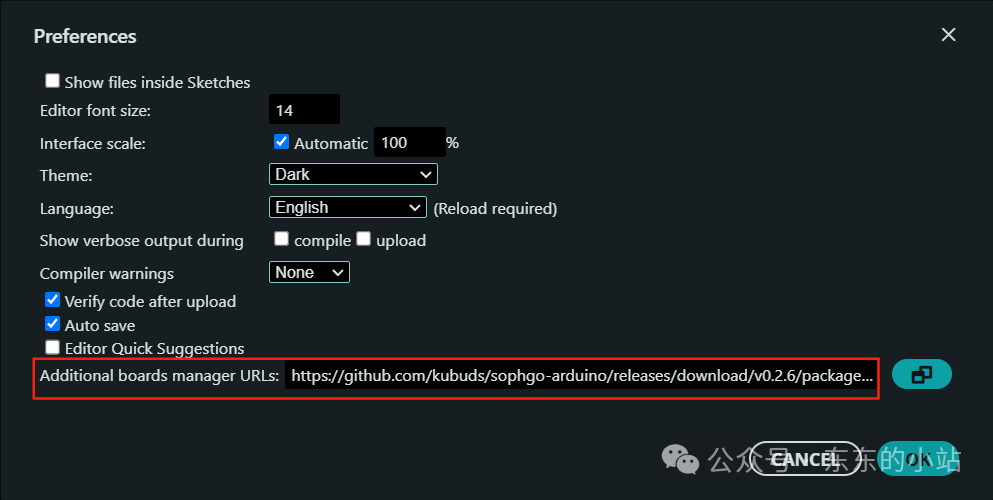
After configuration, select <span>Tools</span> from the menu, then choose <span>Board</span>, open <span>Board Manager</span>, search for SG200X, and click <span>INSTALL</span>.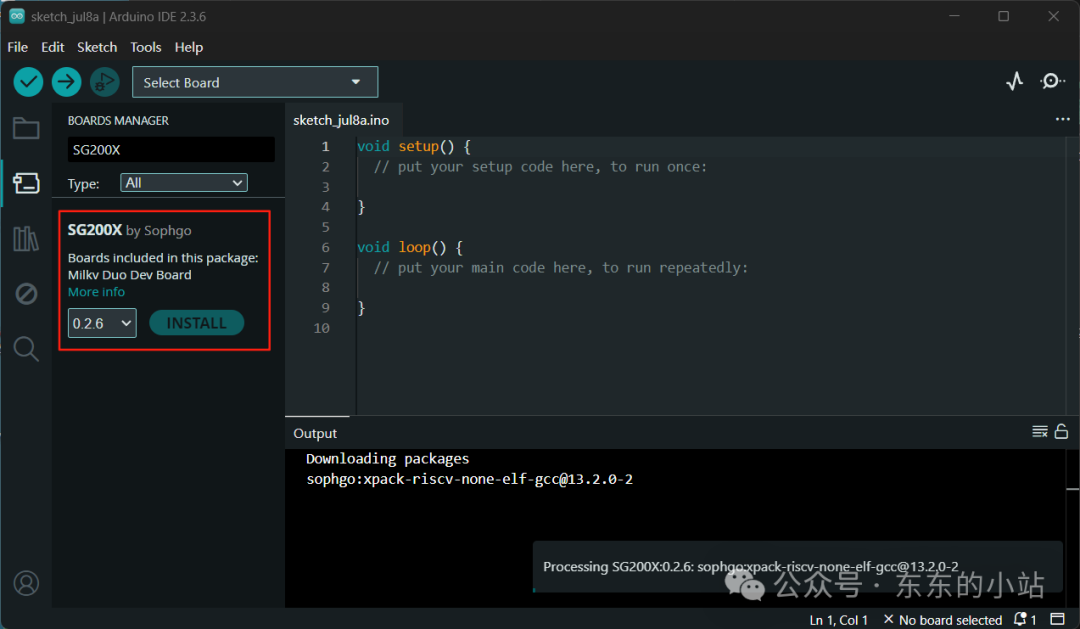
This process may take some time as it involves configuring the compilation chain, so please be patient. Since I didn’t have a proxy, I tried many times without success, and the download failed midway, especially for the largest compilation chain: <span>xpack-riscv-none-elf-gcc-13.2.0-2-darwin-x64.tar.gz</span>. I later used an offline download method, obtaining the download address from the above <span>package_sg200x_index.json</span> configuration file, first resuming the download to get the package locally, then placing the package in the Arduino download cache directory: <span>C:\Users\Username\AppData\Local\Arduino15\staging\packages</span>.
Once the development environment is installed, you can write some simple code to test it.
Testing the Onboard LED in DuoS
Flashing the Arduino-Compatible Firmware
The Duo’s SD card system requires flashing firmware that supports Arduino. Please download the firmware prefixed with ‘arduino’ from the latest release (https://github.com/milkv-duo/duo-buildroot-sdk/releases/).
Currently, only the V1 version image supports Arduino. The image I downloaded and flashed is:
arduino-milkv-duos-sd-v1.1.4.img
After flashing, the default blue LED will blink on startup, and a virtual serial device will appear, which can be seen in the device manager on the computer.
Similar to the previous steps, you need to disable the LED blinking script in the big core Linux to prepare for the small core Arduino LED demo. Execute the following command and restart DuoS:
mv /mnt/system/blink.sh /mnt/system/blink.sh_backup && syncStarting the LED Demo
In the main interface of the Arduino IDE, click <span>Select Board</span>, then click <span>Select Other Board and Port</span> to search for “duo”, select DuoS Dev Module, and choose the corresponding serial port (the newly added virtual serial port) before clicking OK.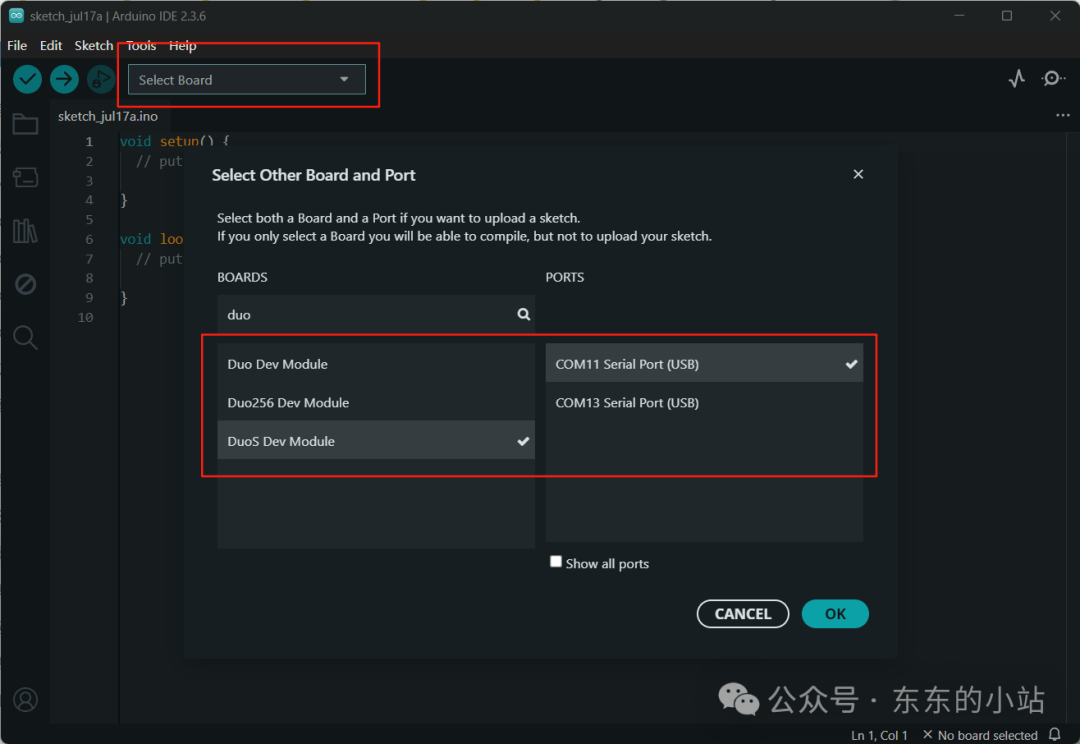
In the Arduino IDE’s <span>File</span> menu, open <span>Examples</span> -> <span>01.Basics</span> -> <span>Blink</span> test program. This program implements the functionality of blinking the onboard LED of the Arduino device, which is also supported in DuoS.
Note:
Before compiling and downloading the code, please ensure that you have installed the Python environment on your computer and correctly configured the environment variables. A missing Python environment may cause the code to fail to compile and download.
If you cannot download the firmware to the development board, please first check if pyserial is installed. If not, you can install it by executing pip install pyserial.
If you still cannot upload the code to the development board after installing pyserial, please check if serial is installed on your computer. Installing both pyserial and serial may cause firmware download issues. Please execute pip uninstall serial to uninstall serial.
Click the <span>Upload</span> button to test: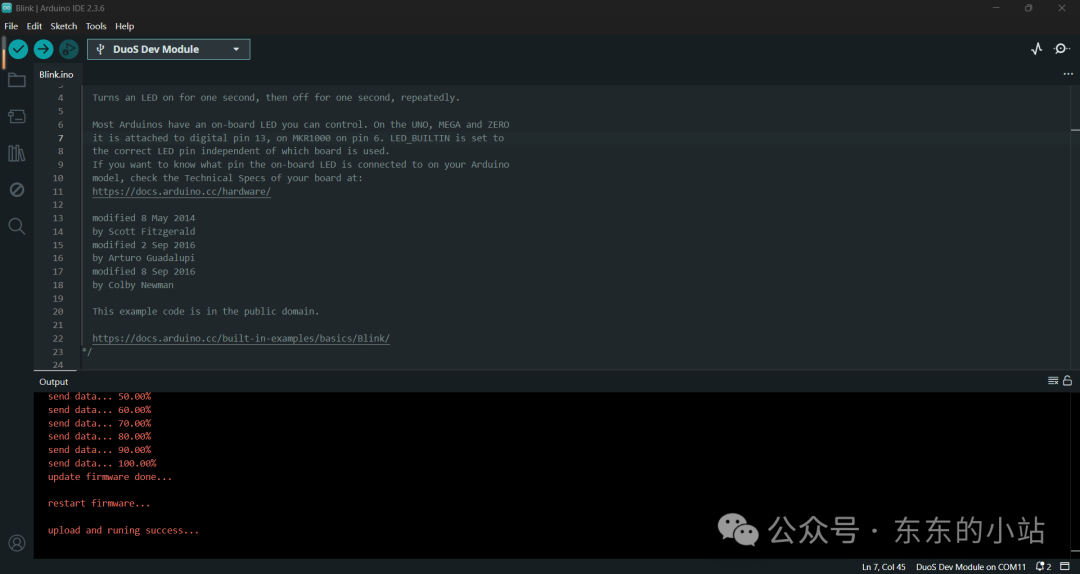
At this point, you should see the onboard LED of DuoS blinking at one-second intervals.
References
https://milkv.io/zh/docs/duo/getting-started/arduino
Welcome to Follow Us:
Feel free to add WeChat to join the group for discussions:

For more, please click the lower left corner to Read the original text!