This lesson will guide everyone through the installation of the Proteus simulation software. By following the operational instructions provided in the course, students will be able to successfully complete the installation and configuration of Proteus. In the next lesson, we will conduct our first LED lighting experiment.
About Proteus Simulation Software
Proteus is an electronic design automation (EDA) software that integrates schematic design, circuit simulation, and PCB design into one platform. Countless electronics enthusiasts, students, and engineers use Proteus, from university electronics courses to laboratories in electronic research and development companies.
As a professional electronic design simulation platform, Proteus has a rich library of components, including thousands of component models ranging from basic passive devices (such as resistors, capacitors, and diodes) to complex integrated circuits (including various microcontrollers and FPGAs). In terms of simulation technology, the software employs the mature SPICE3F5 industrial standard algorithm, supporting co-simulation of digital and analog circuits. It not only includes thousands of simulation models but also supports the import of third-party device models. The system provides various excitation signal sources (DC, sine, pulse, etc.) and complete virtual test instruments (oscilloscopes, logic analyzers, signal generators), offering a one-stop solution for circuit design verification. This highly integrated simulation environment significantly enhances the efficiency of electronic system development and reduces prototype verification costs.
In the field of microcontroller development, Proteus serves as a powerful virtual simulation tool, supporting mainstream microcontroller models such as 51 series, AVR, PIC, and ARM. It allows developers to program and debug directly on a virtual prototype based on the schematic, visually verifying the program’s operational effects by displaying input and output signal changes in real-time. Additionally, the software integrates professional instruments such as virtual logic analyzers and oscilloscopes, enabling the construction of a complete electronic design simulation environment, significantly improving development efficiency. This visual debugging method not only reduces hardware costs but also provides a convenient and efficient solution for circuit verification and program optimization.
How to Obtain Proteus Simulation Software?
Proteus simulation software can be obtained mainly through official channels and third-party resources.
1. Obtaining from Official Channels
-
Download the trial version from the official website
Visit the Proteus official website to download a 30-day trial version, which has the same functionality as the official version but cannot save projects. Students or teachers can apply for educational authorization through their school email (usually includes a full version license).
-
Apply for the Educational Version
Students and teachers need to provide a .edu email to verify their identity and can obtain the full version of the software, including technical support, for free..
2. Third-Party Resources
By searching for “Proteus installation download” on search engines, you can access third-party resource platforms to obtain the Proteus simulation software.
Note: Third-party resources may have outdated versions or copyright risks, so it is recommended to prioritize official channels.
Installing Proteus
Step 1: Run the Installer
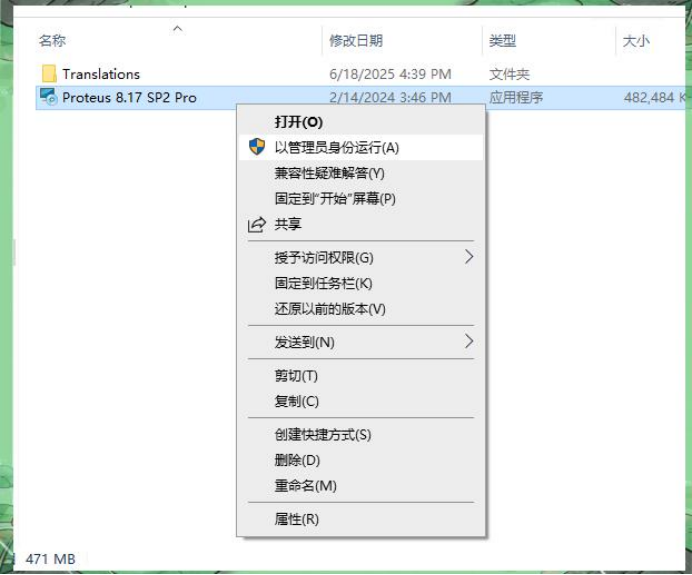
1.Open the file manager and navigate to the product download directory.
2.Right-click on “Proteus 8.17 SP2 Pro.exe” (the file name may vary depending on the version) and select “Run as administrator”.
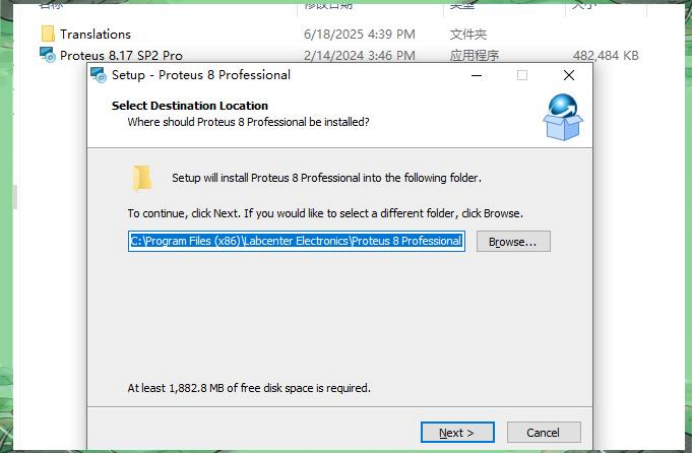
Step 2: Configure Installation Path
This step allows users to modify the default installation directory of the software.
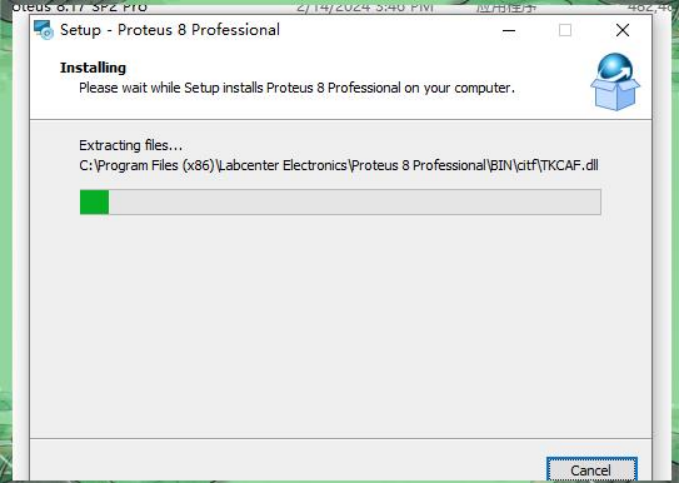
Step 3: Software Installation
The software begins installing on the computer, and the installation process will take some time…
Launching the Proteus Simulation Software
Start from the desktop shortcut
After installation, you will likely see a prominent Proteus icon on your desktop:
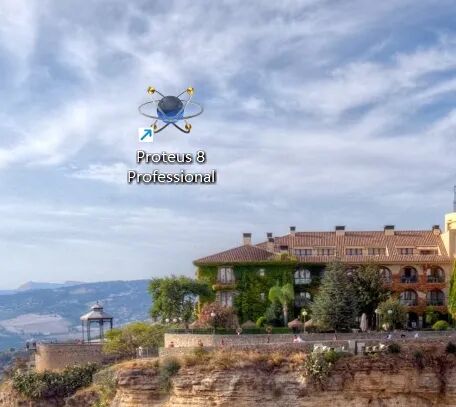
Double-click the icon on the desktop to launch the Proteus simulation software immediately.
Start from the Start Menu
If there is no Proteus icon on the desktop, click the “Start” button in the lower left corner of the computer screen. The pop-up menu contains numerous program options. You can carefully search for the Proteus-related program in the listed programs. If your computer has many installed programs, making it difficult to find, you can also use the search box in the Start menu to directly input “Proteus”; the system will quickly filter out related programs. Once you find the Proteus program, click it to launch the software.
What to do if you can’t find the launch entry?
Sometimes, even if Proteus has been successfully installed, you may not find its launch entry on the desktop or in the Start menu. In this case, it is recommended to directly enter the installation directory of Proteus. If you remember the installation directory you chose during installation, go directly to that folder and find “PDS.EXE” to launch the program directly.