Click on the above “Mechanical and Electronic Engineering Technology” to follow usQGraphicsView is a widget in the Qt framework used to display graphical items in a QGraphicsScene. It provides a flexible canvas that can be zoomed, scrolled, and panned to view different parts of the scene.
Header File
#include <QGraphicsView>Constructor
QGraphicsView::QGraphicsView(QWidget *parent = nullptr)QGraphicsView::QGraphicsView(QGraphicsScene *scene, QWidget *parent = nullptr)-
parent: The parent widget used to manage the memory of QGraphicsView.
-
scene: The scene to be displayed.
Main Properties
-
scene: Gets or sets the scene displayed by QGraphicsView.
-
matrix: Gets or sets the transformation matrix of the scene.
-
interactive: Gets or sets whether the view allows user interaction (e.g., zooming, scrolling).
Main Methods
-
setScene(QGraphicsScene *scene): Sets the scene to be displayed by QGraphicsView.
-
centerOn(const QPointF &point): Moves the view center to the specified point.
-
scale(double factor): Scales the view.
-
rotate(int degrees): Rotates the view.
-
translate(int dx, int dy): Pans the view.
Signals
-
sceneChanged(QGraphicsScene *scene): Signal emitted when the scene changes.
-
sigStateChanged(QGraphicsView::ViewportUpdateMode mode): Signal emitted when the view state changes.
Slot Functions
-
void onSceneChanged(QGraphicsScene *scene): Typically a user-defined slot function to respond to scene change events.
Item Coordinates
Each QGraphicsItem has its own local coordinate system, usually with the center of the item as the origin. This coordinate system is used to position elements within the item and handle events and drawing operations within the item. The positive x-axis of the item coordinate system points to the right, and the positive y-axis points down. When you call the paint() method on a QGraphicsItem to draw, it is based on this coordinate system.
Scene Coordinates
The scene coordinate system is the foundational coordinate system for all items, with the center of the scene as the origin. It describes the position of top-level items and forms the basis for all events propagated from the view to the scene. Each item has scene coordinates and corresponding bounding rectangles in the scene. The positive x-axis of the scene coordinate system points to the right, and the positive y-axis points down. You can obtain the position of an item in the scene coordinate system using the QGraphicsItem::scenePos() method.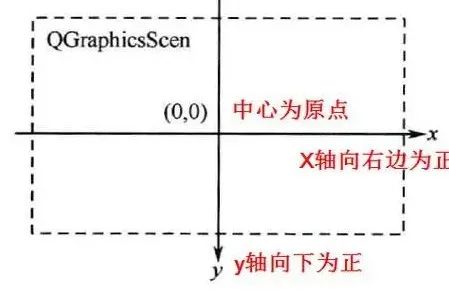
View Coordinates
The view coordinate system is the widget’s coordinate system, with units in pixels. The top-left corner of QGraphicsView is the coordinate origin (0,0). All mouse events are initially reported using view coordinates. The positive x-axis of the view coordinate system points to the right, and the positive y-axis points down. You can convert between view coordinates and scene coordinates using the QGraphicsView::mapToScene() and QGraphicsView::mapFromScene() methods.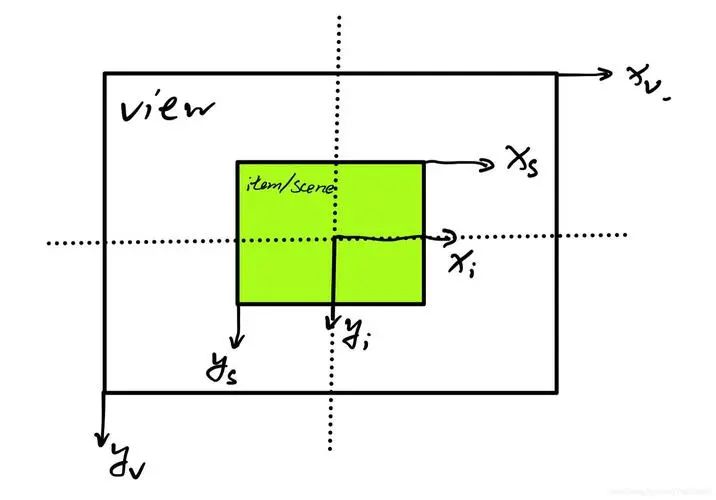
Coordinate Transformations
In the QGraphicsView framework, it is often necessary to perform coordinate transformations between different coordinate systems. Here are some commonly used coordinate transformation functions:
-
QGraphicsView::mapToScene(): Converts view coordinates to scene coordinates.
-
QGraphicsView::mapFromScene(): Converts scene coordinates to view coordinates.
-
QGraphicsItem::mapFromScene(): Converts scene coordinates to item coordinates.
-
QGraphicsItem::mapToScene(): Converts item coordinates to scene coordinates.
-
QGraphicsItem::mapToParent(): Converts child item coordinates to parent item coordinates.
-
QGraphicsItem::mapFromParent(): Converts parent item coordinates to child item coordinates.
-
QGraphicsItem::mapToItem(): Converts the current item coordinates to another item’s coordinates.
-
QGraphicsItem::mapFromItem(): Converts another item’s coordinates to the current item’s coordinates.
Example Code
#include <QApplication>#include <QGraphicsScene>#include <QGraphicsView>#include <QGraphicsRectItem>#include <QVBoxLayout>class MainWindow : public QWidget { Q_OBJECTpublic: MainWindow() { QGraphicsScene *scene = new QGraphicsScene(this); scene->addRect(0, 0, 100, 100, QPen(), QBrush(Qt::blue)); QGraphicsView *view = new QGraphicsView(scene, this); view->setRenderHint(QPainter::Antialiasing); view->setInteractive(true); QVBoxLayout *layout = new QVBoxLayout(this); layout->addWidget(view); }};int main(int argc, char *argv[]) { QApplication app(argc, argv); MainWindow window; window.show(); return app.exec();}#include "main.moc"In this example, we create a MainWindow class that contains a QGraphicsScene and a QGraphicsView widget. We add a blue rectangle to the scene and set the scene as the content to be displayed in the view. We also set the rendering hints and interactivity of the view. This way, users can interact with the view using the mouse and scroll wheel, such as zooming and scrolling to view different parts of the scene.
Example: Adding a Draggable Rectangle to the Scene
Suppose we have a QGraphicsScene, and we want to add a draggable rectangle to this scene. We will use QGraphicsView to display this scene and implement the dragging functionality using mouse events.
#include <QApplication>#include <QGraphicsScene>#include <QGraphicsView>#include <QGraphicsRectItem>#include <QMouseEvent>class DraggableRect : public QGraphicsRectItem {public: DraggableRect(QGraphicsItem *parent = nullptr) : QGraphicsRectItem(0, 0, 100, 100, QPen(), QBrush(Qt::blue)) { setPos(QPointF(50, 50)); // Initial position }protected: void mousePressEvent(QGraphicsSceneMouseEvent *event) override { dragPosition = event->scenePos(); // Record the position in scene coordinates QGraphicsRectItem::mousePressEvent(event); } void mouseMoveEvent(QGraphicsSceneMouseEvent *event) override { QPointF delta = event->scenePos() - dragPosition; // Calculate the distance moved setPos(mapToParent(delta + pos())); // Update position QGraphicsRectItem::mouseMoveEvent(event); }private: QPointF dragPosition;};int main(int argc, char *argv[]) { QApplication a(argc, argv); QGraphicsScene scene; scene.setSceneRect(0, 0, 800, 600); // Set scene size DraggableRect *rect = new DraggableRect(); // Create a draggable rectangle scene.addItem(rect); QGraphicsView view(&scene); view.setRenderHint(QPainter::Antialiasing); view.show(); return a.exec();}In this example, we create a custom QGraphicsRectItem class called DraggableRect, which overrides the mousePressEvent and mouseMoveEvent methods to handle dragging events.
-
In mousePressEvent, we record the position in the scene coordinate system when the mouse is pressed.
-
In mouseMoveEvent, we calculate the distance the mouse has moved and use the mapToParent method to convert this distance to displacement in the parent coordinate system, then update the rectangle’s position.
This example demonstrates how to use the scene coordinate system and item coordinate system in the QGraphicsView framework, as well as how to implement user interaction by overriding event handling functions. In this way, you can create 2D graphical applications with rich interactive features. 
Want to know more
Quickly scan the code to follow