Click the above “Mechanical and Electronic Engineering Technology” to follow us
1. Introduction
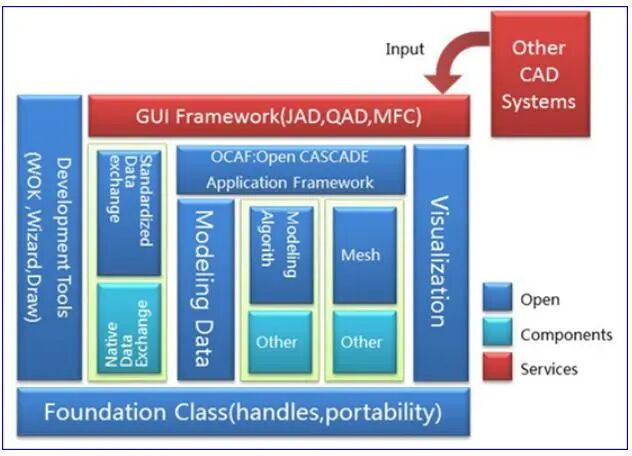
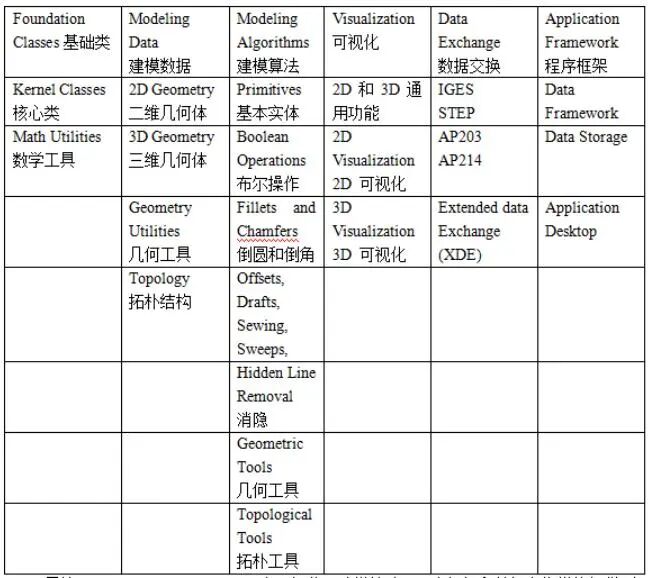
The Open CASCADE (OCC) platform is a CAD/CAE/CAM software platform developed by the French company Matra Datavision, and it is one of the most important geometric modeling software platforms in the world. The open-source OCC object library is an object-oriented C++ library designed for the rapid development of professional applications in the design field. OCC is primarily used for developing two-dimensional and three-dimensional geometric modeling applications, including general or specialized computer-aided design (CAD) systems, applications in manufacturing or analysis, simulation applications, or graphical presentation tools. OCC provides six modules through an organically organized C++ library file. The visualization module, as the core part of OCC, embodies the visualization technology.
2. Download
2.1 Download Visual Studio 2022 Community
https://visualstudio.microsoft.com/en-us/vs/
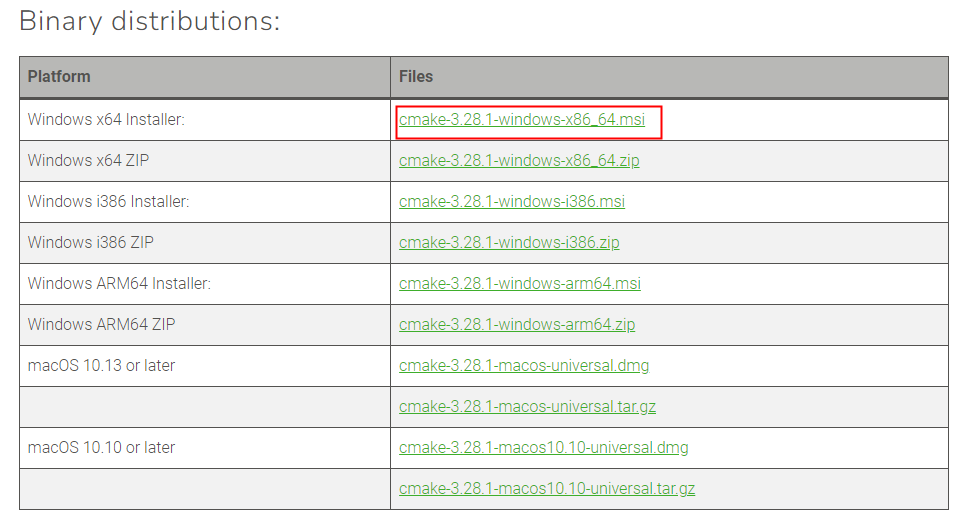
2.2 Download CMake Tool
https://cmake.org/download/, just select the latest version
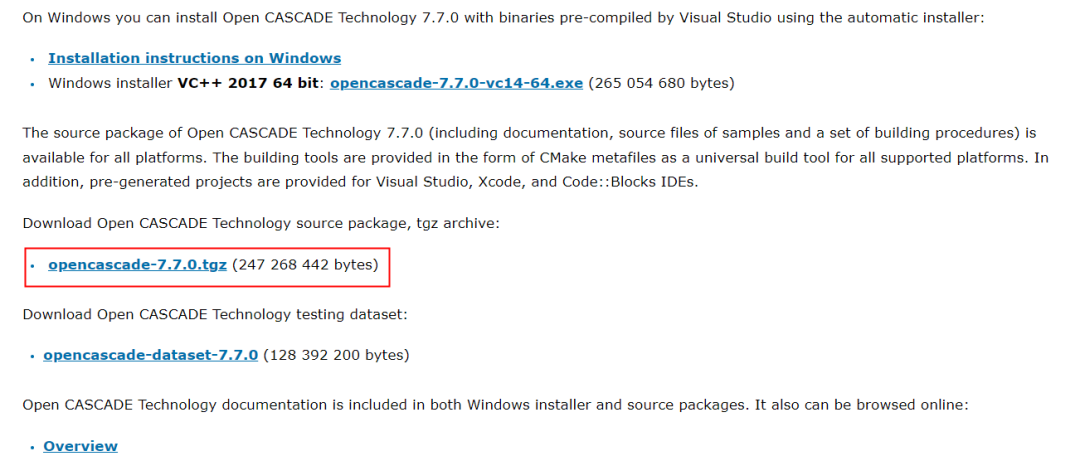
2.3 Download Source Code
https://dev.opencascade.org/release, download version 7.7.0 from the official website
2.4 Download Third-Party Plugins
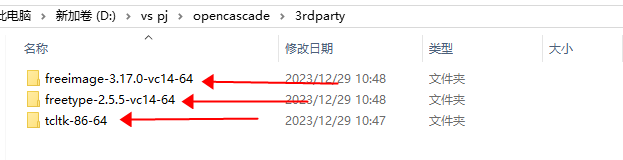
https://dev.opencascade.org/resources/download/3rd-party-components, download third-party plugins from the official website, at least download the three dependency packages: freeimage-3.17.0-vc14-64, freetype-2.5.5-vc14-64, tcltk-86-64.
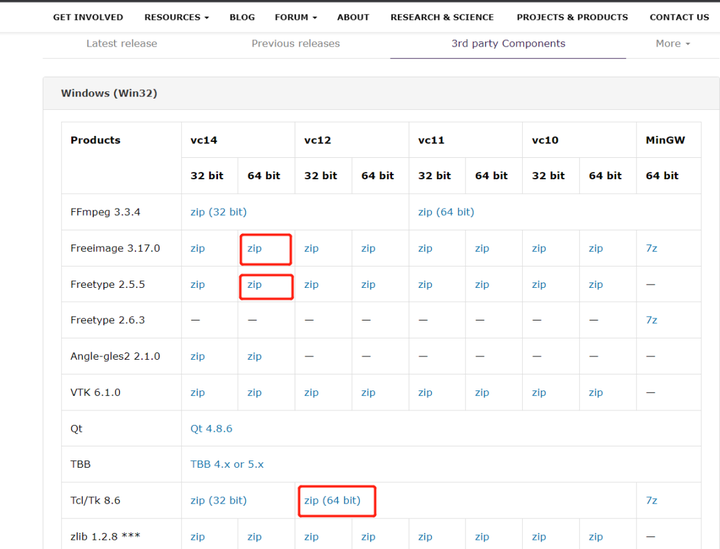
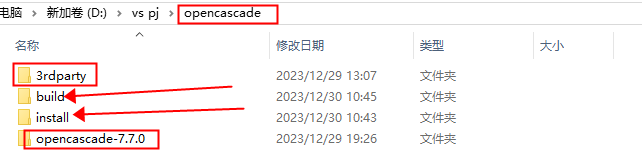
Finally, unzip the source code into a directory, create a folder named 3rdparty for the unzipped dependency packages, and create two additional folders named build and install in that directory.
3. Installation
3.1 Install Visual Studio 2022 Community
Select C++ Desktop Development, ensure that MSVC, Windows 10 SDK, and C++ CMake tools are checked, and select the rest as needed. Modify the installation location as necessary and proceed with the installation.
3.2 Install CMake
Install with default options.
4. Compile Source Code
Open the CMake tool and first configure the OCC source location and the temporary build directory.
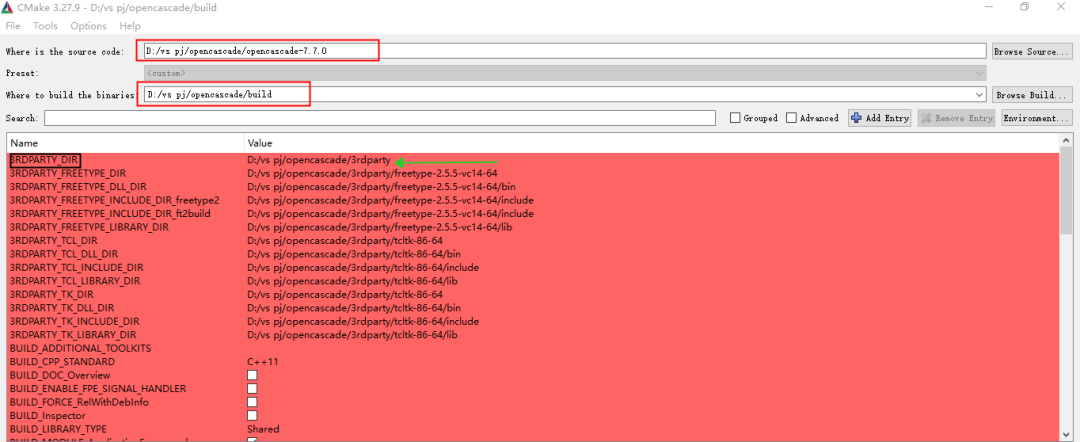
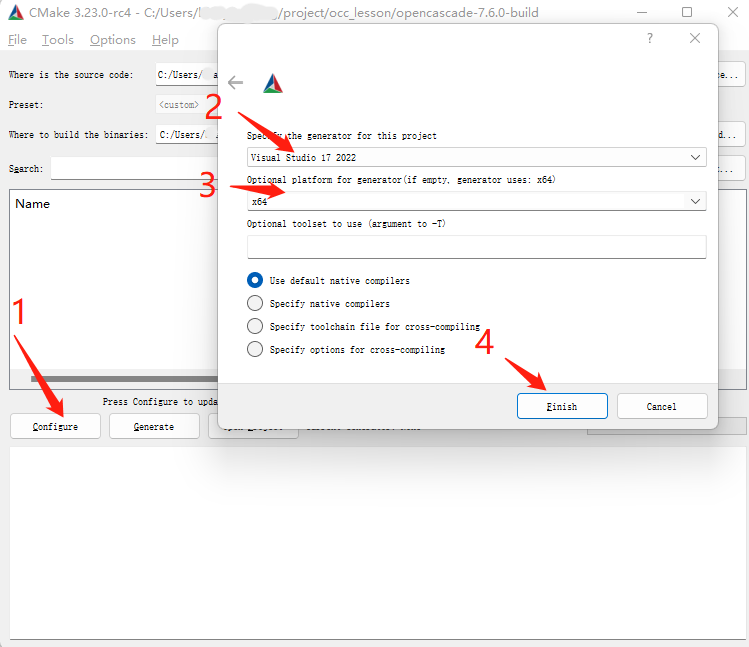
Then click Configure, select “Visual Studio 17 2022”, and choose X64 for compilation.
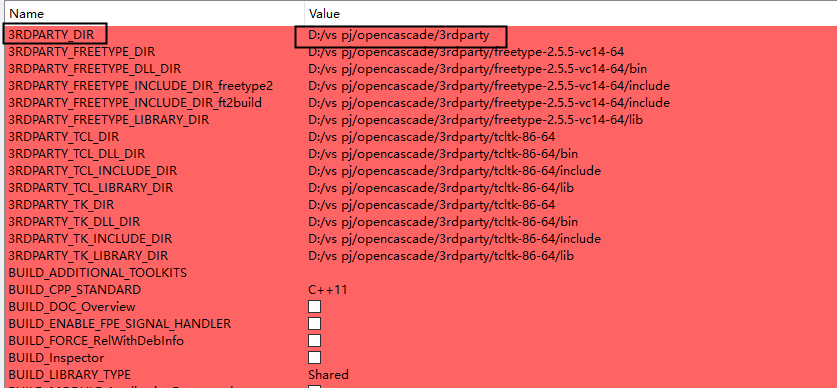
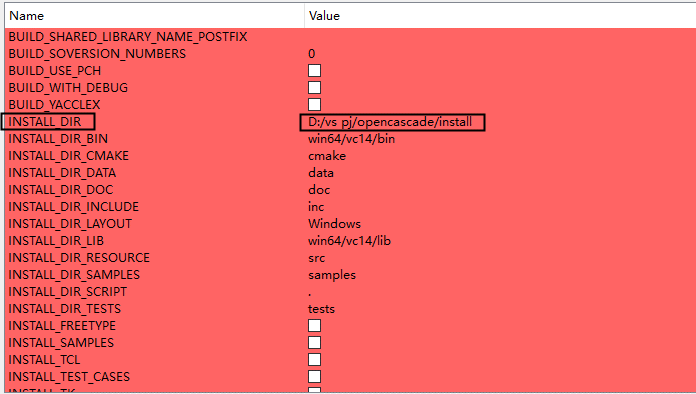
Next, configure the CMake options for 3RDPARTY_DIR to point to the 3rdparty directory where the dependencies are placed, and set INSTALL_DIR to the install directory.
After configuring, click Configure again, then click Generate, and finally click Open Project.
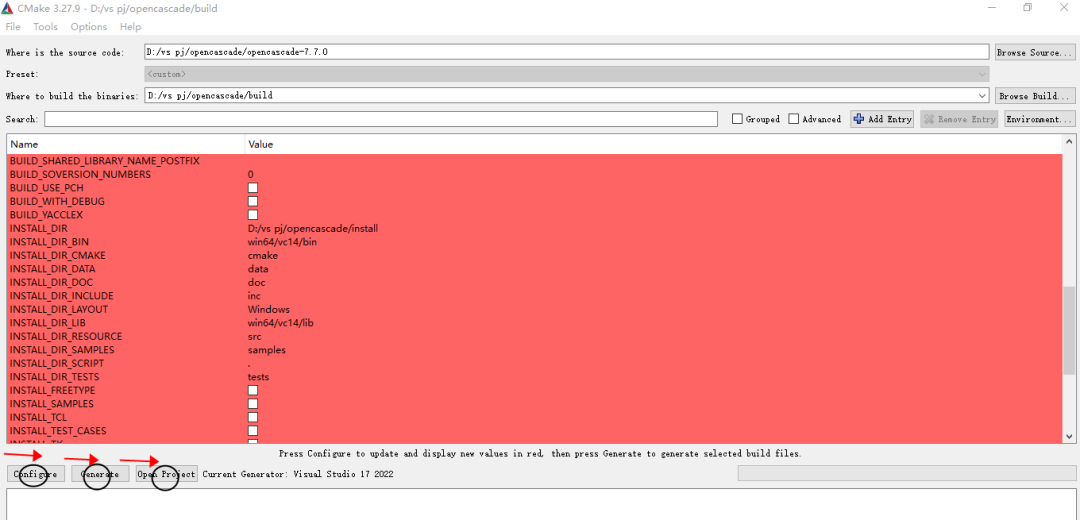
This will automatically open Visual Studio. Right-click on the solution and build the solution to start the build process.
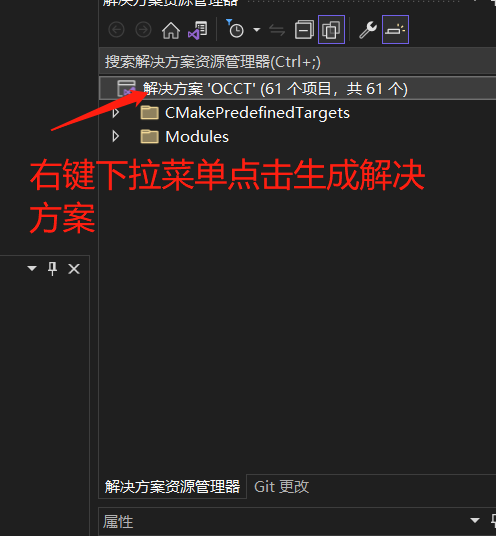
Now comes the long wait.
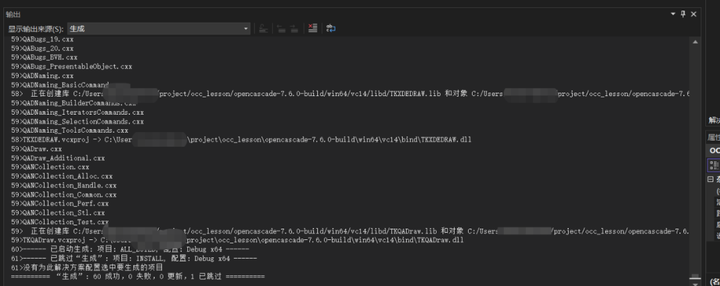
Once you see that the build is successful and there are no errors, you are done.
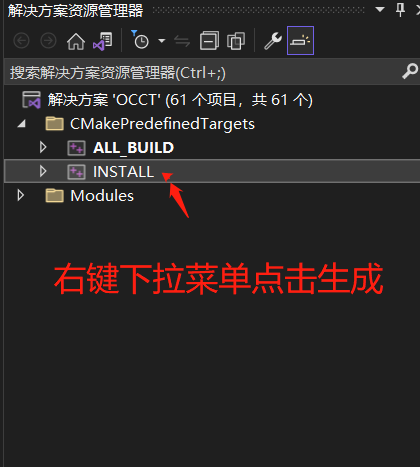
Then right-click on INSTALL in the solution explorer, click build, and execute make install. This will install the compiled files into the specified install directory.
5. Testing
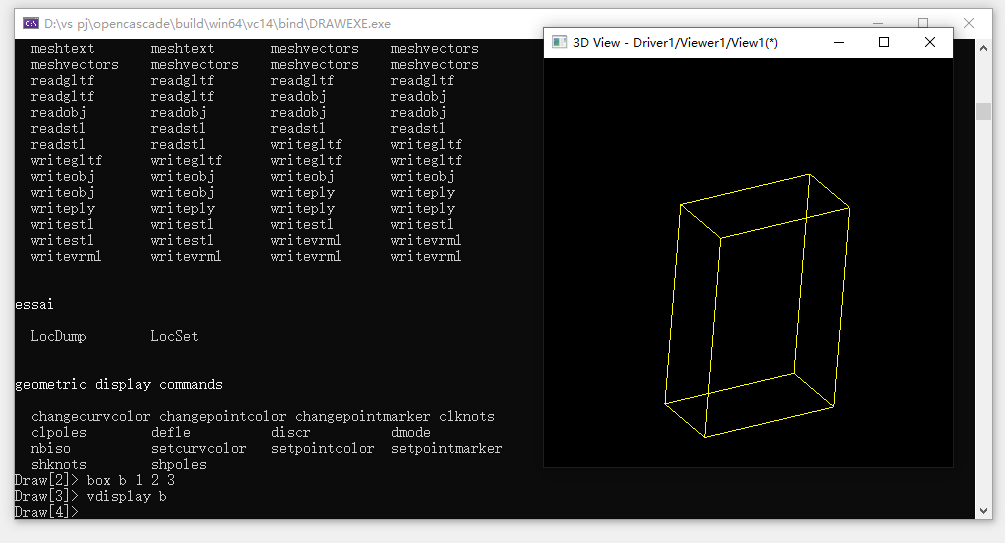
The build is now complete, and you can run DRAWEXE to test if the functionality is working properly.
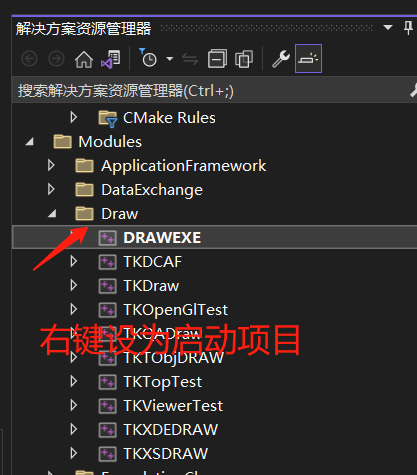
Right-click on DRAWEXE in the dropdown menu and set it as the startup project, then press CTRL+F5 to execute. You can test the DRAWEXE command in the opened command window.
References
https://dev.opencascade.org/doc/overview/html/build_upgrade__building_occt.html

To learn more
Quickly scan the code to follow