The previous article introduced how to create and manage projects using Python.Next, we will continue to use PyCharm for file and folder operations in Python.
 1. Basic Operations on Files and Folders1.1 Create New File/Folder
Right-click menu creation
1. In the Project View, right-click on the target directory
2. Select: New → Python File (to create a .py file); New → Directory (to create a folder); Other file types (HTML, JSON, etc.)
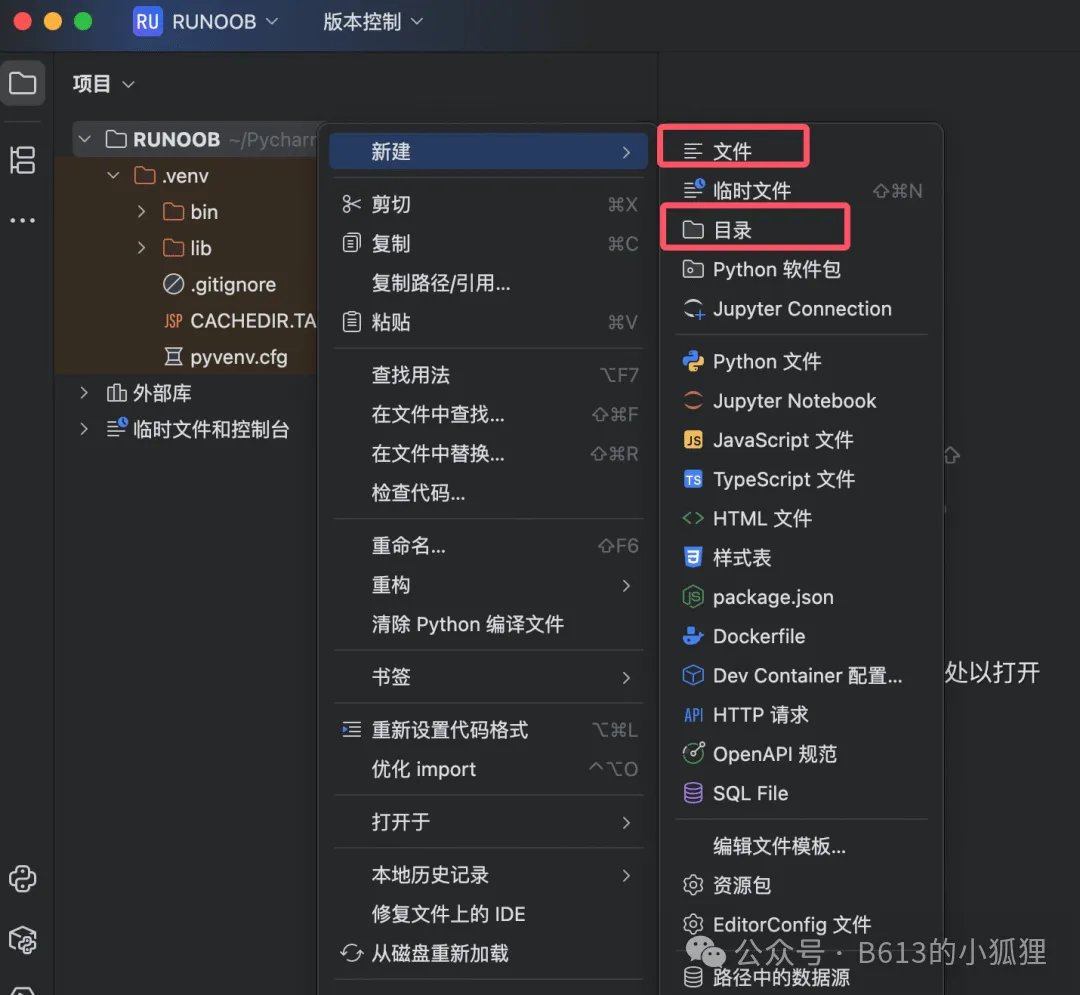 1.2 Rename File/FolderIn PyCharm, select the file or folder and press Shift+F6 to rename it, which will automatically update the relevant references in the code.Alternatively, right-click and click Refactor (Refactor) then click Rename.Note: Some tutorials recommend against directly renaming, as it may break code references, but I found that the current version should not have this issue.1.3 Move and Delete Files/FoldersSimilarly, use the right-click refactor option to move files; dragging files is not recommended. The shortcut for moving files/folders is F6.“Delete” is the same; it is not recommended to delete directly with Delete, but to use refactor for deletion. The shortcut is Alt+Delete.2. File Content Operations2.1 Quick Navigation (Finding File Code)
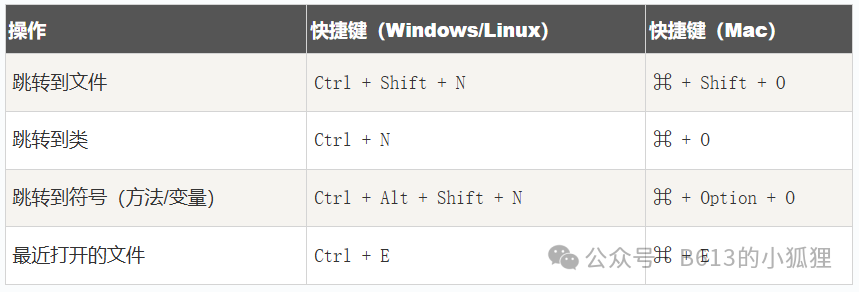 The first three are actually to bring up the search box, as shown below:
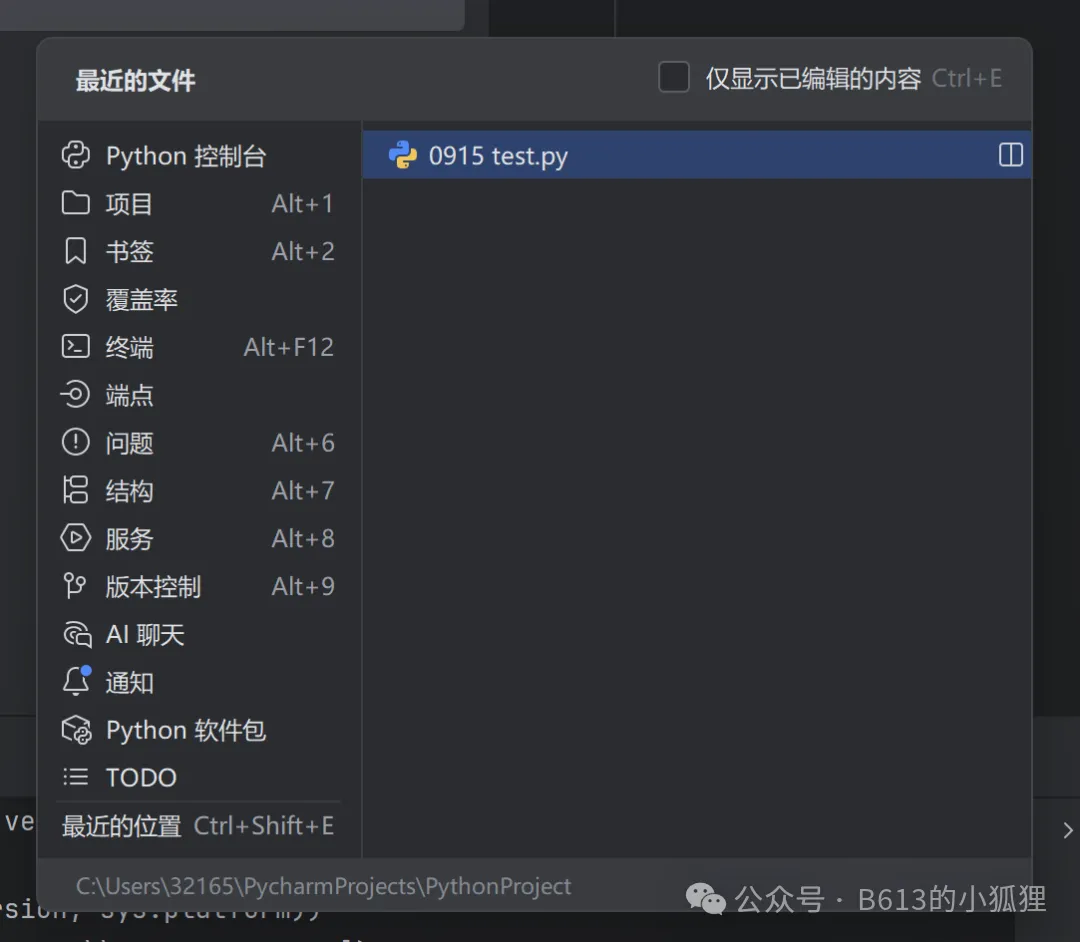
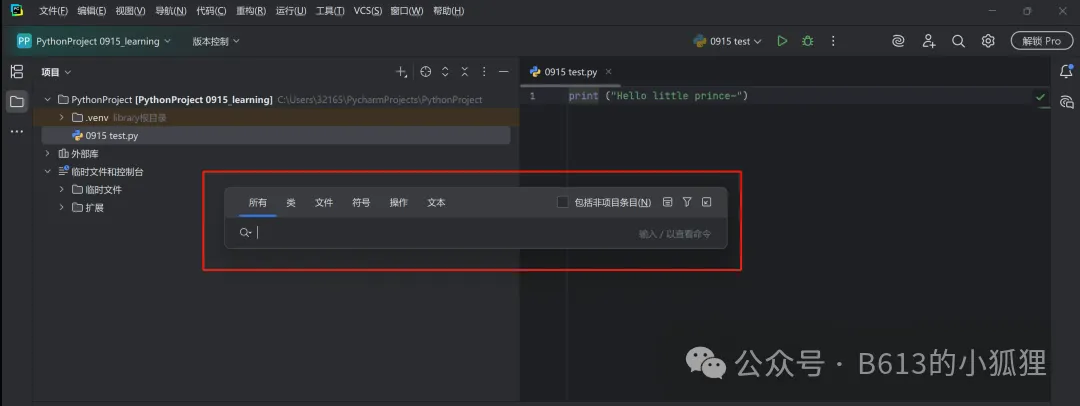 The fourth is to find recently opened files:
 2.2 Code Search and Replace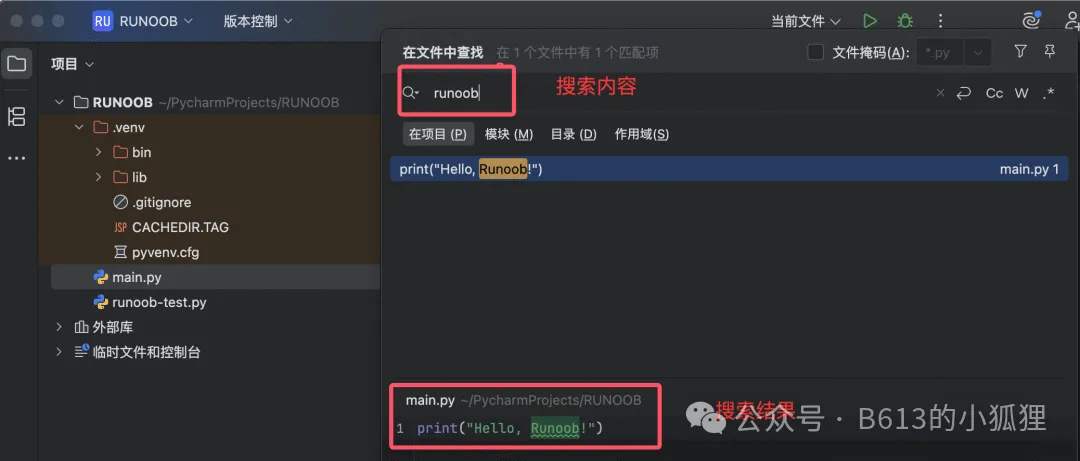
Project-wide Search
1. Global Search: Ctrl+Shift +F supports regular expressions, case matching, and file type filtering
2. Current File Search: Ctrl +F
Replace Operations
1. Global Replace: Ctrl+ Shift +R
2. Current File Replace: Ctrl+R
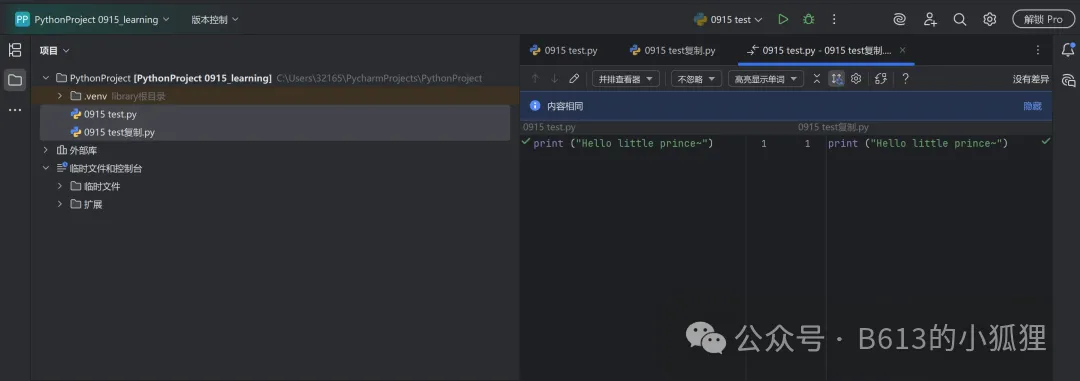
2.3 File Comparison
Select two files → right-click → Compare Files or use version control tools to view file modification differences
 3. Advanced File Management Techniques3.1 File TemplatesYou can customize the default content when creating new files: Settings → Editor → File and Code Templates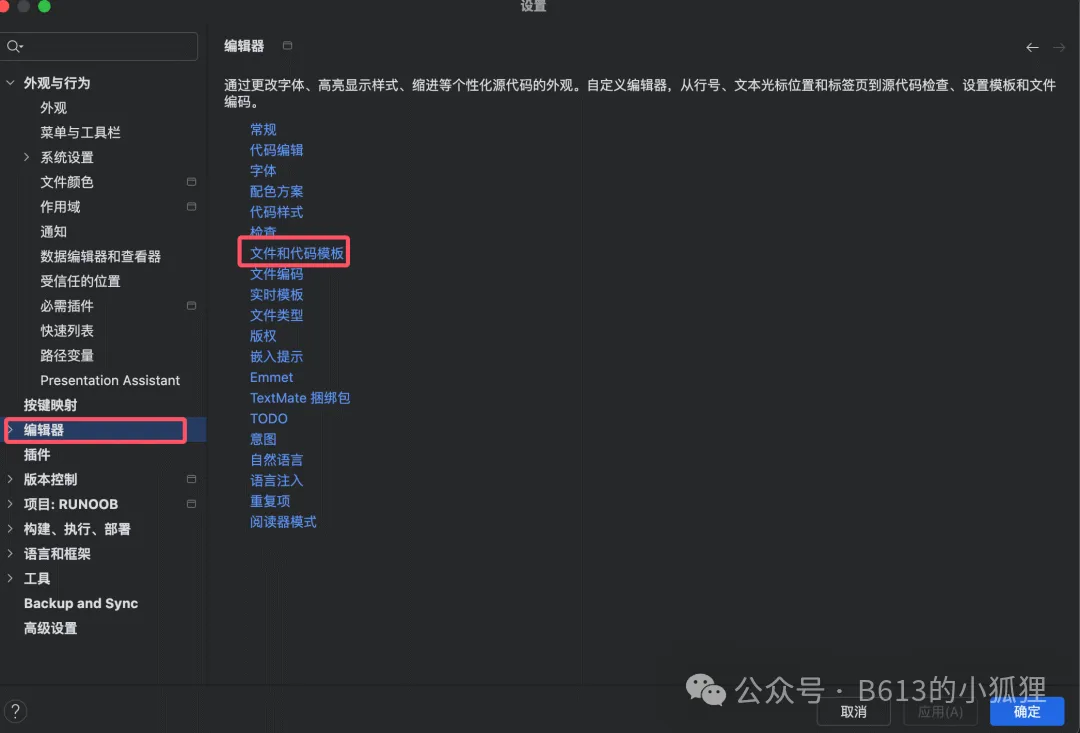
Select Python Script, modify the template:
#!/usr/bin/env python# -*- coding: utf-8 -*-"""@Author: ${USER}@Date: ${DATE}@Description: """def main(): passif __name__ == '__main__': main()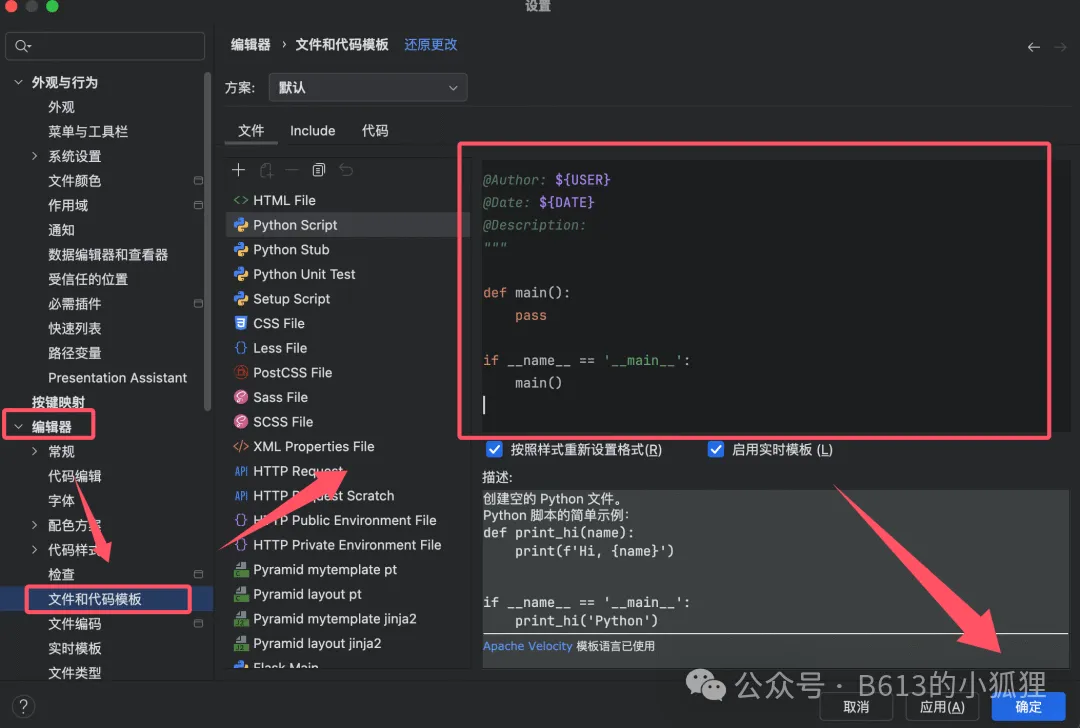
This is the configuration step for customizing the default template for new Python files in PyCharm, aimed at automatically generating some standardized code and comments (such as author, date, encoding declaration, etc.) to enhance code standardization and development efficiency.
Each part of the template has a specific function:
<span>#!/usr/bin/env python</span>(mainly for Linux/Unix systems), specifies that the script should be executed with the Python interpreter.- # -*- coding: utf-8 -*-Encoding declaration, specifies the file encoding as UTF-8 to avoid garbled characters for Chinese and other special characters.
- Triple quotes comment block (
<span>""" ... """</span>): - @Author: ${USER} automatically fills in the current system username as the author.
- @Date: ${DATE} automatically fills in the current date.
- @Description: a reserved field for function description, convenient for developers to fill in.
- def main(): and
<span>if __name__ == '__main__':</span>: This is Python’s modular execution specification — placing the core logic in the<span>main</span>function, ensuring that the<span>main()</span>function is only executed when the script is run directly, facilitating script reuse and modular development.
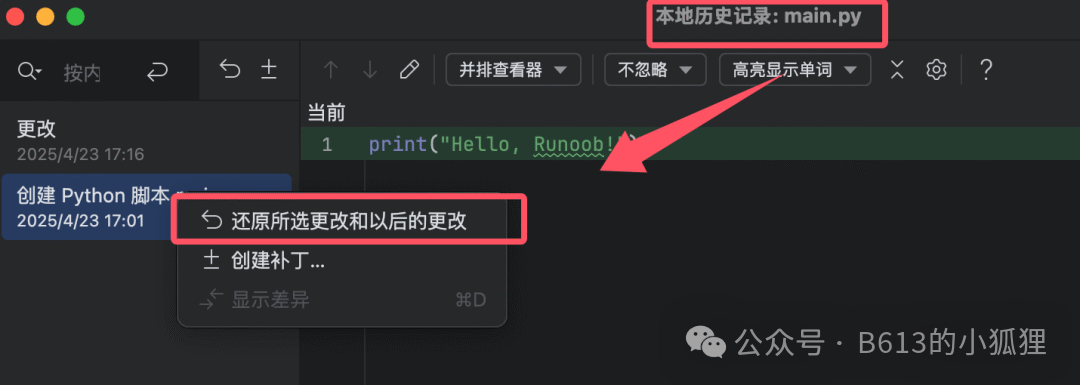
Additional enhancements can be ignored.3.2 Local HistoryPyCharm automatically records file modification history (no need for Git): right-click the file → Local History → Show History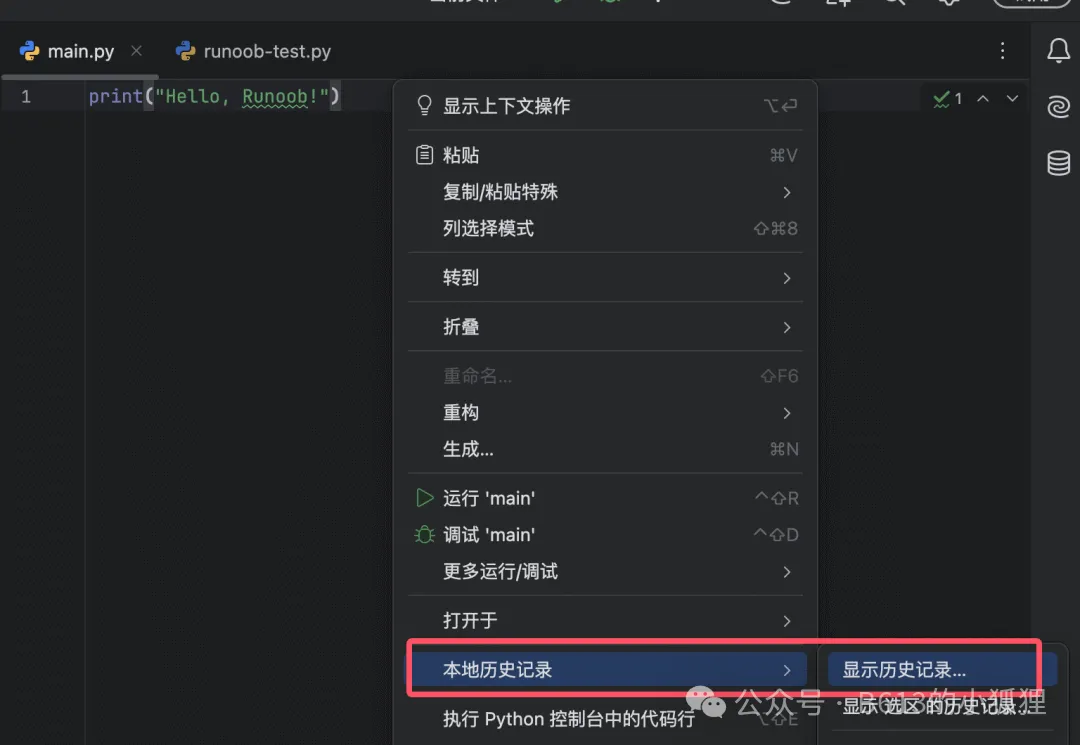 You can restore any version from any point in time
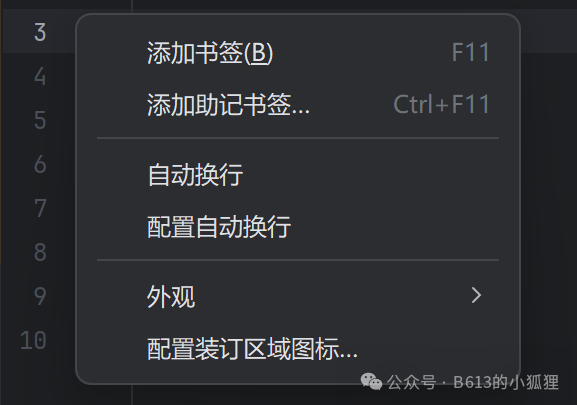
 3.3 File Marking1) BookmarksRight-click to add a bookmark, or pressF11 (line-level)/ Ctrl + F11 (with mark).These help quickly locate key lines of code, such as viewing specific function definitions, debugging points, etc. When handling large projects, you can also bookmark important lines, files, or folders for easy retrieval, and combined with task management plugins, you can mark unfinished tasks, bug locations, etc., making the workflow more organized.
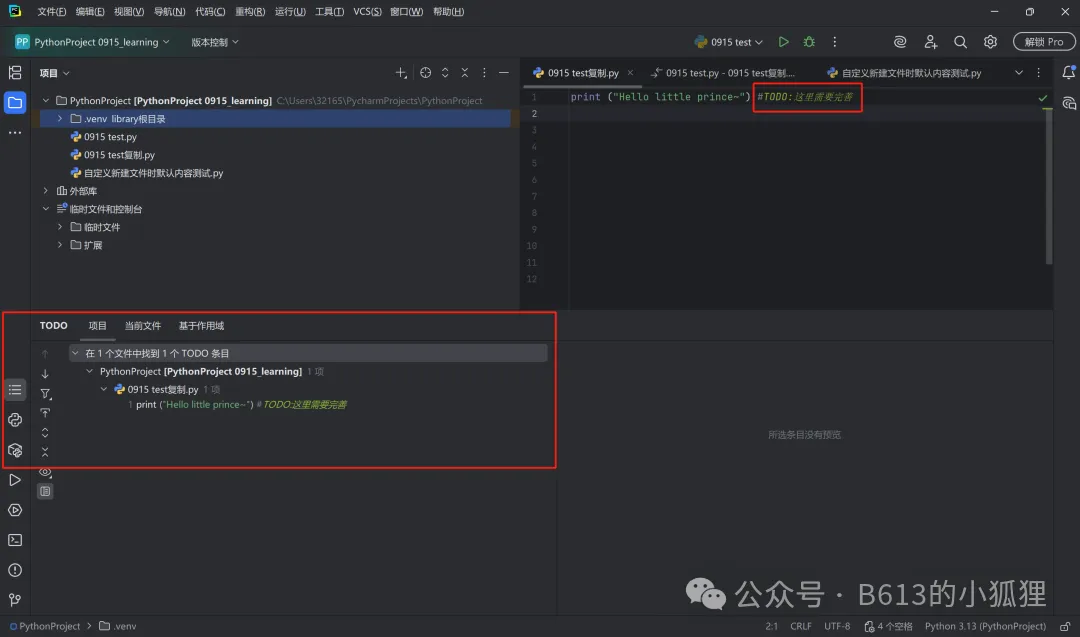
 2) TODO CommentsThis works similarly to bookmarks, it is a special marker. After adding TODO comments in the code, such as “# TODO: Need to improve functionality here”, these comments will be displayed collectively in the TODO tool window, making it easy to find unfinished or pending code sections.
 4 SummaryToday, following the introduction of project folders, we learned about the basic operations of PyCharm’s projects and various folders, laying the foundation for future use of PyCharm to create projects for Python coding.The next article will be about formal code editing.
That’s it, bye~
 —END—Thank you for reading this far. If this article has been helpful to you, feel free to give us a thumbs up.⭐~ See you next time.>/ Author: K
>/ Exploring how to use AI to serve work and life, newcomers are welcome to follow along for mutual progress~