Table of Contents
Series Article Directory
Introduction
1 Subscription Options
1.1 Overview of Subscription Options
1.2 QoS
1.2.1 Overview of QoS Subscription Options
1.2.2 QoS Subscription Options Demonstration
1.3 No Local
1.3.1 Overview of No Local Subscription Options
1.3.2 No Local Subscription Options Demonstration
Allow Forwarding
Disallow Forwarding
1.4 Retain As Published
1.4.1 Overview of Retain As Published Subscription Options
1.4.2 Retain As Published Subscription Options Demonstration
1.5 Retain Handling
1.5.1 Overview of Retain Handling Subscription Options
1.5.2 Retain Handling Subscription Options Demonstration
2 Shared Subscription
2.1 Overview of Shared Subscription
2.2 Classification of Shared Subscription
2.2.1 Shared Subscription with Group
2.2.2 Shared Subscription without Group
2.3 Shared Subscription Demonstration
2.4 Load Balancing Algorithm
3 Exclusive Subscription
3.1 Overview of Exclusive Subscription
3.2 Exclusive Subscription Demonstration
4 Automatic Subscription
4.1 Configuring Automatic Subscription Rules
4.2 Demonstration of Automatic Subscription Usage
Summary
Introduction
1 Subscription Options
1.1 Overview of Subscription Options
The components of a subscription are:
1. Topic filter: Determines which topics the server will forward messages to us.
2. Subscription options: Allow us to further customize the server’s forwarding behavior.
MQTT 5.0 provides four subscription options: QoS, No Local, Retain As Published, Retain Handling.
1.2 QoS
1.2.1 Overview of QoS Subscription Options
QoS is the most commonly used subscription option, indicating the maximum QoS level that the server can use when sending messages to the subscriber.
Situation 1: The maximum QoS supported by the server < the maximum QoS requested by the client during subscription.
The server will not be able to meet the client’s request, and will inform the subscriber of the final granted maximum QoS level through the subscription response message (SUBACK). The subscriber can then evaluate whether to accept and continue communication.

Situation 2: The maximum QoS requested during subscription < the QoS of the message being published.
To deliver messages as much as possible, the server will not ignore these messages, but will downgrade the QoS of these messages during forwarding.

1.2.2 QoS Subscription Options Demonstration
The specific steps are as follows:
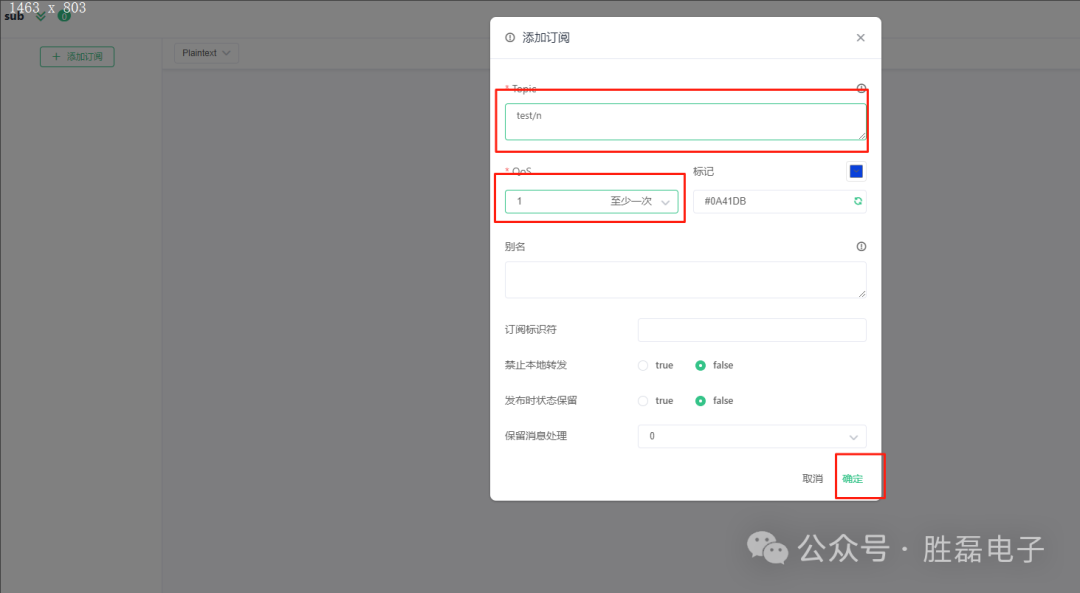
1. Create a sub client connection, subscribe to the test/n topic, and specify QoS as 1.
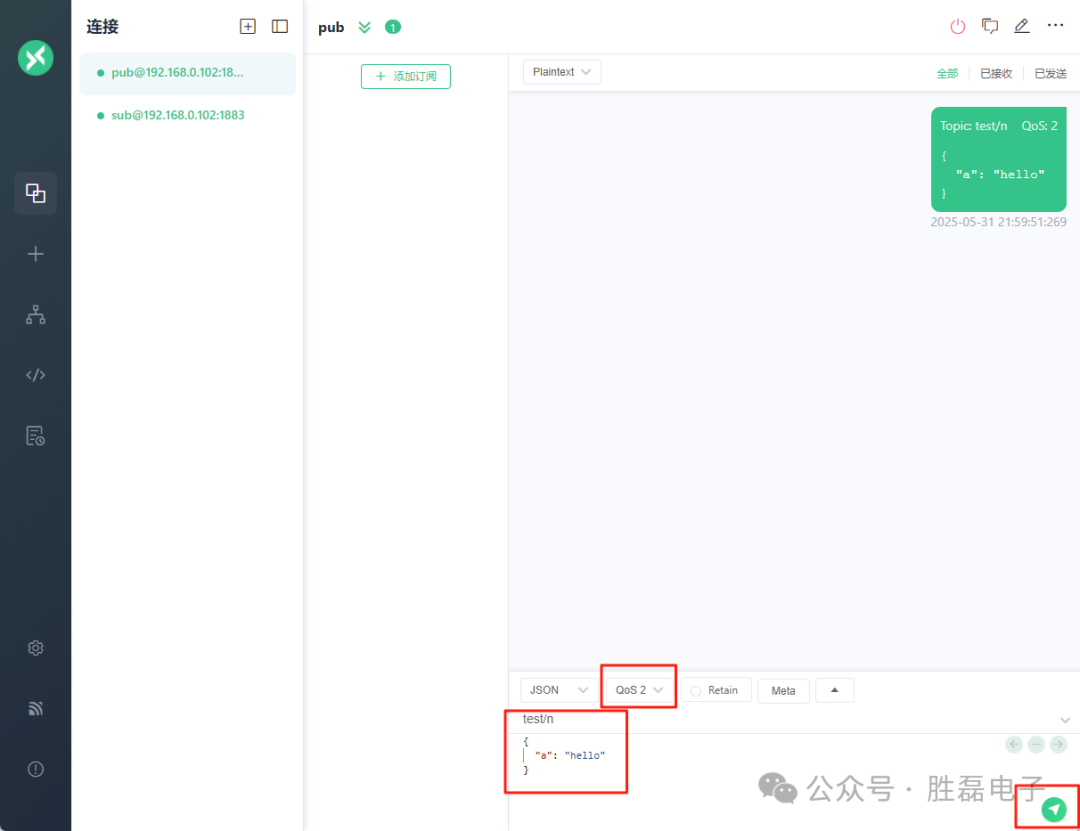
2. After successful subscription, use the pub client connection to publish messages to the test/n topic, specifying the QoS level as 2.
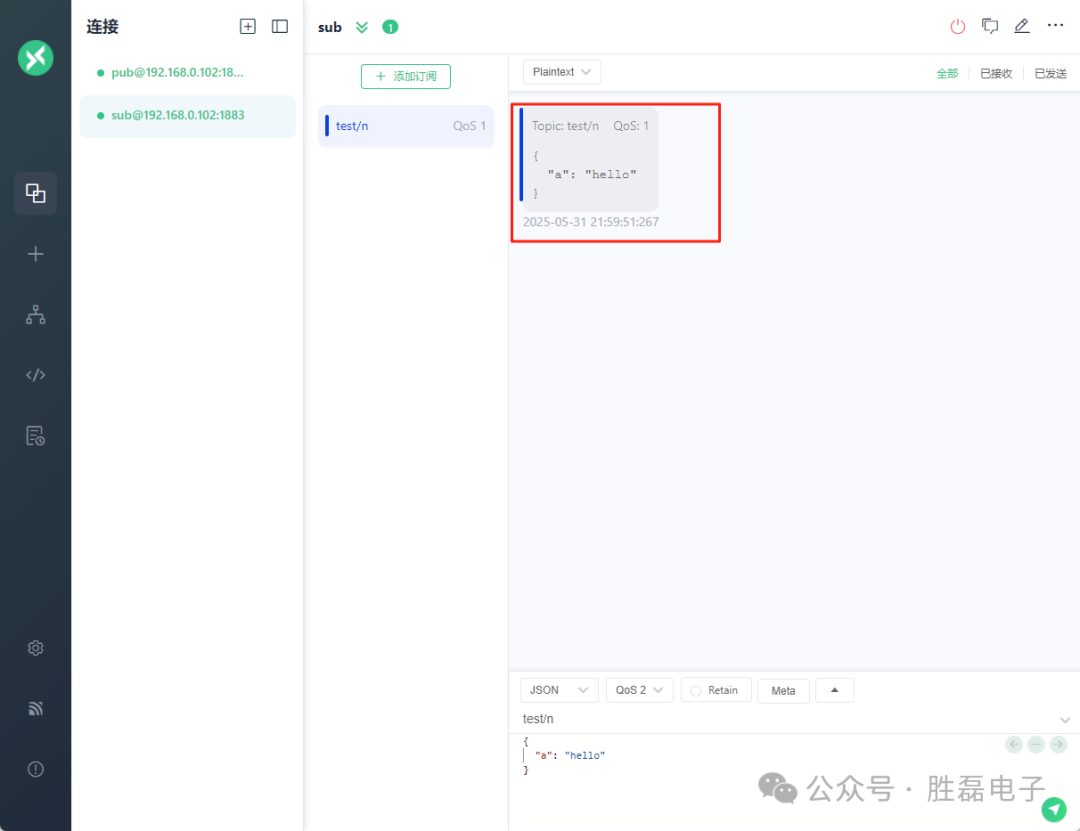
3. Result: The QoS value of the message received by the sub client is 1.
1.3 No Local
1.3.1 Overview of No Local Subscription Options
No Local values:
1. 0 (default): The server can forward messages to the client that published the message.
2. 1: The server cannot forward messages to the client that published the message.
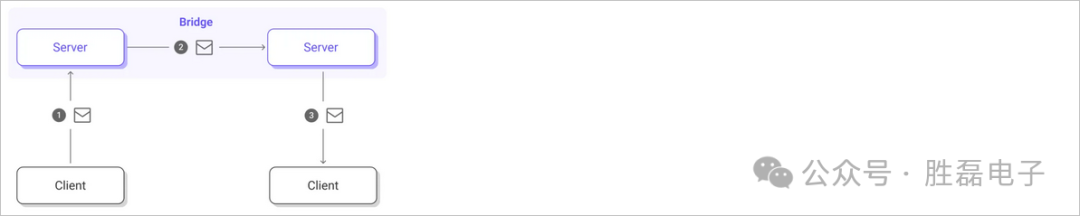
This subscription option is often used in bridging scenarios, where two MQTT servers establish an MQTT connection and subscribe to some topics from each other. The server forwards the client’s messages to another server, which can then continue to forward messages to its clients.
In bridging scenarios, if the No Local subscription option is not set to 1, it may lead to a forwarding storm.
Example: Suppose there are two MQTT servers, Server A and Server B, both subscribing to the # topic from each other. Now, if Server A forwards some messages from clients to Server B, when Server B looks for matching subscriptions, Server A will also be included. If Server B forwards the messages back to Server A, then Server A will receive the messages and forward them again to Server B, resulting in an endless forwarding storm.
However, if both Server A and Server B set the No Local option to 1 while subscribing to the # topic, this problem can be perfectly avoided.
1.3.2 No Local Subscription Options Demonstration
Allow Forwarding
Specific steps:
1. Create a sub client connection, subscribe to the test/k topic, and set No Local subscription option to 0.
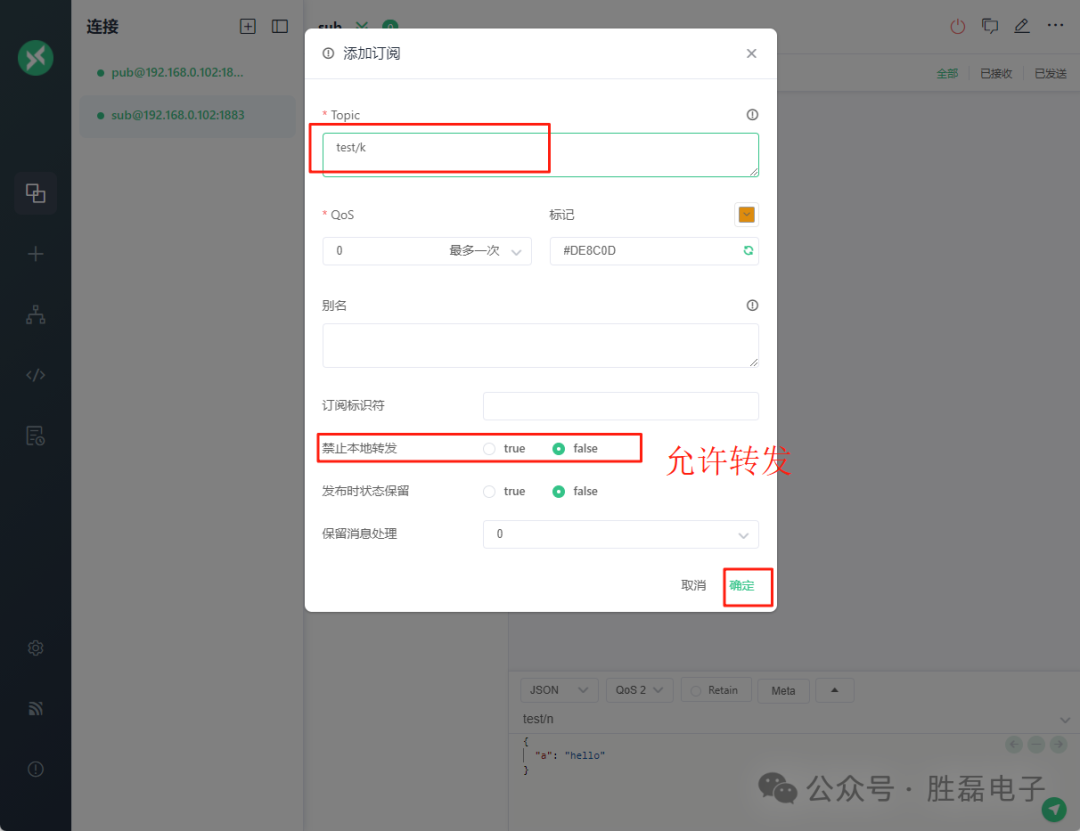
2. Use the sub client connection to publish messages to the test/k topic.
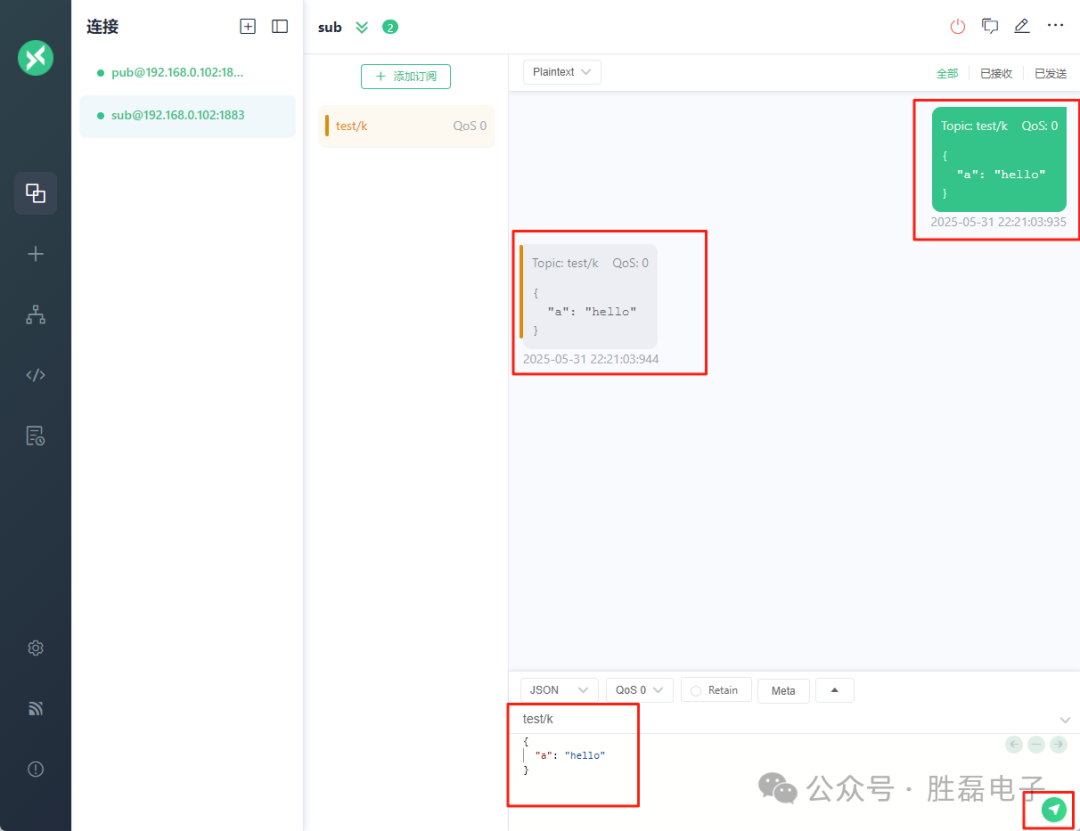
Result: The current client connection receives the message from that topic.
Disallow Forwarding
Specific steps:
1. Create a sub client connection, subscribe to the test/u topic, and set No Local subscription option to 1.
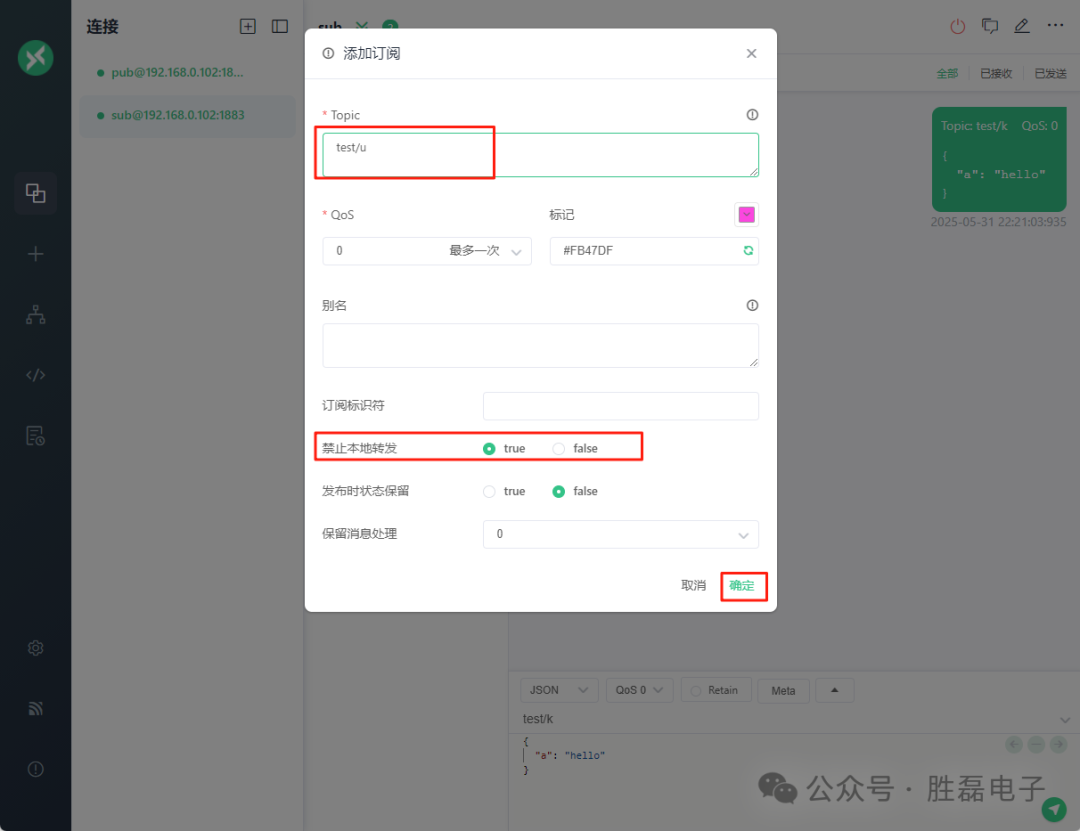
2. Use the sub client connection to publish messages to the test/u topic.
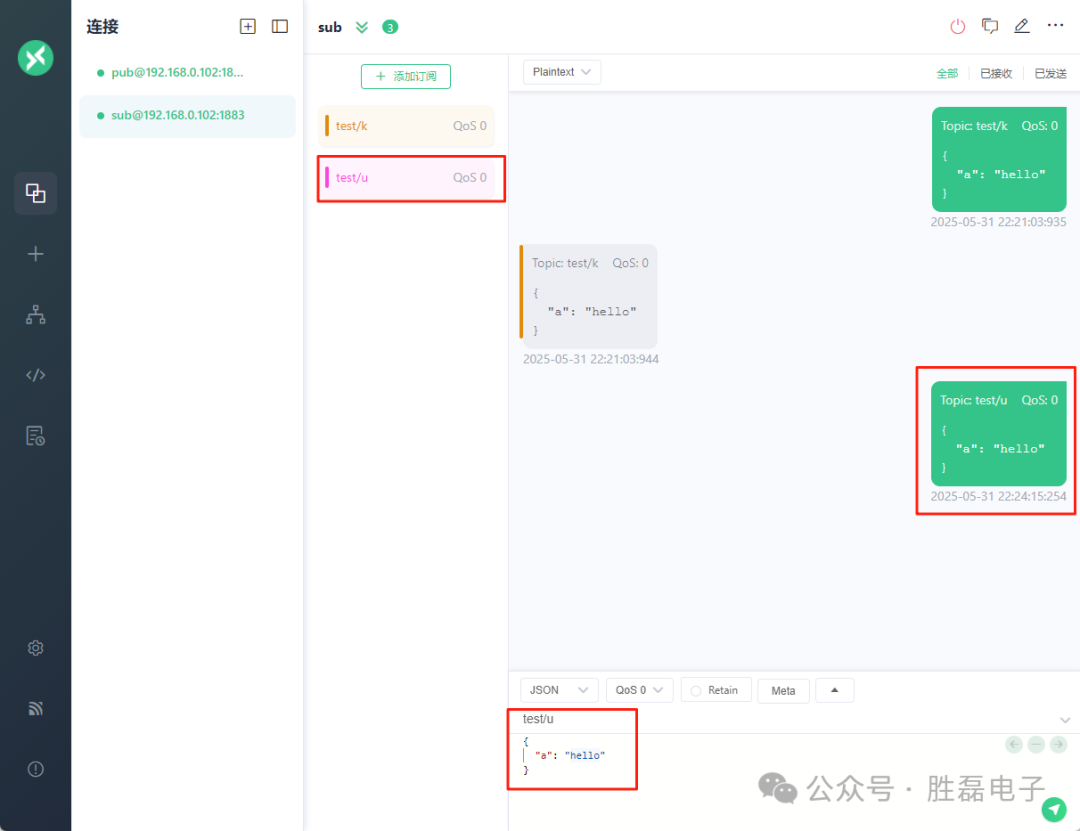
Result: The current client does not receive messages from that topic.
1.4 Retain As Published
1.4.1 Overview of Retain As Published Subscription Options
Retain As Published values:
1. 0 (default): The server must clear the Retain flag in the message when forwarding application messages to this subscription.
2. 1: The server must retain the Retain flag in the message when forwarding application messages to this subscription.
Application scenario: Bridging scenario
In bridging scenarios, this brings some issues. Continuing with the previous setup, when Server A forwards retained messages to Server B, since the Retain flag in the message has been cleared, Server B will not know that this was originally a retained message and will not store it. This leads to retained messages being unusable across bridges.
In MQTT 5.0, we can set the Retain As Published option to 1 when the bridging server subscribes to solve this problem.

1.4.2 Retain As Published Subscription Options Demonstration
The specific steps are as follows:
1. Create a sub client connection, subscribe to the test/demo01 and test/demo02 topics, and set Retain As Published to 0 and 1 respectively.
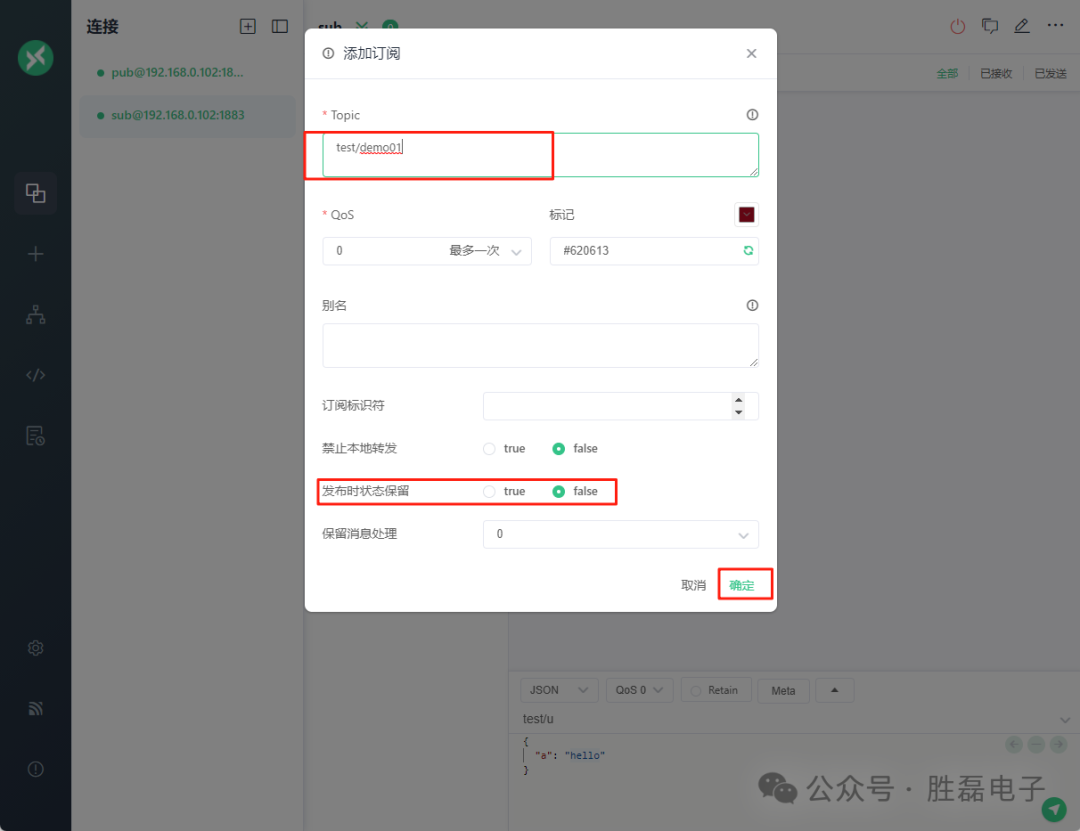
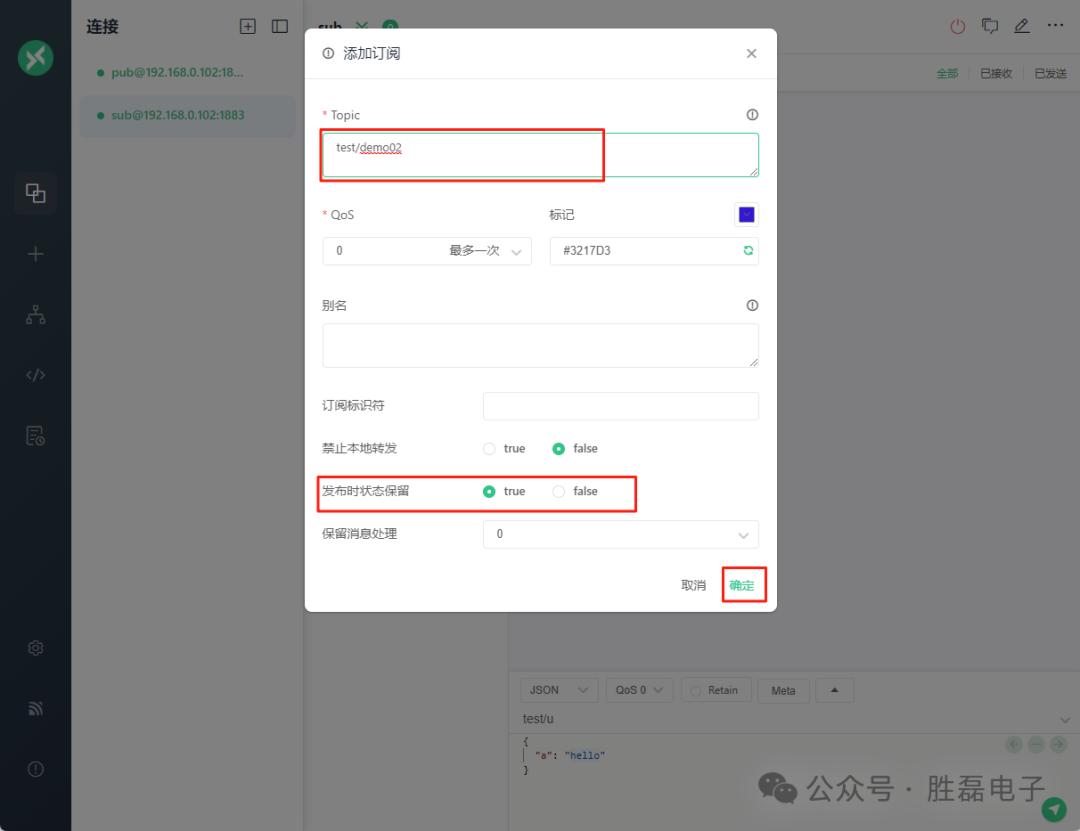
2. Use the sub client connection to publish retained messages to the sub/rap/demo01 and sub/rap/demo02 topics.
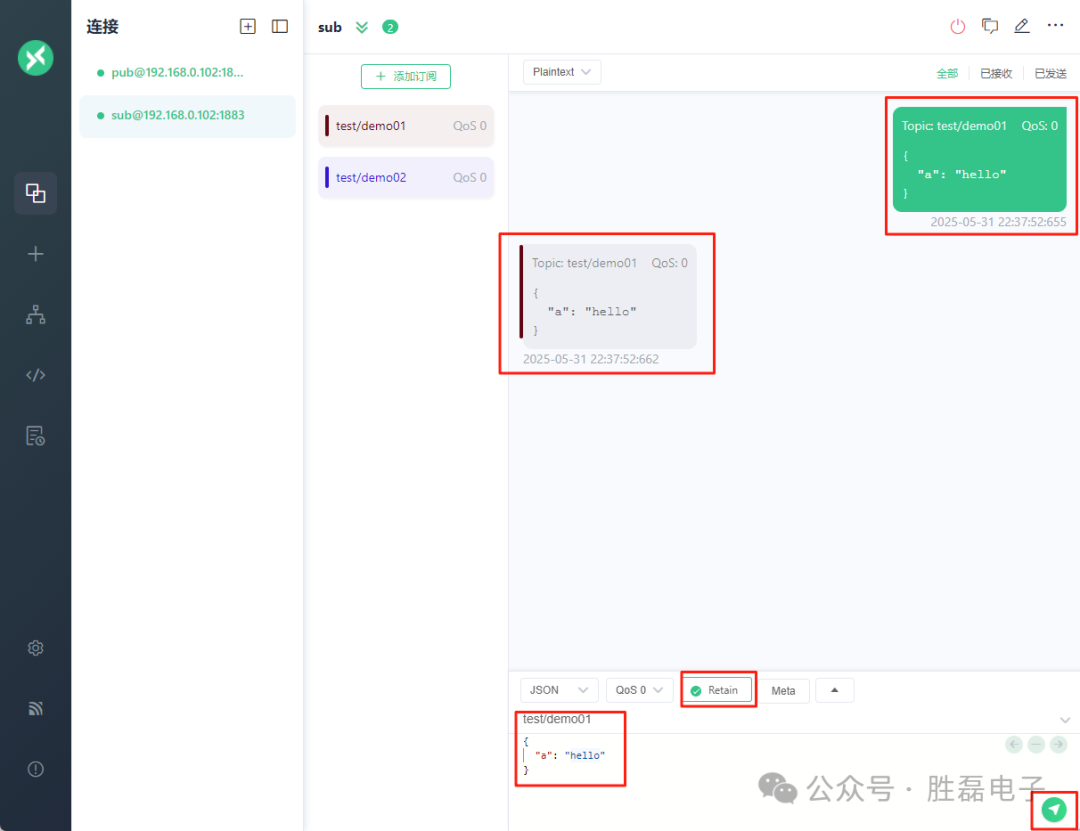
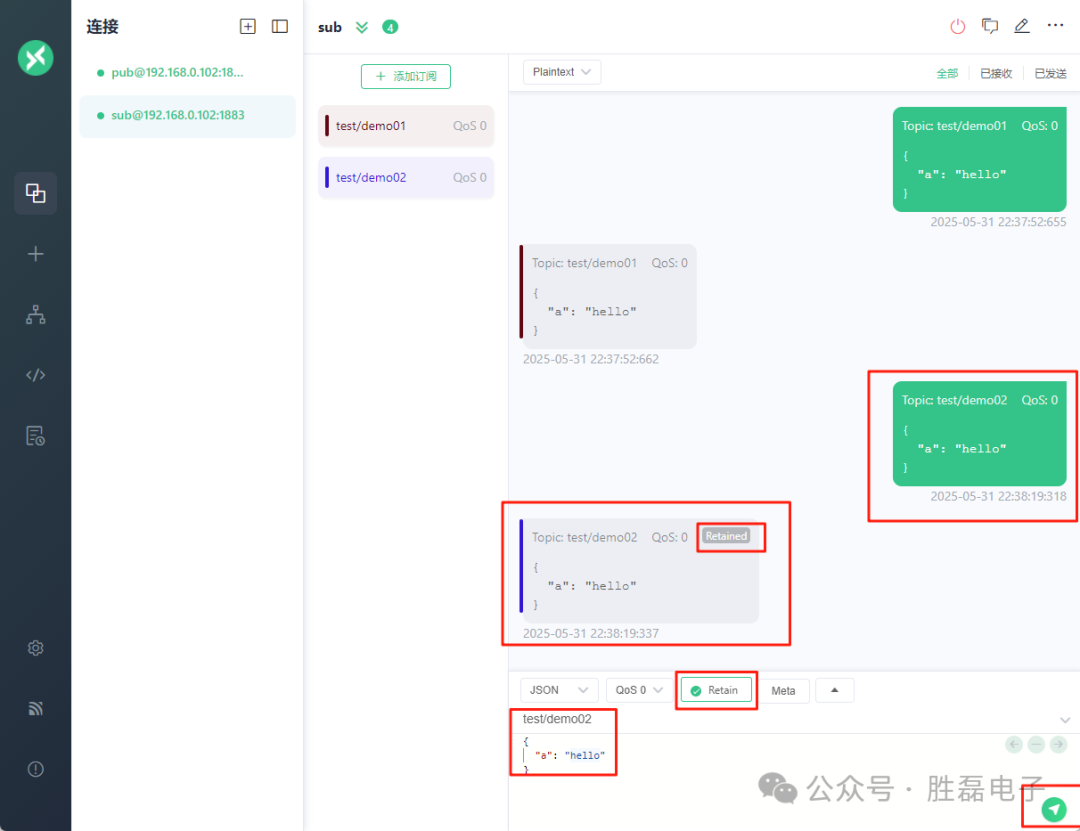
3. The result shows that only demo02 retained the retain flag.
1.5 Retain Handling
1.5.1 Overview of Retain Handling Subscription Options
Function: The Retain Handling subscription option is used to indicate to the server whether to send retained messages when the subscription is established.
Common values for Retain Handling:
1. 0 (default): Indicates that retained messages should be sent as long as the subscription is established;
2. 1: Indicates that retained messages should only be sent when establishing a new subscription, not a repeated one;
3. 2: Indicates that no retained messages should be sent when the subscription is established;
1.5.2 Retain Handling Subscription Options Demonstration
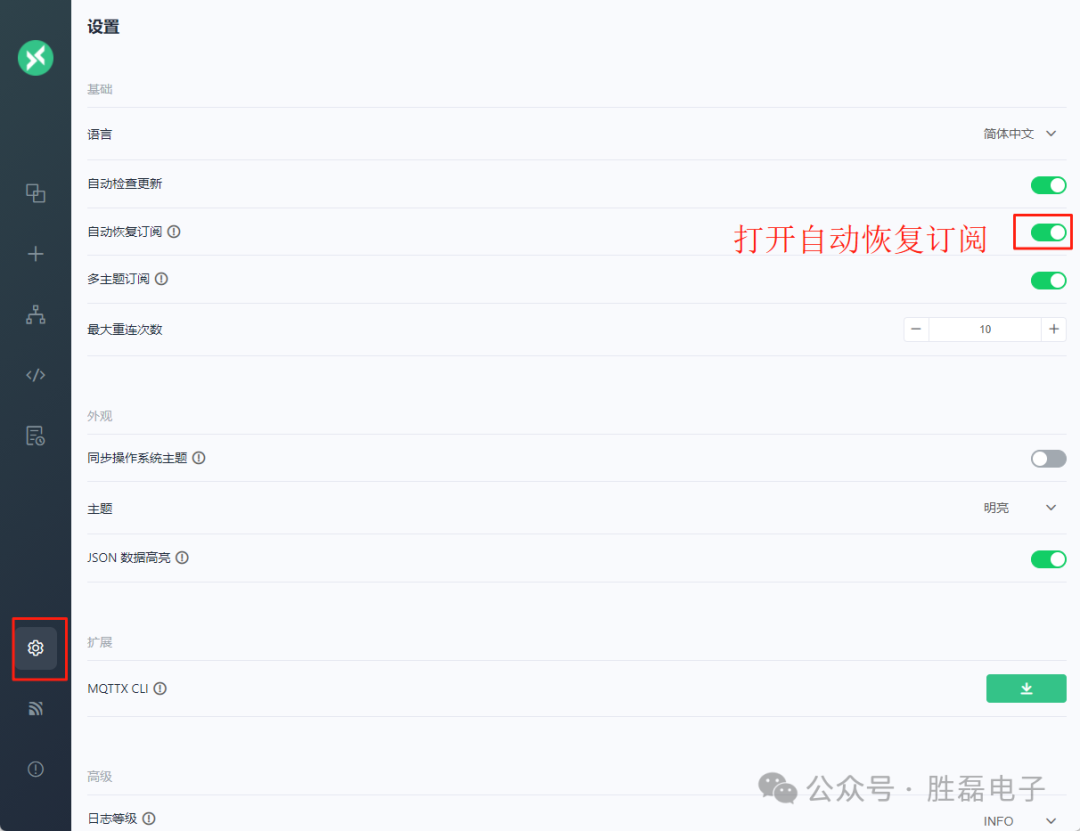
1. Before the demonstration, configure MQTTX.
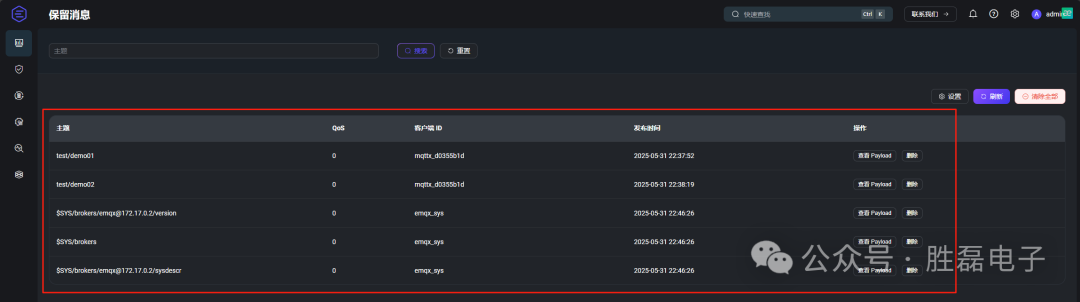
2. Check which retained messages are in EMQX.
The specific steps are as follows:
Situation 1: Set Retain Handling value to 0.
1. Enable the client’s automatic re-subscription feature.
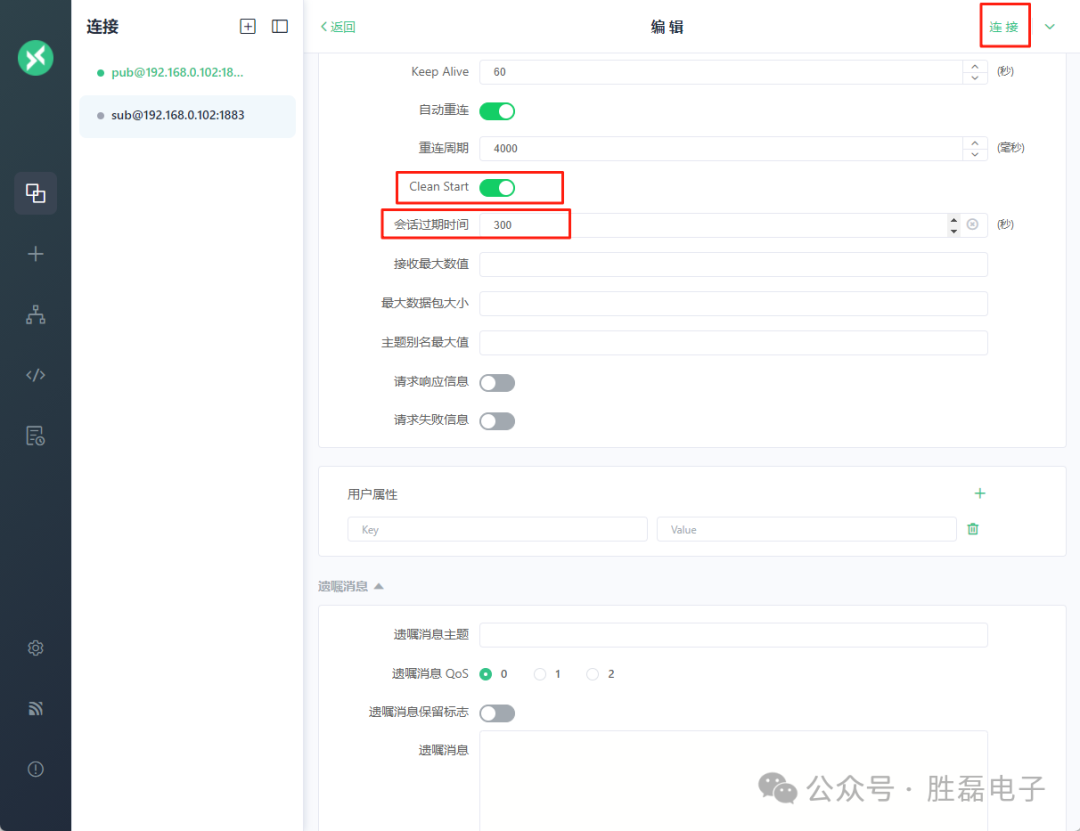
2. Create a sub client connection (set Clean Start value to 1 and Session Expiry Interval to 300).
3. In the sub client connection, subscribe to the test/demo01 topic and set Retain Handling value to 0.
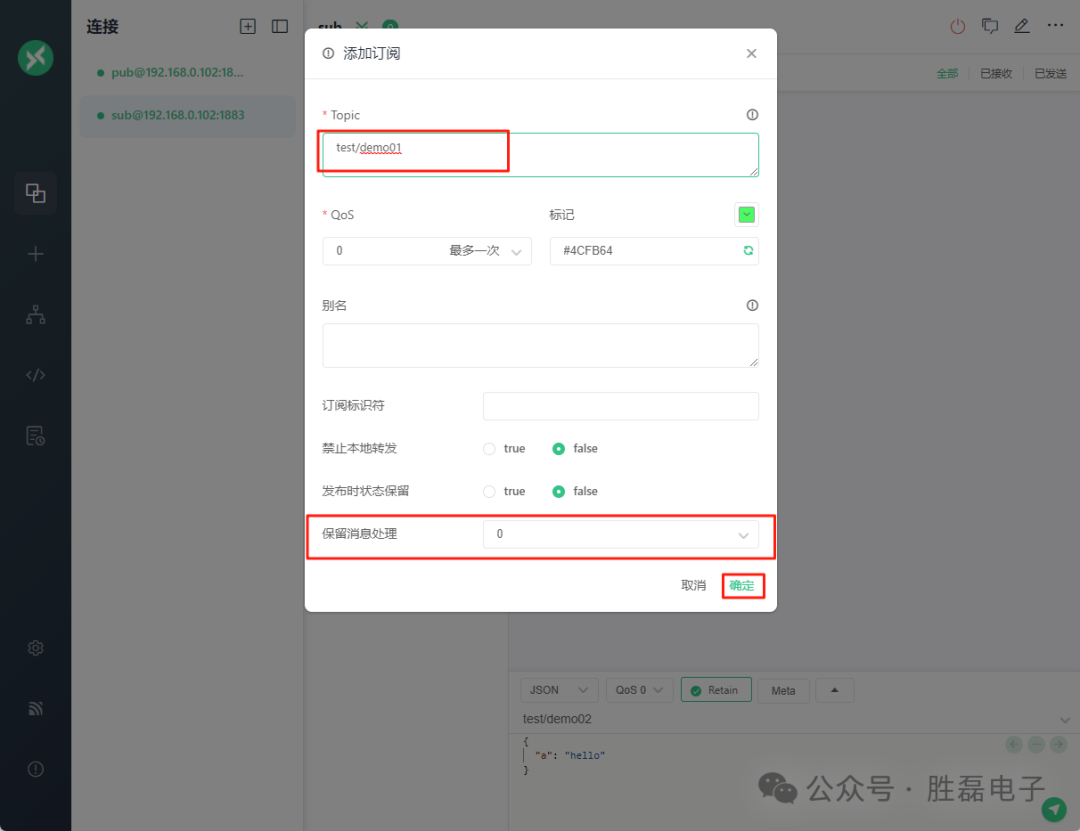
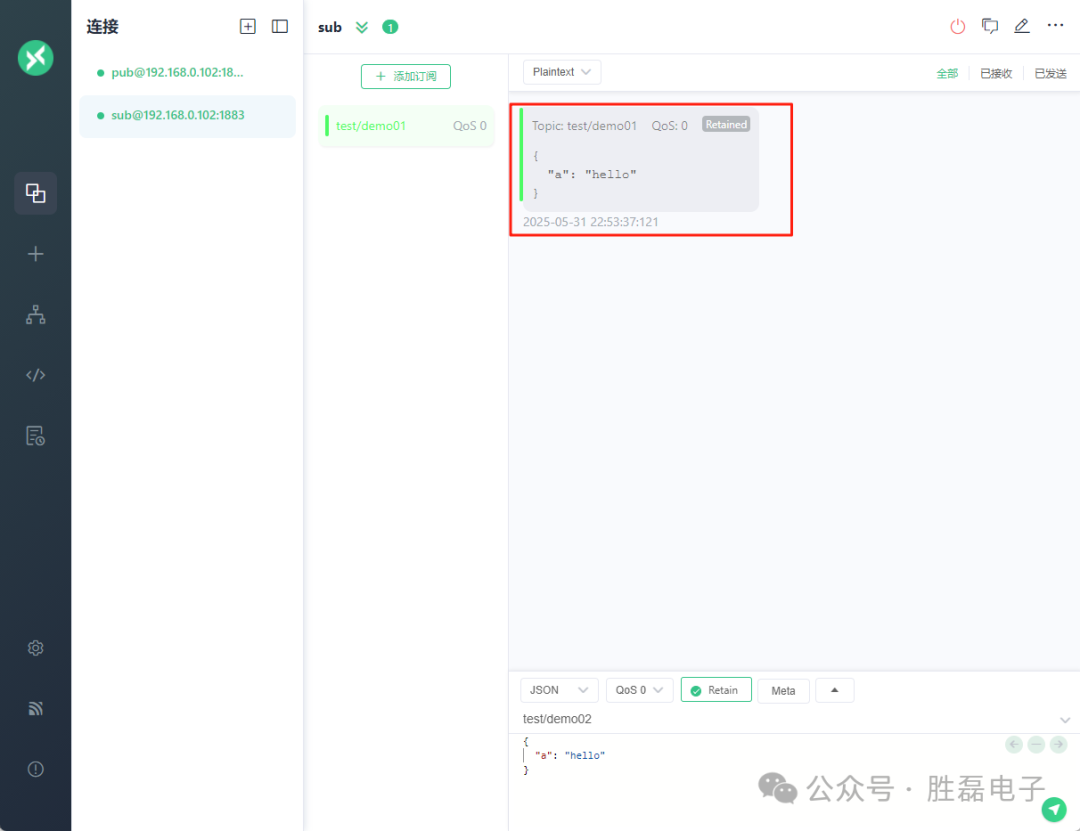
Result: As long as the subscription is successful, the retained message will be received immediately.
4. Close the client connection, setting the client’s Clean Start value to 0 indicates that the previous session needs to be reused.
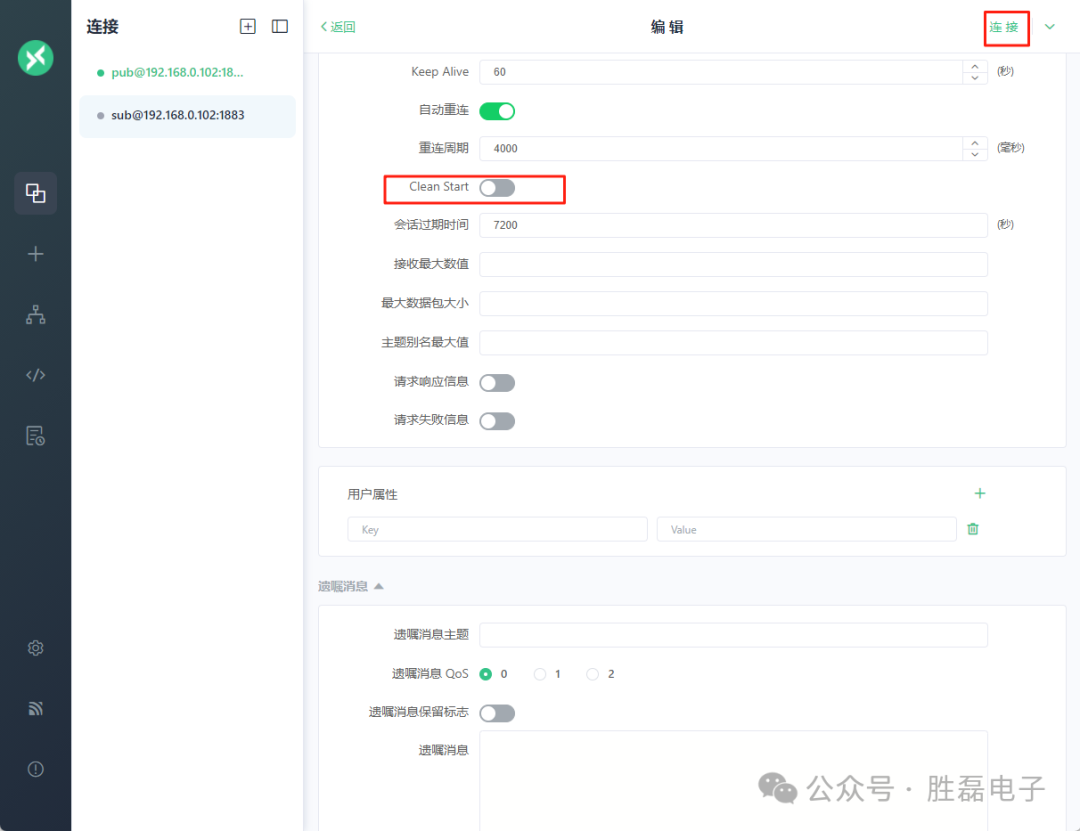
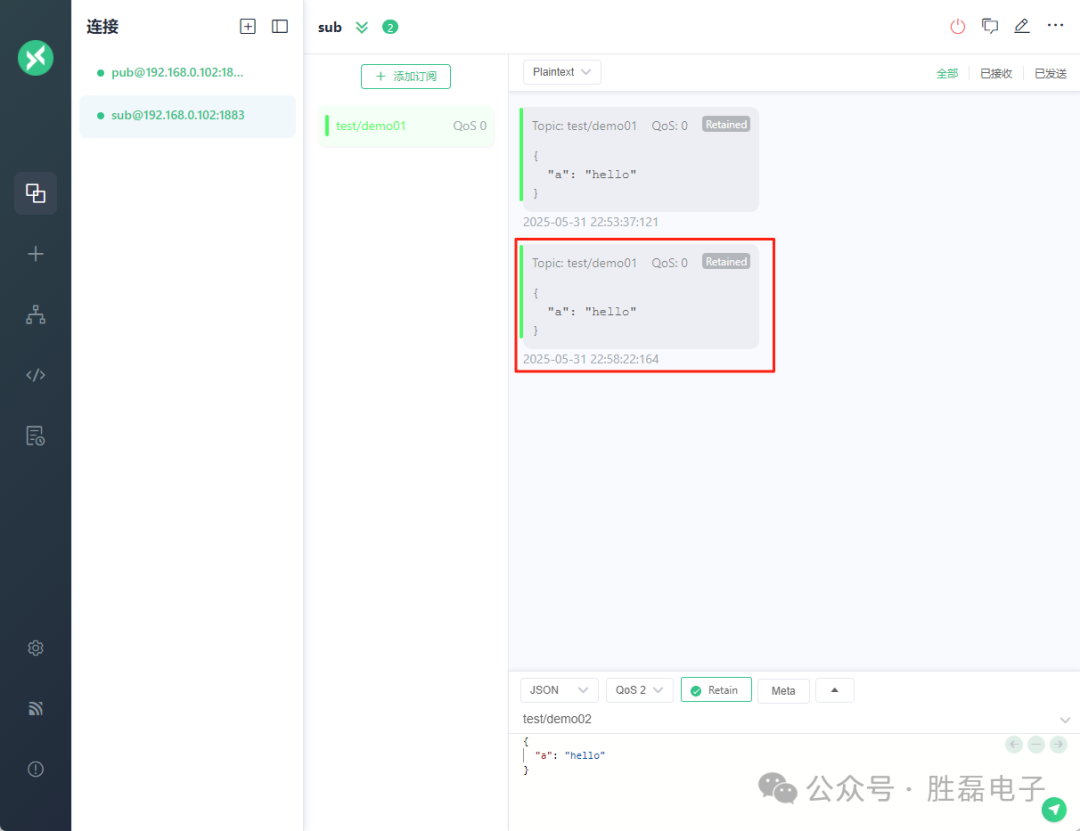
Note: As long as the re-subscription is successful, the retained message will be received.
Situation 2: Set Retain Handling to 1.
Delete the subscription in the sub client connection, re-subscribe to the test/demo01 topic, and set Retain Handling value to 1. The newly established subscription can receive retained messages.
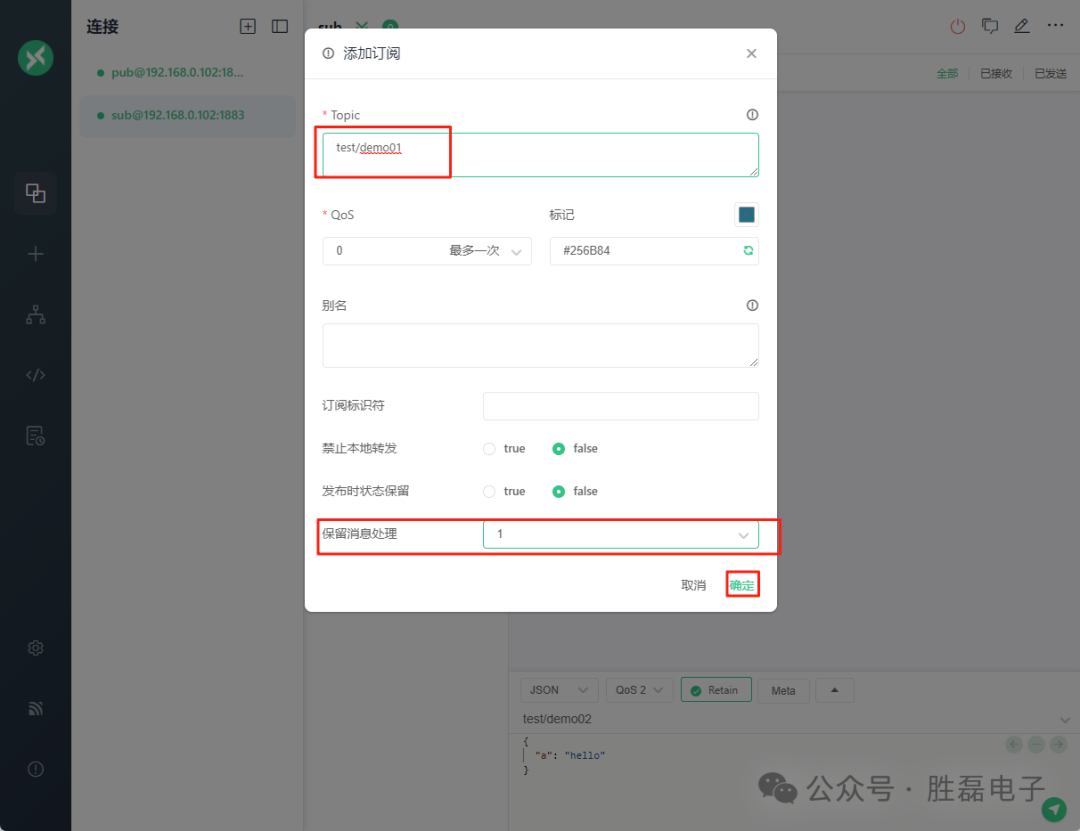
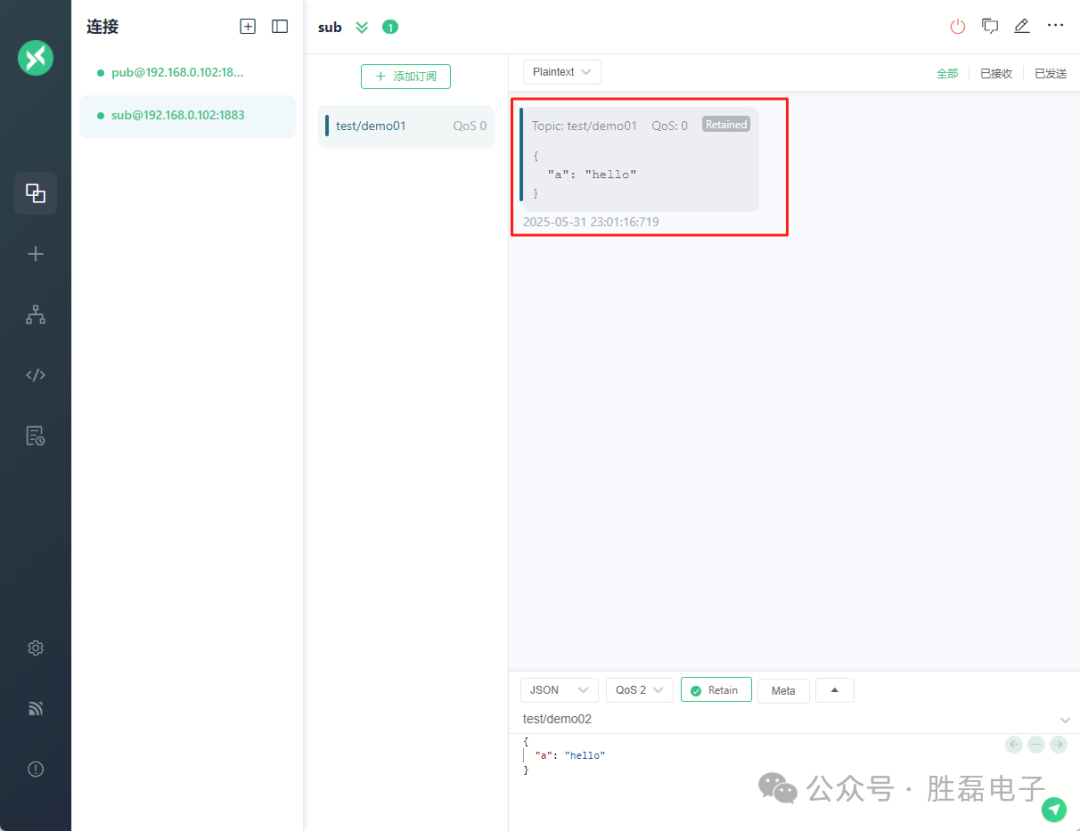
Close the current connection and re-establish the connection [will automatically reuse the previous subscription], at this time, retained messages cannot be obtained.
Situation 3: Set Retain Handling to 2.
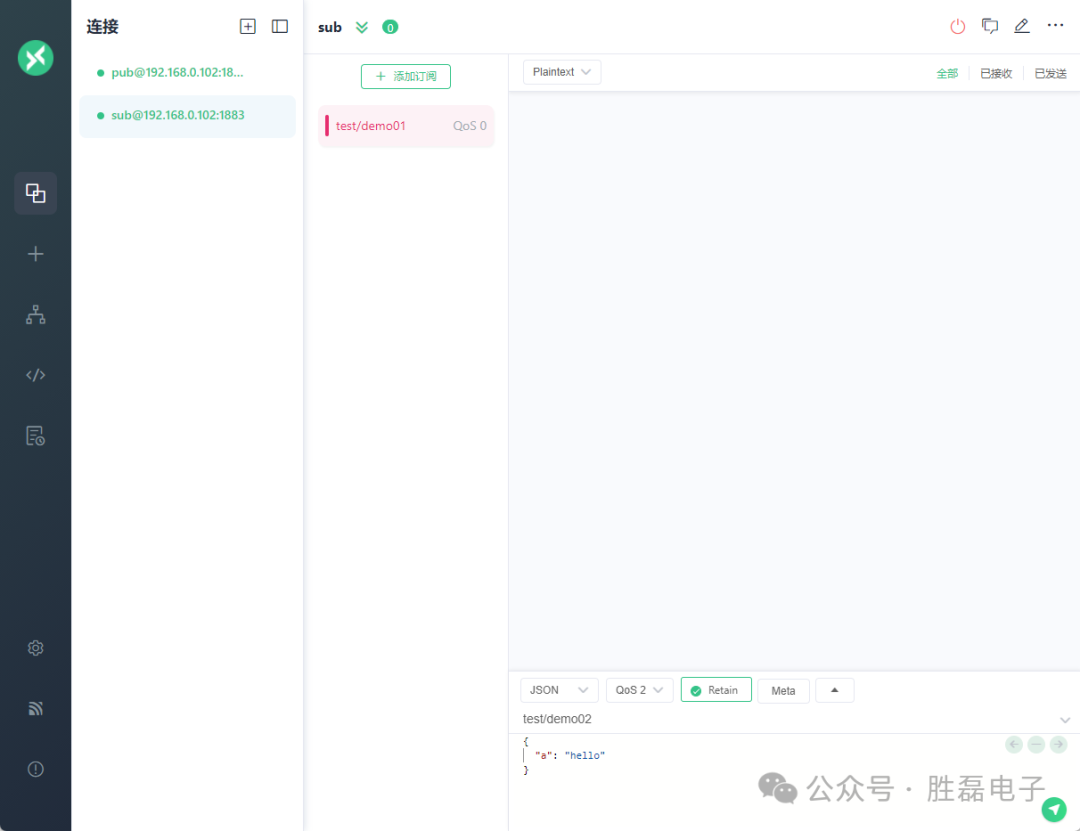
Delete the subscription in the sub client connection, re-subscribe to the test/demo01 topic, and set Retain Handling value to 2.
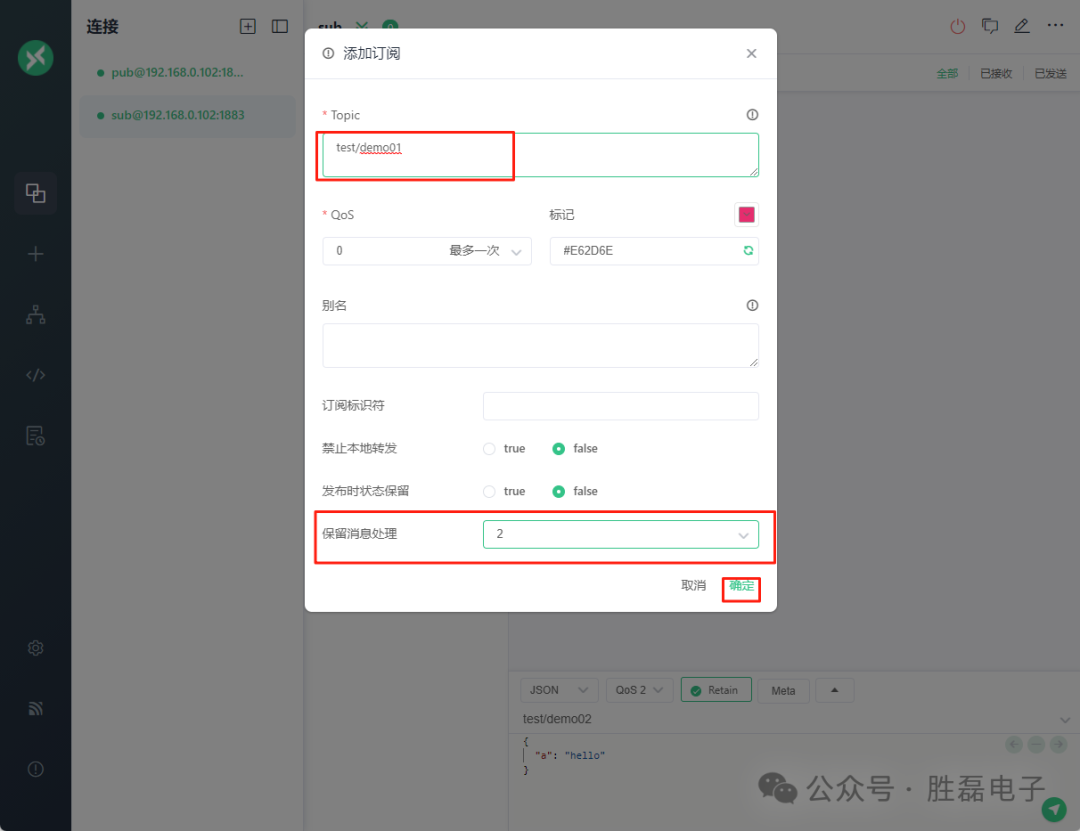
Result: Even if the subscription is successful, no retained messages will be received.
2 Shared Subscription
2.1 Overview of Shared Subscription
In a normal subscription, every time we publish a message, all matching subscribers will receive a copy of that message. When a subscriber’s consumption speed cannot keep up with the message production speed, we cannot divert some messages to other subscribers to share the load. This makes the subscriber prone to become a performance bottleneck in the entire messaging system.

MQTT 5.0 introduces the shared subscription feature, which allows the MQTT server to evenly distribute message loads among clients using a specific subscription. This means that when we have two clients sharing a subscription, each matching message will only be delivered to one of the clients.

Shared subscriptions not only provide excellent horizontal scalability for consumers, allowing us to handle higher throughput, but also bring high availability. Even if one client in the shared subscription group disconnects or fails, other clients can continue to process messages and can take over the message flow originally directed to that client when necessary.
2.2 Classification of Shared Subscription
To enable shared subscriptions: Add a specified prefix to the original topic of a group of subscribers.
Classification of shared subscriptions:
| Prefix Format | Example | Prefix | Real Topic Name |
| With Group Format | $share/abc/t/1 | $share/abc | t/1 |
| Without Group Format | $queue/t/1 | $queue/ | t/1 |
2.2.1 Shared Subscription with Group
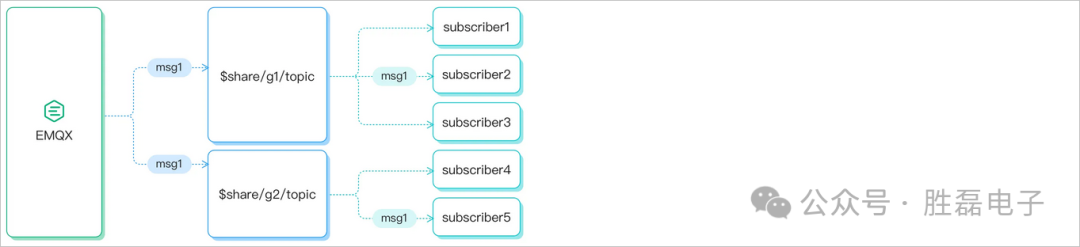
You can enable shared subscriptions for grouped subscribers by adding the prefix $share/<group-name> to the original topic. The group name can be any string. EMQX will also forward messages to different groups, and subscribers belonging to the same group can receive messages using load balancing.
For example, if subscribers s1, s2, and s3 are members of group g1, and subscribers s4 and s5 are members of group g2, and all subscribers subscribe to the original topic t1. The shared subscription topics are $share/g1/t1 and $share/g2/t1. When EMQX publishes message msg1 to the original topic t1:
EMQX will send msg1 to both groups g1 and g2.
One of the subscribers in s1, s2, or s3 will receive msg1.
One of the subscribers in s4 or s5 will receive msg1.
2.2.2 Shared Subscription without Group
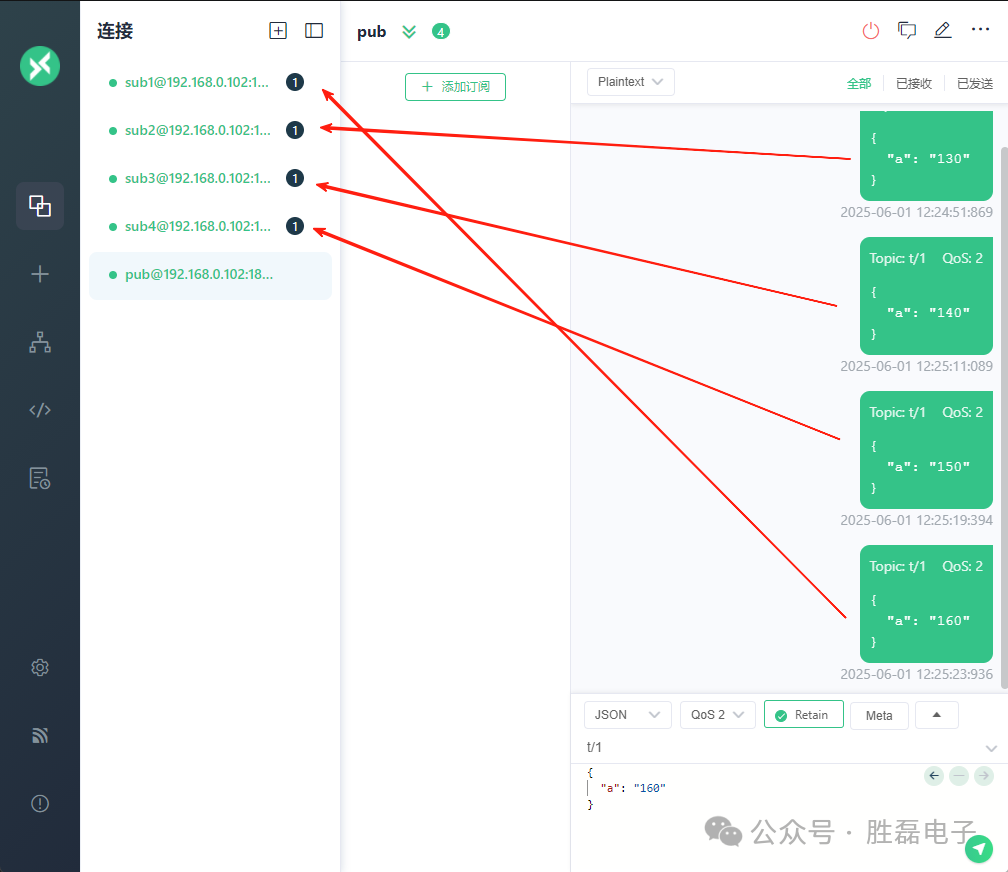
Shared subscriptions prefixed with $queue/ are shared subscriptions without groups. It is a special case of $share subscriptions. You can think of it as all subscribers being in one subscription group:

2.3 Shared Subscription Demonstration
1. Create four client connections: sub1, sub2, sub3, sub4.
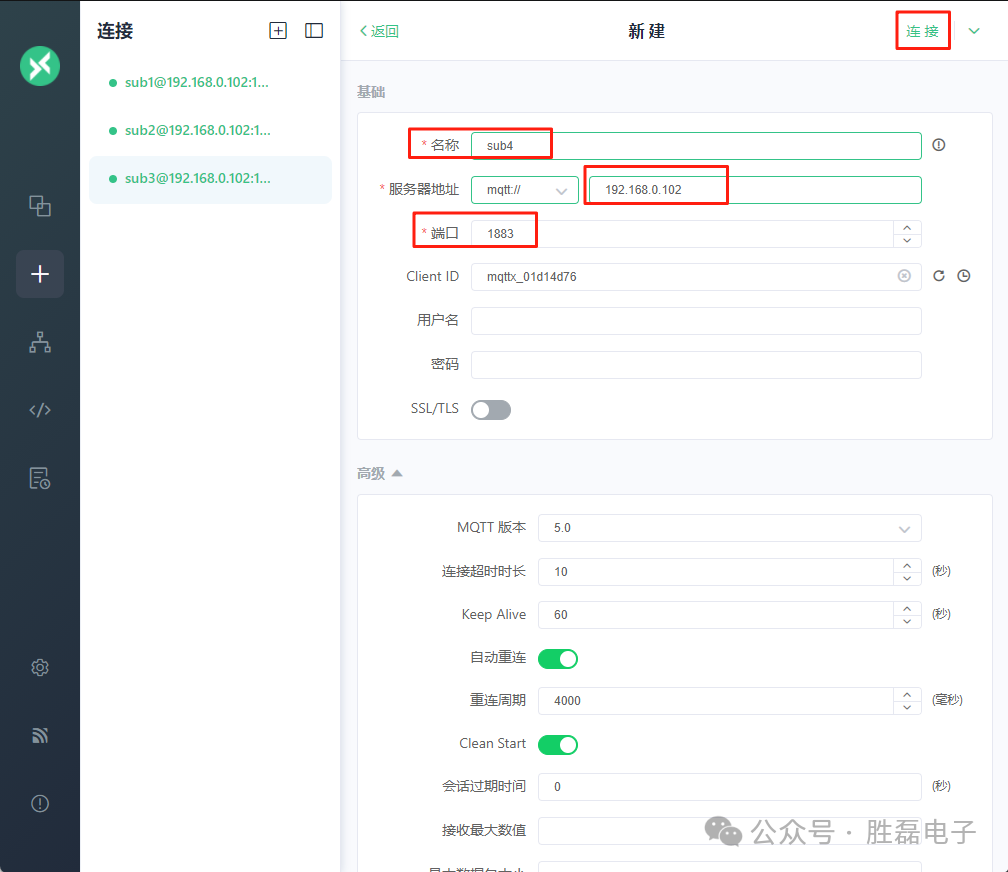
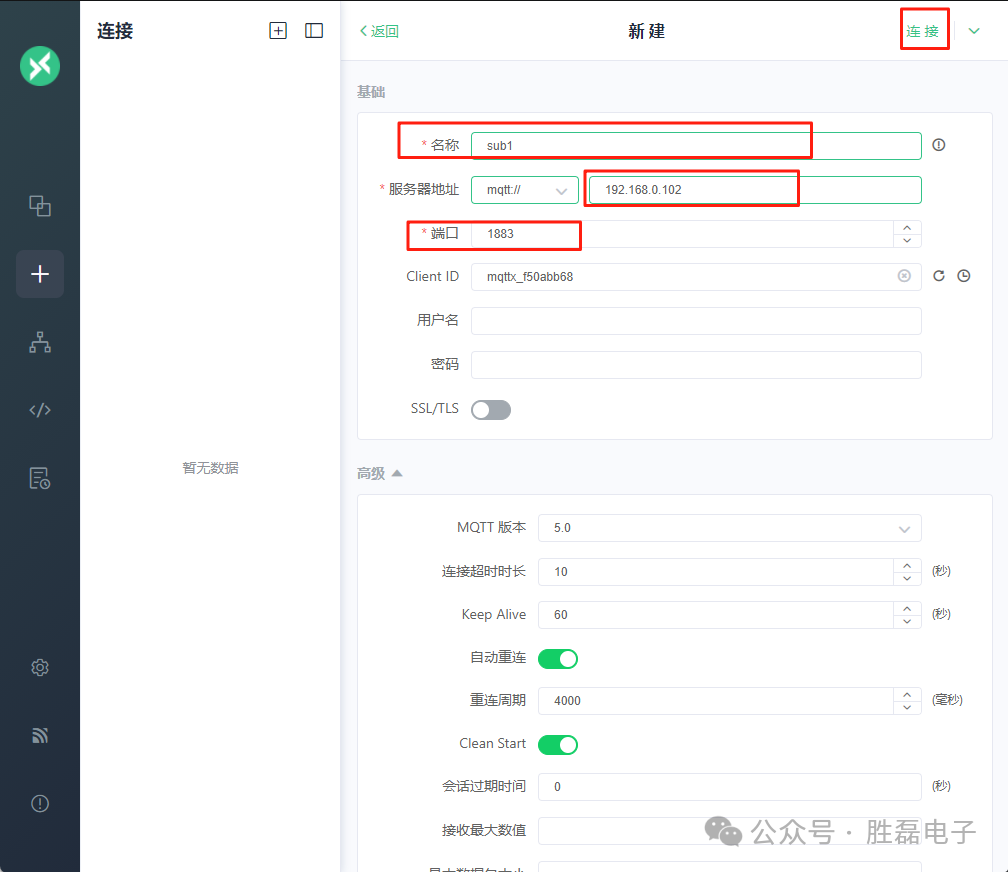
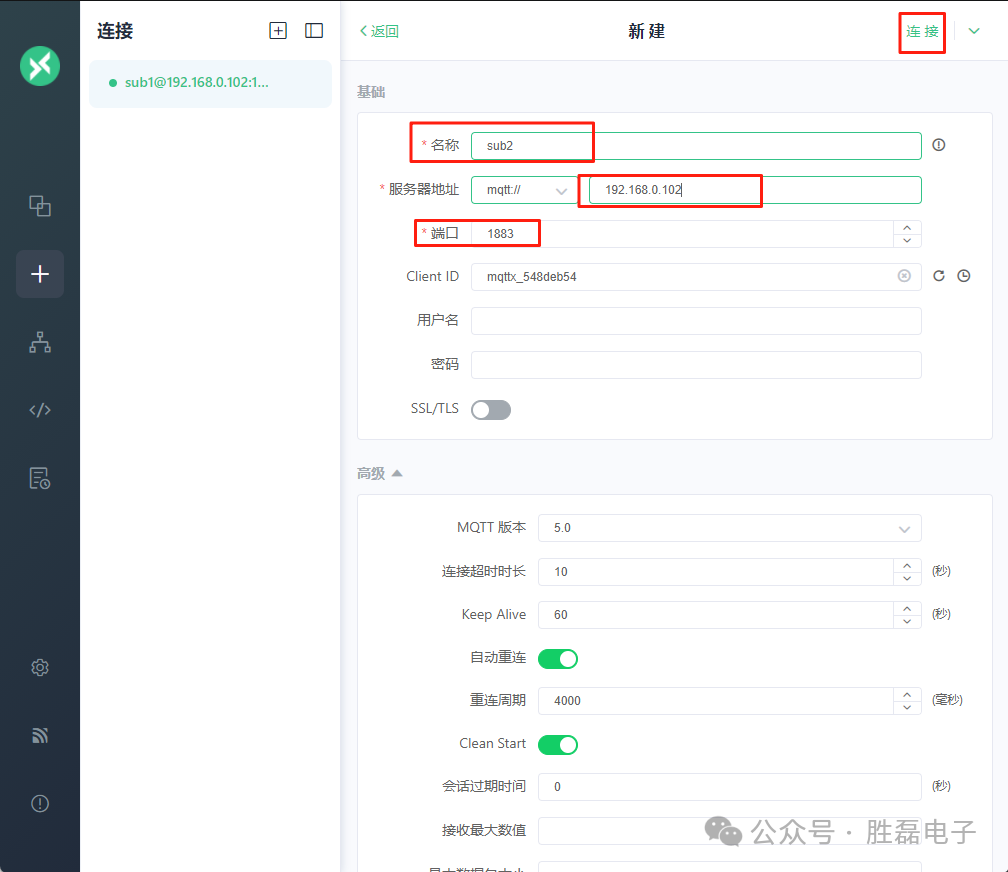
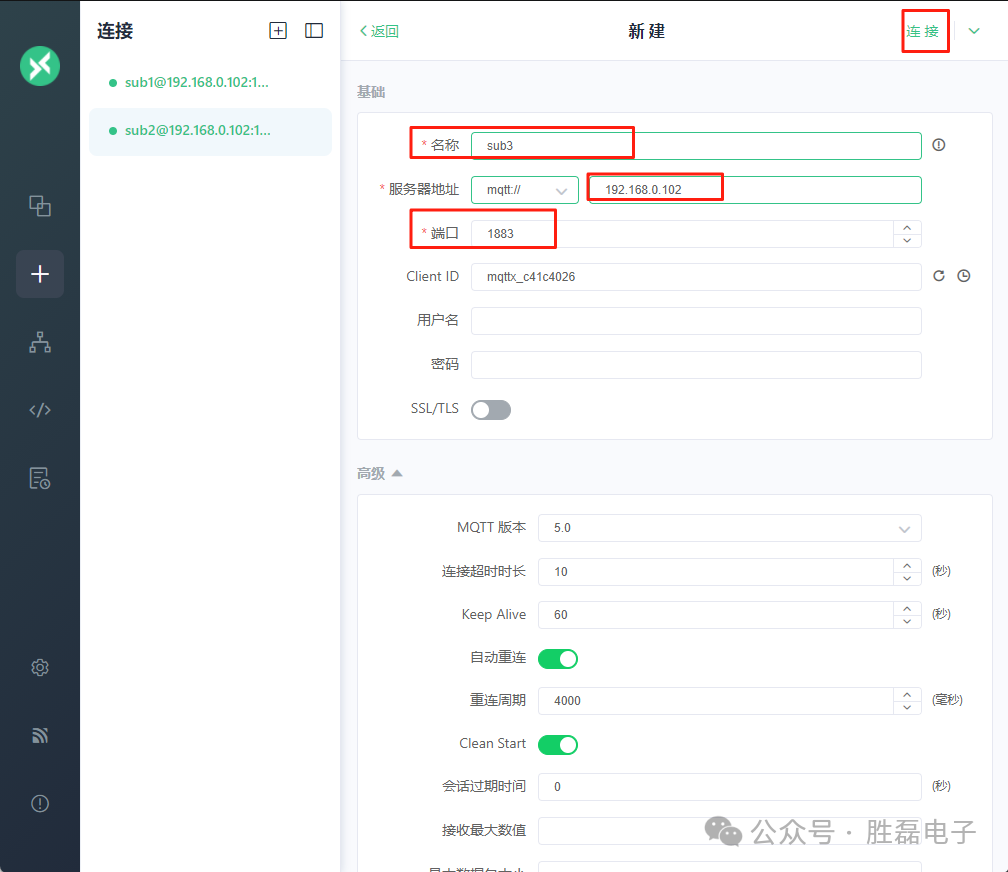
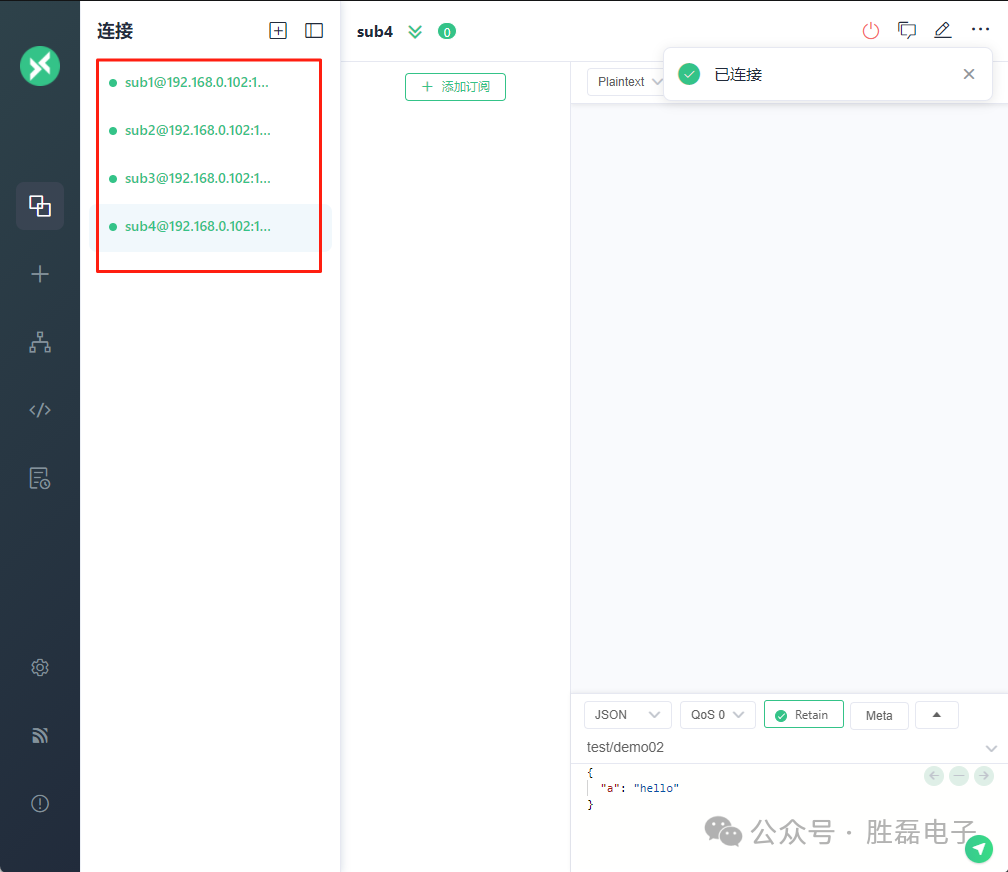
2. Among them, s1 and s2 belong to the same shared subscription group g1, while s3 and s4 belong to the same shared subscription group g2.
The subscribed topics are as follows:
sub1: $share/g1/t/1
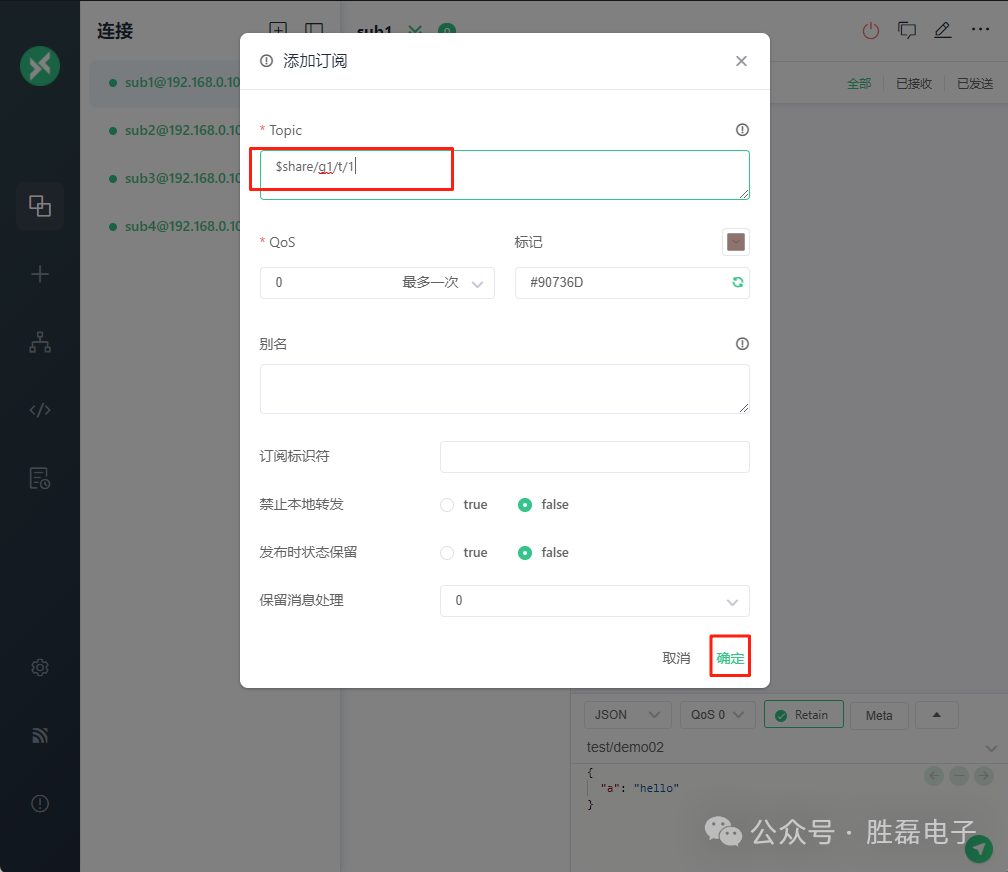
sub2: $share/g1/t/1
sub3: $share/g2/t/1
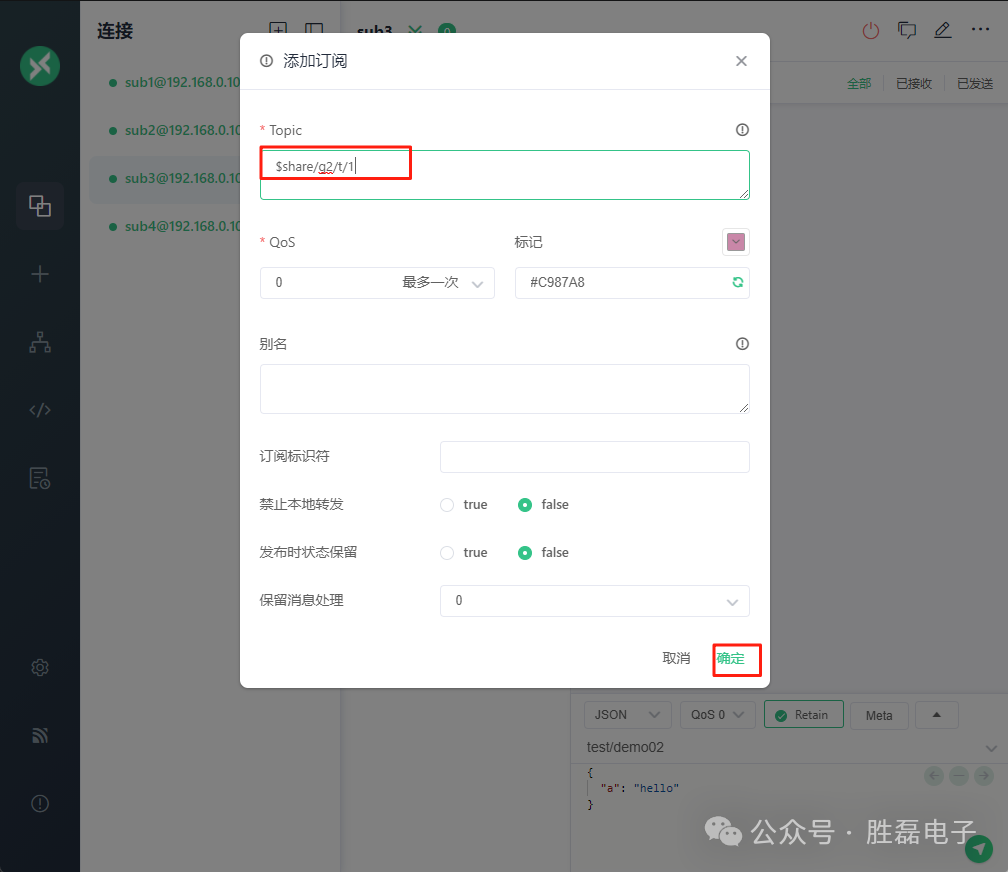
sub4: $share/g2/t/1
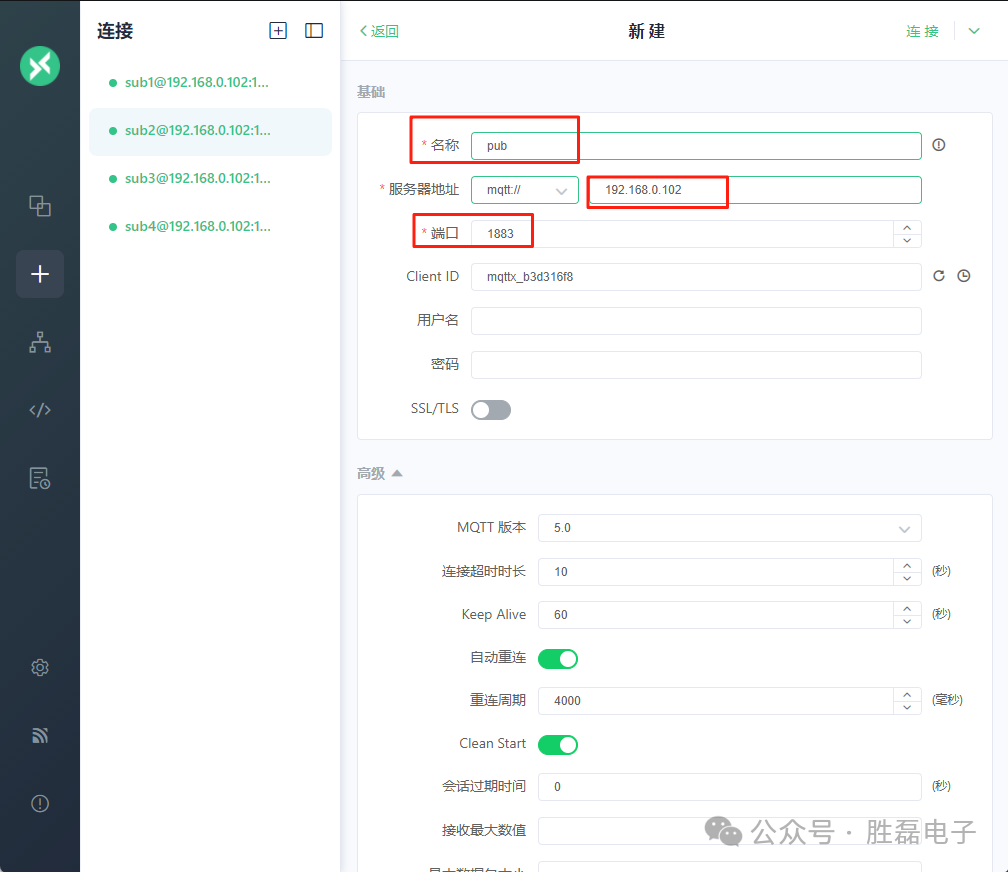
3. Create a pub client connection and publish two messages to the t/1 topic to observe the results.
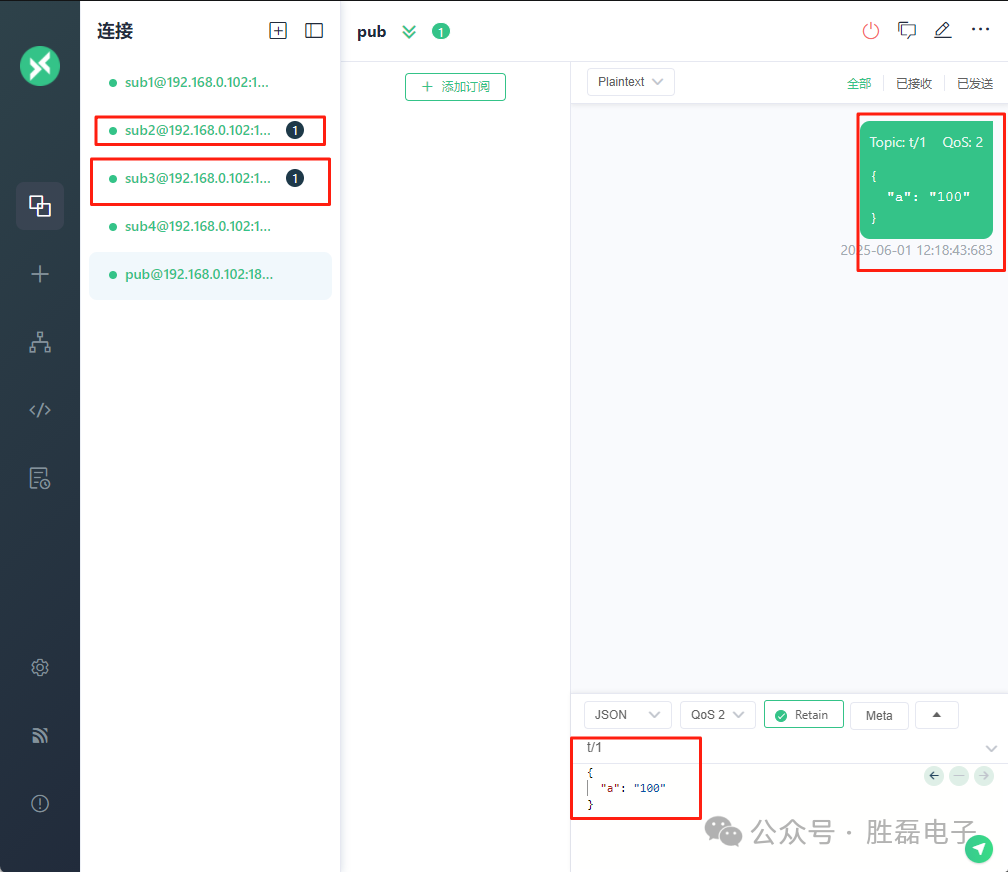
Default Load Balancing Algorithm: Round Robin
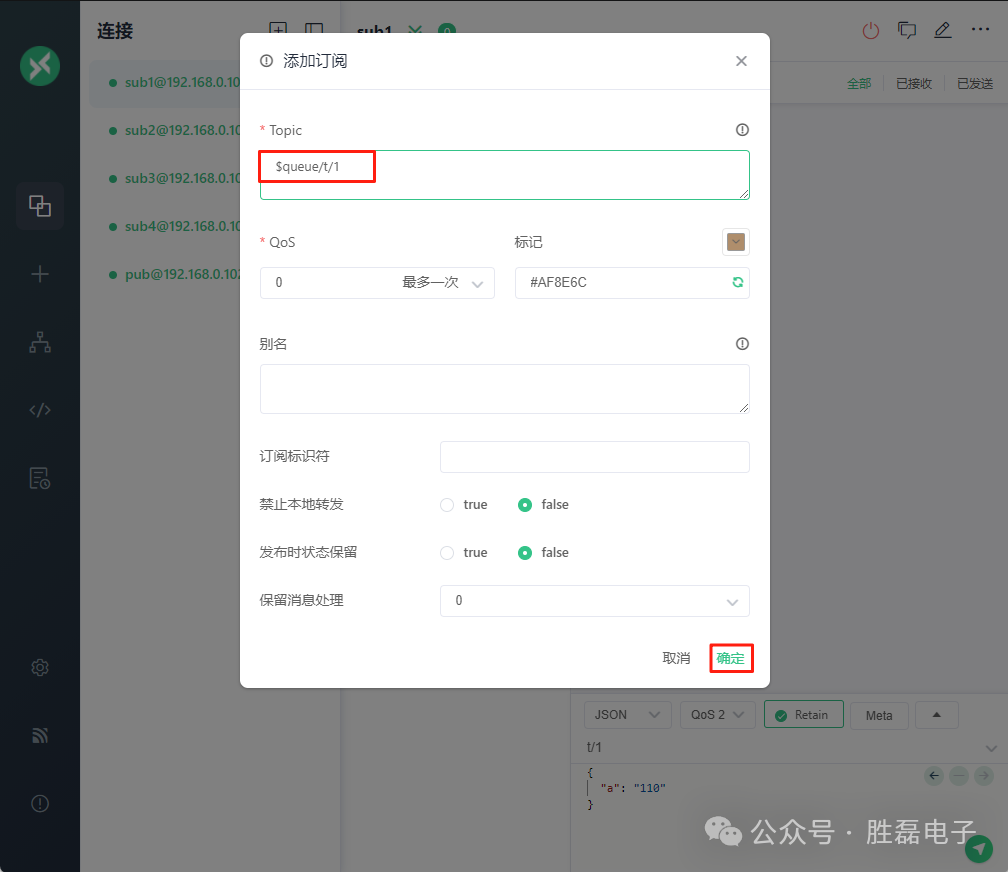
3. Delete the subscriptions of sub1, sub2, sub3, and sub4, and re-add the $queue/t/1 subscription.
4. Publish messages to the t/1 topic through the pub client to observe the results.
2.4 Load Balancing Algorithm
Load balancing algorithms can be configured through the Dashboard [Management ===> MQTT Configuration]:
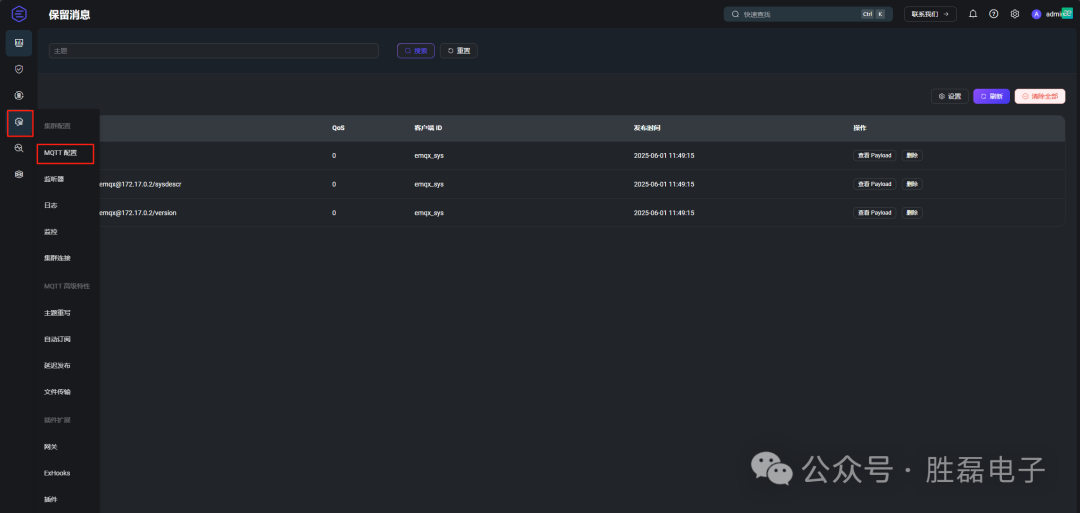
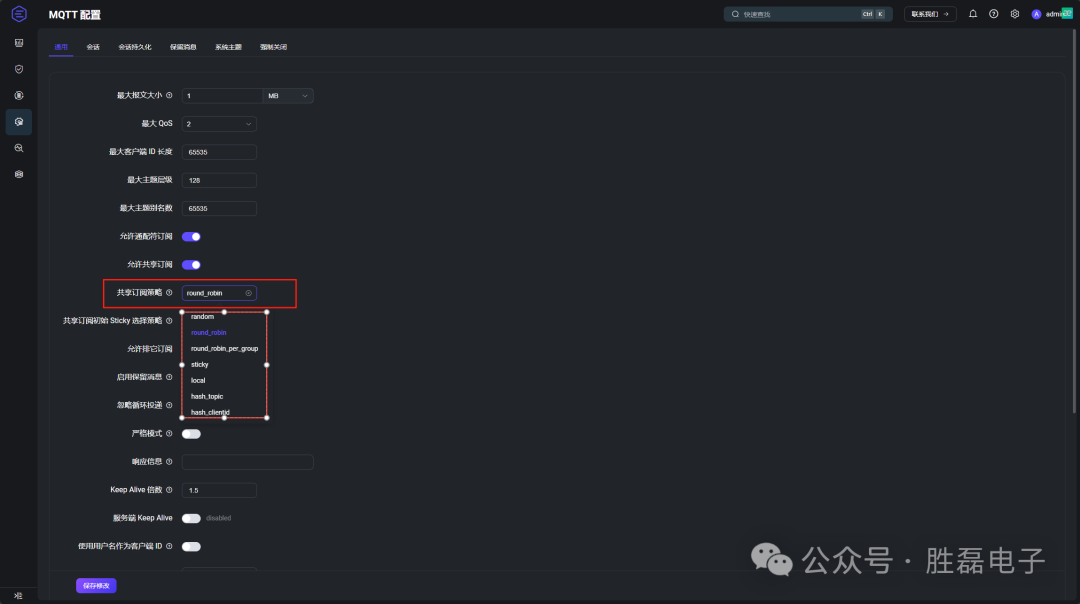
They can be roughly divided into:
1. Random: Randomly select a session within the shared subscription group to send messages.
2. Round Robin: Select a session in order within the shared subscription group to send messages, cycling through.
3. Hash: Allocate based on the hash result of a certain field.
4. Sticky: Randomly select a session within the shared subscription group to send messages, then keep this choice until the session ends, and repeat this process.
5. Local Priority: Randomly select, but prioritize sessions that are on the same node as the message publisher. If no such session exists, it degrades to a normal random strategy.
3 Exclusive Subscription
3.1 Overview of Exclusive Subscription
Exclusive subscriptions allow for mutually exclusive subscriptions to topics, where only one subscriber is allowed for a topic at any given time. Other subscribers will not be able to subscribe to the corresponding topic until the current subscriber cancels the subscription.
To perform an exclusive subscription, you need to add the $exclusive/ prefix to the topic name, as shown in the following table:
| Example | Prefix | Real Topic Name |
| $exclusive/t/1 | $exclusive/ | t/1 |
When a client A subscribes to $exclusive/t/1, any other client attempting to subscribe to $exclusive/t/1 will fail until A cancels the subscription to $exclusive/t/1.
Note: Exclusive subscriptions must use the $exclusive/ prefix. In the example above, other clients can still successfully subscribe to t/1.
Common error codes for subscription failures:

3.2 Exclusive Subscription Demonstration
By default, exclusive subscriptions are disabled.
Specific steps:
1. Create a sub1 client connection and add $exclusive/t/1 subscription.
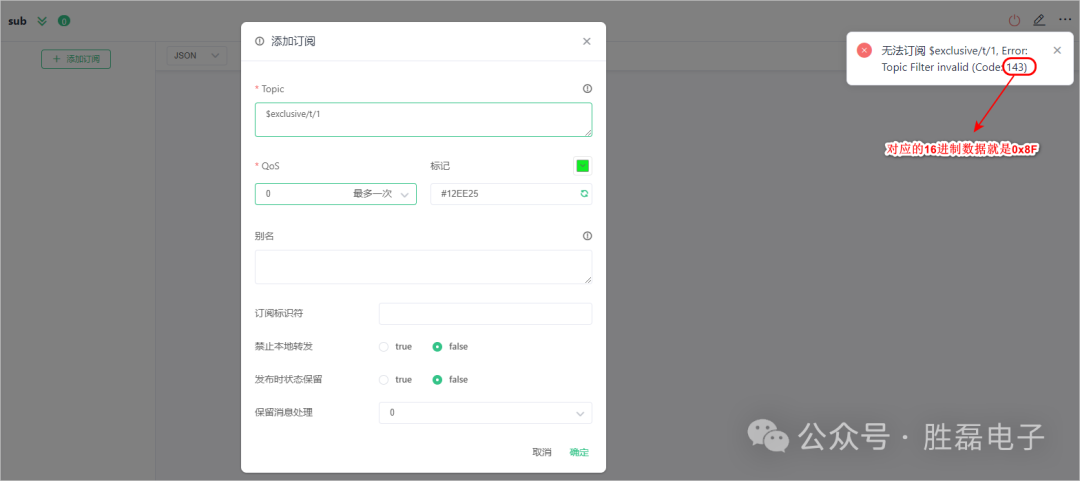
2. Enable exclusive subscription configuration in the Dashboard [Management ===> MQTT Configuration].

3. In the sub1 client connection, re-add the $exclusive/t/1 subscription.
4. Create a sub2 client connection and add $exclusive/t/1 subscription.
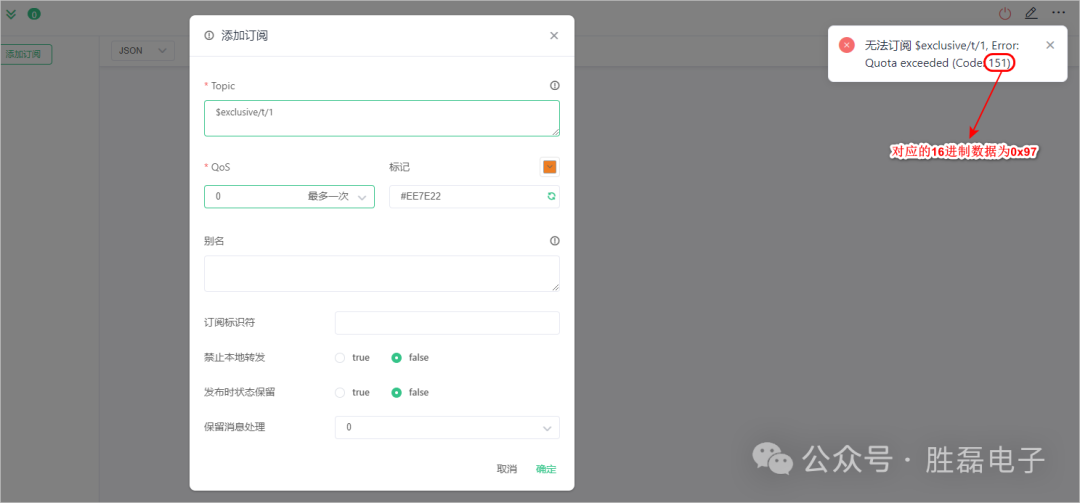
5. Create a sub2 client connection and add t/1 subscription, which will succeed at this time.
4 Automatic Subscription
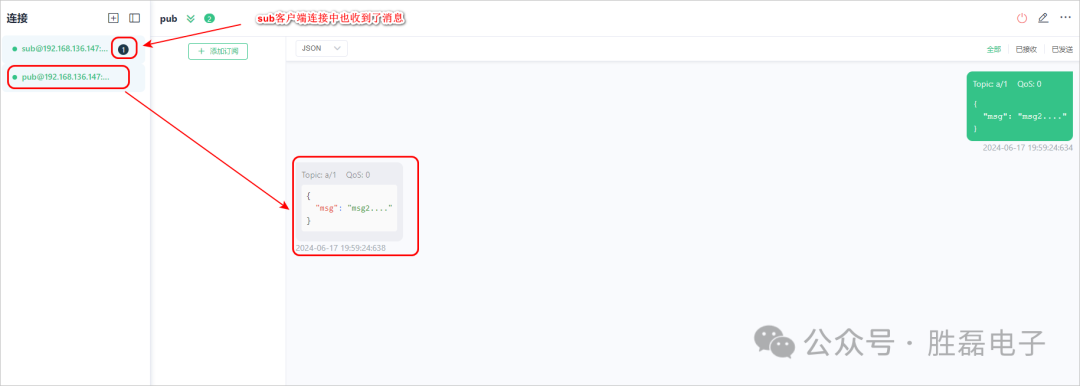
Automatic subscriptions allow EMQX to set multiple rules to subscribe to specified topics for devices after successful connection, without the need for additional subscription initiation.
4.1 Configuring Automatic Subscription Rules
Configure automatic subscription rules through the Dashboard: [Management ===> MQTT Advanced Features ===> Automatic Subscription ===> Add].
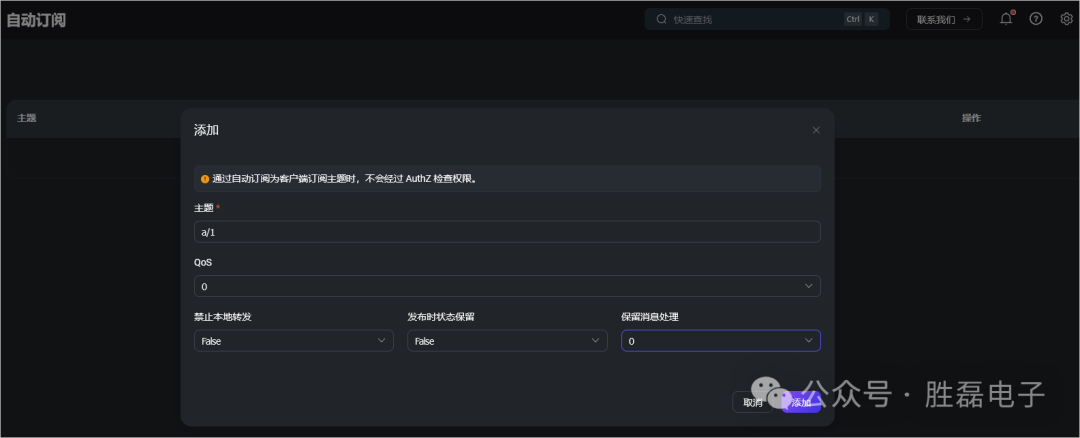
4.2 Demonstration of Automatic Subscription Usage
Specific steps:
1. Create a pub client connection as the publisher.
2. Create a sub client connection as the subscriber.
3. In the pub client connection, publish messages to the a/1 topic.
Summary
The above is an introduction to MQTT subscriptions.