Abstract
-
This article introduces the basic knowledge of FileBrowser, related documentation, and installation deployment. It analyzes errors through log analysis, locates errors using information from images and the host machine, resolves permission issues by modifying directory attributes, verifies the cause of errors, lists precautions when mounting volumes, and compares the differences between specified users and elevated permissions.
Background Information
Introduction and Features
-
The Armbian system is a lightweight Linux system built on Debian/Ubuntu specifically for ARM chips.
-
Docker is an open-source application container engine that allows developers to package applications and their dependencies into a lightweight, portable container, enabling separation of applications from infrastructure for rapid software delivery and application execution.
-
FileBrowser is a self-hosted, open-source web-based file management interface. It allows users to upload, download, copy, move, edit, delete, preview, and share files in specified directories, supporting multiple file selections. It also supports user management and user permission management.
Websites and Documentation
-
Official Website: Home
-
Open Source Website: GitHub
-
Image Repository: DockerHub
-
Installation Documentation: Installation – File Browser
Installation and Deployment (run)
-
Pull the image. Execute the
<span>docker pull filebrowser/filebrowser</span>command to pull the FileBrowser image from the DockerHub image source to the local machine, defaulting to the<span>latest</span>tag.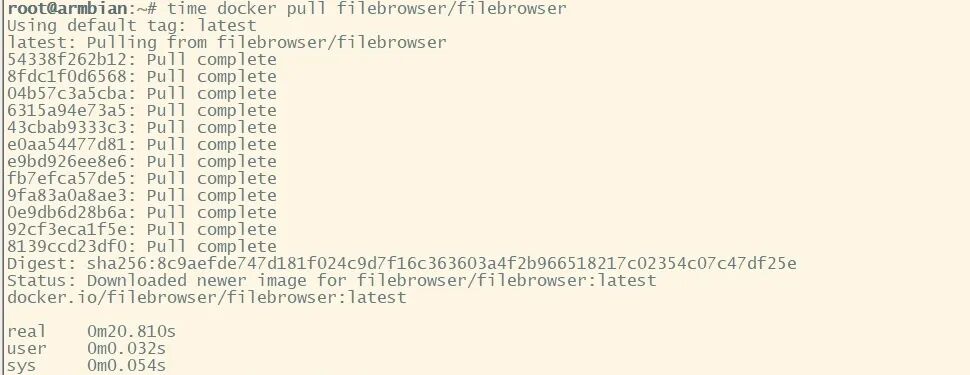
-
Create and start the container. Execute the following command to create and start the FileBrowser container with specified parameters.
 docker run -d -p 8081:80 \
 -v /mnt/sdcard/docker/filebrowser/data:/srv \
 -v /mnt/sdcard/docker/filebrowser/database:/database \
 -v /mnt/sdcard/docker/filebrowser/config:/config \
 --restart=always \
 --name=filebrowser filebrowser/filebrowser
-
Check user logs. Execute the
<span>docker logs filebrowser</span>command to view the logs of FileBrowser and obtain the randomly generated password for the<span>admin</span>user, which is displayed only on the first run. The log content indicates that the FileBrowser container failed to start properly and displays error messages.
Analyze the Cause
-
Classify the cause. The error message in the logs
<span>cp: can't create '/config/settings.json': Permission denied</span>indicates a permission error. -
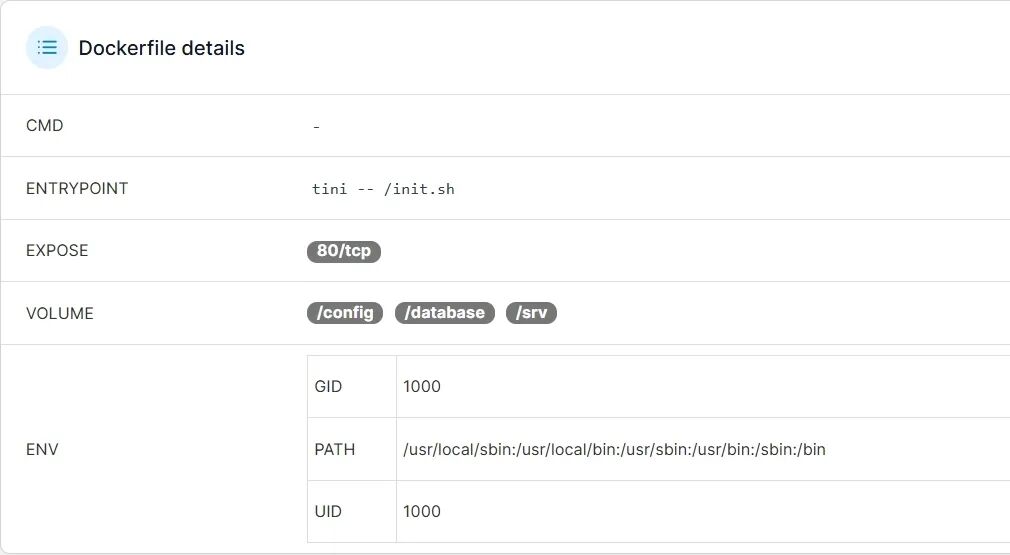
Check the Dockerfile details information of the image.
-
By default, processes in Docker containers run as the
<span>root</span>user. -
In the Dockerfile of FileBrowser, the environment variable for the Docker container is set to specify that processes in the container run as the user corresponding to the
<span>UID</span>of<span>1000</span>and<span>GID</span>of<span>1000</span>.
Check the Image layers information of the image. The following command indicates that during the image build, the user with <span>UID</span> of <span>1000</span> and <span>GID</span> of <span>1000</span> was used to create the directories <span>/config</span>, <span>/database</span>, and <span>/srv</span> in the FileBrowser container.
 ENV UID=1000
 ENV GID=1000
 RUN addgroup -g$GID user && adduser -D -u$UID -G user user # buildkit
RUN mkdir -p /config /database /srv && chown -R user:user /config /database /srv && chmod +x /healthcheck.sh # buildkit 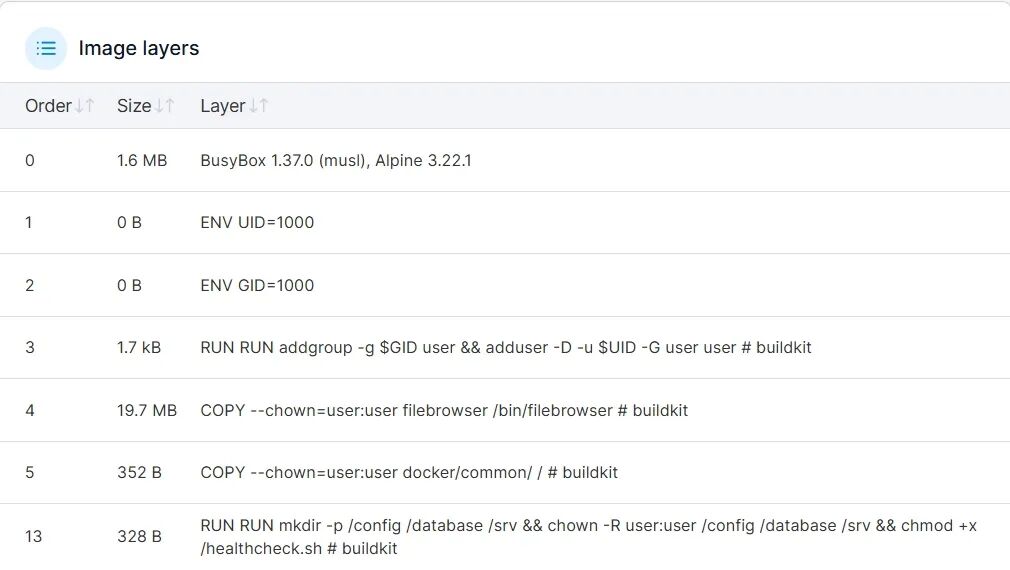
Check the attributes of the host directory. Execute the <span>ls -al /mnt/sdcard/docker/filebrowser</span> command to view the attributes of the directory created by Docker for the FileBrowser container on the host machine.
Check the owner ID of the host directory. Execute the <span>id root</span> command to obtain the ID number of the <span>root</span> user by viewing the information of the <span>root</span> user.
Check the host user corresponding to the container user ID. Execute the <span>cat /etc/passwd | grep 1000</span> command to find the host user corresponding to the user with <span>UID</span> of <span>1000</span> by viewing the system user information configuration file.
Resolve the Issue
-
Modify the owner of the host directory. Execute the
<span>chown -vR seek:seek /mnt/sdcard/docker/filebrowser</span>command to change the owner of the directory and its subdirectories created by Docker for the FileBrowser container on the host machine to the<span>seek</span>user. -
Confirm the attributes of the host directory. Execute the
<span>ls -al /mnt/sdcard/docker/filebrowser</span>command to view the attributes of the directory created by Docker for the FileBrowser container on the host machine.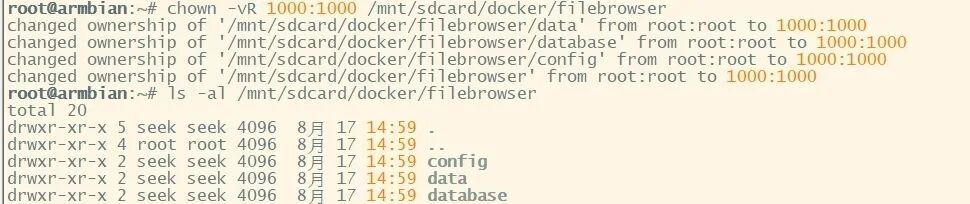
-
Restart the FileBrowser container. Execute the
<span>docker restart filebrowser</span>command to restart the FileBrowser container in Docker. -
View the logs. Execute the
<span>docker logs filebrowser</span>command to view the logs of FileBrowser. The log content indicates that the container has started normally and generated a random password for the admin user during initialization before starting to run.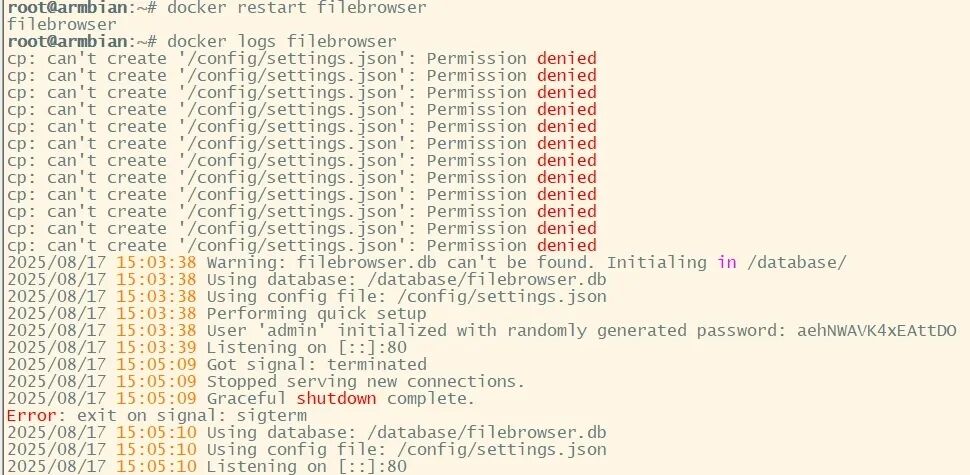
-
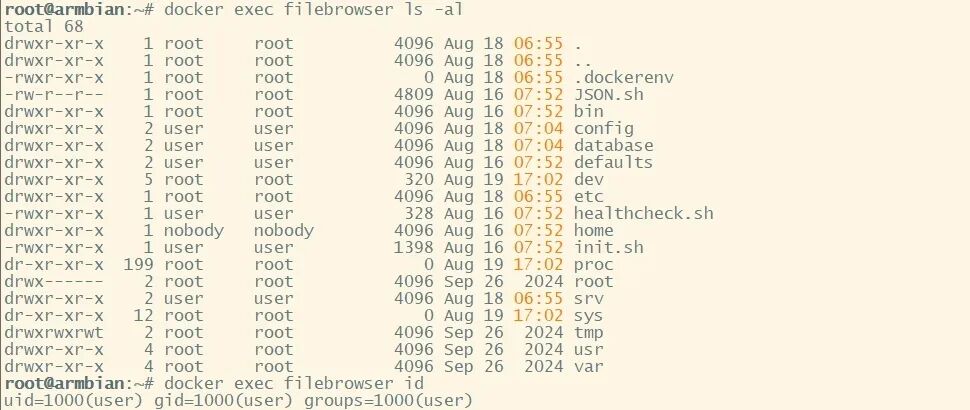
Verify the cause of the error.
-
Check the attributes of the container directories. Execute the
<span>docker exec filebrowser ls -al</span>command to view the attributes of the directories<span>/config</span>,<span>/database</span>, and<span>/srv</span>in the FileBrowser container in Docker. -
Check the user identity running the container. Execute the
<span>docker exec filebrowser id</span>command to view the information of the currently logged-in user to obtain the user identity running the FileBrowser container in Docker. -
Open the web management interface. Access
<span>http://<host>:8081</span>to open the web management interface of the FileBrowser file browser. Here,<span><host></span>is the IP address or domain name of the host where FileBrowser is installed. The username is<span>admin</span>, and the password is the previously randomly generated password.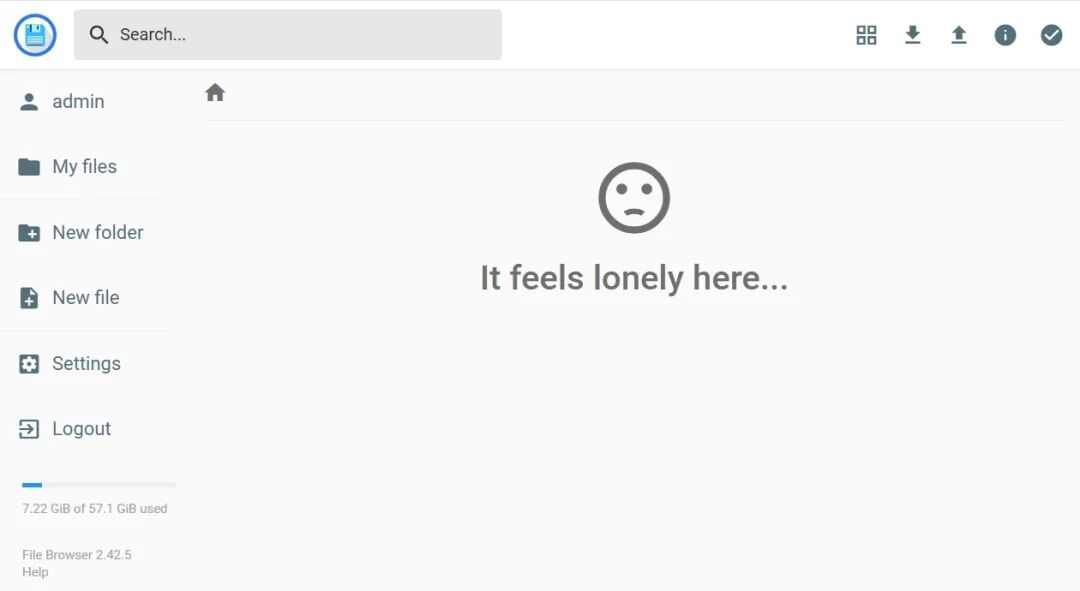
Precautions
-
When creating and starting the container, use the
<span>-v</span>parameter to specify the mounted volume. If the specified directory on the host machine does not exist, Docker will automatically create the specified directory as the<span>root</span>user instead of using the user identity running the container. -
When creating and starting the container, using the
<span>-v</span>parameter to specify the mounted volume, it is important to ensure that the owners and permissions of the corresponding directories on the host and container match correctly. -
When creating and starting the container, using the
<span>-u</span>parameter specifies the user identity, not the user permissions. -
When creating and starting the container, using the
<span>--privileged</span>parameter elevates permissions to<span>root</span>permissions, not the<span>root</span>identity. Elevating permissions carries security risks, use with caution!
References
-
Installation – File Browser
-
Docker Dockerfile | Ruan’s Tutorial
-
Image Layer Details – filebrowser/filebrowser:latest | Docker Hub
-
How to Handle Permissions in Docker? | LabEx
-
Practical Tips for Resolving Docker Mount Directory Permission Issues: Elevating Container Access Permissions – Cloud Native Practice
-
Resolving “permission denied” errors in Docker that prevent container startup – Coding Light – A Treasure Box for Programmers
Author:Dream Heart Star
Article Link:https://www.cnblogs.com/Sky-seeker/p/19049396
Copyright Statement:This article is licensed under CC BY-NC-SA 4.0 license, please include the original source link and this statement when reprinting.
Follow our WeChat public account for instant article updates; visit the blog garden webpage for normal display of URL links.