SoftwareDownload
[Name]: keil uVision2 C51
[Size]: 11.4 MB
[Language]: Simplified Chinese
[Installation Environment]: Windows 7 and above
[Download Link via Quark Cloud Disk]
https://pan.quark.cn/s/9664b30e47e7
Download Link 2:
dhm6.cn
Note: If Quark Cloud Disk is unavailable, please use Download Link 2
SoftwareIntroduction
Keil C51 represents the C language development tool for the 51 series compatible microcontrollers. Compared to assembly programming, C language demonstrates significant advantages in functionality, structure, readability, and maintainability, making it easier to learn and apply. Keil has launched a comprehensive development tool that includes a C language compiler, macro assembler, linker, library management system, and a powerful simulation debugger. These modules are effectively integrated through the integrated development environment (uVision).
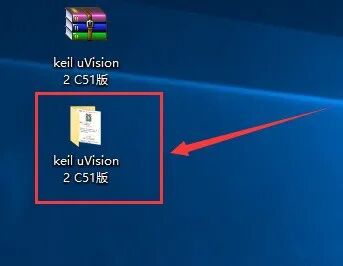
InstallationSteps1. Select the downloaded 【keil uVision 2 C51】 compressed file, right-click, and choose 【Extract to 【keil uVision 2 C51】】.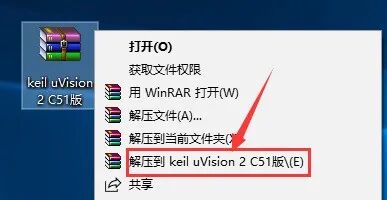 Double-click to enter the 【keil uVision 2 C51】 folder.
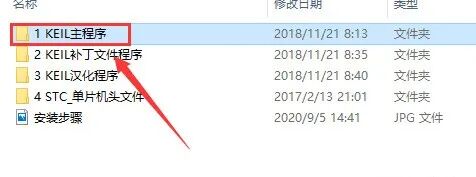
 Double-click to open the 【1 KEIL Program Main Folder】.
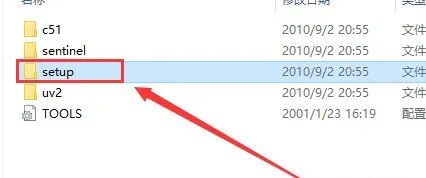
 4. Double-click to open the 【setup】 folder.
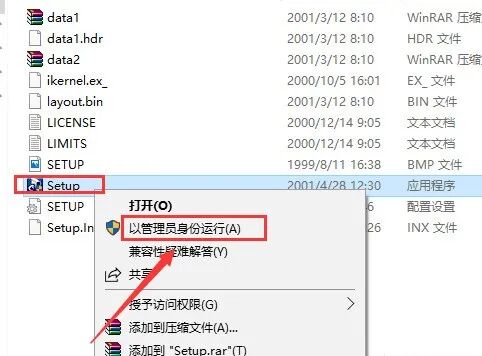
 5. Select the 【Install】 executable program, right-click and choose 【Run as administrator】.
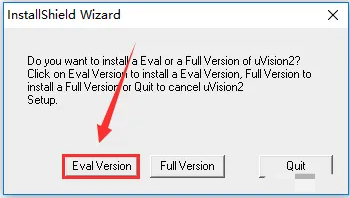
 6. Click 【Eval Version】.
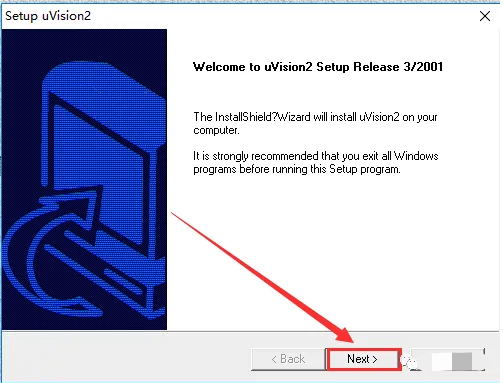
 7. Click 【Next】.
 8. Click 【Yes】.
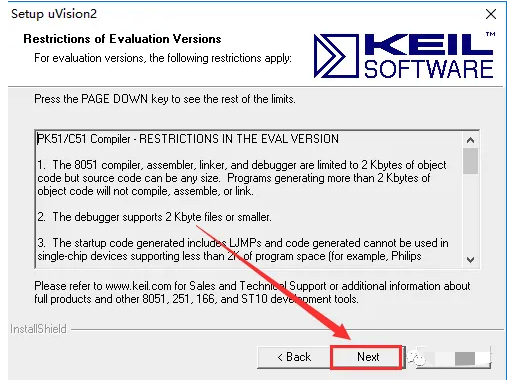
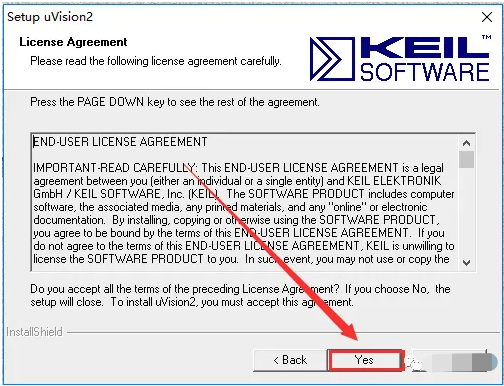 9. Click 【Next】.
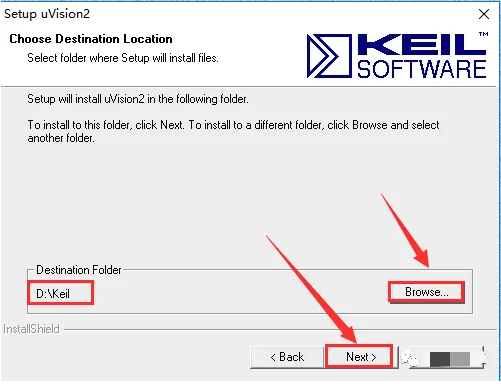
 Click the 【Browse…】 option to adjust the installation location of the software. For a better user experience, it is recommended to choose a disk other than C drive to store it, then continue with 【Next】.
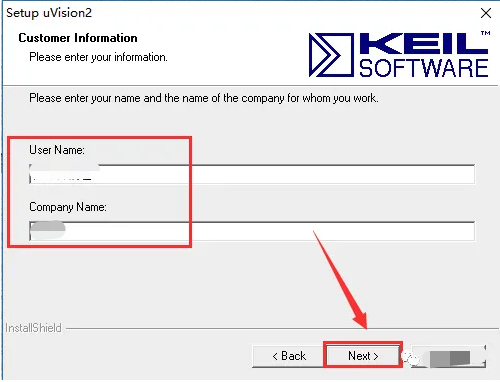
 11. Enter a name and click 【Next】 to continue the installation.
 12. After completing the installation, uncheck the box that says “Yes, I want to…” and finally click “Finish”.
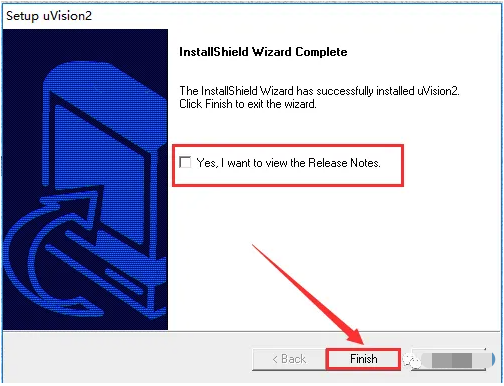 13. Please open the previously extracted 【keil uVision 2 C51】 directory, then double-click to enter the 【2 KEIL Patch File Program】 directory.
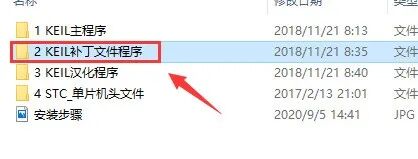 14. Select all files and right-click to execute the 【Copy】 operation.
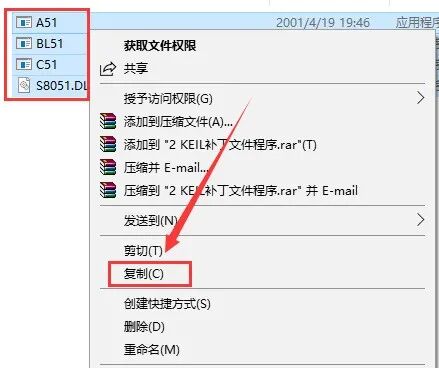 15. Access the software storage location 【D:\Keil】, find and enter the 【C51】 directory (see step 10 for details).
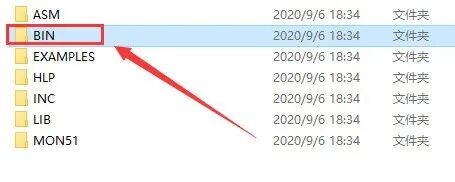
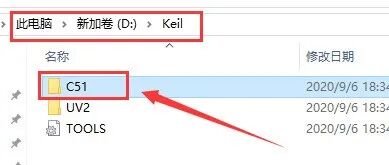 16. Double-click to open the 【BIN】 folder.
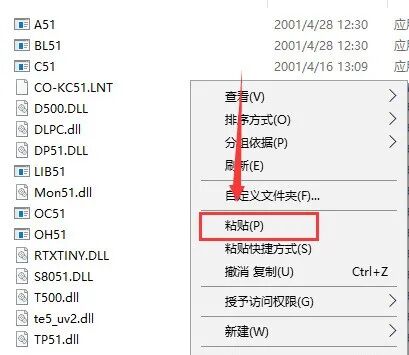
 17. In the blank area, right-click and select the “Paste” option.
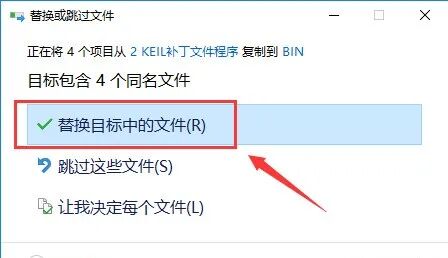
 18. Click 【Replace the files in the destination】.
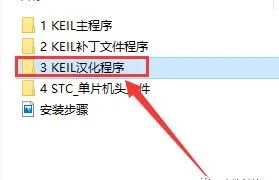
 Double-click to open the 【3 KEIL Language Program】 folder in the extracted 【keil uVision 2 C51】 folder.
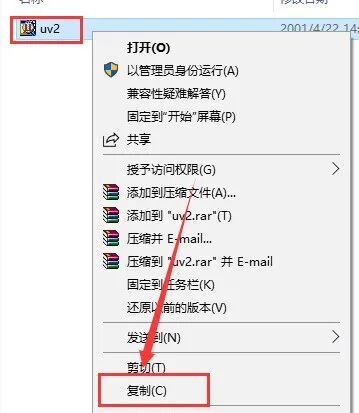
 Select the [uv2] document, right-click and check [Copy].
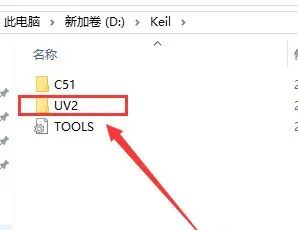
 21. Access the application storage path 【D:\Keil】 in the 【UV2】 directory (refer to step 10)..
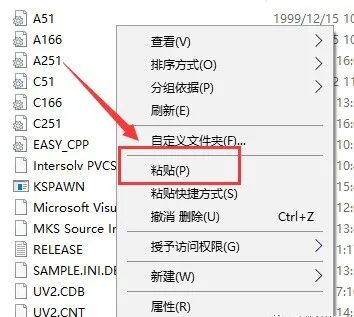
 22. Right-click in the blank area and select the 【Paste】 option.
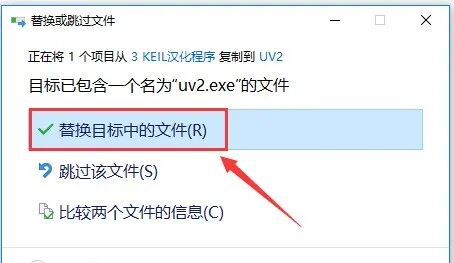
 23. Click 【Replace the files in the destination】.
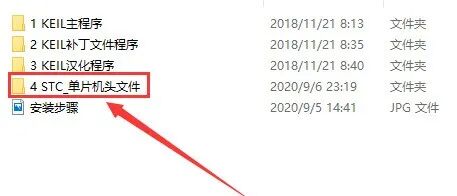
 24. Double-click to open the “4 STC_Microcontroller Header Files” subdirectory in the extracted “keil uVision 2 C51” directory.
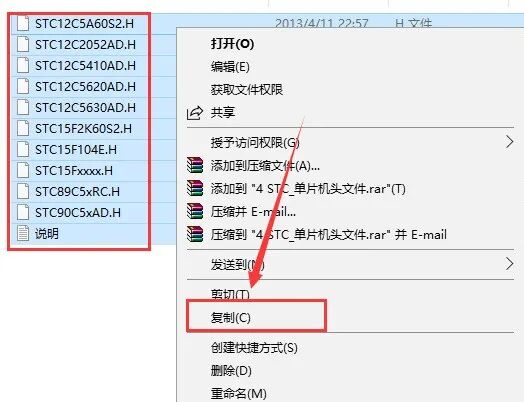
 25. Press “Ctrl A” to select all files, then right-click and choose “Copy”.
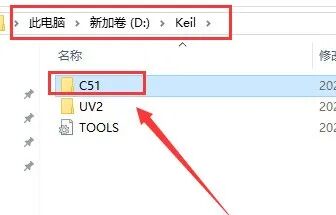
 26. Please access the software storage folder 【D:\Keil】 in the 【C51】 subdirectory.
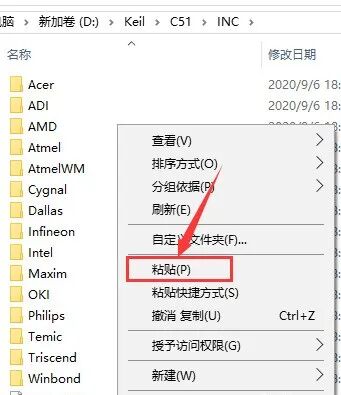
 27. Double-click to open the 【INC】 folder.
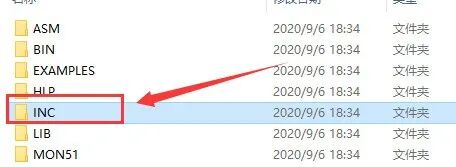 28. Right-click in the blank area and select 【Paste】.
 29. Double-click the 【Keil uVision2】 on the desktop to start.
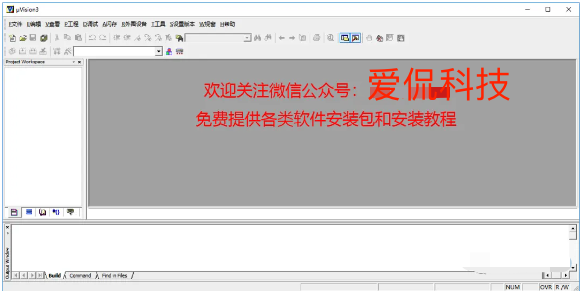
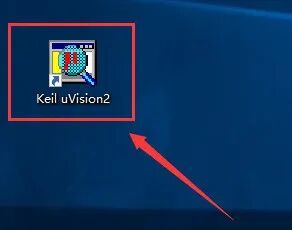 30.Installation complete, the software interface is as follows.