Click the blue text above to follow JieChuangYuan Linux
There are not many graphical tools for image format conversion and adding text watermarks on Linux systems. Using the command line or shell scripts of ImageMagick is still inconvenient. To solve this problem, the author has developed a small tool software.
Software Features: This tool can batch convert image formats (supporting webp, png, jpg, jpeg, tiff) into multiple PDF files, merge converted images into a single PDF file, and even batch add text watermarks to images.
First, you need to install the dependency ImageMagick.
ImageMagick is a powerful open-source image processing software that provides a wide range of image processing capabilities to meet various needs from simple to complex.
1. Online Installation Method for ImageMagick on Linux (Recommended):
1. For Debian and Ubuntu-based systems, the installation command is:
<span>sudo apt install imagemagick</span>
2. Verify if the installation was successful by trying to run some common commands provided by ImageMagick, such as:
<span>convert --version</span>
If the convert command is available, it will return version information.
2. Offline Installation Method for ImageMagick on Linux:
- Download the source package: Visit the official ImageMagick website’s source download page, find the suitable version, and download it from:
<span>https://www.imagemagick.org/download/ImageMagick.tar.gz</span>to your local machine. - Transfer the source package to the target machine: Use a USB drive or other storage devices to copy the downloaded source package to the Linux machine that needs offline installation.
- Extract the source package: On the target machine, use the command
<span>tar zxvf ImageMagick.tar.gz</span>to extract the source package. - Compile and install:
- Enter the extracted directory and execute
<span>./configure</span>to configure. - After configuration, run
<span>make</span>to compile; this process may take 30-60 minutes. - After compilation, execute
<span>make install</span>to complete the installation.
<span>convert -version</span>; if it displays the version information of ImageMagick, the installation was successful.3. Detailed Usage Steps for the Image Format Conversion and Text Watermarking Tool on Linux
First, extract and enter theimageConvertAddWatermarks folder, double-click the “imageConvertAddWatermarks” file to open the tool software. If it does not open, you can open a terminal in theimageConvertAddWatermarks folder and enter<span>./imageConvertAddWatermarks</span> and press Enter. Copy the images you want to convert to theinput-images folder. Click the “Execute” button to save all converted files to the generated<span>output-images</span> folder.
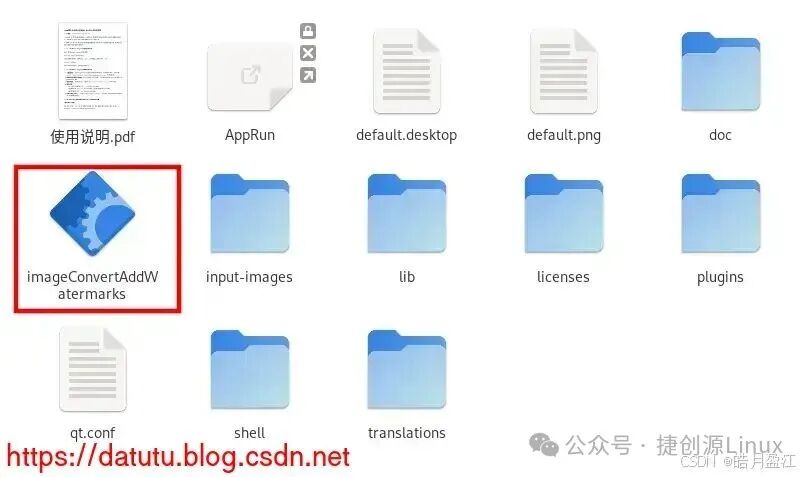
1. Image to PDF Function
Select “Image to PDF”, and for the option to merge images into a PDF: No means each image is converted to its corresponding PDF file; Yes means multiple images are merged into one PDF file. Finally, click the “Execute” button.
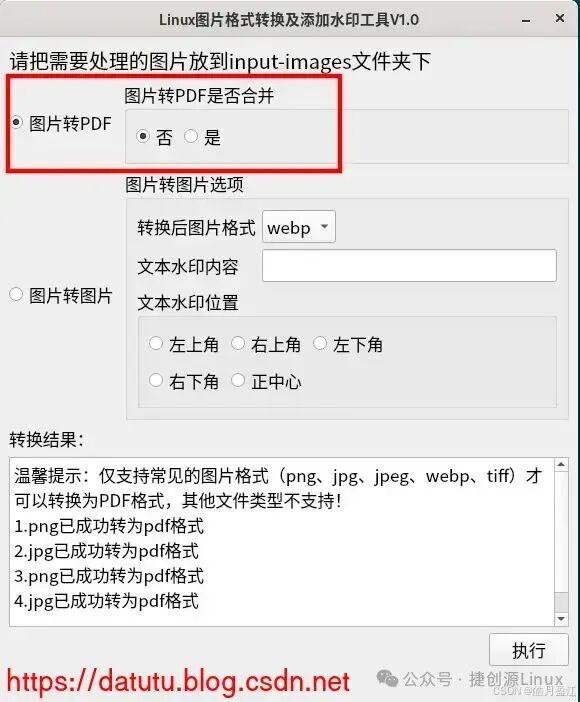
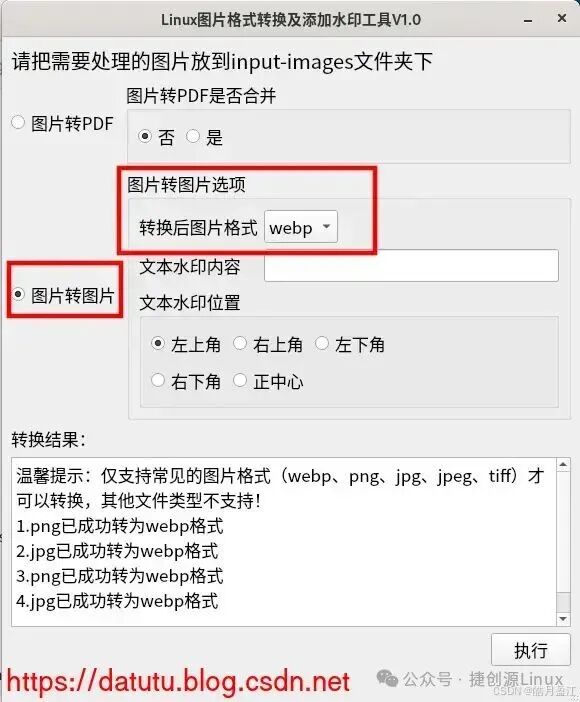
2. Image to Image (Image Format Conversion, No Text Watermark) Function
Select “Image to Image”, choose the format for the converted image, which supports webp, png, jpg, jpeg, tiff; at this time, the text watermark content must be empty. Finally, click the “Execute” button.
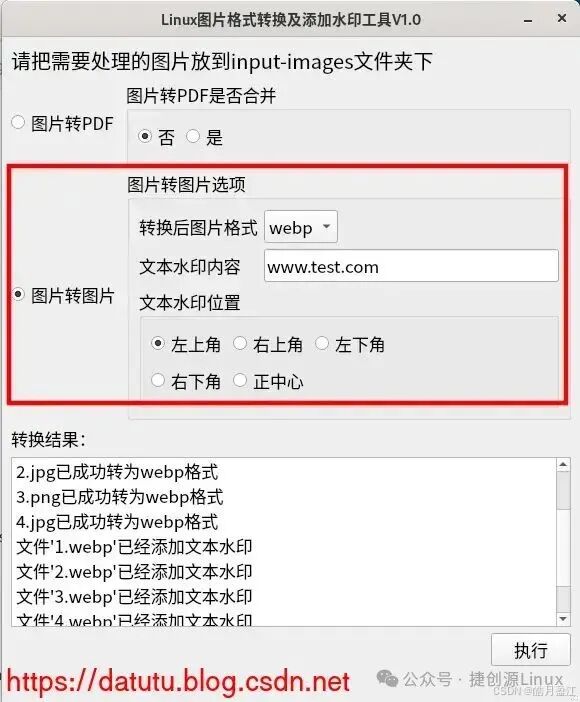
3. Image to Image (Image Format Conversion and Adding Text Watermark) Function
Select “Image to Image”, choose the format for the converted image, which supports webp, png, jpg, jpeg, tiff; set the text watermark content as needed, and position the text watermark on the image as required. Finally, click the “Execute” button.
4. Download Link for This Tool
Link to LanZou Cloud:
https://wwxc.lanzouo.com/iLncs2zjv5ib
Password: ahga
Link to Baidu Cloud:
https://pan.baidu.com/s/1epqFwt7AKEYQGFwfItZzyg?pwd=7htu (Extraction code: 7htu)
Link to ChengTong Cloud:
https://url10.ctfile.com/f/34708910-1522454455-657304?p=5960 (Access password: 5960)
Link to Gitee:
https://gitee.com/datutu2015/image-convert-add-watermarks
Link to Knowledge Planet (requires login to Knowledge Planet before accessing the link):
https://t.zsxq.com/5JfTN
If this article has helped you, please follow the WeChat public account “JieChuangYuan Linux” to get more technical content!