In the field of cybersecurity, attackers often employ various techniques to hide processes in order to conceal their malicious activities. This article provides an in-depth analysis of how hackers hide processes and how to detect hidden processes, combining practical cases and public information.
1. Revealing Common Process Hiding Techniques Used by Hackers
(1) Tool Tampering and Replacement Attacks
1. Function Hook Injection (Hook Technique)
Attackers inject custom functions to hijack system calls (such as readdir(), getdents(), etc.), filtering out malicious process information so that it does not appear in tools like ps or ls. For example, the Kaiji Trojan virus detection and removal practice.
2. Tampering with System Tool Dynamic Libraries or Binary Files
By modifying the dynamic link libraries or binary files of system tools like ps and ls, attackers inject filtering logic to hide malicious processes.
3. Replacement of System Tools
Replacing native system tools (such as ps, top, netstat, lsof, etc.) with malicious versions that automatically ignore malicious processes. For example, using a forged ps to overwrite the real file to hide specified processes.
(2) Fileless Process Attacks
Fileless malware does not rely on executable files on disk but runs by injecting into legitimate processes or using memory-resident techniques, rendering traditional file-based detection ineffective.
(3) Kernel-Level Hiding: Module Hijacking and Driver Attacks
1. Malicious Kernel Modules (LKM)
Hackers load custom kernel modules to modify the kernel process linked list, filtering process information at the kernel level for deep hiding.
2. File System Mount Point Hijacking
Modifying the mount information of virtual file systems like /proc and /sys to forge process lists. Attackers may tamper with mount options using mount -o remount or use chroot to isolate environments and hide processes.
3. Kernel Module Antagonistic Hiding
Some advanced rootkits control malicious kernel modules through custom signals (such as non-standard signals sent by kill -41), temporarily removing them from the kernel module list or tampering with the output of detection tools to evade checks by commands like lsmod.
(4) Process Residue and File Deletion Attacks
After attackers delete malicious files, if the process is still running, the file handles remain in memory, but the process still exists and consumes resources. For example, in a real-time account of a mining virus attack and defense: when all conventional methods fail, the file is deleted, but the process continues to run, hiding malicious behavior.
2. How to Detect Hidden Processes
(1) Basic Tool Verification: Uncovering Tool Tampering
1. Verify Tool Integrity
– Use the type command to check the system tool path to confirm whether it is the native path, preventing the invocation of replaced malicious tools.
type ps– Use md5sum to verify the file hash value and compare it with the official value.
md5sum $(which ps)– Obtain the correct MD5 value from trusted sources (such as official documentation of the software package, original installation media, etc.).
Recommended Action: You can use BusyBox lightweight toolbox: Quickly install BusyBox and other standalone toolsets in CentOS 7 to execute commands and compare the output of system native tools. BusyBox includes a streamlined version of <span>ps</span> and <span>ls</span>, whose binary files are independent of the system toolchain, avoiding the risk of tampering.
2. Package Manager Verification
– In RPM systems (such as CentOS/RHEL), use rpm -V to check if files have been modified.
rpm -V procps-ng # If normal, there will be no output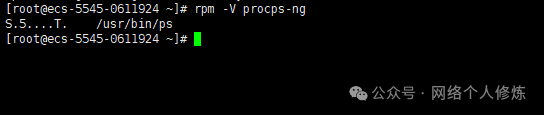
– The meaning of the verification result symbols:
|
Symbol |
Meaning |
|
S |
File size does not match the database record |
| 5 |
File checksum does not match (may have been modified) |
| T |
File modification time does not match the database record |
| M |
File mode or permissions do not match the database record |
3. Common Commands and Their Associated Packages
|
Command |
Associated RPM Package |
Purpose |
|
find |
findutils |
File search tool |
| ls |
coreutils |
File listing display |
| netstat |
net-tools |
Network connection and port viewing |
| ps |
procps-ng |
Process viewing tool |
| top |
procps-ng |
System resource monitoring |
| df/du |
coreutils |
Disk space statistics |
| ifconfig |
net-tools |
Network interface configuration |
| ping |
iputils |
Network connectivity testing |
| ssh |
openssh-clients |
SSH client |
| systemctl |
systemd |
System service management (CentOS 7+) |
4. Exception Handling
If command tampering is detected (rpm -V has output), recovery can be done as follows:
# Restore the tampered procps-ng package
yum reinstall procps-ng -y
# Restore all modified packages (use with caution)
yum reinstall $(rpm -Va | awk '{print $NF}' | xargs rpm -qf | sort -u) -y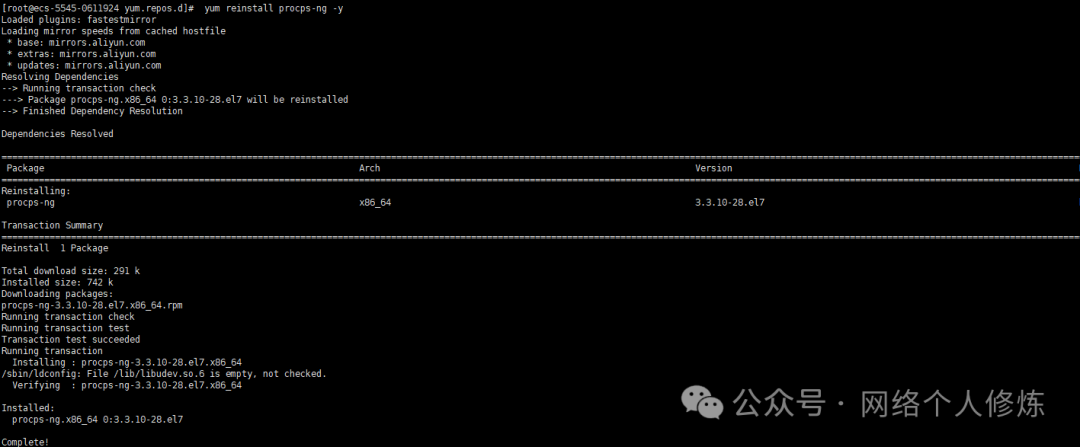
(2) Fileless Process Detection
1. Use the unhide tool
Unhide is an open-source tool specifically designed to detect hidden processes, supporting various detection techniques.
unhide procThis command scans the /proc file system to identify processes not listed by conventional tools.
2. Check for deleted but still running files
Use lsof to find files that have been deleted but are still open by processes:
lsof | grep deletedThese files may be part of a fileless attack.
3. Recover deleted files
Recover files through /proc/<pid>/fd/<fd>:
cp /proc/<pid>/fd/<fd> /tmp/recovered_fileThis is convenient for evidence collection and analysis of malicious code.
(3) Kernel-Level Threat Investigation
1. Detect Malicious Kernel Modules
– Use lsmod to view loaded modules, filtering out essential system modules to investigate suspicious modules:
lsmod | grep -vE "loop|virtio|scsi"– To remove suspicious modules, execute:
rmmod suspicious_module– If the module is hidden, try sending a specific signal:
kill -53 0 ##-53 0 switches the visibility state of all kernel drivers in the current terminal; this operation depends on the signal handling logic of the kernel module and is not a universal detection method.– Combine with dmesg to check kernel logs for abnormal loading information.
2. Mount Point and File System Check
– View current mount points to investigate non-standard file systems:
mount | grep -vE "ext4|xfs|tmpfs"– Force unmount suspicious mount points:
umount /path/to/mountpoint -lReference Links
https://research.qianxin.com/archives/1898
https://forum.butian.net/share/3970
-End-
If you find my sharing useful
[Like +Share+Follow
 ]
]