DTS conversion to stereo
DTS is currently one of the high-quality lossless music formats, with DTS5.1, DTS6.1, DTS7.1 and others. DTS files are divided into DTS split tracks, DTS whole tracks, and DTS images. DTS offers a three-dimensional spatial feeling, immersing music lovers in the experience, and is also a form of aesthetic enjoyment.
DTS discs must be played on a player with DTS decoding capability and require a high-fidelity multi-channel speaker system to truly enjoy DTS. Most listeners, however, enjoy it on their computers, generally only in two-channel stereo, but the sound quality is still quite good. When playing DTS music with software like QianQian JingTing or KuGou, due to the different DTS formats, sometimes you only hear “shhh, shhh…” noise, and sometimes a very slow sound like a “cow mooing.” Converting to WAV format results in a file size that is more than three times the normal size. Many issues trouble us, and many DTS albums cannot be converted for publication. Here, I will share the conversion methods with everyone and provide DTS music processing software for download so we can learn and discuss together.
1. Install the processing software:
1. Install the beautified version of Foobar2000: follow the installation wizard’s prompts.
2. Install the DTS plugin: copy the foo_input_dts.dll file to the C:\Program Files\foobar2000\components folder. At this point, reopen Foobar2000 to play DTS music.
2. Foobar2000 beautified version conversion settings:
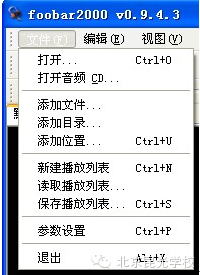
1. Pre-settings: open “File,” click “Preferences”
Click “DSP Manager,” then select “convert 5.1 to stereo” <= and click on the middle “current DSP”
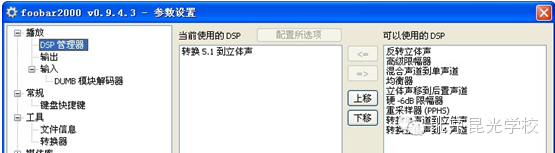
After setting, click “Save all,” then “Close”
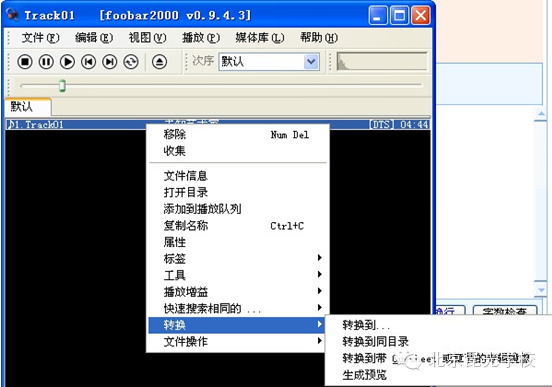
2. Conversion settings: open one or more songs, select all, right-click the song name, and click “Convert” – “Convert to…”
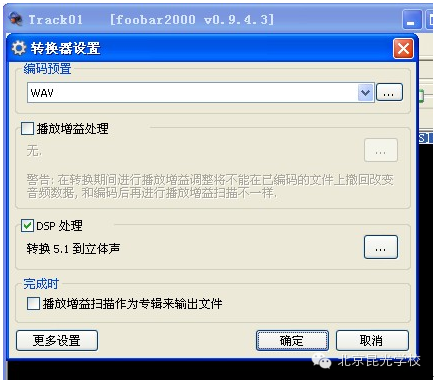
Select WAV in “Encoding preset,” and check the box next to “DSP processing” – “OK”
Specify the location to save the converted files, and the conversion will start automatically.
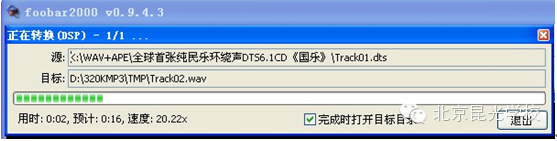
Once set, it can be used for a long time without needing to reset each time.
3. Check the whole track CUE file:
1. Whole track large files: *.DTS, *.WAV, *.APE, *.PLAC, with file sizes in the hundreds of M.
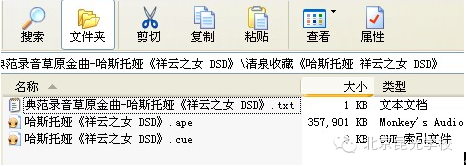
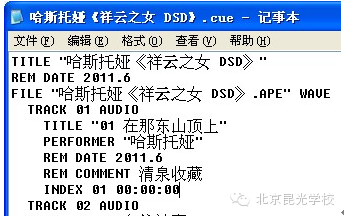
2. Whole track small files: *.CUE, with sizes only a few K. Right-click on the CUE file name and open it with Notepad; at the top, there is a code FILE, which means “file” in Chinese. The file name (including the extension) next to FILE must match exactly with the large file name, otherwise the conversion will fail. For example:
4. Virtual drive and ripping software:
1. To read image files on the computer, you must install a virtual drive. Install DTLite4402-0131.exe, and after restarting the computer, a new drive will be added automatically. Most people will use it, so I won’t elaborate.
2. Rip songs from the virtual drive to the computer; there are many software options, but I recommend EAC095, which is a green version that does not require installation, and I believe everyone can use it.
5. Handling unplayable DTS-WAV files ripped from the virtual drive:
1. Some WAV files may not play and only produce “shhh, shhh…” noise. Change the extension from *.WAV to *.DTS, and when renaming, the system will prompt you; just click “Yes”
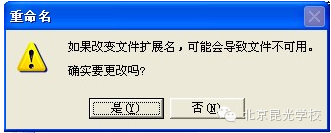
2. Convert the renamed *.DTS files back to WAV format using Foobar2000, and they will be playable.
Want more tips for audio mixing? Follow us!
I can’t guarantee what you’ll get by following us, but you definitely won’t lose anything!