Author | Danner Dan
During the process of performing signal integrity (SI) and power integrity (PI) simulations in CST PCB Studio, it may be necessary to modify the imported PCB. Modifications to signal traces, nets, stackups, vias, and padstacks can be made using the CST PCB Studio’s Edit ribbon, as shown in the figure below.

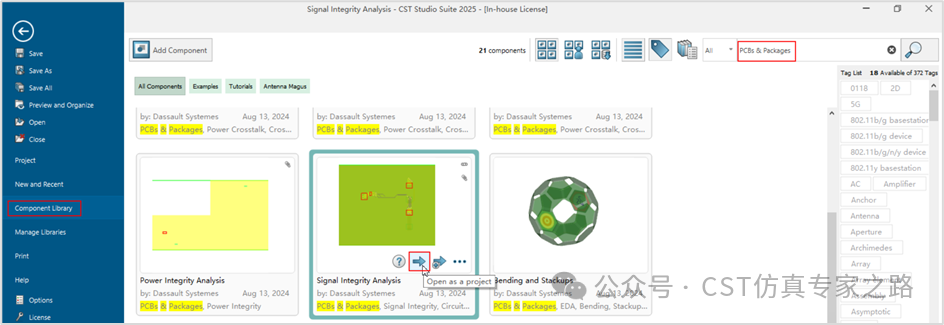
Next, we will introduce how to create a slot on a specific layer in CST PCB Studio based on the models in the component library. Click on Component Library, and in the search box at the top right, enter the keyword: PCBs & Packages to filter, find Signal Integrity Analysis, and select Open as a project to open this simulation project in CST.
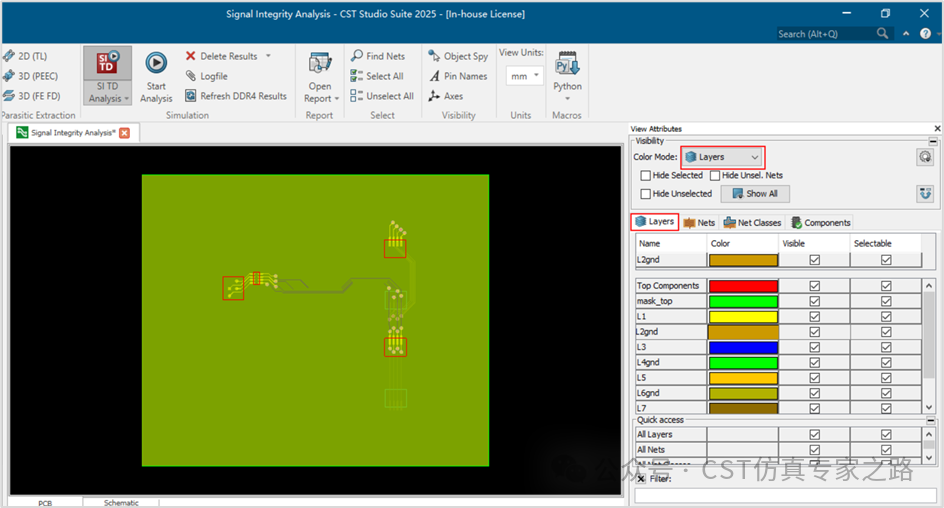
In the View Attributes window on the right, select Color Mode to Layers to view the PCB by layer. You will see that this PCB has a total of 7 layers, with the 2nd, 4th, and 6th layers being ground layers. This article will demonstrate how to create a rectangular slot on the 2nd layer as a reference ground.
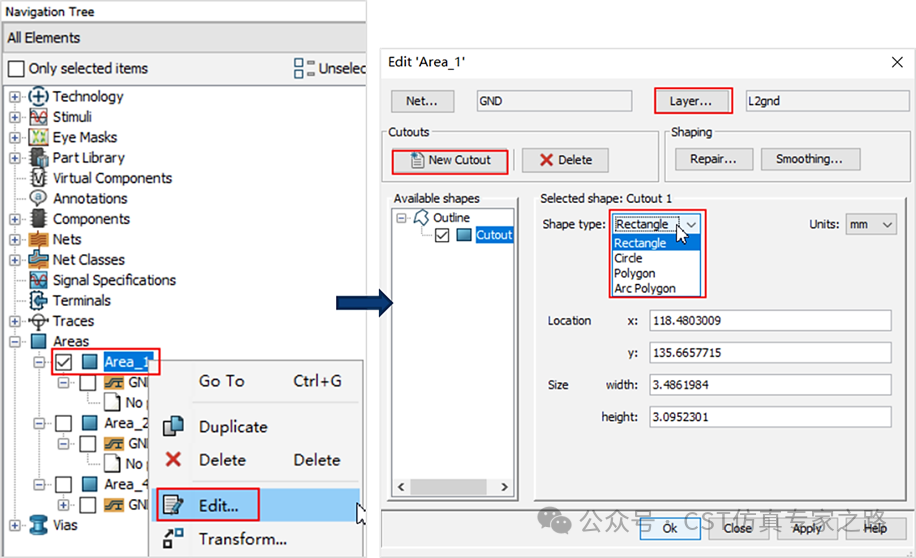
As shown in the figure below, select Area_1 in the navigation tree, click Edit, and in the pop-up dialog, select Net as GND; Layer as the 2nd layer, which is L2gnd. Click the New Cutout button, and then choose the shape of the slot, which can be rectangular, circular, polygonal, or arc-shaped; here, we will select a rectangular slot.
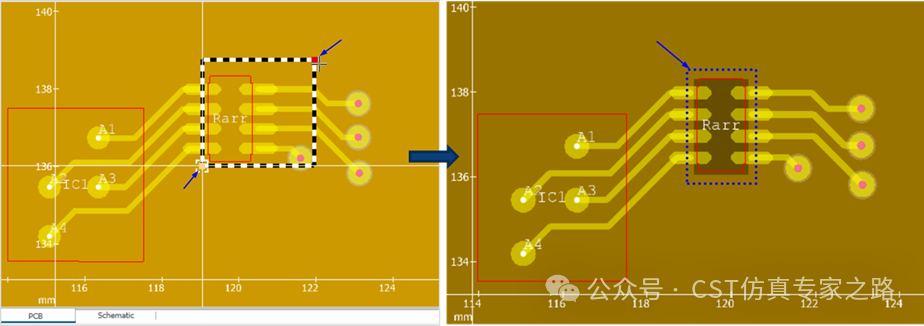
After selecting the rectangular slot, a black and white striped rectangle will appear in the PCB area. You can adjust the size of the slot by dragging the two vertices of the rectangle with the mouse; you can also directly input the coordinates of the rectangular slot in the Location field in the dialog. Finally, click the Apply button and the OK button to complete the slotting, as shown in the right image below.
 Thank you for reading. If you find this article useful, please like, bookmark, or share it with more friends to help them understand and follow us..