Device Driver and Its Purpose
A device driver is a set of programs that act as an intermediary between the computer’s operating system and hardware components. This article provides an overview of such device drivers, including their purpose, types, how they work, their interaction with hardware, and their role in keeping computer systems running smoothly.
What Is a Device Driver?
In a computer, a device driver refers to a special software program or a specific type of software application that controls a particular hardware device, enabling different hardware devices to communicate with the computer’s operating system. Device drivers communicate with computer hardware through the computer’s subsystems or the bus connected to the hardware.
Device drivers are crucial for the normal operation of a computer system because without them, specific hardware will not function properly, meaning it cannot perform the functions it was designed for. Most people use the term “driver,” but some may refer to it as a “hardware driver,” which also refers to a device driver.
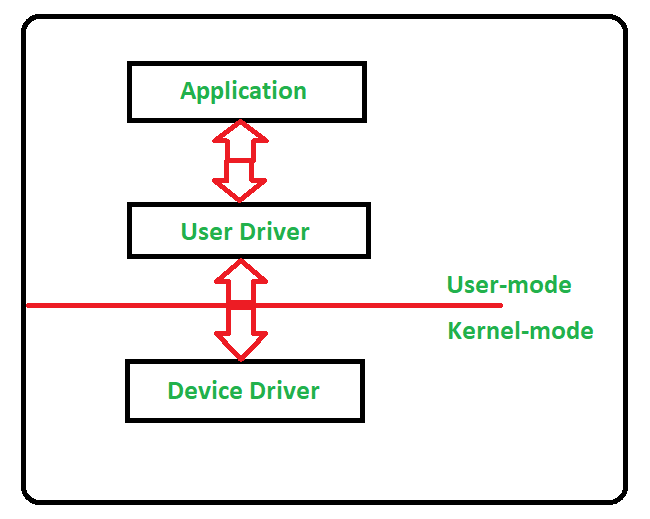
How Do Device Drivers Work?
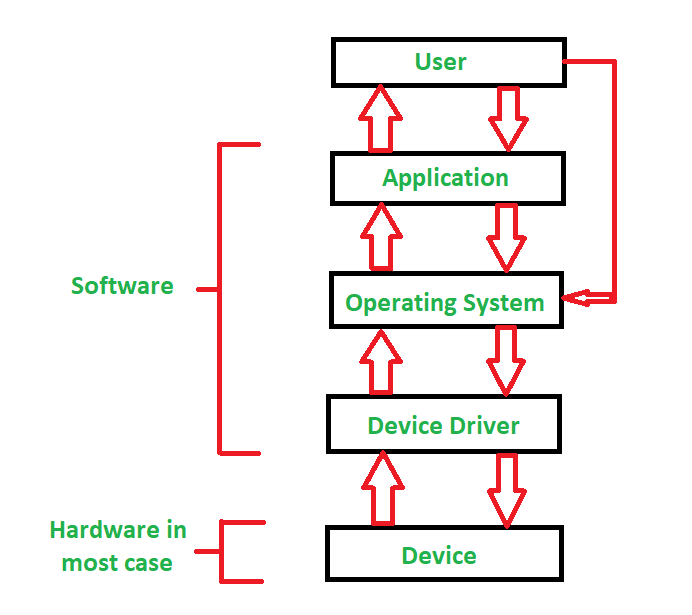
Device drivers access devices and perform specific operations according to instructions from the operating system. After completing operations, they also show their response by passing the output or status information of the hardware device back to the operating system. For example, a printer driver tells the printer how to print after receiving instructions from the operating system; similarly, due to the sound card driver, the data of 1s and 0s in an MP3 file can be converted into audio signals, allowing you to enjoy music. Devices such as card readers, controllers, modems, network cards, sound cards, printers, video cards, USB devices, RAM, and speakers all require device drivers to operate.
The diagram below illustrates the interaction between the user, the operating system, the device driver, and the device:
Types of Device Drivers
Almost every device related to computer systems has a specific device driver. However, they can be broadly classified into two types:
-
Kernel Mode Device Drivers
This type of kernel mode device driver includes some generic hardware that loads with the operating system, such as the BIOS, motherboard, processor, and some other hardware—part of the kernel software. These include the device drivers required for the minimum system requirements of each operating system.
-
User Mode Device Drivers
In addition to the devices introduced by the kernel for system operation, users will also introduce some devices that require device drivers to work properly during system use. The drivers for these devices belong to user mode device drivers. For example, users may need plug-and-play functionality, which falls under user mode device drivers.
How Do Device Drivers Interact with Hardware?
To enable device drivers to interact with hardware, Virtual Device Drivers (VxD) can be used. Virtual device drivers manage virtual devices, and when we use the same hardware virtually, the virtual driver is responsible for controlling and managing the data flow from different applications used by different users to the same hardware.
For a computer, having the correct device drivers for all components is key to maintaining efficient system operation. Many device drivers are initially provided by the manufacturer, and we can also add any necessary device drivers later to meet the system’s needs.
How Do Web-Based Technologies Use Device Drivers?
Web-based technologies typically cannot directly use device drivers. They rely on the operating system and web browsers to control hardware. Device drivers are low-level software that interacts directly with the operating system. The operating system communicates directly with hardware devices. Browsers provide an abstraction layer for hardware to web applications. Therefore, when a web application needs to access certain devices, it uses the APIs provided by the browser. These APIs communicate with the operating system, which then communicates with the hardware through the corresponding device drivers. This layered approach allows web applications to run on different devices without worrying about the specific implementation details of the drivers.
How to Install Device Drivers?
To install device drivers, you can follow these steps:
- Step 1: Identify the device that needs a driver (e.g., printer, graphics card).
- Step 2: Check if Windows has automatically installed the driver.
- Step 3: If not, visit the manufacturer’s website.
- Step 4: Find the “Support” or “Download” section.
- Step 5: Enter your device model.
- Step 6: Download the latest driver compatible with your operating system.
- Step 7: After downloading, run the installation file (usually an .exe file).
- Step 8: Follow the on-screen instructions to complete the installation.
- Step 9: If prompted, restart the computer.
- Step 10: Check the Device Manager to confirm successful installation.
- Step 11: Test the device to ensure it works properly.
Examples of Device Drivers
Here are some examples of device drivers:
Printer Driver
The software that the computer uses to “communicate” with the printer. It acts as a translator that translates print jobs into a language that the printer can understand, mediating instructions such as paper size or print quality in the print job, and conveying the printer’s status information back to the computer. Various versions of printer drivers may be specific to model and operating system.
Graphics Card Driver
Controls the interaction between the operating system and the GPU. It is responsible for display output, 3D acceleration, video decoding, and includes power management. Graphics card drivers optimize gaming performance and graphics-intensive applications and often include a control panel for adjusting display settings.
Network Interface Card (NIC) Driver
Enables the operating system to communicate with the network adapter. It configures packets for transmission and reception over the network, sets network properties such as speed and duplex mode, and installs protocols used for wired or wireless connections. NIC drivers also include features such as Wake-on-LAN and packet filtering.
Audio Driver
Facilitates interaction between the operating system and the sound card or audio chip. It manages audio input/output, multi-audio stream management, and audio effects. It is also responsible for volume control. Many audio drivers also include utilities for setting equalizers, surround sound, and enhancing microphones.
USB Controller Driver
Enables the operating system to communicate with USB ports by detecting devices, managing data flow protocols, controlling power for USB devices, and supporting a wide range of USB standards (such as 2.0 and 3.0). This functionality is essential for detecting and using USB devices like mice, keyboards, and external hard drives.
Conclusion
Device drivers are essential software that enables the operating system to interact with specific hardware devices. They facilitate the interface between operating system instructions and hardware, or vice versa. Essentially, drivers are software that helps convert operating system instructions to compatible hardware, or vice versa, allowing devices to function smoothly, such as printing documents or playing audio.
Generally, they are divided into two categories: kernel mode drivers, which are part of the operating system; and user mode drivers, which are for devices added by users. Virtual device drivers allow multiple applications to share a hardware device. Installing device drivers is crucial for effective and efficient system operation and ensuring that all hardware components work correctly for compatibility.
Device Drivers and Their Uses – Frequently Asked Questions
What Is a Device Driver, and Why Is It Important?
- A device driver is a software program that acts as an intermediary between the operating system and hardware devices (such as printers, sound cards, or graphics cards). It translates commands from the operating system into instructions that the hardware can understand. Device drivers are very important because without them, hardware cannot function properly, and the computer cannot effectively utilize these devices.
What Types of Device Drivers Are There?
- Generally, device drivers are divided into two categories: kernel mode and user mode. Kernel mode drivers run as part of the operating system and handle the most trusted core hardware, such as the CPU and motherboard. User mode drivers manage external or user-installed devices, such as printers or external hard drives, for plug-and-play and performance optimization.
How Do Device Drivers Interact with Hardware?
- Device drivers interact with hardware by converting instructions provided by the operating system into a form that hardware devices can understand. This interaction is done through the computer’s subsystems or bus. Other drivers, known as virtual device drivers (VxD), manage virtualized hardware to allow multiple applications to efficiently share the use of a single physical device.
How to Install or Update Device Drivers?
- To install or update device drivers, first check the hardware you need, then check if the operating system has automatically installed the device driver. If not, go directly to the manufacturer’s website. After that, find the corresponding driver in the support or download area for the correct device and correct operating system. Follow the on-screen prompts to download and run the installer, and restart the computer to complete the installation. Verify that the driver is correctly installed through the Device Manager.
Source
https://www.geeksforgeeks.org/device-driver-and-its-purpose/