Daily Linux Command: manDaily Linux Command: dateToday we will mainly learn about the cd command, which is used to change the current working directory of the shell. It can be said to be one of the most commonly used commands in command line operations.✦•———-Basic Usage———-•✦
As we all know, the Linux file system adopts a tree structure, with all paths starting from the root directory (root, i.e., /). After logging into the system via the terminal, users will by default enter their home directory (home directory).
The home directory of a regular user is located at /home/<username>/, while the home directory of the root user is /root. The user’s home directory can also be represented by the tilde ~.
For example, the ~ in the terminal prompt indicates that the current location is the home directory of user dybai:
dybai@bastion-host:~$When we want to leave the home directory and enter another directory, we need to use the cd command. Its basic usage is to add the target path parameter after the command, which can be a absolute path or a relative path.
-
Absolute Path: The complete path starting from the root directory /.
# Switch to the /opt directory using absolute path
dybai@bastion-host:~$ cd /opt
dybai@bastion-host:/opt$-
Relative Path: The path starting from the current directory. It uses two special symbols: . represents the current directory, and .. represents the parent directory.
# Return to home directory using relative path
dybai@bastion-host:/opt$ cd ../home/dybai
dybai@bastion-host:~$
# Enter the Pictures folder in the current directory (the leading ./ can be omitted)
dybai@bastion-host:~$ cd Pictures/
dybai@bastion-host:~/Pictures$
# cd . keeps the current directory unchanged
dybai@bastion-host:~/Pictures$ cd .
# First return to the parent directory and then enter Pictures, the effect is the same
dybai@bastion-host:~/Pictures$ cd ../Pictures/
dybai@bastion-host:~/Pictures$
# Return to the parent directory
dybai@bastion-host:~/Pictures$ cd ..
dybai@bastion-host:~$
So, when should we use absolute paths and when should we use relative paths? The principle is: use whichever is more convenient. If the target is close to the root directory, using an absolute path is clearer; if it is close to the current directory, using a relative path is quicker.
For example:
# Assuming currently in /data/nfs/daemon/home/Packages
# Viewing the nearby log folder, using relative path is more convenient
dybai@bastion-host:/data/nfs/daemon/home/Packages$ cat ../logs/renew.log
========== BEGIN 2022-06-01 05:00:01 ==========Successful for renew certificate.========== END 2022-06-01 05:02:01 ==========
# Viewing files in the more distant /etc directory, using absolute path is more direct
dybai@bastion-host:/data/nfs/daemon/home/Packages$ cat /etc/issue
Debian GNU/Linux 12 \n \l
Sometimes the terminal prompt does not display the full path, we can use the pwd(1) command to check the current working path of the shell:
dybai@bastion-host:~$ pwd
/home/dybai
Therefore, when writing Shell scripts, pwd(1) is often used to obtain the current path:
#!/bin/bash
CUR_PATH=$(pwd)
echo $CUR_PATH
# Output /home/dybai
Additionally, if the cd command is used without any parameters, it will directly return to the current user’s home directory:
dybai@bastion-host:/opt$ cd
dybai@bastion-host:~$ pwd
/home/dybai
This concludes the basic usage of the cd and pwd(1) commands.As usual, if you want to delve deeper into the inner workings of the cd command, please continue exploring with me below.✦•———-Advanced Usage Tips———-•✦Observant students may have noticed that we did not specify the section of the man manual for the cd command. Why is that?Because cd is a Shell built-in command and is not included in the man manual.
So, what is a Shell built-in command?
To understand this question, we must first discuss what a shell command is.Typically, when we refer to a “command”, we mean an external command, which is an executable program located at a certain path in the file system. When a user inputs a command, the Shell searches for an executable file with the same name in the directories listed in the PATH environment variable. If it cannot be found, an error will be reported: command not found.
>$ ks-bash: ks: command not foundTo view the contents of the PATH environment variable:
>$ echo $PATH
/sbin:/home/dybai/.local/bin:/usr/local/bin:/usr/bin:/bin:/usr/local/games:/usr/games:/snap/bin
If a command is not installed, we can install it using a package manager (such as apt for Debian/Ubuntu, dnf for RedHat/Fedora).
Not sure which package a certain command belongs to?
I recommend a useful website: https://command-not-found.com/, which can help you quickly locate the installation source. (Click on “Read the original text” at the end to jump to it)
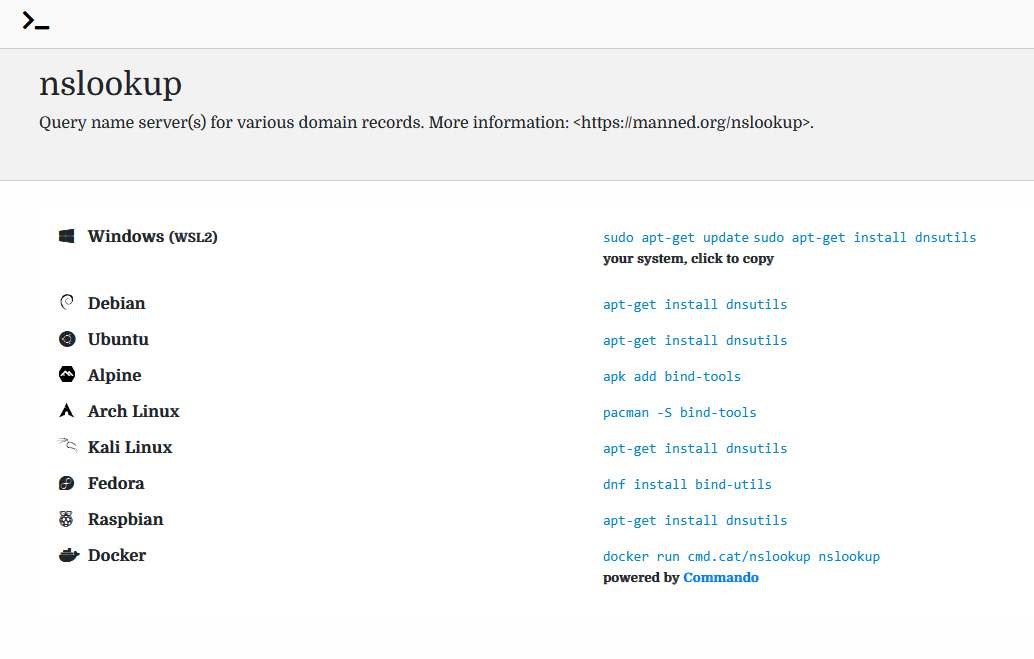 For example, with the nslookup commandUnlike external commands, built-in commands are functionalities provided by the Shell itself and do not rely on binary programs in the file system. Even if the file system is completely deleted (rm -rf /
  ), these commands are still available.The cd command is such a built-in command.
-
Finally, here’s a useful tip: quickly return to the previous directory
Using cd – allows you to quickly jump back to the last directory you were in:
dybai@bastion-host:~$ cd /opt
dybai@bastion-host:/opt$ cd -
/home/dybai
dybai@bastion-host:~$
The principle is that the Shell records your last position through the OLDPWD environment variable:
# After jumping back to the home directory from /opt, OLDPWD is set to the previous location /opt
dybai@bastion-host:~$ echo $OLDPWD
/opt
This little trick is especially useful when you need to frequently switch between two distant directories.
Congratulations, you have gained more useful knowledge✨