Basic Syntax of Linux
There is no need to elaborate on what Linux is and why one should learn it. This article mainly records the syntax of Linux.
The usage of Linux is quite different from Windows, but since I have a certain foundation in R language, I feel that there are some commonalities between the two, making it not so difficult to understand. My personal experience is that Windows is a visual operating system; many things can be understood just by looking at the screen, but Linux is not like that.
For example, in Windows, I can tell where I am on the computer just by looking at the contents of a folder, but in Linux, the contents of the path are not intuitively displayed on the screen, which leads to the need for some commands to find out where I am? What is here?.
What is my current directory and what is in it?
-
Display the current path
<span>pwd #print working directory</span>
-
What is in the current path?
<span>ls</span>list, the operation result is as follows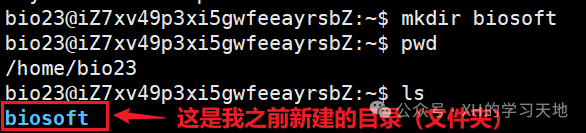 This actually reminds me of the line of code in R language to clear the environment
 <span>rm(list=ls())</span>(I hope I didn’t remember this code wrong; if I did, just ignore it w)
In summary, for me at the moment, to avoid getting lost, I need to make good use of <span>pwd #print working directory</span> and <span>ls</span>
I’m going to start working
In Windows, starting a project often begins with “New Folder”. This can be done with a right-click, but how do you do it in Linux? The command is as follows
-
I want to create a folder!—— Create an empty directory
<span>mkdir #make directory</span># The part after is a comment, which is the same as in R language. Make good use of comments!
-
I want to open the newly created folder——Enter the directory
<span>cd directory_name/</span>
-
I want to switch between folders——Return to the previous directory or the parent directory
<span>cd ~</span>Return to the previous directory<span>cd ../</span>Return to the parent directory The operation result is shown in the image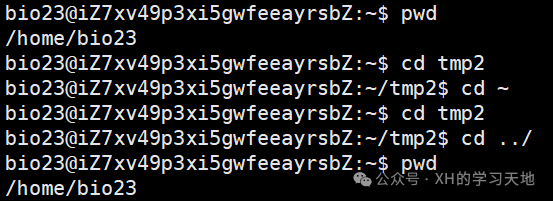 Here are a few points to note:
 <span>$</span>in front shows your current directory, and after<span>$</span>you input commands, similar to how you continue running code after<span>></span>appears in R language.
Common mistakes Forgetting to add spaces between commands 
I’m going to create files and scripts now——Create text and display text
-
Create text
<span>vi filename.extension</span>You must write the name of the new file! Otherwise, it will report an error when saving After entering the text editor, i enters input mode (i.e., insert)Esc key exits input mode, similar to exiting full-screen mode when watching a video, escape, right? (laugh) In the lower left corner: 😡 saves the file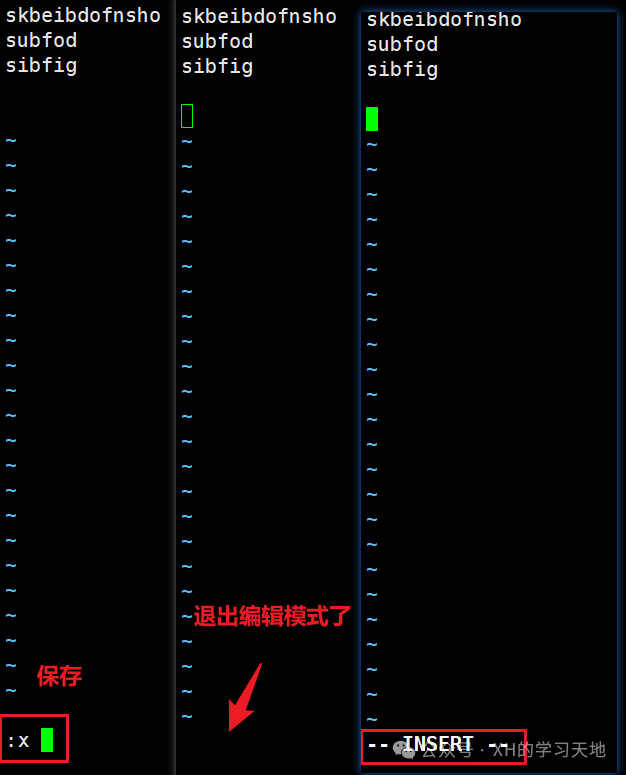
-
I want to display the file
<span>cat filename</span>Typing the first three letters of the file name and pressing the Tab key can auto-complete the file in the current directory<span>head filename</span>shows the first ten lines<span>tail filename</span>shows the last ten lines<span>head -n number filename</span>shows the specified number of lines, which is somewhat similar to R language~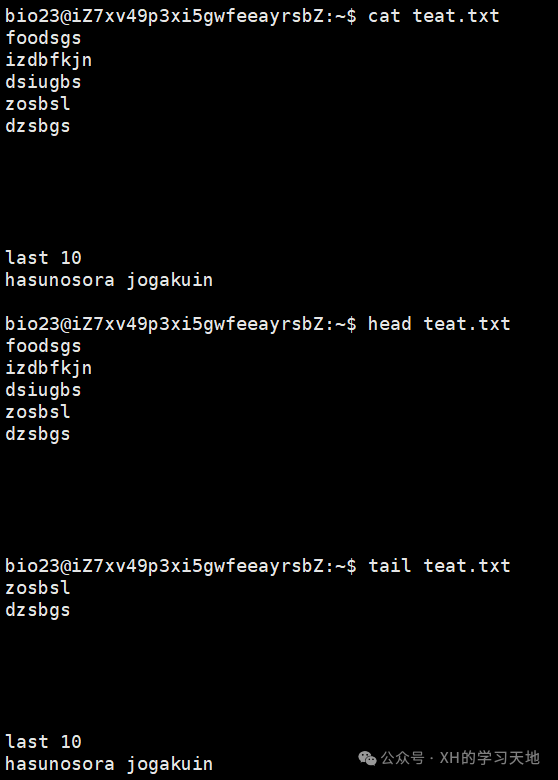
Copying, moving, renaming, and deleting files——copy, move, remove
-
Copy files
<span>cp file_to_copy new_file_name</span>The operation is shown in the image
-
Moving and renaming files
<span>mv filename path</span>Move the file to the specified path, the operation is shown in the image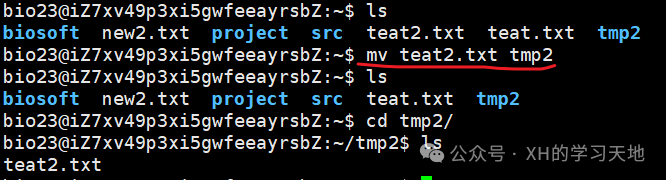
<span>mv old_filename new_filename</span>Rename the file, the operation is shown in the image
-
Delete files or directories
<span>rm filename</span>Delete the file<span>rm -r directory_name</span>Delete the directory, the operation is shown in the image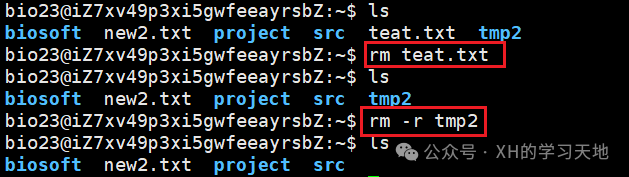
These are the simple Linux syntax I have learned so far. I currently have no plans to further explore Linux operations, but I will continue to learn if needed in the future.
This content is a learning note from the WeChat public account “Bioinformatics Planet” for the beginner group on single-cell analysis. Special thanks to Teacher Hua for the teaching ღ( ´・ᴗ・` ) Sending love