Do you remember the classic childhood game “Snake”? The simple joy of controlling a little snake to continuously eat food and grow longer is surely nostalgic! Today, we will recreate this classic game using Python with just a few dozen lines of code! Whether you are a programming novice or an expert, you will find enjoyment in this tutorial!
1. Preparation: Install Pygame
We choose the Pygame library to help us create the game window and handle graphics. Pygame is a powerful Python library that is very suitable for 2D game development.Open your command line or terminal and enter the following command to install Pygame:
pip install pygameOnce the installation is complete, we can start writing code!
2. Initialize the Game Window and Basic Settings
First, we need to set the size of the game window, the title, and some color constants.
import pygame
import random
# Game window dimensions
SCREEN_WIDTH = 600
SCREEN_HEIGHT = 400
GRID_SIZE = 20  # Size of the snake and food
# Color definitions (RGB)
WHITE = (255, 255, 255)
BLACK = (0, 0, 0)
GREEN = (0, 255, 0)
RED = (255, 0, 0)
BLUE = (0, 0, 255)
pygame.init()
screen = pygame.display.set_mode((SCREEN_WIDTH, SCREEN_HEIGHT))
pygame.display.set_caption("Python Snake")
clock = pygame.time.Clock()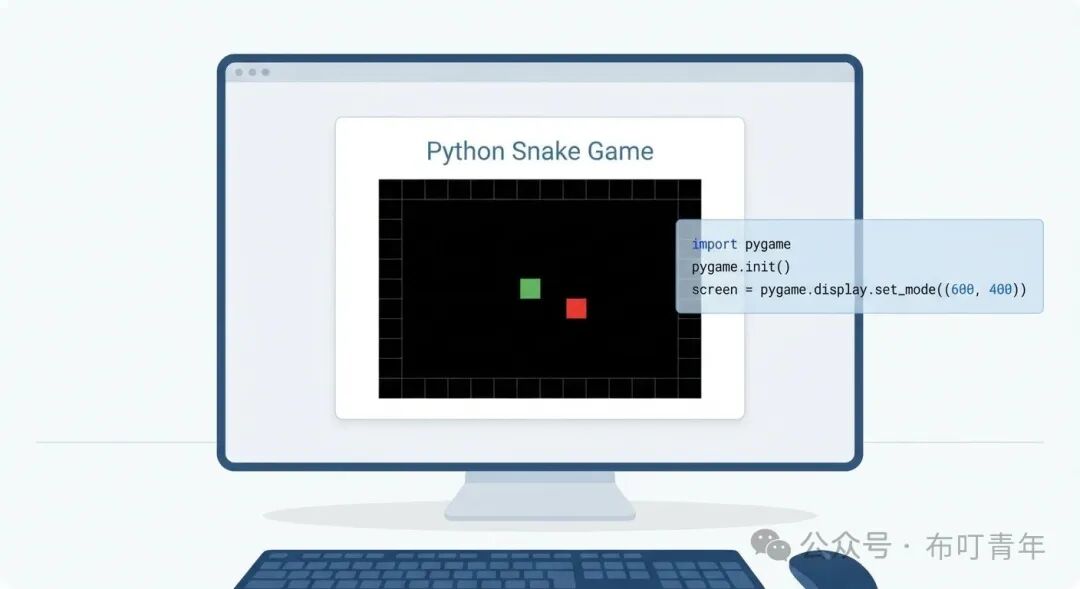
3. Implementing the Snake: Snake Class
The snake is the main character of the game, and it needs properties and behaviors such as body, position, direction, and movement.
class Snake:
    def __init__(self):
        self.length = 1
        self.positions = [((SCREEN_WIDTH // 2), (SCREEN_HEIGHT // 2))]  # Initial position at the center of the screen
        self.direction = random.choice([UP, DOWN, LEFT, RIGHT])  # Random initial direction
        self.color = GREEN
    def get_head_position(self):
        return self.positions[0]
    def turn(self, point):
        # Ensure no 180-degree turns
        if self.length > 1 and (point[0] * -1, point[1] * -1) == self.direction:
            return
        self.direction = point
    def move(self):
        cur = self.get_head_position()
        x, y = self.direction
        new = (((cur[0] + (x * GRID_SIZE)) % SCREEN_WIDTH), (cur[1] + (y * GRID_SIZE)) % SCREEN_HEIGHT)
        # Check if it hits itself (note: if new is part of the body but not the tail)
        if len(self.positions) > 2 and new in self.positions[2:]:
            return True  # Indicates game over
        self.positions.insert(0, new)
        if len(self.positions) > self.length:
            self.positions.pop()
        return False  # Game continues
    def draw(self, surface):
        for p in self.positions:
            pygame.draw.rect(surface, self.color, (p[0], p[1], GRID_SIZE, GRID_SIZE))
    def handle_keys(self, key):
        if key == pygame.K_UP: self.turn(UP)
        elif key == pygame.K_DOWN: self.turn(DOWN)
        elif key == pygame.K_LEFT: self.turn(LEFT)
        elif key == pygame.K_RIGHT: self.turn(RIGHT)
UP = (0, -1)  # Y-axis negative direction is up
DOWN = (0, 1)
LEFT = (-1, 0)
RIGHT = (1, 0)
4. Implementing Food: Food Class
The food is simple; it only needs a position and needs to be randomly regenerated after being eaten.
class Food:
    def __init__(self):
        self.position = (0,0)
        self.color = RED
        self.randomize_position()
    def randomize_position(self):
        self.position = (random.randint(0, (SCREEN_WIDTH-GRID_SIZE) // GRID_SIZE) * GRID_SIZE,
                         random.randint(0, (SCREEN_HEIGHT-GRID_SIZE) // GRID_SIZE) * GRID_SIZE)
    def draw(self, surface):
        pygame.draw.rect(surface, self.color, (self.position[0], self.position[1], GRID_SIZE, GRID_SIZE))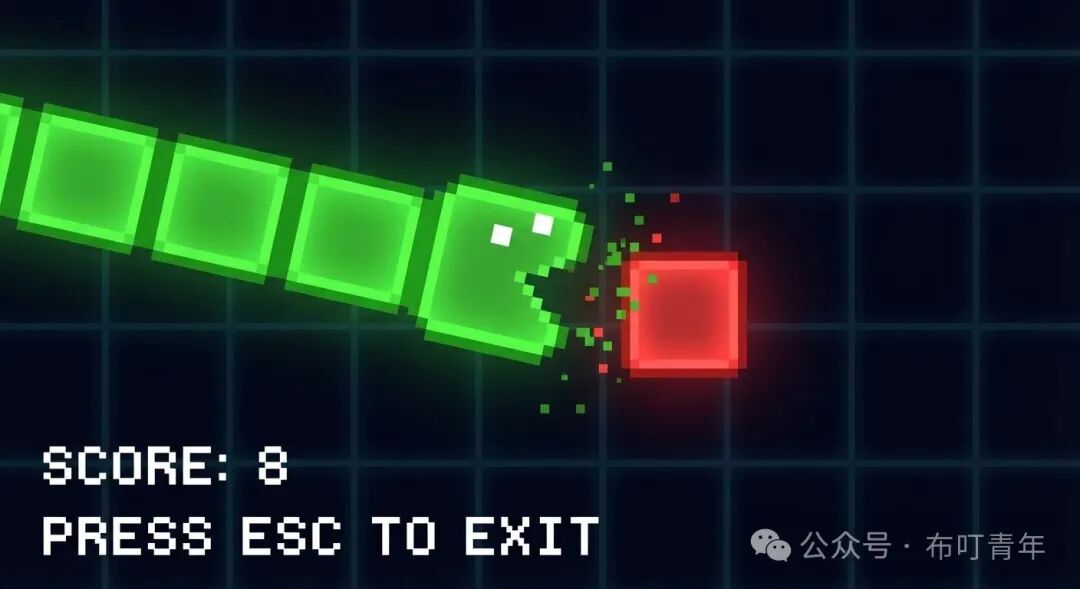
5. The Game Loop
Now, we will combine all parts to build the main game loop. This loop will continuously update the game state, handle user input, and draw the screen.
def main():
    snake = Snake()
    food = Food()
    game_over = False
    score = 0
    font = pygame.font.Font(None, 36)
    running = True
    while running:
        for event in pygame.event.get():
            if event.type == pygame.QUIT:
                running = False
            elif event.type == pygame.KEYDOWN:
                snake.handle_keys(event.key)
        if not game_over:
            if snake.move():  # If move returns True, it means it hit itself
                game_over = True
            # Check if it ate the food
            if snake.get_head_position() == food.position:
                snake.length += 1
                score += 10
                food.randomize_position()
        screen.fill(BLACK)  # Fill background
        snake.draw(screen)
        food.draw(screen)
        # Display score
        score_text = font.render(f"Score: {score}", True, WHITE)
        screen.blit(score_text, (5, 5))
        if game_over:
            game_over_text = font.render("Game Over! Press R to Restart", True, WHITE)
            text_rect = game_over_text.get_rect(center=(SCREEN_WIDTH // 2, SCREEN_HEIGHT // 2))
            screen.blit(game_over_text, text_rect)
            # Restart logic
            keys = pygame.key.get_pressed()
            if keys[pygame.K_r]:
                snake = Snake()
                food = Food()
                game_over = False
                score = 0
        pygame.display.update()
        clock.tick(10)  # Control game frame rate, snake's movement speed
    pygame.quit()
if __name__ == '__main__':
    main()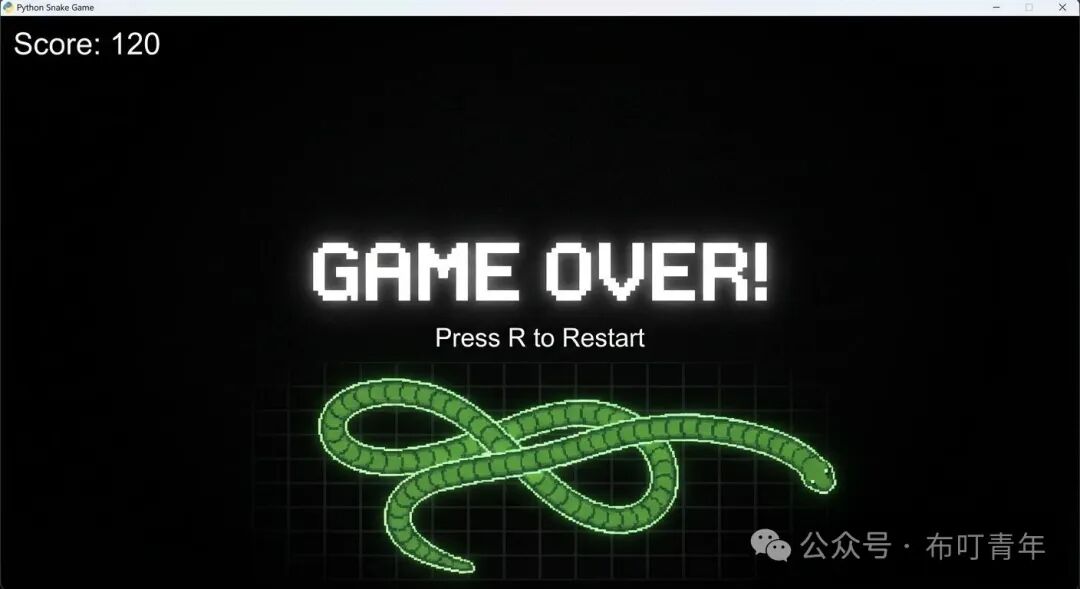
6. Run Your Game!
Save the above code as <span>snake_game.py</span>, and then run it in the command line:
python snake_game.pyA simple Snake game window will appear before you! You can use the arrow keys on your keyboard to control the movement of the snake.
Conclusion
Congratulations! With just a few dozen lines of Python code, we have successfully implemented a fully functional Snake game. Throughout this process, we learned the basics of using Pygame, object-oriented programming concepts, and how to construct a game loop.This is just a basic version; you can try adding more features, such as:
- Sound Effects: Play sound effects when eating food or when the game ends.
- Level System: Increase the snake’s movement speed as the score increases.
- Wall Collision Detection: End the game when the snake hits the boundary instead of passing through it.
- Multiple Foods: Different colored foods represent different scores or effects.
- User Interface Optimization: More beautiful fonts, backgrounds, and buttons.
Get started and create your own exclusive Snake game! If you encounter any issues during implementation, feel free to discuss in the comments!