01
Command Description
AT: Test AT startup.
AT+RST: Restart the module.
ATE: Enable or disable AT echo function.
AT+CWMODE: Query/set Wi-Fi mode (Station/SoftAP/Station+SoftAP).
AT+CWJAP: Connect to the specified WiFi network.
AT+MQTTUSERCFG: Set MQTT user attributes.
AT+MQTTLONGCLIENTID: Set MQTT client ID.
AT+MQTTLONGUSERNAME: Set MQTT login username.
AT+MQTTLONGPASSWORD: Set MQTT login password.
AT+MQTTCONNCFG: Set MQTT connection attributes.
AT+MQTTALPN: Set MQTT Application Layer Protocol Negotiation (ALPN).
AT+MQTTSNI: Set MQTT Server Name Indication (SNI).
AT+MQTTCONN: Connect to MQTT Broker.
AT+MQTTPUB: Publish MQTT message (string).
AT+MQTTPUBRAW: Publish long MQTT message.
AT+MQTTSUB: Subscribe to MQTT Topic.
AT+MQTTUNSUB: Unsubscribe from MQTT Topic.
AT+MQTTCLEAN: Disconnect MQTT connection.
02
Process
OneNet Platform (New Version): https://open.iot.10086.cn/
Step One: Configure OneNet Platform
After logging into your personal account, click to enter the Developer Center and access the management backend.
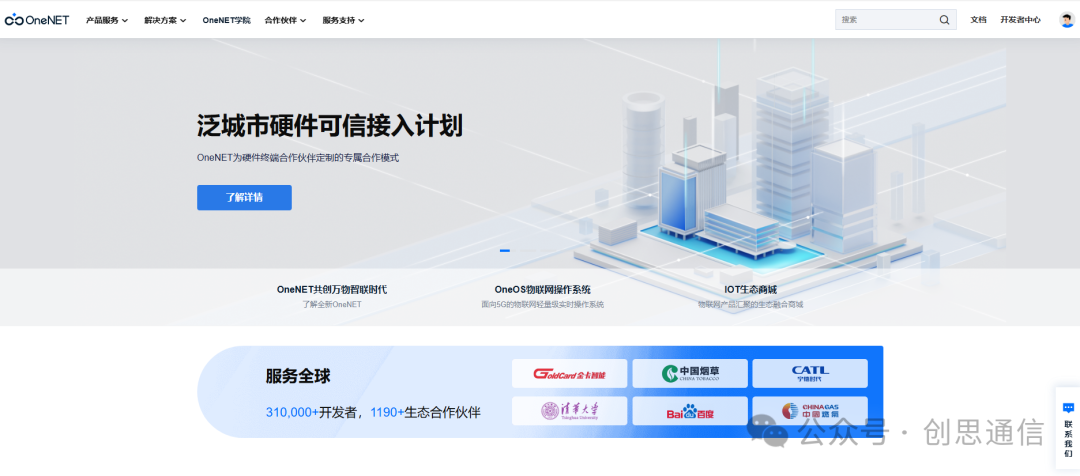
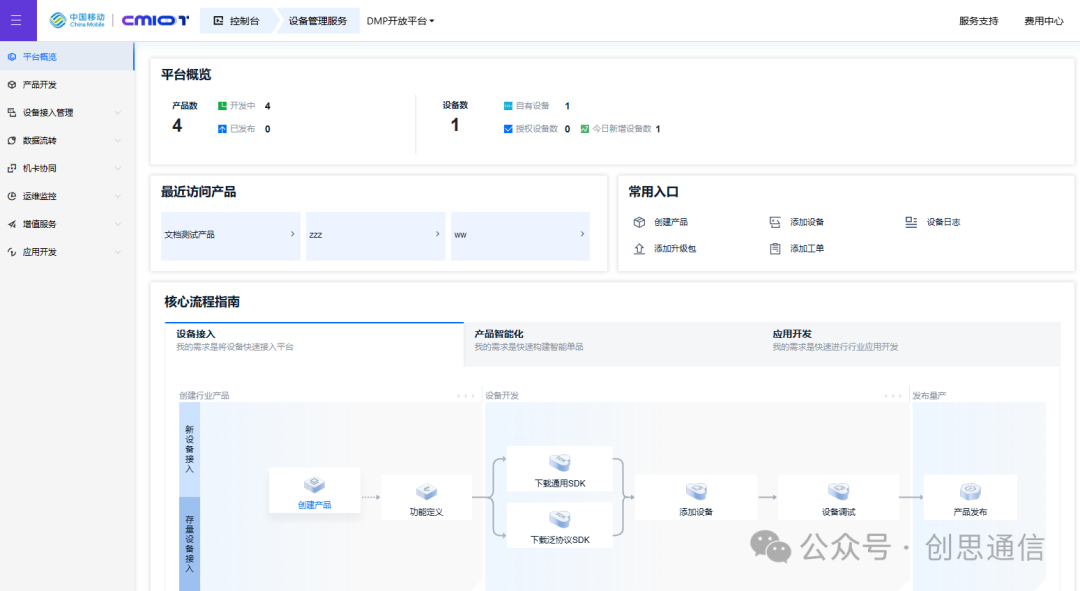
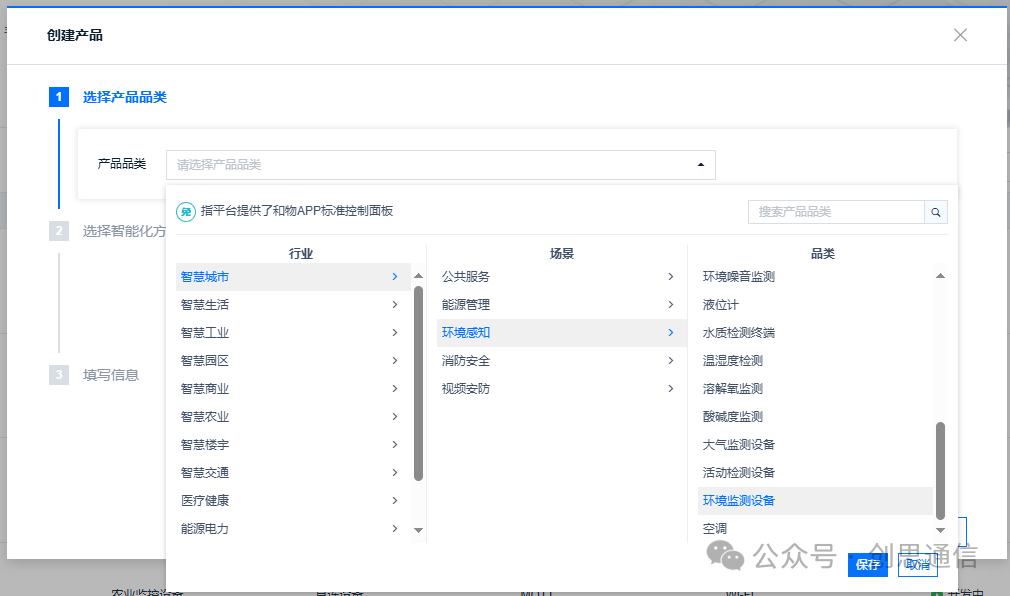
In the left navigation bar, select [Product Development] → [Create Product] to enter the product creation page. Configure the basic information of the product on the product creation page.
Product Category: Select from the dropdown menu based on actual needs (e.g., smart home, etc.).
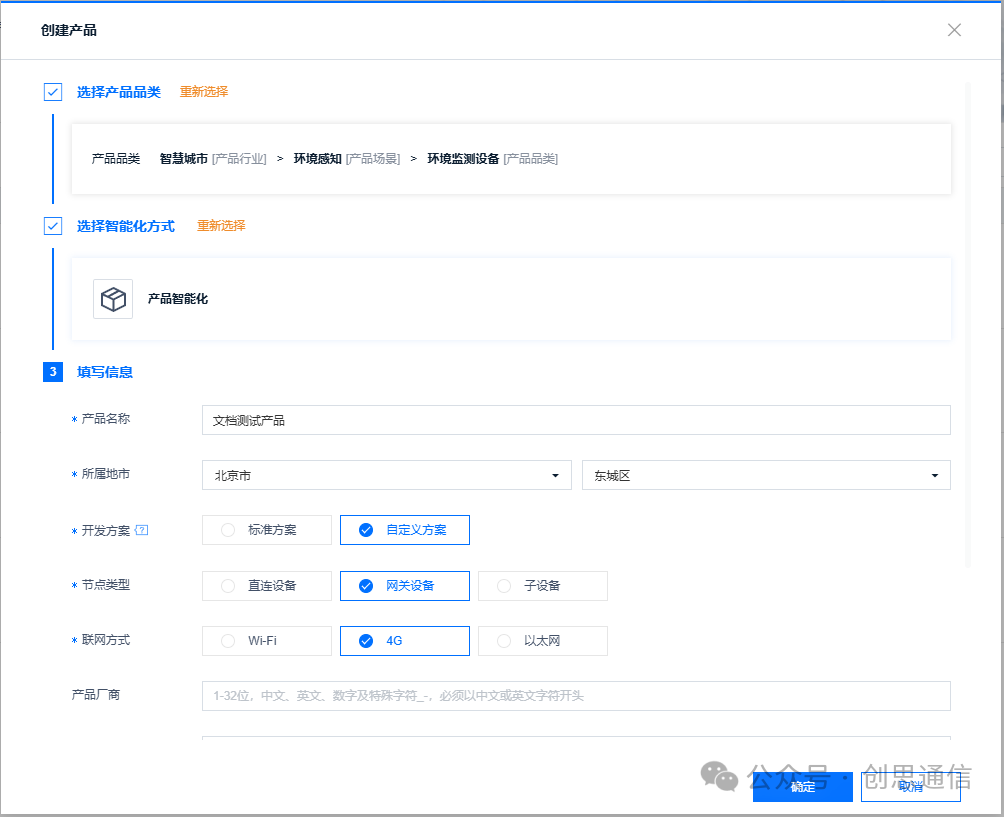
Choose the intelligent method:
1. Device Access (Custom Development)
Applicable for existing hardware devices that need to connect to the platform, allowing for custom development of device communication protocols.
2. Product Intelligence (OneNet Platform Solution)
You can directly use the OneNet built-in [China Mobile IoT] APP for device management and control without additional client development.
Find the created product in the product list, click the corresponding product development button to enter the product development details page. Set the object model on the product development details page.
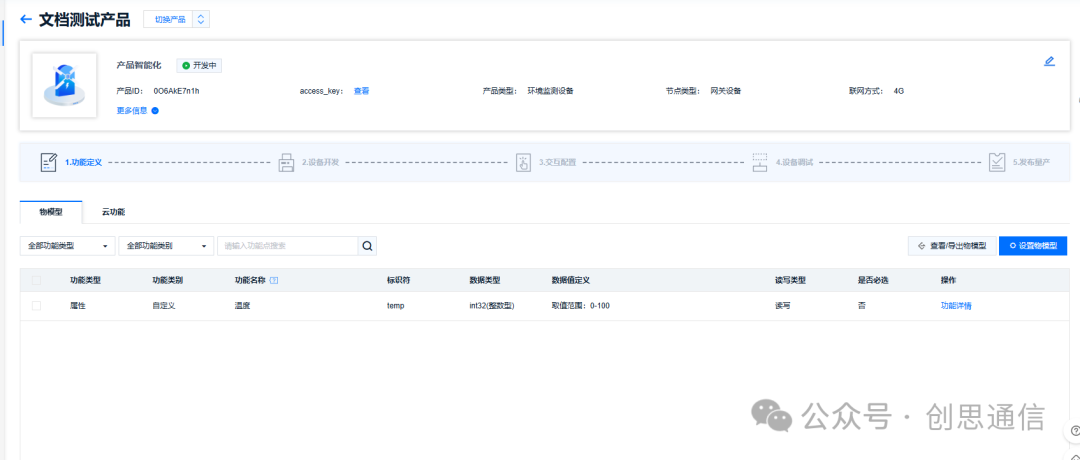
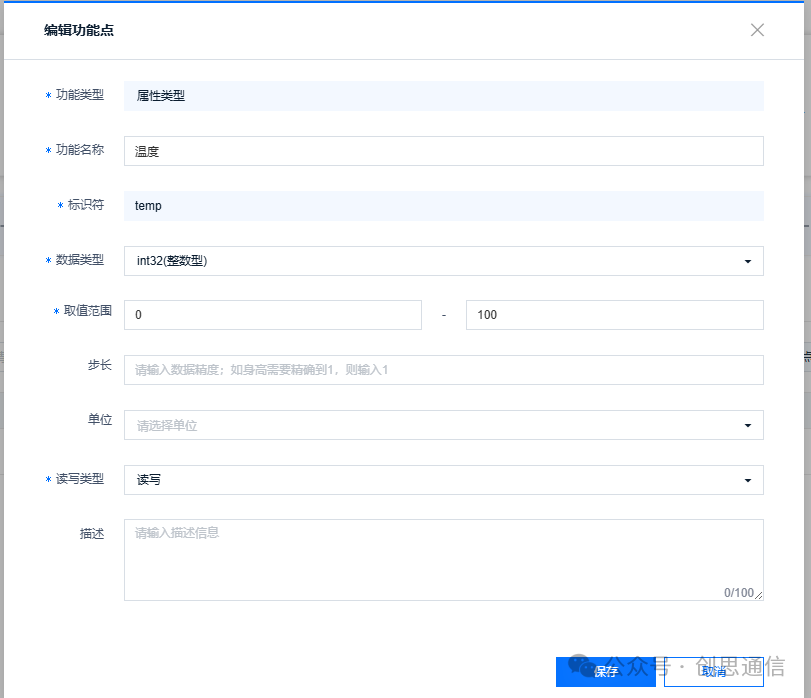
Custom functions can be selected, and fill in the function name, data type, identifier, and other information as needed.

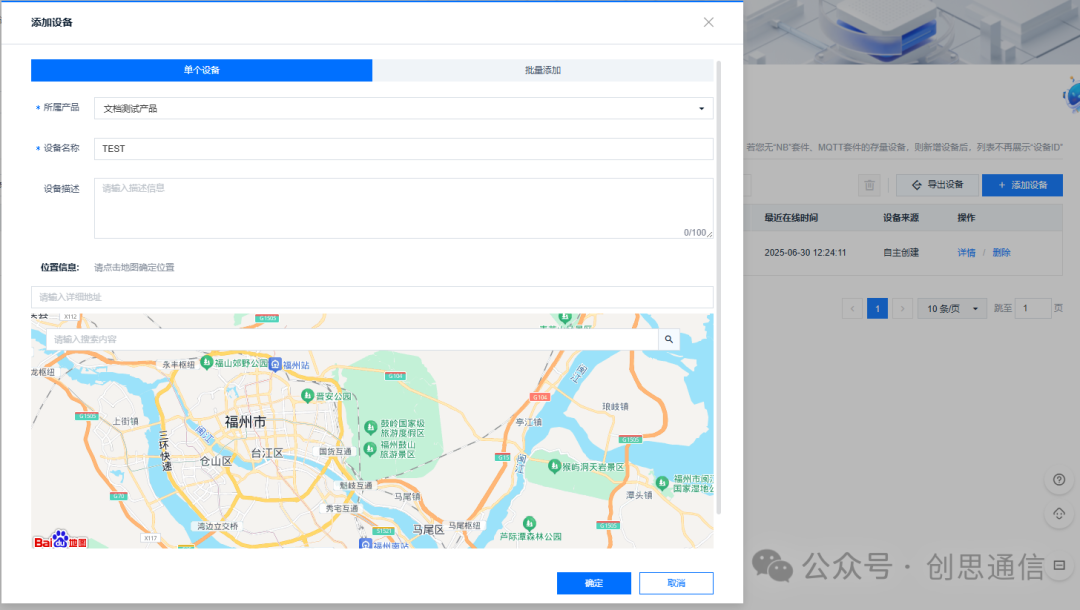
In the left navigation bar, find the device management option under the device access management category and click it, then in the corresponding functional area, click to add a device.
After the above steps, the relevant configuration of the OneNet platform has been completed.
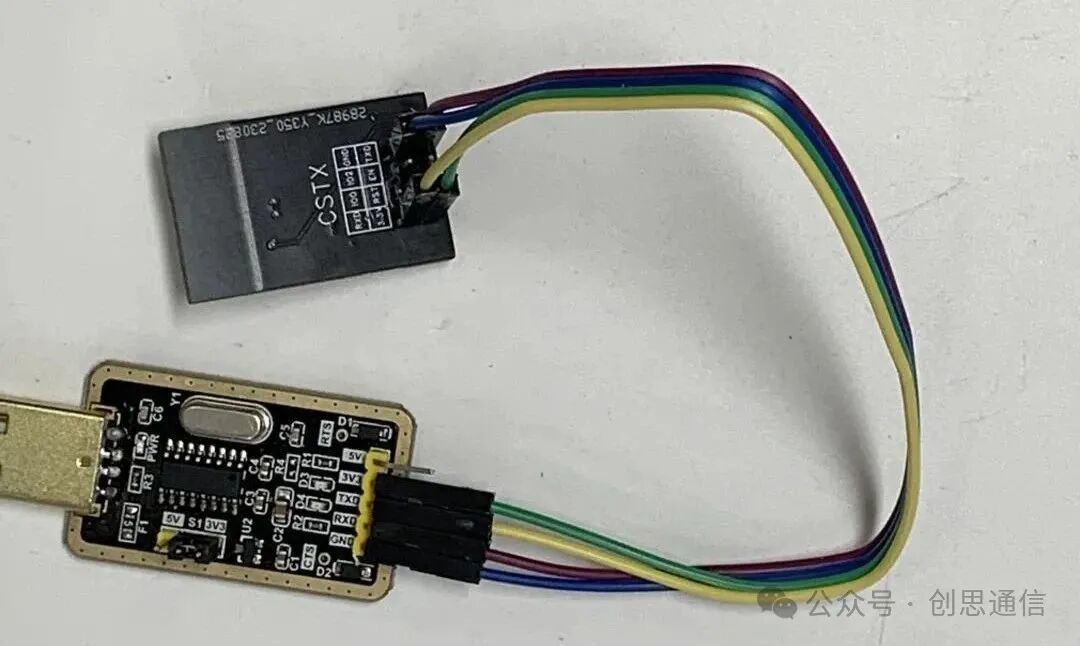
Step Two: ESP01S Wiring
Step Two
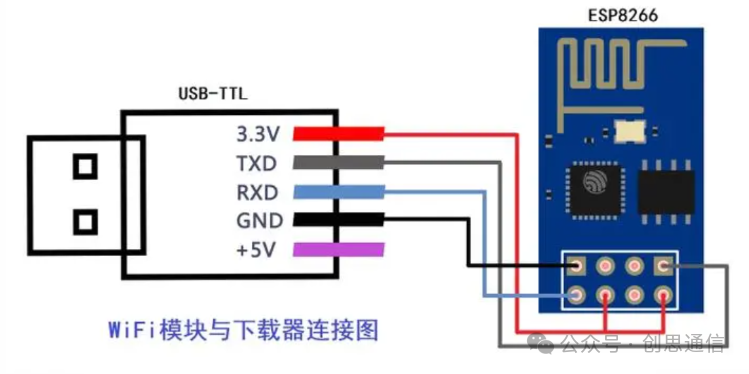
Physical Wiring
Step Three: Connect to OneNet Platform
Step Three
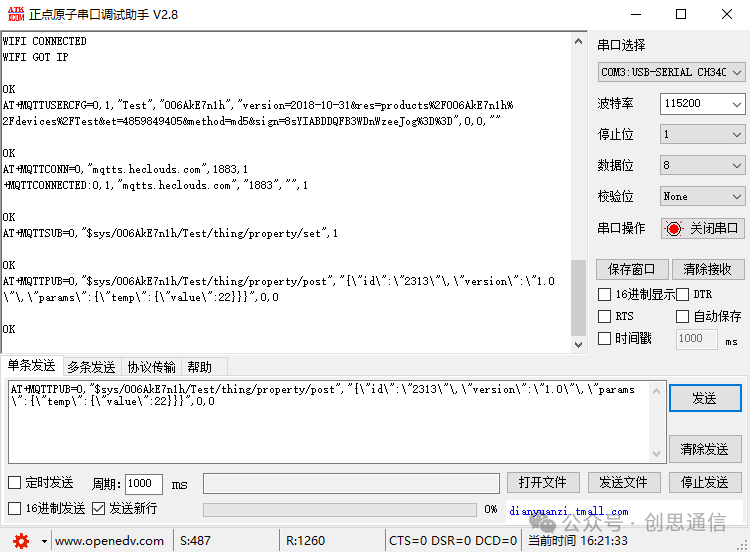
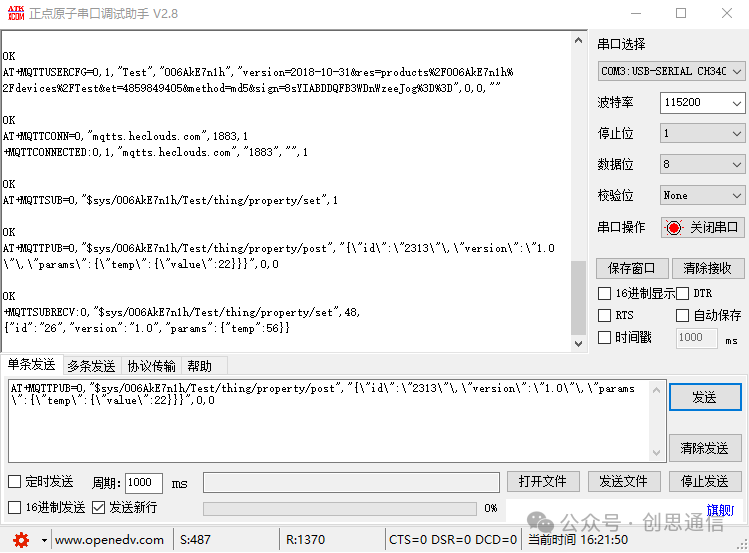
Connect the USB to TTL module to the device, open the serial debugging assistant, select the corresponding communication port, and set the baud rate to 115200. Then, by sending AT commands, the device can connect to the OneNet platform, completing data upload and data downlink operations.
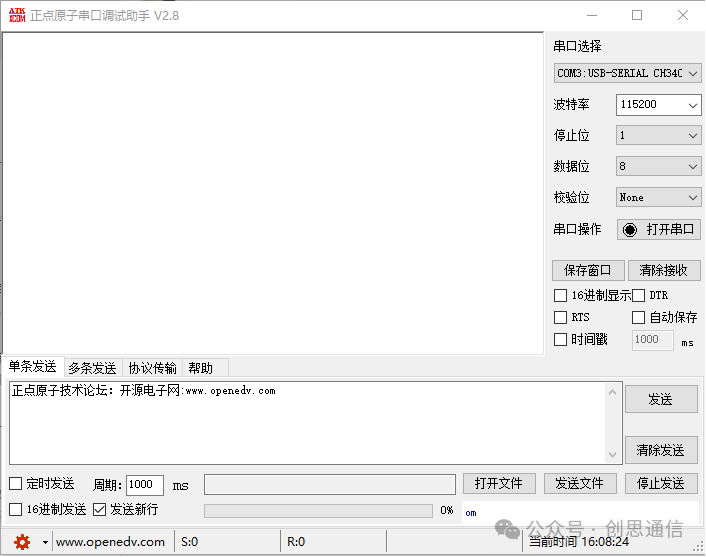
AT Command Process and Command Results:
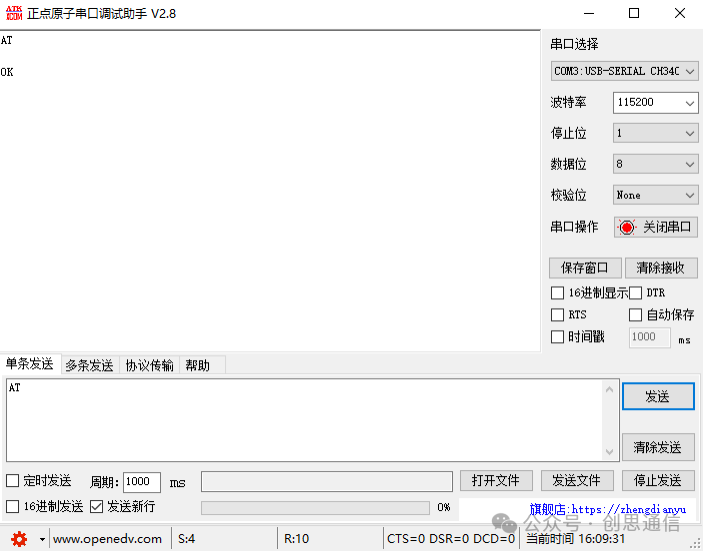
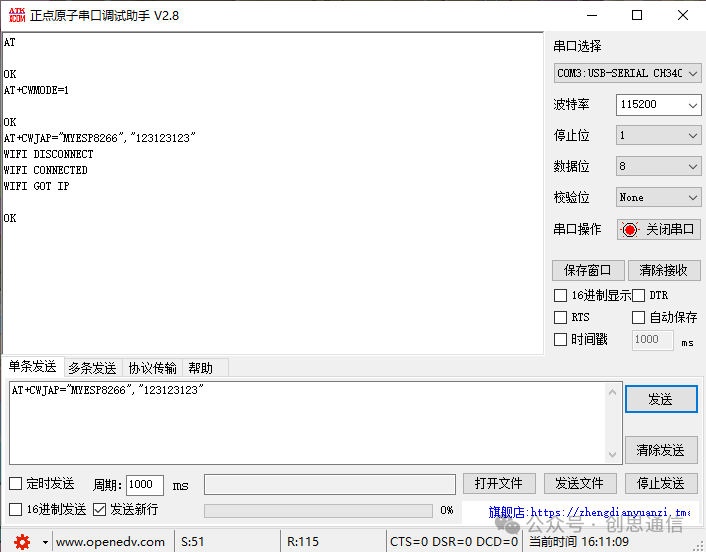
1. Test Module ResponseSend Command: ATDescription: Used to check if the ESP8266 module is working properly, returning OK indicates the module is ready.
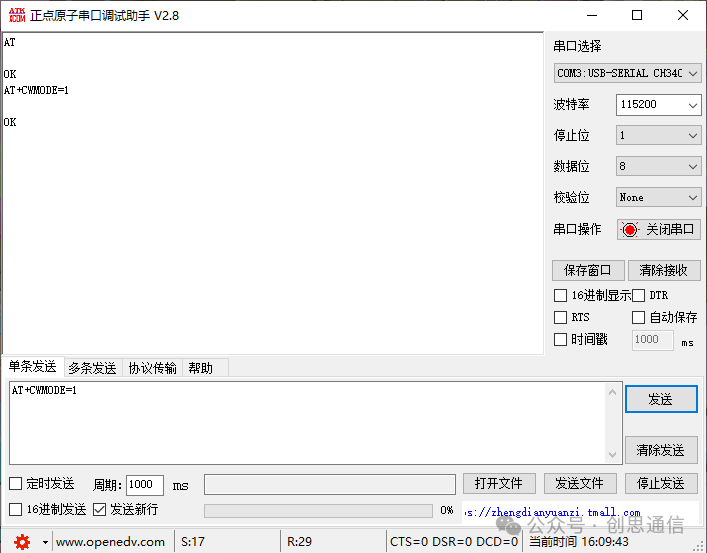
2. Set WiFi Working ModeSend Command: AT+CWMODE=1Description: Set the module to Station mode, preparing the device to connect to WiFi, returning OK indicates the setting is successful.
3. Connect to WiFi Network
Send Command:
AT+CWJAP=”MYESP8266″,”123123123″Description: MYESP8266 is the WiFi name, 123123123 is the password, returning WIFI CONNECTED+WIFI GOT IP indicates successful connection.
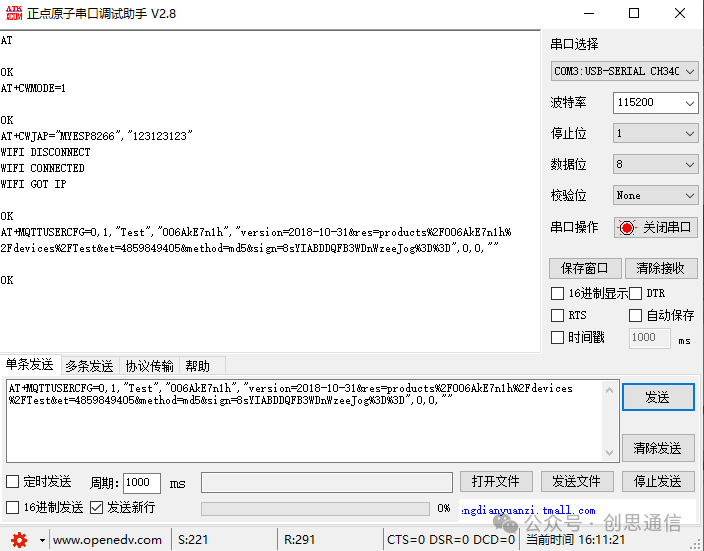
4. Configure MQTT User Authentication InformationSend Command:AT+MQTTUSERCFG=0,1,”Test”,”0O6AkE7n1h”,”version=2018-10-31&res=products%2F0O6AkE7n1h%2Fdevices%2FTest&et=4859849405&method=md5&sign=8sYIABDDQFB3WDnWzeeJog%3D%3D”,0,0,””Description: 0 is the client number (fixed to 0 in single client scenarios); Test is the device identifier (must match the device created on the platform); 0O6AkE7n1h is the product ID (must match the device created on the platform); subsequent parameters are the authentication information generated by the OneNet platform, returning OK indicates successful user information configuration. The tutorial for obtaining the token and the link to obtain the token key are at the end of the article.
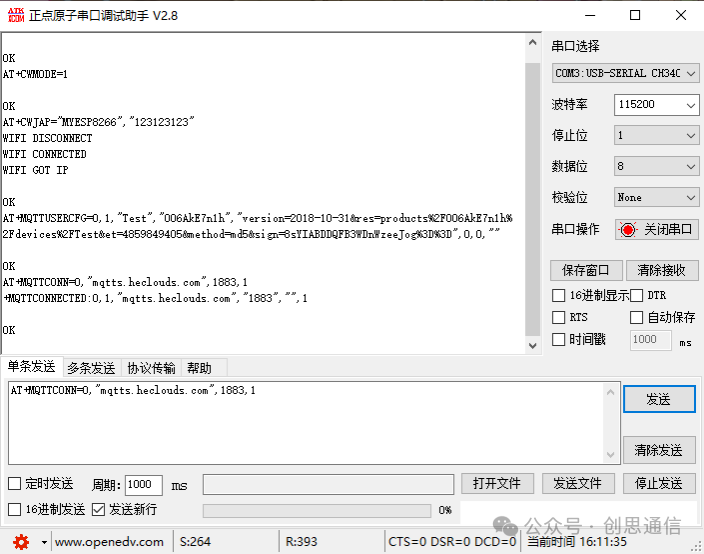
5. Connect to MQTT BrokerSend Command:
AT+MQTTCONN=0,”mqtts.heclouds.com”,1883,1Description: mqtts.heclouds.com is the OneNet platform MQTT server address; 1883 is the MQTT port; 1 indicates clean session (set as needed), returning MQTT CONNECTED indicates successful connection to the platform.
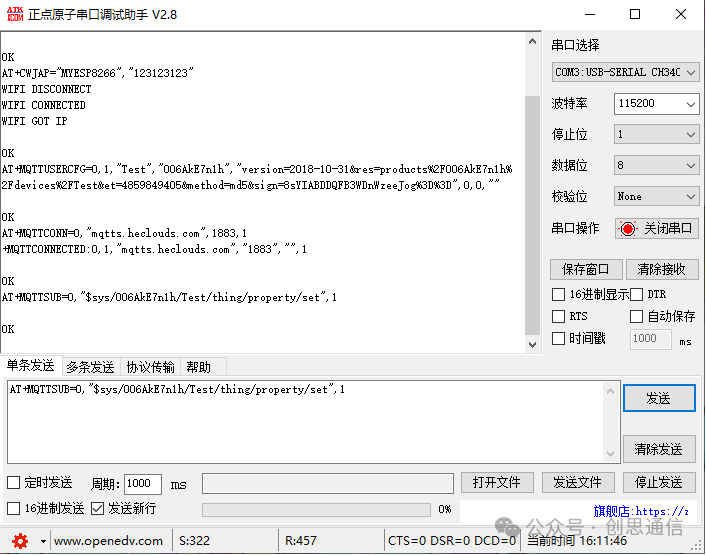
6. Subscribe to Platform Command TopicSend Command: AT+MQTTSUB=0,”$sys/0O6AkE7n1h/Test/thing/property/set”,1Description: Subscribe to the topic for property commands issued by the OneNet platform, 1 is the QoS level (ensuring reliable message reception), returning OK indicates successful subscription, after which commands issued by the platform can be received by the module.
7. Report Device Data to the PlatformSend Command:
AT+MQTTPUB=0,”$sys/0O6AkE7n1h/Test/thing/property/post”,”{\”id\”:\”2313\”,\”version\”:\”1.0\”,\”params\”:{\”temp\”:{\”value\”:22}}}”,0,0Description: Report data to the specified topic on the platform, in the example reporting temp (temperature) value as 22; 0,0 indicates QoS level and retain message flag, returning OK indicates successful data reporting, and the platform can receive the data.
OneNet Platform Data Interaction Operations:
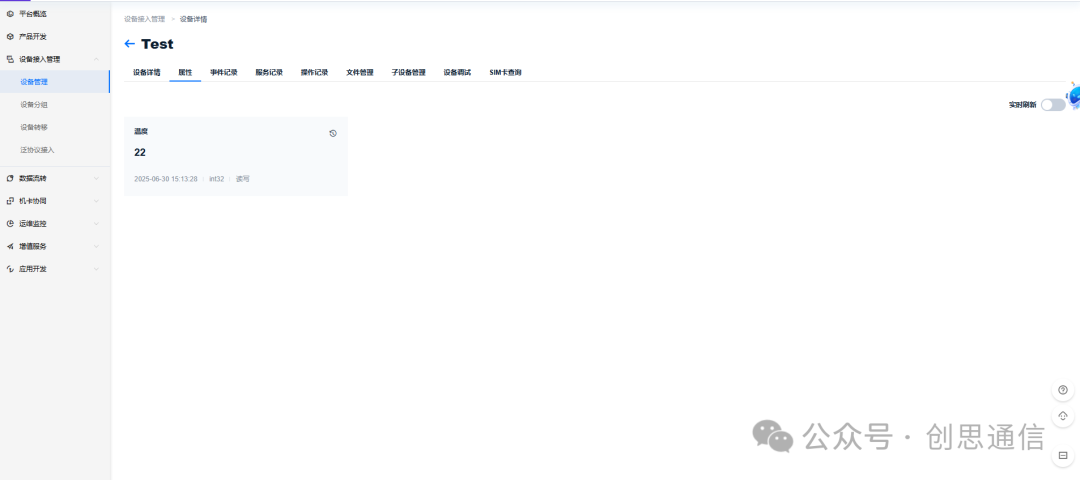
After successful data reporting, you can view the data in real-time through the OneNet platform:
Find the created device in the platform console, click to enter the device details page, switch to the property tab to visually view the real-time data successfully reported by the device.
Platform Data Downlink Operations:
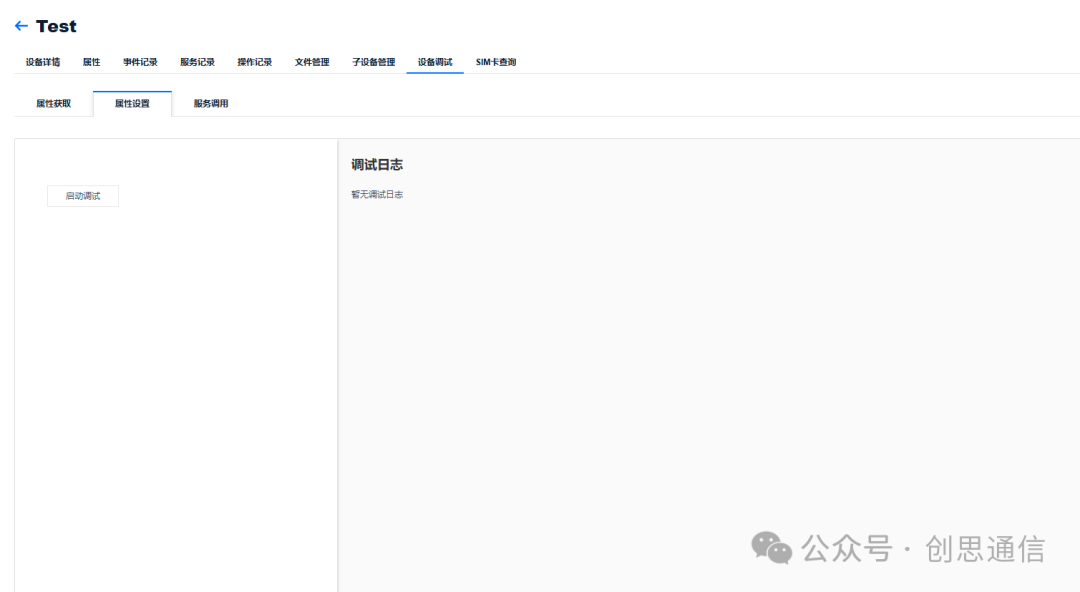
Find the created device in the OneNet platform console, click to enter the device details page.
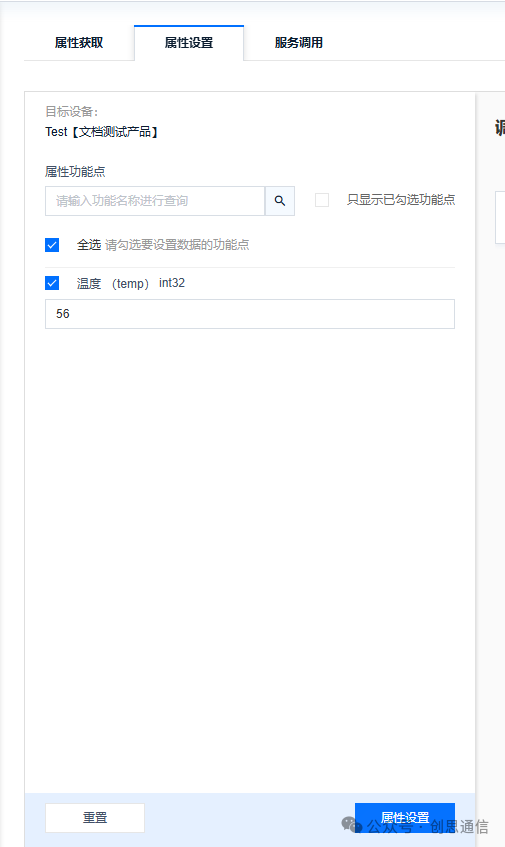
Switch to the device debugging tab, enter the data downlink debugging interface. In the debugging interface, find the [Property Settings] module. Click the [Start Debugging] button to activate the data input box.
Summary of Command Process
AT
AT+CWMODE=1
AT+CWJAP=”MYESP8266″,”123123123″
AT+MQTTUSERCFG=0,1,”Test”,”0O6AkE7n1h”,”version=2018-10-31&res=products%2F0O6AkE7n1h%2Fdevices%2FTest&et=4859849405&method=md5&sign=8sYIABDDQFB3WDnWzeeJog%3D%3D”,0,0,””
AT+MQTTCONN=0,”mqtts.heclouds.com”,1883,1
AT+MQTTSUB=0,”$sys/0O6AkE7n1h/Test/thing/property/set”,1
AT+MQTTPUB=0,”$sys/0O6AkE7n1h/Test/thing/property/post”,”{\”id\”:\”2313\”,\”version\”:\”1.0\”,\”params\”:{\”temp\”:{\”value\”:22}}}”,0,0

Purchase Link
#
https://item.taobao.com/item.htm?id=759224402169 Token software and method to obtain Token key link: https://pan.baidu.com/s/1FMKOybgvJ_rniJfiSsCUIg?pwd=yths Extraction code: yths