
1. Description
To configure the CC-Link IE slave, the OmniCore controller must have the option 3075-2 EtherCAT Device installed, with a maximum of 2048 digital input/ output signals.
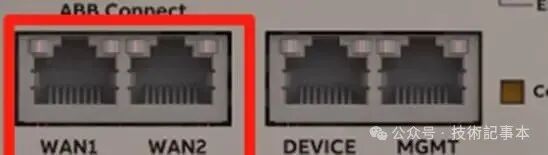
EtherCAT Connectors:
OmniCore V series controllers:
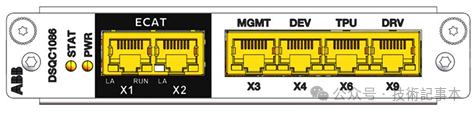
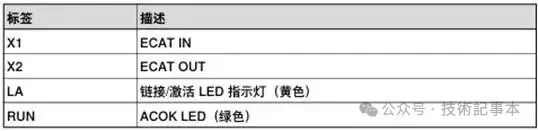
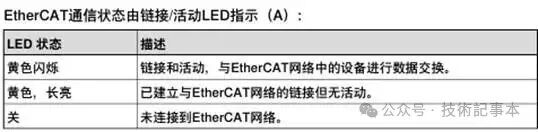
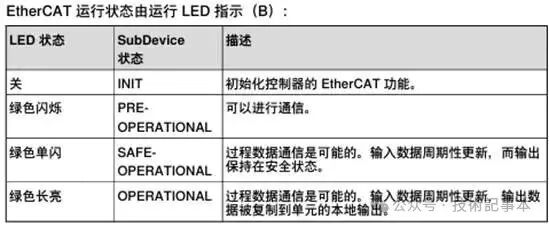
OmniCore E series controllers:
After enabling the OmniCore E series EtherCATDevice option, WAN1 and WAN2 cannot be used for other Ethernet protocols.

2. Configuration of EtherCAT Slave
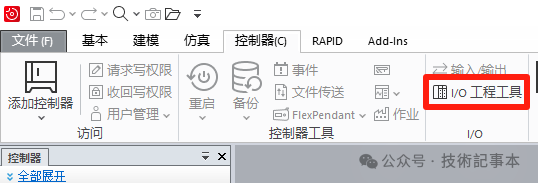
①I/O Engineering Tool
In RobotStudio under the Controller tab, select I/O Engineering. The I/O Modernization (I/O Engineering Tool) tab will then be displayed. Write permissions are required.
② Configuration of EtherCAT System
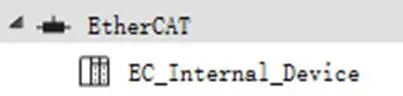
In the Configuration interface, select EtherCAT (under the I/O system).
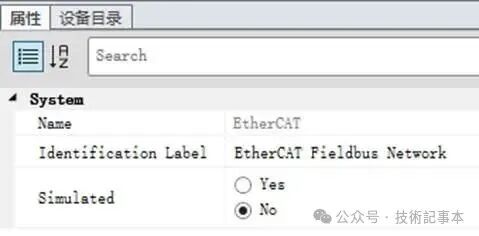
In the Properties interface, you can configure the identification tag and whether to treat the industrial network and all connected I/O devices as analog.
③ Configuration of EtherCAT Slave
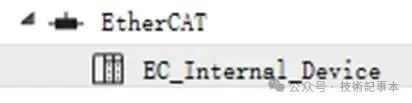
In the Configuration browser, select the slave (EC_Internal_Device).
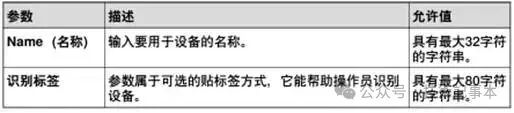
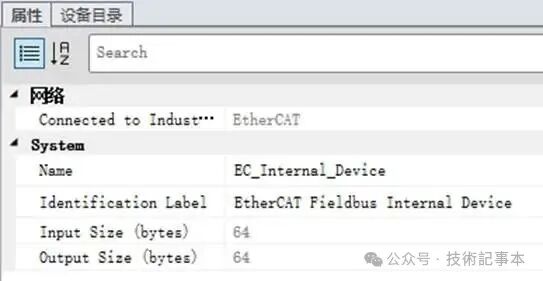
In the Properties interface, you can configure the following:
④ Add I/O Modules
1 In the Configuration interface, expand EtherCAT and select the internal device to which the I/O module should be added.
2 Select the device catalog to view the available I/O module list. Double-click the selected module to add it.
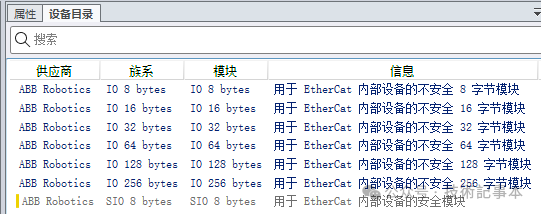
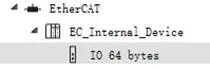
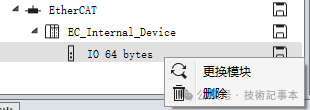
3 The system presets IO 64 bytes, and you can right-click the module to replace or delete it.
⑤I/O Signals
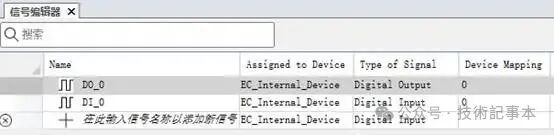
In the I/O Engineering tab of the ribbon, select Signal Editor (Signal Editor).
⑥Save Project
Select I/O Project/Save Project (I/O Project/ Save Project) to save changes.
Note: If errors are detected, the I/O Project cannot be saved.
In the I/O Project menu, select one of the following options:
• Select Save Project to update the last saved project version.
• Select Save Project As to save the project file with a new project name.
⑦ Write Project
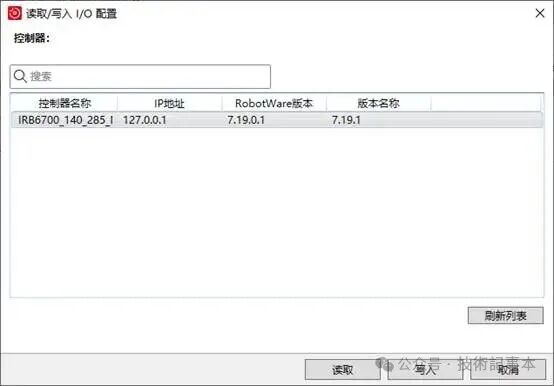
Select a controller, then click Write to write the current project to the controller.
Note: I/O Engineering automatically requests write permissions when writing the configuration to the controller. If write permissions are not granted, the configuration will not be written to the controller.
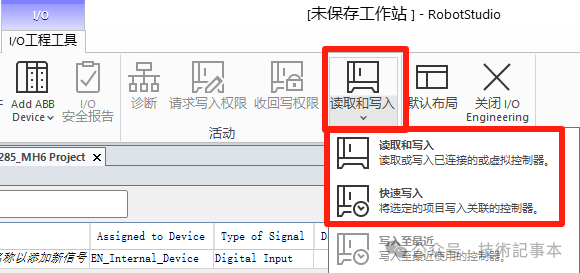
⑧Restart Controller
3. Network Settings
1 In RobotStudio select Add Controller< Connect to Controller. Request write permissions.
2 Select Configuration Communication. Select Port Usage.
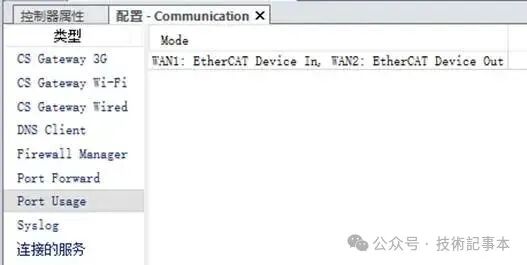
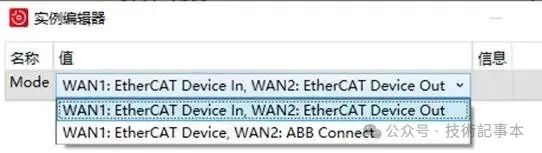
3 Public Network (WAN) and I/O-Network (I/O Network) (LAN) settings refer to ABB OmniCore controller network settings.
ABB Network Settings RW7
Appendix:ESI Files
In the RobotStudio installation folder of RobotWare:
(Right-click on the installed RobotWare version in the plugin browser, then select Open Data Package Folder, the system will guide you from the RobotStudio plugin tab to the RobotWare installation folder.)
:…\RobotPackages\RobotControl_x.x.xxx\utility\service\ESI\

On the OmniCore Controller:
:…\RobotWare\RobotControl_x.x.x-xxx\utility\service\ESI\