In this article, we will discuss the usage of the sleep command. As the name suggests, the sleep command is used to delay the execution of the next command. It puts the calling program into a sleep state for a specified amount of time.
Syntax of the sleep Command
The syntax of the sleep command is very simple; it accepts a mandatory parameter and an optional suffix:
sleep <number>[suffix]
Note: In the above syntax, there should be no space between the number and the suffix.
1. How to Delay Command Execution in Linux
By default, the sleep command waits in seconds. To understand this, let’s print the current time before and after executing the sleep command:
For example, the following command waits for 5 seconds after printing the current time:
[root@yyzcdb81 ~]# date '+%r'; sleep 5; date '+%r'
07:29:01 AM
07:29:06 AM
[root@yyzcdb81 ~]#

In this example, we used a semicolon (;) to separate each command.
2. How to Make a Command Wait for N Minutes
Additionally, the sleep command allows us to use suffixes to specify the time unit. We can use the following suffixes with the sleep command:
<span>s</span>– specifies time in seconds.<span>m</span>– specifies time in minutes.<span>h</span>– specifies time in hours.<span>d</span>– specifies time in days.
Therefore, let’s use the <span>'m'</span> suffix to make the command sleep for 1 minute:
[root@yyzcdb81 ~]# date '+%r'; sleep 1m; date '+%r'
07:31:47 AM
07:32:47 AM
[root@yyzcdb81 ~]#

It is important to note that there should be no space between the number and the suffix.
3. How to Make a Command Sleep for X Minutes and Y Seconds
We can use multiple suffixes in the sleep command. In this case, the total duration is calculated by adding all the values together.
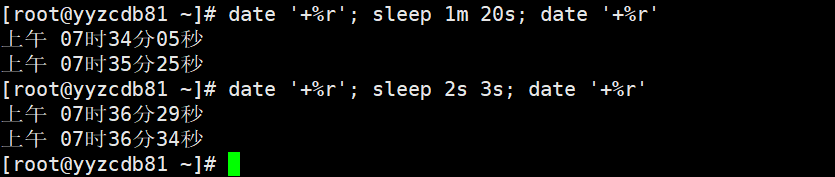
To understand this, we use the following command to make the command sleep for 1 minute and 20 seconds:
[root@yyzcdb81 ~]# date '+%r'; sleep 1m 20s; date '+%r'
07:34:05 AM
07:35:25 AM
[root@yyzcdb81 ~]#
In the above example, we used two different suffixes. However, we can also use the same suffix.
For example, we can use <span>2s</span> and <span>3s</span> suffixes to sleep for 5 seconds:
[root@yyzcdb81 ~]# date '+%r'; sleep 2s 3s; date '+%r'
07:36:29 AM
07:36:34 AM
[root@yyzcdb81 ~]#
4. How to Use Floating Point Numbers in the sleep Command
Additionally, the sleep command also accepts floating point numbers as input. We can use this method to sleep for less than a second.
For example, we can use the <span>0.5s</span> value to sleep for half a second:
[root@yyzcdb81 ~]# date '+%r'; sleep 0.5s; date '+%r'
07:37:29 AM
07:37:29 AM
[root@yyzcdb81 ~]#
In the above output, we can see that the date command shows the same value in seconds.
Moreover, we can also use floating point values with other suffixes. For example, we can use <span>0.5m</span> to sleep for 30 seconds:
[root@yyzcdb81 ~]# date '+%r'; sleep 0.5m; date '+%r'
07:38:28 AM
07:38:58 AM
[root@yyzcdb81 ~]#

5. How to Use the sleep Command to Simulate an Alarm Clock
In the previous examples, we learned how to use the sleep command to delay the execution of the next command. We can leverage this trick to simulate an alarm clock.
Therefore, let’s use the following command to set an alarm after 5 seconds:
sleep 5; cvlc callme.mp3
The above command opens the callme.mp3 file with the VLC media player after waiting for 5 seconds. Like any other Linux command, we can use the <span>ctrl+c</span> key combination to stop the VLC media player.
In this example, we used the VLC media player, but we can also use any other Linux media player or sound tool to achieve the same result.
6. How to Use the sleep Command to Simulate a Digital Clock
To simulate a digital clock, we can run the sleep command in an infinite loop, waiting one second each time. Let’s understand this through an example.
First, let’s write a simple shell script named <span>digital-clock.sh</span> with the following code:
#!/bin/bash

while [ 1 ]
do
 clear
 tput cup 5 30
 date '+%r'
 sleep 1
done
In this script, we used the <span>tput</span> command to position the cursor at row 5, column 30.
Now, let’s run the script and see the result:
[root@yyzcdb81 ~]# chmod +x digital-clock.sh
[root@yyzcdb81 ~]# ./digital-clock.sh
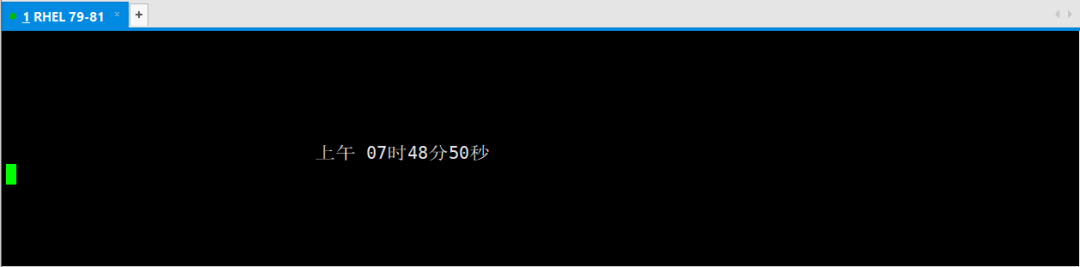
Finally, we can use the <span>ctrl+c</span> key combination to stop the script execution.