Have you ever eagerly opened your newly purchased Huawei Bluetooth mouse, only to find that the cursor is completely unresponsive? Or did the mouse suddenly “stop working” during normal use, leaving you at a loss? Bluetooth connection issues are common, but they are not complicated to resolve. This article will guide you step by step to troubleshoot and quickly regain control of your mouse.
🔍 1. Start with Basic Checks: Eliminate Simple Mistakes
Before diving deeper, first confirm whether these basic steps are in place, as many issues stem from small details:
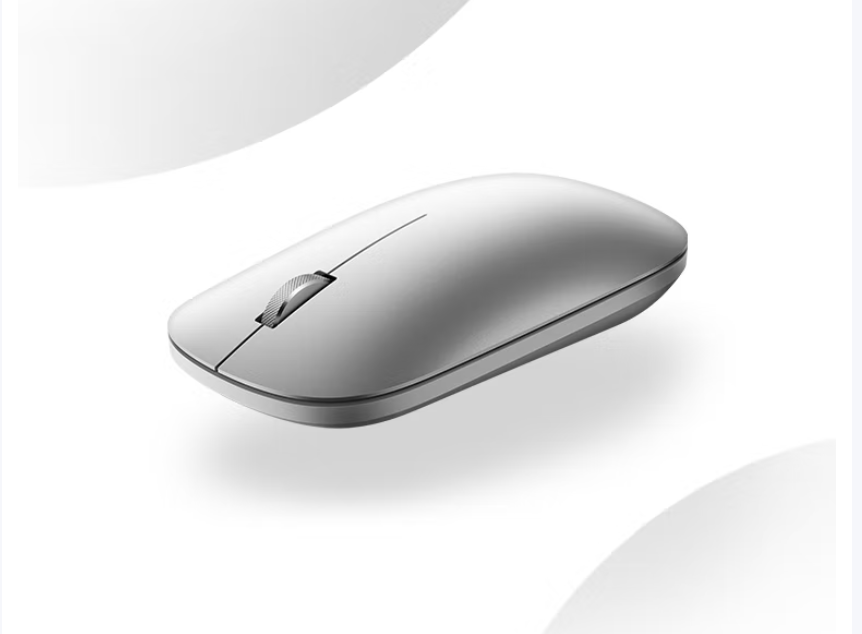
Battery Check Is the indicator light on the bottom of the mouse showing a red light? This indicates that the battery is low, and you should replace it immediately. If the indicator light is completely off, check if the battery is installed incorrectly or has run out.
Switch and Pairing Mode
Make sure the switch on the bottom is set to “ON” (some models require you to press and hold the pairing button for 3 seconds until the blue light flashes).
During the initial pairing or after a reset, the mouse must be in discoverable mode (blue light flashing rapidly) to be recognized by the computer.
Distance and Interference Bring the mouse closer to the computer, within 30cm, and avoid sources of signal interference such as routers, microwaves, and USB 3.0 devices.
🔁 2. Re-Pairing Operation: Clear Incorrect Connection Status
If the basic settings are correct but it still won’t connect, the pairing information may be incorrect, and you need to reset the connection:
Delete Old Pairing Records
Open Windows settings → “Devices” → “Bluetooth & other devices” → Find the name of the mouse → Click “Remove Device”.
Then turn off the mouse, wait 10 seconds, and turn it back on to pairing mode (blue light flashing).
Re-Pair
In the computer’s Bluetooth settings, click “Add Bluetooth or other device” → Select “Bluetooth” → Choose your Huawei mouse from the list (e.g., “HUAWEI Bluetooth Mouse”).
If prompted for a PIN, try the default password “0000”.
⚙️ 3. Update Drivers and System: Fix Compatibility Issues
Outdated or conflicting drivers are one of the main reasons for mouse failure, especially after major updates to Windows 10/11:
Update Bluetooth Driver
Right-click on the Start Menu → Select “Device Manager” → Expand the “Bluetooth” option.
Right-click on “Intel® Wireless Bluetooth” or “Realtek Bluetooth” device → Select “Update Driver” → Automatically search for updates.
If ineffective, try uninstalling the device (check “Delete the driver software for this device”) → restart the computer to automatically reinstall the driver.
Upgrade Huawei PC Manager and Operating System
Open Huawei PC Manager → Check for driver updates, ensuring the Bluetooth driver is ≥ 1.0.0.29 version.
Go to Windows Update (Settings → Update & Security) to install all pending patches, as system vulnerabilities may cause Bluetooth service anomalies.
⚡ 4. Adjust System Settings: Resolve Power Saving and Resource Conflicts
The system may automatically turn off devices to save power, or multiple devices may compete for resources, which can also lead to mouse disconnections:
Disable Bluetooth Power Saving Mode In Device Manager → Right-click on the Bluetooth driver → “Properties” → “Power Management” → uncheck “Allow the computer to turn off this device to save power.”
Reduce the Number of Simultaneously Connected Bluetooth Devices The computer can connect to a maximum of 7 Bluetooth devices, but exceeding 5 can lead to insufficient bandwidth and mouse lag. Remove infrequently used devices (e.g., old headphones, fitness bands).
🛠️ 5. Advanced Solutions: System-Level Fixes
If the above steps are ineffective, deeper operations may be required:
Disable and Re-enable Bluetooth Adapter In Device Manager → Disable the Bluetooth driver → Shut down (not restart!) → Restart → Return to Device Manager to enable the driver.
Perform System Restore or Factory Reset
After backing up data, use the Windows Recovery Environment (Settings → Recovery options) or press and hold F10 during startup to enter Huawei Recovery Manager, and select “Restore Factory Settings”.
Note: This operation will erase data on the C drive and is only recommended as a last resort.
❓ Quick FAQ
💡 Q1: The mouse shows “Connected,” but the cursor is not moving? Delete the device and re-pair, ensuring it is not due to USB power-saving mode.
💡 Q2: The computer cannot find the mouse during pairing? Ensure the mouse is in discoverable mode (blue light flashing) and try to keep it close to the computer (<30cm).
💡 Q3: The mouse is intermittently lagging or disconnecting? Replace the battery; close high-load background programs; reduce the number of nearby Bluetooth devices.
💡 Q4: What if none of the methods work? Test the mouse on another computer: if it still fails, it may be a hardware fault (contact Huawei support at 950800); if it works on another computer, the laptop’s Bluetooth module may be damaged and needs repair.
According to user feedback, 90% of Bluetooth mouse issues can be resolved by re-pairing or updating drivers. If you have tried these steps and still have no success, backing up data and restoring the system is often the ultimate solution. Stay patient, as Huawei support (950800) is always available to assist—technical hiccups will eventually be smoothly overcome 🖱️⚡.