1. What is Shell
(1) Definition
Shell is the command line interpreter in the Linux system, acting as a translator between the user and the system kernel. Users input various commands in the terminal, which are received and parsed by the Shell, then translated into instructions that the system kernel can understand, executing the corresponding operations and providing feedback to the user.
For example, when we input the “ls” command in the terminal, the Shell communicates this command to the kernel, which executes it and returns the file and directory information in the current directory, which is then displayed by the Shell.
(2) Common Types of Shell
In the Linux world, there are various types of Shell, among which bash and zsh are the most common.
bash (Bourne-Again Shell) is the default Shell for most Linux distributions, with broad compatibility, running on almost all Linux systems. Its syntax is simple and easy to learn, making it very beginner-friendly, with a rich set of built-in commands and utilities to meet various basic operational needs such as file management and process control. Additionally, bash supports command history and command completion features, making operations more convenient and efficient.
zsh (Z Shell) is known for its rich customization options and powerful features. It has a more intelligent command completion function that not only completes commands but also automatically completes parameters, filenames, etc., based on context, and even provides intelligent suggestions and corrections for spelling errors. Furthermore, zsh supports various themes and plugins, allowing us to beautify the terminal interface with different themes; with plugins, we can further extend its functionality, such as syntax highlighting, historical command search, and Git shortcuts, greatly enhancing work efficiency. However, zsh’s configuration is relatively complex, which may be challenging for beginners.
bash is a great starting point; its stability and wide applicability can help you quickly familiarize yourself with the basic concepts and operations of Shell programming. Once you have a certain understanding of Shell and want to pursue a more personalized and efficient operating experience, zsh can meet your advanced needs.
2. Basic Syntax of Shell Programming
After understanding the basic concepts of Shell, we will delve into the basic syntax of Shell programming, which is the foundation for writing efficient and flexible Shell scripts. Mastering these will allow you to easily handle Shell programming and achieve various complex automation tasks.
(1) Beginning of Script Files
When writing Shell scripts, it is common to write “#!/bin/bash” on the first line, which specifies that the script uses the Bash interpreter, informing the system to call the /bin/bash program to interpret and execute the commands in the script when executing this script.
This is similar to specifying the software to open a document, such as Word or WPS; “#!/bin/bash” indicates the “opening method” of the script. Without this line, the system may not correctly recognize how to execute the commands in the script, leading to the script not running properly.
(2) Methods to Run Shell Scripts
- As an executable program:
chmod a+x myshell.sh
./myshell.sh
chmod a+x myshell.sh – This command is used to add executable permissions to the myshell.sh script
- chmod is the command to change file permissions
- a+x means adding execute permissions for all users (owner, group users, other users)
- myshell.sh is the target script filename
./myshell.sh – This command is used to execute the myshell.sh script in the current directory
- ./ indicates the current directory
- myshell.sh is the script filename to be executed
After executing these two commands, the system will run your shell script and execute the commands contained within. If the script has output, it will be displayed in the terminal.
. myshell.sh
sourcemyshell.sh
. myshell.sh is the command to execute the myshell.sh script in the current shell environment, which can also be written as source myshell.sh; both have the same effect.
The main difference between this execution method and ./myshell.sh is:
- . myshell.sh executes the script in the current shell process, and the variables, functions, etc., defined in the script will remain in the current shell environment and can be used directly after execution.
- ./myshell.sh will start a new child shell process to execute the script, and the variables defined in the script will not affect the current shell environment.
Typically, this method is used when you need the settings in the script (such as environment variable configurations) to take effect in the current terminal, such as executing .bashrc or .profile configuration files.
- As an interpreter parameter
/bin/bash myshell.sh/bin/bash myshell.sh specifies using the /bin/bash interpreter to execute the commands in the myshell.sh script.
Characteristics and uses of this command:
- Directly specifies the script interpreter as /bin/bash, ignoring the shebang line in the script (i.e., the #! declaration)
- Can run normally even if the script does not have executable permissions (not executed chmod +x)
- Will start a new bash child process to execute the script, and the variables defined in the script will not affect the current shell environment
This method is commonly used for:
- Temporarily specifying a specific version of the bash interpreter to execute the script
- Running scripts without executable permissions
- Forcing the specification of the interpreter when the script lacks a proper shebang declaration
(3) Editing and Executing Shell Script Files
Open a text editor (you can use the vi/vim command to create a file), create a new file test.sh with the extension sh (sh stands for shell)
#!/bin/bash
echo "Hello World"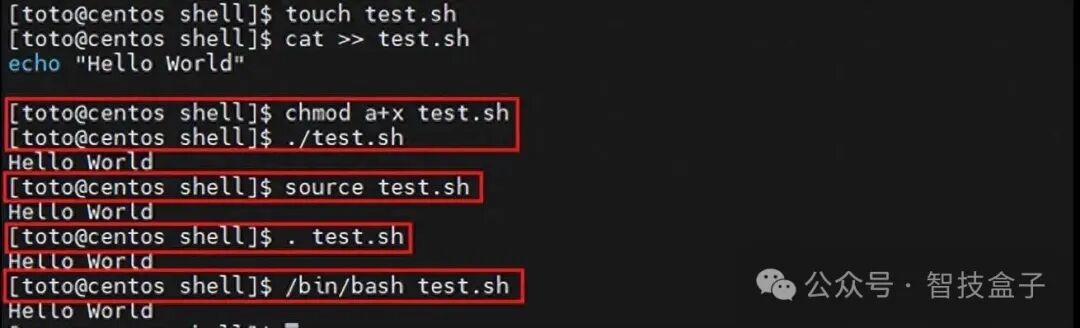
(4) Variables
1. Definition:
Shell variables do not require data type declarations (such as integer, string); data is stored directly in the form of “variable_name=value”, which is essentially a “key-value pair” used to pass and reuse information (such as file paths, configuration parameters, calculation results, etc.) in scripts. In Shell, defining variables is very simple; you just assign values without declaring variable types.
Variable naming must follow certain rules:
- Only contain letters, numbers, and underscores: Variable names can include letters (case-sensitive), numbers, and underscores _, but cannot contain other special characters.
- Cannot start with a number: Variable names cannot start with a number but can include numbers.
- Avoid using Shell keywords: Do not use Shell keywords (such as if, then, else, fi, for, while, etc.) as variable names to avoid confusion.
- Use uppercase letters for constants: Conventionally, variable names for constants are usually in uppercase letters, e.g., PI=3.14.
- Avoid using special symbols: Try to avoid using special symbols in variable names, as they may conflict with Shell syntax.
- Avoid using spaces: Variable names should not contain spaces, as spaces are typically used to separate commands and parameters.
It is important to note that there should be no spaces between the variable name and the equal sign.
# Store string
name="张三"
# Store integer
age=20
# Store path
log_path="/var/log/syslog"
Special variables:
In addition to user-defined variables, there are some special variables in Shell that have specific purposes. For example, “0” is used to get the name of the current script. Suppose we have a script named test.sh; using echo 0 in the script will output “test.sh”, which is very useful in scenarios where different operations are needed based on the script name. “1”, “2”, etc., are used to get the parameters passed to the script during execution, with “1” representing the first parameter, “2” representing the second parameter, and so on. For example, if we execute the script “./test.sh arg1 arg2”, using echo 1 in the script will output “arg1”, and using echo 2 will output “arg2”. These special variables play an important role in handling command line parameters and achieving flexibility in scripts.
2. Using Variables: $variable_name or ${variable_name}
When calling a variable, prefix it with $; if other characters (such as letters, numbers) immediately follow the variable name, it should be wrapped in ${} to avoid ambiguity.
# Define variable
user="Alice"
score=95
# Basic usage: $variable_name
echo "Username: $user" # Output: Username: Alice
# Avoid ambiguity: ${variable_name}
echo "User score: ${score} points" # Output: User score: 95 points
# (If written as $score points, it would be recognized as "$score points" variable, leading to an error)
3. Read-only Variables
Using the readonly command, a variable can be defined as a read-only variable, and the value of a read-only variable cannot be changed.
#! /bin/bash
url="www.baidu.com"
readonly url
url="www.google.com"
Execution result:
[toto@centos shell]$ bash test.sh
test.sh: line 4: url: read-only variable
4. Modifying and Deleting Variables
Modification: Directly reassigning (overwriting the old value):
name="Bob"
name="Charlie" # New value overwrites old value, final name is "Charlie"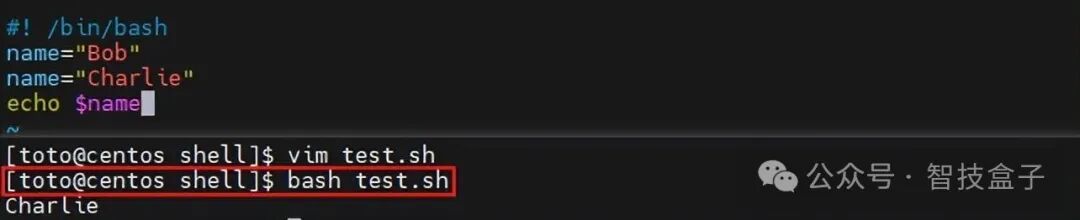
Deletion: Use unset variable_name to delete a variable (the variable becomes unusable after deletion):
unset name # Delete name variable
echo $name # Output empty (variable no longer exists)
Example:
#!/bin/sh
Url="https://www.baidu.com"
unset Url
echo $Url
Execution result is empty
5. Variable Assignment: Getting Values from Command Results (Command Substitution)
Using $(command) or backticks `command`, the output of the command can be assigned to a variable (recommended $(command) for better compatibility).
Example:
# Get current date (format: year-month-day)
today=$(date +%Y-%m-%d)
echo "Today's date: $today" # Output: Today's date: 2024-05-20
# Get the number of files in the current directory
file_count=$(ls | wc -l)
echo "Number of files in the current directory: $file_count"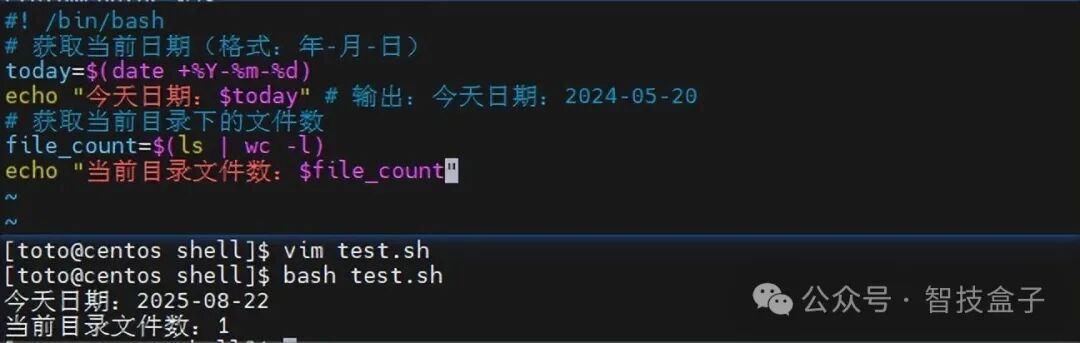
6. Variable Operations: Integer Calculations (No Additional Tools Required)
Using $((expression)) directly performs arithmetic operations on variables (supports + – * / % operators).
Example:
a=10
b=3
# Addition
sum=$((a + b))
# Multiplication
product=$((a * b))
# Modulus
remainder=$((a % b))
echo "sum: $sum, product: $product, remainder: $remainder"
# Output: sum: 13, product: 30, remainder: 1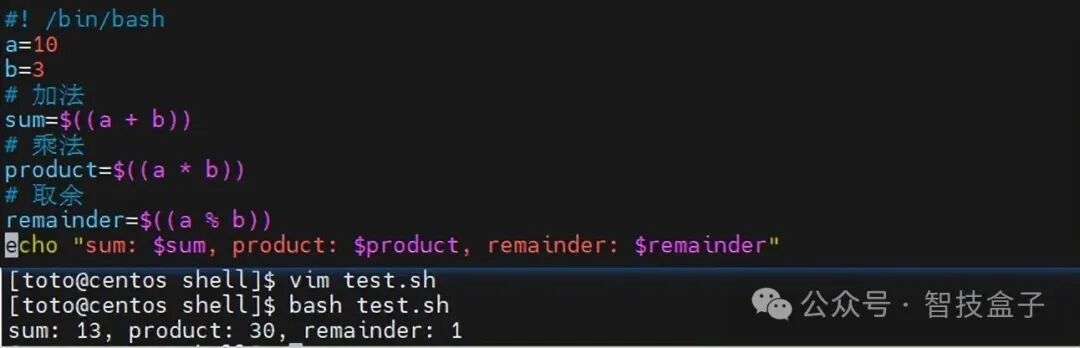
7. Variable Types
String Variables
In Shell, string variables are the most common type. When defining string variables, both single quotes and double quotes can be used. For example:
# Define string variable using single quotes
single_quote_str='This is a string defined with single quotes'
# Define string variable using double quotes
double_quote_str="This is a string defined with double quotes"
There is a significant difference between single quotes and double quotes when defining string variables. Content within single quotes is output as is, and variables within it are not parsed. For example:
name="张三"
single_quote_greeting='Hello, $name'
echo $single_quote_greeting
The output of the above code is Hello, $name, showing that $name within single quotes was not replaced with the actual variable value.
In contrast, double quotes behave differently; variables within double quotes are parsed into their actual values and can recognize escape characters. For example:
name="李四"
double_quote_greeting="Hello, $name\nWelcome to here!"
echo -e $double_quote_greeting
The -e option is used to allow the echo command to recognize escape characters, and the output will be:
Hello, 李四
Welcome to here!
1. Quickly Get String Length
Use ${#string_name} to directly return the string length; if the string is treated as a single-element array, ${#string_name[0]} will yield the same result.
# Example: Calculate string length
string="abcd"
echo ${#string} # Output 4 (directly get length)
echo ${#string[0]} # Output 4 (array form, result is the same)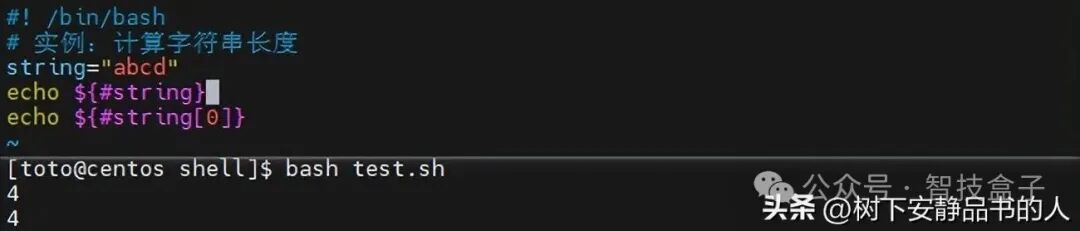
2. Precisely Extract Substrings
The syntax format is ${string_name:start_index:length_to_extract}, note: the index of the first character is 0; if the “length to extract” is omitted, it defaults to extract to the end of the string.
# Example 1: Start from the 2nd character, extract 4 characters
string="runoob is a great site"
echo ${string:1:4} # Output unoo (index 1 corresponds to the 2nd character "u", extract 4)
# Example 2: Extract from the 6th character to the end
echo ${string:5} # Output ob is a great site (index 5 corresponds to "o", omitting length takes the remaining characters)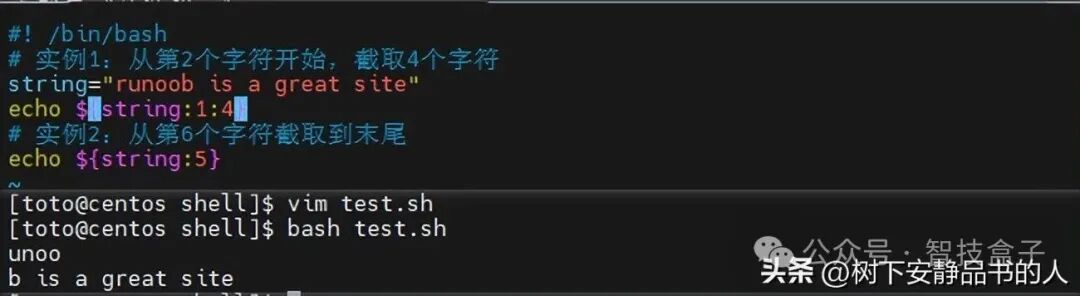
3. Find Substring Position
Using expr index “$string_name” target character set, you can get the position of the first occurrence of a character in the character set (counting starts from 1); if not found, it returns 0.
# Example: Find the first occurrence position of "i" or "o"
string="runoob is a great site"
echo `expr index "$string" io` # Output 4 ("o" is at position 4, appearing before "i")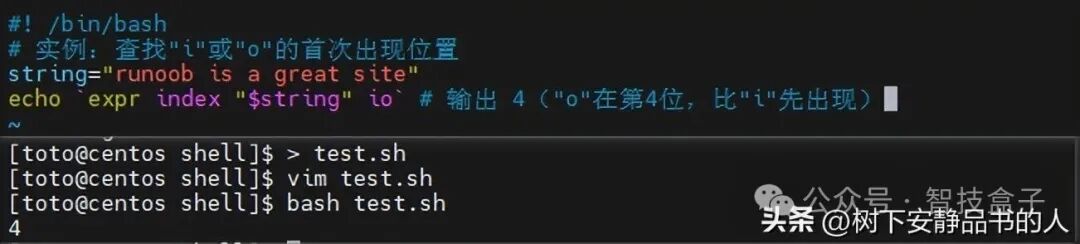
⚠️ Note: The backticks ` (located at the top left of the keyboard, same key as ~) are used here, not single quotes ‘, to execute the expr command and return the result.
Integer Variables
In some Shells, you can use declare or typeset commands to declare integer variables. Once declared as integer variables, they can only store integer values. For example:
# Declare integer variable using declare
declare -i num=10
When assigning non-integer values to integer variables, Shell will attempt to convert them to integers. For example:
declare -i num='10.5'
echo $num
# The output of the above code is 10, showing that 10.5 was converted to integer 10.
Array Variables
Shell supports array variables, allowing multiple values to be stored in a single variable, including integer index arrays and associative arrays.
Integer Index Arrays are defined as follows:
# Define integer index array
int_array=(12345)
You can access elements in the array by index, starting from 0. For example, to access the third element in the array, you can do:
echo ${int_array[2]}Associative Arrays store data using key-value pairs, and must be declared as associative array types first. For example:
# Declare associative array
declare -A assoc_array
# Assign values to associative array
assoc_array["name"]="王五"
assoc_array["age"]=25
When accessing elements of an associative array, use the key to get the corresponding value:
echo ${assoc_array["name"]}
echo ${assoc_array["age"]}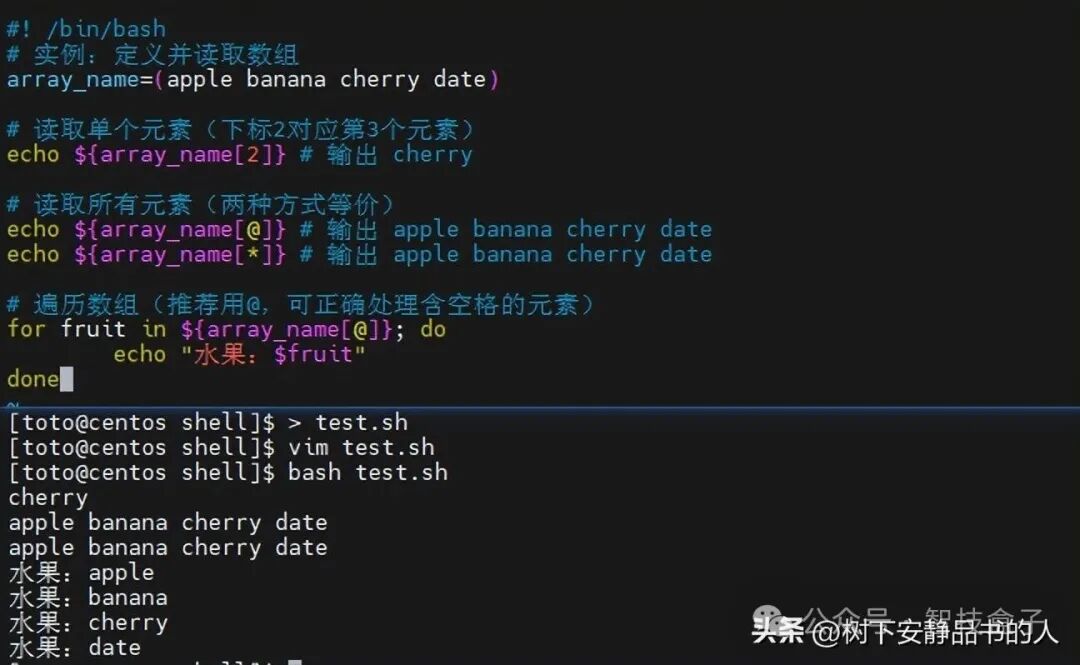
Environment Variables
Environment variables are special variables set by the operating system or users, significantly affecting the behavior and execution environment of Shell. Common environment variables include PATH, HOME, LANG, etc.
The PATH variable contains the paths that the operating system searches for executable files. When we input a command in the command line, the system will sequentially look for the corresponding executable file according to the paths listed in the PATH variable. For example:
echo $PATHThe HOME variable indicates the path of the current user’s home directory. For instance, in Linux systems, the home directory of ordinary users is usually /home/username, and this path can be easily obtained through the HOME variable.
The LANG variable is used to set the system’s language environment, affecting the display language of various information in the system.
Special Variables
In Shell, there are also some special variables that have specific meanings and purposes.
$0 represents the name of the script. For example, if there is a script named test.sh, using $0 inside the script will yield test.sh.
$1, $2, etc., represent the parameters of the script. Suppose we have a script arg_test.sh, executed with two parameters:
./arg_test.sh param1 param2Inside the script, $1 represents param1, and $2 represents param2.
$# represents the number of parameters passed to the script. Continuing from the previous example, the value of $# would be 2.
$? represents the exit status of the last command, returning 0 for normal exit, and non-zero indicates an error occurred during command execution. For example, executing a non-existent command:
nonexistent_command
echo $?
The output here will be a non-zero value, with the specific value depending on the system, usually indicating a command not found error status.
(5) Shell Arrays: Flexible Use of One-Dimensional Arrays
Bash only supports one-dimensional arrays with no size limit, indexed from 0, allowing flexible definition and access to elements, suitable for storing bulk data.
1. Three Ways to Define Arrays
Array elements are separated by spaces, supporting collective definition, line-by-line definition, and individual assignment, even allowing non-contiguous indices.
# Method 1: Collective definition (most common)
array_name=(value0 value1 value2 value3)

# Method 2: Line-by-line definition (suitable for scenarios with many elements)
array_name=(
value0
value1
value2
value3
)

# Method 3: Individual assignment (supports non-contiguous indices)
array_name[0]=value0
array_name[2]=value2 # Skip index 1, directly define index 2
array_name[5]=value5 # Index range is unlimited, no need to be continuous
2. Reading and Traversing Array Elements
Read a single element: ${array_name[index]}
Get all elements for traversal: ${array_name[@]} or ${array_name[*]}
# Example: Define and read an array
array_name=(apple banana cherry date)
# Read a single element (index 2 corresponds to the 3rd element)
echo ${array_name[2]} # Output cherry
# Read all elements (both ways are equivalent)
echo ${array_name[@]} # Output apple banana cherry date
echo ${array_name[*]} # Output apple banana cherry date
# Traverse the array (recommended to use @, can correctly handle elements with spaces)
for fruit in ${array_name[@]}; do
echo "Fruit: $fruit"
done
3. Get Array Length
Get total number of array elements: ${#array_name[@]} or ${#array_name[*]}
Calculate length of a specific element: ${#array_name[index]}
# Example: Calculate array and element length
array_name=(apple banana cherry)
# Total number of array elements
length=${#array_name[@]}
echo "Array length: $length" # Output 3
# Length of a single element (index 1 corresponds to "banana")
elem_length=${#array_name[1]}
echo "Element length: $elem_length" # Output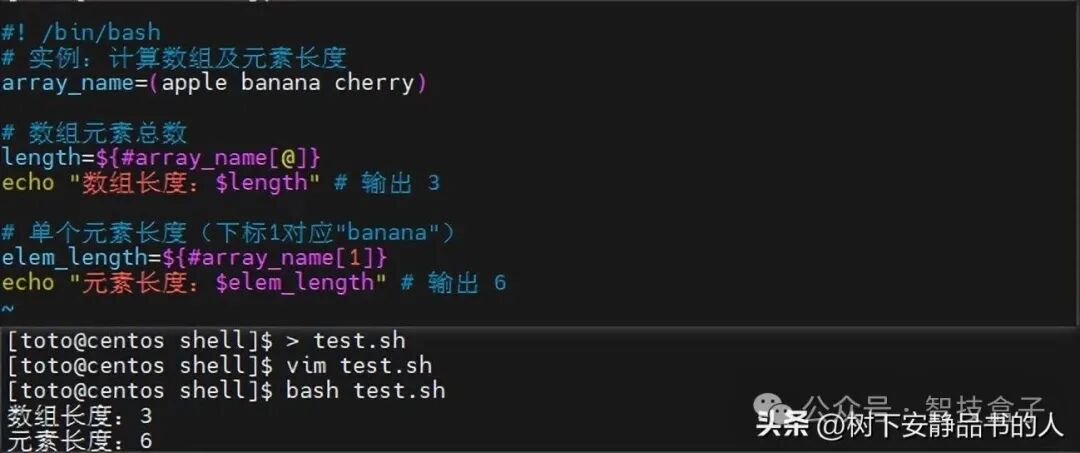
3. Shell Comments: Making Scripts More Readable
Comments are the “manual” of the script; using comments appropriately can enhance code maintainability and avoid later “not understanding the code you wrote”.
1. Single-line Comments: Marked with #
Lines starting with # are comments and will be ignored by the Shell interpreter, suitable for brief explanations.
# This is a single-line comment, used to explain the function of the next line of code
string="hello world" # Define string (end-of-line comment, supplementing code function)
echo $string # Output string content
2. Multi-line Comments: Three Practical Methods
When needing to comment on large blocks of code, there is no need to add # line by line; the following three methods can quickly achieve multi-line comments.
Method 1: Here Document (recommended)
Use:<
# Example 1: Use EOF as the identifier
:<<eof !="" !<="" #="" 2:="" :<<!="" any="" as="" author="" can="" code="" comment="" comments="" comments,="" content...="" descriptions,="" eof="" etc.="" example="" files="" first="" identifier="" information,="" is="" line="" line:="" lines="" log="" multi-line="" number="" of="" process="" script="" second="" supports="" the="" third="" this="" to="" use="" used="" write=""></eof>
Method 2: Empty Function Wrapping
Define the comment content as a non-callable function; the code inside the function will not execute, indirectly achieving the effect of comments.
# Example: Use empty function to comment on large blocks of code
comment() {
		This is a multi-line comment achieved through a function
		Suitable for temporarily commenting on large blocks of code, later canceling the comment just by calling the function
	echo "This code will not execute"
}
Method 3: Colon + Single Quotes
: is a null command in Shell (executes with no operation), combined with single quotes to wrap multi-line content, simple and efficient.
# Example: Colon + single quotes to achieve multi-line comments

: '
This is the comment content
No need to define an identifier, directly wrap with single quotes
Suitable for quick temporary comments
'
4. Conclusion
Shell programming is not only an essential skill for system administrators but also holds significant importance for developers, data analysts, etc. It helps us automate tedious tasks, improve work efficiency, and allows us more time and energy to focus on more valuable work.
Learning Shell programming is a continuous process, and I hope everyone can keep practicing and exploring in their future studies and work, applying the knowledge learned to actual projects. You can try writing more complex scripts and explore more application scenarios such as automated operations, server management, data processing, etc.