(It is recommended to save using a mobile phone to obtain free cloud storage space)1. Download Link
Software Name:Proteus |
Version:8.17 |
| Installation Environment:Win11/Win 10 | Size:480MB |
| High-speed Download Link: | https://pan.quark.cn/s/44e045e482cf |
2. Software IntroductionProteus is a powerful electronic circuit design and simulation software. It supports simulation of various microcontrollers, helping engineers quickly verify the correctness of circuit designs. With an intuitive interface, it facilitates users in drawing circuit diagrams. It can simulate analog circuits, digital circuits, and mixed circuits, accurately simulating the operation of circuits. It allows for real-time debugging of circuits and viewing of signal waveforms, widely used in electronic engineering education, electronic product development, and other fields. Through Proteus, users can reduce development costs, shorten development cycles, and improve design efficiency and quality, making it a valuable tool for electronic engineers and enthusiasts.3. Installation GuidePlease disable antivirus software (including the built-in security center, third-party security guards/antivirus software, etc.) before extracting.1. Select the downloaded installation package, right-click and choose to extract to the “Proteus Professional 8.17” folder.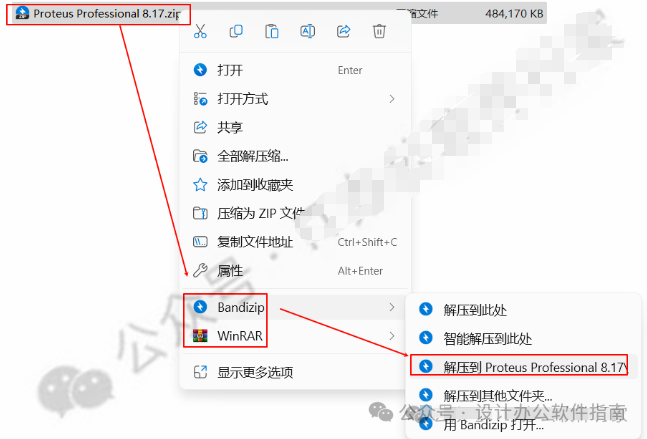 2. Select “Proteus 8.17 SP2 Pro.exe”, right-click and run as administrator.
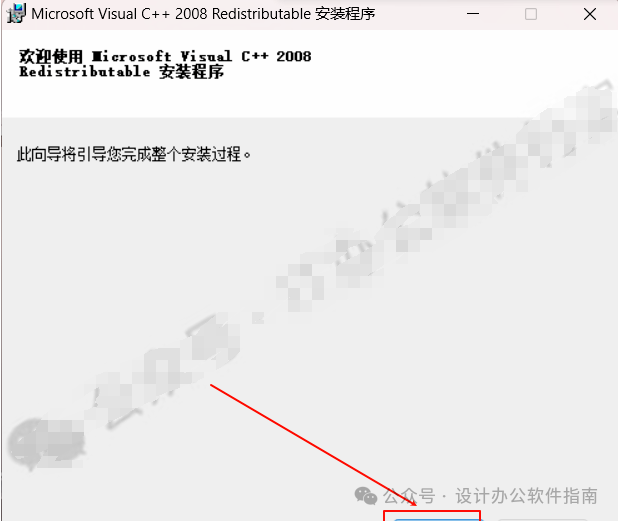
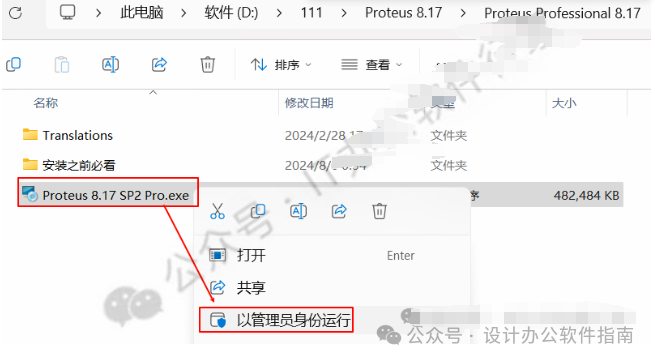 3. Click “Next”.
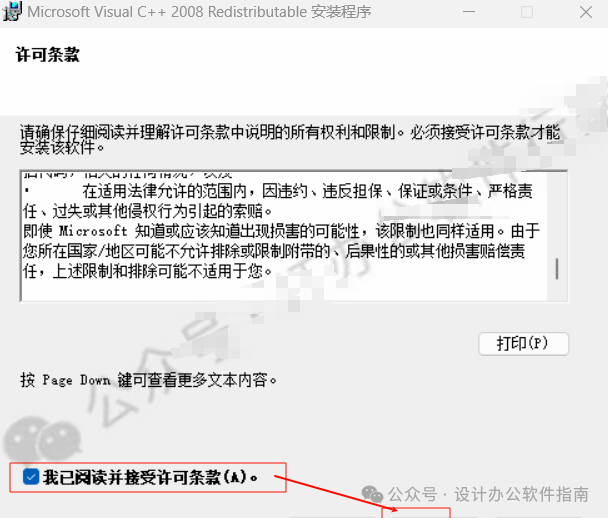
 4. Check the agreement and click “Install”.
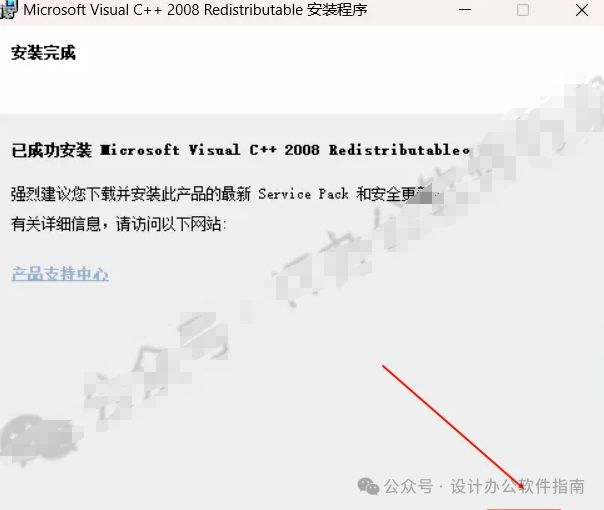
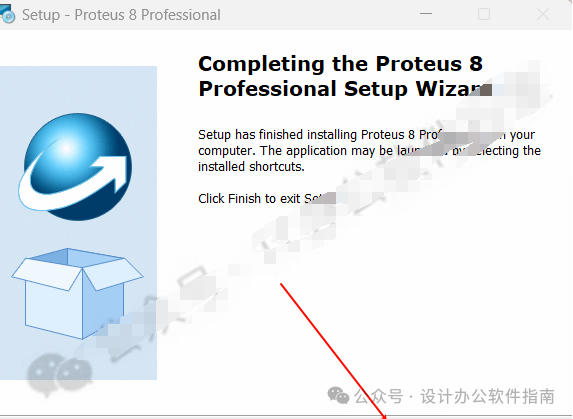
 5. Click “Finish”.
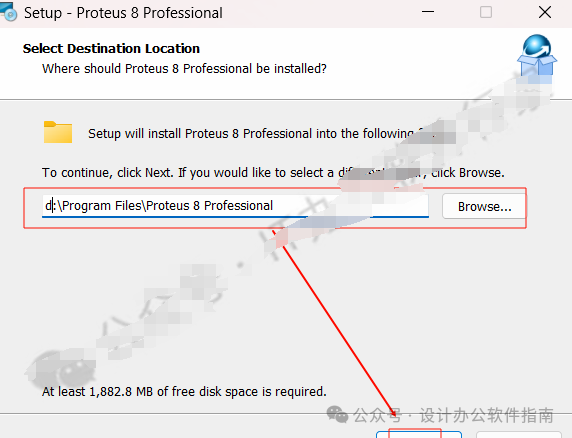
 6. Choose the installation location and click “Next”.
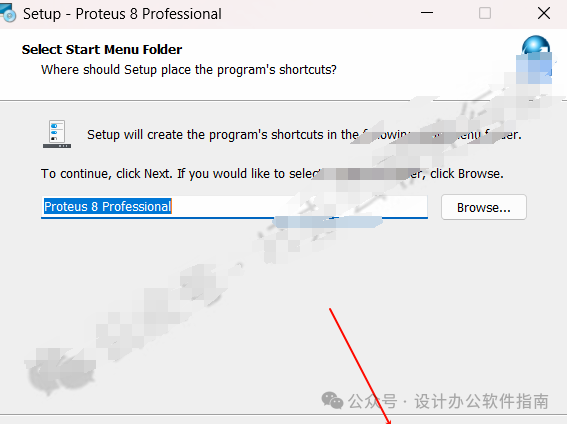
 7. Click “Next”.
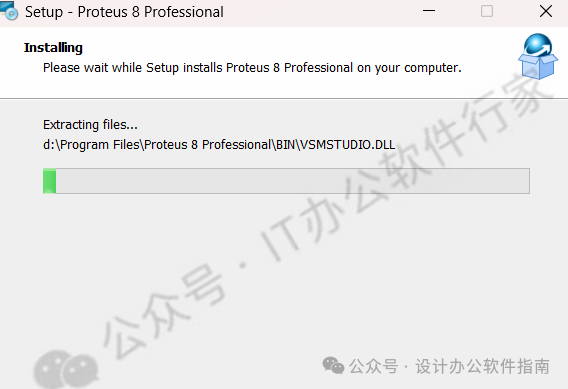
 8. Initializing, please wait for the installation to complete.
 9. Click “Finish”.
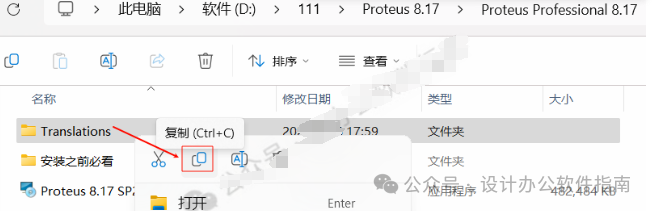
 10. Select “Translations” and right-click to copy.
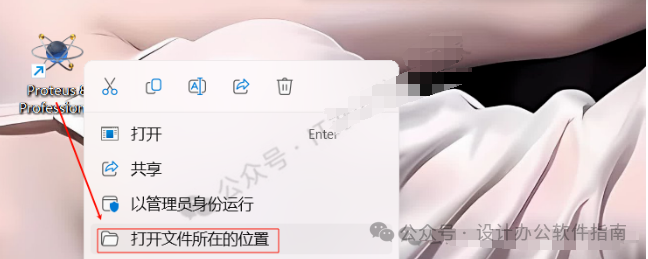
 11. Hover over the software, right-click and open the file location.
 12. Go back one step and find “Proteus 8 Professional”.
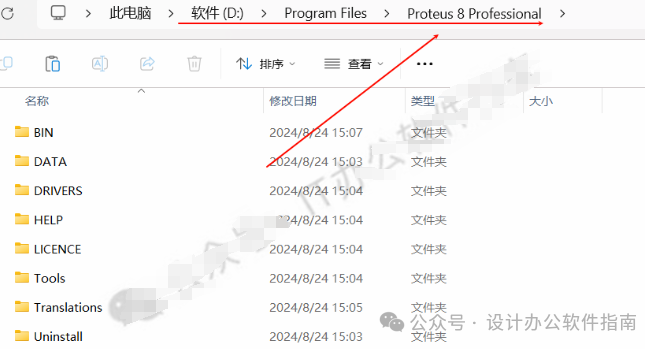 13. Right-click in a blank area and paste.
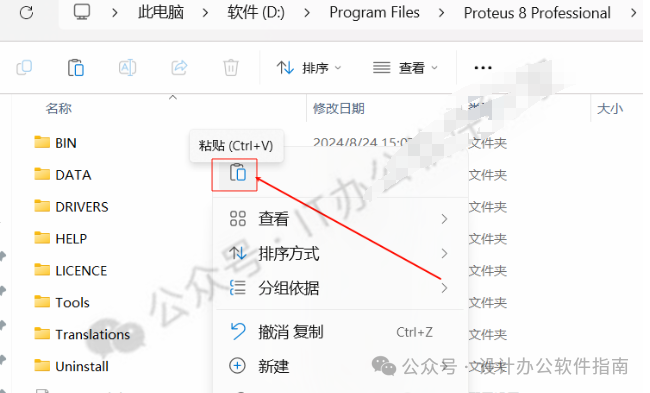 14. Click “Replace the files in the destination”.
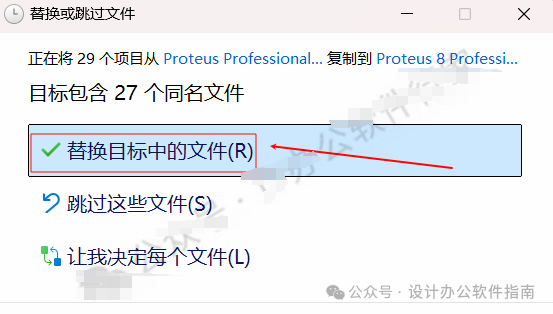 15. Double-click to open the software.
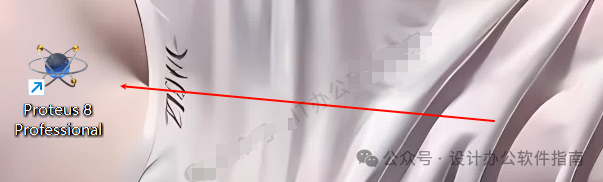 16. Software installation is complete.
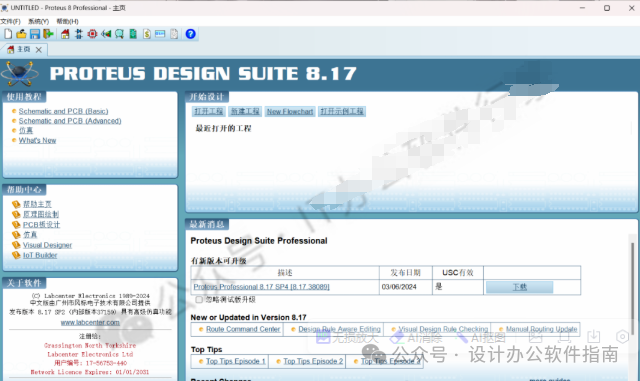 Your support is the motivation for my free sharing. A simple click to support would be appreciated!DisclaimerAll software and materials provided by the Office Software New Home installation are collected from the internet, intended for learning and research purposes only, and must not be used for any commercial purposes. The authenticity, legality, and accuracy are the responsibility of the author and the recommending publisher. This public account does not provide any guarantees and does not assume any legal responsibility. If your intellectual property or other rights are infringed, the responsibility lies with the user or re-publisher. This public account and I do not bear any responsibility. If there is an infringement of your copyright or other interests, please contact QQ email ‘[email protected]’, and we will handle it as soon as we receive the message.