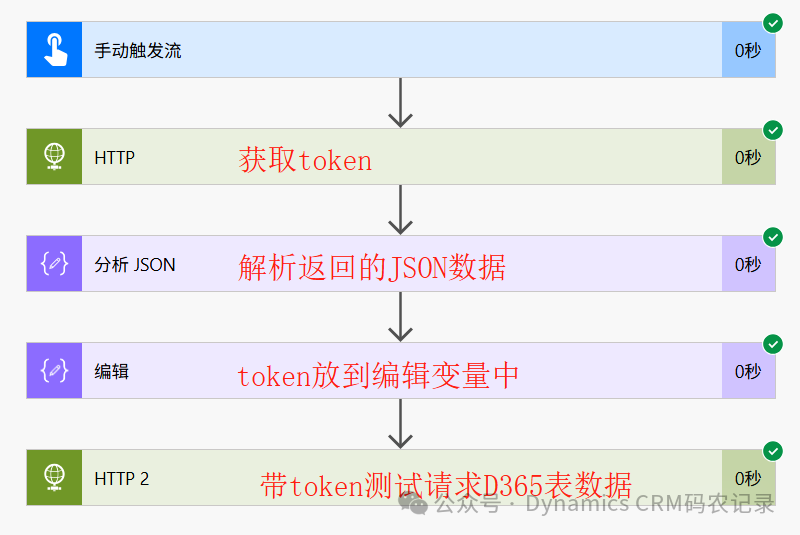
In a previous article, we discussed the registration of application users. Today, we will use the HTTP step in Power Automate to obtain a token based on the application user information for querying D365 OData WebAPI data.Adding Application User in D365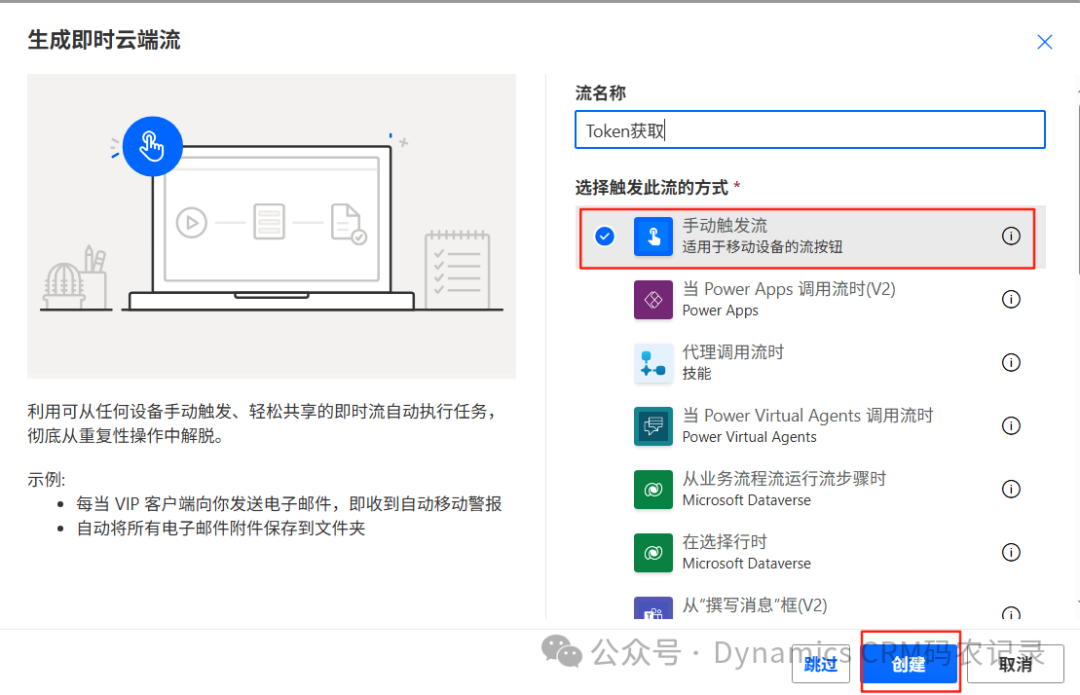 Create a new instant cloud flow and select the manual trigger flow.
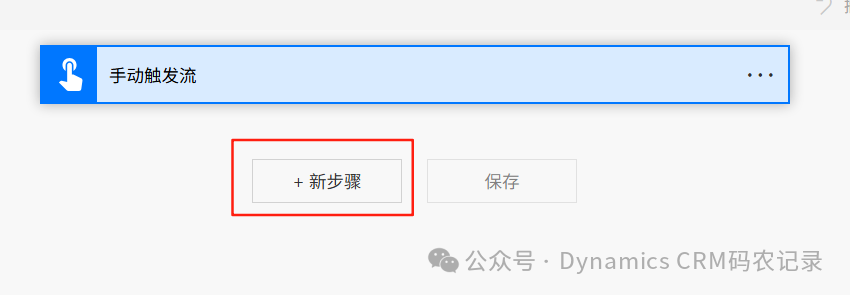 Add [New Step]
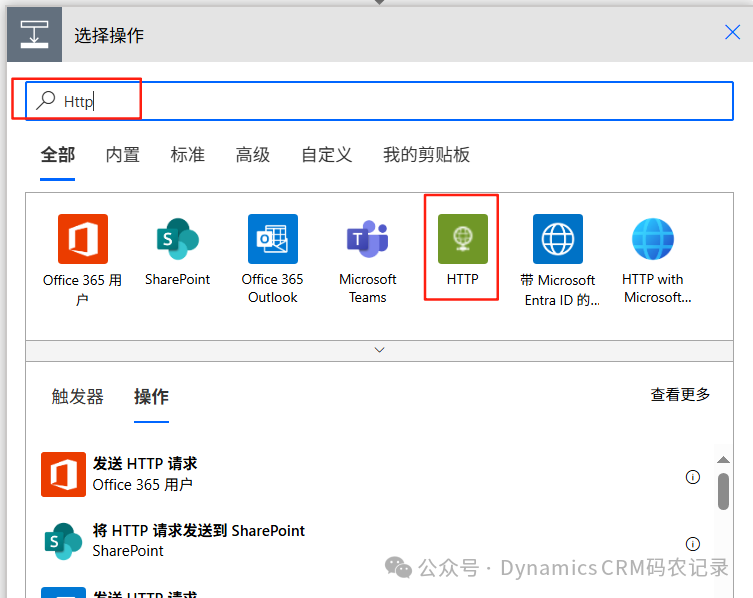 Select the HTTP step
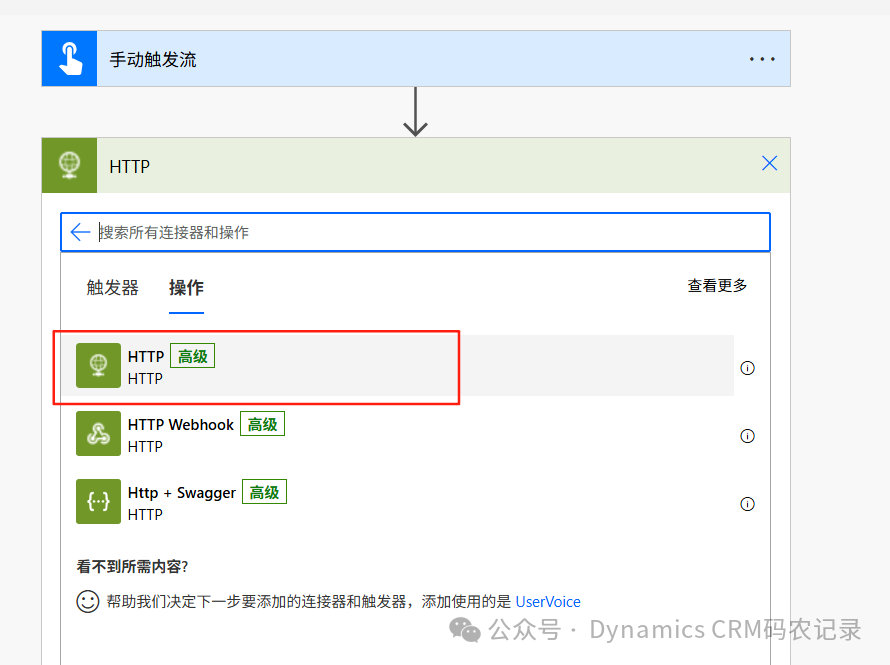 Select [HTTP]
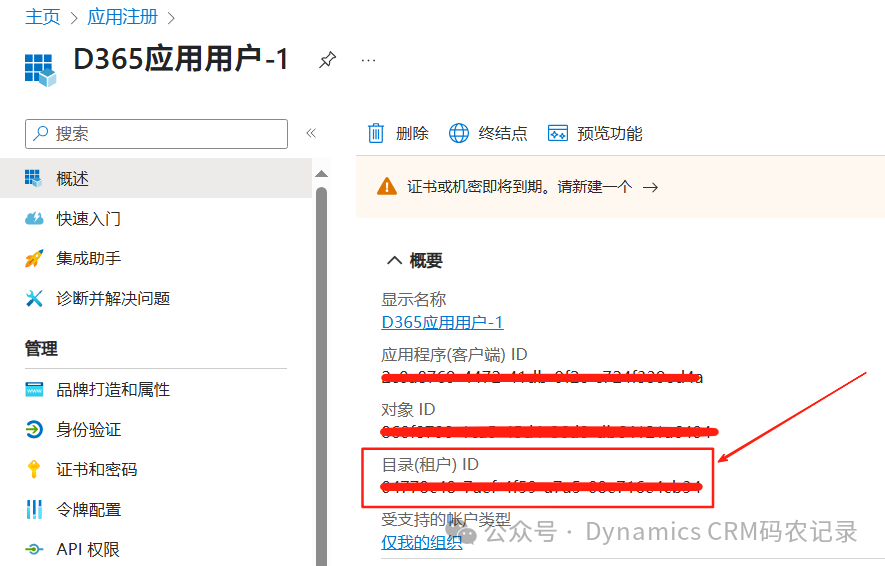
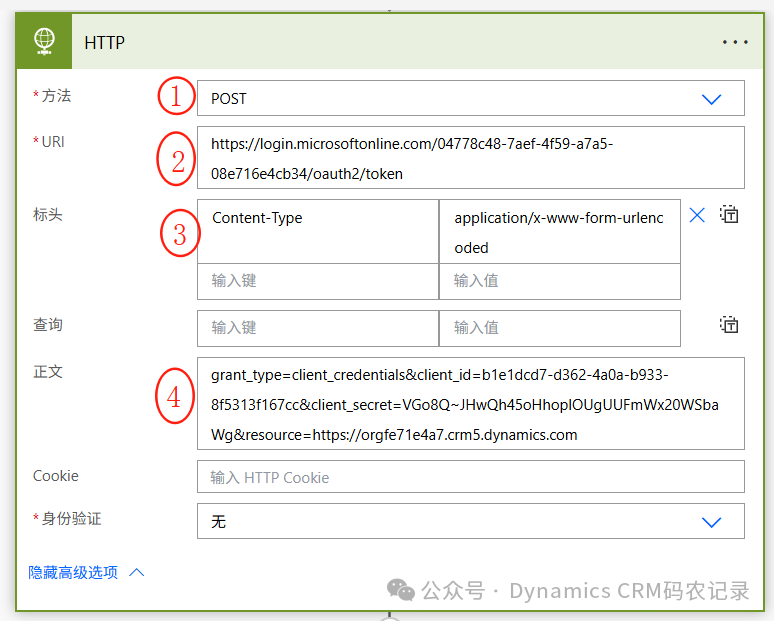 Input the following content:1. Select POST method for requesting the token.2. The token request URL:https://login.microsoftonline.com/{Tenant ID}/oauth2/tokenThe tenant ID can be found in the application user settings as follows:
 3. In the header, add the value of Content-Type as application/x-www-form-urlencoded. This setting is used to parse the body content in JSON format.Note: It must be set to this type; otherwise, the body cannot be parsed.4. Body:
grant_type=client_credentials&client_id=b1e1dcd7-d362-4a0a-b933-8f5313f167cc&client_secret=VGo8Q~JHwQh45oHhoplOUgUUFmWx20WSbaWg&resource=https://orgfe71e4a7.crm5.dynamics.comWhere:grant_type should be set to client_credentials, a fixed value indicating that authentication is performed via client mode.resource is the URL of the D365 you want to connect to.client_id is the application (client) ID as follows: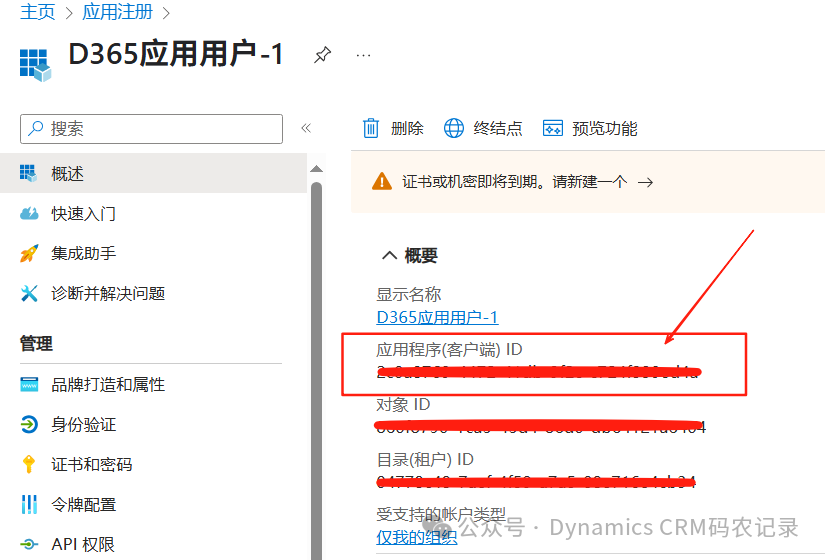 client_secret is the application user client secret as follows:
 After filling in, we will run the flow to test it.
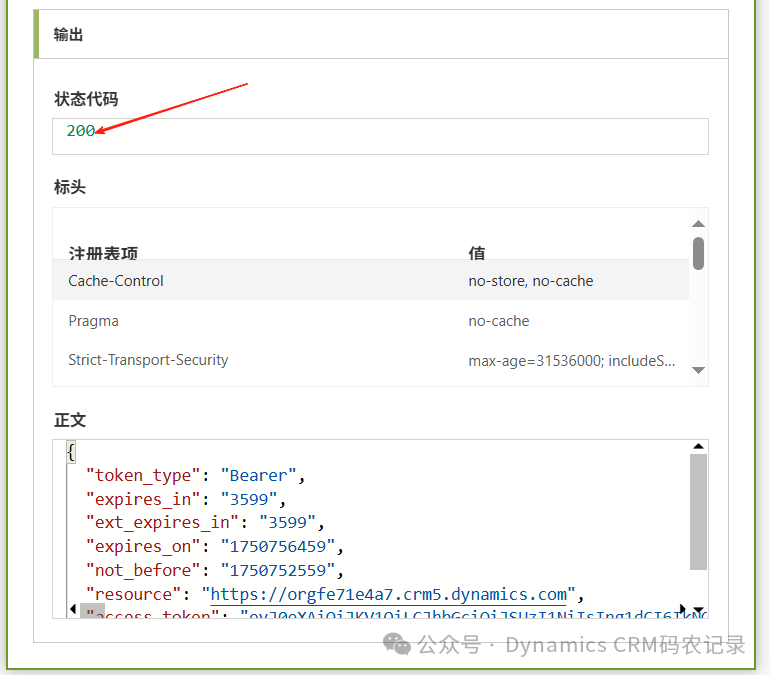 The test ran successfully.Next, add a step to parse the returned JSON data to extract the token value.
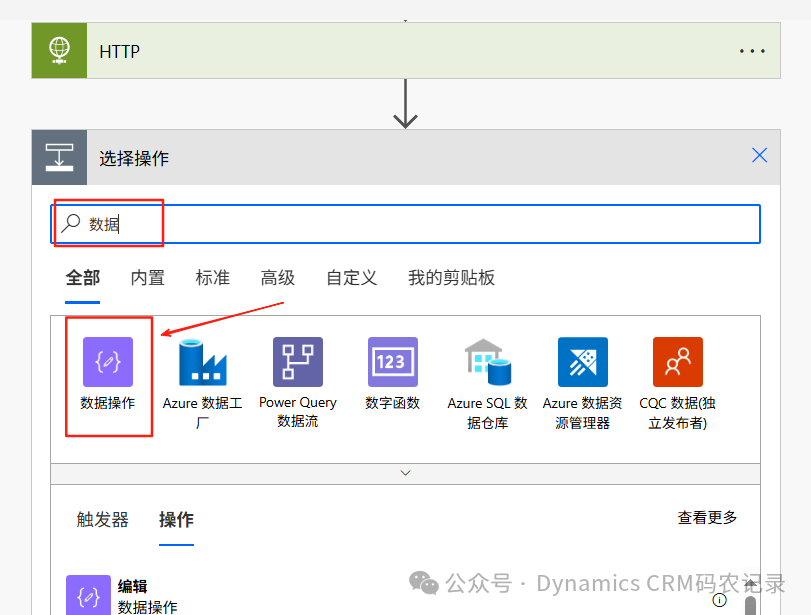 Search for [Data] and then select [Data Operations]
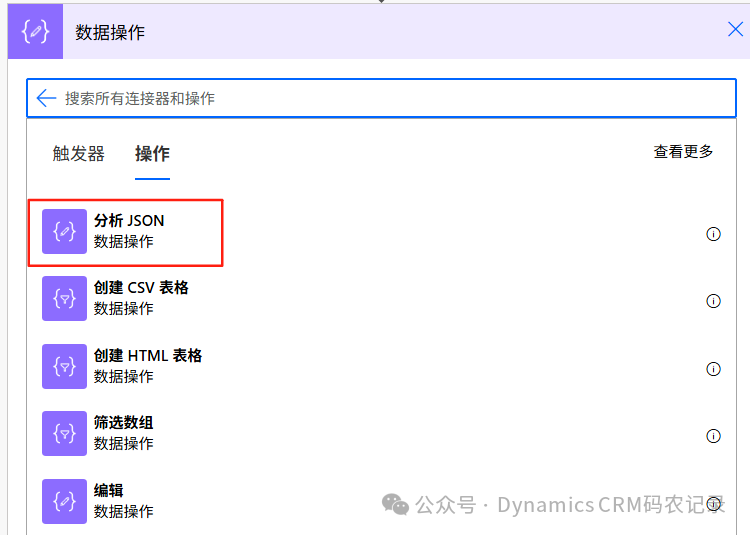 Select [Parse JSON]
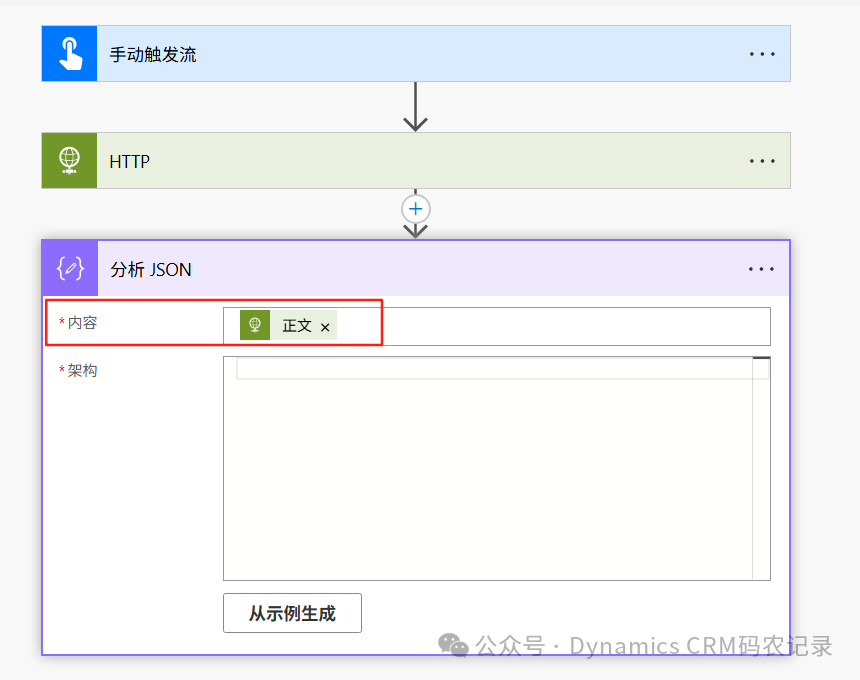 Content: Select the [Body] information from the previous step.
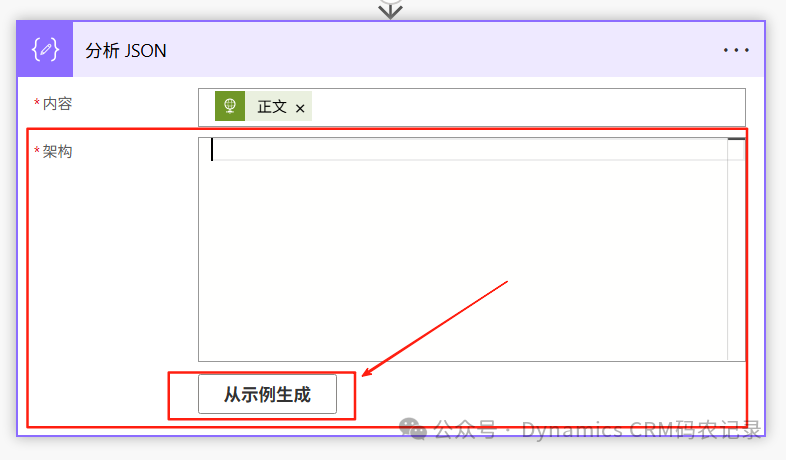 Schema: Parse the structure of the JSON data, and in the following steps, you can directly select the property values of the JSON data structure.Click [Generate from Sample] as shown below.
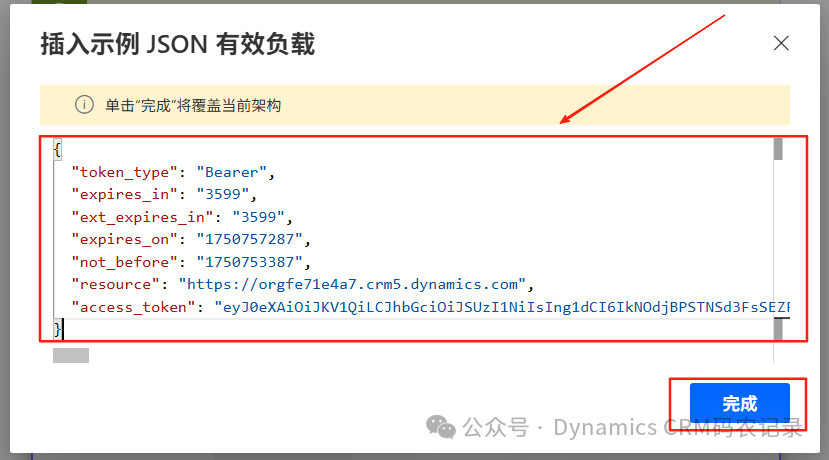 Add the body JSON format data returned from the previous step’s HTTP token acquisition step, and it will automatically parse the JSON schema information.
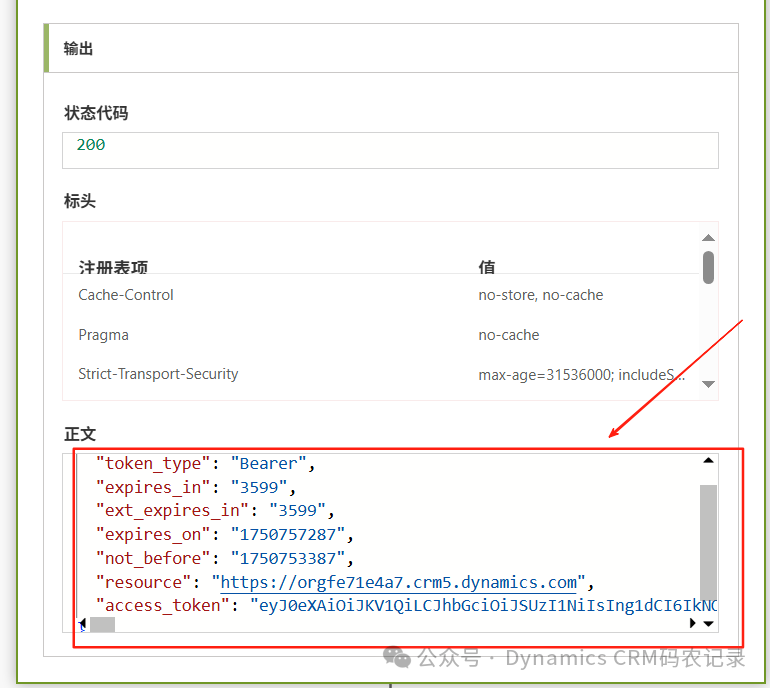 This way, you can perform JSON data parsing.
 Run the test.
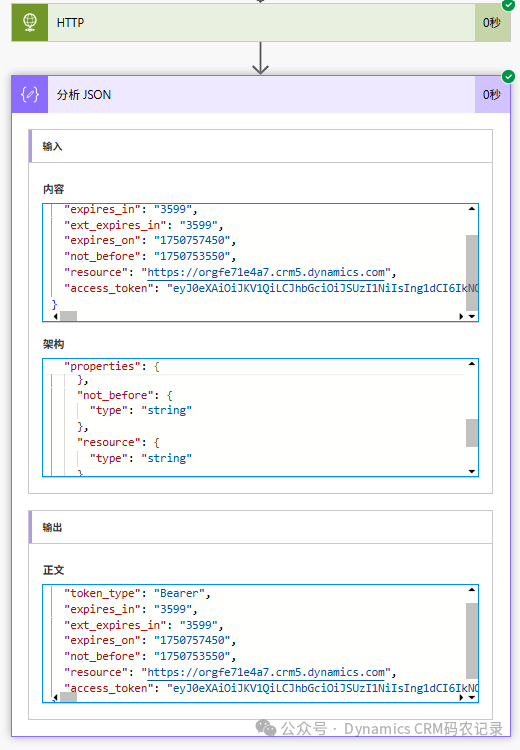 The test passed normally. Next, add the [Edit] step in [Data Operations] to store the parsed token data.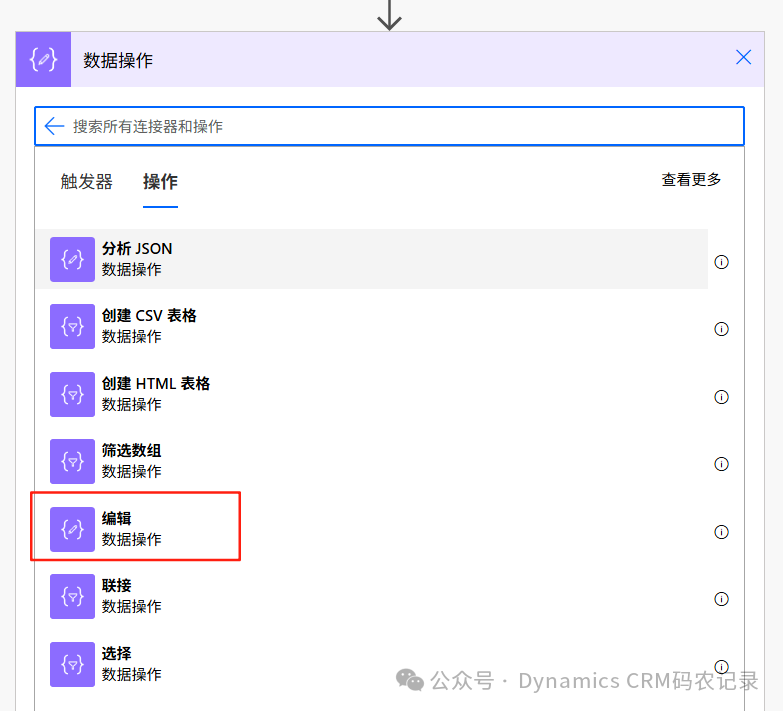
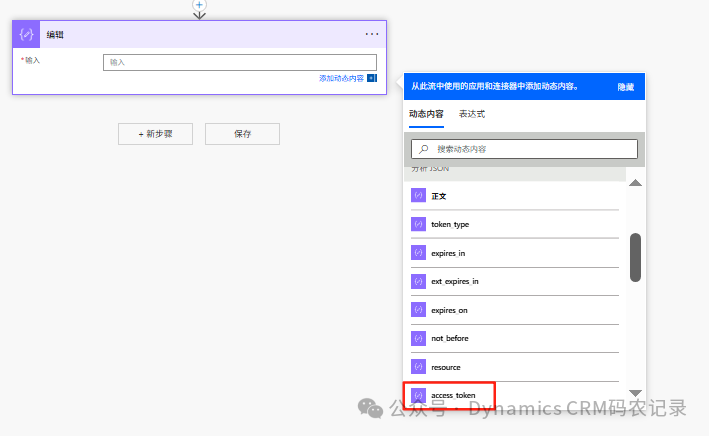 The property access_token parsed from the previous step’s JSON can be selected directly.
 Then add the HTTP request step with the token to retrieve D365 data.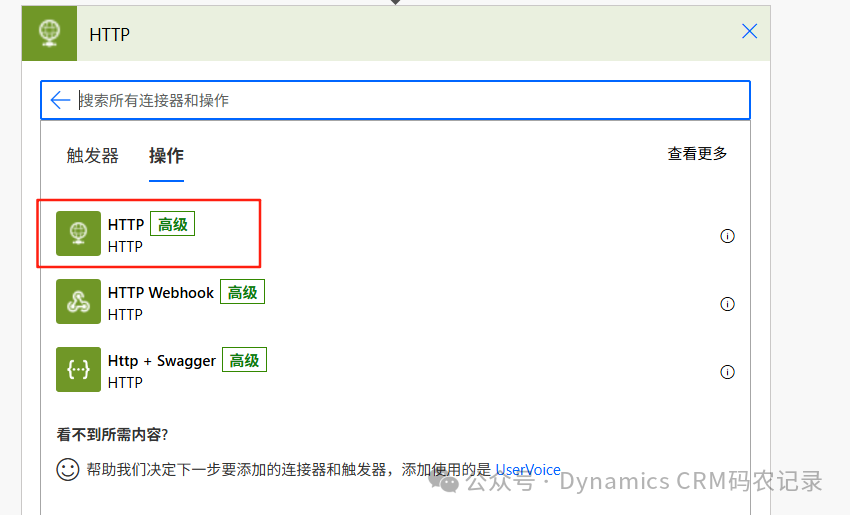
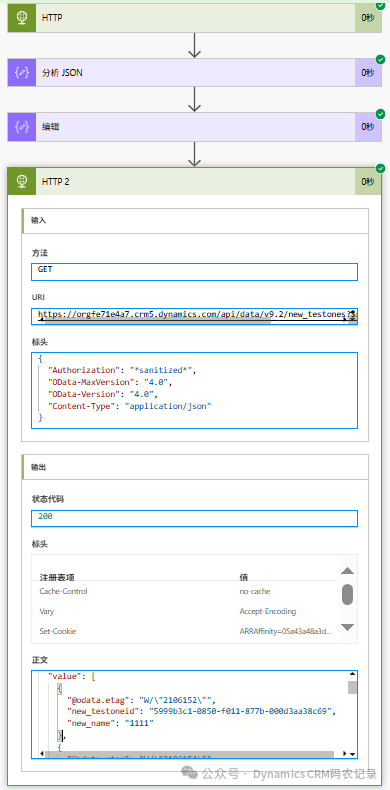
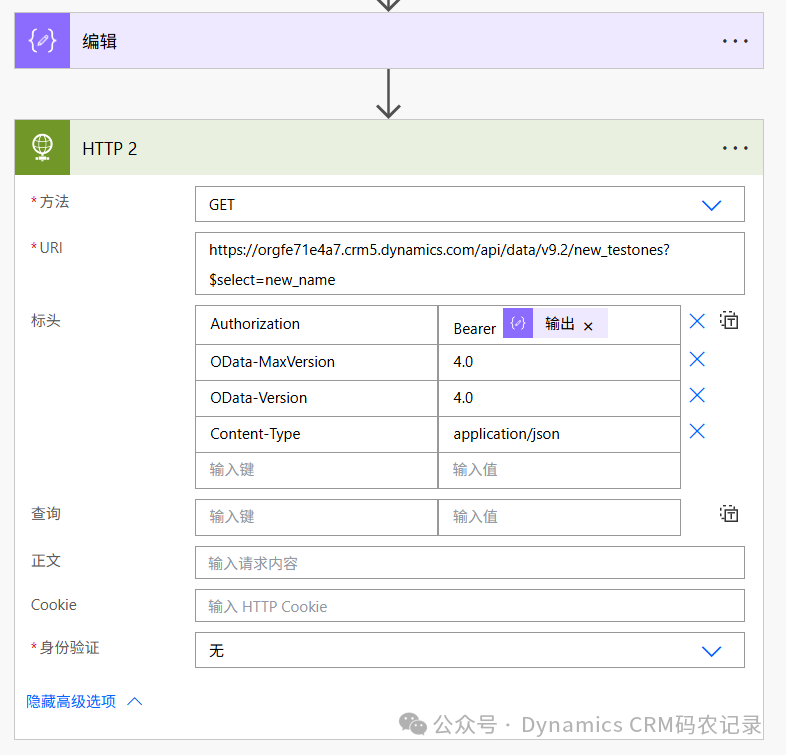 Input the following content:URI:https://orgfe71e4a7.crm5.dynamics.com/api/data/v9.2/new_testones?$select=new_name, this is the D365 OData API query statement.Header:Authorization: Pass the token obtained from the previous step, prefixed with Bearer. Note that there should be a space after Bearer, followed by the token parsed from the previous step.Example: Bearer asashsakdhjk121jkahsajskajshka……….OData-MaxVersion: 4.0 (fixed value)OData-Version: 4.0 (fixed value)Content-Type: Set to application/jsonRun the test.