Introduction
During the use of the Kylin operating system, there are times when the system may freeze, and a forced restart can lead to file system corruption. This may result in a black screen or prompts showing <span>BusyBox</span> and <span>(initramfs)</span>. Today, we will address how to repair this issue and successfully boot into the system.
1. File System Corruption
1.1 Overview
There are various reasons for file system corruption, with three common causes:
① Corruption caused by a forced restart while the computer is performing intensive disk read/write operations.② Firmware bugs at the hardware level of the hard drive, which can cause deadlocks during normal read and write processes, leading to freezes. A forced restart in this case may also result in file system corruption.③ Damage caused by sudden power loss or moving the computer while it is powered on, or vibrations during operation.
Method 1: Check
In this case, there are clear prompts showing <span>BusyBox</span> and <span>(initramfs)</span>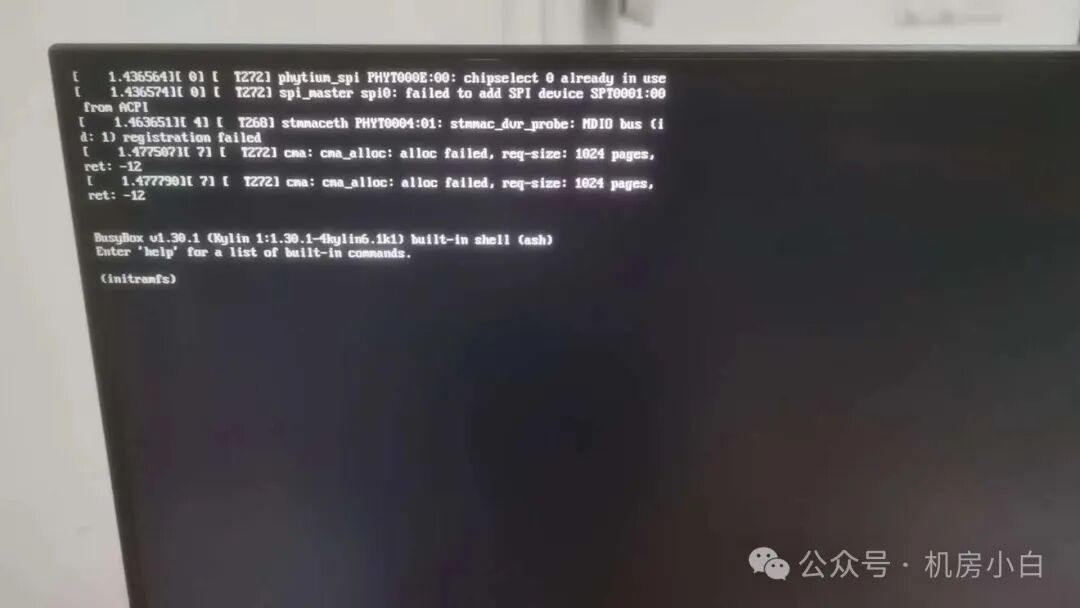
Method 2: Check
In some cases, after seeing the Kylin logo flicker, the screen goes black with no display. If you suspect a hard drive issue, you can try entering single-user mode or rescue mode for troubleshooting. If it is indeed file system corruption, you will also see the keywords <span>BusyBox</span> and <span>(initramfs)</span>
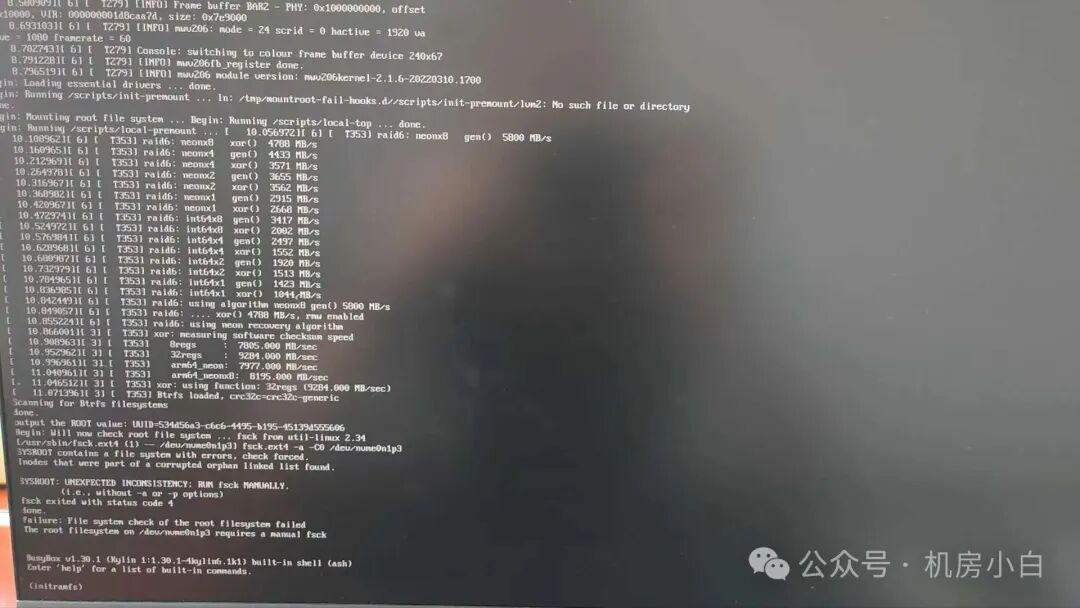
Preparing for Repair
Type <span>exit</span> and press Enter. This will display the file system partition information that needs repair. For example, the partition that needs manual repair is <span>/dev/nvme0n1p3</span>.
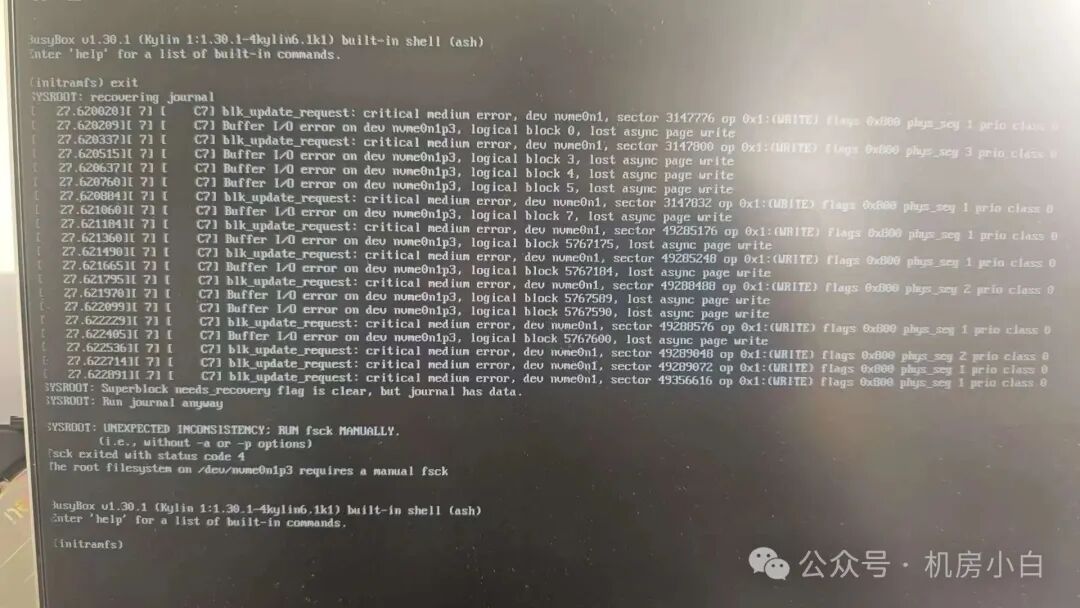 The next command to enter for repair is
 <span>fsck</span> followed by a space, <span>-y</span> followed by a space, and <span>/dev/nvme0n1p3</span>. Press Enter, and the repair will start automatically. The successful repair result is shown below:
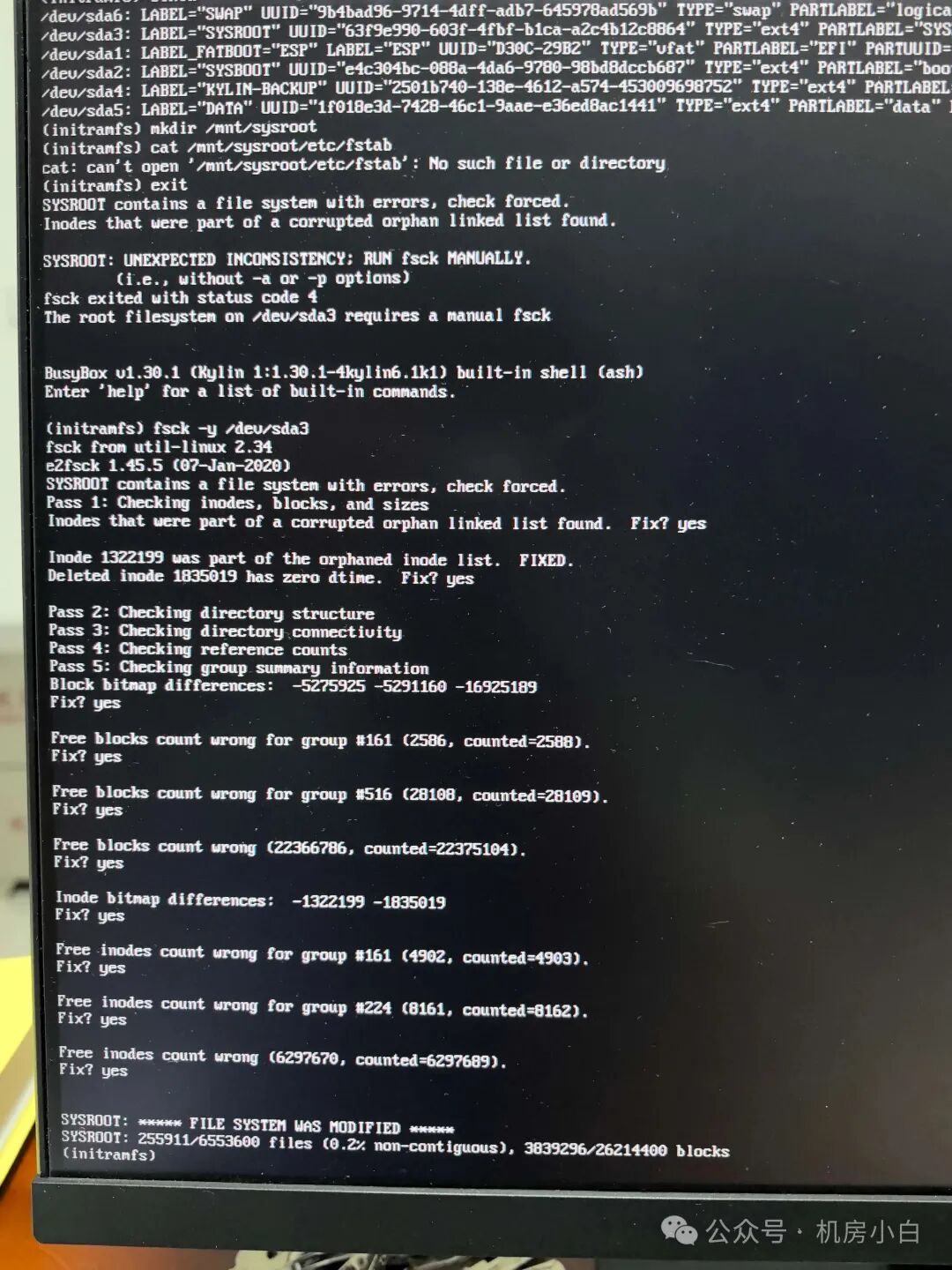 The unsuccessful repair result is shown below:
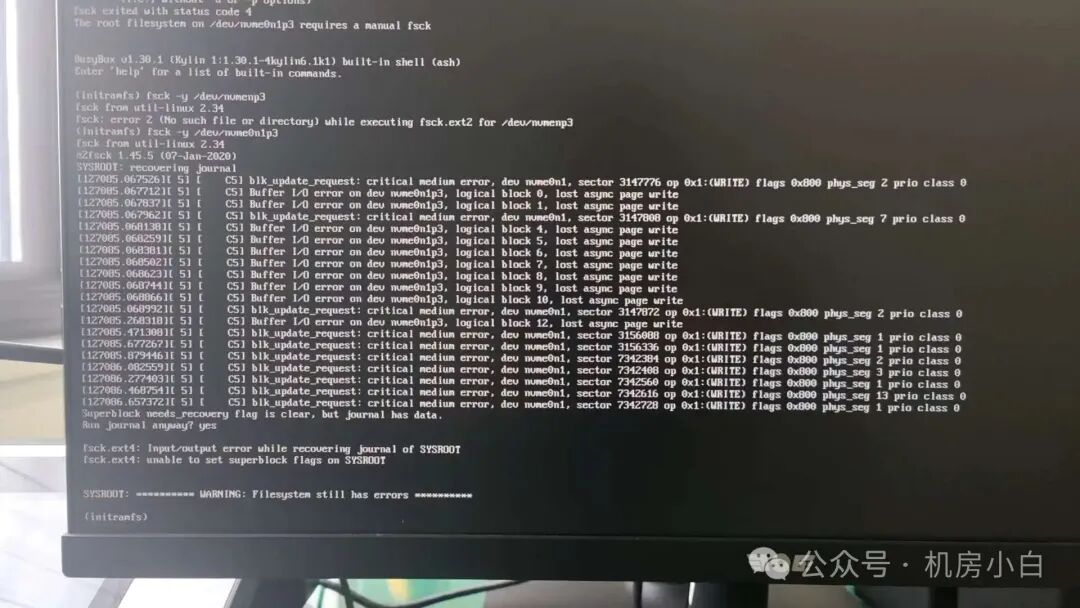
Once the repair is successful, enter <span>reboot</span> followed by a space and <span>-f</span> and press Enter. The computer will automatically restart and should boot normally. If the repair fails, this solution is no longer valid. You will need to contact the hardware manufacturer for firmware upgrade methods to attempt a repair. If the issue still cannot be resolved, you may need to consider reinstalling the operating system. Before reinstalling, ensure to back up any necessary data. If you encounter issues reading or exporting data, consult a data recovery company for final attempts.
Conclusion
The above describes the methods for repairing disk file system corruption in the Kylin Operating System V10 desktop version. Regularly back up important data to avoid impacting your work.