Click the blue text above to follow us
01. SSH Official Website and Download Links
>>>
|
The official download link for OpenSSL is as follows. This is the open-source organization that Luo Yonghao donated 1 million to. https://www.openssl.org/source/ The GitHub download link for OpenSSL is as follows. https://github.com/openssl/openssl The official website for the SSH open-source organization is as follows. http://www.openssh.com/ The SSH download link for HXng KXng (using X to prevent document upload being blocked) is as follows. https://openbsd.hk/pub/OpenBSD/OpenSSH/portable/ The official website for zlib is as follows. http://www.zlib.net/ |
| Linux | Porting Gdb+Gdbserver Debugging to i.MX6ULL (Chapter 14) |
02. Detailed Porting Process
>>>
The source code is downloaded from Xunwei, and the compiler used is “arm-2009q3“.
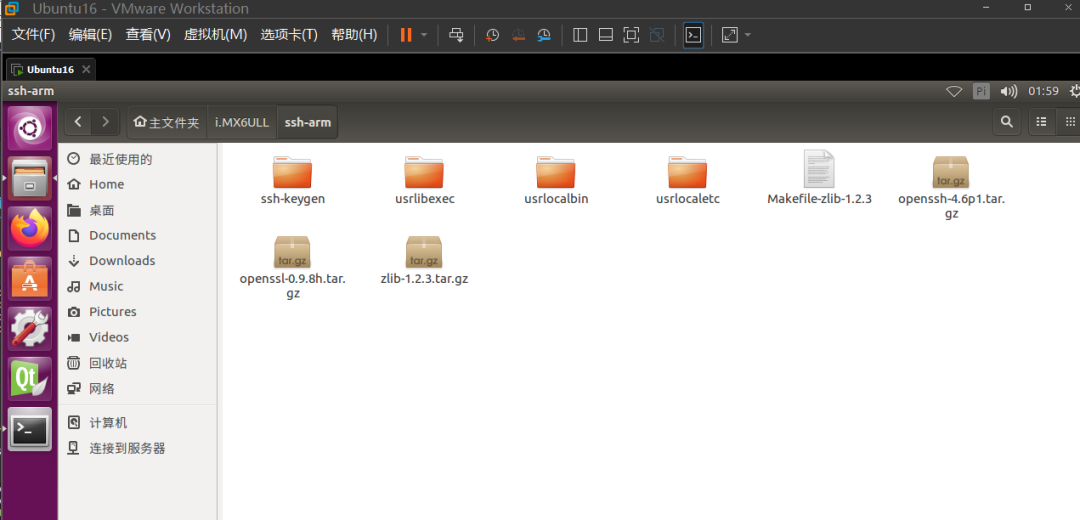
The author places three files that need to be ported in the directory “/home/topeet/project/ssh-arm/”, and the installation directory for the ported files is the “install” folder under “/home/topeet/project/ssh-arm/”. Create two folders under install:
“openssl-0.9.8h” and “zlib-1.2.3”, which will need to be installed in this directory after compilation.
03. Porting Zlib
Quoted words:489/300 (single quote must not exceed 300 words to avoid unreasonable quoting)
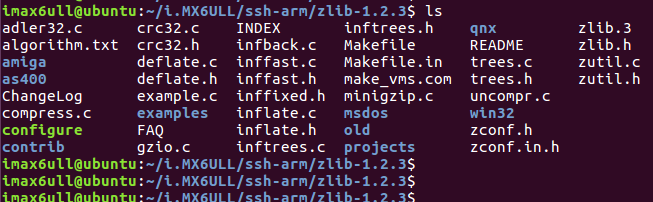
Copy “zlib-1.2.3.tar.gz” from the materials provided by Xunwei to the Ubuntu system, and use the command “tar -vxf zlib-1.2.3.tar.gz” to extract it, resulting in the “zlib-1.2.3” folder. Use the command “cd zlib-1.2.3” to enter the “zlib-1.2.3” folder.
As shown in the figure below.
>>>
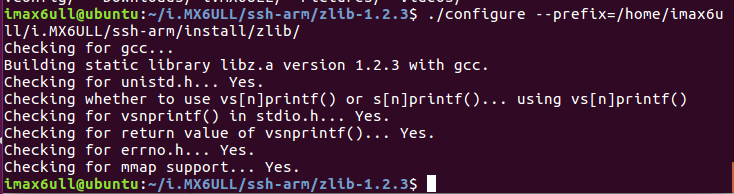
Next, use the command “./configure –prefix=/home/topeet/project/ssh-arm/install/zlib-1.2.3” to set the configuration file, as shown in the figure below.
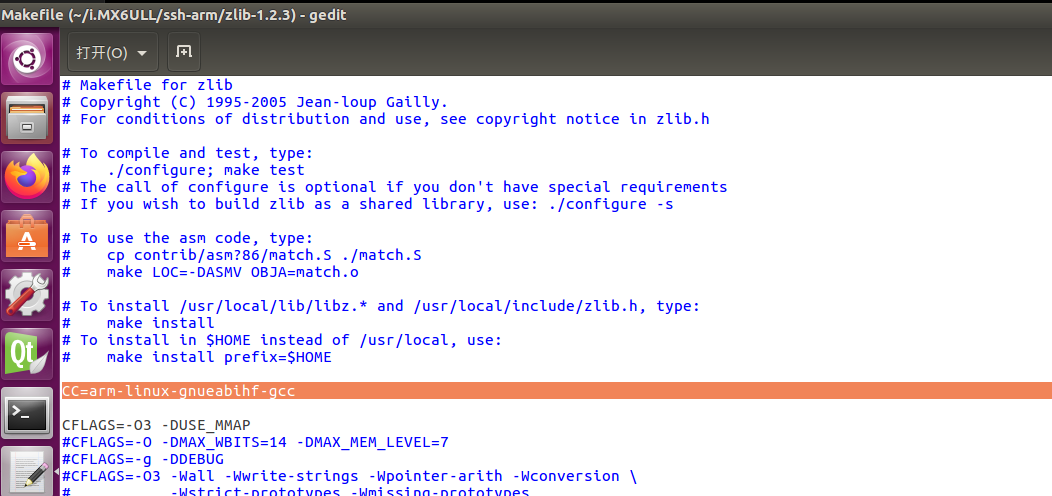
Use the command “vim Makefile” to modify the compilation parameters, changing all gcc to “arm-none-linux-gnueabi-gcc”,
as shown in the figure below.

Then use the compilation command “make”, as shown in the figure below.
After executing make without errors, use the installation command “make install”, as shown in the figure below.
The zlib library has now been installed. When compiling SSH later, the zlib library will be needed. The path here is
“/home/topeet/project/ssh-arm/install”, and the generated library files need to correspond during configuration, as shown in the figure below.
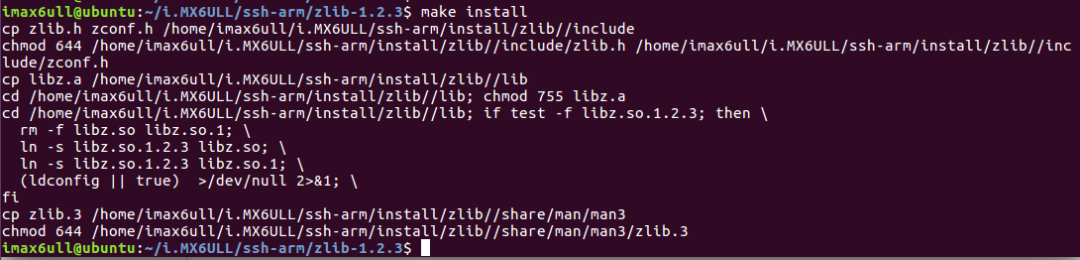
This part of the porting actually just modified the compiler. The files compiled after modifying the compiler are different from those compiled without modification.
During the porting process, if the compiler is not configured as the target system’s compiler, the compiled files will definitely not run.
Here, you can use the linux strings command to view readable content in non-text files (libz.a), which can usually be used in conjunction with grep.
As shown in the figure below, using the command “strings -a /home/topeet/project/ssh-arm/install/zlib-1.2.3/lib/libz.a” can show all readable information. Since there is a lot of readable information, it can be saved as text for later viewing. Use the command “strings -a /home/topeet/project/ssh-arm/install/zlib-1.2.3/lib/libz.a > log.my” to locate the output.
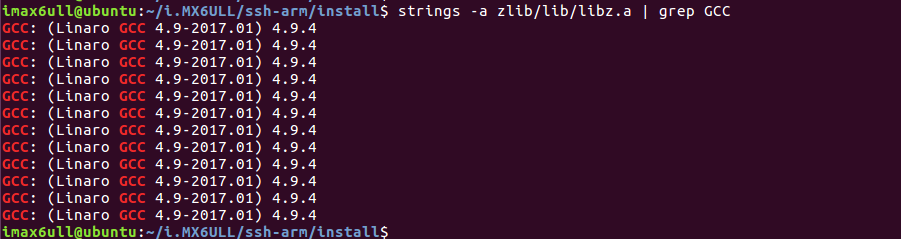
As shown in the figure above, the compiler version is “2009q3-67-4.4.1”, indicating that this library was compiled using the compiler we set, and the compiled library file is of course also usable on ARM.
04. Porting OpenSSL
>>>
Next, we will port the OpenSSL library. Copy “openssl-0.9.8h.tar.gz” to the Ubuntu system, and use the command “tar -vxf openssl-0.9.8h.tar.gz” to extract it, resulting in the “openssl-0.9.8h” folder. Use the command “cd openssl-0.9.8h” to enter the “openssl-0.9.8h” folder, as shown in the figure below.

Next, use the command
"./Configure linux-elf-arm -DB_ENDIAN linux:'arm-none-linux-gnueabi-gcc' --prefix=/home/topeet/project/ssh-arm/install/openssl-0.9.8h"to configure the compilation file, as shown in the figure below.
Use the compilation command “make” to complete the compilation, as shown in the figure below.
Finally, use the installation command “make install” to complete the installation, as shown in the figure below.
If errors occur, item number and other information. Solutions
|
According to your needs, I need to modify the format of all Solution
Verify the modificationsRun the following command to verify if the modifications were successful: You should see that all Notes
With this method, you can batch modify the format of all |
Success

05. Porting SSH
>>>
Next, we will port OpenSSH. Copy “openssh-4.6p1.tar.gz” to the Ubuntu system, and use the command “tar -vxf openssh-4.6p1.tar.gz” to extract it, resulting in the “openssh-4.6p1” folder. Use the command “cd openssh-4.6p1/” to enter the “openssh-4.6p1” folder, as shown in the figure below.
Here, let’s take a look at the help file for ssh’s configure, as shown in the figure below, using “./configure –help”.
Parameters that need to be configured in the ssh configure file:
–host indicates the platform to run on after compilation;
–with-libs indicates the additional library files needed;
–with-zlib indicates the installation path of the zlib library;
–with-ssl-dir indicates the installation path of the OpenSSL files;
–disable-etc-default-login indicates not to use the current environment variable’s compiler, so later configuration parameters will directly configure CC and AR as the compilers;
CC indicates the compiler to be used;
AR indicates the path of the compiler (this is quite strange, as this parameter does not seem to be in the configuration file, users can execute to verify).
Next, use the configuration command, which is quite long. The author uses colors to segment it:
./configure --host=arm-none-linux --with-libs --with-zlib=/home/topeet/project/ssh-arm/install/zlib-1.2.3 --with-ssl-dir=/home/topeet/project/ssh-arm/install/openssl-0.9.8h --disable-etc-default-login CC=/usr/local/arm/arm-2009q3/bin/arm-none-linux-gnueabi-gcc AR=/usr/local/arm/arm-2009q3/bin/arm-none-linux-gnueabi-arEveryone’s cross-compilation environment is different; mine is:
<span>./configure --host=arm-none-linux --with-libs \

            --with-zlib=/home/imax6ull/i.MX6ULL/ssh-arm/install/zlib \

            --with-ssl-dir=/home/imax6ull/i.MX6ULL/ssh-arm/install/openssl \

            --disable-etc-default-login \

            CC=/usr/local/arm/gcc-linaro-4.9.4-2017.01-x86_64_arm-linux-gnueabihf/bin/arm-linux-gnueabihf-gcc \

            AR=/usr/local/arm/gcc-linaro-4.9.4-2017.01-x86_64_arm-linux-gnueabihf/bin/arm-linux-gnueabihf-ar</span>
to configure the compilation file, as shown in the figure below.
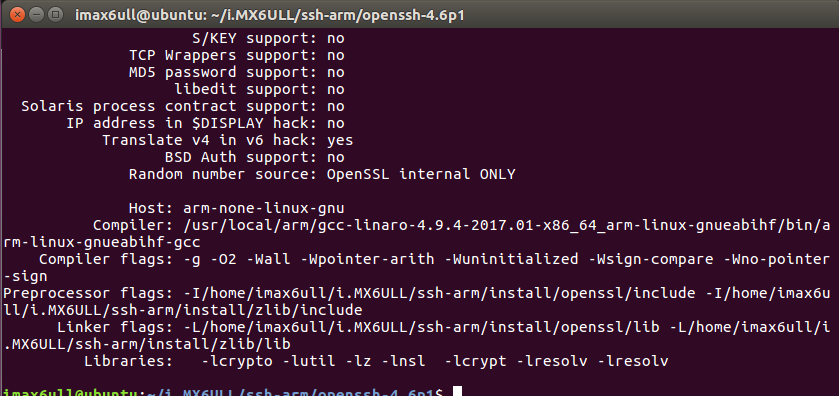
Use the compilation command “make”, and the compilation will be completed, as shown in the figure below.
After compilation is complete, it is necessary to install it on the development board, as shown in the figure below. Finally, in the directory “/home/topeet/project/ssh-arm/openssh-4.6p1”, there are several binary files “scp, sftp, ssh, sshd, ssh-add, ssh-agent, ssh-keygen, ssh-keyscan” that need to be installed on the development board. The final compiled binary files can be checked for file attributes using the file command, as shown in the figure below. Using the command “file scp” can show that the “scp” file is an executable file for 32-bit ARM.

06. Installation Testing
>>>
Basic file installation
Create three directories “/usr/libexec“, “/usr/local/etc ”, “/usr/local/bin ” on the file system busybox, using the command “mkdir -p /usr/libexec /usr/local/etc /usr/local/bin”, as shown in the figure below.
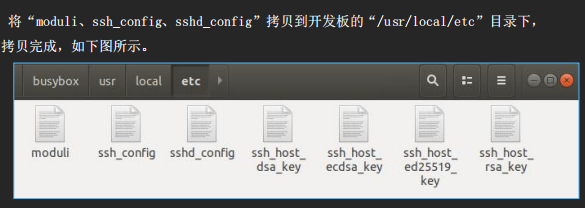
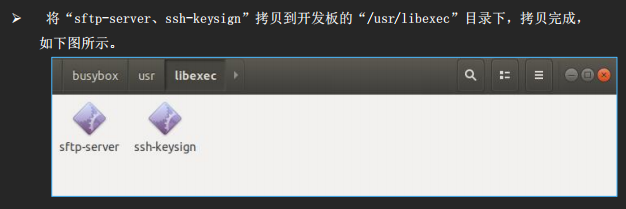
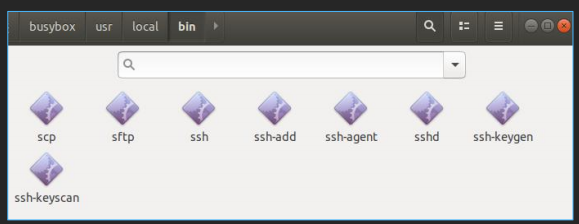
On the virtual machine Ubuntu, copy the generated executable files “scp, sftp, ssh, sshd, ssh-add, ssh-agent, ssh-keygen, ssh-keyscan” from openssh-6.6p1 to the file system directory “/usr/local/bin”,
After copying, as shown in the figure below.
07. Generate Key Files and Install
>>>
Download the files from the above directories to the development board.
Use “ssh-keygen” to generate four key files “ssh_host_rsa_key”, “ssh_host_dsa_key”, “ssh_host_ecdsa_key”, and “ssh_host_ed25519_key”.1 In the virtual machine Ubuntu console, in the directory “/home/topeet/project/ssh-arm/openssh-4.6p1”, use the command “
ssh-keygen -t rsa -f ssh_host_rsa_key -N ""” to generate the “ssh_host_rsa_key” file.2 Next, use the remaining three commands:
ssh-keygen -t dsa -f ssh_host_dsa_key -N ""
ssh-keygen -t ecdsa -f ssh_host_ecdsa_key -N ""
ssh-keygen -t ed25519 -f ssh_host_ed25519_key -N ""
After execution, copy the generated “ssh_host_rsa_key”, “ssh_host_dsa_key”, “ssh_host_ecdsa_key”, and “ssh_host_ed25519_key” files to the file system directory “/usr/local/etc/”, and then change their permissions to 600, as shown in the figure below.
08. Modify Target Board Key Files
>>>In the file system, use the command “vi /etc/passwd” to open the ssh key file, and add the following content at the bottom of the “/etc/passwd” file:sshd:x:74:74:Privilege-separated SSH:/var/empty/sshd:/sbin/nologinAfter adding, as shown in the figure below, save it, and the key file modification is complete.
Development Board
09. Testing
>>>The author’s development board is connected to the router, and the PC’s Windows system is also connected to the router, so first ensure that the development board and PC can ping each other, meaning they are set on the same subnet. Modify the file system’s /etc/eth0-setting file. The author’s PC IP is: 192.168.123.224, as shown in the figure below.
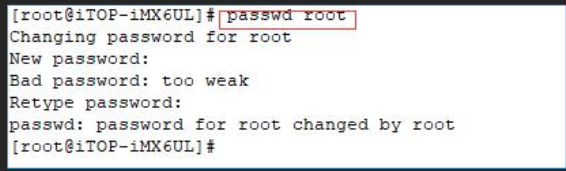
The development board’s IP is: 192.168.123.150, and the /etc/eth0-setting file has been modified. Package the file system and burn it to the development board [those compiled with arm can be directly dragged to the development board for use]. Use the ping command to test, as shown in the figure below, the network is smooth. Additionally, pressing “Ctrl” + c can end the ping action.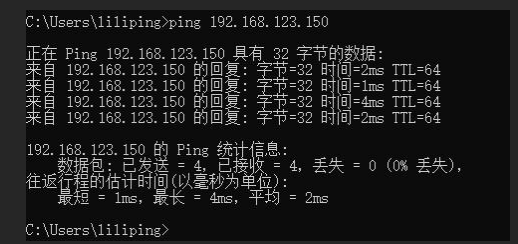 Next, create a root account on the development board, as shown in the figure below, using the command “passwd root”, which will prompt for a password and require it to be entered twice to prevent errors.
 Then run the sshd binary file on the development board using the command “/usr/local/bin/sshd”, as shown in the figure below.
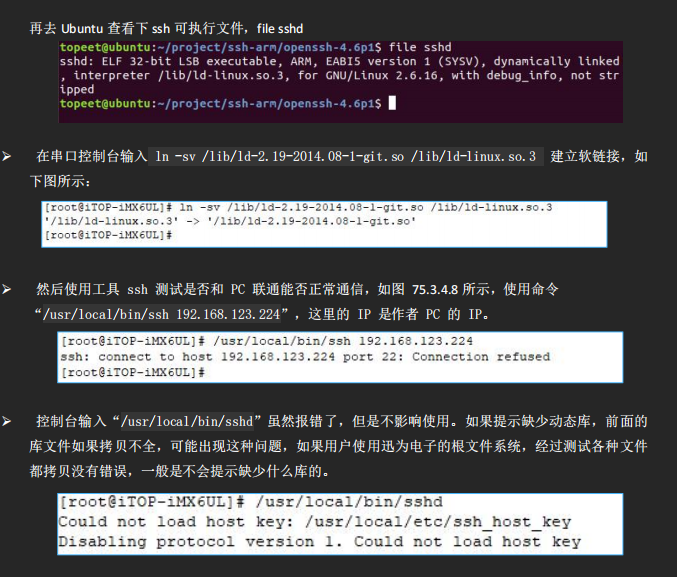 Some errors can be ignored. You can connect to the PC via ssh.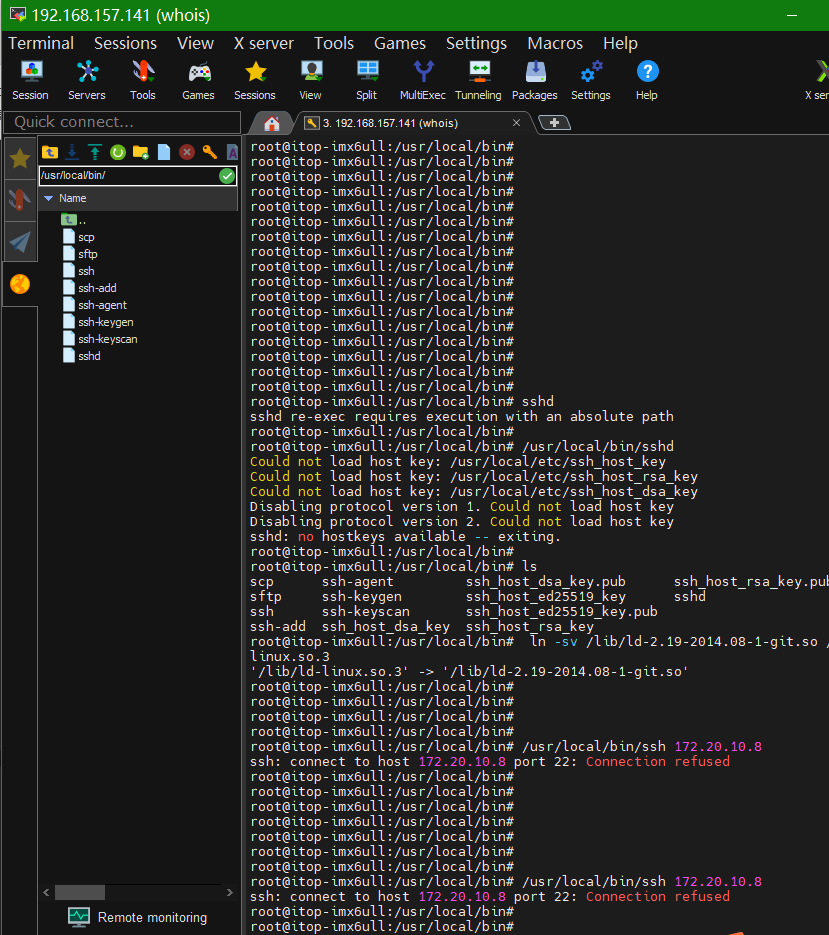
Summary
>>>
This section contains a lot of content, mainly focusing on configuring the SSH service for the ARM development board.
The development board mentioned in the text may differ slightly from your development board, but the method is generally the same.
AI guidance can quickly solve problems. The required files can be downloaded online; my version is relatively old.
So I am here
Click the card below to follow me
↓↓↓

If you find it useful, please click
Save
Like
View
+1
❤❤❤