01 Many friends are transitioning from microcontrollers, where they are accustomed to using JLINK for debugging programs, and find it quite unfamiliar to switch to Linux.Indeed, it would be great if we could set breakpoints, perform single-step debugging, and inspect variables on Linux. Next, I will teach you how to debug application code on an ARM board.
|
File shared via cloud: gdb-7.8.1.tar.gz Link: https://pan.baidu.com/s/1jb7i84Zgm37zsJU0TopX1Q?pwd=n792 Extraction code: n792 |
02 First, let’s understand the basic approach:To perform remote debugging in this manner, the target system must include the gdbserver program, and the host machine must also have the gdb program installed. Generally, Linux distributions come with a runnable gdb, but we cannot directly use the gdb from the distribution for remote debugging. Instead, we need to obtain the gdb source package, make a simple configuration for the ARM platform, and recompile to get the corresponding gdb, such as armv4.03 Setting up the environmentUbuntu version: Ubuntu 12.04 Cross-compiler: arm-2009q3.tar.bz2gdb version: gdb-7.8.1.tar.gzDevelopment board hardware: i.MX6ULL TerminatorDevelopment board system: busybox with ssh supportNote: If the gdb version you download is relatively high, then the GCC version on Ubuntu must be above 4.8. The cross-compiler must match the file system you compiled, as busybox’s root file system uses arm-2009q3, so we will also use this compiler to compile gdb.04
Setup Steps
(1) Step One: Download the gdb compressed package
Download link: http://ftp.gnu.org/gnu/gdb/
Here we are downloading the gdb-7.8.1.tar.gz version.
(2) Step Two: Compile and install gdb
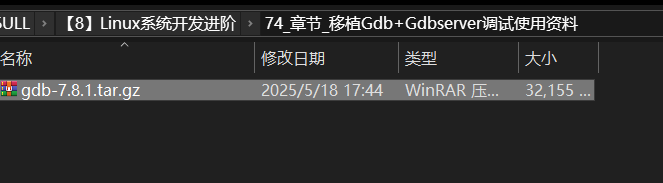
After placing the gdb compressed package in Ubuntu, we enter the extracted files, as shown in the following image:
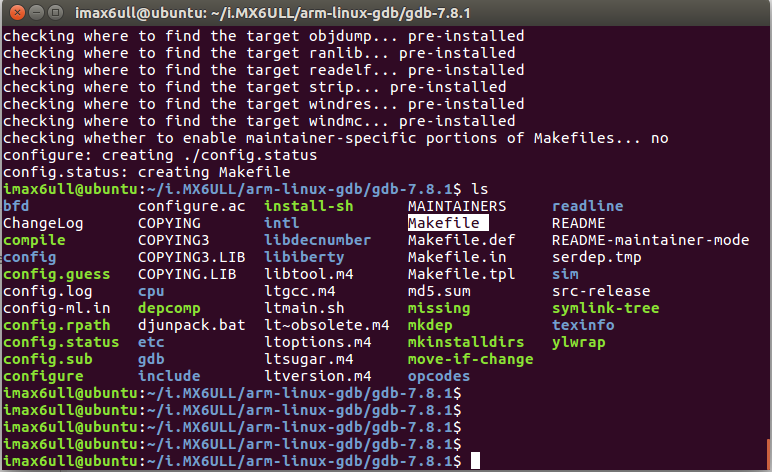
Enter the following command:
./configure --target=arm-none-linux-gnueabi --prefix=/home/topeet/arm-linux-gdb/arm-linux-gdb Generate the Makefile. The target is the target platform,
and the prefix is the installation path.
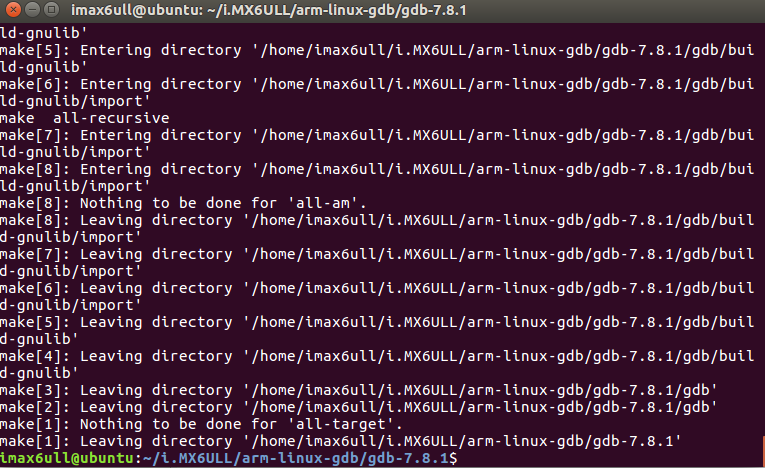
Enter make, to compile gdb, and if the compilation is successful, it will look like the following image:
Enter make install to install gdb, and soon we will start this gdb on Ubuntu, installation successful as shown in the following image:
Enter the gdb/gdbserver directory under the gdb source code, as shown in the following image:
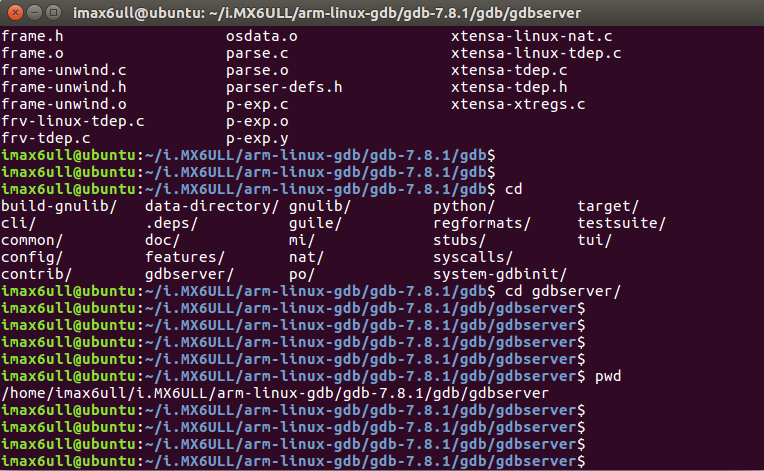
Enter the following command:
./configure --target=arm-none-linux-gnueabi --prefix=/home/topeet/arm-linux-gdb/arm-linux-gdbserverGenerate the Makefile, the target is the target platform, the prefix is the installation path.
Then execute
make CC=/usr/local/arm/arm-2009q3/bin/arm-none-linux-gnueabi-gcc Command, note that the cross-compiler must be specified with an absolute path.
During the compilation process, the following error may occur:
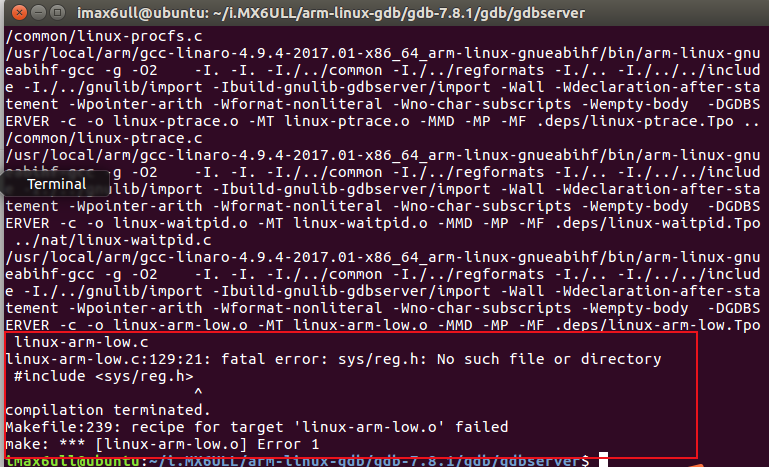
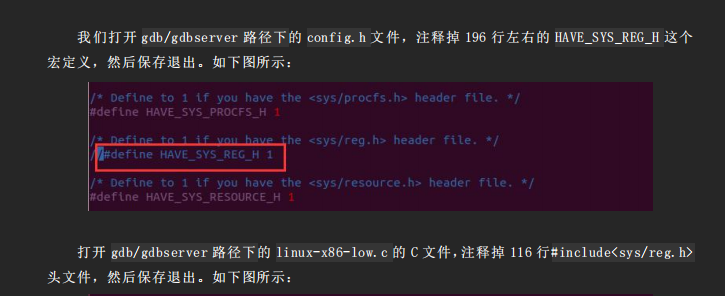
We open the config.h file in the gdb/gdbserver path, comment out the HAVE_SYS_REG_H macro definition around line 196, and then save and exit. As shown in the following image:
 05
05
Recompile by entering
make CC=/usr/local/arm/arm-2009q3/bin/arm-none-linux-gnueabi-gcc, compilation successful as shown in the following image
After compilation, use
make installcommand to install, after installation, a folder will be generated in the installation path, as shown in the following image:
 06
06
Step Three: Set up the remote debugging environment on the ARM board
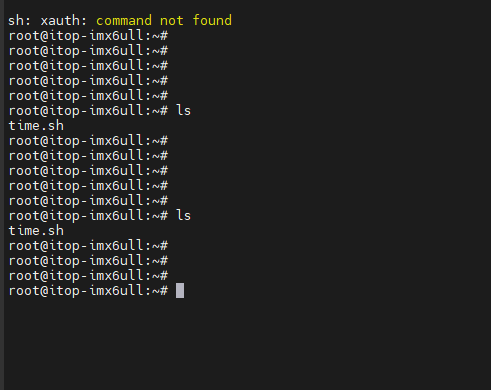
(1) Copy the gdbserver from the gdb/gdbserver directory to the bin directory of the busybox file system, and then package and flash the generated file system rootfs.tar.bz2
Or directly download the file to the development board via Ethernet.
(2) Write the test program hello.c
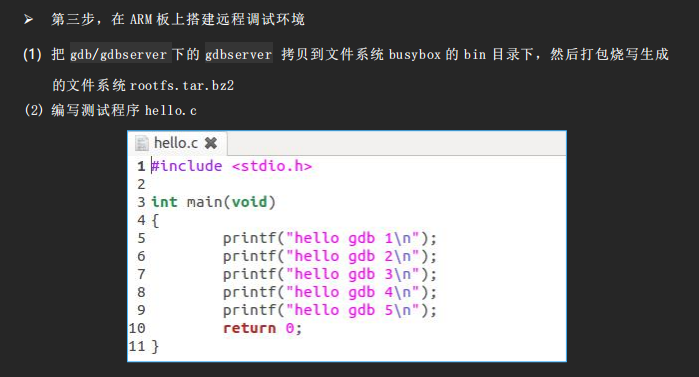
Compile the test program, and when compiling, add the -g parameter. After compilation, we place the test code on the development board via SSH, and then in the path where the test code is located, enter the following command to start the server on the target board, where 192.168.1.5 is the IP of Ubuntu, and 8000 is the port number. If started successfully, it will look like the following image:

Then start gdb on Ubuntu in the directory of the test program, here the gdb started is the one we just installed, and we enter the following command:
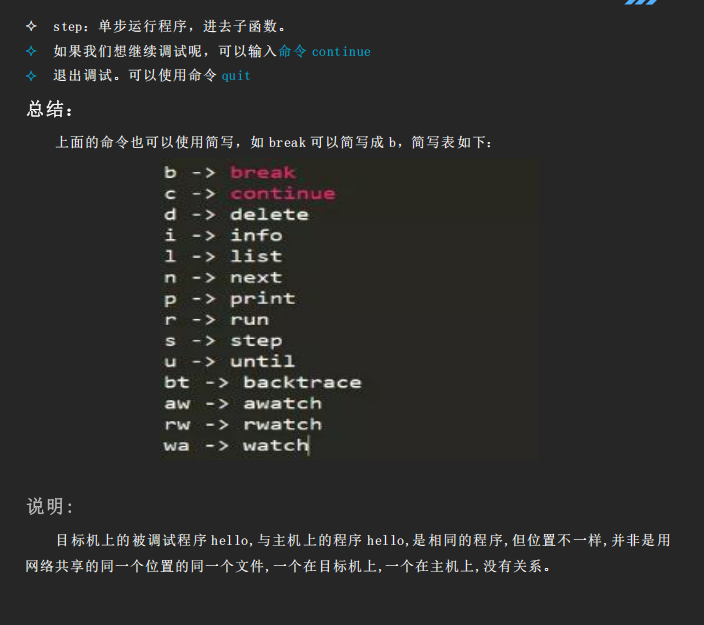
/home/topeet/arm-linux-gdb/arm-linux-gdb/bin/arm-none-linux-gnueabi-gdb hello07 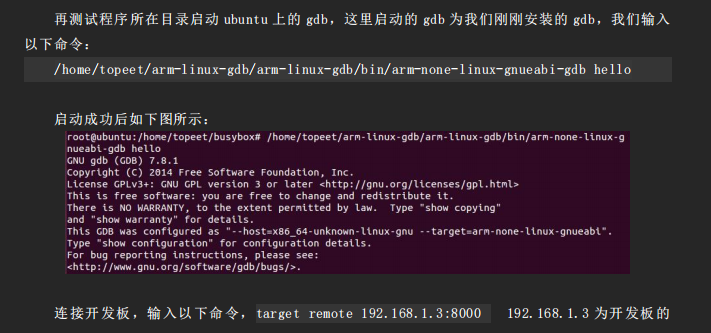
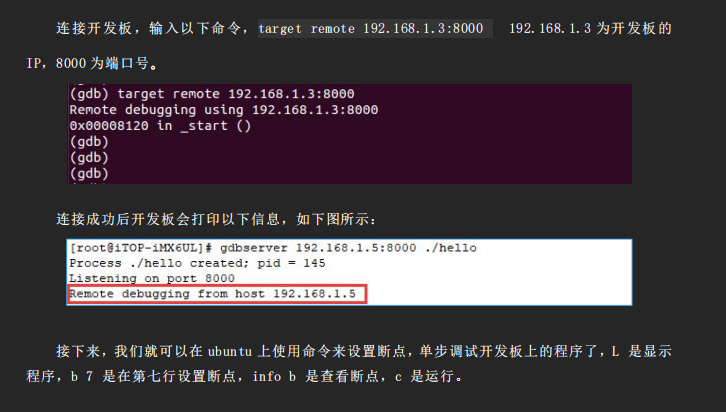 08
08 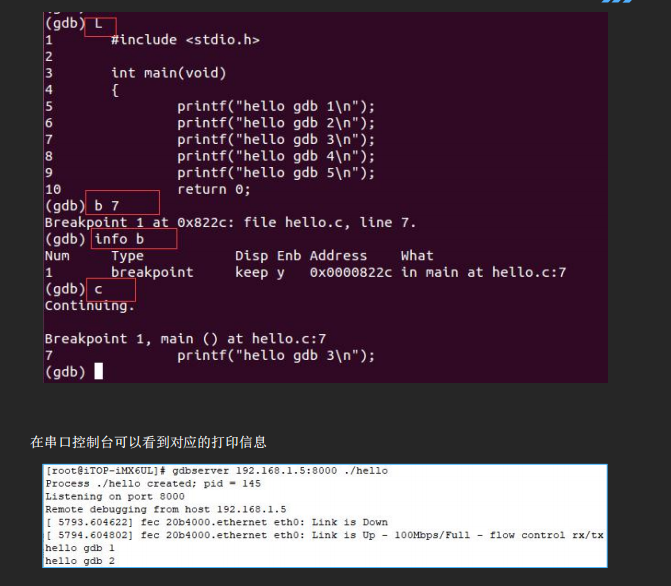
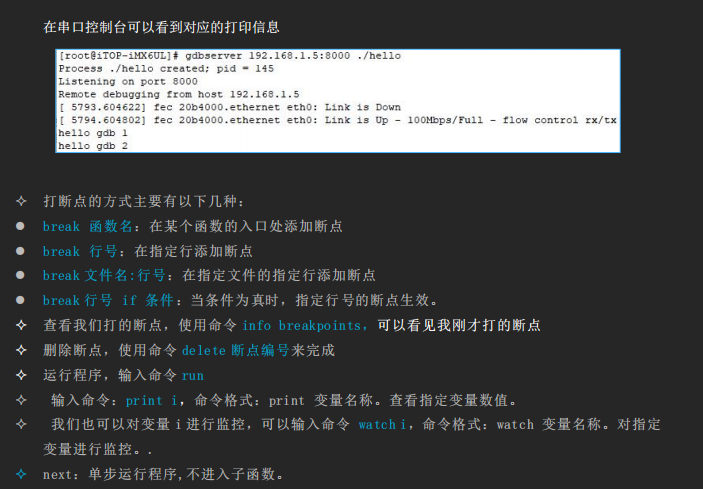
 09 I recently changed jobs and have been working overtime, so the content updates are slower.I will share more open-source projects in the future.
So I am here
Click the card below to follow me
↓↓↓

If you find it interesting, please click
Save
Like
Take a look
+1
❤❤❤