In the operation and optimization of Linux systems, conducting stress tests on CPU, memory, network, and I/O is a crucial step. Through these tests, we can gain deep insights into the system’s performance under different loads, identify potential performance bottlenecks, and provide strong evidence for system optimization and upgrades. In actual production environments, it is essential to perform stress testing in the UAT environment before officially launching a feature.
Before conducting stress tests, adequate preparation is necessary. First, ensure the stability of the testing environment to avoid interference from unrelated processes on the test results. You can use commands like ps and top to view and terminate unnecessary processes. Secondly, record the initial state of the system, including CPU usage, memory consumption, network bandwidth, and I/O response time, to compare with the results after testing. Additionally, choose appropriate testing tools, as different testing objectives correspond to different tools, and selection should be based on actual needs.
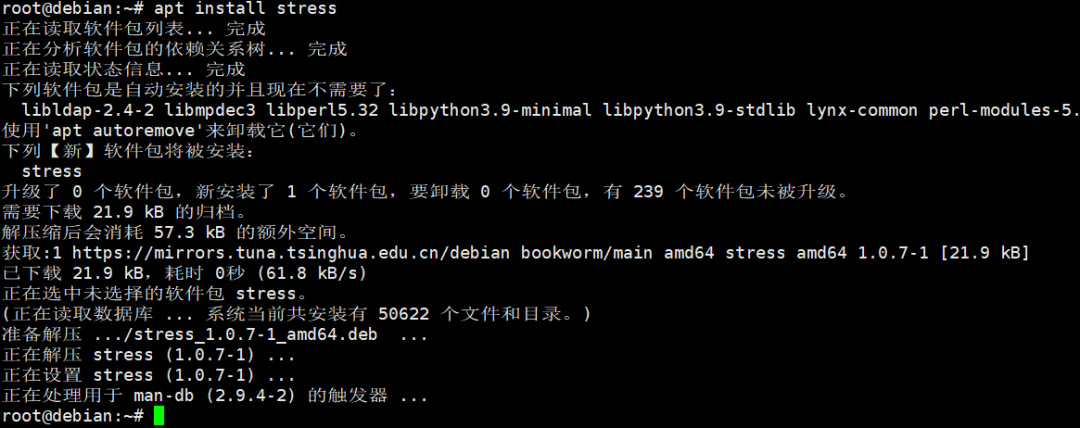
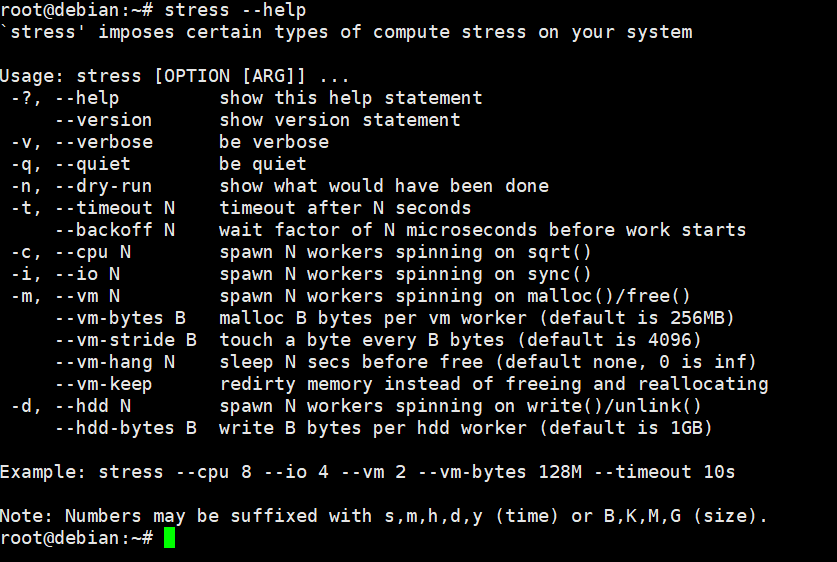
CPU Stress Testing, the CPU is the core component of the system, and its performance directly affects the overall operating speed of the system. Common CPU stress testing tools include stress and sysbench. When using the stress tool, you can simulate a full load on N CPU cores with the command stress -c N, where N is the number of CPU cores to simulate. For example, stress -c 4 indicates that 4 CPU cores are under full load. During the test, you can use the top or htop commands to monitor CPU usage, load averages, and other metrics in real-time.
The sysbench tool is even more powerful, as it can perform multi-threaded CPU performance testing. Execute the command sysbench cpu –cpu-max-prime=20000 run, which will consume CPU resources by calculating prime numbers. The –cpu-max-prime parameter specifies the maximum prime number; the larger the value, the longer the test duration and the greater the stress on the CPU. After the test, it will output the CPU test results, including the number of calculations completed per second.
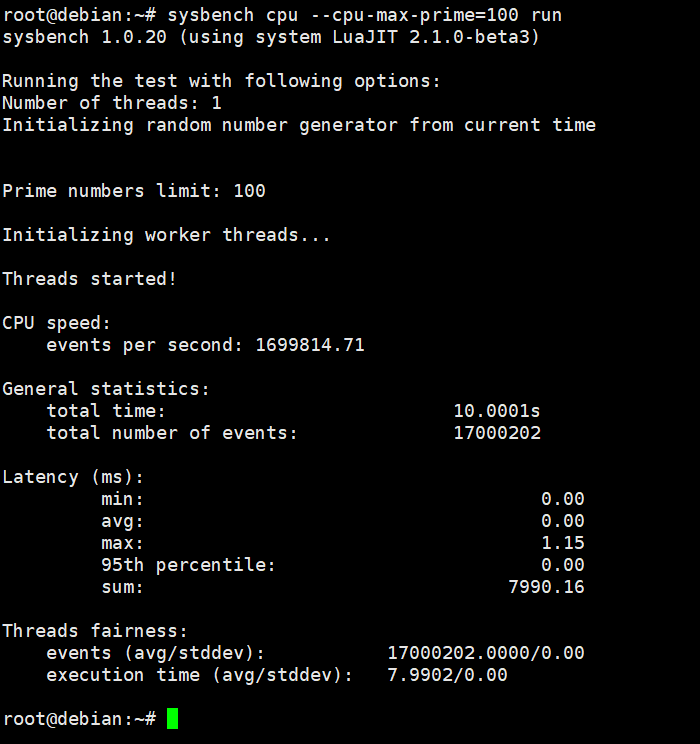
This demonstration is in a virtual machine; real environment testing requires specifying more parameters.
When conducting CPU stress tests, be cautious not to test for too long to avoid damaging the system hardware. Generally, the testing time should be controlled within a few minutes to several tens of minutes. Additionally, observe whether the system experiences lag or slow responses, as these are signs of insufficient CPU performance.
Memory Stress Testing, memory is an important area for running programs and storing data in the system. Insufficient memory can lead to frequent swap operations, severely affecting system performance. The main tools for memory stress testing are stress and memtester.
The stress tool can also be used for memory stress testing. The command stress -m N –vm-bytes M creates N processes, each allocating M size of memory. For example, stress -m 2 –vm-bytes 512M creates 2 processes, each allocating 512M of memory. During the test, you can use the free -h command to check memory usage, including total memory, used memory, free memory, and swap partition usage.
The memtester tool is specifically designed for memory stability testing and can detect whether there are faults in the memory. Use the command memtester M N, where M is the size of memory to test, and N is the number of tests. For example, memtester 1G 2 indicates testing 1G of memory for 2 times. This tool performs various memory operation tests, such as random data writing and reading, and outputs whether any errors occurred after the test.
When conducting memory stress tests, avoid allocating too much memory beyond the system’s actual capacity to prevent system crashes. Additionally, monitor the usage of the swap partition; if the swap partition usage is too high, it indicates insufficient system memory, and you may need to consider increasing memory capacity.
Network Stress Testing, the network is the channel through which the system interacts with external data. Metrics such as network bandwidth, latency, and packet loss rate directly affect the performance of network applications. The main tools for network stress testing are iperf and netperf.
iperf is a commonly used network bandwidth testing tool that supports TCP and UDP protocols. To use it, you need to run commands on both the server and client sides. On the server side, execute iperf -s to start server mode; on the client side, execute iperf -c serverIP to connect to the server for testing. The test results will display bandwidth, transmission rate, and other information. To conduct a UDP test, you can add the -u parameter to the client command, such as iperf -c serverIP -u -b 100M, indicating a UDP test with a bandwidth of 100M.
The netperf tool can test performance under different network protocols, such as TCP stream tests and UDP request/response tests. Run the netserver command on the server side to start the service, and execute netperf -H serverIP -t testType on the client side, where testType can be TCP_STREAM, UDP_RR, etc. For example, netperf -H 192.168.1.100 -t TCP_STREAM will conduct a TCP stream test and output transmission rate and other metrics.
During network stress testing, ensure that the network connection in the testing environment is stable to avoid interference from other network traffic. Tests can be conducted under different network loads, such as during idle periods and peak times, to gain a comprehensive understanding of network performance.
I/O Stress Testing, I/O includes disk I/O and file system I/O. Insufficient I/O performance can lead to slow data read and write speeds, affecting the system’s response time. Common I/O stress testing tools include dd and fio.
The dd command is a simple I/O testing tool that can be used to test the read and write speeds of disks. The command for testing write speed is dd if=/dev/zero of=testfile bs=1G count=1 oflag=direct, where if=/dev/zero indicates the input source is zero data, of=testfile indicates the output file is testfile, bs=1G indicates the block size is 1G, count=1 indicates writing 1 block, and oflag=direct indicates writing directly to the disk without caching. After the test, it will output the write speed. To test read speed, you can use the command dd if=testfile of=/dev/null bs=1G count=1 iflag=direct.
fio is a powerful I/O testing tool that supports various I/O modes and testing scenarios. You can define test parameters by writing a configuration file, such as test files, block sizes, read/write modes, and the number of threads. For example, create a configuration file named fio_test.conf with the following content:
[test]filename=/tmp/testfiledirect=1rw=randwritebs=4ksize=1Gnumjobs=4runtime=60Here, filename specifies the test file, direct=1 indicates direct I/O, rw=randwrite indicates random writing, bs=4k indicates a block size of 4k, size=1G indicates the test file size is 1G, numjobs=4 indicates 4 threads, and runtime=60 indicates the test duration is 60 seconds. Execute the command fio fio_test.conf to conduct the test, and the test results will detail I/O throughput, response time, and other metrics.
When conducting I/O stress tests, choose appropriate test files and directories to avoid testing critical system files and partitions. Additionally, monitor the temperature of the disk during the test to prevent damage from prolonged high-load testing.
Through the above stress tests on CPU, memory, network, and I/O, you can gain a comprehensive understanding of the performance status of the Linux system, providing reliable references for system optimization and upgrades. In real production environment testing, select appropriate testing tools and parameters based on specific application scenarios and needs to obtain accurate test results.