The find command is one of the most powerful and commonly used file search tools in Linux systems. It allows users to search for files in a directory tree based on various criteria (such as filename, size, modification time, permissions, etc.) and perform operations on the found files. This article will detail the basic syntax of the find command and common usage scenarios.
1. Overview of find
The basic syntax of the find command is as follows:
find [options] [path] [expression]1.1 Options
Control the global behavior of find, usually placed at the beginning of the command, affecting the entire search process:
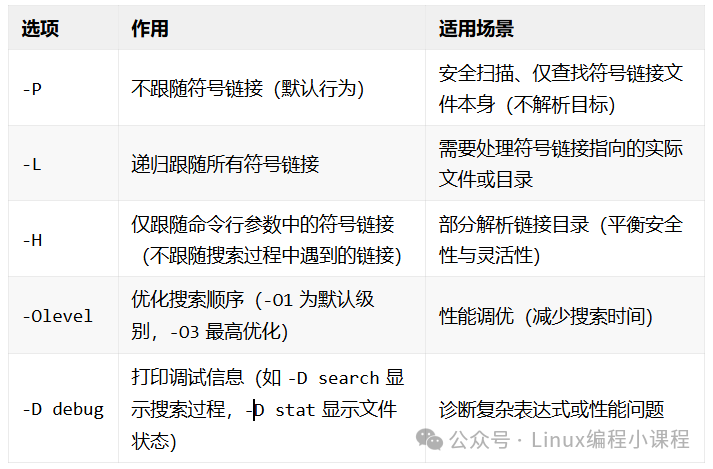
1.1.1 <span>-P</span>, <span>-L</span>, <span>-H</span>
These options control how find handles symbolic links (soft links). Below are specific examples illustrating the differences between the -P, -L, and -H options, focusing on their handling of symbolic links.
1. Test Environment Preparation
Assume the following directory structure, which includes a symbolic link <span>link_to_dir</span> pointing to <span>real_dir</span>.
# Create real_dir folder
mkdir real_dir
# Create file.txt file
touch ./real_dir/file.txt
# Create symbolic link
ln -s ./real_dir link_to_dir
<span>2. -P</span> does not follow symbolic links (default)
Only checks the symbolic link itself and does not resolve its target. If the symbolic link points to a directory, it will not enter that directory to search.
simon@ubuntu:linux$ find -P ./ -name file.txt
./real_dir/file.txt
<span>3. -L</span> follows symbolic links
Recursively resolves symbolic links and enters their target directories or files.
simon@ubuntu:linux$ find -L ./ -name file.txt
./link_to_dir/file.txt  # Through symbolic link path
./real_dir/file.txt     # Through real path
<span>4. -H</span> partially follows symbolic links
Only resolves symbolic links directly specified on the command line and does not recursively follow other links.
simon@ubuntu:linux$ find -H ./link_to_dir -name file.txt
./link_to_dir/file.txt
Note: Unless explicitly needed to resolve links, prefer using -P to avoid unintended consequences.
1.1.2 <span>-O</span> Query Optimization Options
-O1, -O2, -O3
Meaning: Controls the query optimization level of find (affects execution order).
- -O1 (default): Filters by filename first.
- -O2: Filters by file type first, then by filename.
- -O3: Maximizes optimization (may change execution order).
Usage Scenario: Improves search efficiency in large directories (but may affect the order of -exec).
# Enable highest optimization level
find ./ -O3 -name "*.log"
1.1.3 -D Debug Options
Meaning: Displays debug information for troubleshooting the execution logic of find.
- Common debug modes:
- -D tree: Displays the directory traversal process.
- -D search: Prints details of search condition matches.
- -D exec: Displays operations of -exec or -delete.
Usage Scenario: Debugging complex find commands to confirm if the matching logic is correct.
# View search process
find ./ -D search -name "*.txt"
1.2 Path
Specifies the directory path to search, which can be an absolute or relative path. If no path is specified, it defaults to searching from the current directory, with multiple paths separated by spaces.
# Specify multiple paths to search
find ./path1 ./path2 -name "*.txt"
1.3 Expression
<span>expression</span> defines the search conditions and operations, consisting of <span>tests</span> (test conditions), <span>actions</span> (actions), and <span>operators</span> (logical operators) used for precise file matching and operation execution. Below is a complete classification and detailed explanation:
1.3.1 Tests
Used to filter files or directories that meet the conditions.
1. By File Test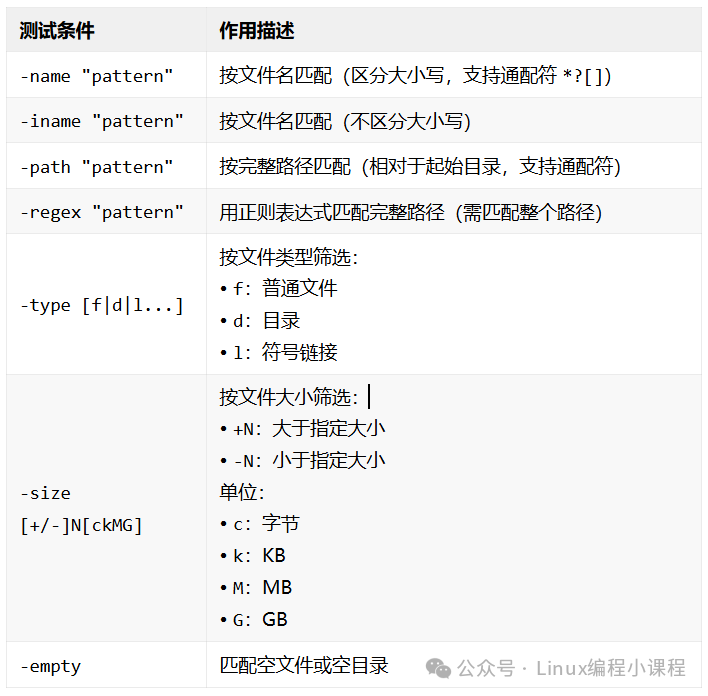 2. By Time Test
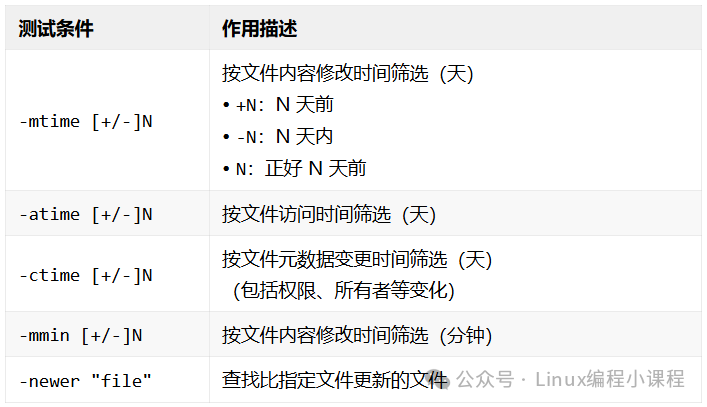 3. By Permission/Owner Test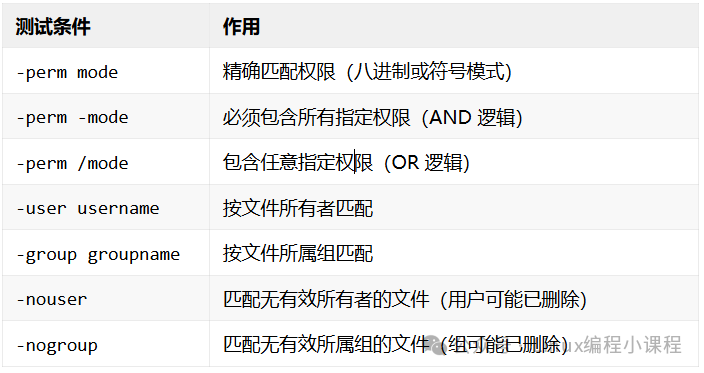
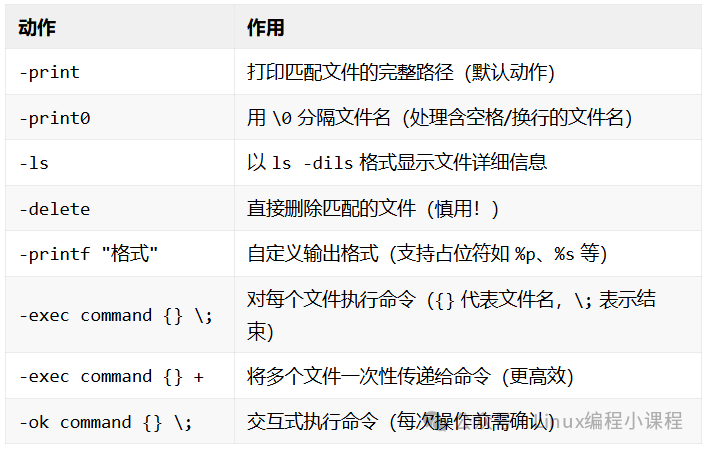
1.3.2 Actions
Perform actions on matched files.
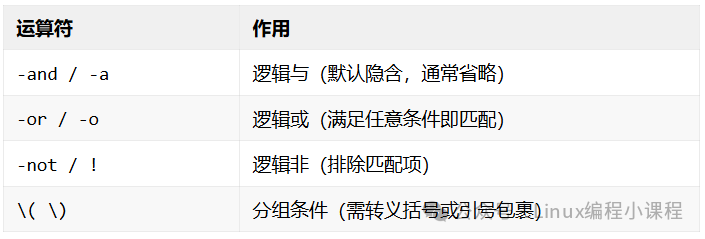
1.3.3 Operators
Combine multiple test conditions, with -and implied by default.
2. Common Operations
The above provides a systematic introduction to the find command, which has many parameters and is quite complex. Below are practical examples demonstrating how to quickly use the find command in real application scenarios.
2.1 Match by Filename
<span>-name</span>matches by filename (case-sensitive)<span>-iname</span>matches by filename (case-insensitive)
find ./ -name "*.conf"   # Find all .conf files under /etc
find ./ -iname "readme*" # Match README, ReadMe, etc.
2.2 Match by File Type
<span>-type</span>filters by file type
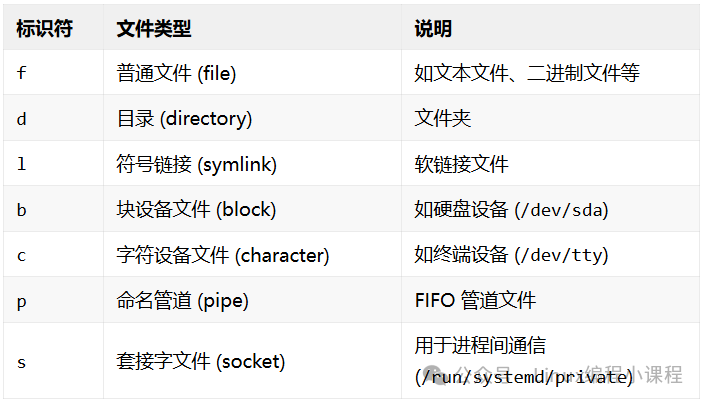
find ./ -type f     # Regular files
find ./ -type d     # Directories
find ./ -type l     # Symbolic links
2.3 Match by Path
<span>-path</span>
Used to match the full path, supporting simple wildcards such as *, ?
# Find all .py files in all bin directories under /usr
find /usr -path "*/bin/*.py"
2.4 Match by Regular Expression
<span>-regex</span>
Supports full regular expressions (e.g., .*, [0-9]+, (a|b)), more flexible but with more complex syntax.
# Find files with names containing numbers
find . -regex ".*[0-9]+\.txt"
# Find files under a specific path
find . -regex ".*/temp/.*\.log"
2.5 Match by Time
You can use the stat command to view the relevant time information of files.
<span>-mtime</span>matches by file content modification time (days)<span>-atime</span>matches by access time<span>-ctime</span>matches by file metadata change time (including content, permissions, owner, etc.)<span>-mmin</span>matches by file content modification time (minutes)<span>-newer</span>matches files newer than a specified file
# Files modified in the last 7 days
find ./ -mtime -7

# Files not accessed in the last 90 days
find ./ -atime +90

# Files changed in the last 24 hours.
find ./ -ctime 0

# Files modified in the last 60 minutes
find ./ -mmin -60

find ./ -newer ref.txt
2.6 Match by File Size
<span>-size</span>matches by file size
Units: c (bytes), k (KB), M (MB), G (GB).
find ./ -size 2M             # Find files of 2MB
find ./ -size +2M            # Find files larger than 2MB
find ./ -size -2M            # Find files smaller than 2MB
find ./ -size +2M -size -10M # Find files larger than 2MB and smaller than 10MB- -empty matches empty files
find ./ -size 0            # Find empty files
find ./ -empty             # Equivalent
2.7 Match by Permission
<span>-perm</span>
(1) Matches files precisely based on their permission bits. Permission modes can be:
- Numeric mode (octal): e.g., 644, 755.
- Symbolic mode (similar to chmod): e.g., u=rw,g=r,o=r.
(2) Matching methods:
<span>-perm</span>permission: exact match (permissions must be identical).- –
<span>perm -</span>permission: must include all specified permissions (permissions are a subset). <span>-perm /</span>permission: includes any specified permissions (permissions are a superset).
Example:
find ./ -perm 755       # Exact permission match 755
find ./ -perm -644      # At least includes 644 (e.g., 755 also matches)
find ./ -perm /111      # Find files with execute permissions
find ./ -perm -u=rw     # Find files where the user has read and write permissions
2.8 Match by Owner
<span>-user</span>and<span>-group</span>
# Files owned by user simon
find ./ -user simon

# Files owned by group simon
find ./ -group simon <span>-nouser</span>and<span>-nogroup</span>
Used to find files in the system that do not have a valid owner (user or group). These files are often remnants after users or groups have been deleted, which may pose security risks or management issues.
find ./ -nouser
find ./ -nogroup
2.9 Perform Operations on Matched Files
<span>-print</span>(default action)
Each matched filename is followed by a newline character (\n)
# Equivalent to find . -name "*.txt"
find . -name "*.txt" -print
<span>-print0</span>
Each matched filename is followed by a null character (\0)
find . -name "*.txt" -print0<span>-ls</span>
Displays detailed file information (permissions, size, inode, etc.) in ls -dils format
find . -name "*.txt" -ls<span>-delete</span>
Directly deletes matched files (use with caution!)
find . -name "*.tmp" -delete<span>-printf</span>
Custom output format
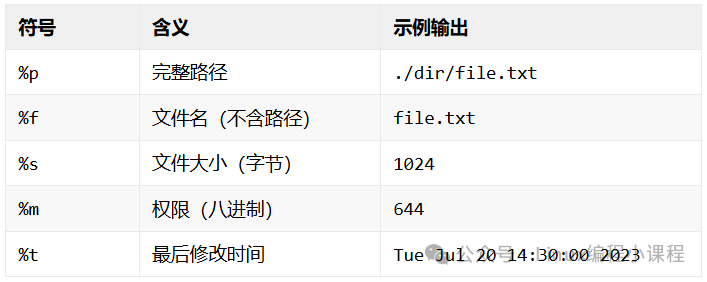
# Display path + size + modification time
find . -type f -printf "%p (%s bytes) - %t\n"

# Find large files and sort
find / -type f -size +100M -printf "%s\t%p\n" | sort -nr
2.10 Logical Operators
<span>find</span> supports three logical operators
<span>-and</span>or<span>-a</span>(default) logical AND<span>-or</span>or<span>-o</span>logical OR<span>-not</span>or<span>!</span>logical NOT
# Find all .txt files that are regular files in the current directory
find . -name "*.txt" -a -type f

# Find all .txt or .md files in the current directory
find .  -name "*.txt" -o -name "*.md"

# Find non-directories that do not end with .bak
find . ! -type d ! -name "*.bak"- Logical Operator Combinations
Logical combinations must use \( and \) to clarify precedence.
# Find all .txt or .csv files, and file size > 1MB
find /data \( -name "*.txt" -o -name "*.csv" \) -a -size +1M
3. Conclusion
This article provides a comprehensive summary of the Linux find command, covering common options (-P -L -H -O -D), actions, logical operators, and examples of common operations. Due to the many options involved, you can focus on the content in Tests and Actions, which can cover about 80% of work scenarios. Additionally, everyone should frequently use the built-in help documentation of Linux (<span>man find</span> and <span>find --help</span>). After studying this article, I believe everyone will not only use <span>find ./ -name</span> in any scenario.
Technical developers focused on sharing Linux knowledge, follow me to learn programming knowledge together.