FollowRookie

SoftwareDownload
『Keil uVision5 MDK (32/64bit)』
pan.baidu.com/s/1O3qjPuDKmB_2zk7-S3687w
Extraction Code:x7ow
『Installation Environment』Win10/Win8/Win7
『Alternative Address』Reply “Keil” in the WeChat public account『Rookie Software Network』
『Download Method』Click to see how to download the installation package?
『Online Q&A』For any questions, reply “Customer Service” in the WeChat public account『Rookie Software Network』
『Rookie Ecosystem』For more resources, please follow the WeChat public account of the Rookie team!
SoftwareIntroduction
Keil C51 is a C language software development system compatible with the 51 series microcontrollers. Compared to assembly language, C language has significant advantages in functionality, structure, readability, and maintainability, making it easy to learn and use. Keil provides a complete development solution that includes a C compiler, macro assembler, linker, library management, and a powerful simulation debugger, all integrated into a single development environment (μVision). If you are programming in C, Keil is almost your best choice. Even if you are programming only in assembly language, its user-friendly integrated environment and powerful software simulation debugging tools will greatly enhance your productivity.
InstallationSteps
1
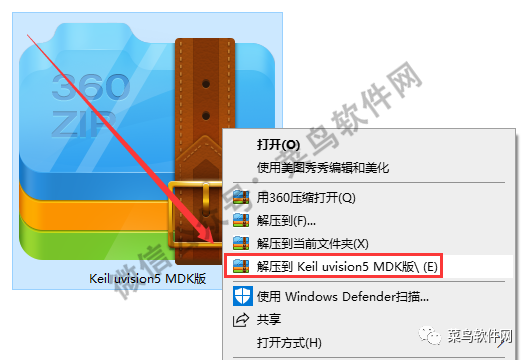
Right-click on 【Keil uVision5 MDK】 and select 【Extract to Keil uVision5 MDK/E】 to start extraction.
2
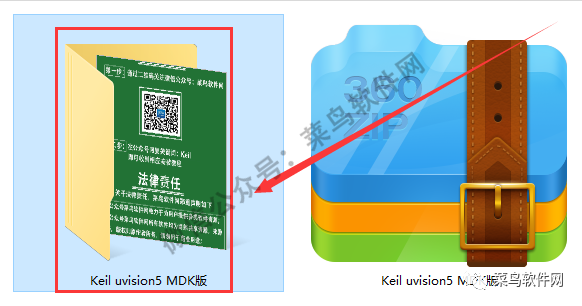
Double-click to open the 【Keil uVision5 MDK】 folder.
3
Double-click to open the 【Main Program】 folder.

4
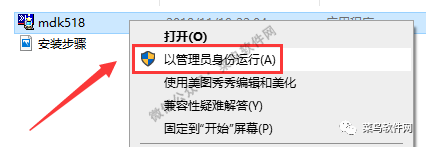
Right-click on 【mdk518】 and select 【Run as administrator】.
5
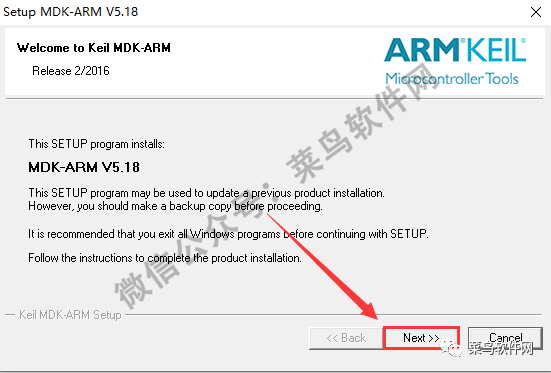
Click 【Next】.
6
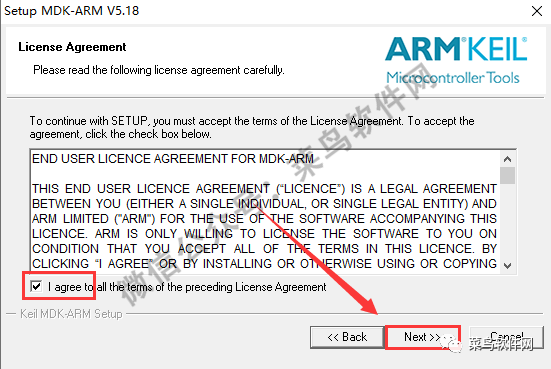
Check 【I agree】, then click 【Next】.
7
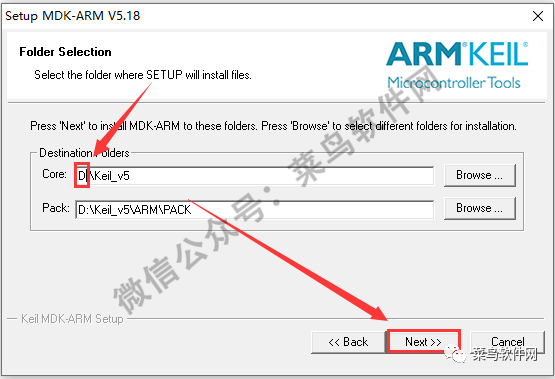
Change 【C to D】 directly, then click 【Next】.
8
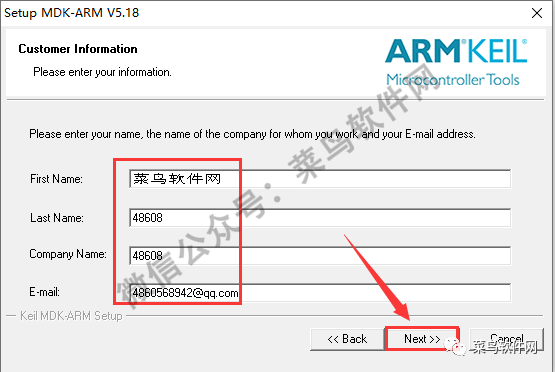
Enter user information, then click 【Next】.
9
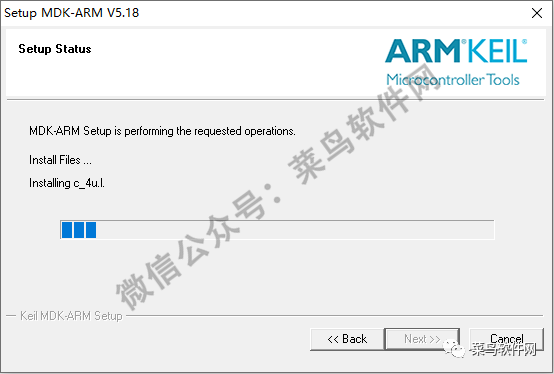
Software is installing, please wait.
10
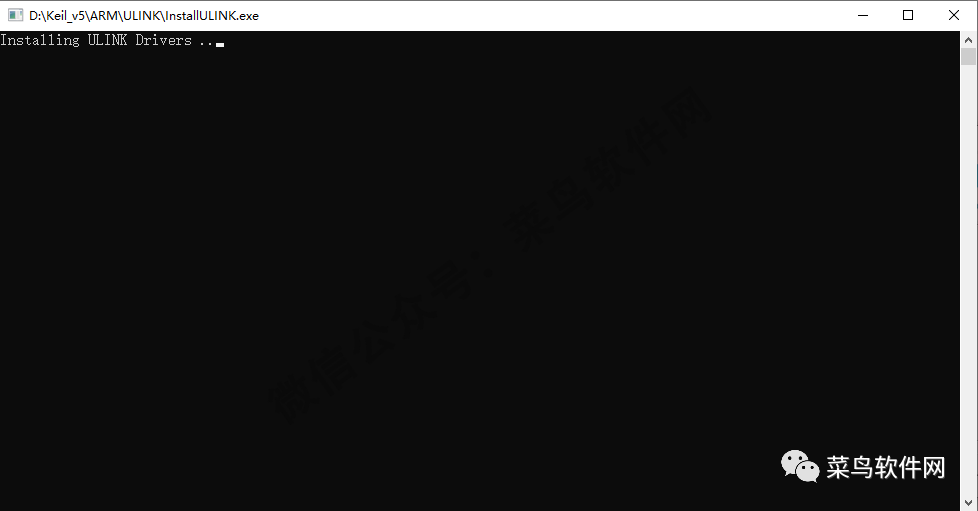
Ignore it, it will load automatically and then close automatically.
11
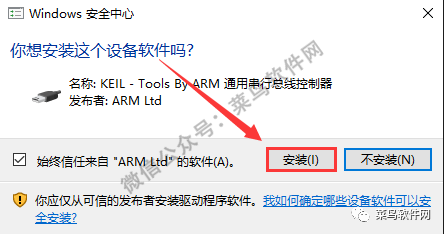
Click 【Install】.
12
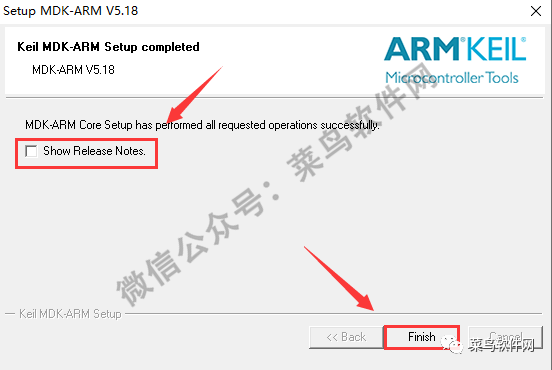
Uncheck, then click 【Finish】.
13
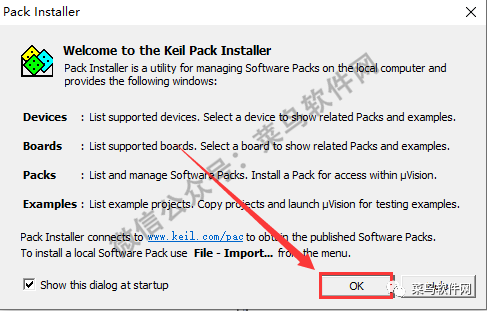
Click 【OK】.
14
Click 【X】 to close the window.
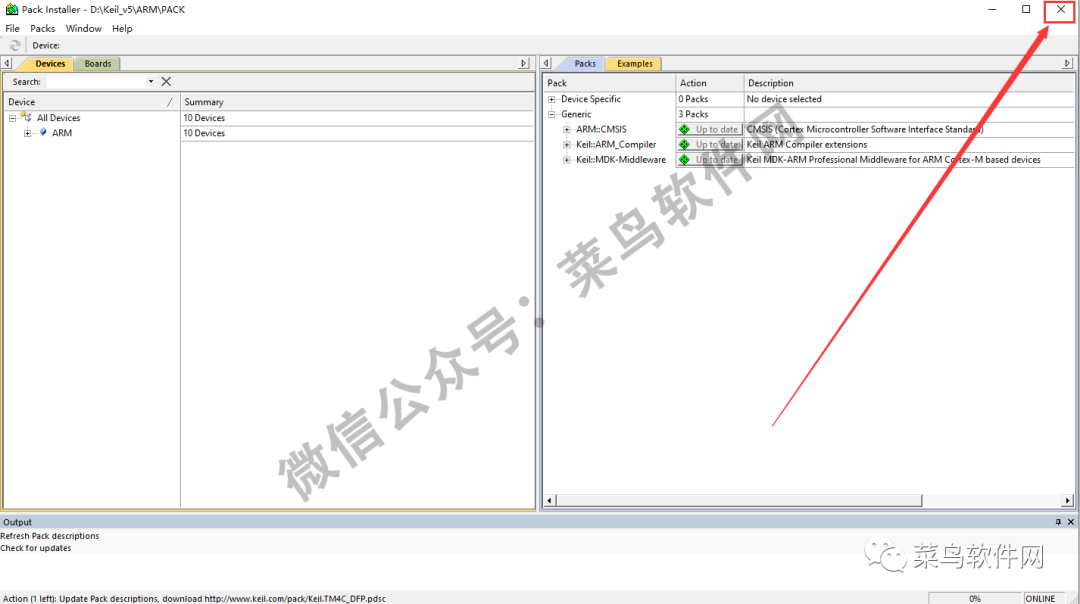
15
Click 【Yes】.
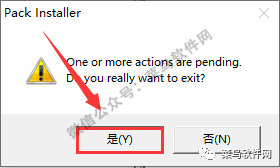
16
Double-click the shortcut icon to open the software.
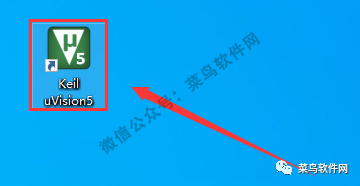
17
Software is starting, please wait.

18
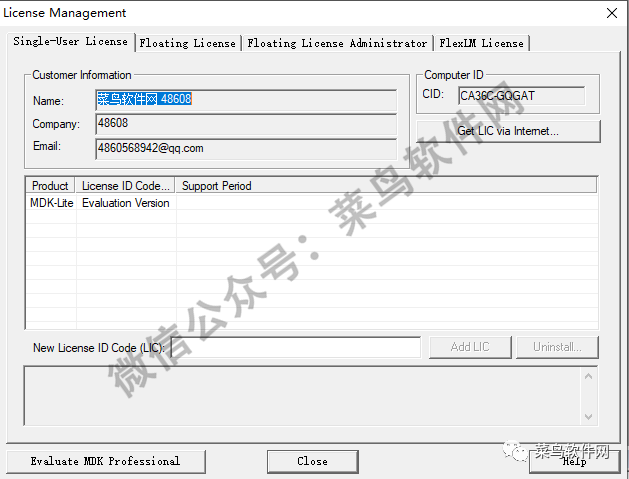
Click 【File】 – 【License Management】 in sequence.
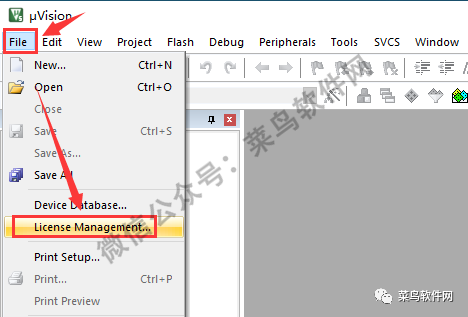
19
The interface is as shown, temporarily ignore it.
20
Return to the installation package, double-click to open the 【Crack Files】 folder.

21
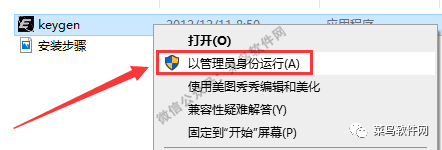
Right-click on 【Keygen】 and select 【Run as administrator】.
22
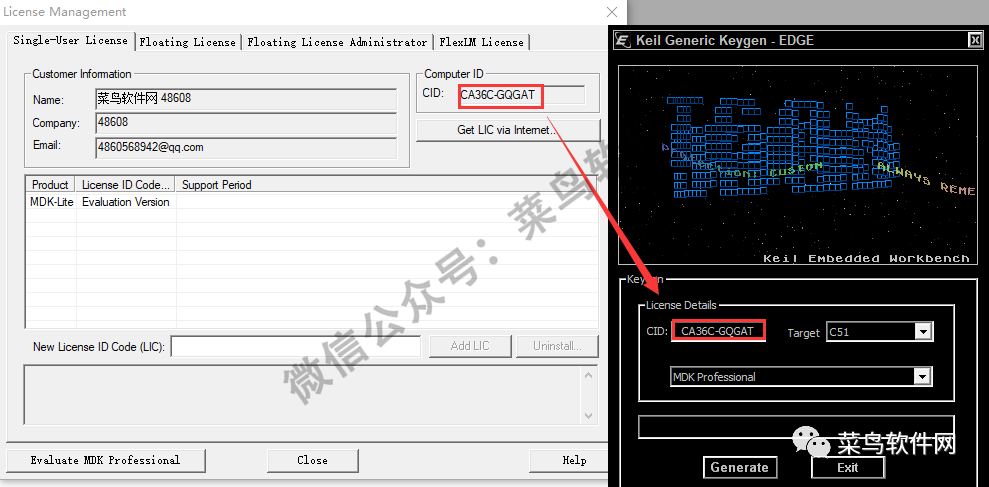
Copy the corresponding code from the left 【CID】 and paste it into the designated box on the right.
23
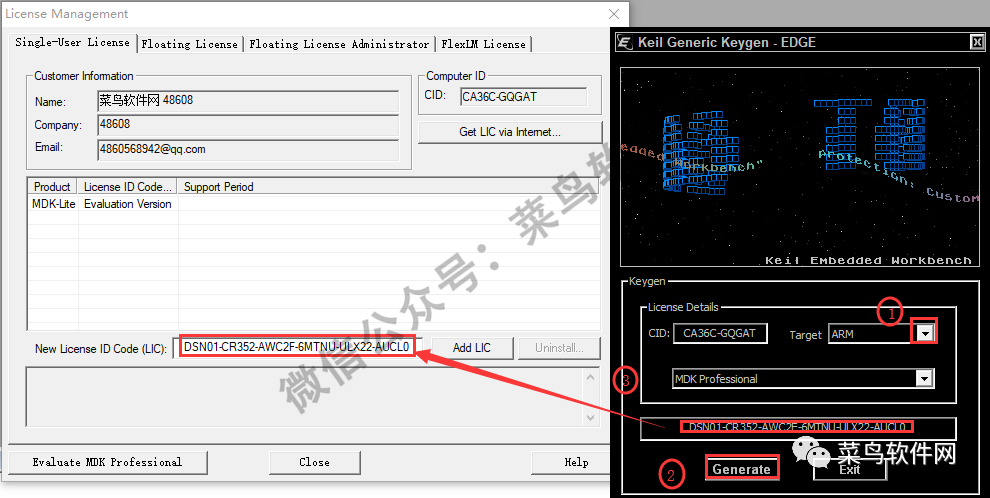
Click the 【Dropdown Symbol】, select 【ARM】, then click 【Generate】 to create the activation code, and then copy and paste the 【generated activation code】 into the designated box on the left.
24
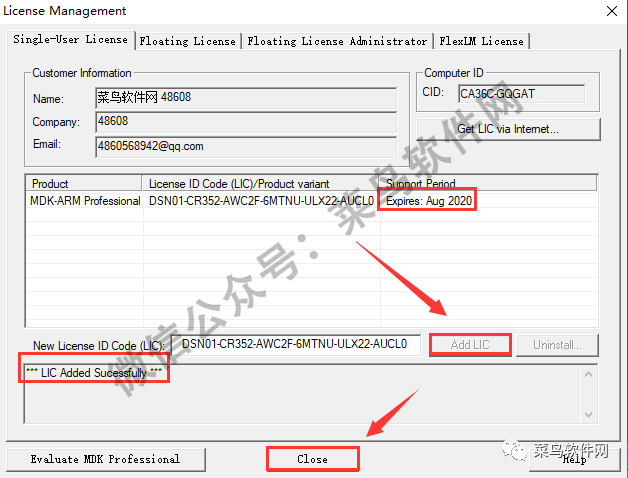
Click 【Add LIC】, the interface will appear as shown, then click 【Close】.
25
Return to the installation package folder, double-click to open the 【ZH_CN】 folder.

26
Copy the files as shown in the image.

27
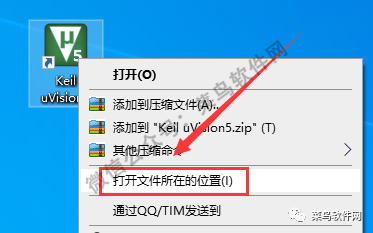
Right-click on the shortcut icon, select 【Open file location】.
28
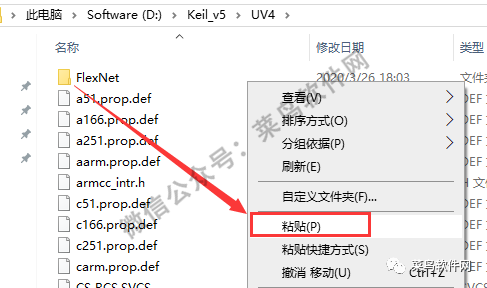
Right-click in the blank area, select 【Paste】.
29
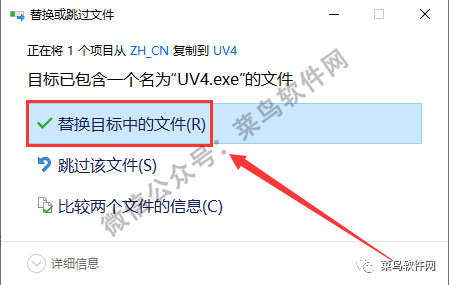
Click 【Replace the files in the destination】.
30
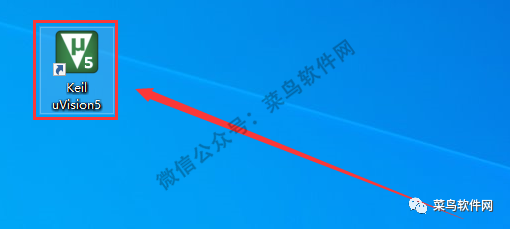
Double-click the shortcut icon to open the software.
31
Software is starting, please wait.

32
The software interface is as shown.

The Rookie Ecosystem is officially launched
A diversified online digital library integrating life, work, and study.

Long press the QR code to follow the Rookie Ecosystem.
A one-stop solution platform in the era of paid knowledge.

 Click “Read the original text” to view the Rookie ecosystem chain.