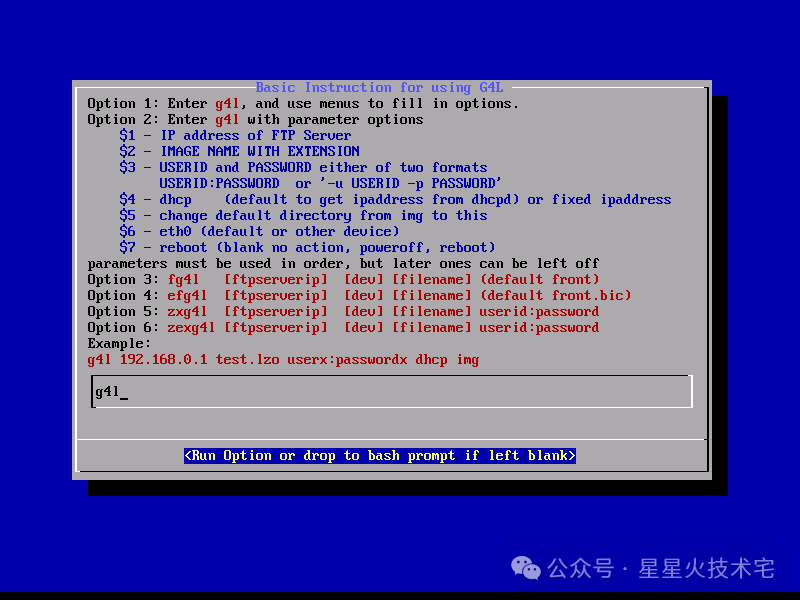
G4L makes backing up and restoring Linux quite simple. Below is a demonstration of the process of using G4L to perform a full backup and restore of Kali.1. Download G4L (https://sourceforge.net/projects/g4l/).2. Boot into G4L via CD.3. The following options can be left as default.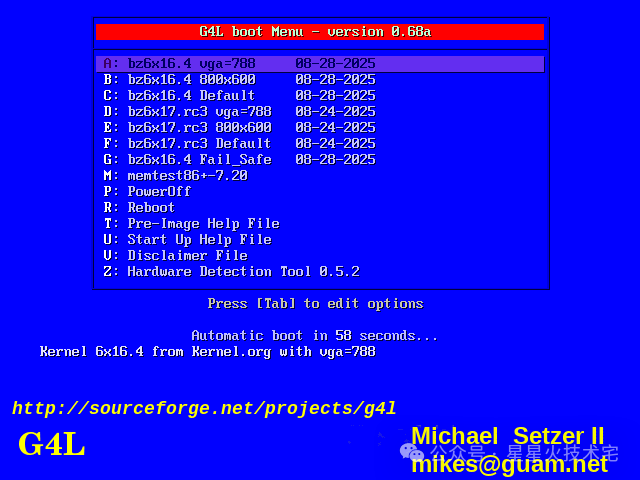 The next few steps can also be left as default…4. At this step, type g4l to proceed to the next step.
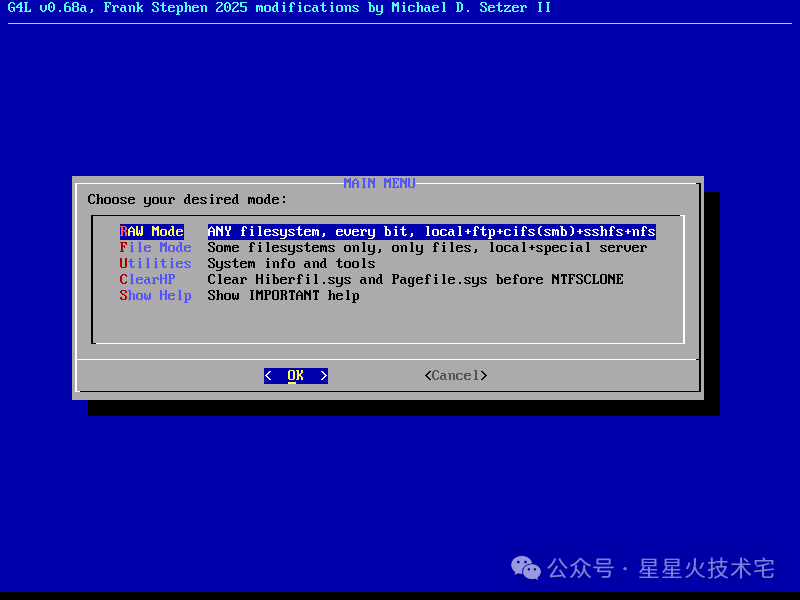
 5. Select RAW Mode.
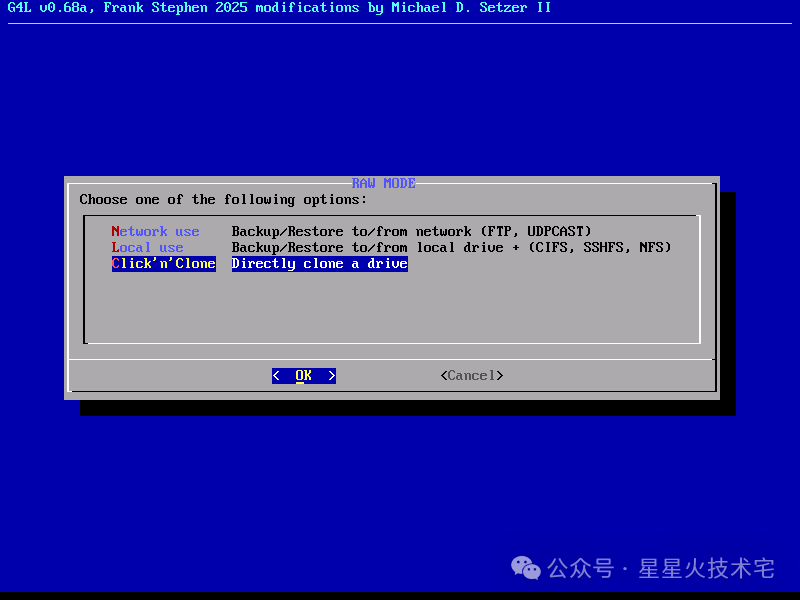
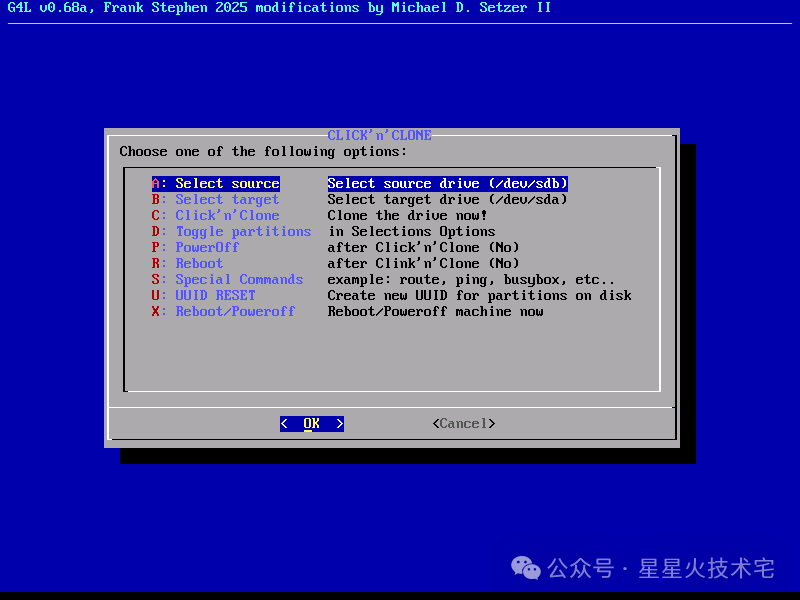
 6. Next, select Click‘n’Clone.
 7. Then select the source disk (Select source) and the target disk (Select target). Then click Click‘n’Clone to start.Note: The target disk must be the same size as the source disk to avoid issues during restoration due to size differences.
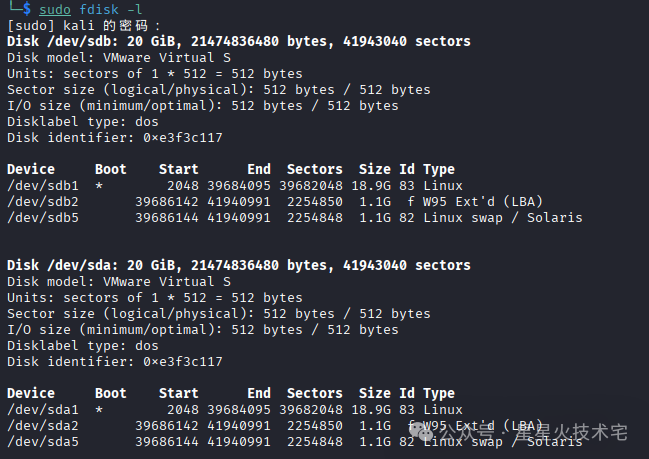
 8. After completion, you will see that the target disk and the source disk have identical partitions.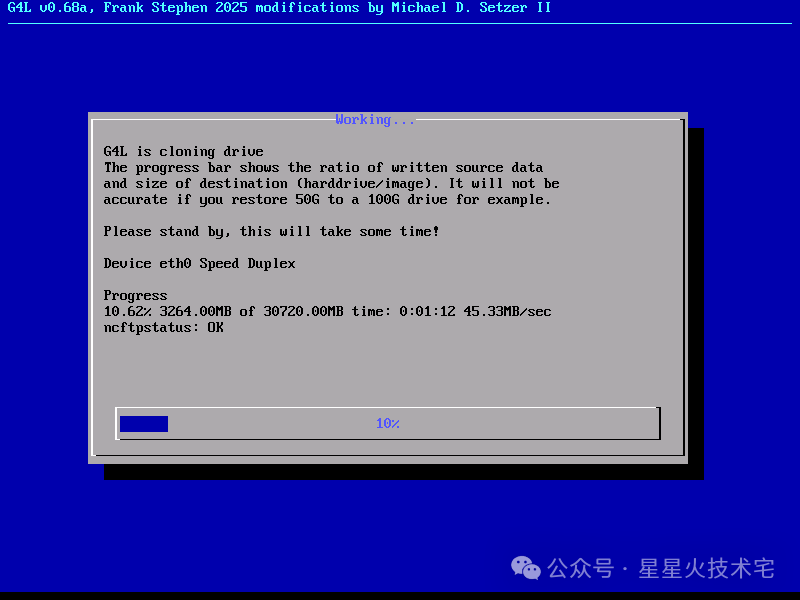
 9. Next, format the source disk and restore it again. The process is similar to the steps above, mainly switching the source and target disks in step 7. After execution, restart the system to boot normally.