01Fun Programming with Python | Flowing Numbers

Today, I will share how to implement flowing numbers using Python. The library used here is pygame, and the content is for technical learning and exchange purposes only.
 Fun Programming with Python | Flowing Numbers
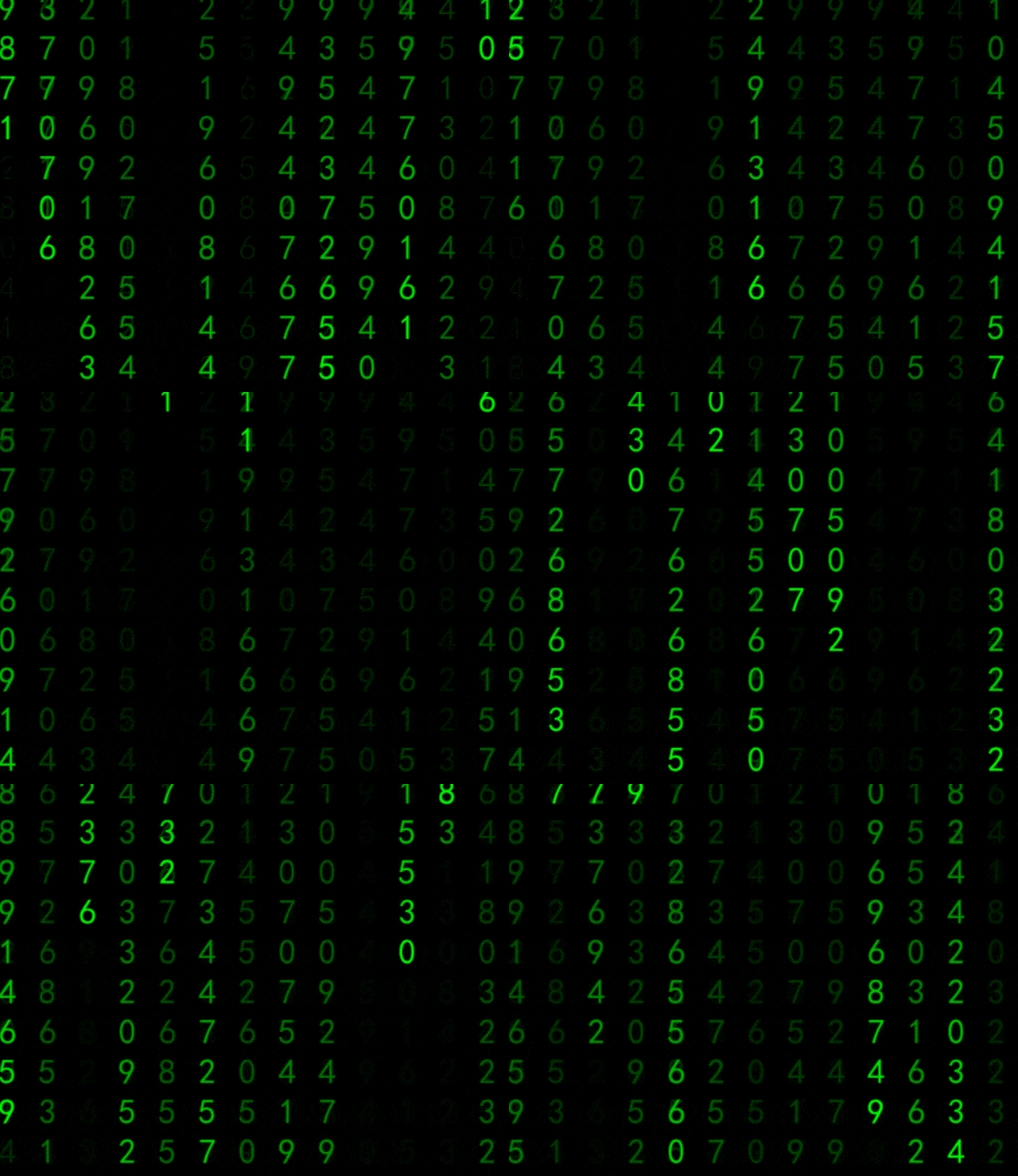
Implementation Techniques
1. Importing Dependencies Libraries
The main task is to install the relevant dependency libraries. The environment for this implementation is: Python 3.7.
Importing the dependency libraries:
# Importing dependency libraries
import random
import pygame
from pygame.locals import *
from sys import exit
2. Screen Parameter Settings
The main task is to set the screen pixel and display list parameters.
# Screen pixel parameter settings
PANEL_width = 1920
PANEL_highly = 1080
FONT_PX = 40
# Generate display list based on screen size
column = int(PANEL_width / FONT_PX)
drops = [0 for i in range(column)]

# Create digital rain window
pygame.init()
winSur = pygame.display.set_mode((PANEL_width, PANEL_highly),  32)
font = pygame.font.SysFont("SimHei", 35)
bg_suface = pygame.Surface((PANEL_width, PANEL_highly), flags=pygame.SRCALPHA)
pygame.Surface.convert(bg_suface)
bg_suface.fill(pygame.Color(0, 0, 0, 20))
winSur.fill((0, 0, 0))
letter = [ '0', '1', '2', '3', '4', '5', '6', '7', '8', '9']
tests = [font.render(str(letter[i]), True, (0, 255, 0)) for i in range(10)]
3. Loop Display of Digital Rain
The main task is to loop display and update the flowing digital rain.
# Loop display update of digital rain
while True:    # Mouse click to exit the program
    for event in pygame.event.get():
        if event.type == pygame.MOUSEBUTTONDOWN:
            pygame.quit()
            exit()             # Delay 50 milliseconds
    pygame.time.delay(50)
    # Re-edit image coordinates
    winSur.blit(bg_suface, (0, 0))
    for i in range(len(drops)):
        text = random.choice(texts)
        winSur.blit(text, (i * FONT_PX, drops[i] * FONT_PX))
        drops[i] += 1
        if drops[i] * 10 > PANEL_highly or random.random() > 0.95:
            drops[i] = 0
    # Update window display
    pygame.display.flip()
Complete Source Code
# Importing dependency libraries
import random
import pygame
from pygame.locals import *
from sys import exit

# Screen pixel parameter settings
PANEL_width = 1920
PANEL_highly = 1080
FONT_PX = 40
# Generate display list based on screen size
column = int(PANEL_width / FONT_PX)
drops = [0 for i in range(column)]

# Create digital rain window
pygame.init()
winSur = pygame.display.set_mode((PANEL_width, PANEL_highly),  32)
font = pygame.font.SysFont("SimHei", 35)
bg_suface = pygame.Surface((PANEL_width, PANEL_highly), flags=pygame.SRCALPHA)
pygame.Surface.convert(bg_suface)
bg_suface.fill(pygame.Color(0, 0, 0, 20))
winSur.fill((0, 0, 0))
letter = [ '0', '1', '2', '3', '4', '5', '6', '7', '8', '9']
tests = [font.render(str(letter[i]), True, (0, 255, 0)) for i in range(10)]

# Loop display update of digital rain
while True:    # Mouse click to exit the program
    for event in pygame.event.get():
        if event.type == pygame.MOUSEBUTTONDOWN:
            pygame.quit()
            exit()             # Delay 50 milliseconds
    pygame.time.delay(50)
    # Re-edit image coordinates
    winSur.blit(bg_suface, (0, 0))
    for i in range(len(drops)):
        text = random.choice(texts)
        winSur.blit(text, (i * FONT_PX, drops[i] * FONT_PX))
        drops[i] += 1
        if drops[i] * 10 > PANEL_highly or random.random() > 0.95:
            drops[i] = 0
    # Update window display
    pygame.display.flip()
Public Account: Practical Office Programming Skills
WeChat ID: Excel-Python
Welcome to leave a message!

 Scan to follow for more exciting contentPublic Account: Practical Office Programming Skills
 1.Python Word Cloud Analysis of “Qing Yu Nian”Drama Review2.Creating GIF Animations with Python in a Few Lines of Code3.Creating a Simple Calculator with Python4.Creating a QR Code Generator with Python5.Controlling the Camera to Record Video with Python6.Playing Videos with Python7.Creating a Photo Reader with Python8.Implementing Text-to-Speech with Python9.Creating a Simple Clock with Python10.Implementing Handwritten Digit Recognition with Python11.Easy Image Text Recognition with Python12.Creating a Novel Word Frequency Analysis Chart with Python