WeChat Official Account: Network Technology Alliance
As a Linux user or operations engineer, mastering the Linux command line is one of the core competencies in interviews. Whether it’s checking system status, managing files, configuring networks, or troubleshooting issues, Linux command line tools can significantly enhance your efficiency. This article will provide a detailed overview of common Linux commands frequently encountered in interviews, covering various aspects such as file operations, process management, system monitoring, network configuration, and permission management, aiming for comprehensiveness and practicality. The article will not only introduce the usage of commands but also explain how to apply them in real work scenarios, helping you stand out in interviews!

File and Directory Operations
File and directory operations are fundamental in Linux, and commonly tested commands in interviews include viewing, creating, deleting, and moving files.
1. <span>ls</span> – List directory contents
List files and subdirectories in the current or specified directory.
Common options:
<span>-l</span>: Display in long format, including permissions, owner, file size, etc.<span>-a</span>: Show hidden files (files starting with<span>.</span>).<span>-h</span>: Display file sizes in human-readable format (e.g., KB, MB).
ls -lah /var/log
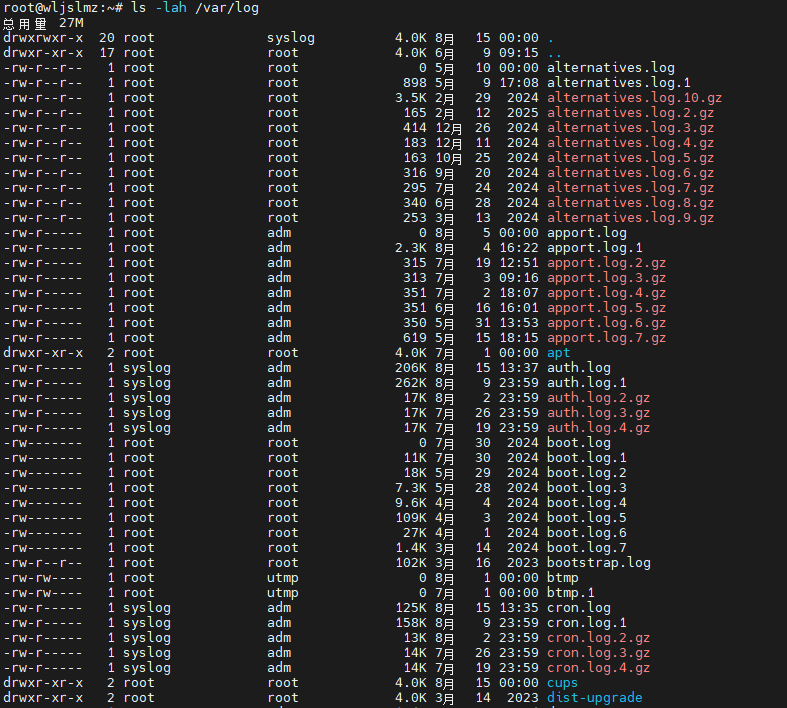
The above command will list all files in the<span>/var/log</span>directory (including hidden files), displayed in long format, and convert file sizes to readable units.
The interviewer may ask you to list all files in a specific directory, including hidden files, or require you to explain the meaning of each column in the output of<span>ls -l</span> (e.g.,<span>drwxr-xr-x</span> indicates a directory with permissions 755).
2. <span>cd</span> – Change directory
Change to the specified directory.
Common usage:
<span>cd /path/to/dir</span>: Change to the specified path.<span>cd ..</span>: Go back to the parent directory.<span>cd ~</span>: Go back to the user’s home directory.<span>cd -</span>: Go back to the last directory.
cd /etc/nginx
cd ..
After switching to the<span>/etc/nginx</span>directory, return to the parent directory<span>/etc</span>.
The interviewer may ask you to quickly switch to a complex path or confirm the current directory using the<span>pwd</span> command.
3. <span>pwd</span> – Display current working directory
Print the absolute path of the current directory.
pwd

Output:<span>/root</span>
Commonly used for debugging or confirming the current path during script execution.
4. <span>mkdir</span> – Create directory
Create a new directory.
Common options:
<span>-p</span>: Create directories recursively (automatically create parent directories if they do not exist).
mkdir -p /tmp/test/dir1/dir2
Create a nested directory structure without error even if the parent directory does not exist.
The interviewer may ask you to create a multi-level directory or explain the function of the<span>-p</span> option.
5. <span>rm</span> – Remove files or directories
Remove specified files or directories.
Common options:
<span>-r</span>: Recursively remove directories and their contents.<span>-f</span>: Force removal without confirmation prompts.
Example:
rm -rf /tmp/test
Remove the<span>/tmp/test</span>directory and all its contents.
<span>rm -rf</span> is very dangerous; accidental deletion may lead to data loss. The interviewer may ask how to safely delete files (it is recommended to use the<span>trash</span> command instead or first confirm with<span>ls</span>).
The interviewer may ask how to batch delete files ending with<span>.log</span> or how to avoid accidentally deleting critical system files.
6. <span>cp</span> – Copy files or directories
Copy files or directories to a specified location.
Common options:
<span>-r</span>: Recursively copy directories.<span>-p</span>: Preserve file attributes (such as permissions, timestamps).
Example:
cp -r /etc/nginx /backup/nginx
Recursively copy the<span>/etc/nginx</span> directory to<span>/backup/nginx</span>.
You may be asked to copy configuration files while preserving permissions or explain how to overwrite target files.
7. <span>mv</span> – Move or rename files/directories
Move files or directories to a new location or rename them.
Common options:
<span>-i</span>: Prompt before overwriting target files.
mv file1.txt /tmp/file2.txt
Move<span>file1.txt</span> to<span>/tmp</span> and rename it to<span>file2.txt</span>.
The interviewer may ask you to batch rename files or move files to a non-existent directory (which will result in an error).
8. <span>find</span> – Find files
Search for files or directories in the specified directory.
Common options:
<span>-name</span>: Search by file name (supports wildcards).<span>-type</span>: Specify file type (e.g.,<span>f</span>for files,<span>d</span>for directories).<span>-exec</span>: Execute a command on the search results.
Example:
find /var/log -name "*.log" -type f -mtime +7
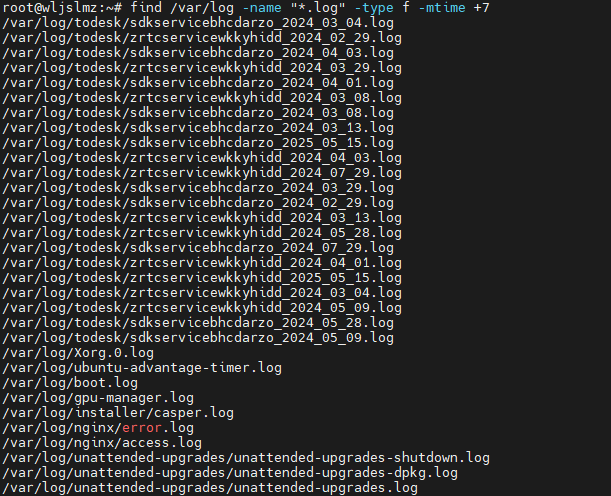
Find<span>/var/log</span> for files ending with<span>.log</span> that were modified more than 7 days ago.
The interviewer may ask you to find files larger than 100MB in a directory or use<span>exec</span> to delete expired files.
9. <span>touch</span> – Create an empty file or update timestamp
Create an empty file or update the timestamp of a file.
touch test.txt
Create an empty file<span>test.txt</span>.
You may be asked to create a temporary file or explain how to update a file’s timestamp.
File Content Operations
In Linux, viewing and editing file content is a common task, and the following commands frequently appear in interviews:
10. <span>cat</span> – View file content
Display the content of a file to standard output.
Common options:
<span>-n</span>: Display line numbers.
cat -n /etc/passwd
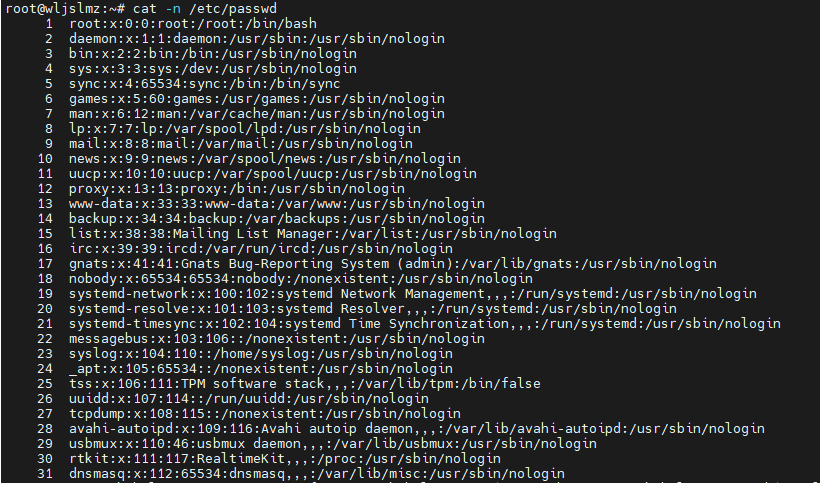
Display the content of<span>/etc/passwd</span> with line numbers.
You may be asked to quickly view the content of a configuration file or explain the difference between<span>cat</span> and<span>less</span>.
11. <span>less</span> / <span>more</span> – Paginate file viewing
Paginate the display of file content, suitable for viewing large files.
Common operations (<span>less</span>):
<span>/</span>: Search for keywords.<span>q</span>: Exit.
less /var/log/syslog
The interviewer may ask you to view the last few lines of a log file (<span>tail</span> is more appropriate) or search for specific content.
12. <span>head</span> / <span>tail</span> – View the beginning/end of a file
<span>head</span> displays the beginning of a file, while<span>tail</span> displays the end of a file.
Common options:
<span>-n</span>: Specify the number of lines to display.<span>-f</span>(<span>tail</span>exclusive): Monitor file changes in real-time.
tail -f /var/log/nginx/access.log
Real-time view of the Nginx access log.
The interviewer often asks you to monitor logs or extract the first 10 lines of a file.
13. <span>grep</span> – Search file content
Search for matching strings in a file.
Common options:
<span>-i</span>: Ignore case.<span>-r</span>: Recursively search directories.<span>-n</span>: Display line numbers.<span>-v</span>: Display non-matching lines.
grep -r "error" /var/log
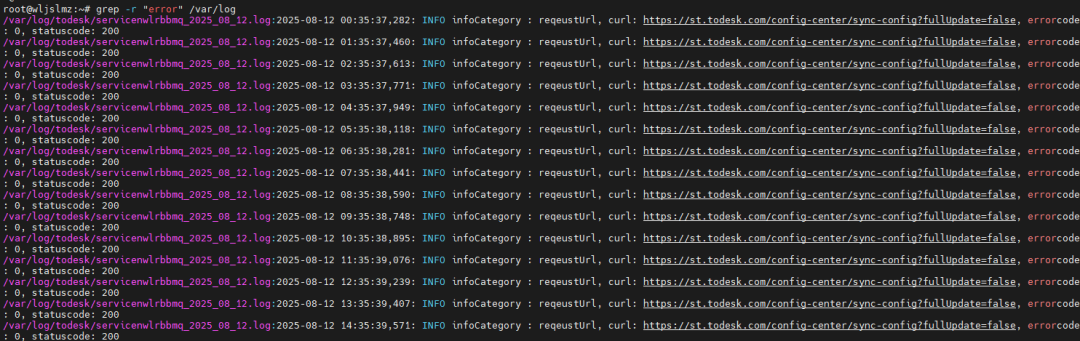
Recursively search for lines containing “error” in the<span>/var/log</span> directory.
You may be asked to find error messages in logs or filter specific content using pipes.
14. <span>awk</span> – Text processing tool
Process text by columns and extract specific fields.
awk '{print $1,$3}' /etc/passwd
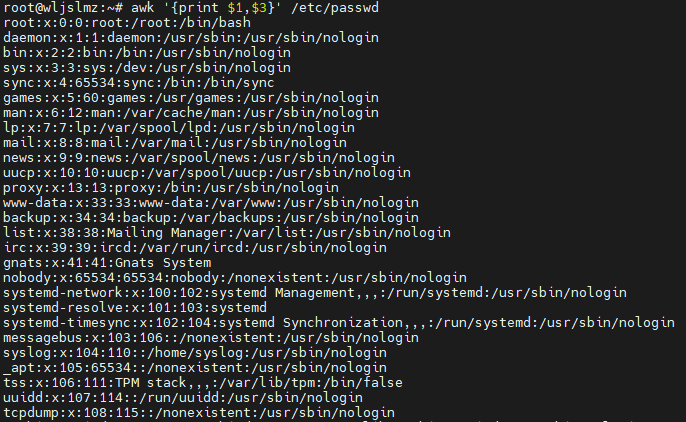
Extract the first column (username) and the third column (UID) from<span>/etc/passwd</span>.
The interviewer may ask you to parse log files and extract specific column data.
15. <span>sed</span> – Stream editor
Used for text replacement, deletion, insertion, etc.
sed 's/old/new/g' file.txt
Replace “old” with “new” in<span>file.txt</span>.
You may be asked to batch replace a specific string in configuration files.
Process Management
Process management is core to Linux operations, and interviews often test how to view, kill, or manage processes.
16. <span>ps</span> – View processes
Display current system processes.
Common options:
<span>aux</span>: Display all user processes.<span>-ef</span>: Display detailed process information.
ps aux | grep nginx
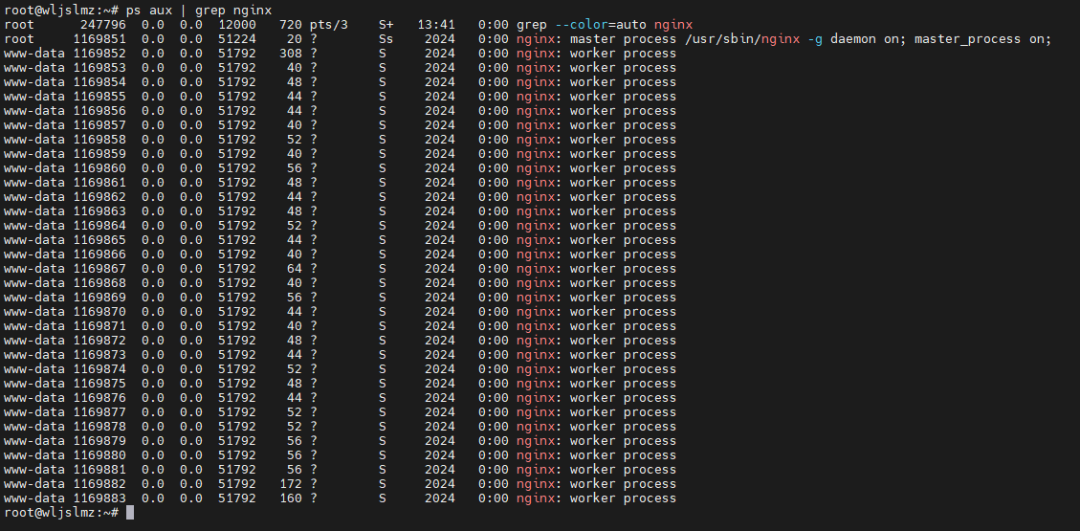
View processes related to Nginx.
The interviewer may ask you to list processes for a specific service or explain the fields in the output of<span>ps aux</span> (e.g.,<span>%CPU</span>,<span>PID</span>).
17. <span>top</span> / <span>htop</span> – Real-time process monitoring
<span>top</span> displays system processes in real-time, while<span>htop</span> is a more user-friendly alternative.
Common operations (<span>top</span>):
<span>q</span>: Exit.<span>k</span>: Kill the process with the specified PID.
htop
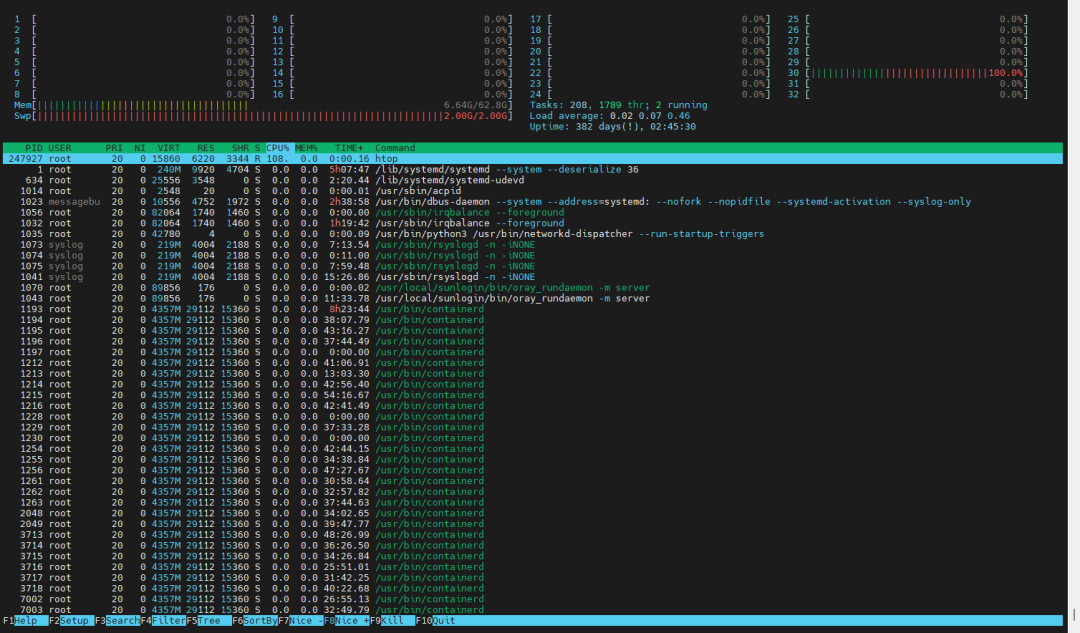
The interviewer may ask you to identify the process using the most CPU.
18. <span>kill</span> / <span>killall</span> – Terminate processes
<span>kill</span> terminates a process by PID, while<span>killall</span> terminates by process name.
Common signals:
<span>-9</span>(SIGKILL): Forcefully kill the process.<span>-15</span>(SIGTERM): Gracefully terminate the process.
kill -9 12345
killall nginx
You may be asked to safely terminate a process or explain the differences between the various signals.
19. <span>jobs</span> / <span>fg</span> / <span>bg</span> – Manage background tasks
Manage background tasks running in the current terminal.
sleep 100 &
jobs
fg %1
Put<span>sleep 100</span> in the background, view the task list, and then bring task 1 to the foreground.
The interviewer may ask you to demonstrate how to manage long-running tasks.
System Monitoring
Understanding system resource usage is an essential skill for operations engineers, and the following commands are commonly used for monitoring.
20. <span>df</span> – View disk usage
Display disk usage.
Common options:
<span>-h</span>: Display in human-readable format.
df -h
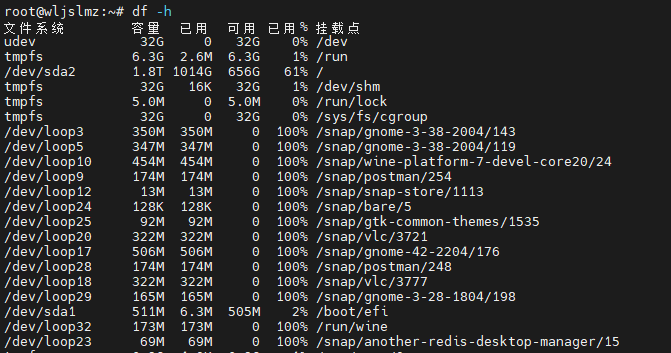
You may be asked to check if a certain partition is running out of space.
21. <span>du</span> – View directory or file size
Calculate the disk usage of a specified directory or file.
Common options:
<span>-sh</span>: Display total size in human-readable format.
du -sh /var/log/*
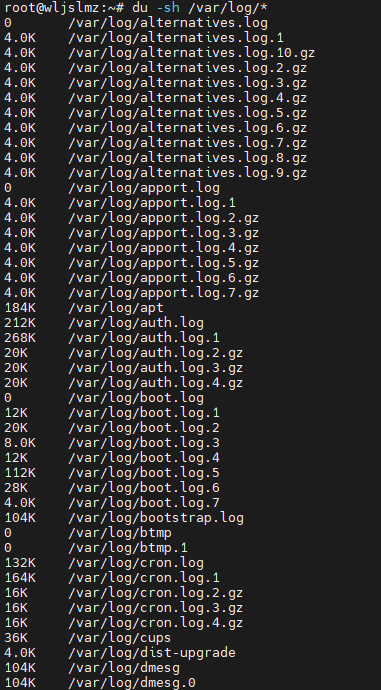
View the size of each file or directory under<span>/var/log</span>.
You may be asked to find the largest directories consuming space.
22. <span>free</span> – View memory usage
Display system memory and swap usage.
Common options:
<span>-h</span>: Human-readable format.
free -h

The interviewer may ask you to explain the<span>buff/cache</span> fields in memory.
23. <span>uptime</span> – View system uptime
Display system uptime and load.
uptime
Output:<span>10:00:00 up 5 days, 2:30, 3 users, load average: 0.15, 0.20, 0.25</span>
The interviewer may ask you to explain the meaning of load average.
Network Related
Network configuration and debugging are essential skills for Linux engineers, and the following commands are commonly encountered in interviews.
24. <span>ping</span> – Test network connectivity
Test network connectivity to a target host.
ping -c 4 baidu.com
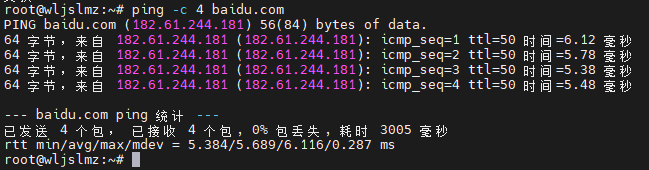
Send 4 ICMP packets to<span>baidu.com</span>.
You may be asked to test network connectivity or explain the output of<span>ping</span>.
25. <span>netstat</span> / <span>ss</span> – View network status
Display network connections, listening ports, and other information.
Common options (<span>ss</span>):
<span>-tuln</span>: Display TCP/UDP listening ports.
ss -tuln
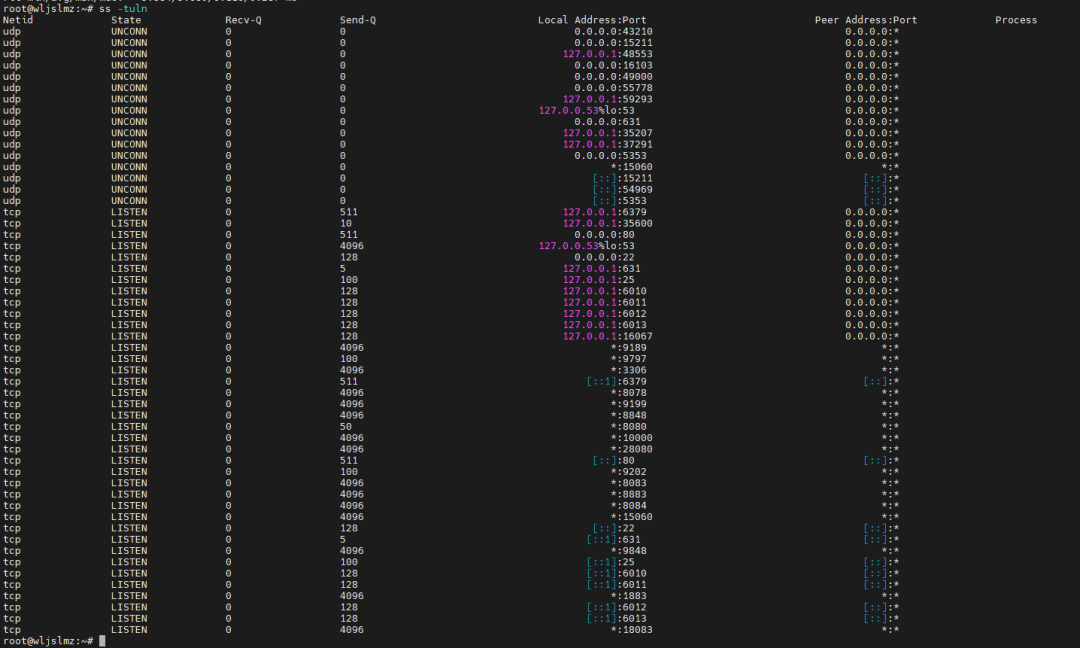
You may be asked to check if a certain port is occupied.
26. <span>curl</span> / <span>wget</span> – Download or request network resources
<span>curl</span> is used to send HTTP requests, while<span>wget</span> is used to download files.
curl -O https://example.com/file.txt
Download the file to the current directory.
You may be asked to test an API interface or download a file.
27. <span>ifconfig</span> / <span>ip</span> – Configure network interfaces
View or configure network interface information.
ip addr
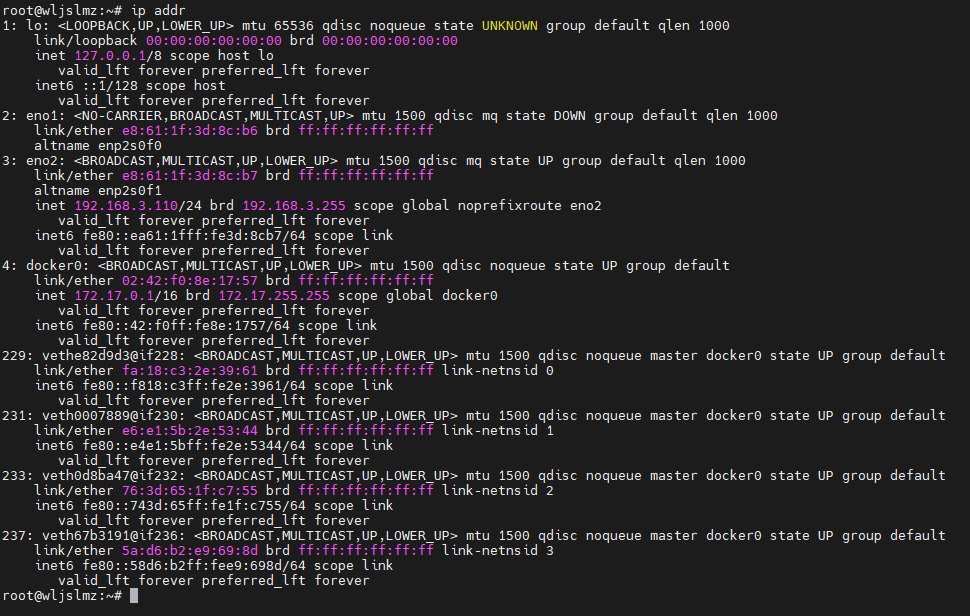
View the IP addresses of all network interfaces.
You may be asked to check the local IP or configure a temporary IP.
Permission Management
Linux permission management is a key focus in interviews, and the following commands should not be overlooked.
28. <span>chmod</span> – Change file permissions
Modify the permissions of files or directories.
Common methods:
- Numeric representation: e.g.,
<span>755</span>(readable and executable by everyone, writable by the owner). - Symbolic representation: e.g.,
<span>u+x</span>(add execute permission for the file owner).
chmod 755 script.sh
You may be asked to set a script as executable or explain the meaning of permission numbers.
29. <span>chown</span> – Change file owner
Change the owner and group of files or directories.
Common options:
<span>-R</span>: Recursively change directories.
chown -R user:group /var/www
You may be asked to transfer ownership of a directory to a specific user.
30. <span>sudo</span> – Execute commands with administrator privileges
Run commands with root or other user privileges.
sudo apt update
You may be asked how to use<span>sudo</span> safely or how to edit<span>/etc/sudoers</span>.
Other Useful Commands
31. <span>tar</span> – Archive and compress
Package or extract files.
Common options:
<span>-c</span>: Create an archive.<span>-x</span>: Extract an archive.<span>-z</span>: Use gzip compression.<span>-f</span>: Specify the filename.
tar -czvf backup.tar.gz /var/www
Package and compress<span>/var/www</span> into<span>backup.tar.gz</span>.
You may be asked to back up a directory or extract files.
32. <span>crontab</span> – Scheduled tasks
Manage scheduled tasks.
Common options:
<span>-e</span>: Edit scheduled tasks.<span>-l</span>: List current user’s tasks.
crontab -e
Add:<span>0 2 * * * /backup.sh</span> (run backup script every day at 2 AM).
You may be asked to set a scheduled task or explain the cron expression.
33. <span>man</span> – View command help
View the detailed manual of a command.
man ls
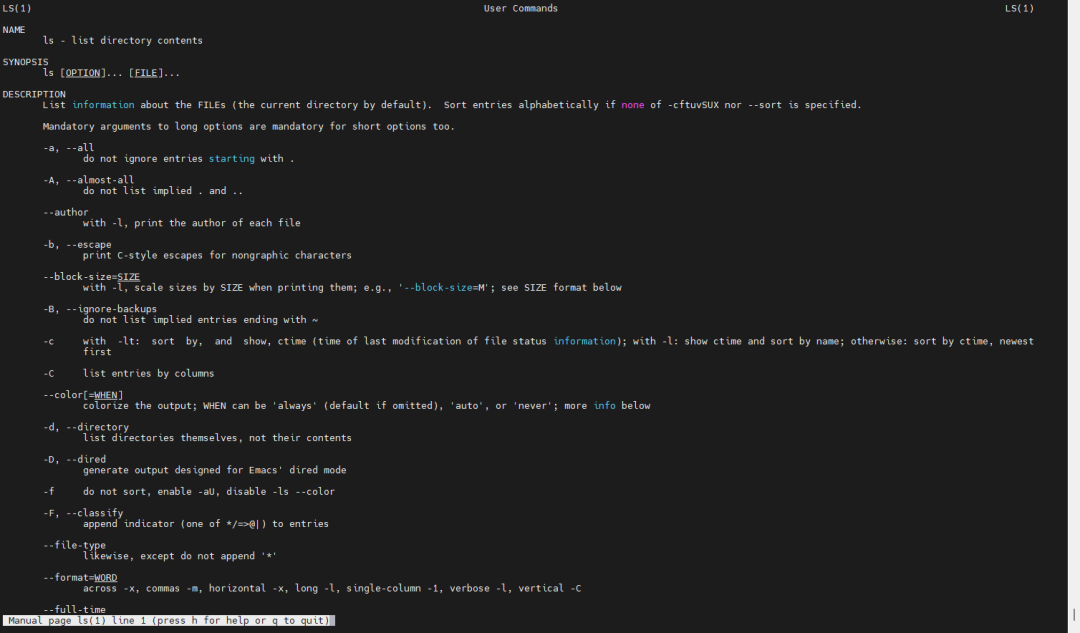
The interviewer may ask how to quickly find command usage.
Scenario-Based Interviews
In interviews, comprehensive questions often arise.
Scenario 1: Find and clean up expired log files
Problem: The server’s disk space is insufficient, and you are required to find the<span>/var/log</span> directory for log files modified more than 7 days ago, list their sizes, and safely delete them.
Answer:
- Find expired log files:
find /var/log -type f -name "*.log" -mtime +7 -exec ls -lh {} \;
<span>-type f</span>: Only find files.<span>-name "*.log"</span>: Match files ending with<span>.log</span>.<span>-mtime +7</span>: Find files modified more than 7 days ago.<span>-exec ls -lh {} \;</span>: List detailed information about the files (such as size, permissions).
- Confirm the file list:
Before deletion, it is recommended to save the file list to a temporary file for review:
find /var/log -type f -name "*.log" -mtime +7 > /tmp/old_logs.txt
cat /tmp/old_logs.txt
- Safely delete:
To avoid accidental deletion, you can first move the files to a temporary directory:
mkdir -p /tmp/log_backup
find /var/log -type f -name "*.log" -mtime +7 -exec mv {} /tmp/log_backup/ \;
After confirming, delete:
rm -rf /tmp/log_backup/*
Interview Note: The interviewer may follow up on how to ensure that critical logs are not accidentally deleted, suggesting mentioning backups or using the<span>trash</span> command (which requires installation of<span>trash-cli</span>).
Scenario 2: Troubleshoot high CPU usage processes
Problem: The server’s performance has degraded, and CPU usage is too high. Please identify the process using the most CPU and terminate it.
Answer:
- View processes:
Use<span>top</span> or <span>htop</span> to view real-time processes:
top
- Press
<span>P</span>to sort by CPU usage, find the highest usage process, and note its PID.
- Confirm process details:
Use<span>ps</span> to view detailed information about the process:
ps -p <PID> -o pid,ppid,cmd,%cpu
Output the process ID, parent process ID, command, and CPU usage percentage.
- Terminate the process:
First, try to gracefully terminate:
kill -15 <PID>
If the process does not end, use force termination:
kill -9 <PID>
- Verify:
Run<span>top</span> again to confirm the process has been terminated.
Interview Note: The interviewer may ask about the differences between<span>kill -15</span> and<span>kill -9</span> (the former gracefully terminates, allowing the process to clean up resources; the latter forcefully terminates, which may lead to data loss).
Scenario 3: Batch modify file content
Problem: All configuration files under<span>/etc/nginx/conf.d/</span> need to change<span>listen 80</span> to<span>listen 8080</span>. How to achieve this?
Answer:
- Backup files:
For safety, first back up the configuration files:
cp -r /etc/nginx/conf.d /etc/nginx/conf.d.bak
- Find and replace:
Use<span>sed</span> for batch replacement:
find /etc/nginx/conf.d -type f -name "*.conf" -exec sed -i 's/listen 80/listen 8080/g' {} \;
- Verify changes:
Check if the replacement was successful:
grep -r "listen 8080" /etc/nginx/conf.d
- Restart service:
Apply the changes:
systemctl restart nginx
Interview Note: The interviewer may ask how to handle complex replacements in regular expressions or how to preview changes before replacing (you can use<span>sed -n</span> for testing).
Scenario 4: Monitor real-time logs
Problem: The Nginx service is running abnormally, and you are required to monitor error messages in<span>/var/log/nginx/error.log</span> in real-time.
Answer:
- Real-time view of logs:
Use<span>tail -f</span> to monitor the logs:
tail -f /var/log/nginx/error.log
- Filter error messages:
If you only care about lines containing “error”:
tail -f /var/log/nginx/error.log | grep --line-buffered "error"
<span>--line-buffered</span>ensures real-time output.
- Advanced filtering (optional):
Use<span>awk</span> to extract specific fields, such as time and error messages:
tail -f /var/log/nginx/error.log | awk '/error/ {print $1, $2, $NF}'
Interview Note: The interviewer may ask you to explain the<span>grep</span> option<span>--line-buffered</span>, or how to search historical logs using<span>less</span>.
Scenario 5: Check disk space and free up
Problem: The server indicates insufficient disk space. Check usage and free up space.
Answer:
- Check disk usage:
df -h
View the usage rate of each partition and find partitions close to 100% (e.g.,<span>/dev/sda1</span>).
- Find large files or directories:
Check the largest directories consuming space:
du -sh /var/* | sort -hr | head -n 5
<span>sort -hr</span>: Sort in descending order by size.<span>head -n 5</span>: Display the top 5 largest directories.
- Clean up large files:
Assuming you find<span>/var/log/app.log</span> too large, first back it up:
cp /var/log/app.log /backup/app.log.bak
Clear the log:
> /var/log/app.log
- Verify:
Run<span>df -h</span> again to confirm space has been freed.
Interview Note: The interviewer may ask how to automate cleanup or how to avoid clearing logs that are currently being written (you can use<span>logrotate</span><span>).</span>
Scenario 6: Configure scheduled tasks
Problem: Automatically back up the<span>/var/www</span> directory to<span>/backup/www_YYYYMMDD.tar.gz</span> every day at 2 AM.
Answer:
- Write a backup script:
Create the script<span>/scripts/backup.sh</span>:
#!/bin/bash
DATE=$(date +%Y%m%d)
tar -czf /backup/www_$DATE.tar.gz /var/www
find /backup -name "www_*.tar.gz" -mtime +30 -delete
- The last line deletes backups older than 30 days.
- Grant execute permissions:
chmod +x /scripts/backup.sh
- Configure scheduled tasks:
Edit<span>crontab</span><span>:</span>
crontab -e
Add:
0 2 * * * /scripts/backup.sh
- Verify:
Check scheduled tasks:
crontab -l
Check the next day if there are new files in<span>/backup</span>.
Interview Note: The interviewer may ask about the format of cron expressions or how to debug failed scheduled tasks (e.g., check<span>/var/log/cron</span><span>).</span>
Scenario 7: Check network connectivity
Problem: The server cannot access external websites<span>baidu.com</span>, troubleshoot the network issue.
Answer:
- Test connectivity:
ping -c 4 baidu.com
If it fails, try resolving the domain name:
nslookup baidu.com
- Check network interfaces:
ip addr
Confirm if the network interface (e.g.,<span>eth0</span>) has an IP address.
- Check routing:
ip route
Confirm if the default gateway exists.
- Check DNS:
View<span>/etc/resolv.conf</span>:
cat /etc/resolv.conf
If there is no valid DNS, temporarily add:
echo "nameserver 8.8.8.8" | sudo tee -a /etc/resolv.conf
Interview Note: The interviewer may ask how to troubleshoot firewall issues (using<span>iptables -L</span> or<span>firewall-cmd --list-all</span>).
Scenario 8: Set file permissions
Problem: Set the<span>/var/www/html</span> directory to be owned by user<span>www-data</span>, with permissions 755, and all sub-files with permissions 644.
Answer:
- Change owner:
chown -R www-data:www-data /var/www/html
- Set directory permissions:
find /var/www/html -type d -exec chmod 755 {} \;
- Set file permissions:
find /var/www/html -type f -exec chmod 644 {} \;
- Verify:
ls -lR /var/www/html
Interview Note: The interviewer may ask about the meanings of 755 and 644, or how to handle special permissions (such as<span>setuid</span><span>).</span>
Scenario 9: Find and terminate the process occupying a port
Problem: Port 80 is occupied, preventing Nginx from starting. Identify and terminate the occupying process.
Answer:
- Find the process occupying the port:
ss -tuln | grep :80
Or:
lsof -i :80
- Get PID:
Assuming the output shows PID 12345.
- Terminate the process:
kill -15 12345
If ineffective:
kill -9 12345
- Verify:
ss -tuln | grep :80
Interview Note: The interviewer may ask how to avoid port conflicts or how to check if a service has started normally (using<span>systemctl status nginx</span><span>).</span>
Scenario 10: Parse logs to extract information
Problem: Extract the IP and URL of the last 100 accesses from<span>/var/log/nginx/access.log</span>.
Answer:
- View log format:
head -n 1 /var/log/nginx/access.log
Assuming the log format is:<span>IP - - [time] "GET URL HTTP/1.1" status code ...</span>
- Extract IP and URL:
tail -n 100 /var/log/nginx/access.log | awk '{print $1, $7}'
<span>$1</span>: IP address.<span>$7</span>: Requested URL (adjust field based on log format).
- Save results:
tail -n 100 /var/log/nginx/access.log | awk '{print $1, $7}' > /tmp/access.txt
Interview Note: The interviewer may require more complex parsing (e.g., filtering by status code), so be familiar with the combination of<span>awk</span> and<span>grep</span>.
I hope these scenario interview questions and answers can help you navigate Linux interviews with ease! Keep practicing, and I wish you success in your interviews!
If you like it,share it!If you agree,like it!
If you support it,click to view
One-click four connections, your technology also connects four!