 Unit 1: Introduction to Process and Control – Teaching Design Framework1. Unit ThemeIntroduction to Process and Control(This unit consists of lessons 1-4, focusing on the identification of control devices in daily life, the control of states by switches, the working process of control systems, and the ‘Input-Compute-Output’ model. The core objective is to understand the universality and basic principles of control, master methods for analyzing control systems, and establish preliminary computational thinking.)2. Context Creation“Home Smart Control Assistant” ProjectThe overarching context is to “become a home smart control assistant and explore the working mysteries of control devices in the home and daily life”: from discovering control devices and their functions around us, to exploring how switches control device states, to experiencing the working process of control systems, ultimately understanding the basic model of control systems as ‘Input-Compute-Output’, forming a complete understanding of ‘Process and Control’.Lesson 4: Input, Output, and Computation
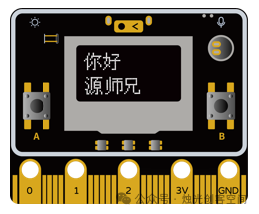
 1. Micro-Lab Design(1) Define Experiment ObjectivesBased on the teaching objectives of “Lesson 4: Input, Output, and Computation”, set the experiment objectives:1. By operating the Source Master board, accurately identify the three stages of the control system: ‘Input-Compute-Output’, and provide an example of an input signal and output result for one device.2. Use graphical programming to implement simple logic of ‘Input → Compute → Output’, and draw a corresponding working process diagram.(2) Design Experiment TasksDesign two progressive tasks around the core model of ‘Input-Compute-Output’:1. Basic Task: Use button A (Input) to control the RGB light color (Output), by programming to determine (Compute) “whether the button is pressed”, achieving “Press A → Red light on, Press A again → Red light off”.2. Advanced Task: Use a light sensor (Input) to detect ambient light intensity, set a threshold through programming (Compute: Light intensity > 500 is “Bright”, otherwise “Dim”), control the OLED screen to display text (Output: “Sufficient Light” or “Dim Light”) and trigger a buzzer for alerts.(3) Prepare Experiment ResourcesHardware: Source Master board (including button A, light sensor, RGB light, OLED screen, buzzer), USB data cable.
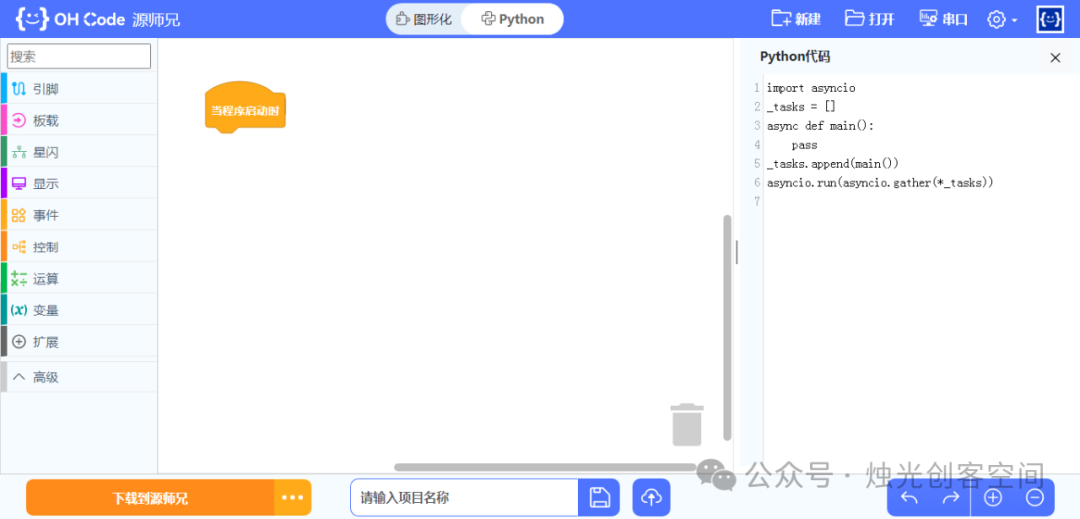
 Software: Official ohcode graphical programming environment from Source Master.
 Materials: Diagrams illustrating the ‘Input-Compute-Output’ process, experiment record sheets (to record input signals, computation logic, output results).(4) Experiment Implementation (20 minutes)1. Basic Task Operation (8 minutes)Students connect the Source Master board to the computer, open the ohcode software, and create an ‘Input-Compute-Output’ variable table (Input: Button A status; Compute: Determine if pressed; Output: RGB light status).Programming Steps:① Drag the “When program starts” block, add “Set RGB light to black (off)”.② Drag the “When button A is pressed” block, add “If RGB light is black, set to red; otherwise, set to black” (Computation logic: Determine current light state and switch).
 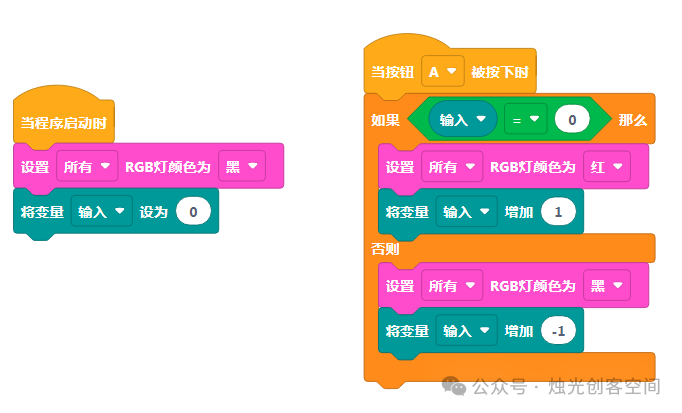 Run the program, record the relationship “Press A → Red light on (Input: Button pressed; Compute: Determine switch; Output: Red light on)” and “Press A again → Red light off”.2. Advanced Task Operation (12 minutes)The teacher demonstrates how to read data from the light sensor and explains the threshold setting logic (Light intensity > 500 → “Sufficient”, otherwise → “Dim”).Students program:① Drag the “Repeat” block, add “Read light sensor value” and store it in the variable “Light Intensity”.② Add an “If Light Intensity > 500” branch: OLED screen displays “Sufficient Light”, buzzer remains silent;③ “Else” branch: OLED screen displays “Dim Light”, buzzer emits one alert sound (Computation: Determine based on threshold; Output: Screen + Buzzer).
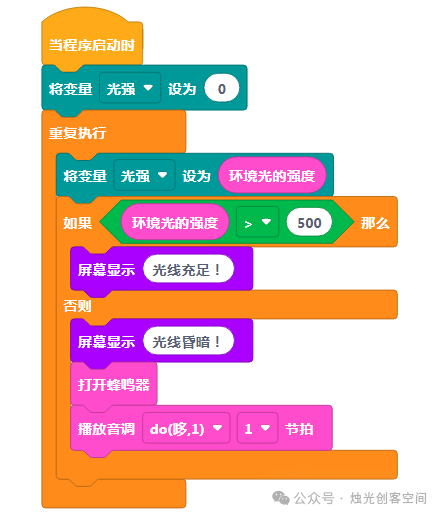 Cover the sensor with your hand (simulating dim) or remove it (simulating sufficient), observe the output results, and record the relationships among the three stages.(5) Result Recording and AnalysisStudents fill out the “Input-Compute-Output Record Sheet”:
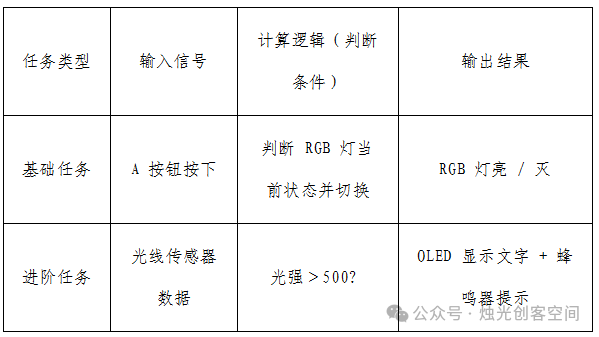 (6) Summary and ExtensionThe teacher guides the summary: All control systems follow the model “Input (Signal) → Compute (Processing) → Output (Result)”, where the sensors/buttons on the Source Master board are input devices, and the lights/screens/buzzer are output devices, with programming logic as the core of “Computation”.Extension Task: Use a microphone sensor (Input) to implement “Clap → RGB light changes color”, and draw the corresponding working process diagram.2. Micro-Lab Activity Design Sheet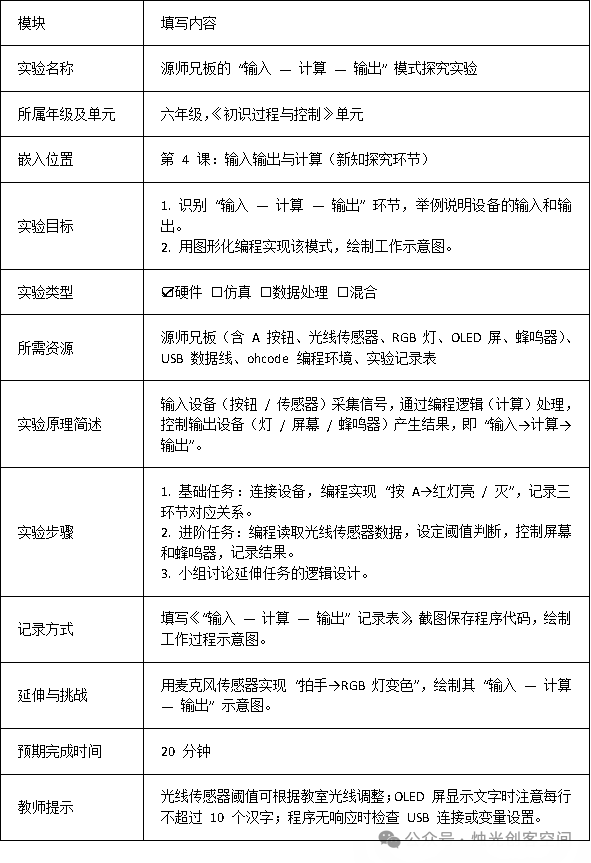
Previous Exciting Articles:
[AI Empowering Teaching] 23: Doubao Super Creative 2.0, Stunning Your Batch Generation
[AI Empowering Teaching] 22: AI Unlocks Math Magic for Kids: A Research Journey from 4×4 Grids to Cognitive Leap
[AI Empowering Teaching] 21: A New Approach, Generating Audio for Three-Person Same-Class Differentiated Activities
[AI Empowering Teaching] 20: AI Podcast Teaching Guide: A Versatile Assistant from Lesson Preparation to Home-School Communication
[AI Empowering Teaching] 19: AI Creates Subject-Specific Rewards, Making Kids Love Your Class
[AI Empowering Teaching] 18: AI Prompt List, Enhancing the Quality and Efficiency of Party Building Materials
[AI Empowering Teaching] 17: When AI Meets Andersen: Unlocking the Magic of Fully Automated Bilingual Picture Books
[AI Empowering Teaching] 16: AI Generates Historical Figures Biography Videos, Making Students Love Middle School History[AI Empowering Teaching] 15: AI Assists in College and Major Selection for Volunteer Applications[AI Empowering Teaching] 13: Nezha’s Transformation from “Demon Child” to “Model Student” – An AI Transformation Guide![AI Empowering Teaching] 11: AI Aids in English Memory, Mastering a Whole Book of Vocabulary in 30 Days[AI Empowering Teaching] 10: AI Empowers Traditional Cultural Education: From Generating Tools Practice to New Paths for Cultural Dissemination[AI Empowering Teaching] 6: AI Assists in Writing Classroom Analysis Reports[AI Empowering Teaching] 5: AI Aids in Primary Science and Junior High Information Technology Experiment Teaching[AI Empowering Teaching] 3: AI Aids in Assigning and Grading Layered Math Homework in Primary School[AI Empowering Teaching] 2: DeepSeek Assists in Designing Activities for Telling Chinese Stories in English[AI Empowering Teaching] 1: DeepSeek and Traditional Art Combined for Rural Primary School Activity Design [Candlelight Maker Space]