Docker is a platform that allows you to package applications and run them in isolated environments called containers. These containers include everything needed to run the application—code, runtime, libraries, and dependencies—ensuring consistency across different computing environments.
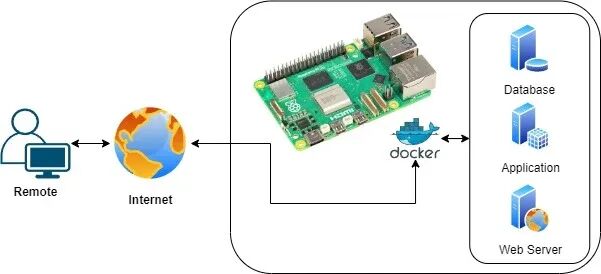
Using Docker on a Raspberry Pi has many advantages, especially considering the device’s resource limitations:
Resource Efficiency:
Lightweight Containers: Docker containers share the host system’s kernel, making them much lighter than virtual machines. This allows you to run multiple applications on a Raspberry Pi without overloading its limited CPU and memory resources.
Simplified Deployment:
Pre-built Images: With Docker, we can pull pre-built images from repositories like Docker Hub, reducing the complexity of setting up software on the Raspberry Pi. This is especially useful when we want to quickly deploy applications without manual configuration.
Integration:
Docker’s compatibility with various software stacks allows it to integrate seamlessly with other tools, making the Raspberry Pi a versatile hub for DIY projects, home automation, or small server tasks.
Prerequisites
● Raspberry Pi: Docker runs best on newer models like the Raspberry Pi 5, which have more processing power and memory.
● Raspberry Pi Operating System: For better performance, especially when running large applications, it is recommended to use the 64-bit version.
● MicroSD Card: A capacity of 32GB or larger is preferred, especially when planning to run multiple Docker containers.
● Network Connection: Ethernet is preferred, but Wi-Fi is also available. Setup and Installation
Setting up Docker on Raspberry Pi
Installing Docker on a Raspberry Pi is a straightforward process. Here is a step-by-step guide to installing and running Docker on a Raspberry Pi:
1. Update your Raspberry Pi. Open the terminal and run:
sudo apt-get update
sudo apt-get upgrade
2. Install Docker. Docker provides an installation script that automates the installation process.
Download and run the Docker installation script:
curl -sSL https://get.docker.com | sh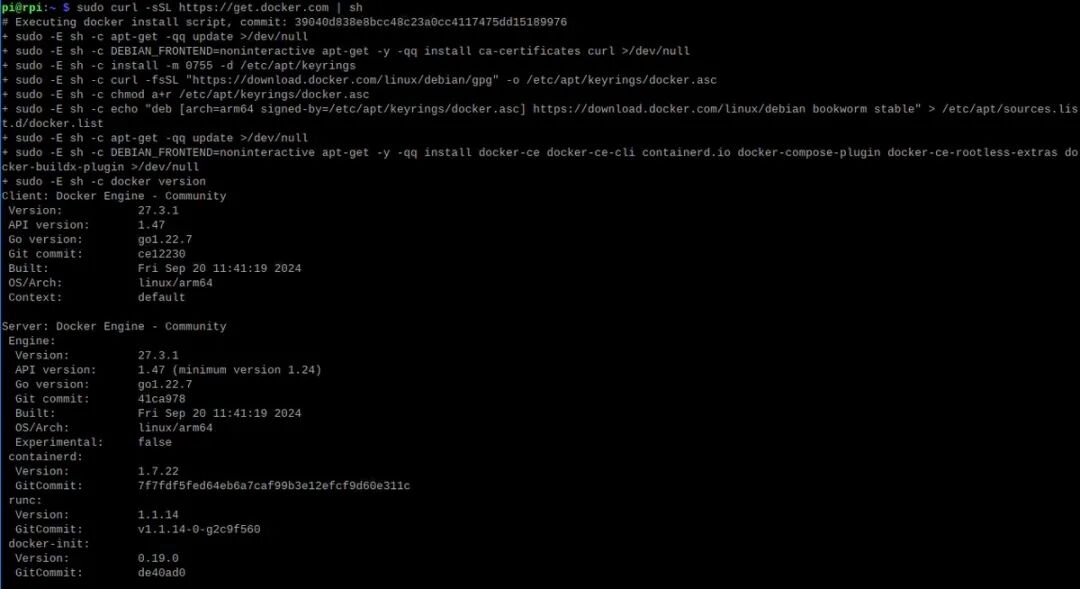
This script will download and install the latest version of Docker for Raspberry Pi.
3. Add your user to the Docker group** so you can run Docker commands without using sudo:
sudo usermod -aG docker $USERAfter running this command, we need to log out and log back in, or restart the Raspberry Pi for the changes to take effect.
4. Verify Docker installation
To check if Docker has been installed correctly, we can run the following command:
docker -v
This should return the installed Docker version.
Basics of Docker on Raspberry Pi and Commands
Key Docker Concepts
Images: Read-only templates used to create containers. An image can contain everything needed to run an application. For example, an image can include the operating system, web server, and the application itself.
Containers: Running instances of images. Containers are isolated environments, and multiple containers can run on the same machine, sharing the host operating system kernel.
Dockerfile: A script that describes the steps to follow when creating a Docker image. It automates the creation of Docker images by specifying what should be included inside the image.
Repository: A place to store and share Docker images. Docker Hub is the most common repository where we can find thousands of pre-built images.
Basic Docker Commands
Check Docker system information
docker infoThis command provides detailed information about the Docker installation, including the number of containers, images, and system resources.
– Search for images on Docker Hub:
docker search <image-name>For example:
docker search nginx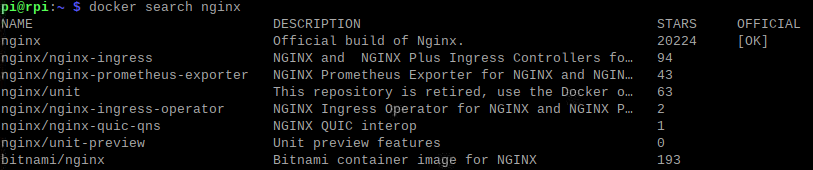
– Pull an image from Docker Hub:
docker pull <image-name>To pull the latest Nginx image:
docker pull nginx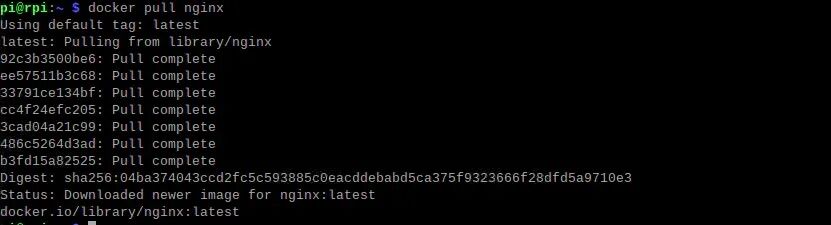
– List downloaded images:
docker imagesThis command lists all Docker images available locally on the Raspberry Pi.
– Run a container:
docker run <image-name>Run a container from the Nginx image:
docker run nginxTo run a container in the background (detached mode) and map the container’s port 80 to the host’s port 8080:
docker run -d -p 8080:80 nginx– List running containers:
docker ps
– List all containers (running and stopped):
docker ps -a– Stop a running container:
docker stop <container-id>We can get <container-id> from the docker ps command.
– Start a stopped container:
docker start <container-id>– Remove a stopped container:
docker rm <container-id>– Remove an image:
docker rmi <image-id>We can get <image-id> from the docker images command.
– Create a volume:
docker volume create <volume-name>– List volumes:
docker volume ls– Inspect a volume:
docker volume inspect <volume-name>– Remove a volume:
docker volume rm <volume-name>Advanced Docker Usage on Raspberry Pi
Docker Compose:
Docker Compose is a command-line tool that allows you to define and run complex applications using Docker containers.
1. Download Docker Compose. Open the terminal and run:
wget https://github.com/docker/compose/releases/download/v2.29.7/docker-compose-linux-aarch642. Move the downloaded file to /usr/bin:
sudo mv docker-compose-linux-aarch64 /usr/bin/docker-compose3. Set execution permissions:
sudo chown root: /usr/bin/docker-compose
sudo chmod +x /usr/bin/docker-compose
4. Verify Docker Compose installation:
docker-compose --versionCreate multi-container applications using docker-compose.yml.
Nextcloud Example
services:
  nc:
    image: nextcloud:apache
    environment:
      - POSTGRES_HOST=db
      - POSTGRES_PASSWORD=nextcloud
      - POSTGRES_DB=nextcloud
      - POSTGRES_USER=nextcloud
    ports:
      - 80:80
    restart: always
    volumes:
      - nc_data:/var/www/html
  db:
    image: postgres:alpine
    environment:
      - POSTGRES_PASSWORD=nextcloud
      - POSTGRES_DB=nextcloud
      - POSTGRES_USER=nextcloud
    restart: always
    volumes:
      - db_data:/var/lib/postgresql/data
    expose:
      - 5432
volumes:
  db_data:
  nc_data:
Portainer for Docker Management

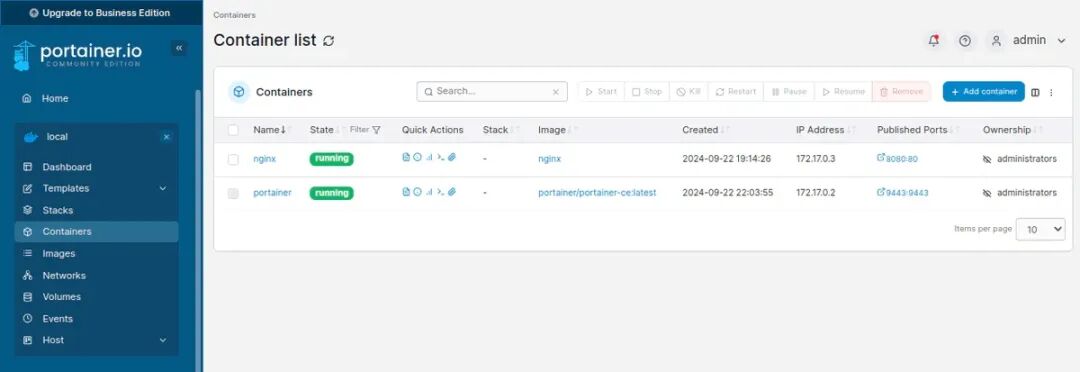
Portainer is a lightweight open-source Docker management tool that provides a user-friendly graphical interface to manage Docker environments, including containers, images, networks, and volumes. It simplifies the complexity of Docker management, allowing users to interact with Docker setups through a web-based interface rather than relying solely on command-line instructions.
Step-by-step Installation
1. Pull the latest Portainer image by running the following command:
docker pull portainer/portainer-ce:latestThis command pulls the latest version of Portainer Community Edition (CE).
2. Create a Docker volume for Portainer
Portainer requires persistent storage. We can create this volume using the following command:
docker volume create portainer_data3. Deploy the Portainer container
Now, you will run the Portainer container, binding it to Docker and exposing it on a port so we can access it via a web browser.
4. Run the Portainer container with the following command:
docker run -d -p 9443:9443 --name portainer --restart=always -v /var/run/docker.sock:/var/run/docker.sock -v portainer_data:/data portainer/portainer-ce:latestThis command does the following:
-d: Detached mode.
-p 9443:9443: Maps port 9443 on the Raspberry Pi to port 9443 in the container (for HTTPS access).
–name portainer: Names the container “portainer”.
–restart=always: Ensures that Portainer will automatically restart if the Raspberry Pi reboots.
-v /var/run/docker.sock:/var/run/docker.sock: Mounts the Docker socket so that Portainer can communicate with the Docker engine.
-v portainer_data:/data: Attaches the previously created volume for persistent storage.
5. Access the Portainer Web Interface
Once the container is up and running, we can access the Portainer user interface:
1. Open a web browser and go to https://<your-raspberry-pi-ip>:9443.
Replace <your-raspberry-pi-ip> with the actual IP address of your Raspberry Pi 5.
We may see a security warning because the connection is self-signed; we can safely proceed to access the site.
Real Use Cases on Raspberry Pi
Home Assistant: A popular open-source platform for controlling smart home devices. You can run Home Assistant on a Raspberry Pi using Docker, making it easier to manage updates and dependencies.
https://hub.docker.com/r/homeassistant/home-assistant
docker run -d --name=home-assistant -v /path/to/your/config:/config -p 8123:8123 homeassistant/home-assistant:stableInfluxDB and Grafana: For IoT applications that require data collection and visualization, Docker can be used to run InfluxDB (a time-series database) and Grafana (a data visualization tool). This allows users to collect data from sensors and visualize it on dashboards, all of which can be done on a low-power Raspberry Pi.
https://hub.docker.com/_/influxdb
docker run -d -p 8086:8086 --name influxdb influxdb:2https://hub.docker.com/r/grafana/grafana
docker run -d -p 3000:3000 --name grafana grafana/grafanaMonitoring (MotionEye): Docker allows you to deploy MotionEye, a monitoring system that can turn your Raspberry Pi into a security camera hub.
https://hub.docker.com/r/ccrisan/motioneye
docker run -d --name=motioneye -p 8765:8765 -v /path/to/media:/media ccrisan/motionDuplicati: Run Duplicati using Docker, an open-source backup solution that can schedule backups of files from various devices on your home network to an external drive connected to the Raspberry Pi.
https://hub.docker.com/r/duplicati/duplicati
docker run -d --name=duplicati -v /backup/location:/backups -p 8200:8200 duplicati/duplicatiPlex: Host a media server using Docker that can stream videos, music, and photos to multiple devices.
https://hub.docker.com/r/plexinc/pms-docker/
docker run -d --name=plex -v /path/to/media:/media -p 32400:32400 plexinc/pms-dockerTroubleshooting and Maintenance
● Check Docker service status
sudo systemctl status docker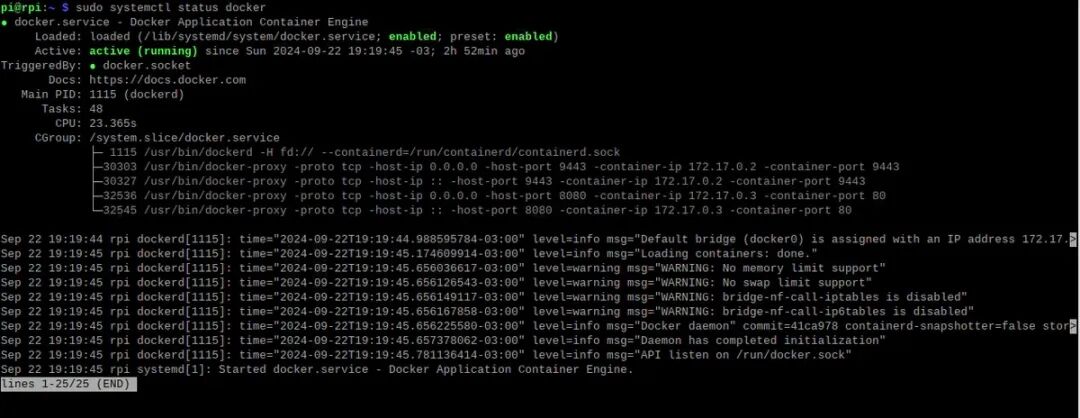
Look for any error messages. If needed, try restarting it:
sudo systemctl restart docker● High CPU or Memory Usage
Running multiple or resource-intensive containers may overwhelm the limited CPU and memory of the Raspberry Pi.
Use docker stats, htop, or top to monitor system and container resource usage.
docker stats
Identify and stop resource-hogging containers:
docker stop <container-id>Consider using lightweight versions of images or using Docker’s resource management flags to limit container resources:
docker run -m 256m --cpus="0.5" <image-name>This will limit the container to 256MB of memory and 50% of one CPU core.
● Insufficient Disk Space
Remove unused containers, images, and volumes:
docker system prune -a
docker volume prune
Monitor disk usage:
List images, containers, and volumes, and check how much space they occupy:
docker system df
Move Docker data to external storage:
If the SD card on the Raspberry Pi is filling up quickly, consider moving the Docker data directory (/var/lib/docker) to an external USB drive:
1. Stop the Docker service:
sudo systemctl stop docker2. Move the Docker data directory:
sudo mv /var/lib/docker /mnt/external_drive/docker3. Create a symbolic link:
sudo ln -s /mnt/external_drive/docker /var/lib/docker
sudo systemctl start docker
● Data Corruption in Volumes:
Improper shutdowns or power outages on the Raspberry Pi may lead to data corruption in volumes stored on the SD card.
Use fsck to check and repair the file system on the SD card or external drive:
sudo umount /dev/mmcblk0p1
sudo fsck /dev/mmcblk0p1
sudo mount /dev/mmcblk0p1
Backup and Restore Volumes:
Regularly back up volumes using containers like busybox to prevent data loss in case of corruption:
docker run --rm -v my_volume:/data -v $(pwd):/backup busybox tar czf /backup/backup.tar.gz /dataUse External Storage for Persistent Data Storage:
Storing Docker volumes on an external drive (preferably SSD) instead of the SD card can improve performance and reduce the risk of corruption.
This article provides a comprehensive guide to setting up and using Docker on Raspberry Pi. It covers everything from basic installation steps to advanced usage with Docker Compose and Portainer for managing containers. Real-world examples such as running Home Assistant or Plex on Raspberry Pi highlight practical applications. Additionally, it includes troubleshooting tips for common issues like high CPU usage and disk space limitations, making it an excellent resource for both beginners and advanced users looking to optimize Docker on Raspberry Pi systems.
Many people have long thought of the Raspberry Pi as just a small toy in the maker community—a credit card-sized development board used to light up LEDs, run a Python script, or teach middle school students a basic programming lesson. However, the reality is far more astonishing: the Raspberry Pi has quietly completed a stunning transformation from “teaching demonstration” to “industrial-grade powerhouse,” serving 24/7 in production lines, data centers, laboratories, and even outer space. The following articles may completely refresh your perception of the Raspberry Pi:
High Points of Industrial Raspberry Pi! Industrial-grade HMI Array of Raspberry Pi!
What to Watch for in Raspberry Pi in 2025, the Industrial Evolution of Raspberry Pi CM5!
The Comeback of Old Factories: Upgrading Old Factories with a Screen, Directly Advancing to Industry 4.0!
This Industrial Touchscreen, I Initially Rejected, But After Using It, I Found It Truly Impressive!
Raspberry Pi PLC Provides an Open Solution for “Control + Acquisition + Communication”!
Can Raspberry Pi CM5 Fit into an IP65 Camera? The Hardcore Industrial Camera Form Factor of Raspberry Pi Exposed!
Can Raspberry Pi 5/CM5 Become the Industrial Brain Instantly?
The Cooling Technology of Raspberry Pi That Even the Official Raspberry Pi Team Hasn’t Told You!
Why Traditional PLC Counting Modules Are Being Phased Out?
Can a Raspberry Pi CM5 Handle an Entire Production Line? A Comprehensive Analysis of Industrial Computer Motherboards!
Raspberry Pi News!!Breaking News!This September, the Raspberry Pi team will make its first appearance at the Shanghai Industrial Expo (CIIF).The Raspberry Pi team will appear at the Shanghai Industrial Expo in September! Raspberry Pi enthusiasts, come and join us for a discussion!
Selected Raspberry Pi Articles!!
See what industrial products people have made using Raspberry Pi CM5!
2024~2030: Industrial Raspberry Pi Market Forecast!
Can Raspberry Pi Replace Desktop Computers? The Seven Best Lightweight Operating Systems on Raspberry Pi!
Wuhu, Take Off! Tips to Boost Raspberry Pi Performance!
What Can Raspberry Pi CM5 Be Used For? The Swiss Army Knife of Industrial Control!
Raspberry Pi Becomes the All-in-One Assistant for Home Office!
Is 40 Minutes of Tencent Meeting Not Enough? The Secret You Need Is Here!
Raspberry Pi + Ubuntu: How This Perfect Match is Creating an Intelligent Storm in the Industry!
Earth-Shattering! With This System, Raspberry Pi Instantly Becomes the King of Smart Hardware!
Will Orange Pi Double Its Performance and Shake Raspberry Pi’s Dominance?
The “Guinness World Record” of Raspberry Pi: Projects That Maximize Raspberry Pi’s Performance!
Raspberry Pi VPN Server Setup Guide (2025 Edition): Protect Your Online Privacy!
Rumors About Raspberry Pi 6: Release Date and Specifications!
See what industrial products people have made using Raspberry Pi CM5!
Do You Really Understand Raspberry Pi 5? A Comprehensive Guide to Raspberry Pi 5 Pinout: Understanding GPIO Pins and Their Functions!
20 Cool Raspberry Pi Projects Anyone Can Complete!
Build Face Recognition Technology with Raspberry Pi + OpenCV!Track Airplanes Within 400 Kilometers Using Raspberry Pi?
Original Link:https://www.sunfounder.com/blogs/news/raspberry-pi-docker-from-installation-to-advanced-usage-and-troubleshooting
If you find our content useful, remember to like, bookmark, follow, and share~ We are happy to provide solutions for industrial Raspberry Pi, please contact us if you have project needs~
Official Website:www.edatec.cn/cn