Click the blue text to follow us
”
[C++ Compiler Installation User Guide]


Dev C++ is a free and open-source compiler, and it is the designated tool for competitions like NOI and NOIP.
The advantages of Dev C++ are small memory usage, easy installation and uninstallation, and low learning cost, making it very suitable for children learning programming.
When installing this software on Windows, many parents may not know where to start, but actually, installing Dev C++ is just like installing regular software, and it is not as complicated as installing other compilers.
So how do you install this software? Just follow the steps below, and you will be fine~
01
Download Steps
Dev C++ download link:
Dev-C++ download | SourceForge.net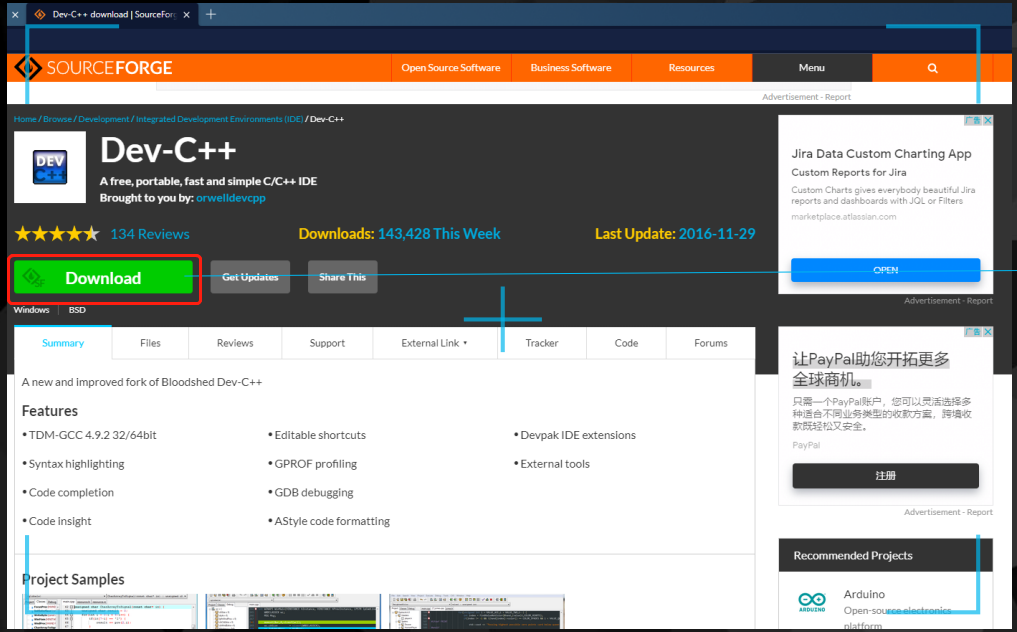
👆 Click “Download” to download
02
Installation Steps
After downloading Dev C++, you will get an installation package (.exe program). Just “double-click” that file to start the installation.
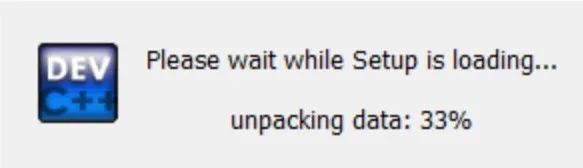
1. First, load the installer (it only takes a few seconds, just wait patiently):
2. Select the language and click “OK” to start the installation:
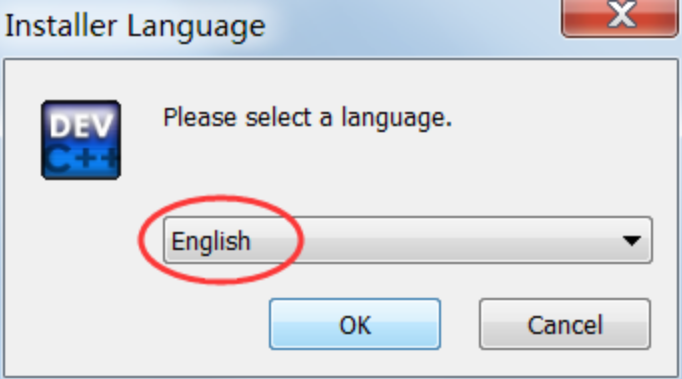
Dev C++ supports multiple languages, including Simplified Chinese, but you have to wait until the installation is complete to set it. You cannot use Simplified Chinese during the installation process, so we will choose English here.
3. Agree to all terms of Dev C++
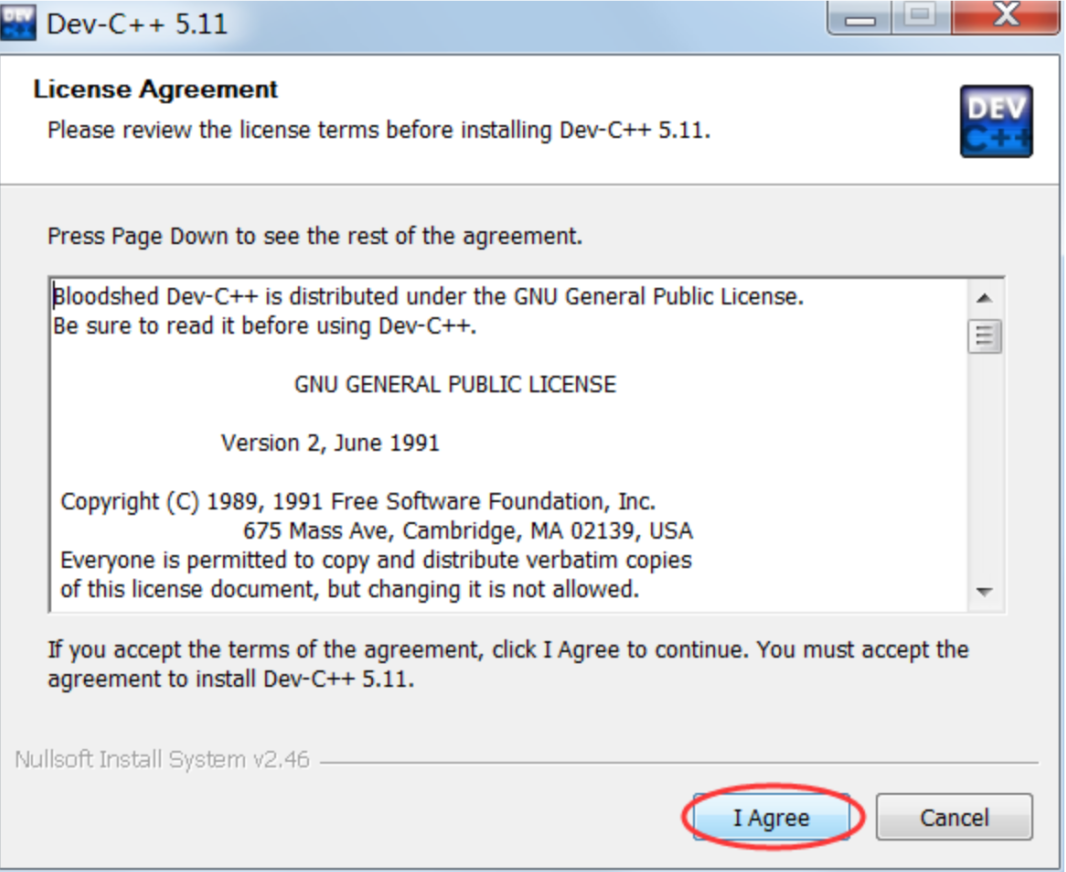
4. Agree to all terms of Dev C++
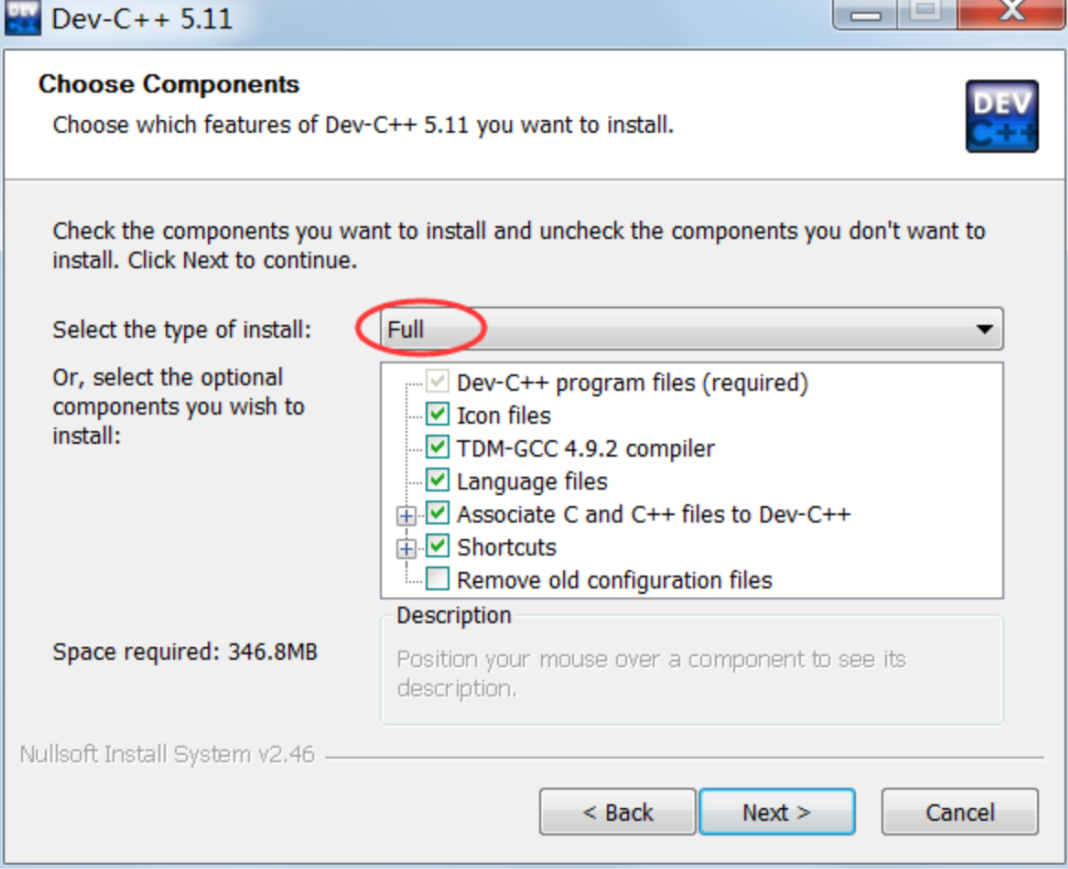
Select “Full” to install everything.
5. Choose the installation path
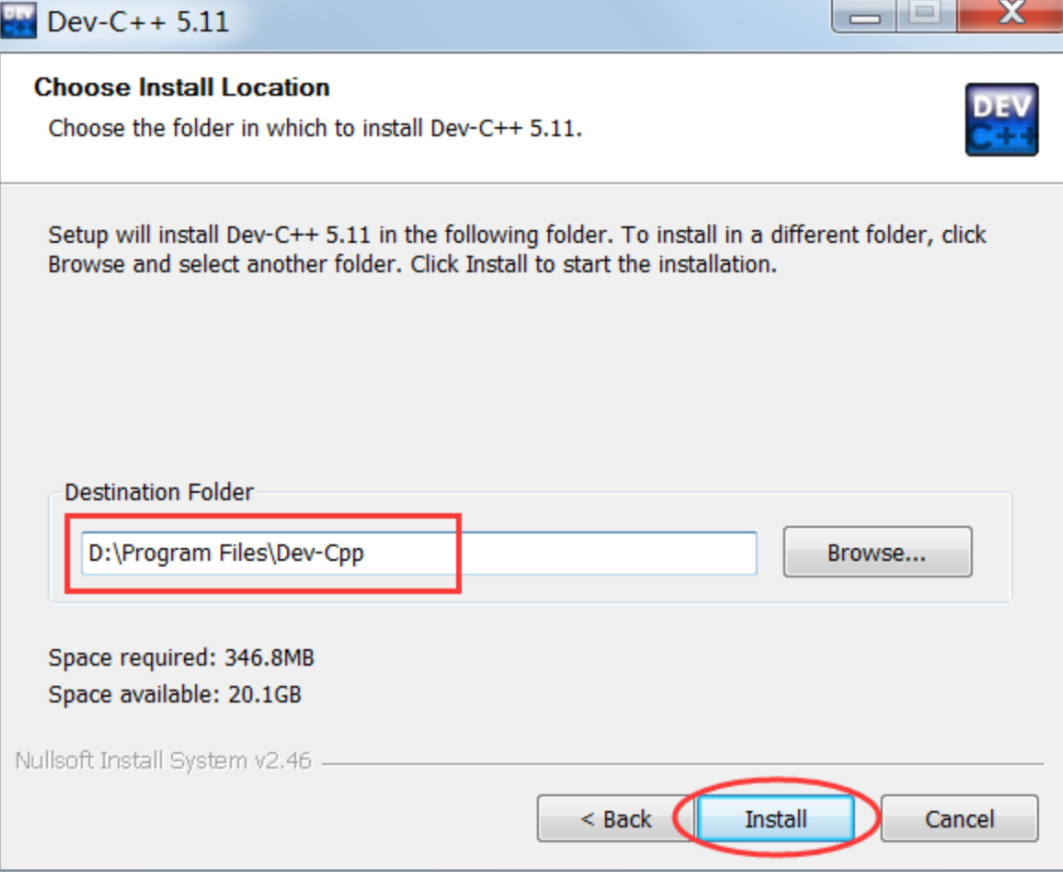
You can install Dev C++ anywhere, but it is best not to include Chinese characters in the path.
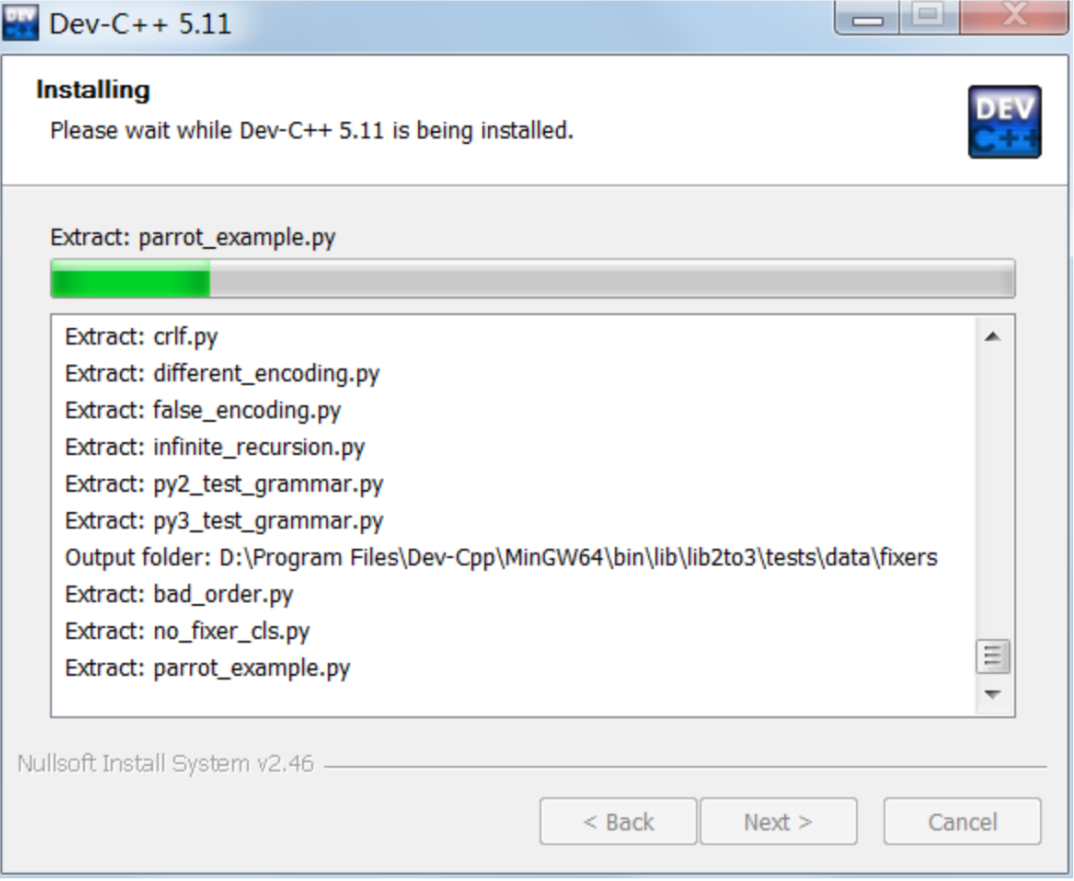
6. Wait for installation
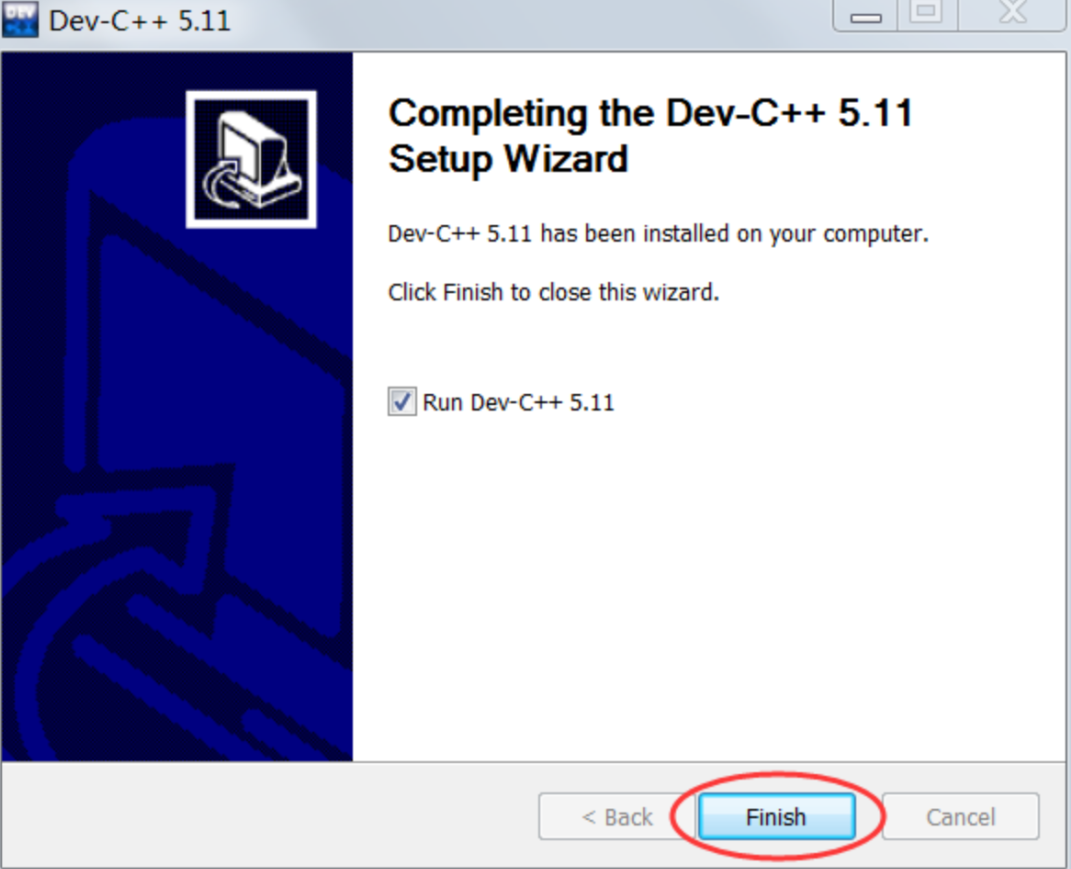
7. Installation is complete
03
Configuration Steps
When using Dev C++ for the first time, you also need to do a simple configuration, including setting the language, font, etc.
1. After starting Dev C++ for the first time, you will be prompted to select a language.
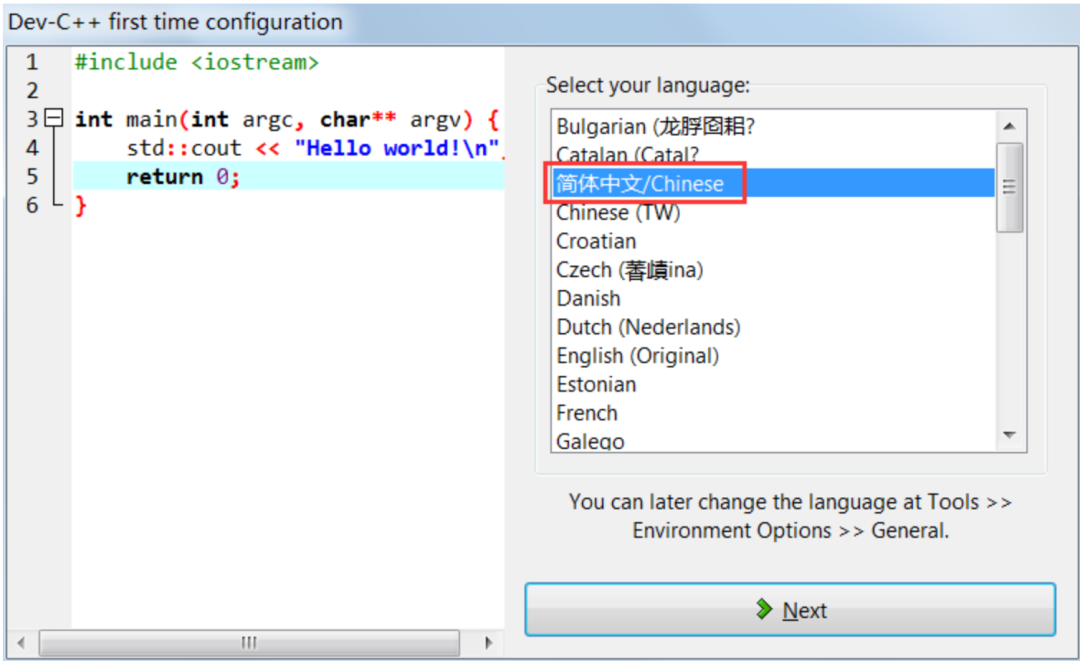
After selecting “Simplified Chinese,” click “Next.”
(Here we choose Simplified Chinese, but friends who are good at English can also choose English)
√ Enter Dev C++, and you can start writing code.
———————————————————
If you cannot change the Chinese font, then we can try another method.
1. Click “Tools” and scroll to “Environment Options”
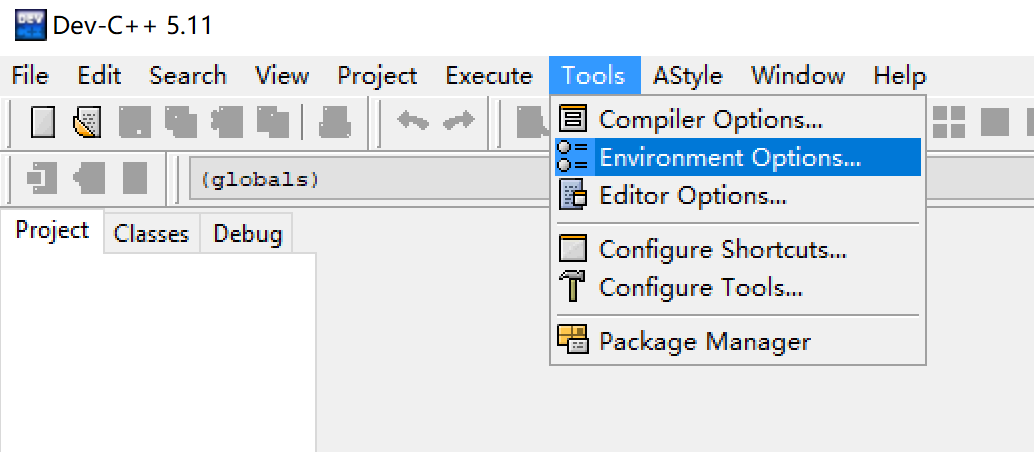
2. Click “Language” and select “Simplified Chinese”
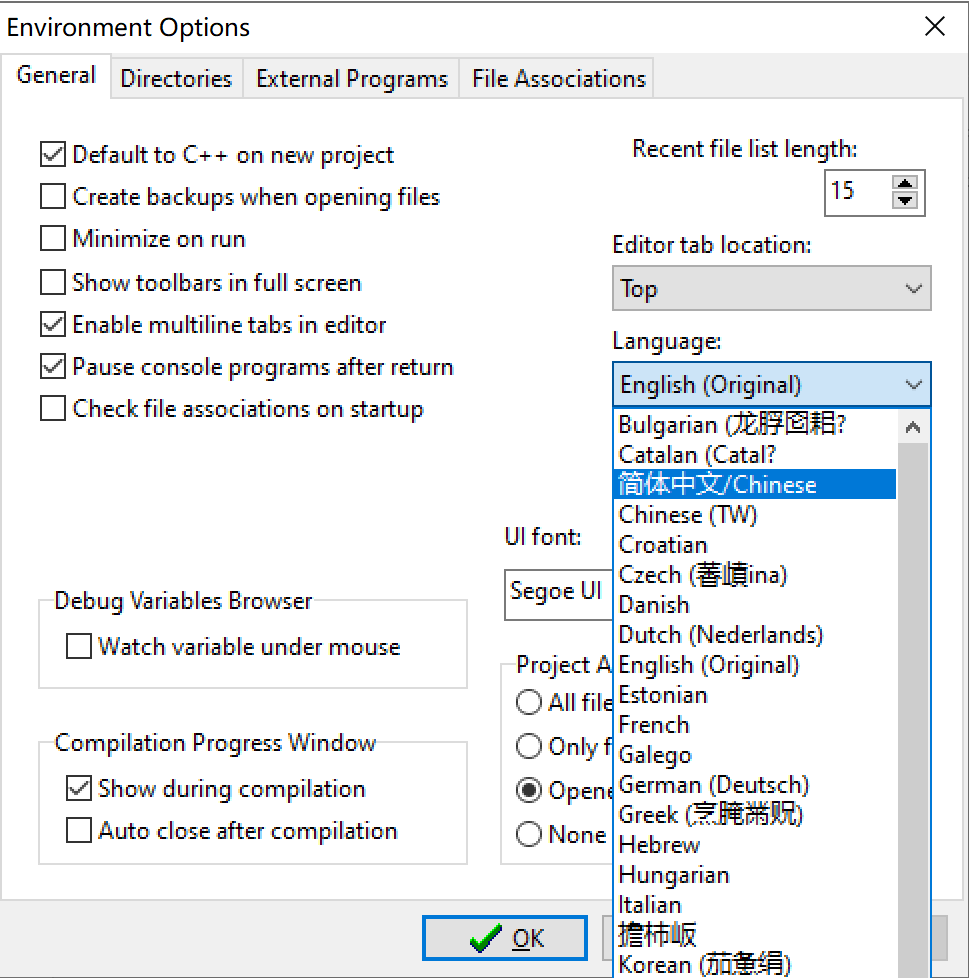
Click “OK” to finish~
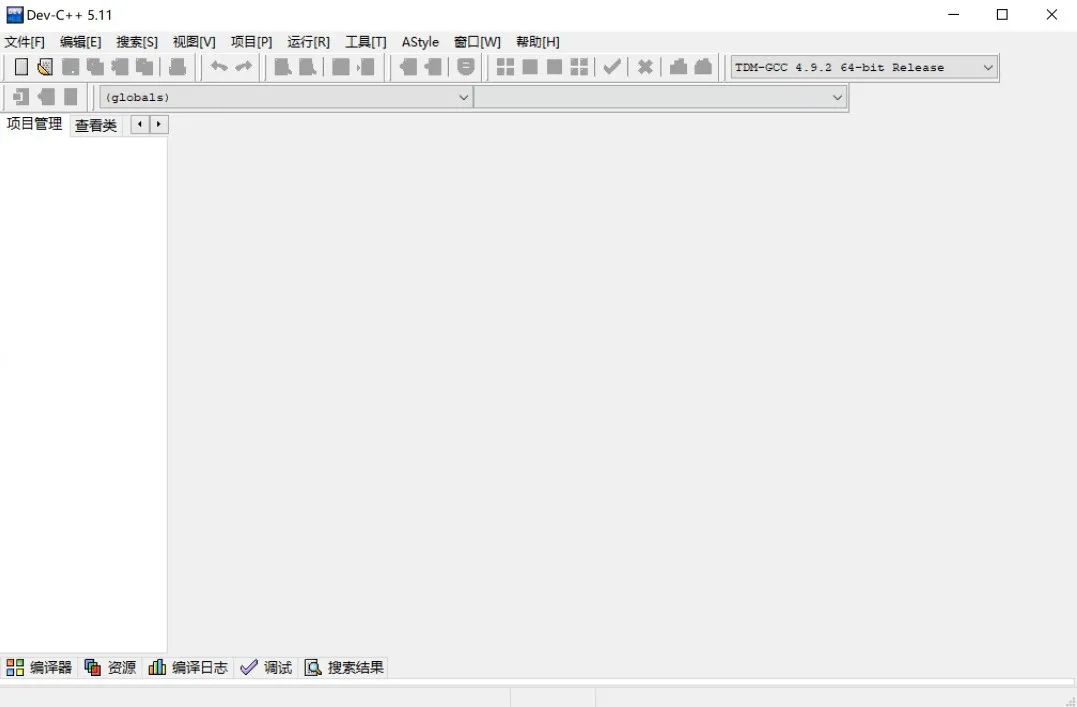
👇 After converting to Chinese, check if the conversion was successful?
04
How to Use
1. Create your own code
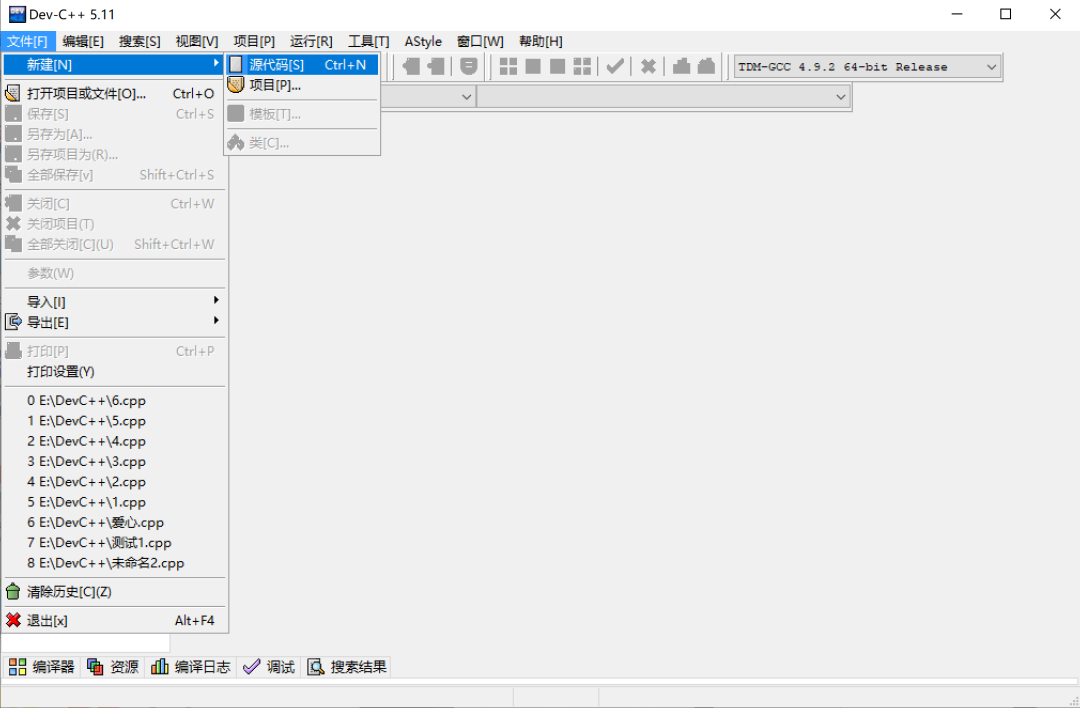
Click “File,” scroll to “New,” and click “Source Code” to create your own code interface.
2. Enter code in the middle
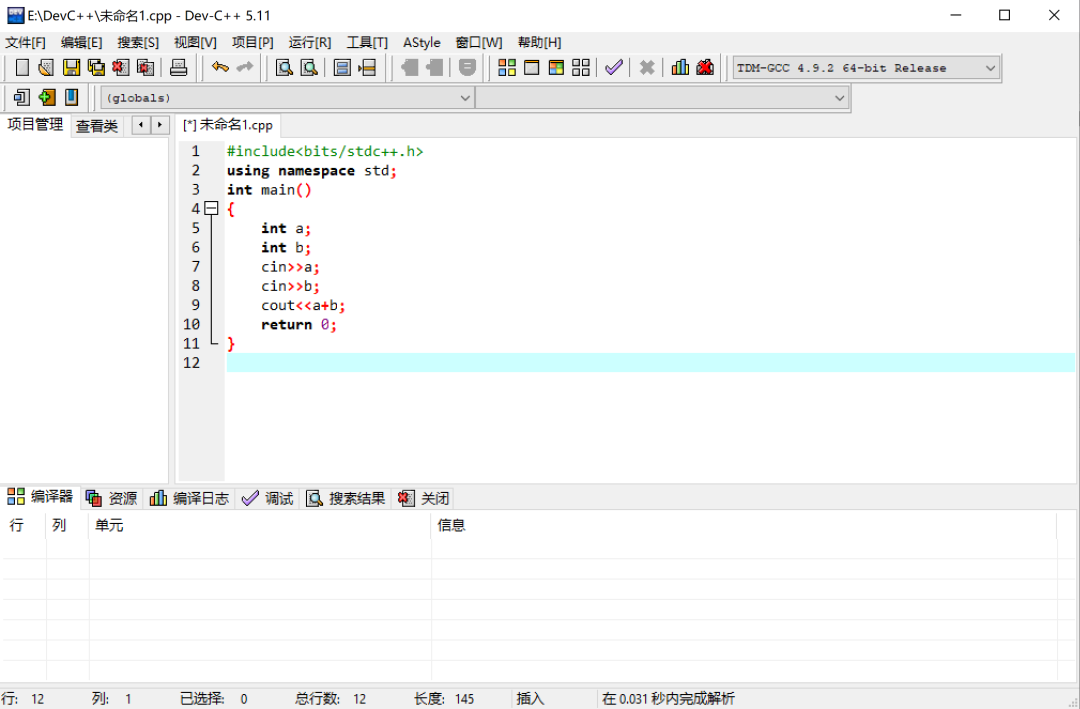
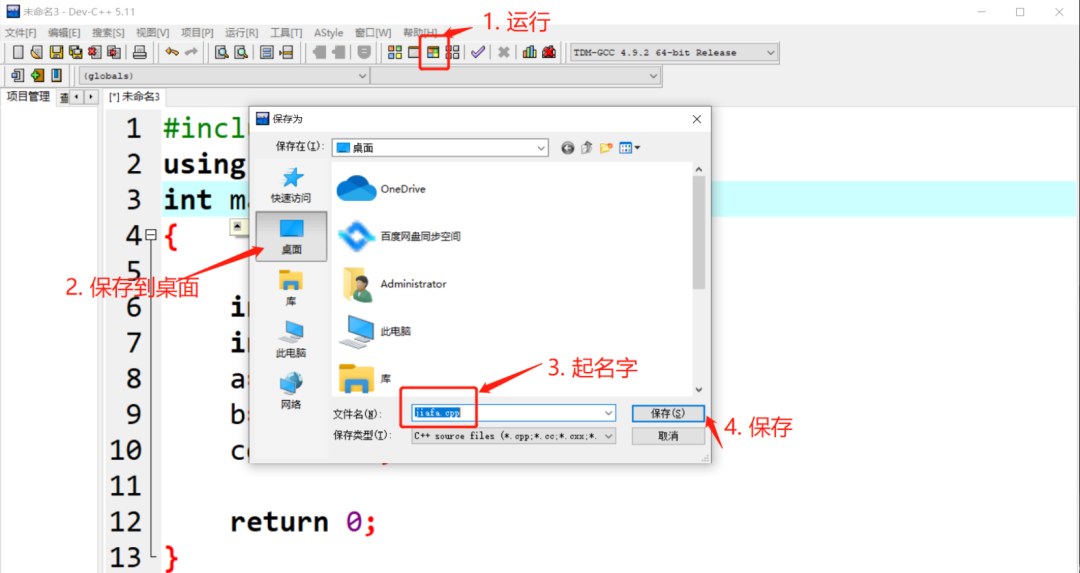
3. Detailed Steps:
(1) Click “Run”
(2) Save to “Desktop”
(3) Name it yourself (***.cpp file)
(4) Click “Save”
Bingo! The screenshot below shows the result after running!
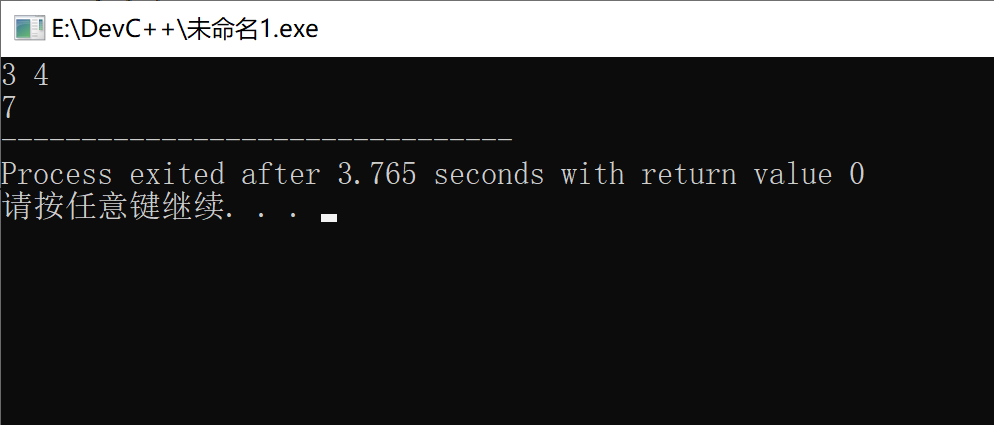
Remember to close the result window after each run, then modify the program, save it again, and compile and run.
——————————————————————–
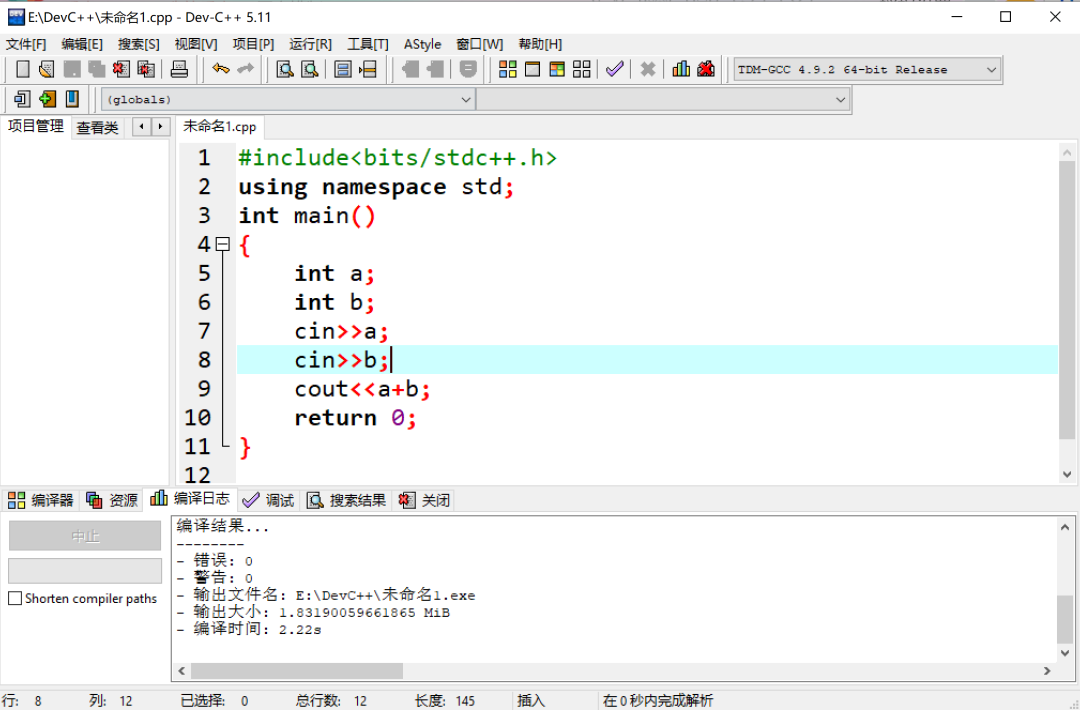
* If you find the font too small, you can hold down the Ctrl key and scroll the mouse wheel to zoom in and out of the font.
——————————————————————–
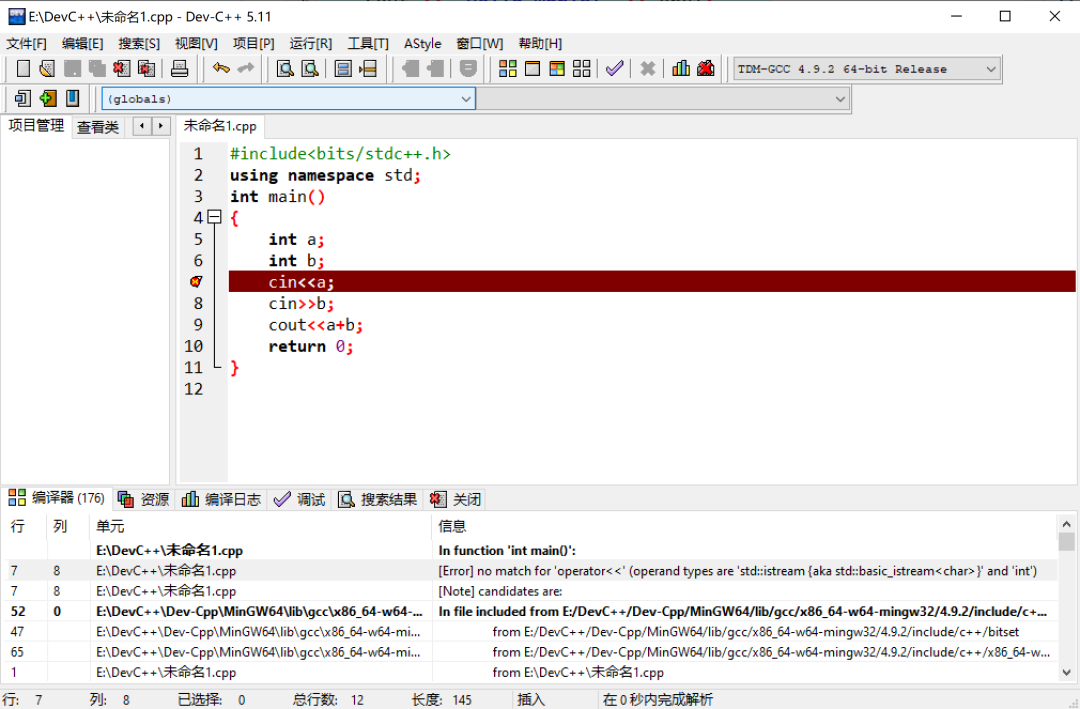
* If the program has red lines, it indicates that there are syntax issues in the code you wrote, and it will point out the line numbers where the errors occur. You can modify the errors based on the error messages at the bottom.
end


Follow | Official Public Account
Technology Talents | Informatics | Related News