Introduction
This article will introduce a code formatting tool called Clang-format, and detail how to use the Clang-format plugin in Keil MDK5 for code formatting, while showcasing the formatting effects of Clang-format on code. If you are a C/C++ programmer, this article will be helpful for your daily development work.
1. Overview of Clang-format
Clang-format is a tool for code formatting that helps developers achieve consistent code styles across different programming languages and coding styles. It supports multiple programming languages, including C++, Java, JavaScript, and Objective-C, and provides a rich set of formatting options to meet the coding style requirements of different teams and individuals.
Clang-format is implemented based on the LLVM (Low Level Virtual Machine) Clang compiler, which uses Clang’s parsing engine to understand the code structure and format the code according to the rules specified in the configuration file. It can be used through command line tools or editor plugins, making it very easy to integrate into the development environment.
Using Clang-format can bring many benefits, such as:
- Improving the readability and consistency of code.
- Reducing discussions and disputes about formatting issues during code reviews.
- Making code easier to maintain and modify.
In summary, Clang-format is a powerful, flexible, and easy-to-use code formatting tool that can help developers improve efficiency and quality when writing and maintaining code.
2. Downloading Clang-format
Latest version download URL: https://github.com/llvm/llvm-project/releases
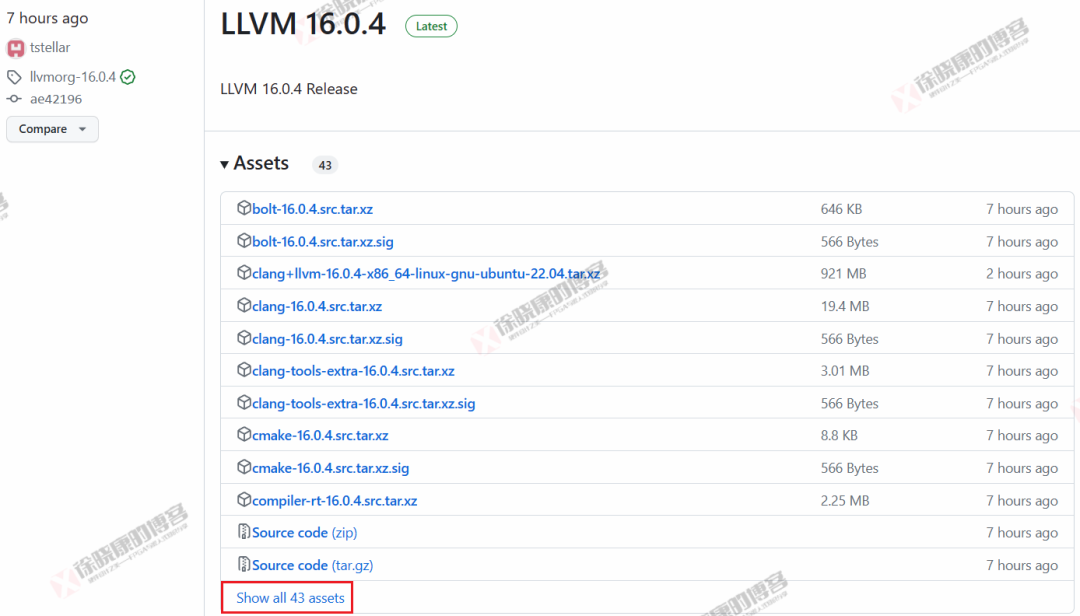
Open the LLVM GitHub release page, the latest version as of now (20230517) is 16.0.4. Click Show all assets to expand all entries, then find LLVM-xx-win64.exe and click to download.
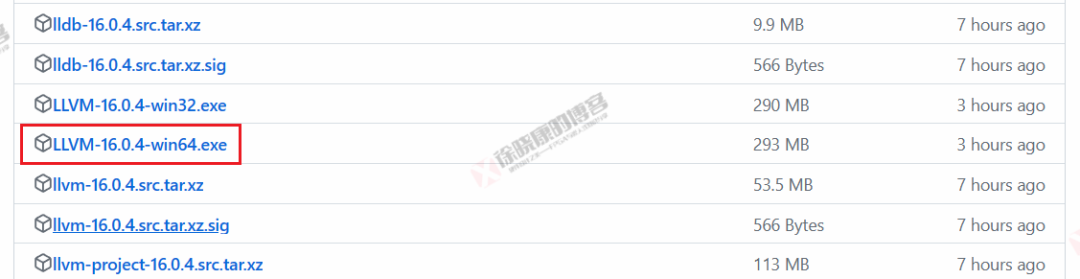
After downloading, you will get the LLVM-xx-win64.exe file. Next, I will explain how to extract Clang-format.exe from it.
Step 1: Change the file extension from .exe to .zip.
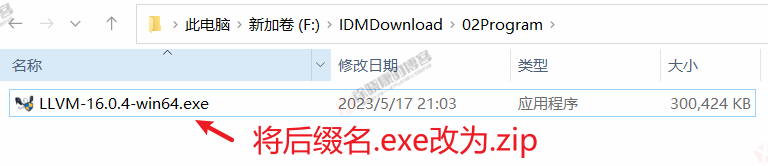
Step 2: Unzip the zip file.

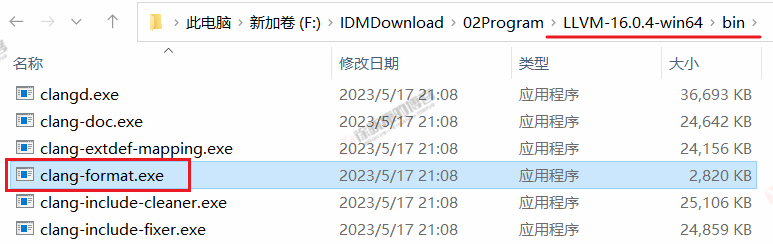
Step 3: In the unzipped folder/bin, find Clang-format.exe, which is the code formatting program we need.
3. Configuring Clang-format
Clang-format comes with six configurations:
-
LLVM: This is the default configuration, following the LLVM project’s code style. -
Google: Follows Google’s C++ code style. -
Chromium: Follows the Chromium project’s code style. -
Microsoft: Follows Microsoft’s C++ code style. -
Mozilla: Follows the Mozilla project’s code style. -
WebKit: Follows the WebKit project’s code style.
The command to export a specific style (taking Microsoft as an example) is:
F:\Onedrive\myPortableSoftware\Clang-format\clang-format.exe -style="Microsoft" --dump-config > F:\Onedrive\myPortableSoftware\Clang-format\Microsoft.clang-formatIt is recommended to modify based on a built-in configuration instead of starting from scratch. I personally modified the Microsoft style to create a code style I am satisfied with.
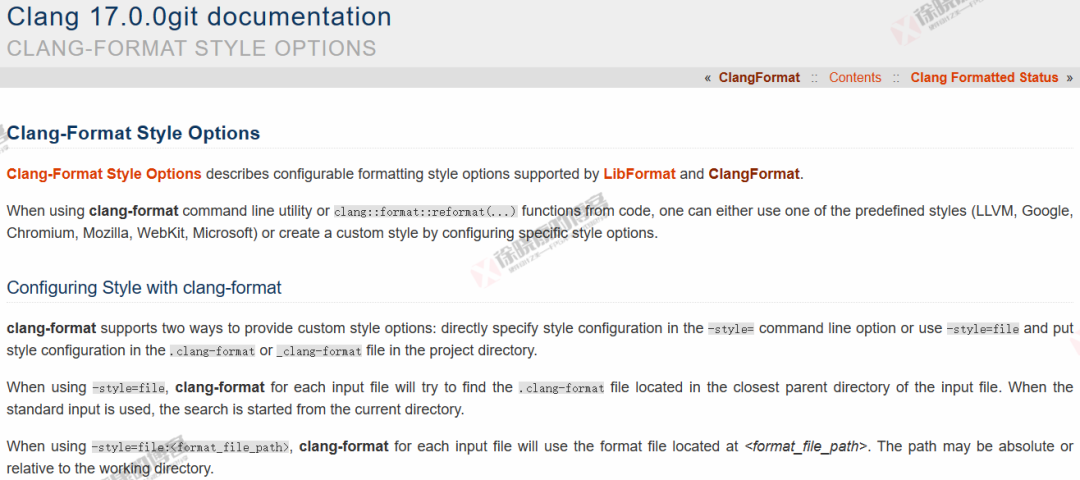
To learn how to configure Clang-format, you can refer to the official documentation: https://clang.llvm.org/docs/ClangFormatStyleOptions.html
4. Setting Up Clang-format in Keil
The method to configure Clang-format is the same as configuring Astyle.
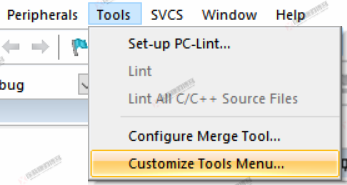
Open Keil, Tools -> Customize Tools Menu...,
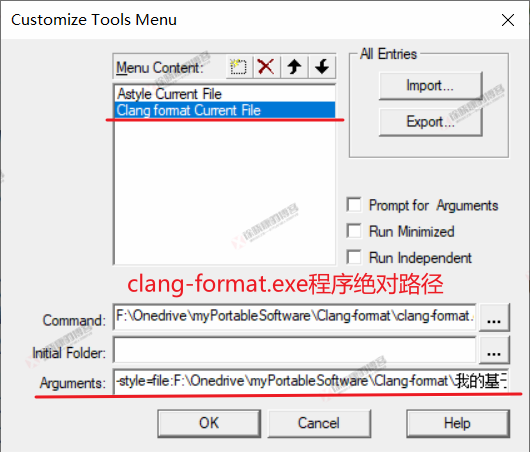
My Command: F:\Onedrive\myPortableSoftware\Clang-format\clang-format.exe
My Arguments are as follows, indicating that formatting will be done using the specified xx.clang-format file configuration.
-style=file:F:\Onedrive\myPortableSoftware\Clang-format\我的基于Microsoft修改的设置.clang-format -i !EIf you want to use a specific style (taking Microsoft as an example) with the default configuration, the Arguments can be:
-style=Microsoft -i !EOnce set up, you can invoke it through Tools -> Clang format Current File. Note that you must save the modifications with Ctrl+S before invoking the formatting program for it to take effect.
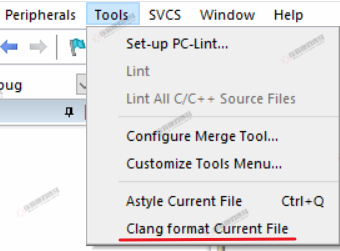
If you want to call Clang-format more conveniently, you can set a shortcut key, as follows:
Edit -> Configuration..., open the configuration window, find Tools:Astyle Current File in the Shortcut Keys interface, click Create Shortcut, and enter the desired shortcut key.
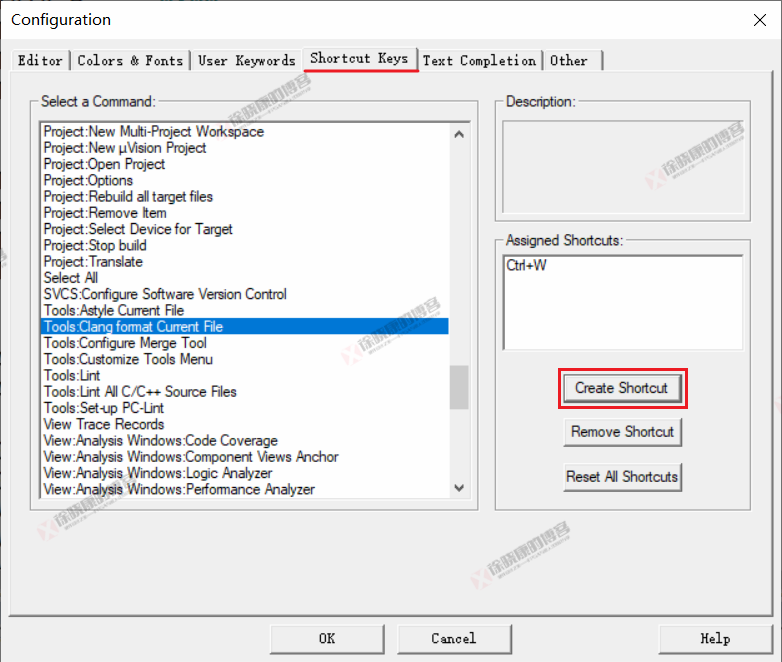
5. Clang-format Formatting Effect Demonstration
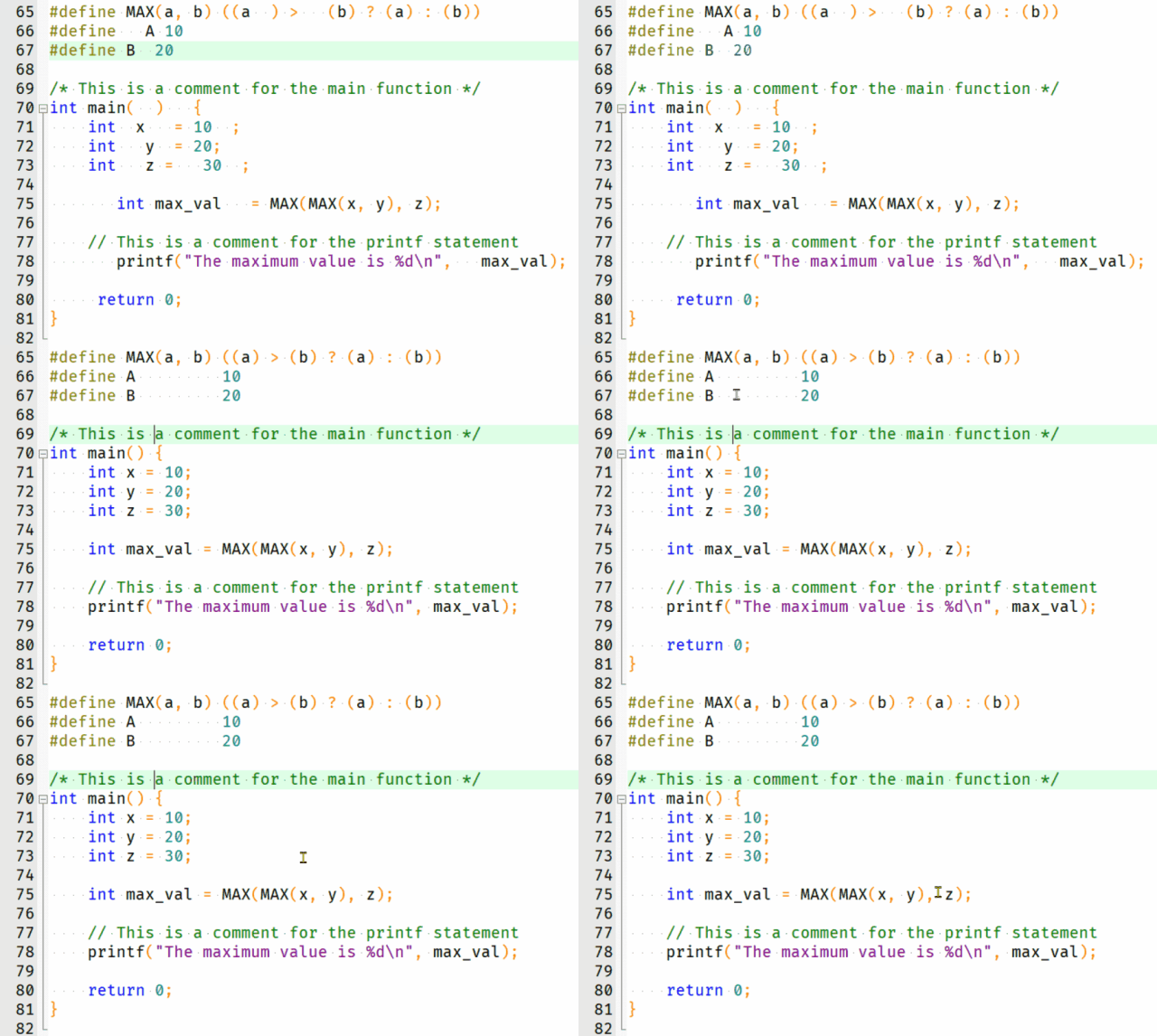
6. Using Clang-format in Vscode
Clang-format can also be used to format C language code in Vscode, as follows:
Search for C in the extension store, find C/C++ Extension Pack, and install it. As shown in the figure below.
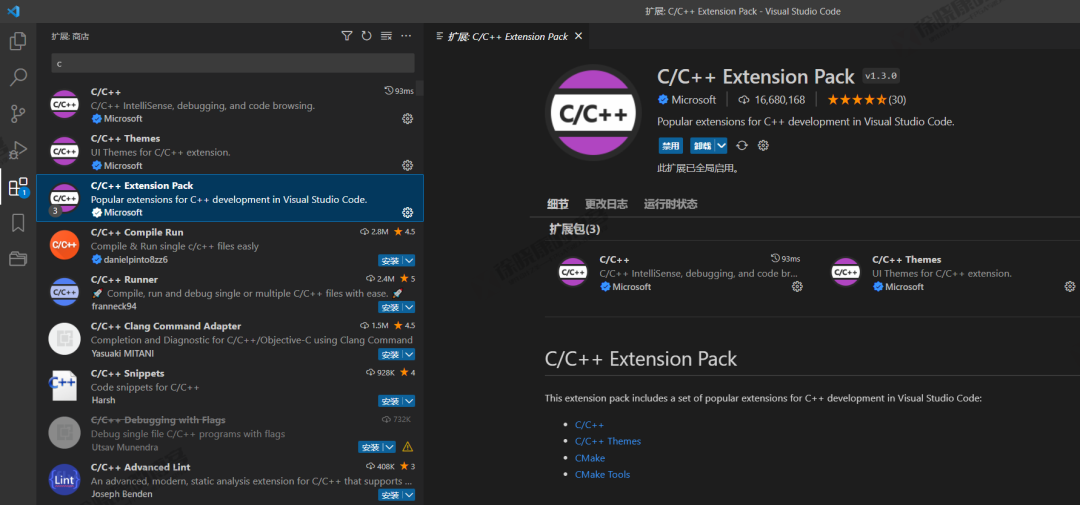
This extension is an official Microsoft extension, which includes C/C++, C/C++ Themes, CMake, and CMake Tools, so you only need to install this extension for Vscode to support C language.
Open the C/C++ extension settings, select Formatting, and specify the formatting style in Clang format style. To ensure that the formatting styles for C language code in Keil and Vscode are consistent, you can specify the same file as the style configuration file, such as:
file:F:\Onedrive\myPortableSoftware\Clang-format\我的基于Microsoft修改的设置.clang-format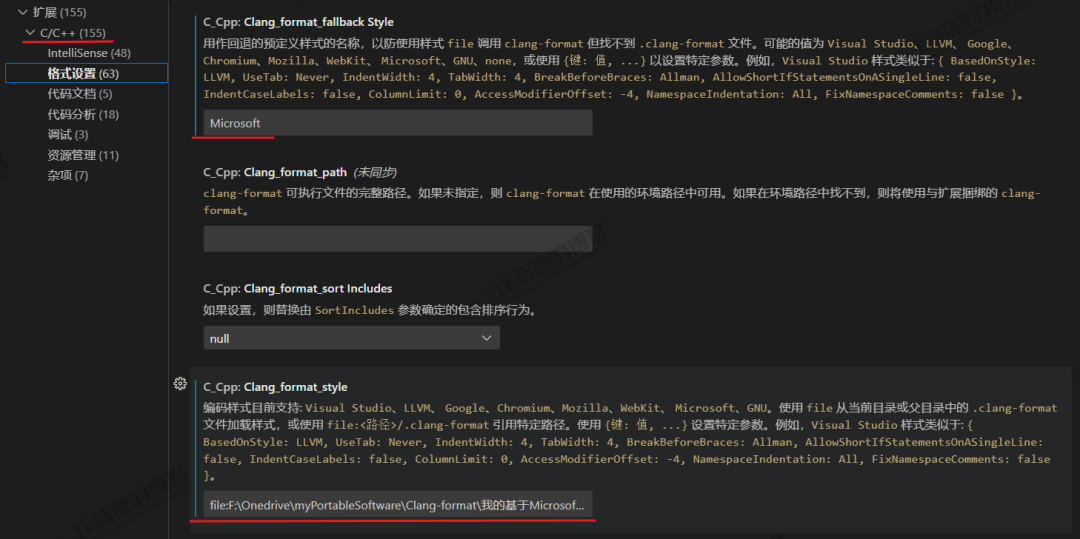
Another way is to not download clang-format.exe separately and use the clang-format.exe program that comes with the C/C++ extension in Vscode, which can generally be found in the following path:
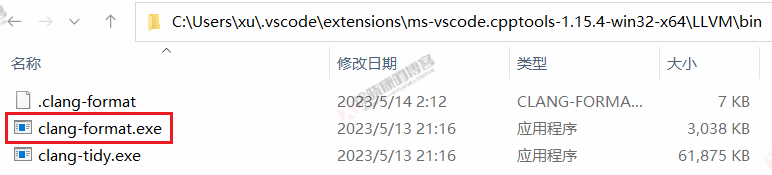
However, it is still recommended to download clang-format.exe, so that the configuration path remains unchanged, while the path of clang-format.exe in Vscode may change due to plugin updates.
7. Sharing Clang-format Programs and Settings
Here I would like to share the clang-format.exe program (currently version 16.0.4, continuously updated to stay current), six default style settings, my modified settings based on Microsoft, and comments on configuration options (which explain the meaning of each configuration option), to help everyone directly use clang-format.exe and understand the meanings of configuration options.
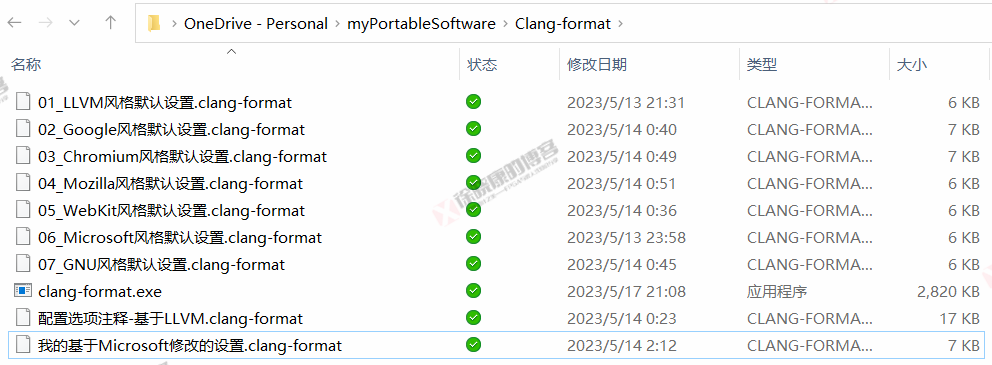
Everyone is welcome to follow my public account: Xu Xiaokang’s Blog, and reply with the following four digits to obtain.
1520
It is recommended to copy it to avoid typos!

Xu Xiaokang’s Blog continuously shares high-quality hardware, FPGA, embedded knowledge, software, tools, and other content, welcome everyone to follow.