Tutorial for Installing Windows Server 2022 on ESXi Virtualization
ESXi Configuration
Create & Register Virtual Machine
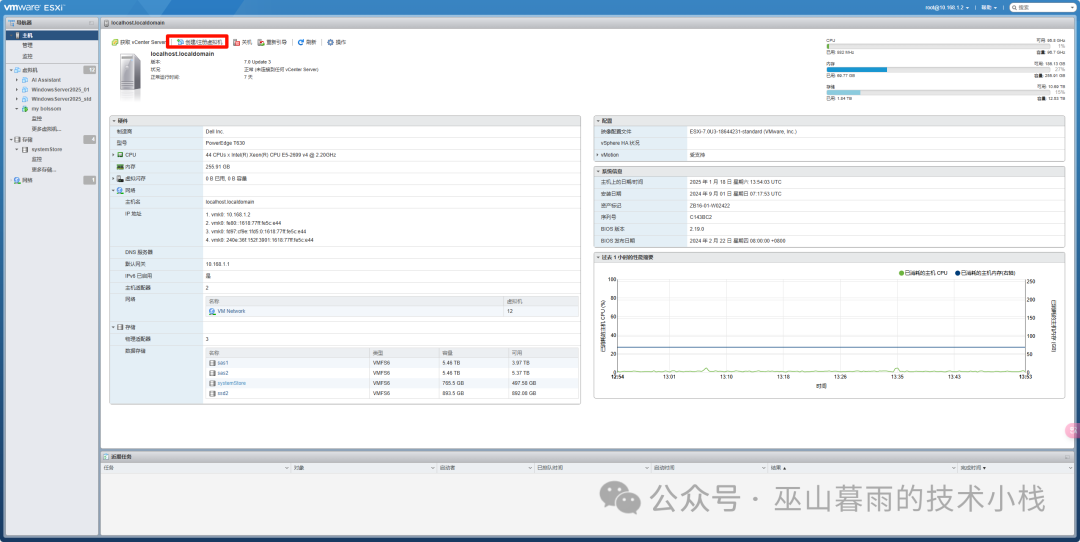
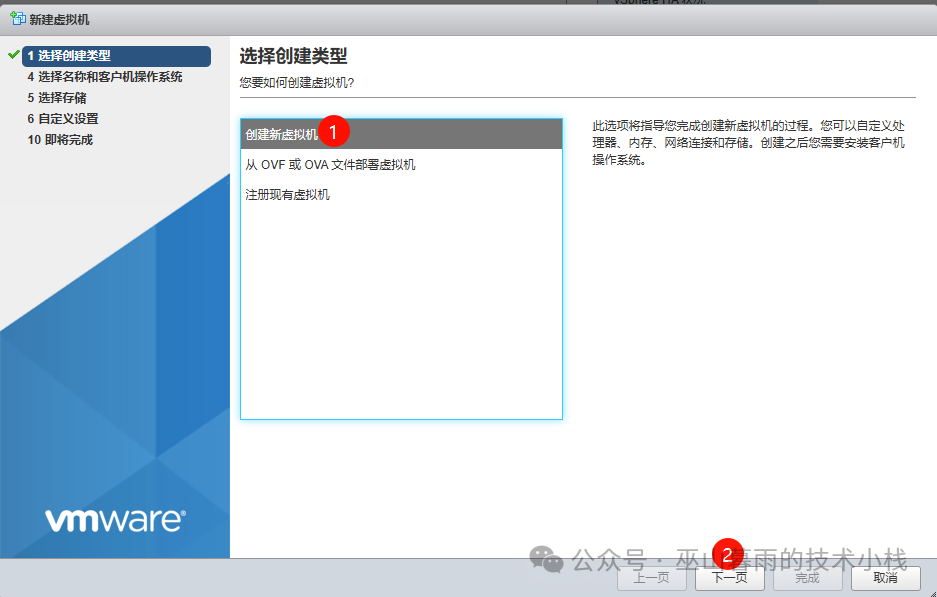
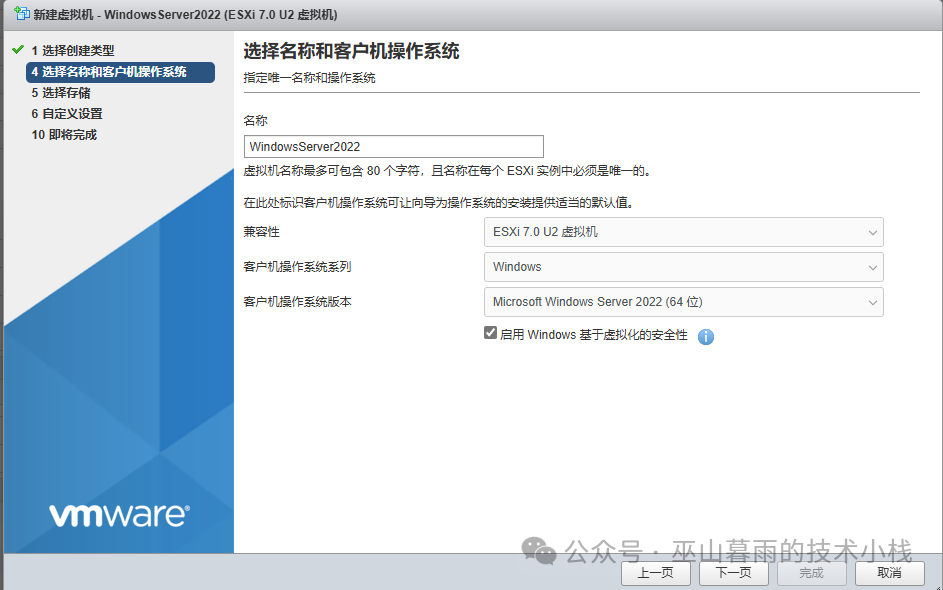
Fill in Name and Select Operating System Type
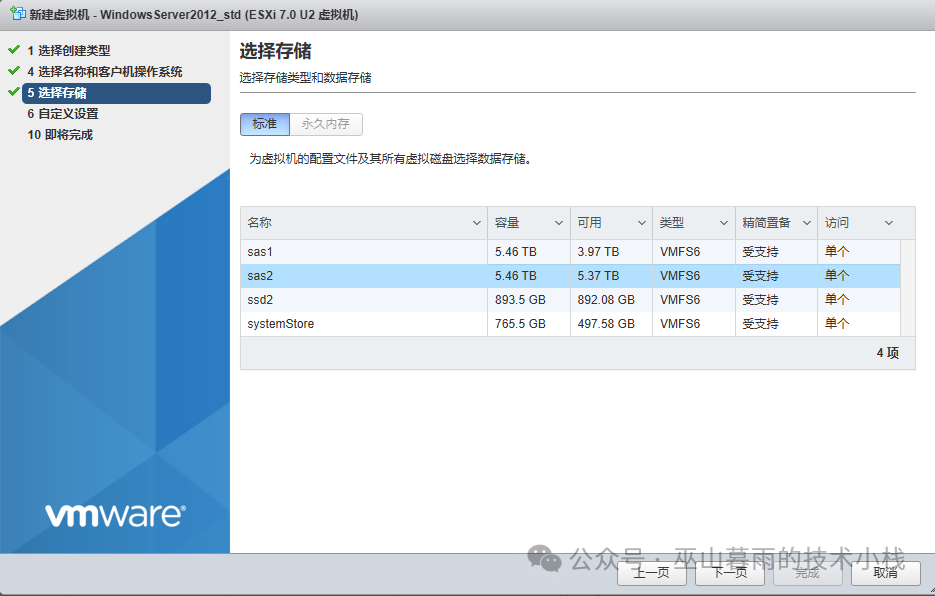
Select Storage Location
Configure CPU, Memory, Storage and Mount ISO Image
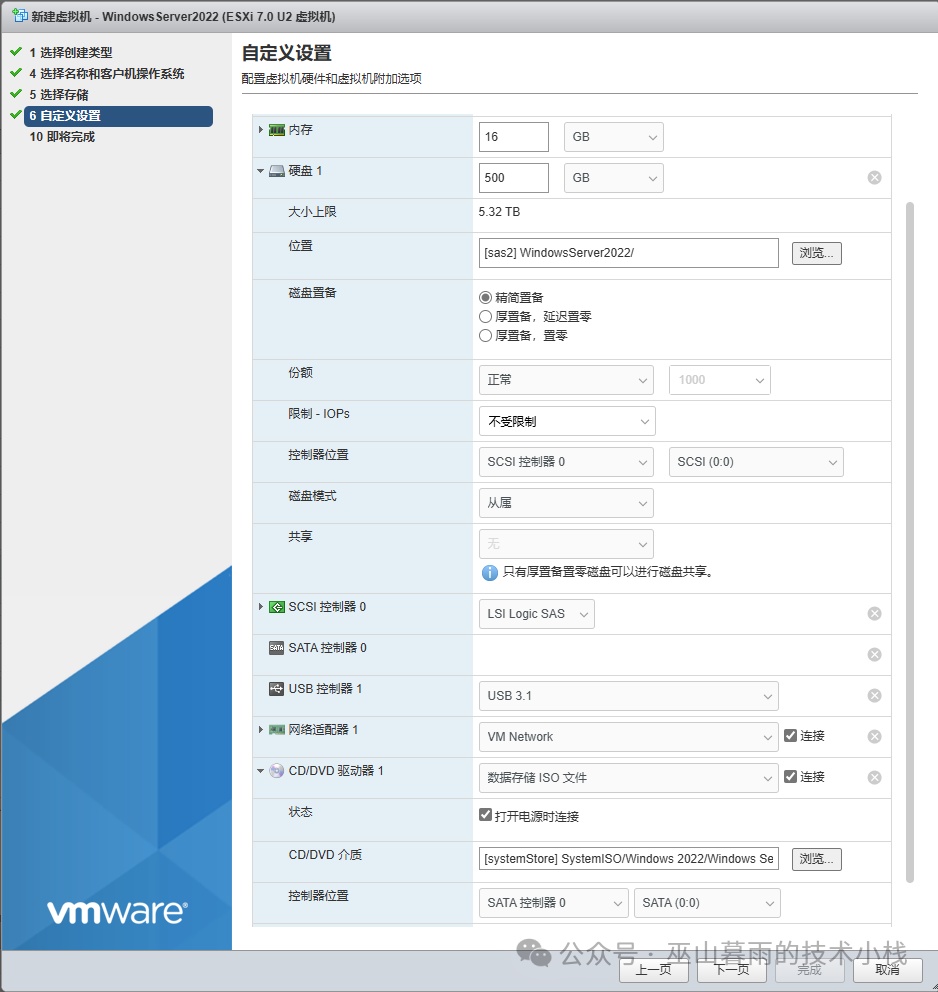
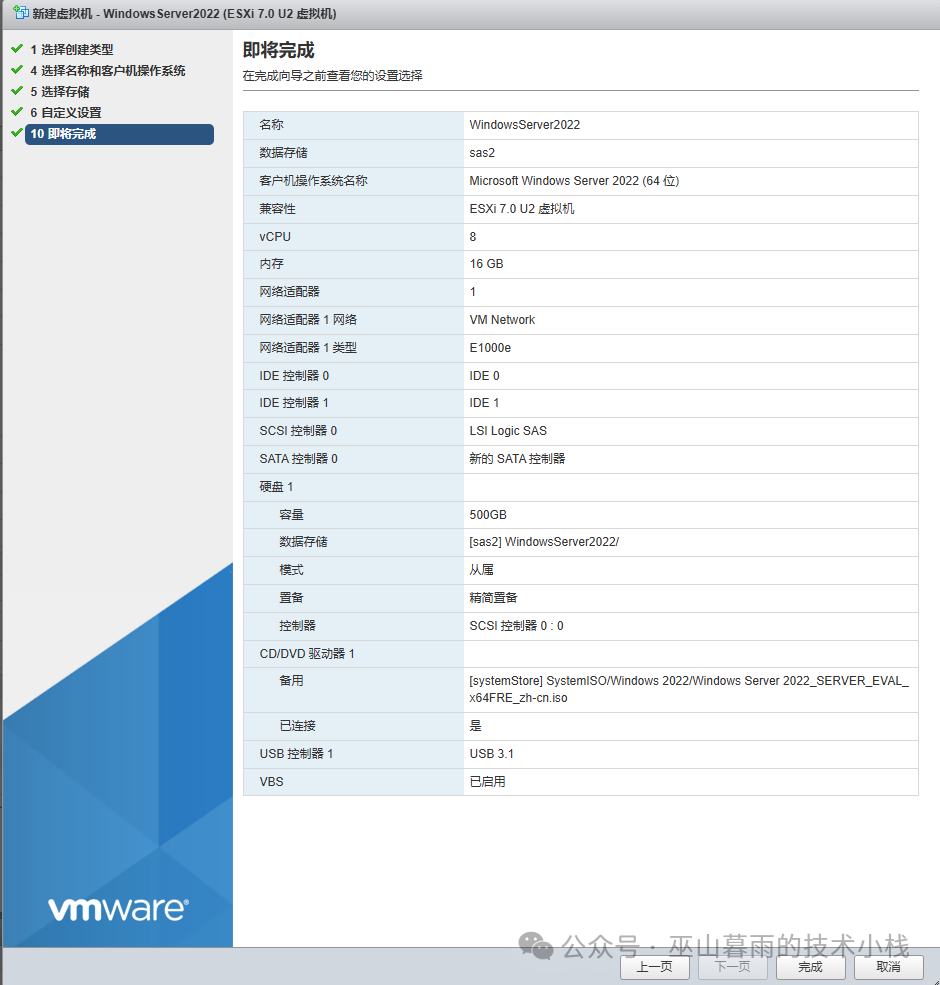
Install System
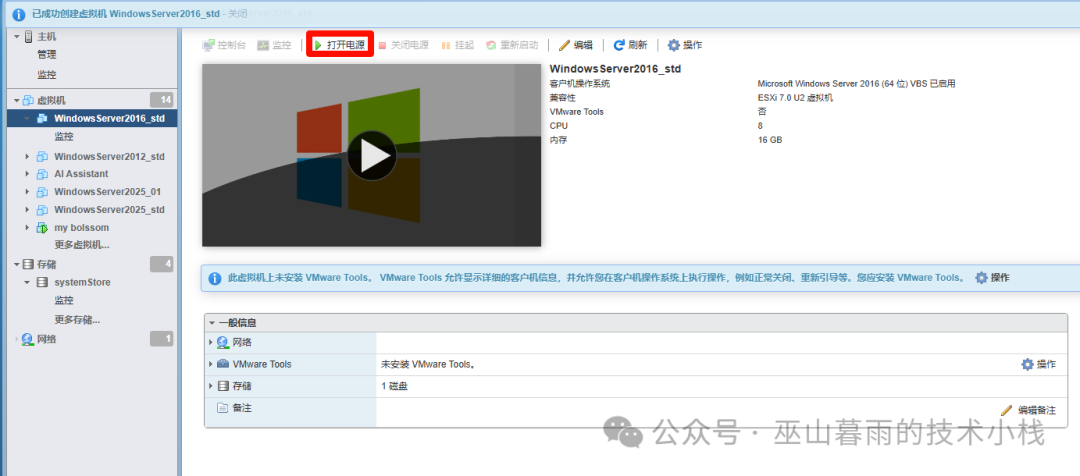
Power On
After powering on, quickly press any key to enter the installation program [it is recommended to press Enter directly]
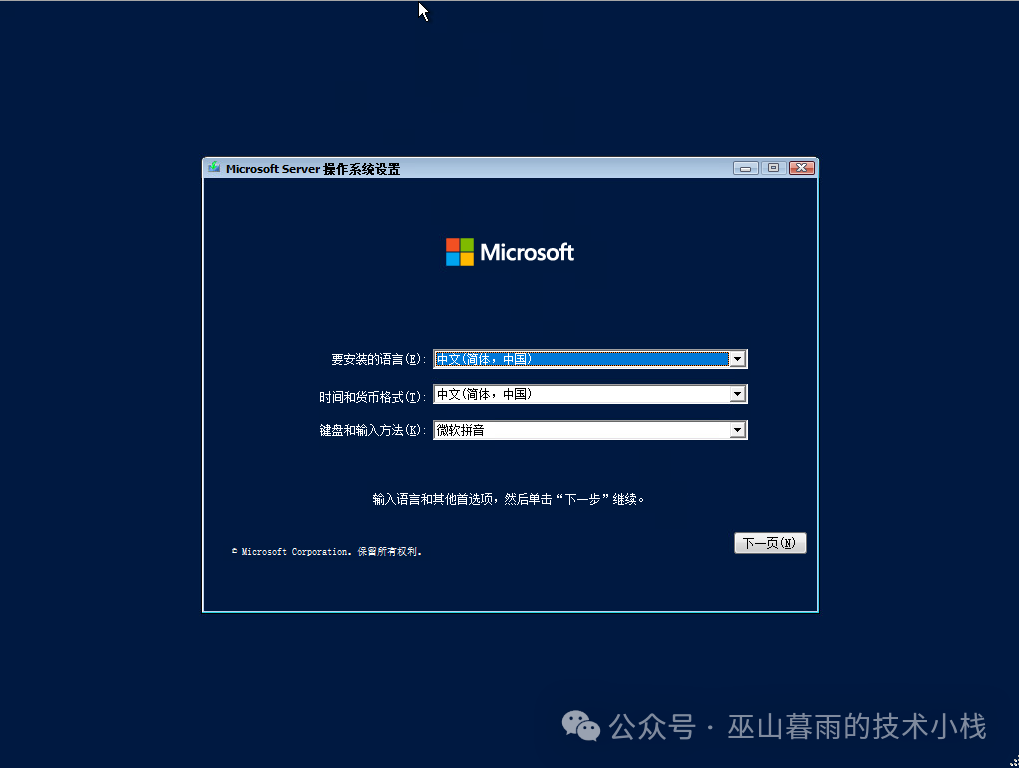
Select Installation Language
Directly select the default option, then proceed to the next step
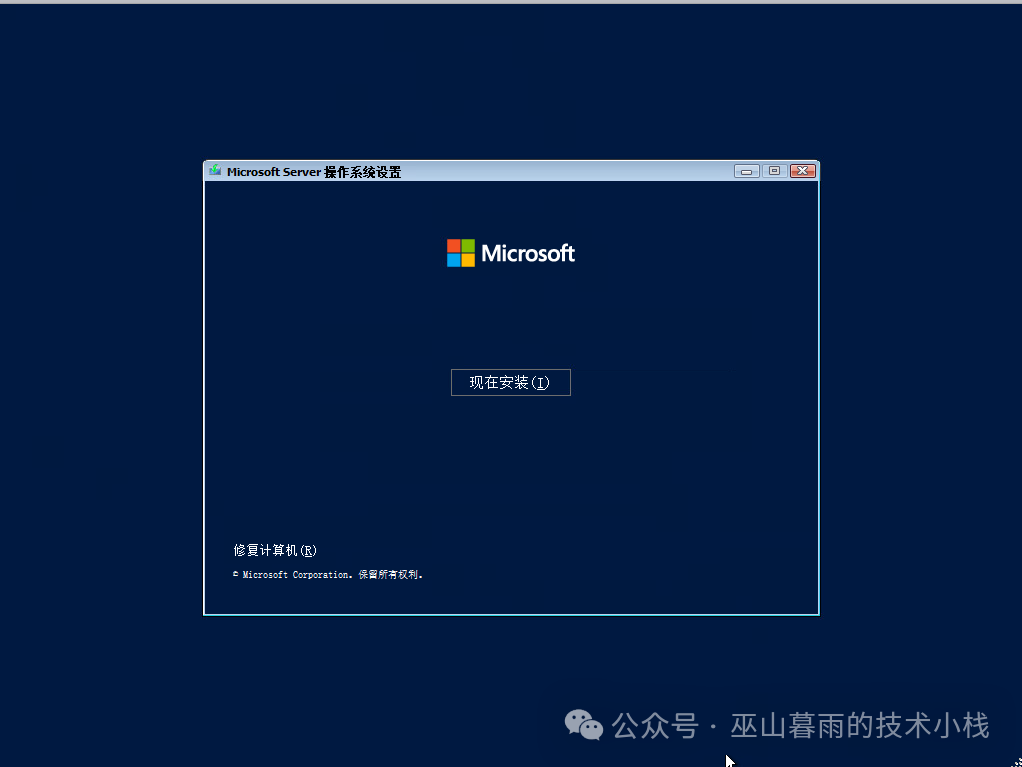
Start Installation

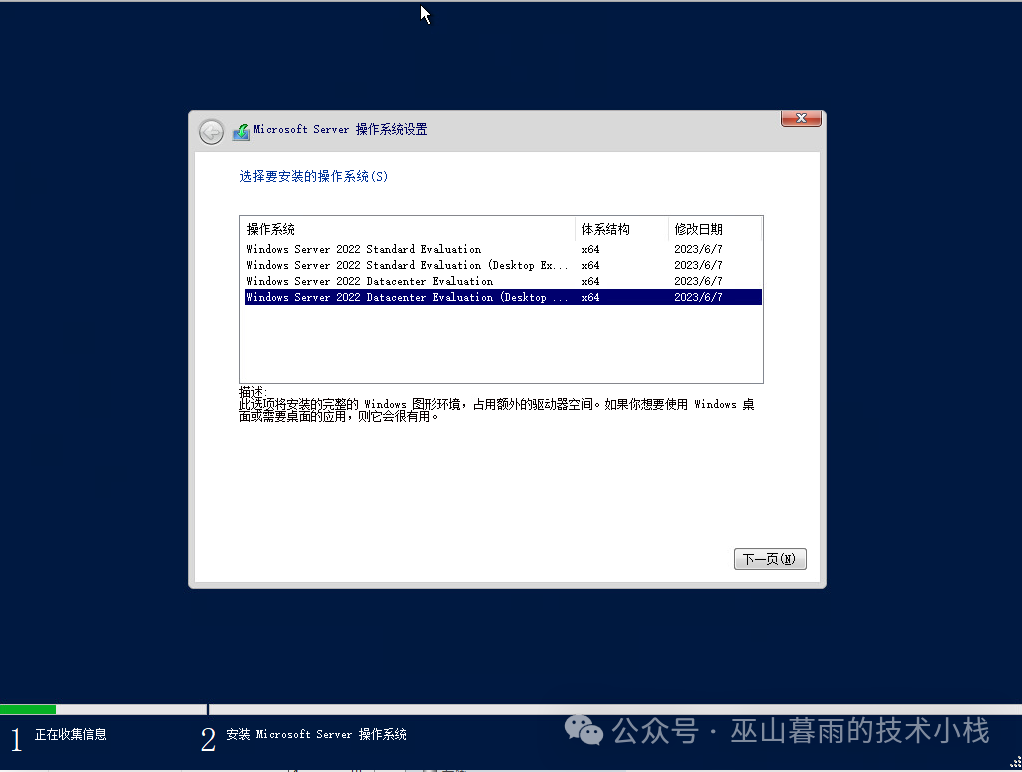
Select System Program
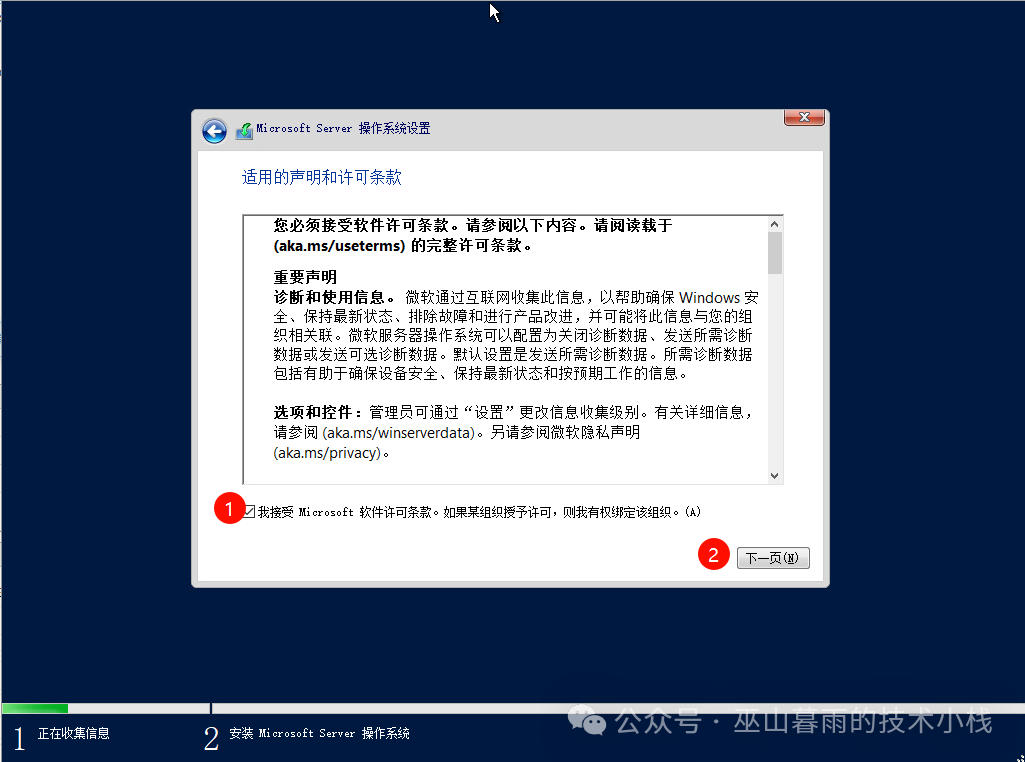
Agree to License Agreement
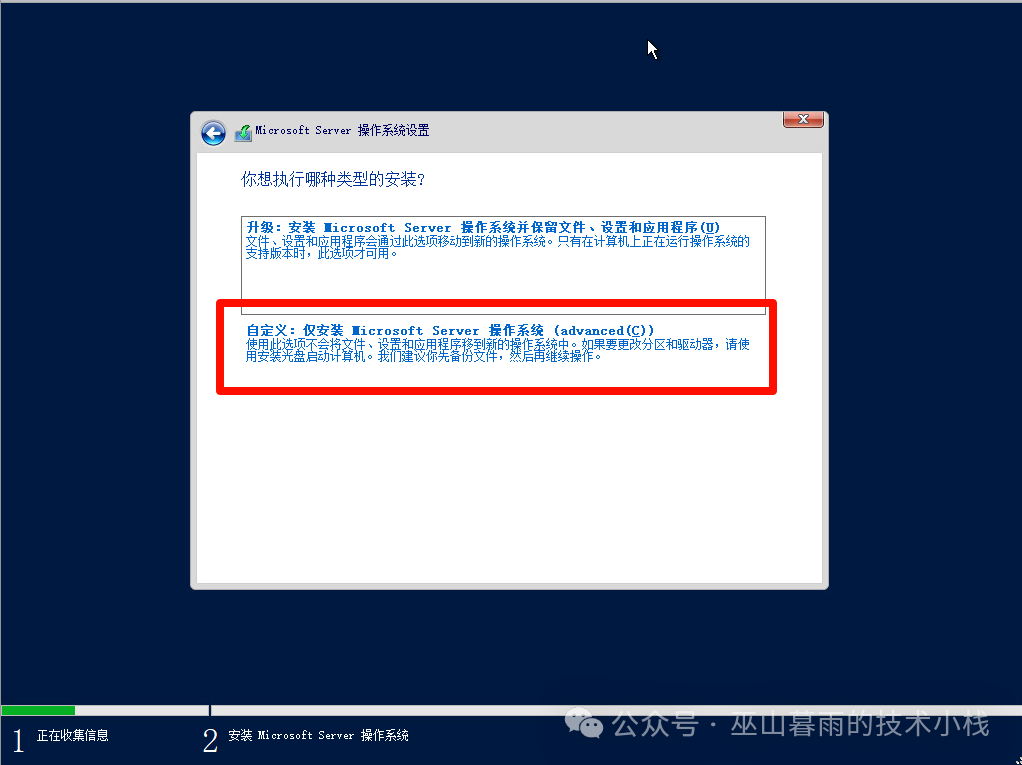
Select Installation Options
Since this is a new server installation, we select the second option, check the agreement box, and then proceed to the next step
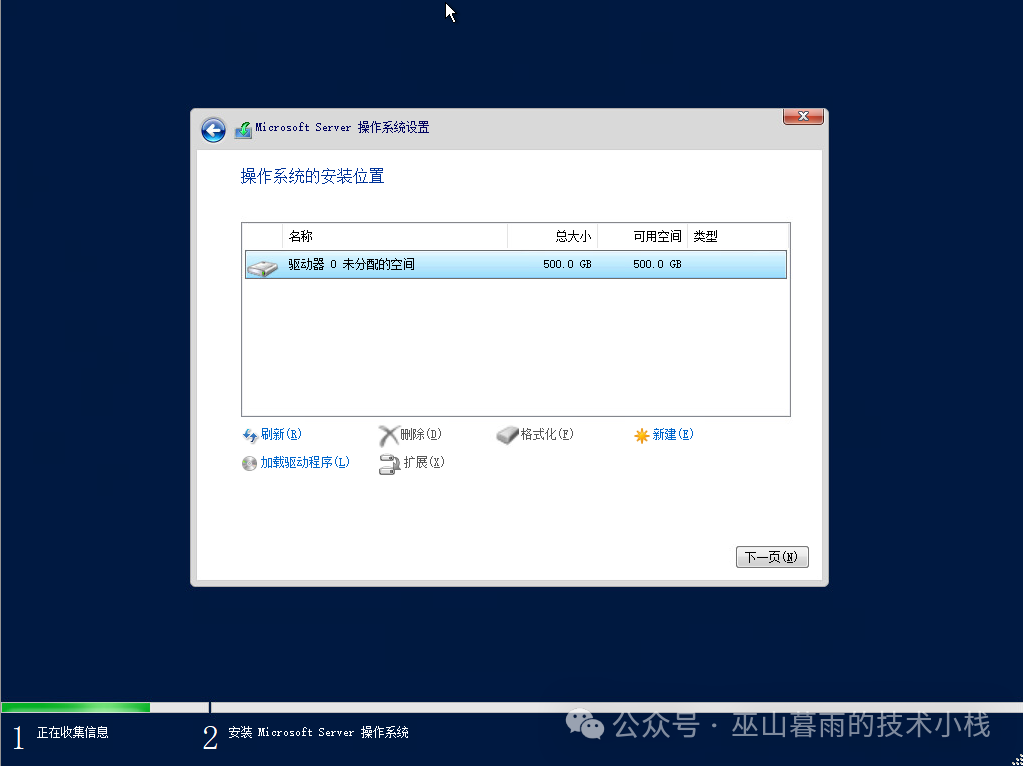
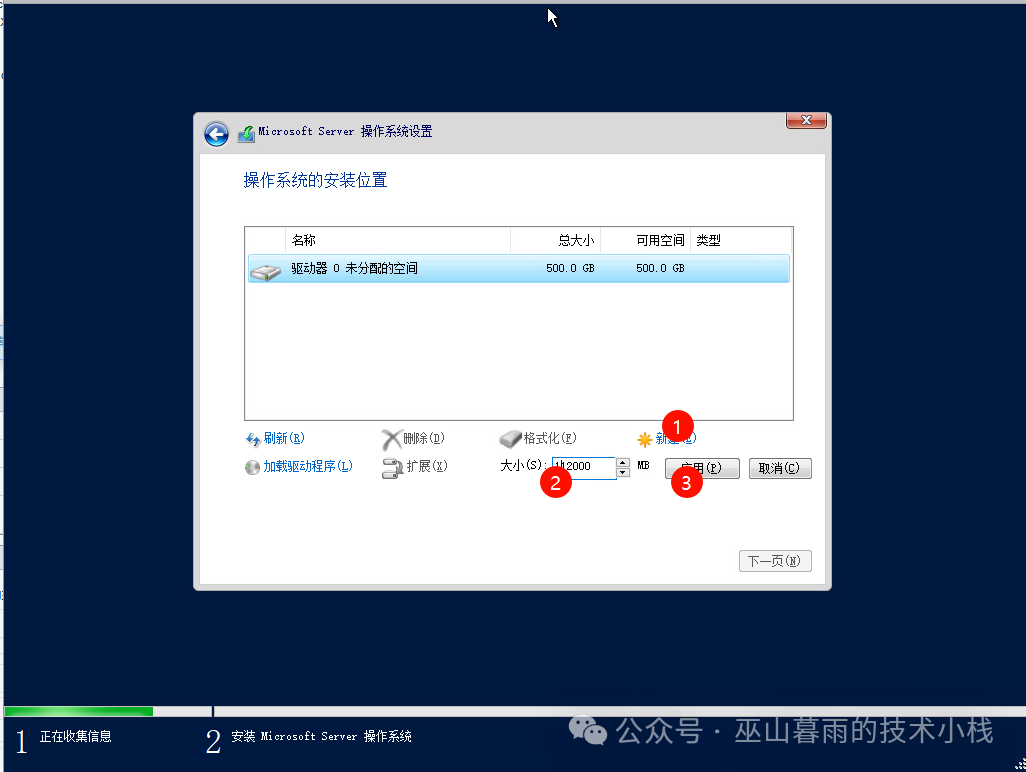
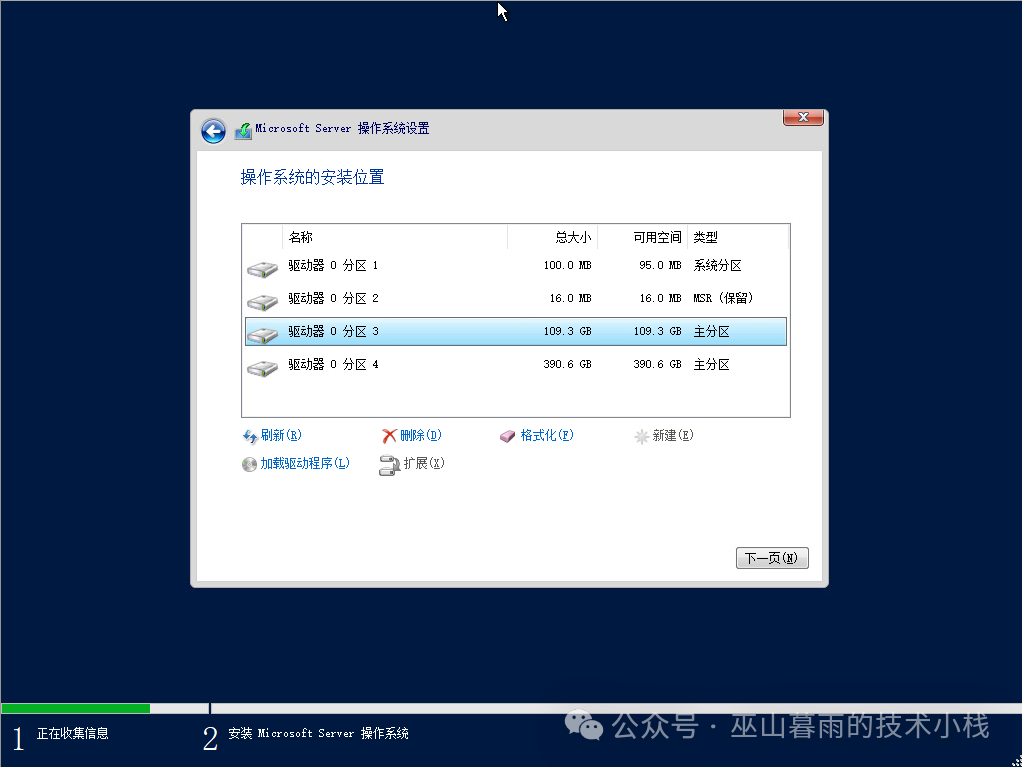
Disk Planning
I allocate 100GB for the operating system installation and select the storage location as the system disk, then proceed to the next step and wait for the system installation
Start System Installation
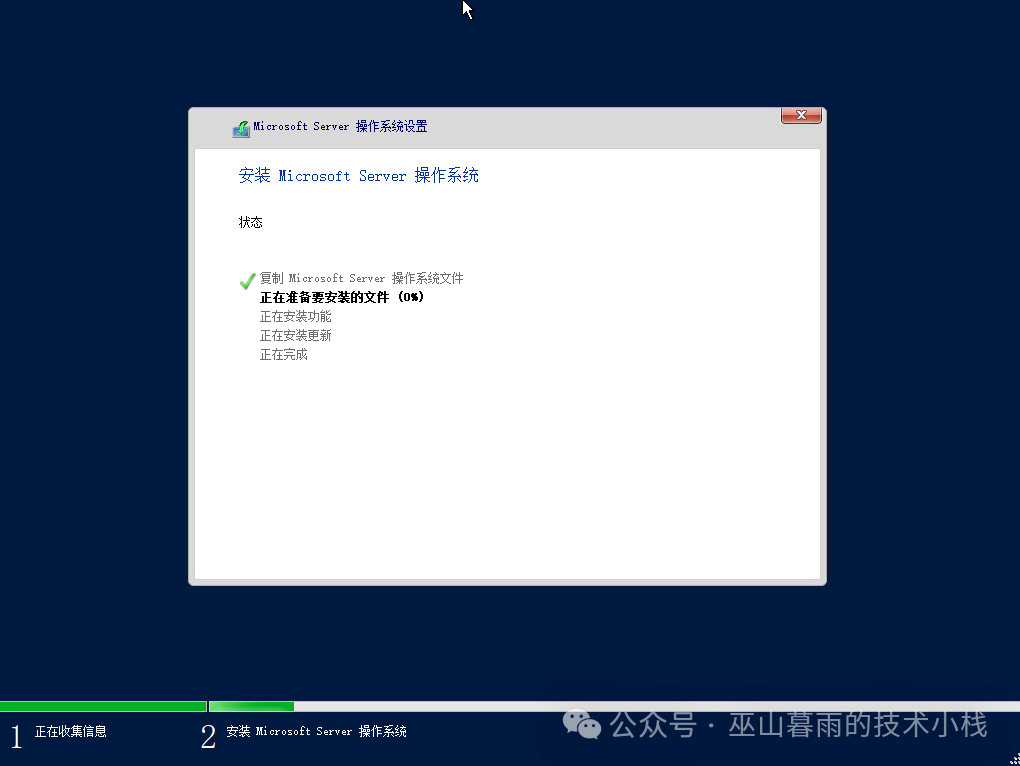
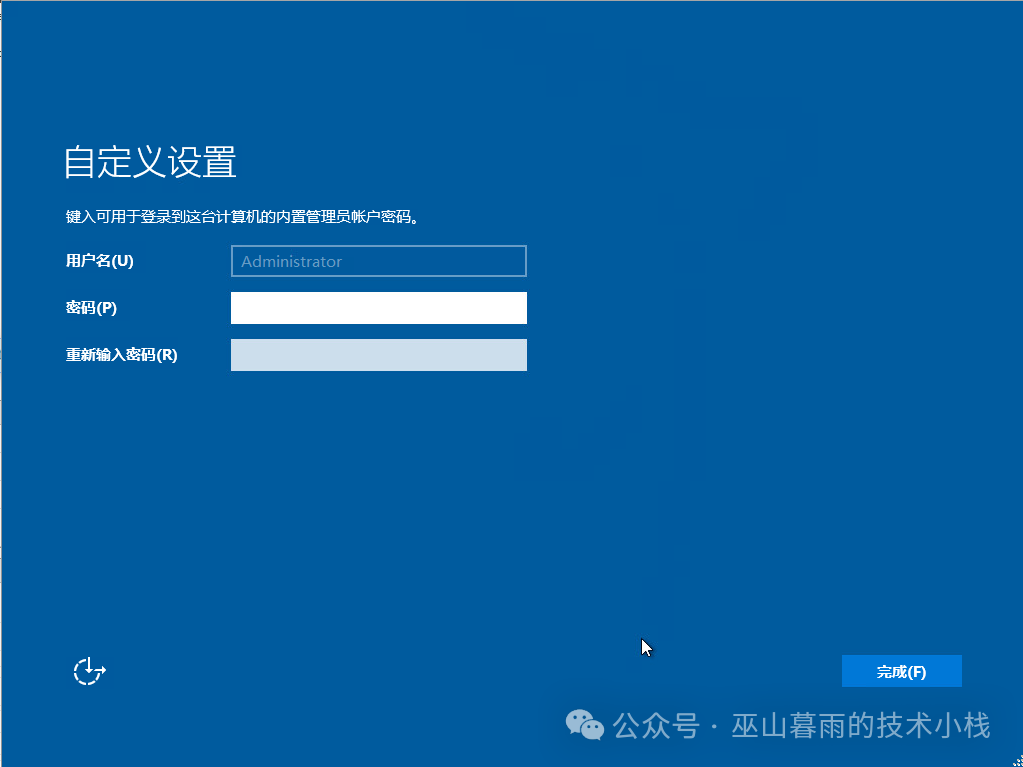
Set Account Password
Installation Complete

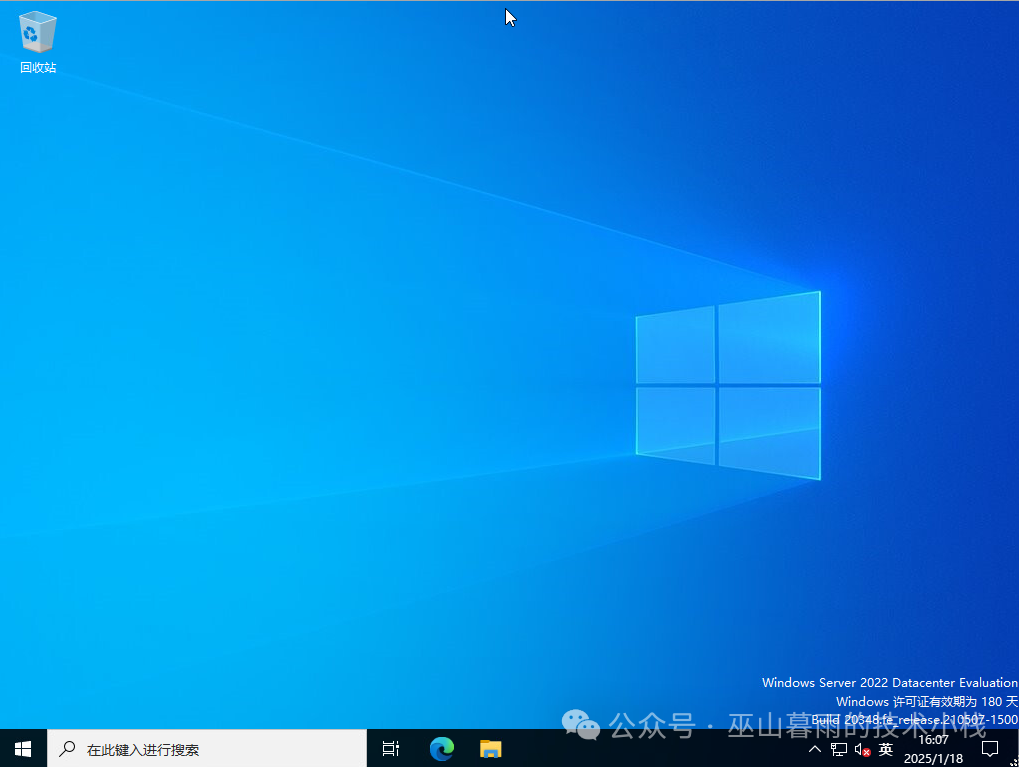
Operating System Settings
Open Remote Desktop Connection
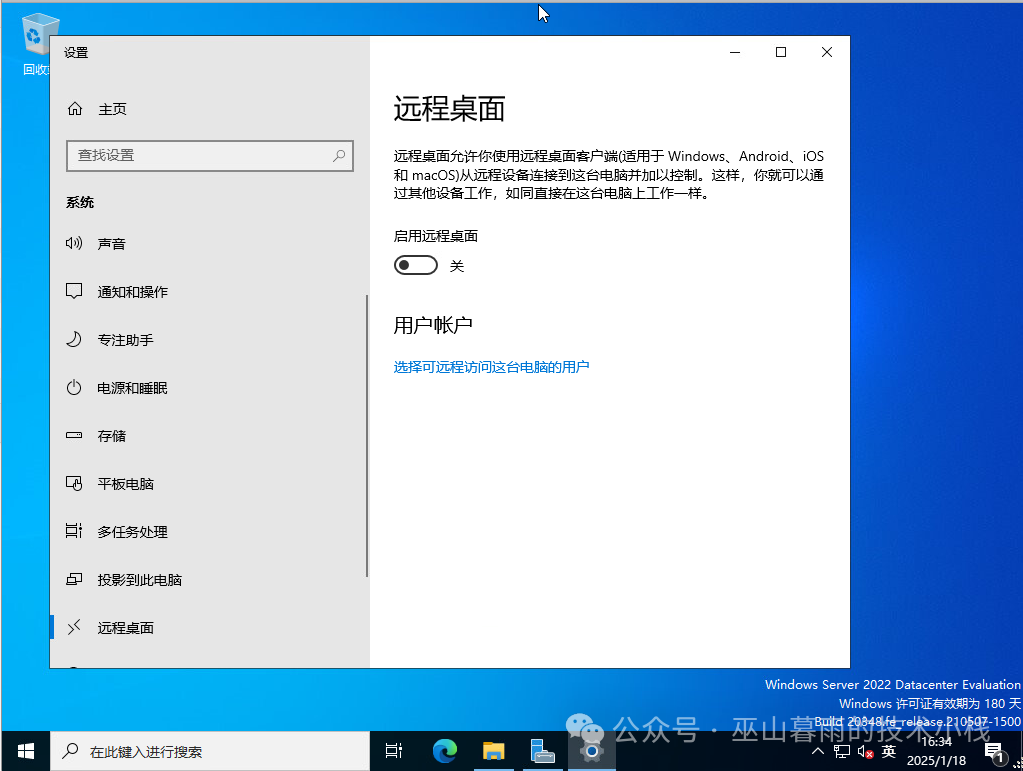
Configure Network
Windows system network configuration is set by the user, not detailed here
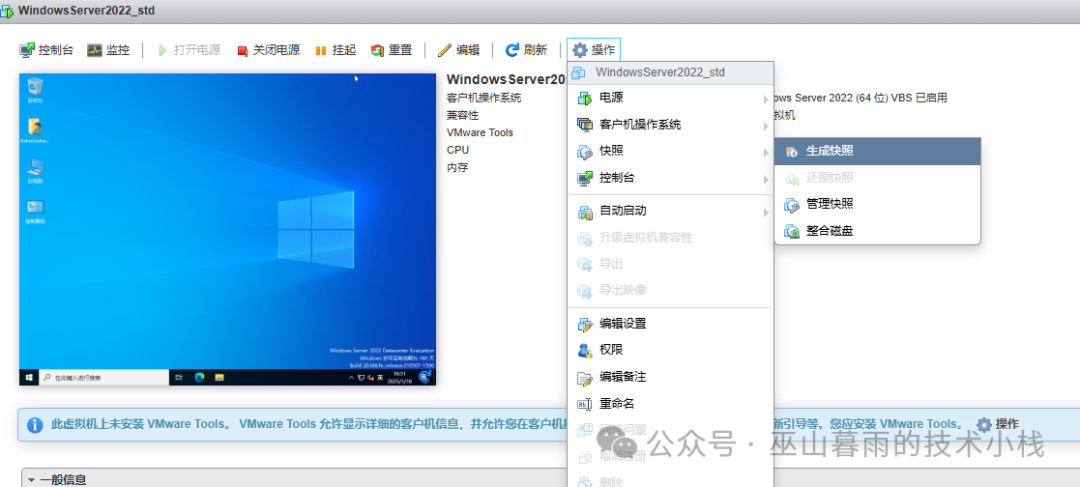
Create Snapshot
The tutorial for installing Windows Server 2016 on the ESXi virtualization platform is now complete.