The strength of the signal does not necessarily equate to fast internet speed, but to achieve fast speeds, a strong signal is essential. Therefore, when trying to use WiFi at Starbucks, cafes, McDonald’s, shopping malls, sports venues, hospitals, buses, or subways for a day of work (as the author only thinks about work), finding a location with a strong signal is crucial.
■Image/Creative by Hailuo
Asking where the router is located is a good idea, but first, they might not tell you; second, in a bustling environment with various setups, the distribution of WiFi signals can be quite unpredictable, and being close does not guarantee a perfect solution.
So, what should you do?
▌ Tip 1: Rough Judgement
Everyone knows that WiFi operates on a wireless microwave frequency band, and the main characteristic of microwaves is their near-linear propagation with very weak diffraction capabilities. Therefore, the strength of a WiFi signal is determined by the following factors:
The model of the router and the strength of the emitted signal;
The placement of the router;
The distance between the mobile device and the router;
The obstacles between the mobile device and the router.
When tethering WiFi outside, the first two factors are beyond our control, so the key lies in the latter two. In fact, our experience with home WiFi has shown us that obstacles are more critical than distance—generally speaking, a far distance without obstacles provides a stronger signal than a close distance with obstacles.
Based on a series of experiments, the impact of different obstacles on WiFi signals is as follows:
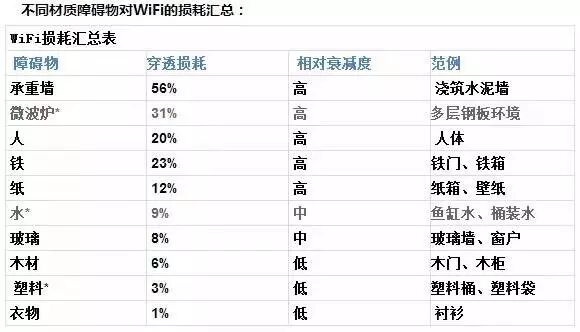
From this chart, we can derive the golden rule for finding a strong WiFi signal when tethering outside:
① There should not be too many metallic objects or water between you and the router.
Why do plastic products, wooden boxes, and clothing have a weak obstruction to WiFi signals, while walls and metal bodies are strong obstructions? Observant readers may notice that materials like plastic and clothing, which have weak obstruction to WiFi signals, are good insulators, while metals and materials like steel and water are good conductors. Generally, obstacles only block microwave wireless signals, while conductive materials can absorb the electromagnetic energy of the signal, generating weak currents.
Therefore, if you want to surf the internet smoothly at Starbucks, there should not be too many metallic objects or water between you and the router: for example, various partitions or counters…
② There should not be too many people between you and the router.
While load-bearing walls are indeed the main culprits for blocking WiFi signals, human bodies should not be overlooked. The phrase “You are blocking my WiFi” has been scientifically validated. One person can reduce the signal by 20%, so if several people stand in the way, it is not surprising that the signal weakens to the point of disconnection.
Therefore, if you want to surf the internet smoothly at Starbucks, you should avoid areas where many people pass between you and the router: for example, the path from the entrance to the cash register, or areas where queues might form (Starbucks is horizontal, while McDonald’s is vertical), or the path from the cash register to the small door of the mall. Of course, if you are tall, your sitting posture is also crucial; don’t let yourself block the signal!
▌ Tip 2: Precise Monitoring
Rough judgement is suitable for occasional tethering, but for long-term tethering, a scientific approach requires precise monitoring.
The monitoring method introduced here does not require professional equipment or various apps; just a few taps on your mobile device, and you can immediately see the strength of the WiFi signal you are currently connected to, in numerical form!
◈ For Android Phones
Enter the dial pad and input *#*#4636#*#* to access the phone’s testing mode, then click on 【Wi-Fi information】, and then click on 【Wi-Fi status】 to see the signal strength.
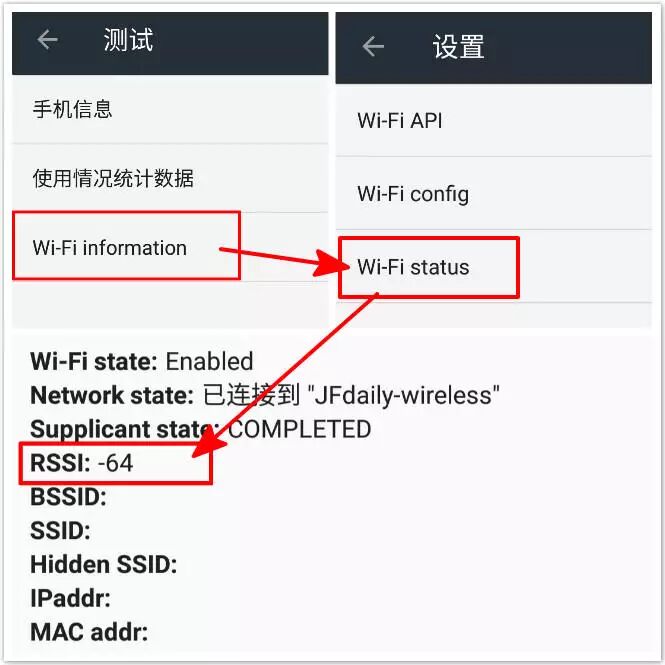
RSSI stands for Received Signal Strength Indication. The number following it indicates the strength of the WiFi signal you are currently connected to.
◈ For Mac OS X
Without jailbreaking, iPhones and iPads cannot view the digital WiFi signal strength because the system does not provide an interface to access this information.
Therefore, it is recommended for Apple users to use a Mac to check the relevant data. In the OS X system, click on the 【Apple icon】 in the upper left corner — 【About This Mac】 — 【More Info】 — 【System Report】 — 【Wi-Fi】 (some steps may not be necessary depending on the system) to view the current network information.
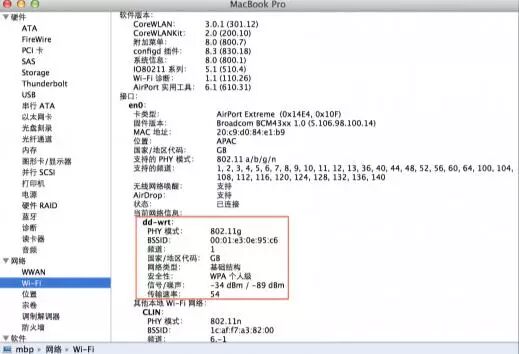
This method on OS X shows the power of the signal and noise. By subtracting them, -34 – (-89) = 55, the result of 55 is the signal-to-noise ratio, which is better the larger it is. In fact, as long as the signal-to-noise ratio is greater than 45, the signal quality exceeds 99%. This means that the WiFi signal strength shown in the image is very close to -34.
You can also directly check the RSSI in OS X: whenever you join a wireless network, hold down the Alt key and click the WiFi icon in the upper right corner of the screen. You will find a list of technical details about the network connection, including the RSSI parameter.
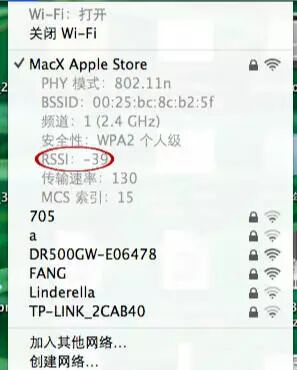
For more details on how to interpret the numbers representing signal strength, please click on “Don’t Be Fooled by Mobile Signal Bars! The Correct Way to Assess Signal Strength Is…”. But simply put, the closer to zero, the better the signal. For WiFi, a signal below -80 results in poor connectivity, either failing to connect or frequently dropping.
Now, armed with numbers, have you found the best spot to tether WiFi?