1. Install Pycharm(1) Go to the official Pycharm website homepage, download the latest version of Pycharm, most people choose the community version. Link:https://www.jetbrains.com/pycharm/
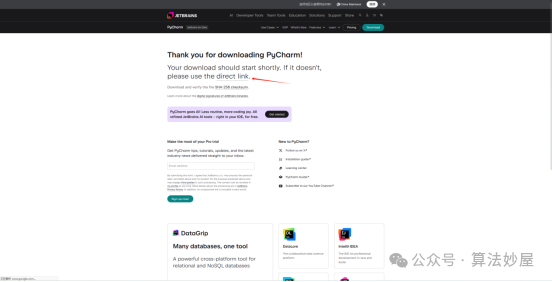 (2) After downloading the installation package, the installation steps are as follows: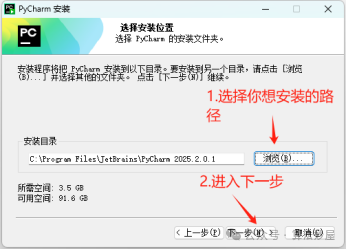
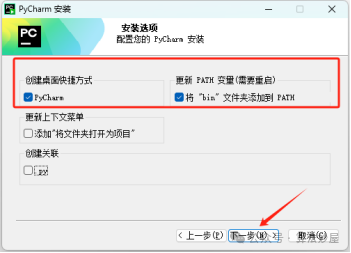
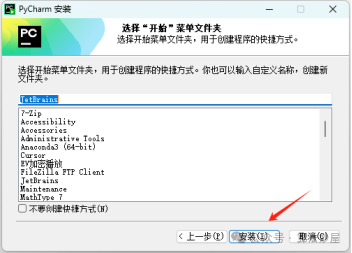
Note: After the installation is complete, you can see the Pycharm icon on the desktop. Click to open it, indicating that the installation was successful.
2. Install Anaconda
(1) Go to the Anaconda official homepage, download the latest version of Anaconda, and click Get Started.
Link:https://www.anaconda.com/download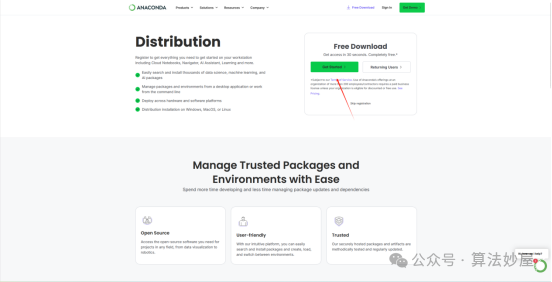
(2) Log in to your email to receive the installation link sent by Anaconda. (You can use Google/Microsoft/Github for email, and you can register QQ email for Microsoft login.)
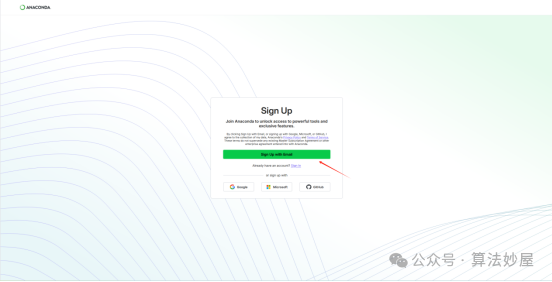
(3) After logging in, you will receive the installation link sent by Anaconda.
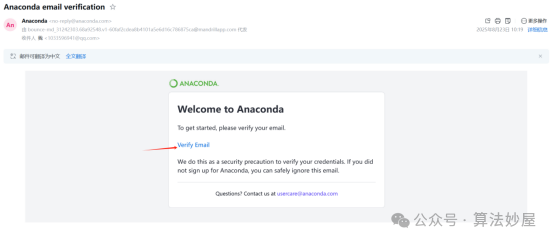
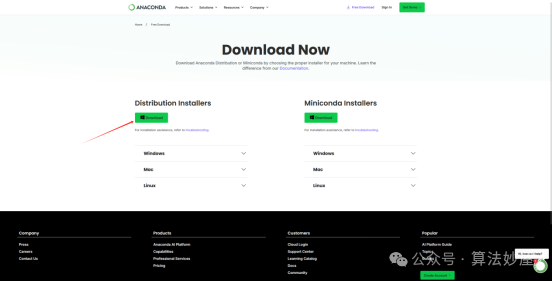
(4) After downloading the installation package, the installation steps are as follows.
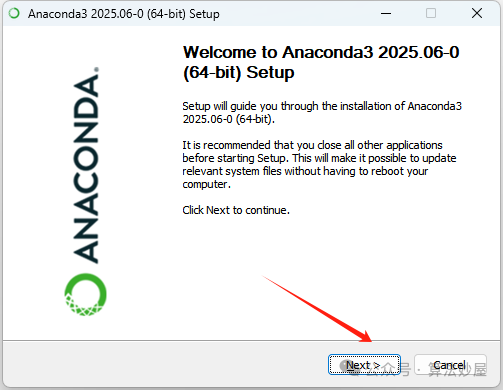
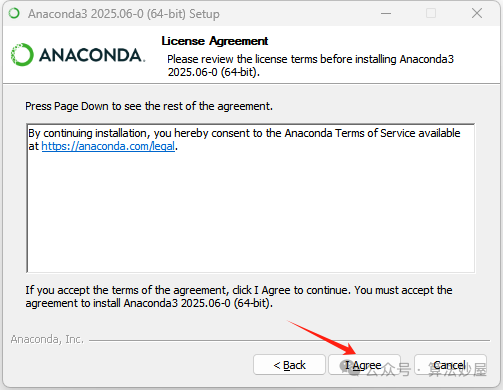
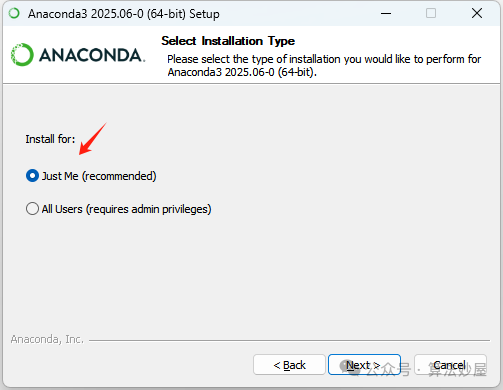
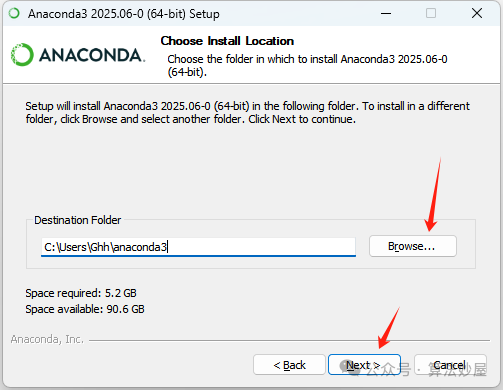
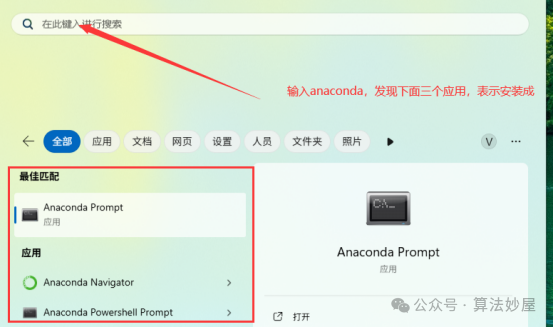
(5) After installation, by typing ‘anaconda’ in the start menu, you will find the three applications in the red box, indicating that the installation was successful.
 3. Install different Python versions in Anaconda(1) Open Anaconda Prompt in the black window(2) Enter the following command format in the black window:
conda create -n environment_name (use English) python=3.10 (using 3.10 as an example)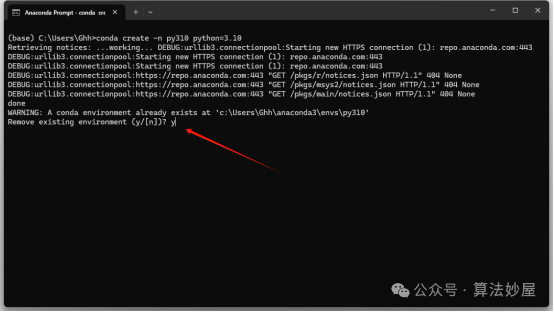
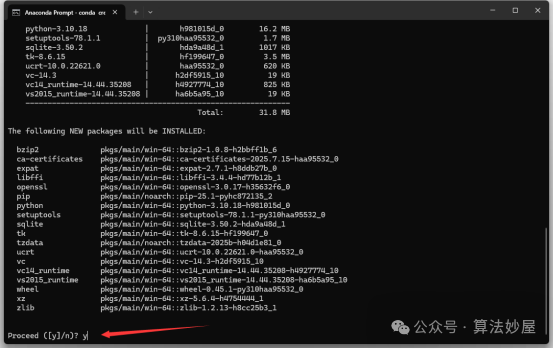
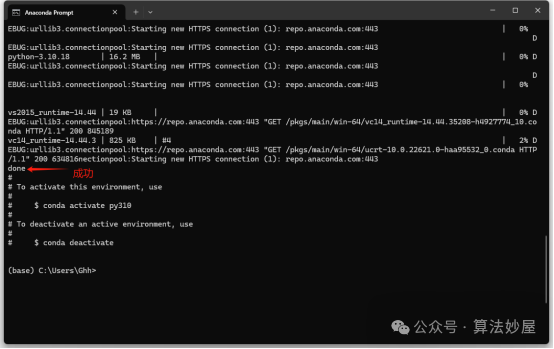 4. Install Pytorch (essential framework for deep learning)(1) Go to the Pytorch official homepage, download the version of Pytorch that matches your Python version and CUDA version. Link: https://pytorch.org/(2) Before installing Pytorch, you need to confirm your CUDA version. If you do not have CUDA, download the GPU version of Pytorch.(3) How to check the CUDA version? Enter ‘nvidia-smi’ in the black window to see the current graphics card configuration and CUDA version of your computer.
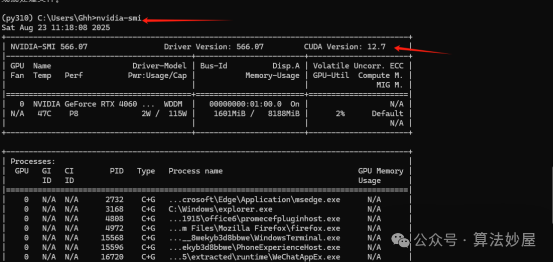 (4) Taking my machine’s CUDA 12.7 and Python version 3.10 as an example, select the compatible Pytorch version. The download steps are indicated by the red arrows in the following image.
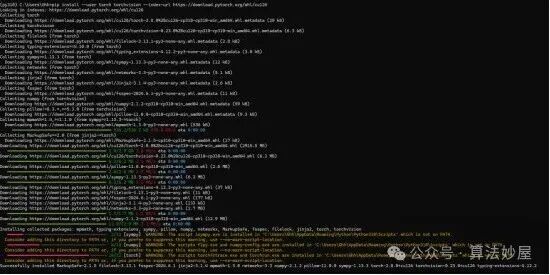
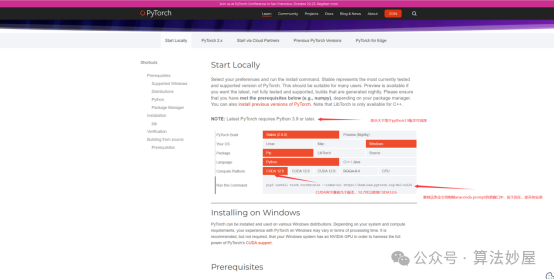 (5) Copy the installation command into the black window and press Enter to start the installation.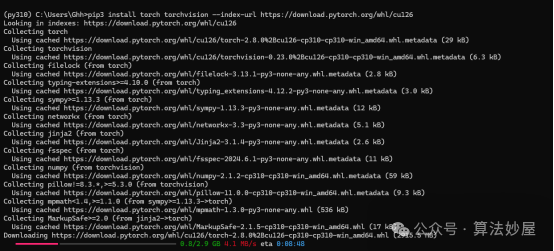
 5. Finally, share the commands that must be mastered when using Anaconda.(1) Create a new environment
conda create -n environment_name python=3.x(2) List all environments
conda env list(3) Activate the environment
conda activate environment_name(4) Exit the current environment
conda deactivate(5) Delete the environment
conda env remove -n environment_name(6) Check Python version
python --version(7) Update conda itself
conda update -n base -c defaults conda(8) View conda information
conda info(9) Get help
conda command --help(10) Clear pip cache
pip cache purge