As a mainstream operating system in the server field, the command line operations of Linux are essential skills for every developer and operations personnel. This article summarizes the most commonly used commands in the Linux system, covering various aspects such as system management, file operations, permission control, network configuration, and software management. The content is concise and practical, suitable for technical personnel for daily reference and learning.
1. System Information Viewing Commands
1.1 System Version and Kernel Information
# Display system kernel version and host information
uname -a

# View only kernel version
uname -r

# View operating system distribution information
lsb_release -a
cat /etc/os-release
cat /etc/redhat-release  # For RedHat/CentOS systems only

# Display system version and hardware architecture
hostnamectl

# View system boot time and uptime
uptime
1.2 Hardware Information Viewing
# View CPU information
cat /proc/cpuinfo
lscpu

# View memory information
free -m  # Display memory usage in MB
free -g  # Display memory usage in GB
grep MemTotal /proc/meminfo

# View disk information
fdisk -l
lsblk  # Display disk partitions in tree structure

# View network card information
ifconfig
ip addr
2. File and Directory Operation Commands
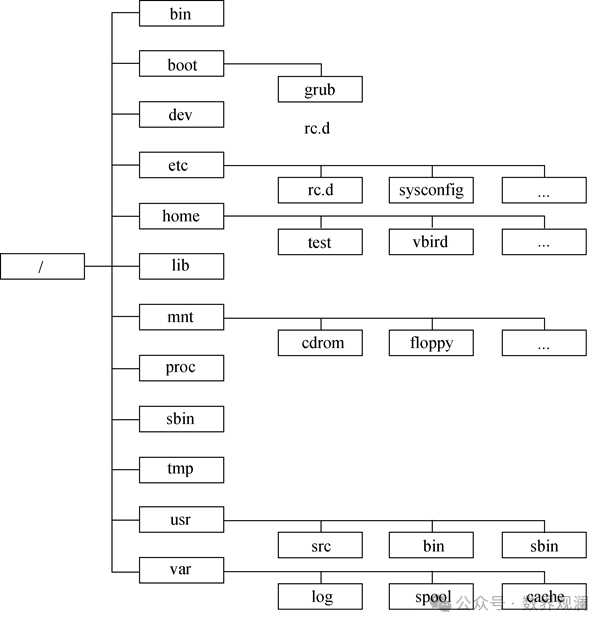
Linux File System Hierarchy
2.1 Directory Navigation
# Display current working directory
pwd

# Change directory
cd /path/to/directory  # Absolute path
cd relative/path       # Relative path
cd ~                   # Change to the current user's home directory
cd ..                  # Change to the parent directory
cd -                   # Change to the last working directory
2.2 Directory and File Viewing
# List directory contents
ls  # Basic listing
ls -l                 # Detailed list (permissions, size, modification time, etc.)
ls -a                 # Show all files (including hidden files)
ls -lh                # Human-readable file sizes
ls -R                 # Recursively list subdirectory contents
ll                    # Equivalent to ls -l (alias)
2.3 File and Directory Creation
# Create directory
mkdir directory_name          # Create a single directory
mkdir -p dir1/dir2/dir3       # Create multi-level directories

# Create files
touch filename                # Create an empty file
touch file1.txt file2.txt     # Create multiple files at once
echo "content" > filename     # Create a file with content
2.4 File and Directory Deletion
# Delete files
rm filename                   # Delete a single file
rm -f filename                # Force delete without prompt
rm file1.txt file2.txt        # Delete multiple files

# Delete directories
rm -r directory               # Recursively delete directory and its contents
rm -rf directory              # Force recursive delete without prompt
rm -ri directory              # Confirm before deleting each item
# View entire file content
cat filename
cat file1.txt file2.txt        # View multiple files at once

# View long files page by page
more filename                  # Space to scroll, q to exit
less filename                  # Supports up and down scrolling and searching, q to exit

# View the beginning of a file
head filename                  # Default shows the first 10 lines
head -n 20 filename            # Show the first 20 lines

# View the end of a file
tail filename                  # Default shows the last 10 lines
tail -n 15 filename            # Show the last 15 lines
tail -f filename               # Monitor file content changes in real-time (commonly used for log viewing)
3. Permission Management Commands
3.1 Permission Viewing and Modification
# View file/directory permissions
ls -l filename
ll directory

# Modify file permissions (symbolic mode)
chmod u+rwx filename           # Add read, write, execute permissions for owner
chmod g+rx filename            # Add read, execute permissions for group
chmod o-r filename             # Remove read permission for others
chmod a+x filename             # Add execute permission for all users

# Modify file permissions (numeric mode)
chmod 755 filename             # rwxr-xr-x
chmod 644 filename             # rw-r--r--
chmod 777 filename             # All users have all permissions

# Recursively modify directory permissions
chmod -R 755 directory
3.2 Owner and Group Modification
# Change file owner
chown user filename

# Change file group
chgrp group filename

# Change both owner and group
chown user:group filename

# Recursively change directory owner and group
chown -R user:group directory
3.3 User and User Group Management
# View current user information
whoami
id  # Display UID, GID, etc.

# Switch user
su username                    # Switch to specified user
su - username                  # Switch to specified user and load their environment variables
sudo command  # Execute command with administrator privileges

# User management (requires root privileges)
useradd username               # Create new user
passwd username                # Change user password
userdel username               # Delete user
usermod -l newname oldname     # Change username

# User group management
groupadd groupname             # Create user group
groupdel groupname             # Delete user group
usermod -g groupname username  # Change user's primary group
4. Process Management Commands
4.1 Process Viewing
# View current user processes
ps
ps -l                          # Detailed list of current user processes
ps aux                         # View all system processes
ps aux | grep process_name     # Find specific process

# Dynamic process monitoring
top                            # Real-time display of process resource usage
htop                           # Enhanced version of top (requires installation)
4.2 Process Control
# Terminate process
kill pid                       # Terminate process by PID
kill -9 pid                    # Force terminate process
killall process_name           # Terminate process by name
pkill process_name             # Terminate process by name

# Run process in the background
command &                      # Run command in the background
nohup command &                # Run in the background, ignore hangup signal
jobs  # View background tasks
fg %jobid                      # Bring background task to the foreground
bg %jobid                      # Continue paused background task
5. Network Operation Commands
5.1 Network Status Viewing
# View network interface information
ifconfig
ip addr                        # New command replacing ifconfig

# View routing table
route -n
ip route

# View network connection status
netstat -tuln                  # Display TCP/UDP port listening status
netstat -an                    # Display all network connections
ss -tuln                       # New command replacing netstat (more efficient)

# View DNS configuration
cat /etc/resolv.conf
5.2 Network Testing and Diagnosis
# Test network connectivity
ping hostname/ip               # Send ICMP echo request
ping -c 4 ip                   # Send 4 requests and stop

# Test port connectivity
telnet ip port
nc -zv ip port                 # Use netcat to test port

# DNS resolution test
nslookup domain                # Domain name resolution
dig domain                     # More detailed DNS query

# Trace route
traceroute ip/domain           # Show the path packets take to reach the target
mtr ip/domain                  # Tool combining ping and traceroute
5.3 Firewall Management
# View firewall status (firewalld)
systemctl status firewalld

# Basic firewall operations
systemctl start firewalld      # Start firewall
systemctl stop firewalld       # Stop firewall
systemctl enable firewalld     # Set to start on boot
systemctl disable firewalld    # Prevent from starting on boot

# Port management
firewall-cmd --zone=public --add-port=80/tcp --permanent  # Open port 80
firewall-cmd --reload                                   # Reload configuration
firewall-cmd --zone=public --list-ports                 # View open ports
firewall-cmd --zone=public --remove-port=80/tcp --permanent  # Close port
6. Disk Management Commands
6.1 Disk Space Viewing
# View disk partition usage
 df -h                          # Human-readable display
df -T                          # Display file system type

# View directory space usage
du -sh directory               # Display total size of directory
du -h --max-depth=1 directory  # Display size of files/directories at the next level
du -ah directory               # Display size of all files
6.2 Disk Partitioning and Mounting
# View disk partition table
fdisk -l

# View mount information
mount
cat /etc/fstab                 # View auto-mount configuration on boot

# Mount file system
mount /dev/sdX /mount/point    # Mount partition
mount -o ro /dev/sdX /mount/point  # Mount as read-only

# Unmount file system
umount /mount/point
umount -l /mount/point         # Force unmount (when device is busy)
7. Compression and Decompression Commands
7.1 tar Command (Commonly Used)
# Create compressed package
tar -cvf archive.tar files/directories  # Create uncompressed tar package
tar -zcvf archive.tar.gz files          # Create gzip compressed package
tar -jcvf archive.tar.bz2 files         # Create bzip2 compressed package

# Extract files
tar -xvf archive.tar                    # Extract tar package
tar -zxvf archive.tar.gz                # Extract gzip compressed package
tar -jxvf archive.tar.bz2               # Extract bzip2 compressed package
tar -zxvf archive.tar.gz -C /target/directory  # Extract to specified directory
# View service status
systemctl status service_name

# Start service
systemctl start service_name

# Stop service
systemctl stop service_name

# Restart service
systemctl restart service_name

# Reload configuration
systemctl reload service_name

# Set to start on boot
systemctl enable service_name

# Prevent from starting on boot
systemctl disable service_name

# View status of all services
systemctl list-unit-files --type=service
10. Useful Tool Commands
10.1 Find Command
# Find files
find /path -name filename        # Find by name
find /path -iname filename       # Ignore case
find /path -type f -size +10M    # Find files larger than 10M
find /path -mtime -7             # Find files modified in the last 7 days

# Find command location
which command  # Show command path
whereis command  # Show command and related file paths
10.2 Text Processing
# Text search
grep pattern file                # Search pattern in file
grep -r pattern directory        # Recursively search directory
grep -i pattern file             # Ignore case
grep -v pattern file             # Show non-matching lines

# Text replacement
sed 's/old/new/g' file           # Replace old with new in file (output to terminal)
sed -i 's/old/new/g' file        # Directly modify file (use with caution)

# Text sorting
sort file                        # Sort file content
sort -n file                     # Sort numerically
sort -r file                     # Reverse sort
10.3 System Resource Monitoring
# CPU usage
top
htop
mpstat

# Memory usage
free -m
vmstat

# Disk I/O
iostat
iotop

# Network I/O
iftop
nload
Conclusion
This article summarizes the most commonly used commands in the Linux system, covering essential operational skills for daily work. Mastering these commands can greatly improve work efficiency and solve practical problems. It is recommended to bookmark this article as a quick reference manual for daily work.
“
Tip: Linux commands typically support multiple parameter combinations. Use <span>man command</span> or <span>command --help</span> to view complete command descriptions and parameter options.
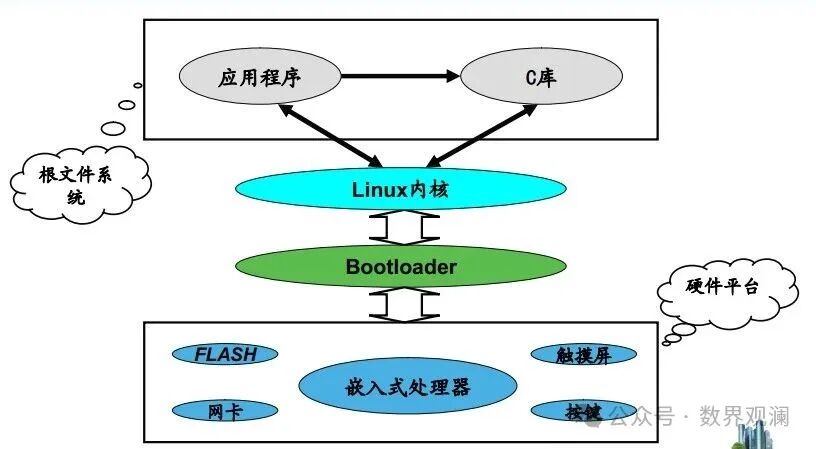
Linux System Architecture Diagram
Appendix: Quick Reference Table of Common Linux Commands
Command Category
Common Commands
Function Description
System Information
<span><span>uname -a</span></span>
Display system kernel version and host information
<span><span>lsb_release -a</span></span>
View operating system distribution information
<span><span>top</span></span>
Dynamic monitoring of process resource usage
File Operations
<span><span>ls -l</span></span>
Detailed list of directory contents
<span><span>cd directory</span></span>
Change working directory
<span><span>mkdir -p path</span></span>
Create multi-level directories
<span><span>rm -rf file/dir</span></span>
Force delete file/directory
<span><span>cp -r src dest</span></span>
Recursively copy directory
Permission Management
<span><span>chmod 755 file</span></span>
Change file permissions to rwxr-xr-x
<span><span>chown user:group file</span></span>
Change file owner and group
<span><span>sudo command</span></span>
Execute command with administrator privileges
Process Management
<span><span>ps aux</span></span>
View all system processes
<span><span>kill -9 pid</span></span>
Force terminate process with specified PID
<span><span>nohup command &</span></span>
Run command in the background and ignore hangup signal