SoftwareIntroduction
Multisim 13.0 is a leading SPICE simulation design software in the industry. It features 3D simulation circuits, virtual instruments, analysis functions, and graphical display windows. Multisim combines intuitive schematic building with powerful simulation capabilities, helping users design and validate circuits quickly, easily, and efficiently. It integrates industry-standard SPICE simulation and an interactive circuit diagram environment, allowing for instant visualization and analysis of electronic circuit behavior. Its intuitive interface aids educators in enhancing students’ understanding of circuit theory and efficiently memorizing engineering course theories.
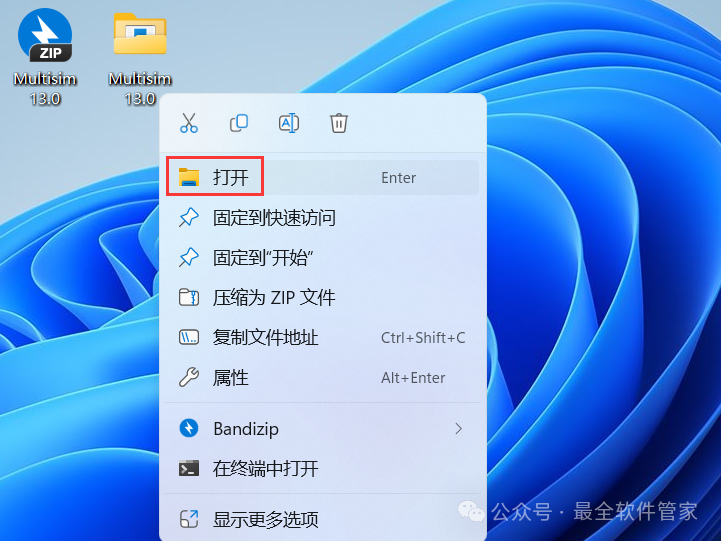
InstallationRequirements[Software Name]:Multisim 13.0[Software Size]:688MB[Software Language]:Simplified Chinese[Installation Environment]:Windows 7 and above[Download Link]:Reply in the public account:Multisim[Unlimited Speed Download]:Get a free Baidu Netdisk unlimited speed download tool.Reply in the public account: Unlimited Speed[Notes]:Please close the network, antivirus software, and firewall before installation, otherwise, installation may fail.Reply in the public account: 1[Decompression Software]:The decompression software used by the editor is Bandizip, get the Bandizip software installation package.InstallationGuide1. Download the Multisim 13.0 software installation package to your computer, right-click and select 【Extract to Multisim 13.0】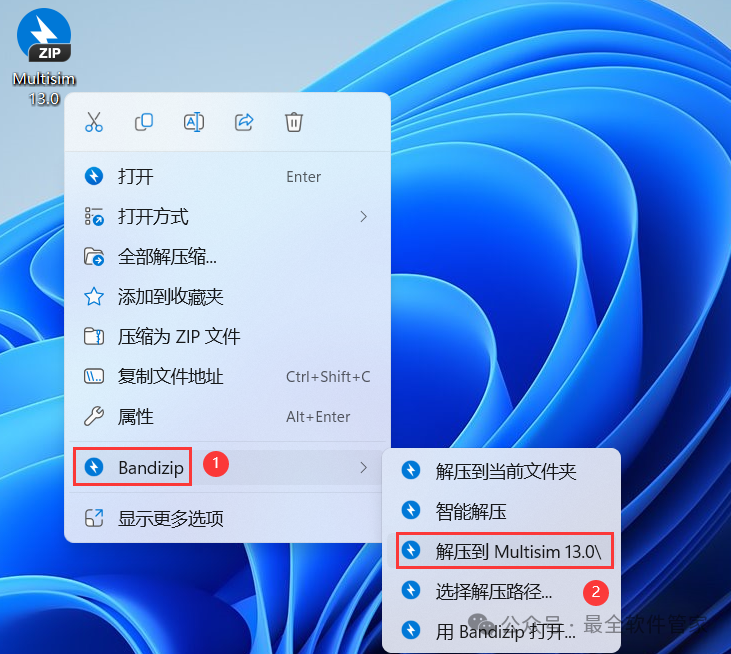 2. Right-click 【Open】 the extracted folder
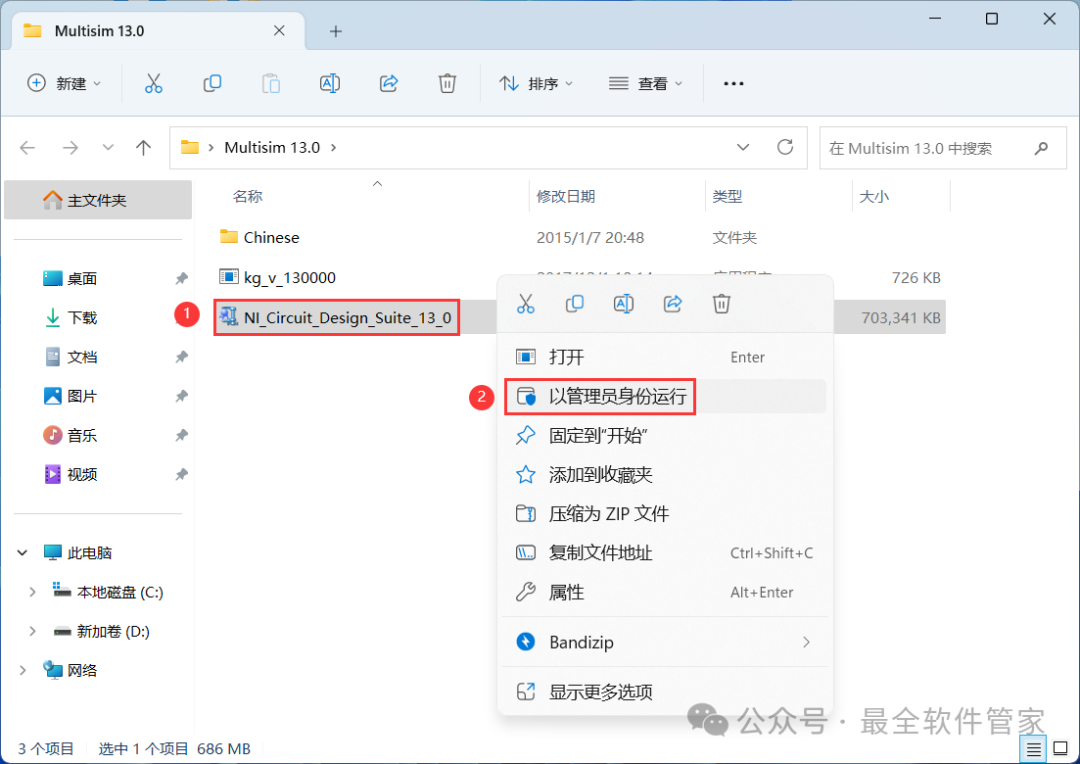
 3. Find the 【NI_Circuit_Design_Suite_13_0】 application, right-click and select 【Run as administrator】
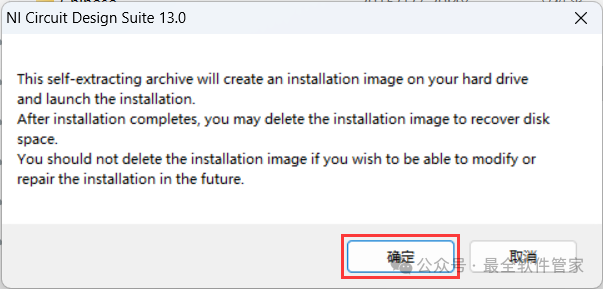
 4. Click 【OK】
 5. Click 【Unzip】
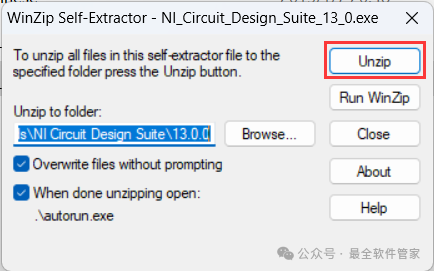 6. Click 【OK】
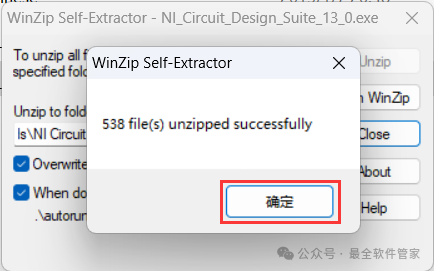 7. Click 【Install NI Circuit Design Suite 13.0】
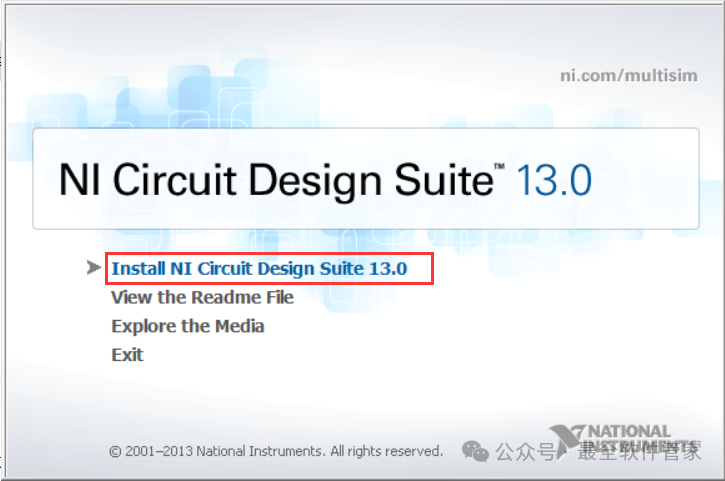 8. Click 【Next】
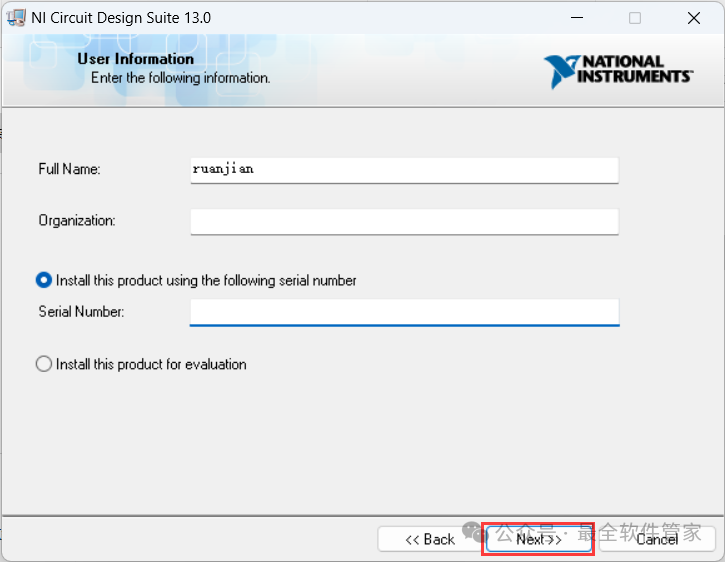 9. Click 【No】
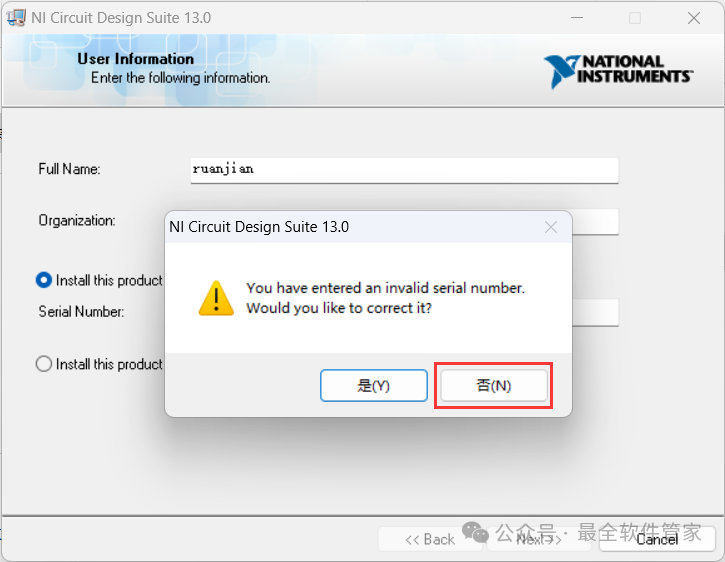 10. The software is installed by default on the C drive, you can customize the installation location; here the editor chooses to install on the D drive; click 【Next】
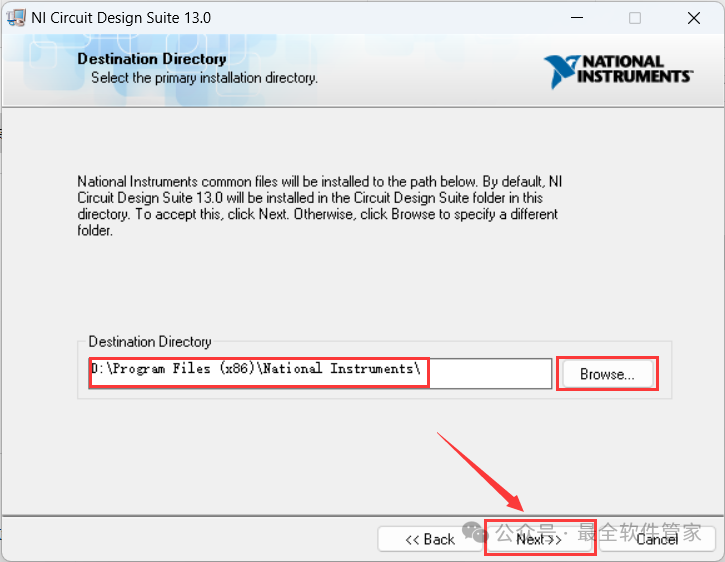 11. Click 【Next】
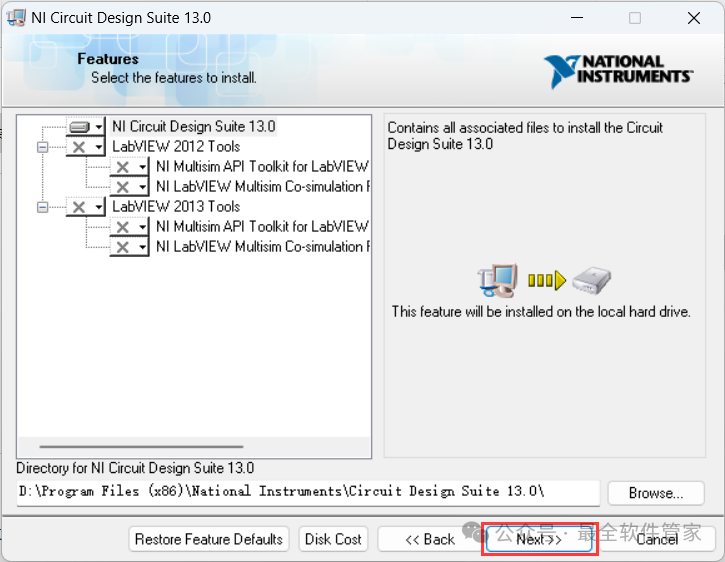 12. Click 【Next】
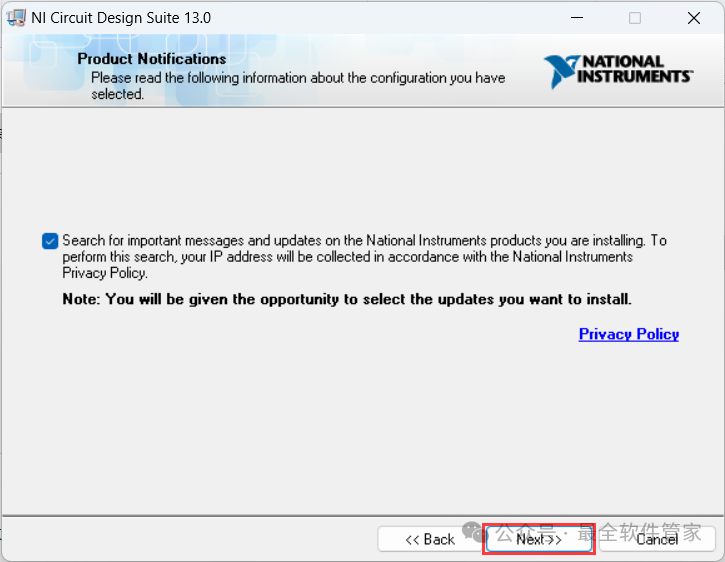 13. The software is installing, please wait a moment
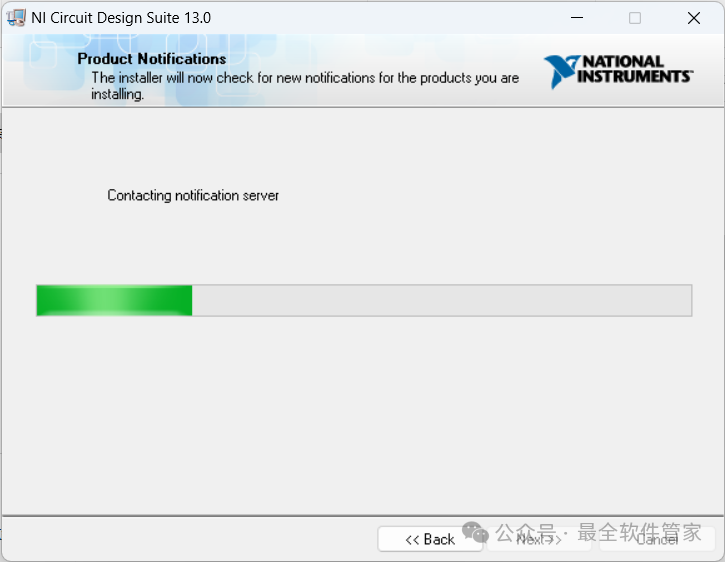 14. Click 【Next】
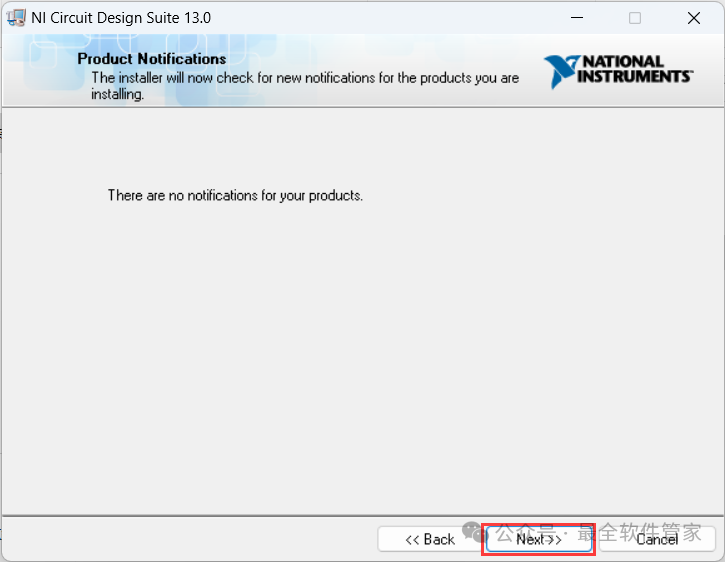 15. Check 【I accept】, then click 【Next】
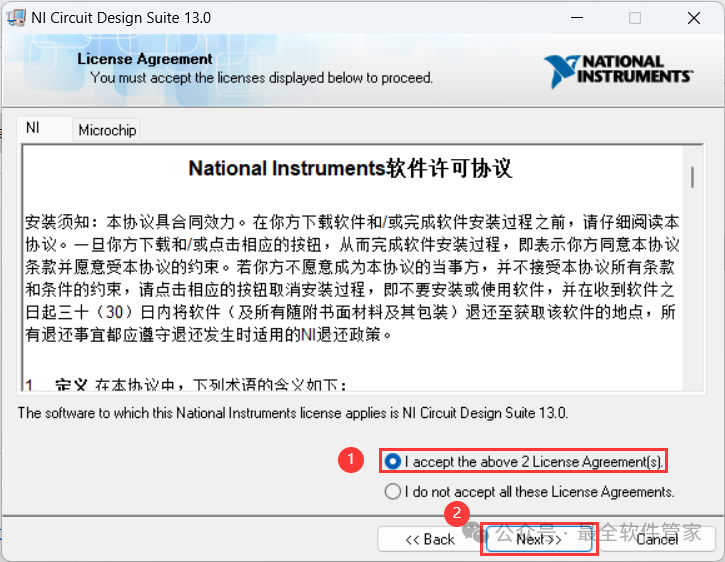 16. Click 【Next】
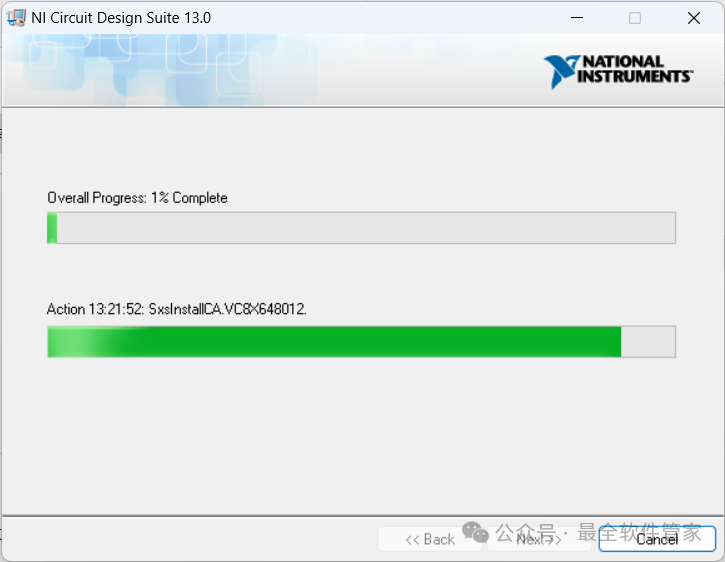
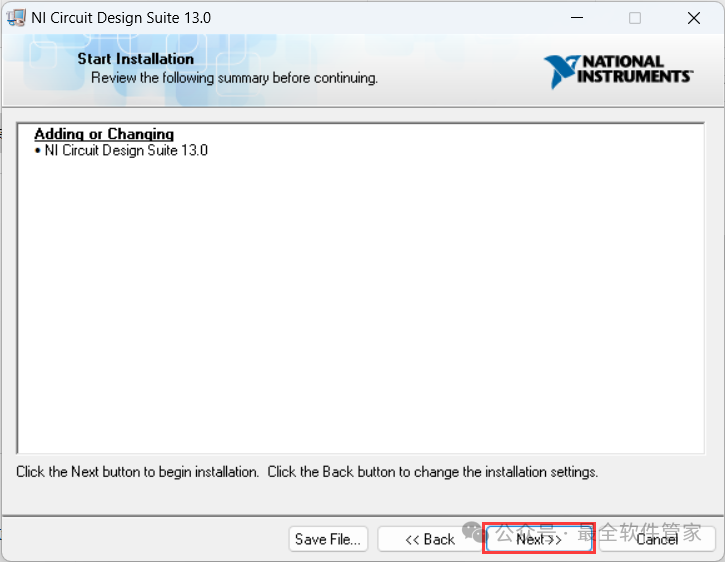 17. The software is installing, please wait a moment
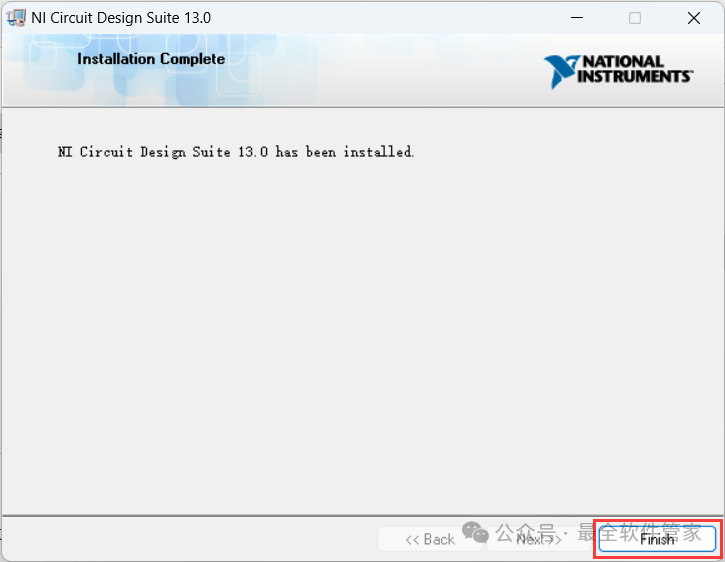
 18. Click 【Finish】
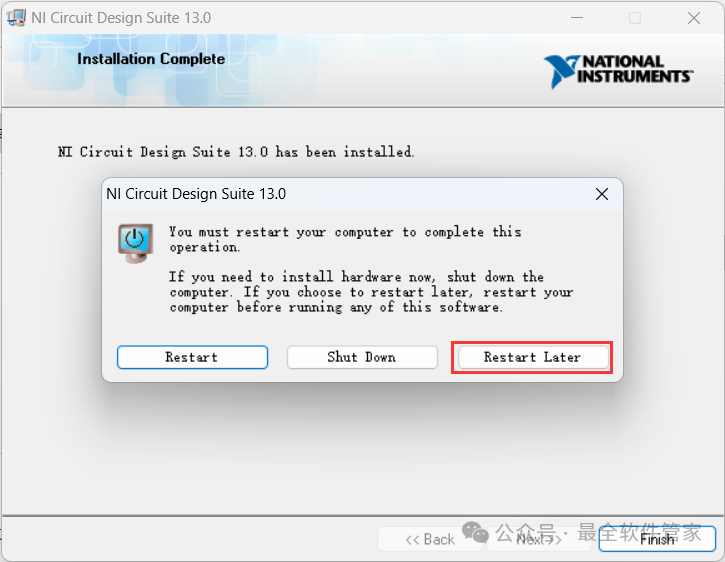
 19. Click 【Restart Later】
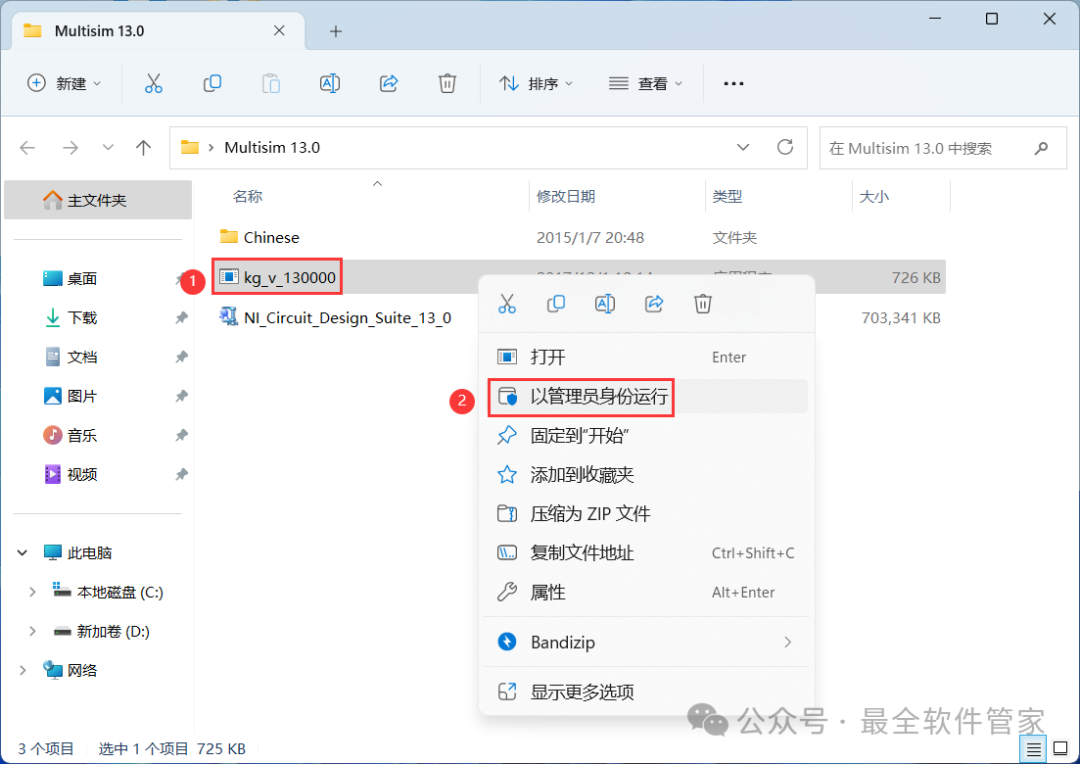
 20. Go back to the Multisim 13.0 folder, find the 【kg_v_130000】 application, right-click and select 【Run as administrator】
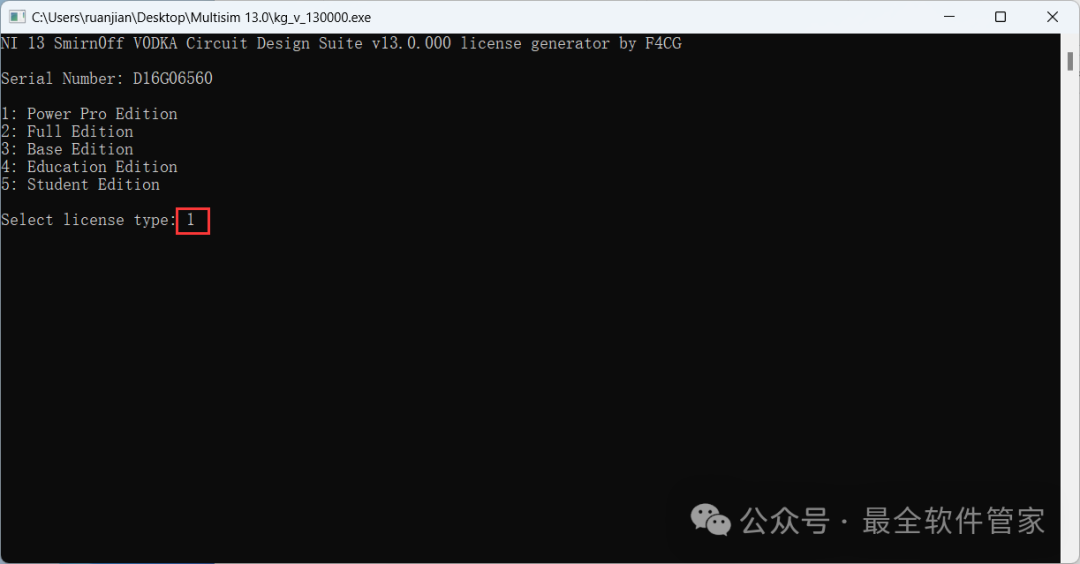
 21. Type 【1】 on the keyboard, then press 【Enter】
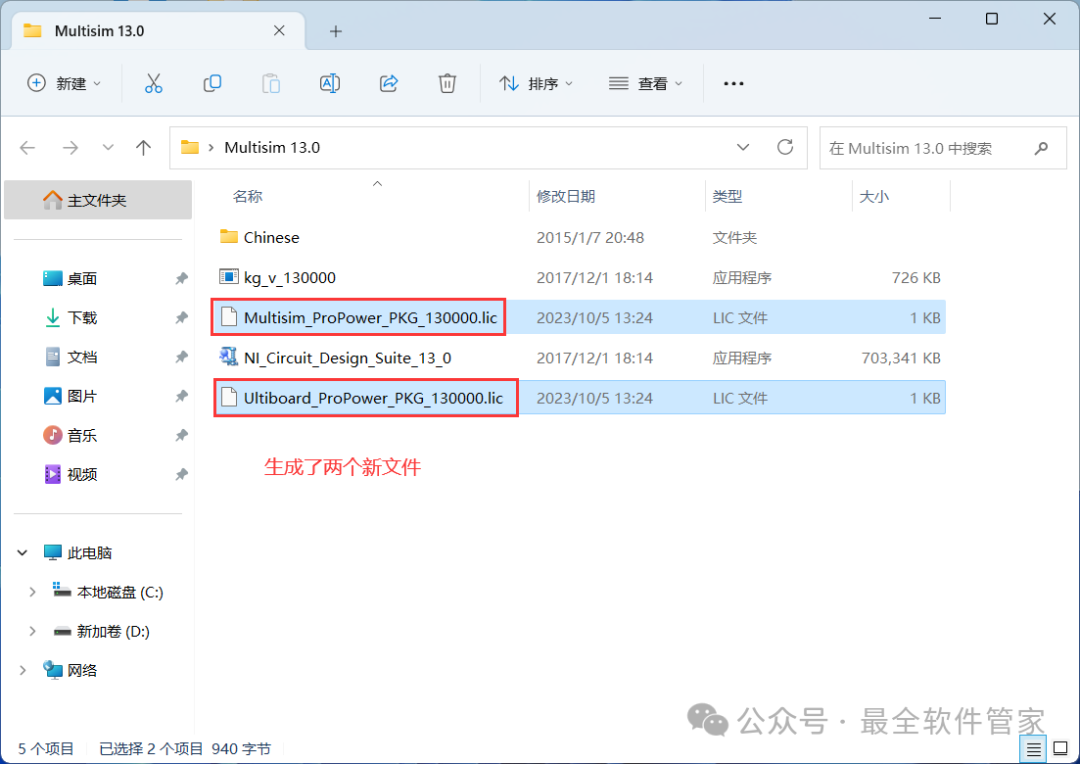
 22. Two files will be generated in the folder
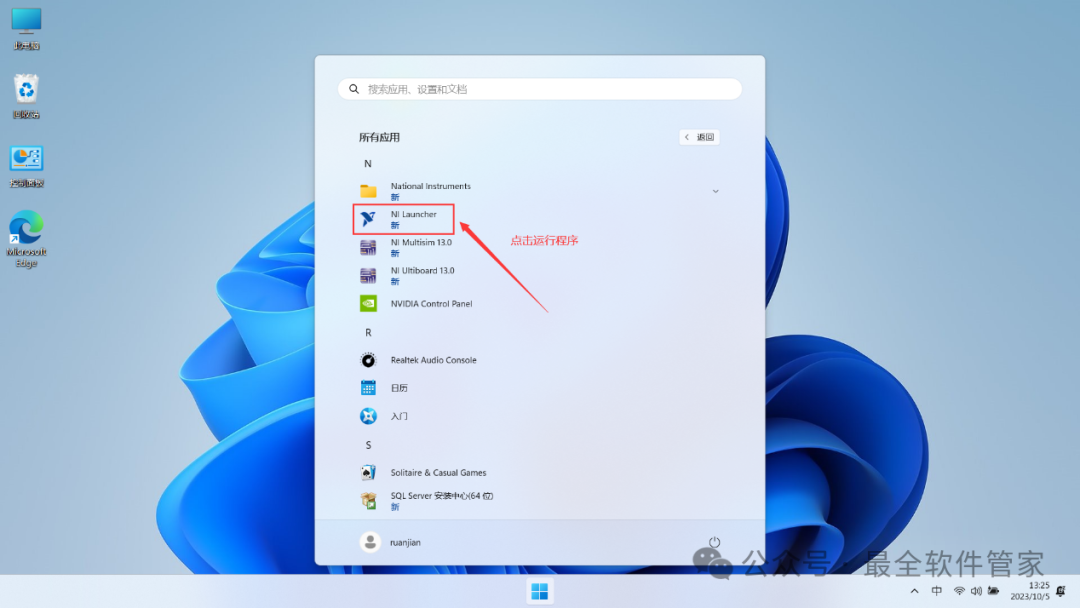
 23. Go back to the desktop, click the 【Start Menu】 in the taskbar, find the 【NI Launcher software icon】 in 【All Applications】, and click to run the program
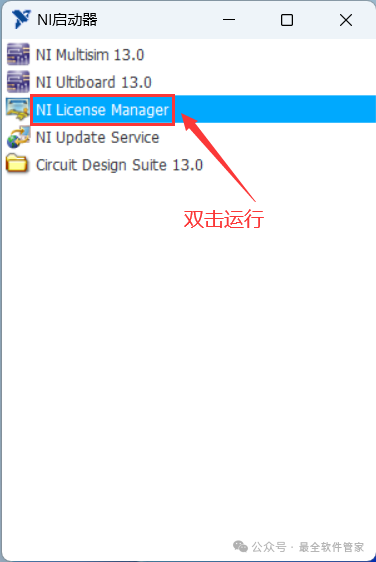
 24. Double-click to run 【NI License Manager】
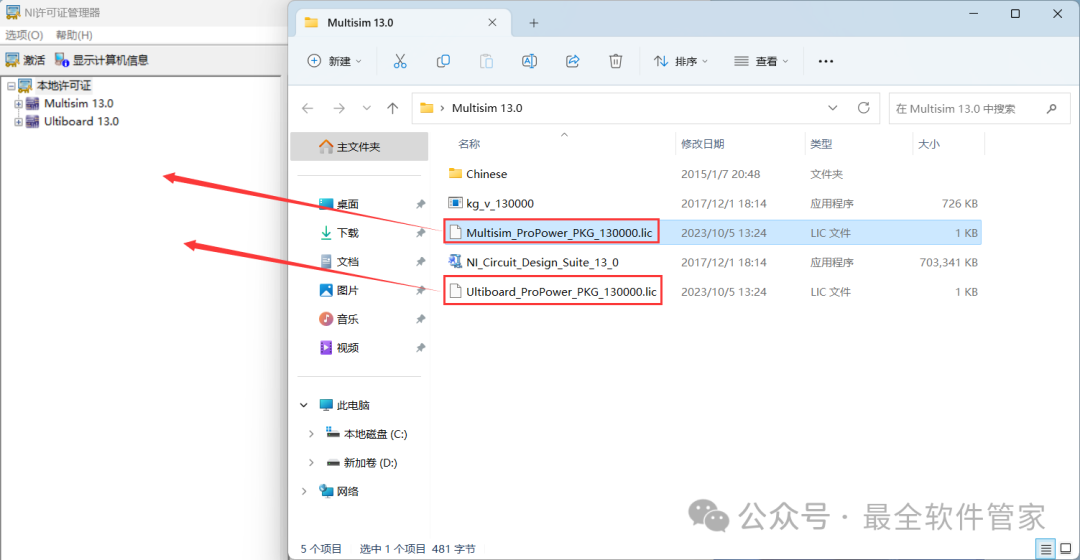
 25. Go back to the Multisim 13.0 folder, find the newly generated 【Multisim_ProPwer…】 and 【Ultiborrd_ProPwer…】 files, and drag them into the program in order
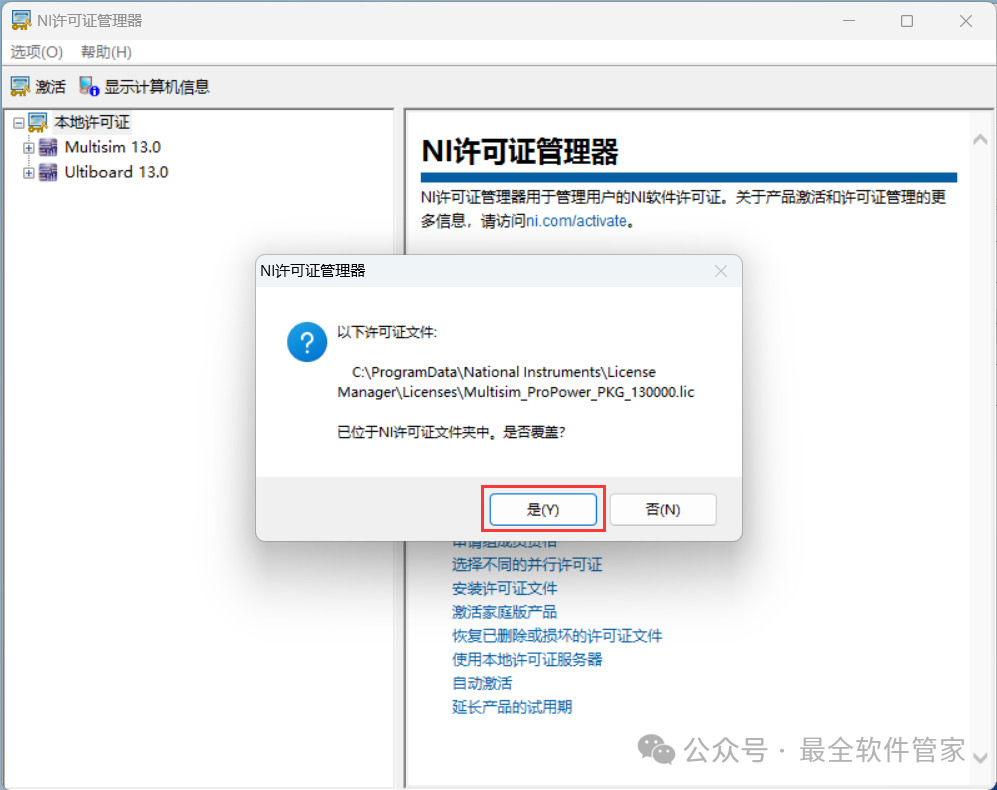
 26. Click 【Yes】
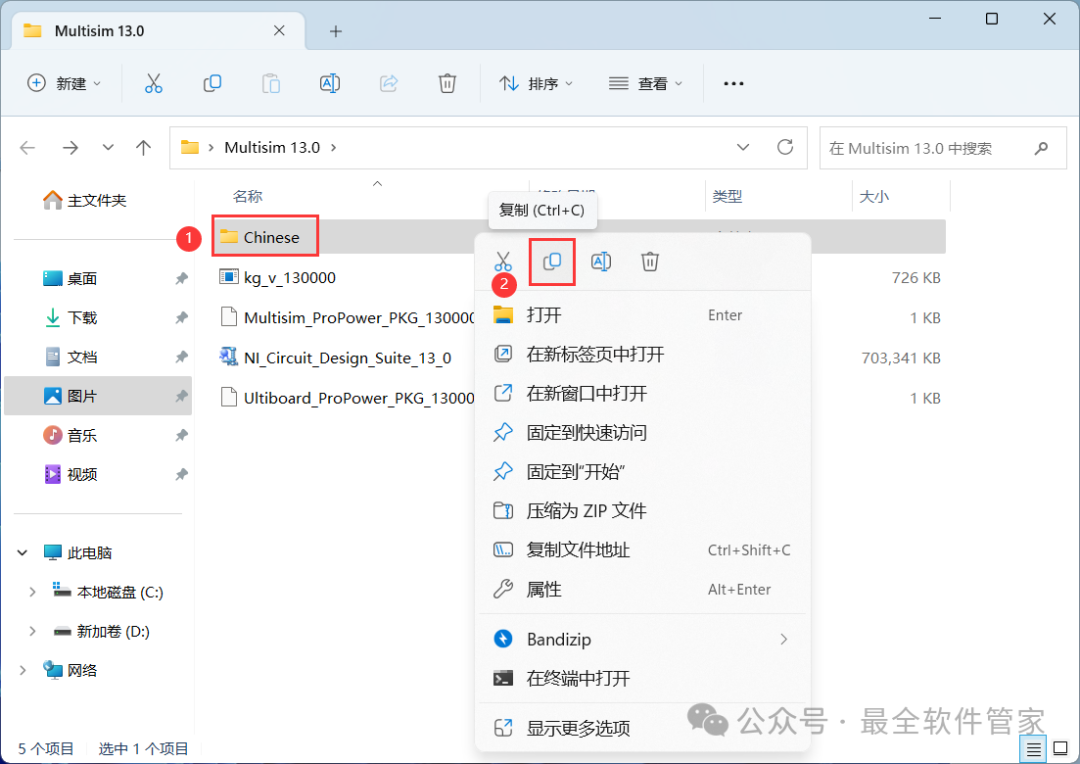
 27. Go back to the Multisim 13.0 folder, find the 【Chinese】 folder, right-click and click 【Copy】
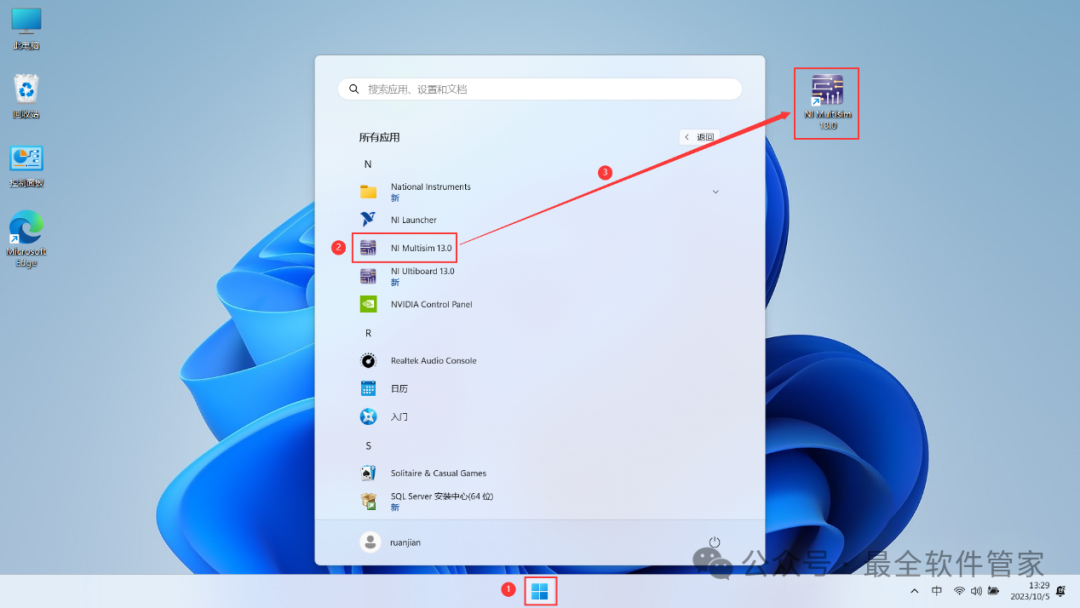
 28. Go back to the desktop, click the 【Start Menu】 in the taskbar, find the 【NI Multisim 13.0 software icon】, and drag the software icon to the desktop to create a shortcut
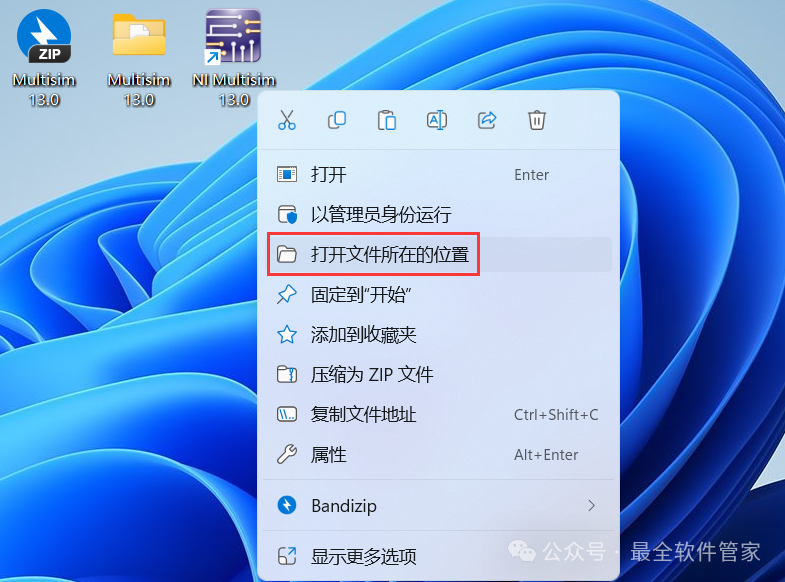
 29. Right-click the 【NI Multisim 13.0 software icon】 on the desktop, click 【Open file location】
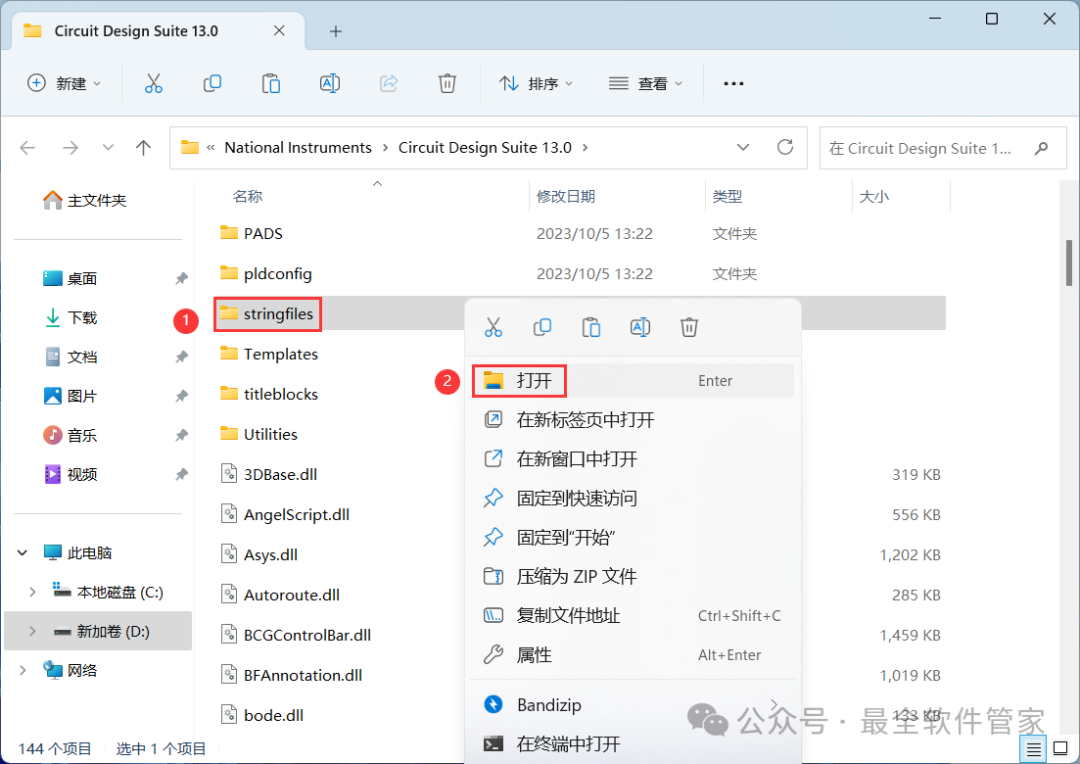
 30. Find the 【stringfiles】 folder, right-click and 【Open】 it
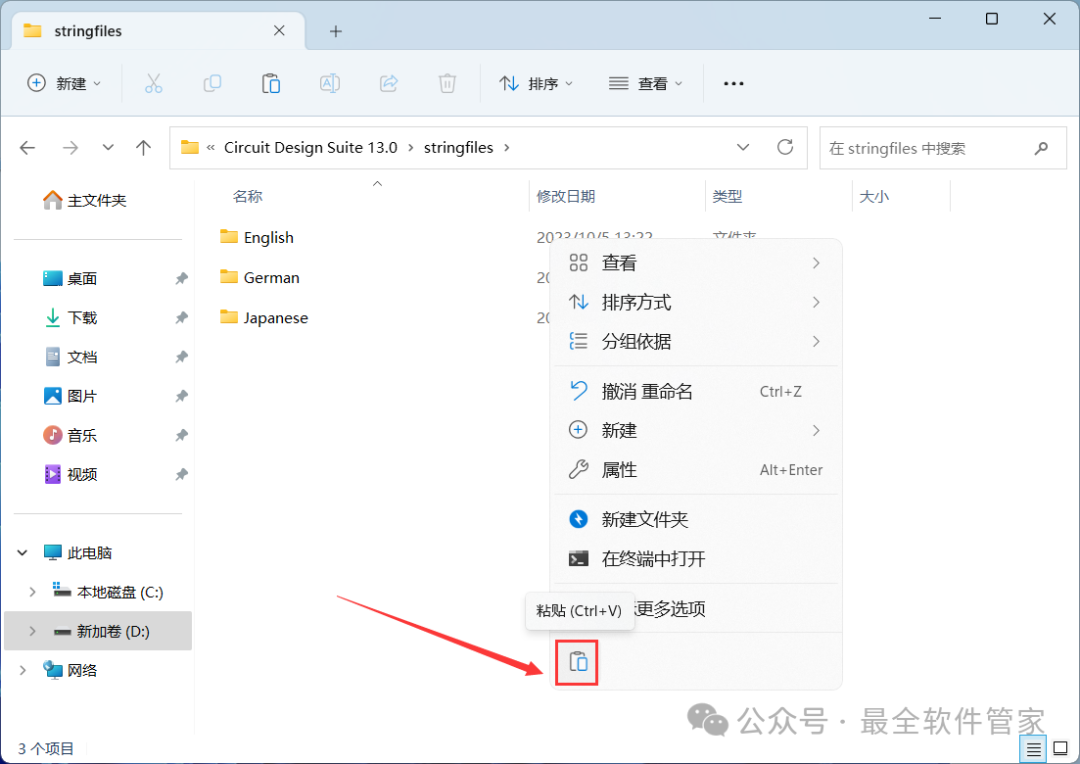
 31. Right-click in the empty space of the folder, click 【Paste】
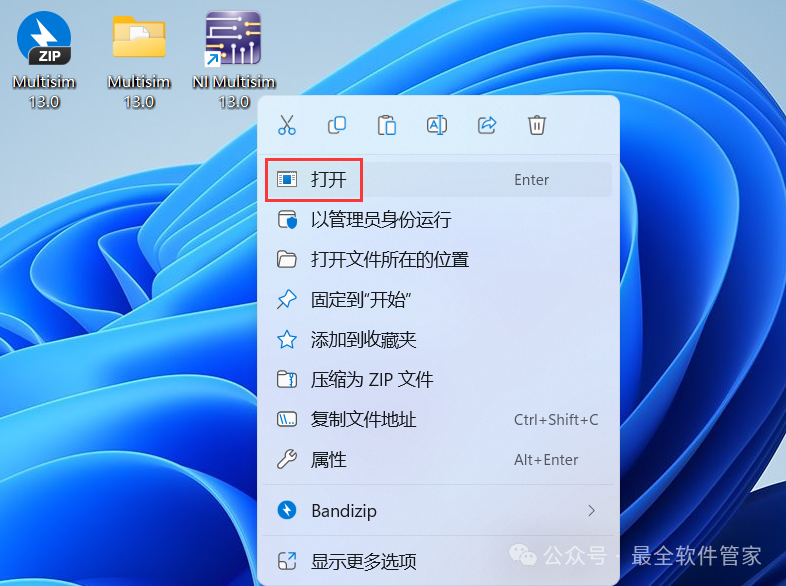
 32. Go back to the desktop, right-click the 【NI Multisim 13.0 software icon】, and click 【Open】
 33. The software opened successfully, the running interface is as follows:
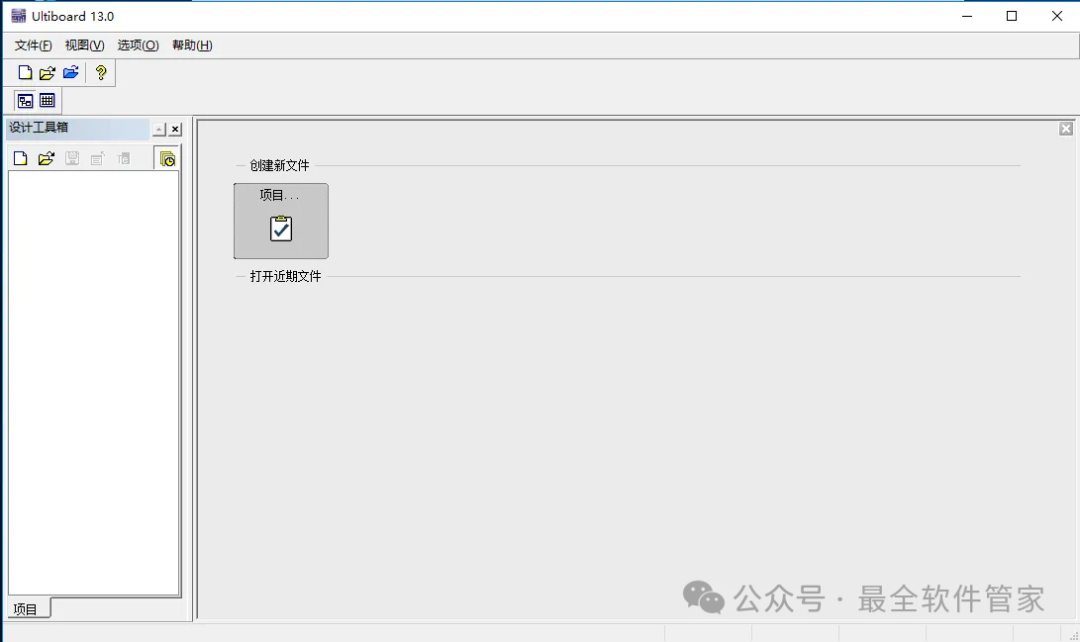 34. This is the entire process of installing Multisim 13.0 software. If it has been helpful to you, please give the editor a thumbs up!Disclaimer: The software resources are sourced from the internet and are for user communication, learning, and research purposes only. The copyright belongs to the original copyright holder, and copyright disputes are not related to this public account. Users must not use the downloaded files for commercial or illegal purposes; otherwise, the consequences will be borne by the user. If you access and download this file, you agree to use this software only for reference and learning, not for other purposes. Otherwise, you will bear all consequences. Please delete it within 24 hours after downloading, and it is not allowed for commercial use; otherwise, you will bear legal responsibilities. If you like this software, please support the original software by purchasing a license for better service.