
[Name]:Keil uVision2 C51
[Size]: 11MBB
[Language]:Simplified Chinese
[Applicable Systems]:Windows 7, Windows 8, Windows 10, Windows 11 Systems
[Introduction]:Keil C51 is a C language software development system compatible with the 51 series microcontrollers. Compared to assembly language, C language has significant advantages in functionality, structure, readability, and maintainability, making it easy to learn and use. Keil provides a complete development solution that includes a C compiler, macro assembler, linker, library management, and a powerful simulation debugger, all integrated into a single development environment (uVision).
[64/32-bit Download Link]:
https://pan.baidu.com/s/1Fn-SrV1EnWhCiyuj4flTUg?pwd=y2mj
Extraction Code:y2mj
For installation issues or remote installation, please contact:Customer Service
InstallationSteps
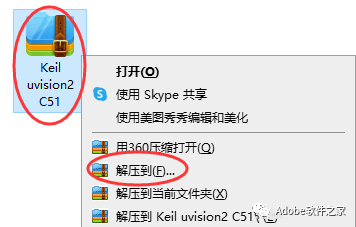
1. Right-click the downloaded installation package and select Extract.
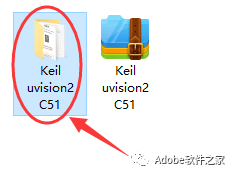
2. After extraction, you will get an installation folder; open it.
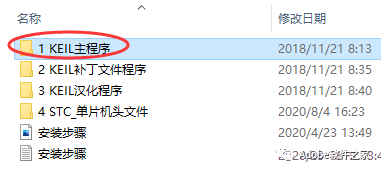
3. Continue to open the 1 KEIL main program folder.
4. Continue to open the setup folder.
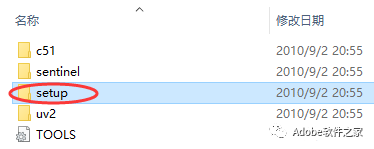
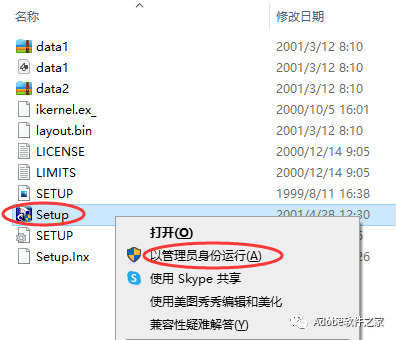
5. Right-click on Setup and select Run as Administrator.
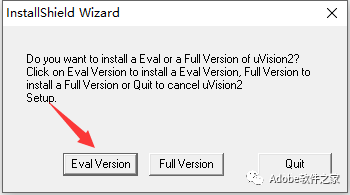
6. Click Eval Version.
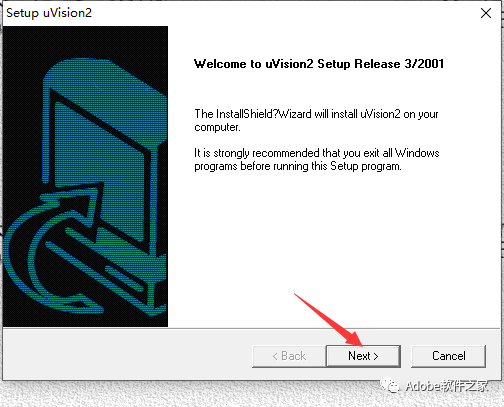
7. Click Next.
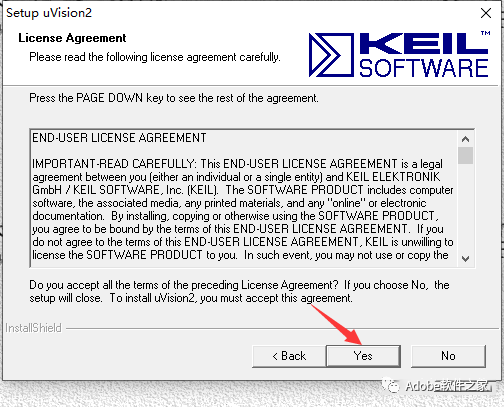
8. Click Yes.
9. Click Next.
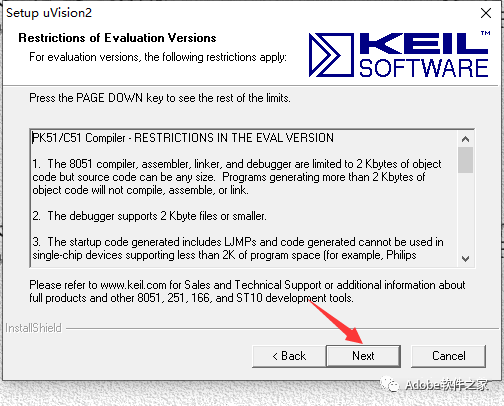
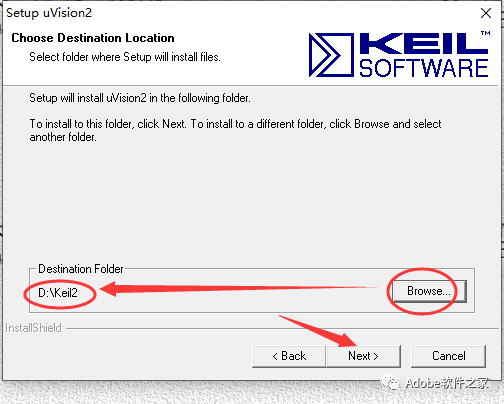
10. Click Browse… to select the installation location (remember this location for later use), then click Next.
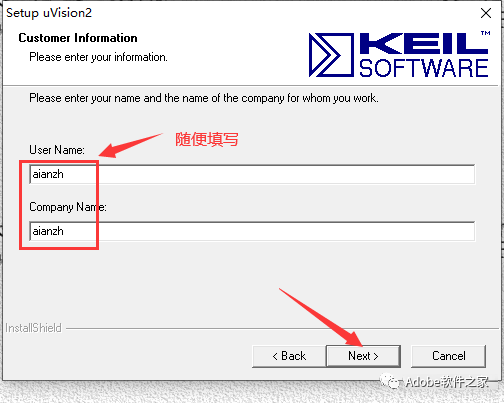
11. Fill in the information and click Next.
12. Uncheck and click Finish.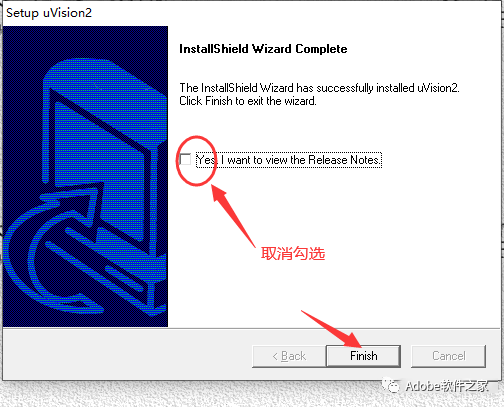
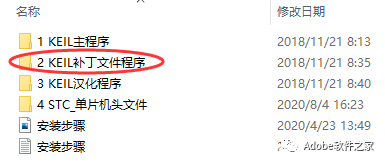
13. Return to the extracted installation folder and open the 2 KEIL patch file program folder.
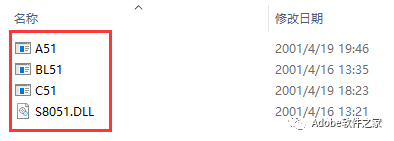
14. Copy the four files inside.
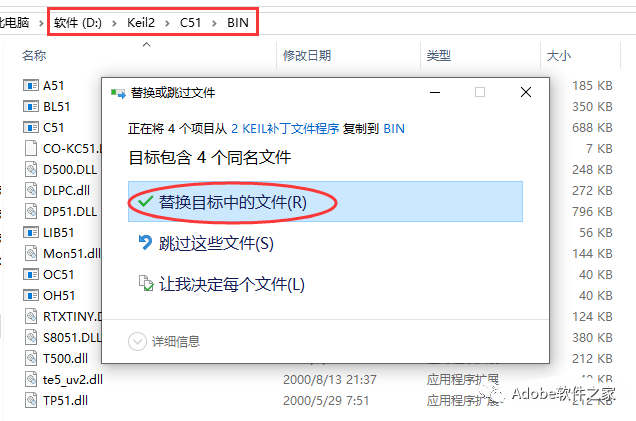
15. Paste them into the software installation directory (the location you remembered in step 10) in the \C51\BIN folder, and choose to replace.
16. Return to the extracted installation folder and open the 3 KEIL language program folder.
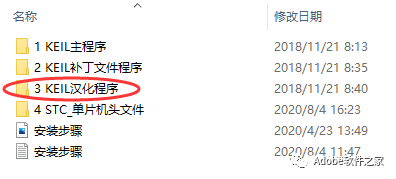
17. Copy the uv2 file.
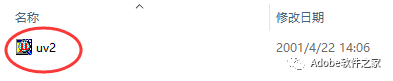
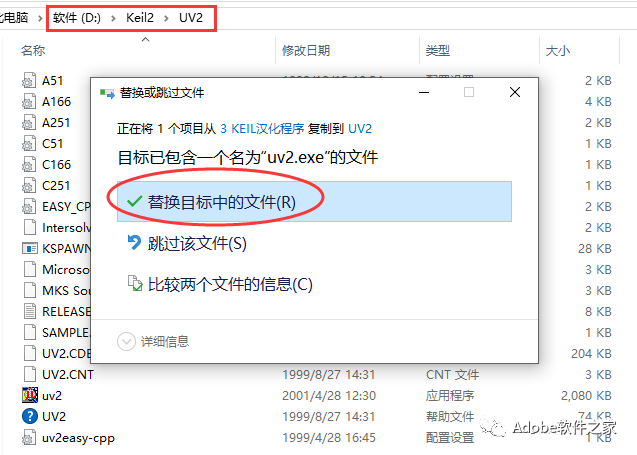
18. Paste it into the software installation directory (the location you remembered in step 10) in the \UV2 folder, and choose to replace.
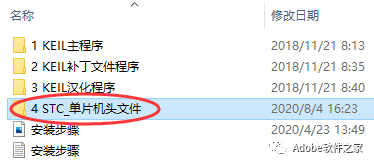
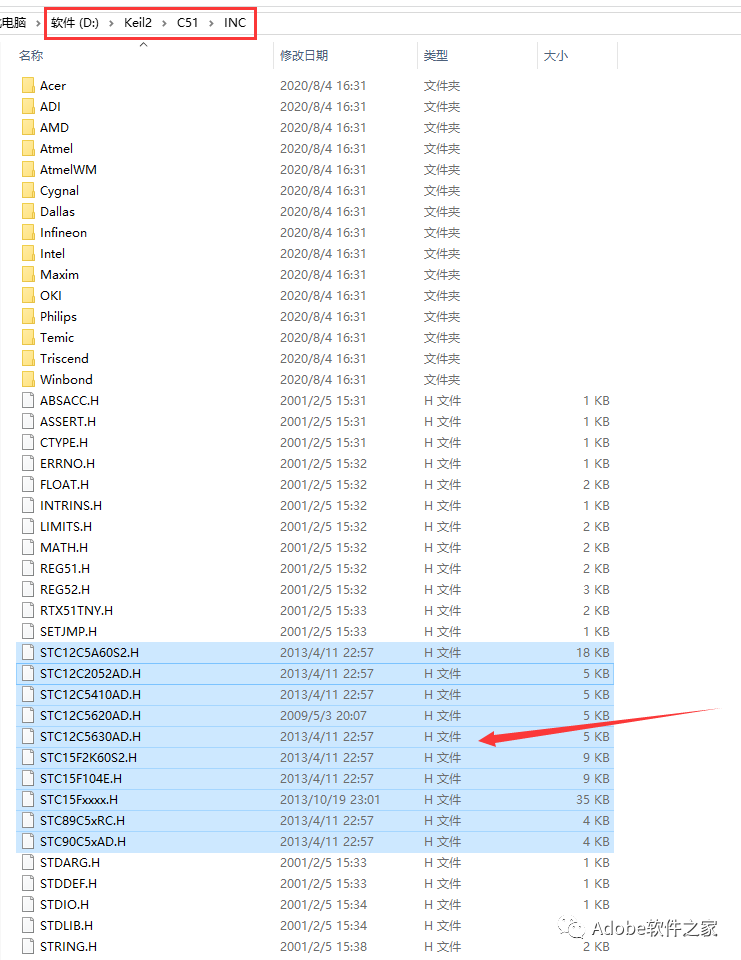
19. Return to the extracted installation folder and open the 4 STC_microcontroller header files folder.
20. Copy all the files inside.
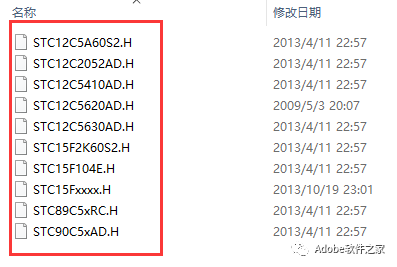
21. Paste them into the software installation directory (the location you remembered in step 10) in the \C51\INC folder.
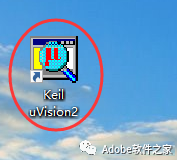
22. Restart the software.
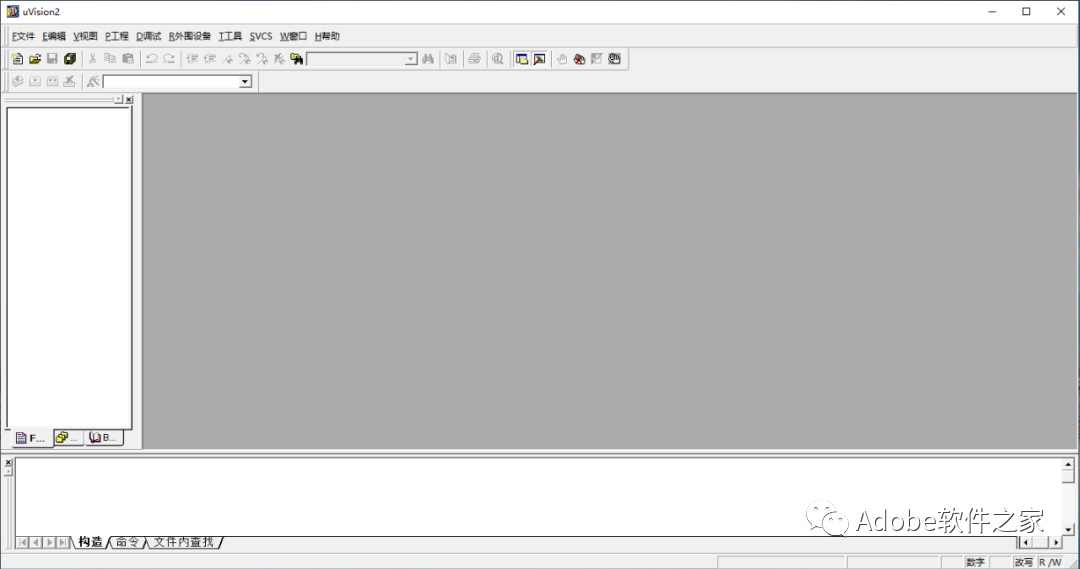
23. OK.


 Long press the QR code to follow us.
Software Installation
Public account focused on software installation
 Because of yoursharing,likes,and views, your friends will also install it!