1. What is Shell?
First, let’s understand what a Shell is. The Shell takes the commands we input and passes them to the operating system for execution, so the Shell is a command-line user interface.
You often see the term bash (Bourne Again Shell), which is a program composed of Shell. The name Bourne refers to a person, the inventor of bash.
2. The Abstraction of File Directories in Linux
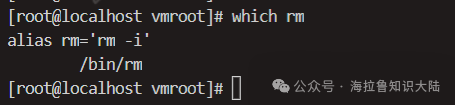
Linux abstracts files in a tree structure. / represents the root directory, and each section of the directory is separated by /. Therefore, in the following example, /bin/rm, the first-level directory is the root directory /, the second-level directory is the bin directory, and the final rm is a file.
Path
For example, /bin/rm is called the path to the executable file rm. A path is the address of a file in the file system. If the file system is a tree structure, then typically a file has only one address (path).
The absolute path of a target file, also known as the full path, starts from /, and each subsequent level is a subdirectory until the target file is located. /bin/rm is an absolute path.
Working Directory
The Shell also abstracts the working directory. When a user opens the Shell, it assigns a working directory to the user. This leads to the concept of relative paths.
A relative path is a path based on the working directory.
You can switch the working directory using the cd (change directory) command, which can use both absolute and relative paths.
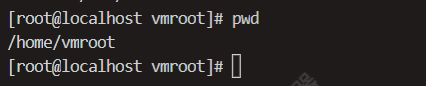
Linux provides a command pwd (Print Working Directory) to view the working directory. The following image shows the result of entering pwd. You can see that the working directory is /home/vmroot.
Common File Types
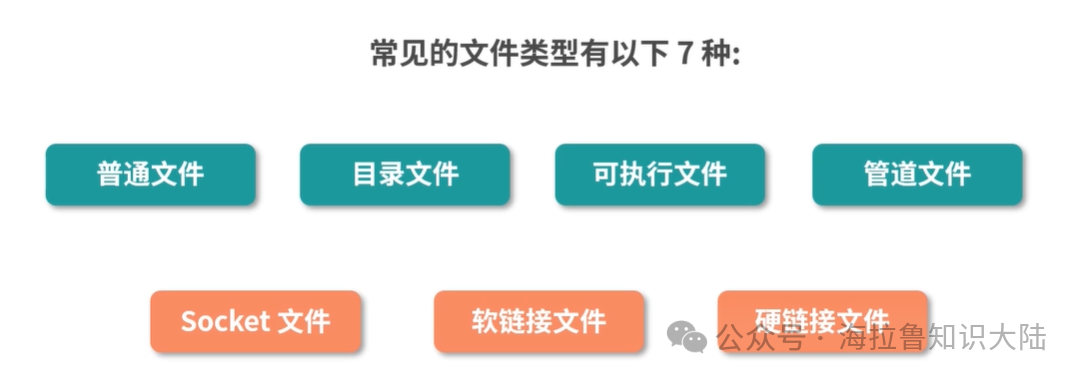
In Linux, directories are also a type of file; files are not limited to directories and executable files. The common file types are as follows:
-
Regular files (e.g., a text file);
-
Directory files (directories are also special files that store a list of files, for example, / is also a file);
-
Executable files (the above rm is an executable file);
-
Pipe files;
-
Socket files;
-
Soft link files (equivalent to a symbol pointing to the path of another file);
-
Hard link files (equivalent to a pointer to another file).
If you use ls -F, you can see the files and their types in the current directory. For example, in the following image:
-
* at the end indicates an executable file;
-
= at the end indicates a Socket file;
-
@ at the end indicates a soft link;
-
| at the end indicates a pipe file;
-
No symbol at the end indicates a regular file;
-
/ at the end indicates a directory.

Device Files
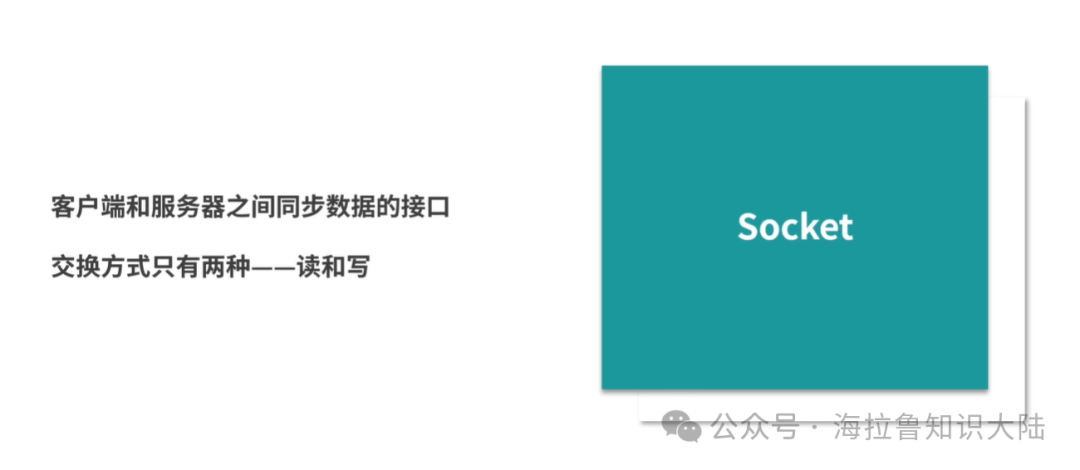
A Socket is a network socket, an interface for synchronizing data between a client and a server. In fact, Linux abstracts not only Sockets as files, but also devices are basically abstracted as files. This is because devices need to continuously exchange data with the operating system. There are only two ways to exchange data—read and write. Therefore, devices can be abstracted as files since files also support both read and write operations.
Linux abstracts all devices as files, such as printers, USBs, graphics cards, etc. This makes the overall system design highly unified.
3. File Operations: Create, Delete, Modify, Query
Create
There are many ways to create a regular file, the most common being the touch command. For example, we created a hello.txt file below.

The touch command is originally used to change the timestamp of a file, but if the file does not exist, touch will also help create an empty file.
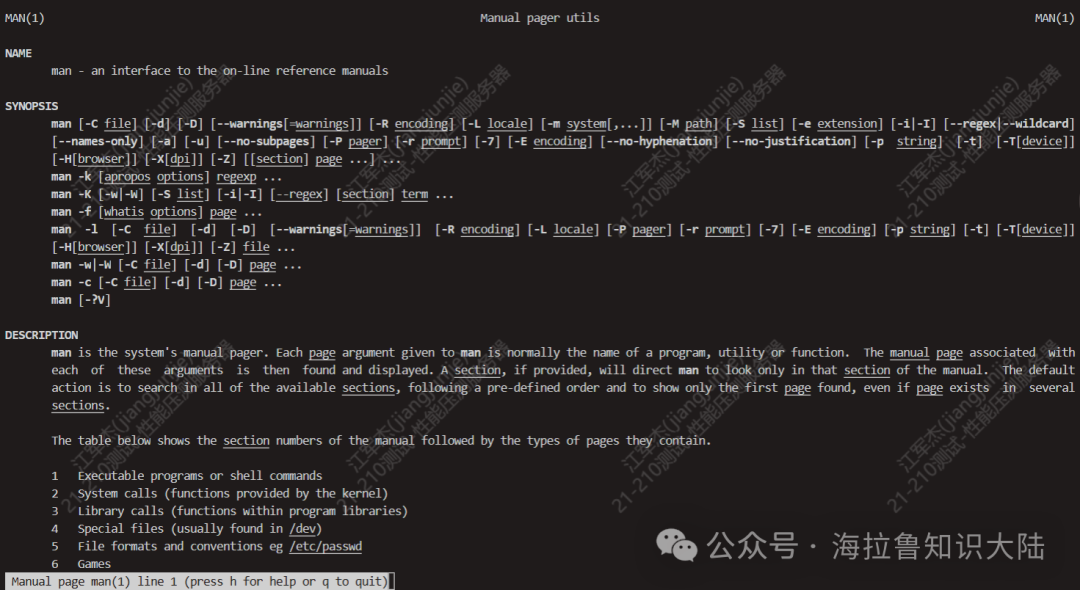
If you are unsure how to use a command, such as touch, you can use man touch to get help. man means manual, and if you don’t know what man is, you can also use man man. The following is the result of using man man:
If we need to create a directory, we can use the mkdir command (make directory), for example, mkdir hello creates a hello directory.
View
After creation, we can use the ls command to see this file; ls is short for list.
If you want to see more detailed information, you can also use ls -l. -l is an optional parameter for the ls command. The following image shows the result of ls -l, where you can see a more detailed description of hello.txt.
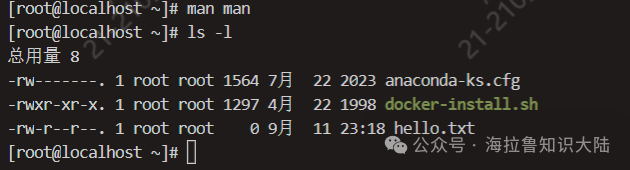
As shown in the image above, we see two roots, which are the user and user group to which hello.txt belongs, and they happen to have the same name. September 11 is the date. The middle 0 is the size of the file hello.txt.
Delete
If we want to delete hello.txt, we can use rm hello.txt; rm is short for remove.
If hello is a directory, it cannot be deleted. Therefore, we need to add an optional parameter, such as -r for recursive. rm hello -r will delete the hello directory.
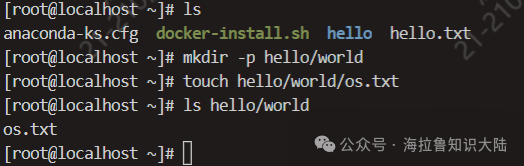
To add a file in a directory, for example, the relative path is hello/world/os.txt. We need to first create the hello/world directory. In this case, we will use the -p parameter of mkdir, which controls mkdir to recursively create the parent directories if they do not exist. The following is the execution situation:
Modify
If you need to modify a file, you can use the nano or vi editor. There are many similar tools, but nano and vi are generally included with Linux.
4. Viewing File Content
After understanding the operations of creating, deleting, modifying, and querying files, let’s learn how to view file content in Linux, where you can choose different commands based on different scenarios.
When the file is small, such as a configuration file, and you want to quickly browse it, you can use the cat command. The following cat command helps us quickly view the /etc/hosts file. The cat command connects the file to the standard output stream and prints it to the screen.

The standard output stream is also a type of file, and processes can write the content they want to output to the standard output stream file, which can then be printed on the screen.
If you use cat to view a large file, such as a large log file, printing all the content to the console will take a long time, and the screen will scroll too quickly to see anything.
This is because we need to copy the file to the input/output stream, which takes a long time and consumes machine resources; additionally, the file will be read into memory, which can lead to memory shortages for other applications. Therefore, we need some commands that allow us to view file content without loading the entire file.
more
The more command helps us read files without needing to load the entire file into memory. The more command is essentially a reading filter; for example, in more, you can scroll down and also input text to search.
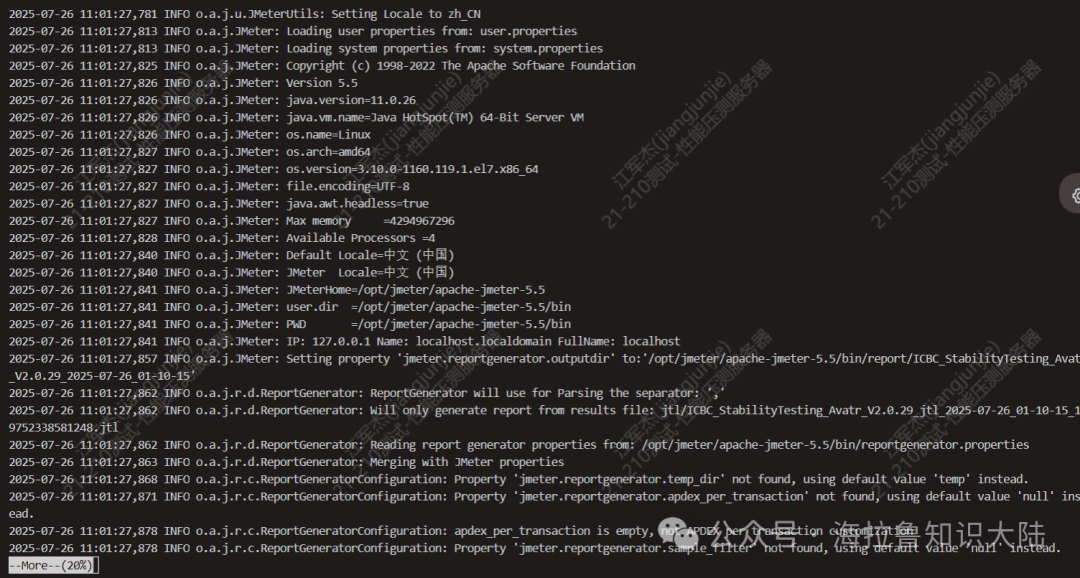
As shown above, I used more to view a jmeter log, first inputting a /, then entering content to search for the result. Throughout the process, the more command only reads the parts we need into memory.
less
The less command is similar to more, but it allows scrolling up, a feature that more does not have. Therefore, less is now used more frequently.
head/tail
The head and tail commands are a pair used to read the first N lines or the last N lines of a file. For example, for a large log file, we can use tail -n 1000 to view the last 1000 lines of the current file.
If you want to see a real-time log, you can use tail -f filename, and you will see the log requests coming in continuously. -f means follow, which means the content added to the file will follow the output to the standard output stream.
grep
Sometimes you need to view logs with a specific keyword, and if you don’t want to use less and more to slowly check the file, you can use the grep command.
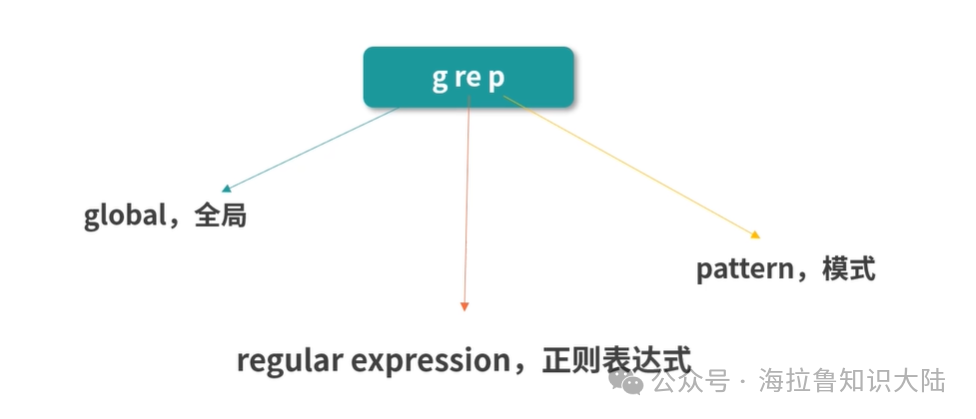
The word grep can be broken down into three parts: g|re|p.
-
g stands for global;
-
re stands for regular expression;
-
p stands for pattern.
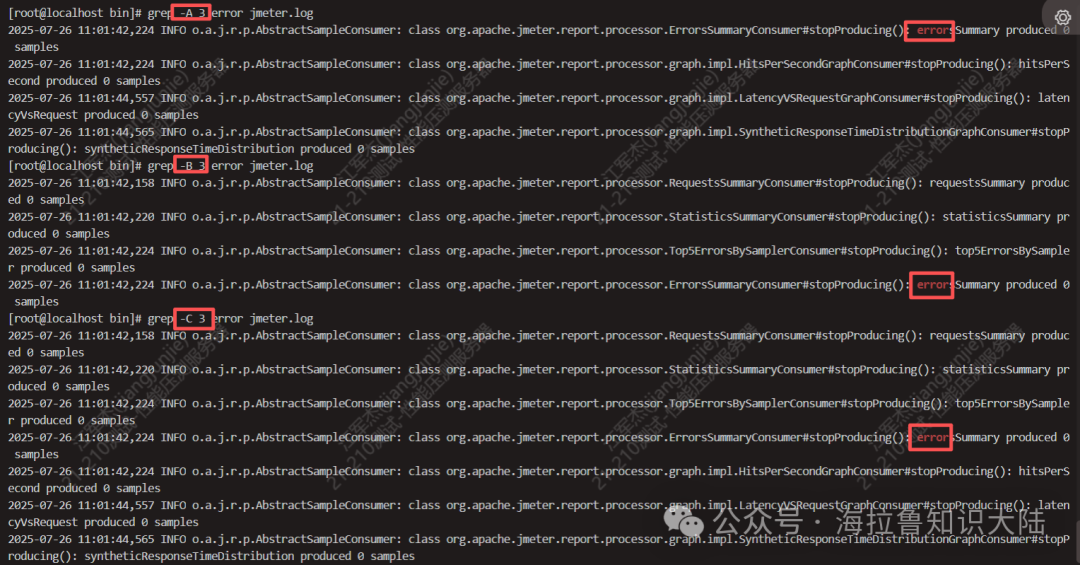
Therefore, the function of this command is to globally search a file using a regular expression to find matching patterns. Below is an example of how to use grep:
-
Find occurrences of error

-
Find the context of a keyword -A (after – 3 lines) -B (before – 3 lines) -C (circle – 3 lines before and after)
5. Finding Files
Previously, we used the which command, which can query the location of a command file, for example, which grep will show the installed location of the grep command as /bin. Additionally, there is the find command.
find
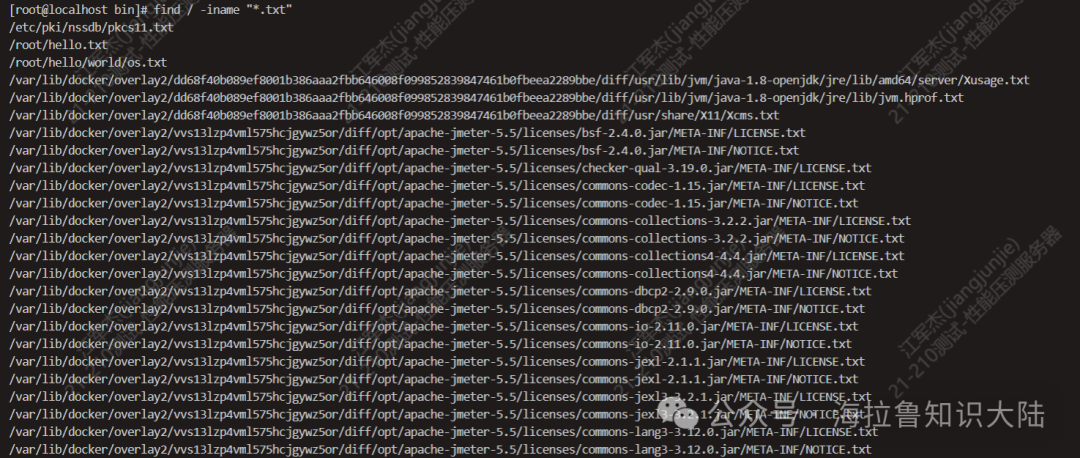
The find command helps us search for files in the file system. For example, if we want to find all files with the .txt extension, we can use find / -iname “*.txt”; -iname is a parameter used for matching searches, where the i letter represents case-insensitive matching, and -name can also be used instead. Entering this command will show you the ongoing search for files, as shown in the image below:
6. Summary
pwd command to view the working directory. cd command to switch the working directory. which command to find the path of an executable file. ls displays file information. rm deletes files. touch modifies a file's timestamp, and if the file does not exist, it will trigger the creation of the file. vi and nano can be used to edit files. cat is suitable for viewing small files. more and less allow viewing a file but only read the content visible to the user into memory, thus consuming fewer resources, suitable for viewing logs on a server. head and tail can be used to view the head and tail of files. grep command searches file content. find command searches for files globally.Here, let’s also talk about “deleting the database and running away”; what is the effect of rm -rf /?
-
rm is the delete command;
-
/ is the root directory of the file system;
-
-r is recursive;
-
-f is force, which means it will delete without prompting even for read-only files.
Therefore, rm -rf / will delete all files on the entire file system (use with caution), and it will not prompt the user.