SoftwareIntroduction
Keil uVision 4.12 MDK is an Integrated Development Environment (IDE) developed by KEIL. Keil MDK, also known as MDK-ARM, Realview MDK, I-MDK, KEIL MDK-ARM, KEIL ARM, uVision5 (older versions include uVision4 and uVision3), is a microcontroller software development platform developed by the well-known German software company Keil (now acquired by ARM). It is currently supported by three domestic agents providing technical support and related services.
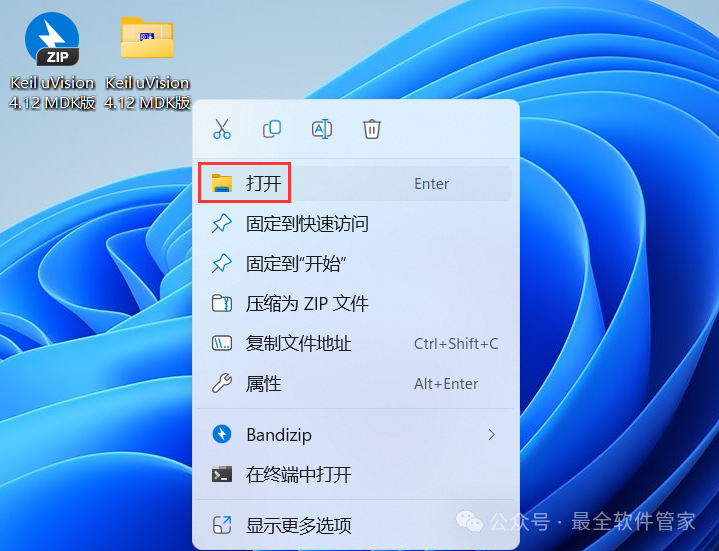
InstallationRequirements[Software Name]: Keil uVision 4.12 MDK[Software Size]: 201MB[Software Language]: Simplified Chinese[Installation Environment]: Windows 7 and above[Download Link]: Reply in the public account: KeilMDK[Unlimited Speed Download]: Get a free Baidu Netdisk unlimited speed download tool.Reply in the public account: Unlimited Speed[Notes]: Please close the network, antivirus software, and firewall before installation, otherwise installation may fail.Reply in the public account: 1[Decompression Software]: The decompression software used by the editor is Bandizip, get the Bandizip software installation package.Reply in the public account: 2InstallationTutorial1. Download the Keil uVision 4.12 MDK installation package to your computer, right-click and select [Extract to Keil uVision 4.12 MDK]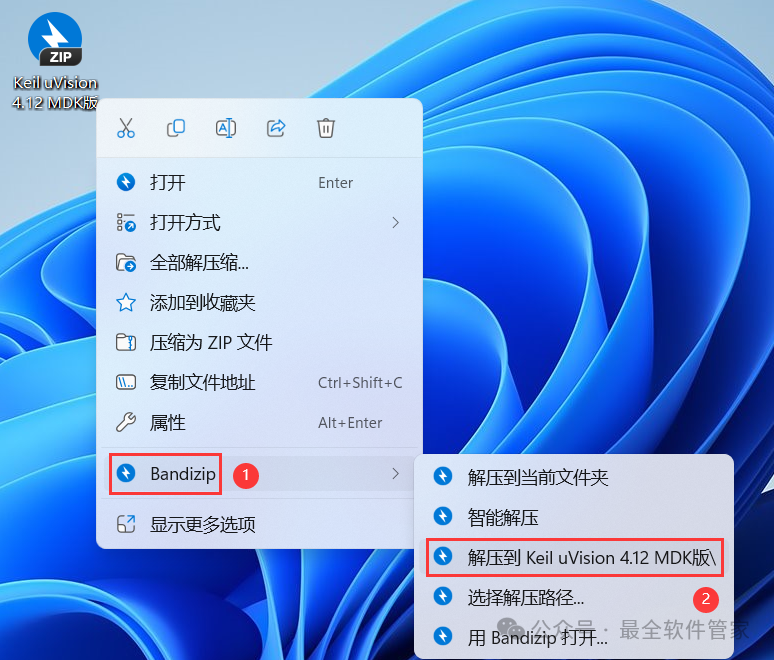 2. Right-click [Open] the extracted folder
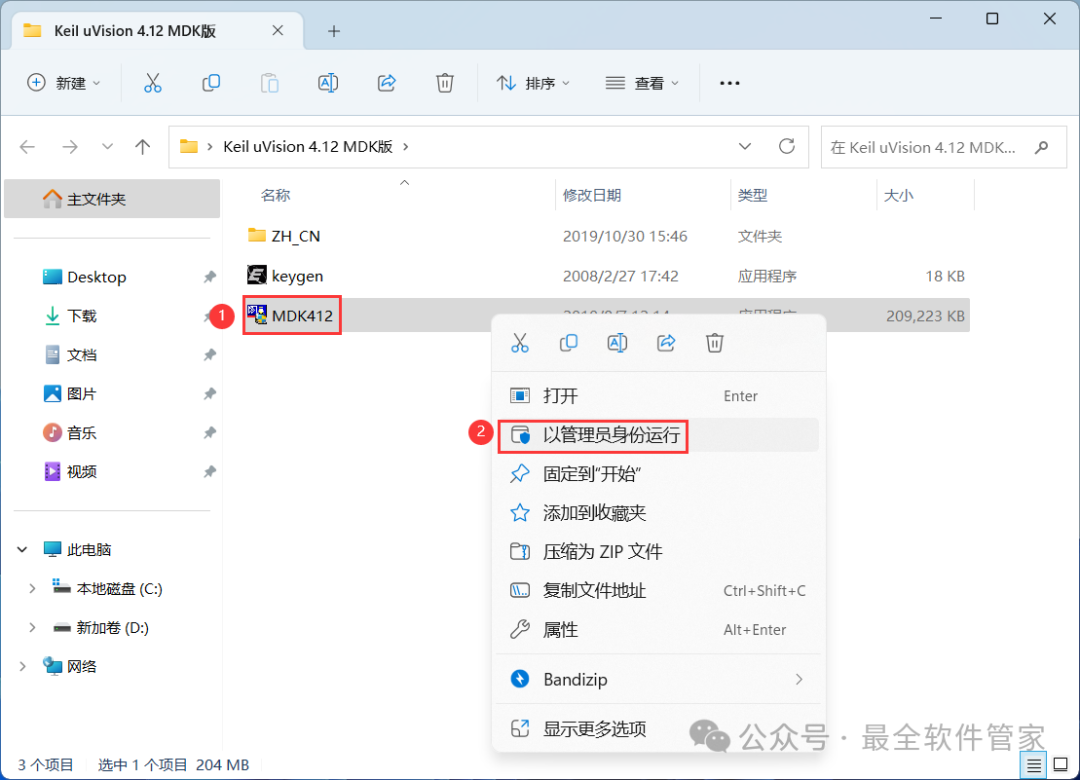
 3. Find the [MDK412] application, right-click and select [Run as Administrator]
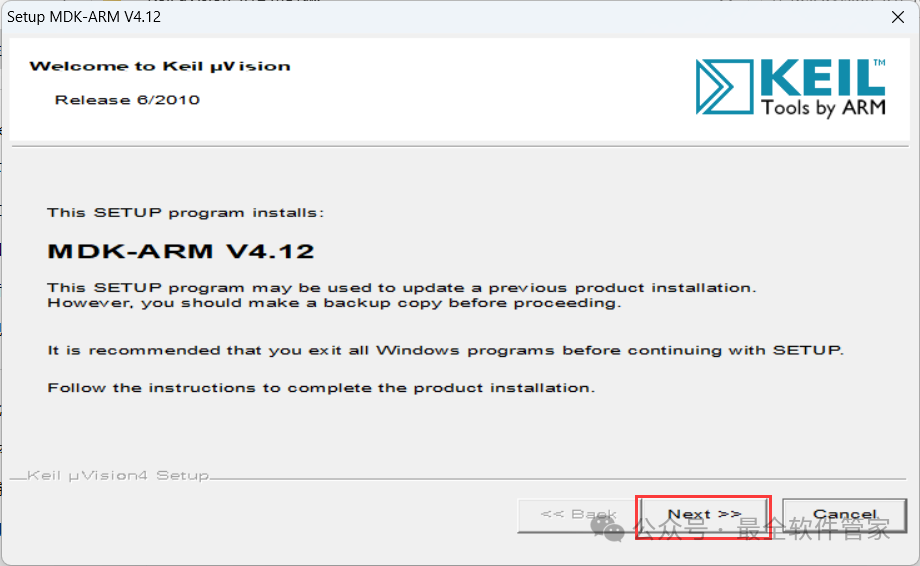
 4. Click [Next]
 5. Check [I accept], then click [Next]
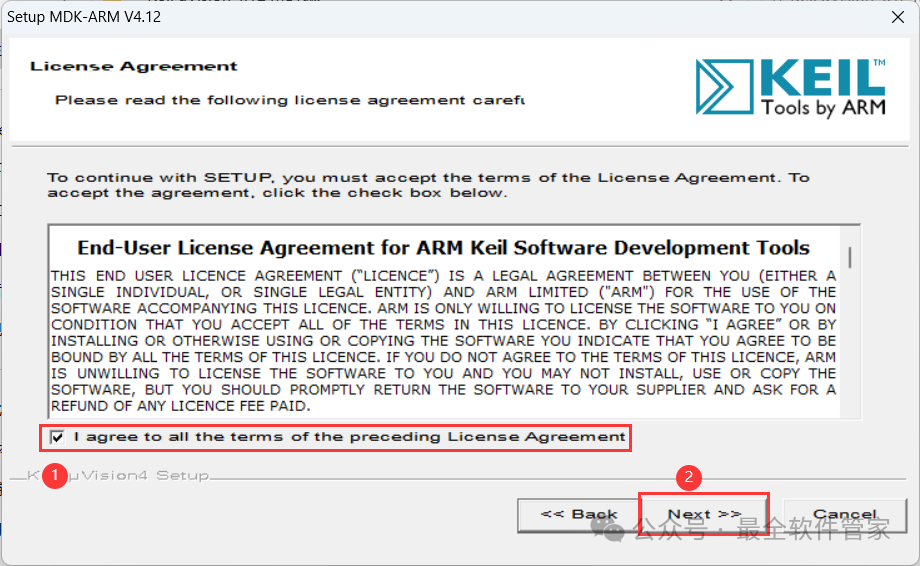 6. The software is installed by default on the C drive, you can customize the installation location; here the editor chooses to install on the D drive; click [Next]
 7. Enter any English text, then click [Next]
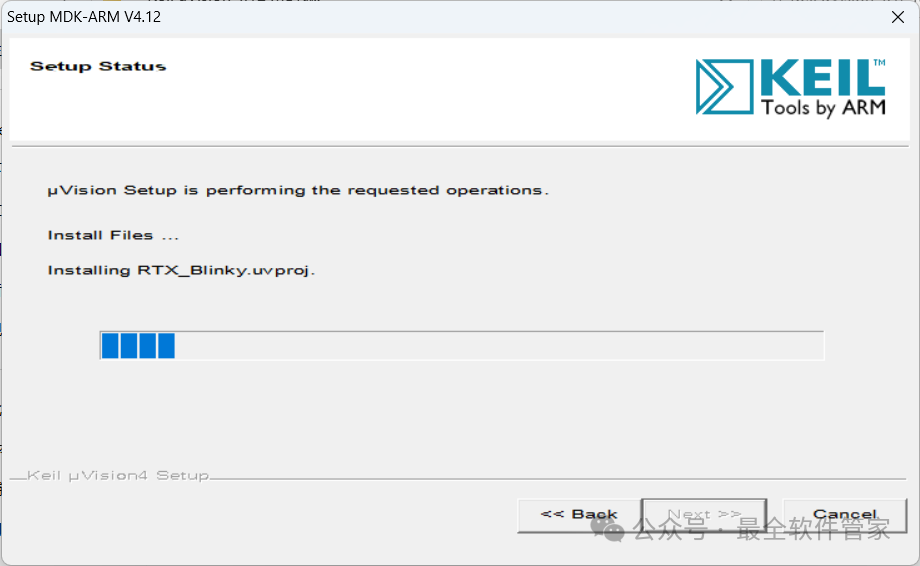
 8. The software is installing, please wait a moment
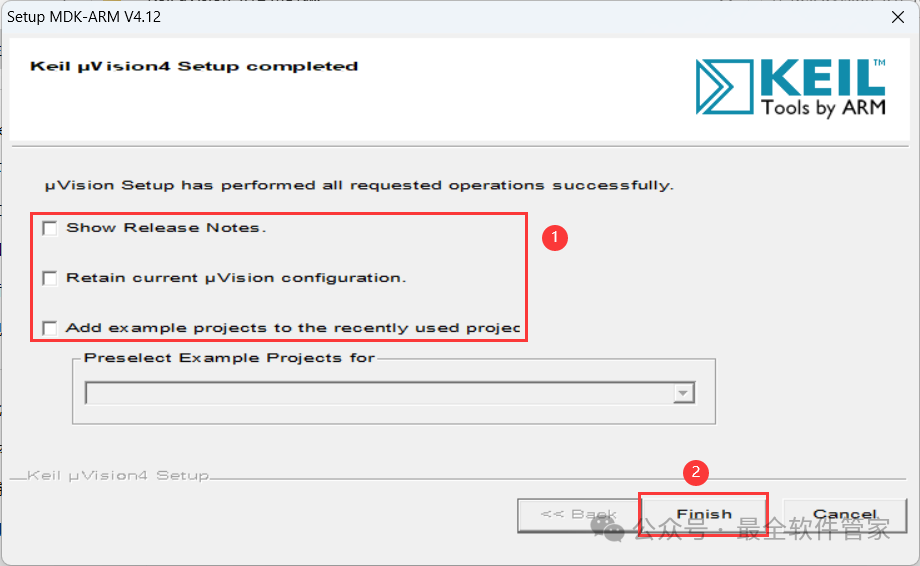
 9. Uncheck all options, then click [Finish]
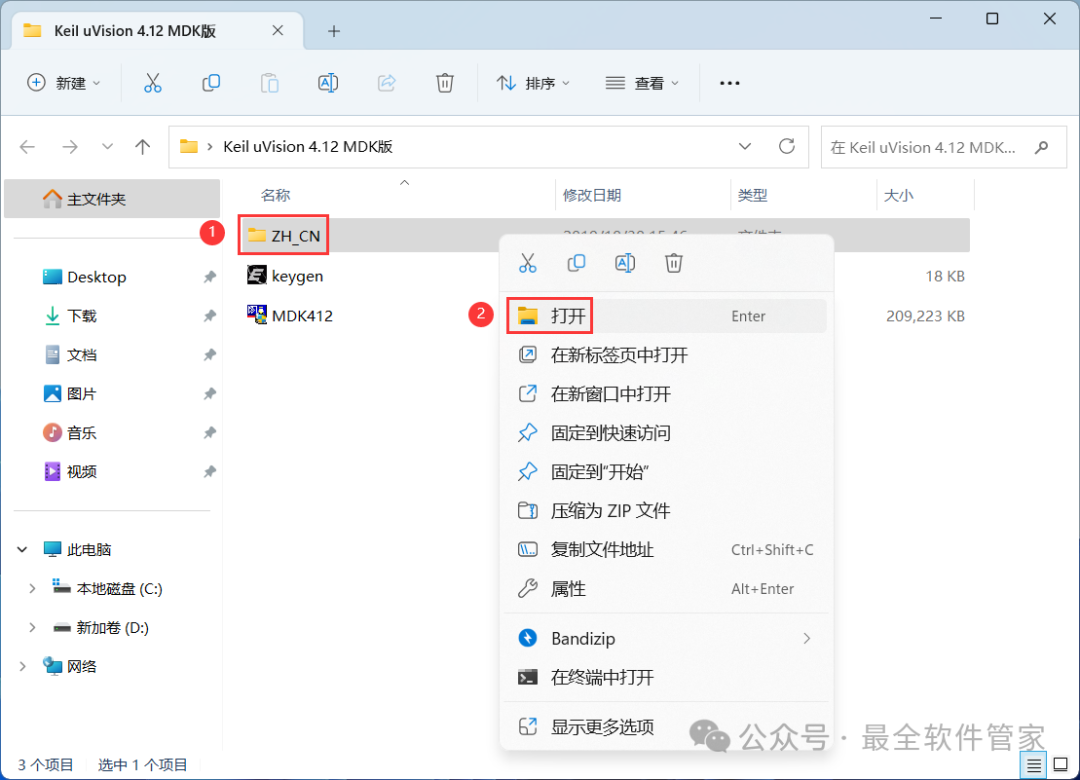
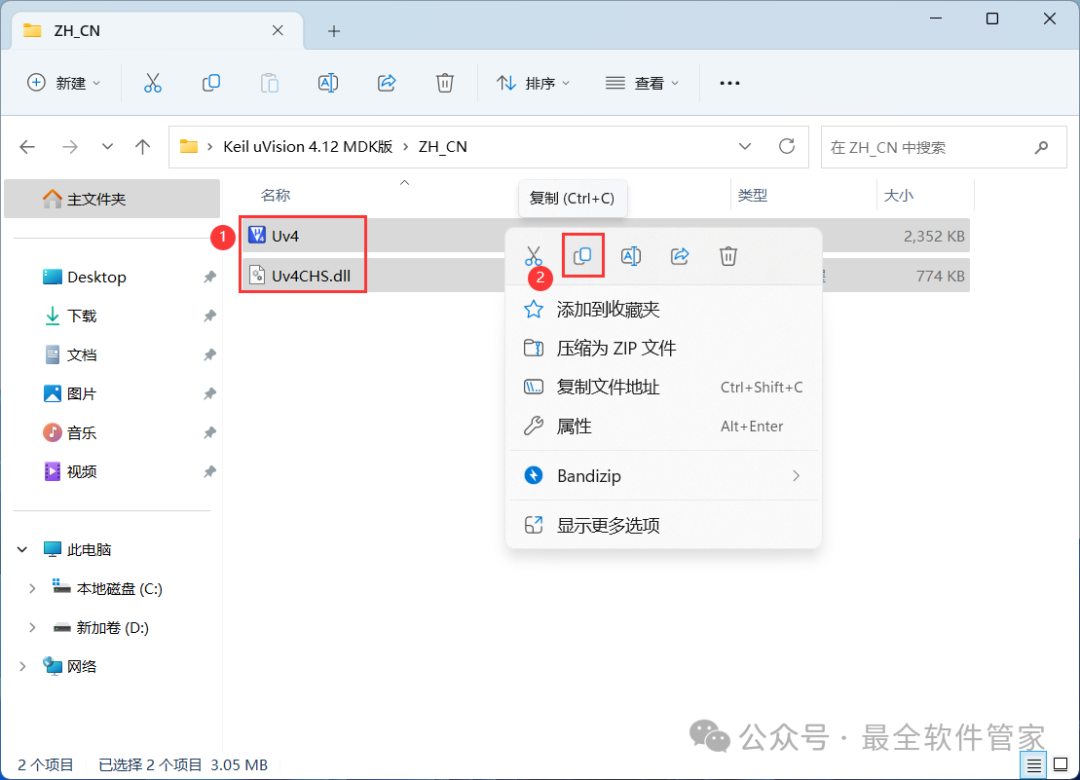
 10. Go back to the Keil uVision 4.12 MDK folder, find the [ZH_CN] folder, right-click [Open] it
 11. Select all files, then right-click and click [Copy]
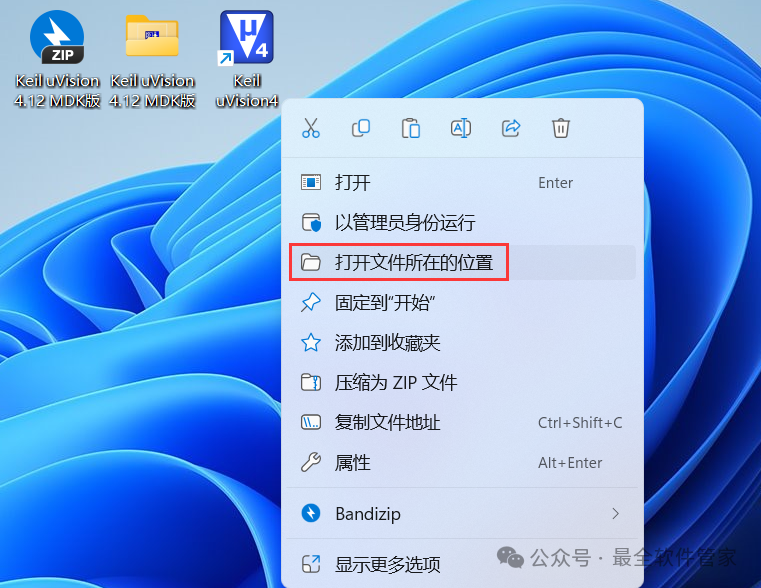
 12. Go back to the desktop, right-click the [Keil uVision4 software icon] on the desktop, click [Open file location]
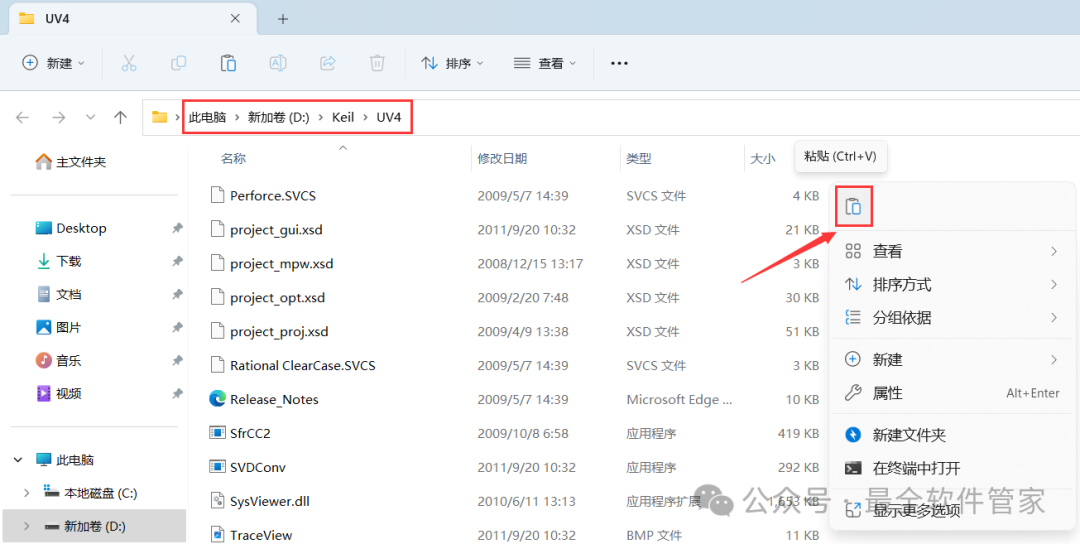
 13. Right-click in the empty space of the folder, click [Paste]
 14. Click [Replace the files in the destination]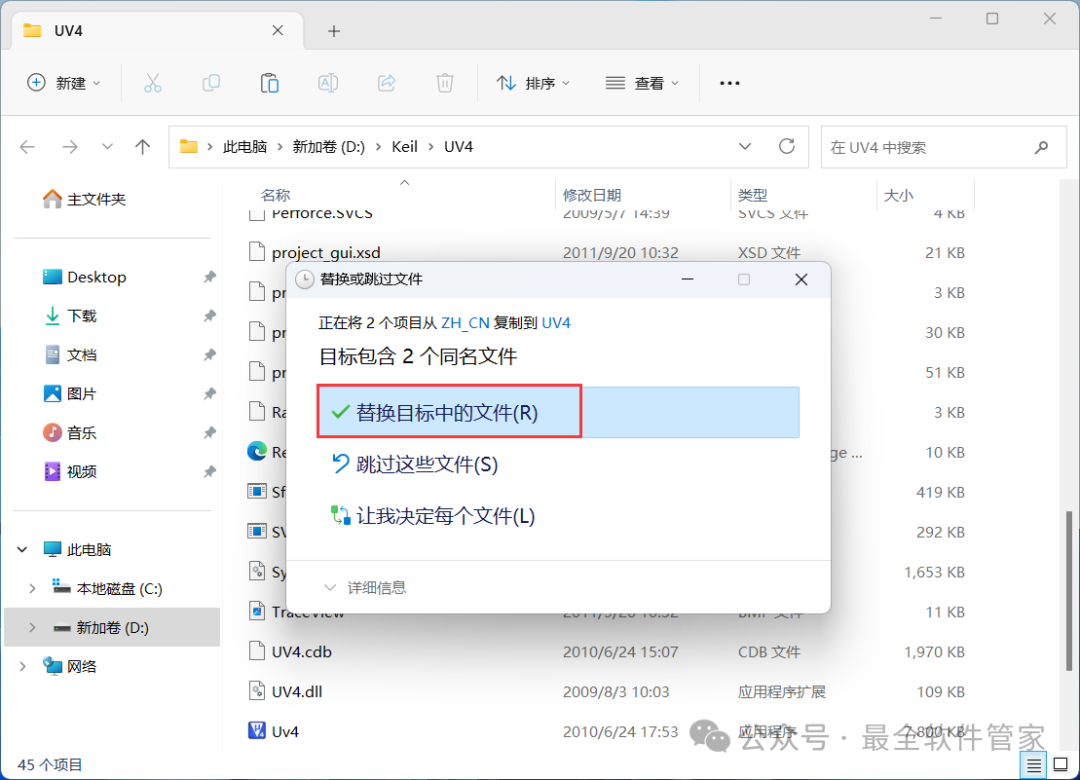
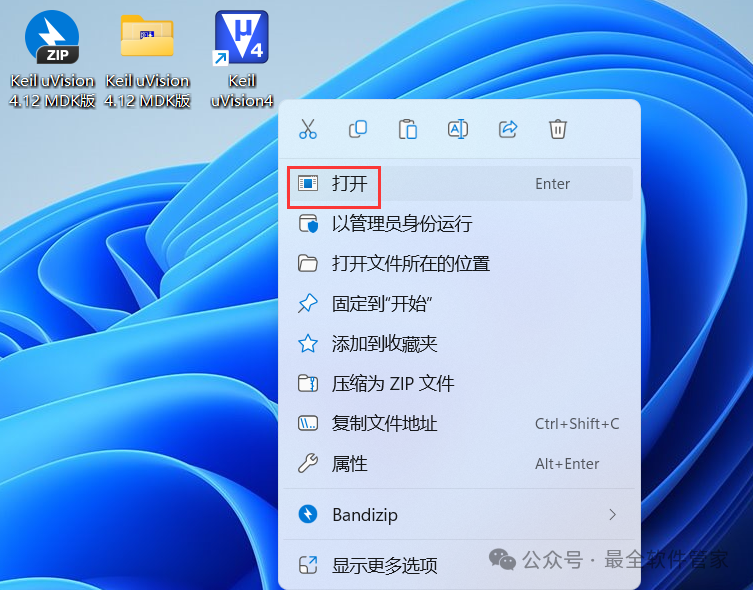 16. The software is opening, the startup interface is as follows:
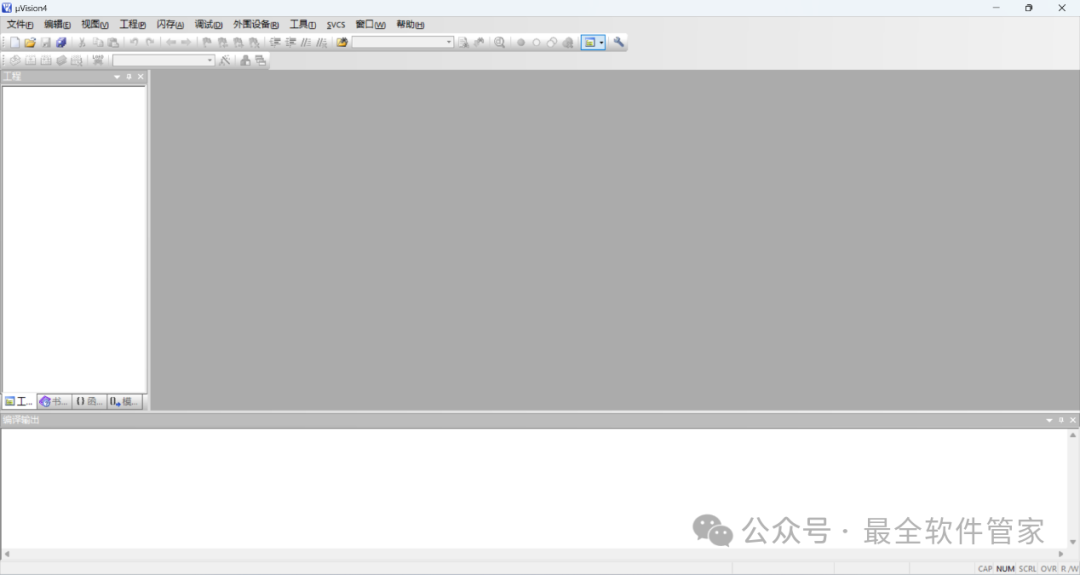
 17. The software opened successfully, the running interface is as follows:
 18. This is the complete process of installing the Keil uVision 4.12 MDK software. If this has helped you, please give the editor a thumbs up!Disclaimer: The software resources are sourced from the internet and are for user communication, learning, and research purposes only. The copyright belongs to the original copyright holder. Any copyright disputes are not related to this public account. Users must not use the downloaded files for commercial or illegal purposes; otherwise, the consequences will be borne by the user. By accessing and downloading this file, you agree to use this software only for reference and learning, not for other purposes. Otherwise, you will bear all consequences. Please delete it within 24 hours after downloading, and it is not allowed for commercial use; otherwise, you will bear legal issues. If you like this software, please support the original software by purchasing a license for better service.