In the daily use of electronic devices, we often rely on SD cards to store a large amount of important data. However, during the management and preservation of data, the common operation of “formatting” can lead to the instant clearing of data on the SD card.
How to recover data from a formatted SD card? Next, this article will detail how to recover data from a formatted SD card, step by step guiding you to retrieve those lost important files.
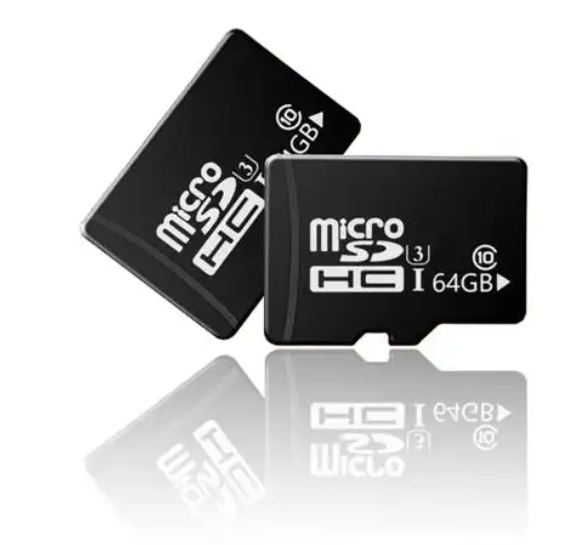
Step 1: Stop Using the SD Card
Once you discover that the SD card has been formatted, the first thing to do is to immediately stop using the SD card. This is because the formatting operation only marks the data space as available for overwriting at the file system level, while the actual data remains stored on the SD card until it is overwritten by new data.
If you continue to use the SD card, such as taking photos, recording videos, or copying new files to it, the newly written data is very likely to overwrite the old data that could still be recovered, significantly reducing the success rate of data recovery. Therefore, to recover as much data as possible, it is essential to stop any operations on the SD card immediately.
Step 2: Connect the SD Card to a Computer
Next, you need to connect the SD card to a computer to use tools on the computer for data recovery operations.
Typically, we can use an SD card reader to complete the connection. Carefully insert the SD card into the reader, then plug the reader into the USB port of the computer. Ensure that the computer can recognize the SD card properly; generally, the SD card will appear in “This PC” (Windows) or “Finder” (Mac) with a corresponding drive letter or icon.
If the computer cannot recognize the SD card, there may be several reasons: one is a faulty card reader; you can try using a new card reader to connect the SD card; the other is that the SD card itself may have hardware issues, such as poor contact or chip damage. In such cases, the difficulty of data recovery will increase, and you may need to seek professional data recovery services for assistance.
Step 3: Install and Run Professional Data Recovery Software
To recover data from a formatted SD card, professional data recovery software is a very effective tool. There are many data recovery software options available on the market.
EaseUS Data Recovery Wizard is powerful, compatible with both Windows and Mac systems, and can recover data lost due to deletion, formatting, prompts for formatting, virus attacks, partition anomalies, system crashes, and more. In addition, EaseUS Data Recovery Wizard supports recovery from various storage devices such as hard drives, USB drives, and memory cards, capable of recovering over 1000 different types of data.
The operation of EaseUS Data Recovery Wizard is very simple, making it suitable for novice users. First, download the software installation package from the official EaseUS Data Recovery Wizard website. After downloading, run the installation package and follow the installation wizard’s prompts to complete the installation.
Once the EaseUS Data Recovery Wizard is installed, double-click to open the software and enter the main interface. In the main interface, you will see various function options and operation guides.
Step 4: Scan the SD Card Using the Software
In the main interface of EaseUS Data Recovery Wizard, the software will automatically recognize and list all storage devices currently connected to the computer. Find the corresponding drive letter for the previously connected SD card and select it.
Click the “Scan for Lost Data” button, and the software will begin a comprehensive scan of the SD card. The scanning process may take some time, depending on the size of the SD card and the amount of stored data. During the scan, the software will attempt to identify all recoverable data on the SD card and list them one by one.
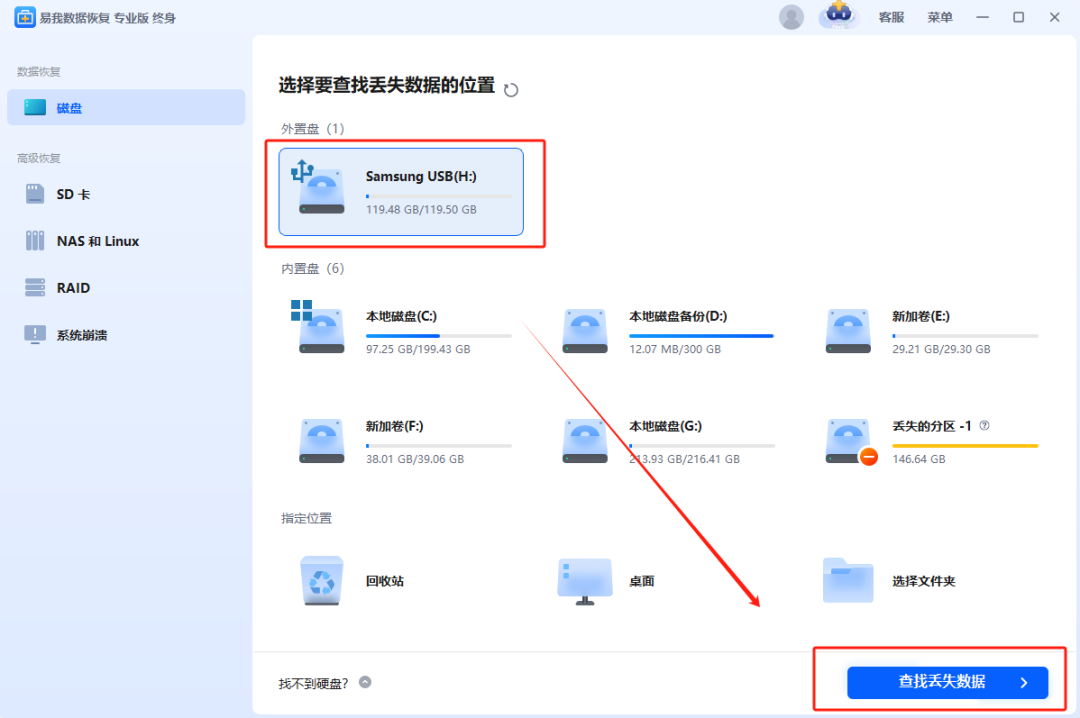
EaseUS Data Recovery Wizard uses advanced algorithms during scanning, capable of scanning not only conventional file system data but also performing deep scans for cases where the file system is damaged due to formatting or other reasons, striving to recover more lost data. During the scan, you can view the scanning progress and preview some of the found data at any time.
Step 5: Preview Scan Results and Recover SD Card Data
When the scan is complete, the software will display the scan results, listing all recoverable files found on the SD card. These files will be categorized and displayed according to file type, folder structure, etc., making it easier for users to find.
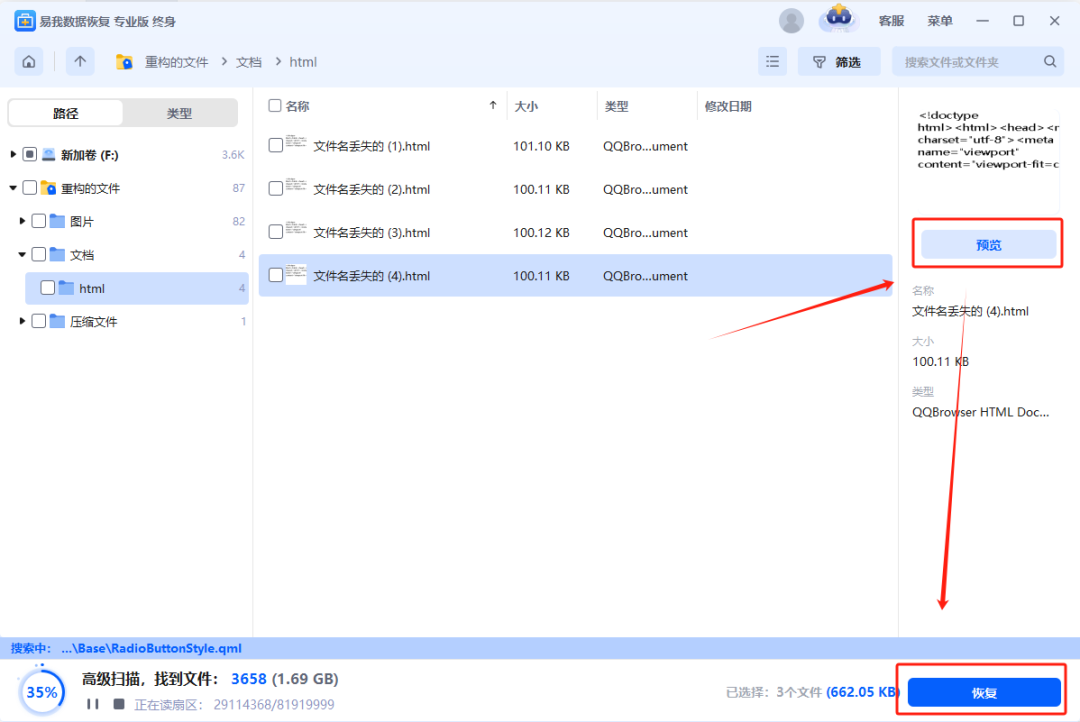
EaseUS Data Recovery Wizard provides a powerful file preview feature, which is a very practical characteristic. You can double-click files to preview them; for example, for photo files, you can directly see the content of the photos; for document files, you can view the general content of the documents, etc. By previewing, you can confirm whether these files are the ones you need to recover, avoiding the recovery of a large number of useless files, thus saving time and storage space.
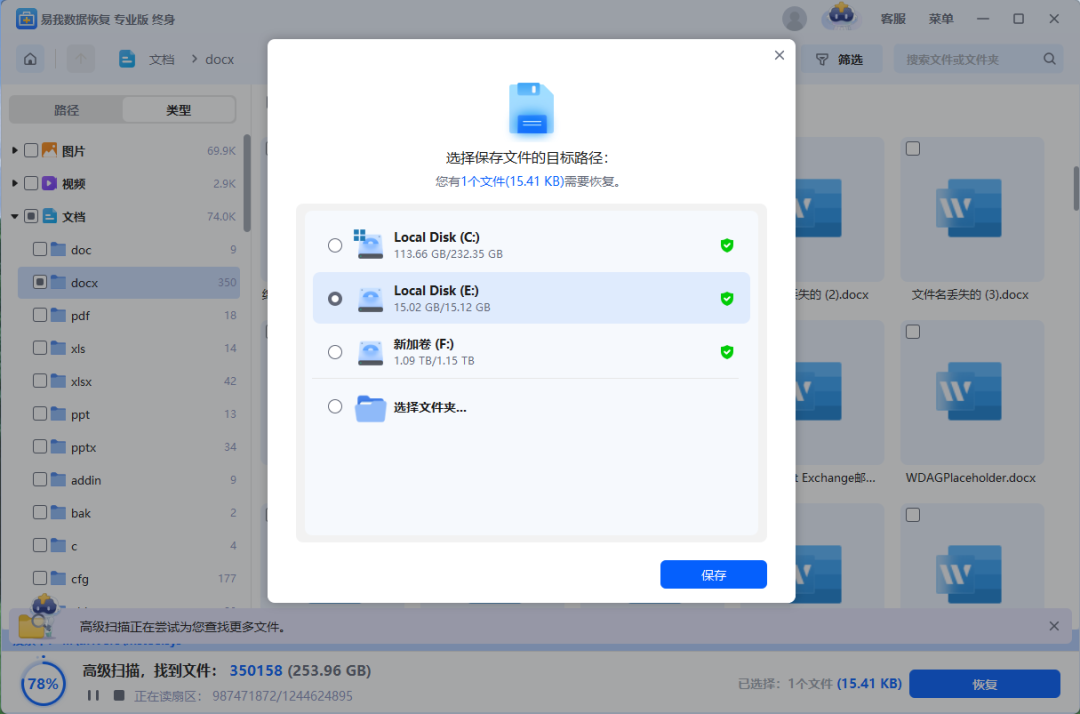
After confirming the files you need to recover in the preview, check these files and then click the “Recover” button. At this point, the software will pop up a window asking you to select a location to save the recovered files. It is especially important not to save the recovered files back to the original SD card, as this may overwrite the original unrecovered data, leading to recovery failure. It is recommended to choose another partition on the local disk of the computer or connect an external hard drive or other storage device as the save path for the recovered files.
After selecting the save location, click the “OK” button, and the software will begin to restore the checked files to the specified location. Wait for the recovery to complete, and you will find the recovered files in the save path for viewing and use.
Common Questions and Answers about SD Card Formatting Recovery
Q: How soon after formatting should data recovery be attempted for a higher success rate?
A: Generally, the sooner data recovery is attempted after formatting, the higher the success rate. As time goes on, users are likely to continue using the SD card, and new written data will gradually overwrite the original data. Once the original data is significantly overwritten, the possibility of recovery will greatly decrease. Therefore, it is recommended to immediately attempt data recovery following the steps outlined above upon discovering that the SD card has been formatted.
Q: Can data recovery software recover all types of files?
A: Different data recovery software supports different file types, but most common file types, such as photos (JPEG, PNG, etc.), videos (MP4, AVI, etc.), documents (Word, Excel, PDF, etc.), and audio (MP3, WAV, etc.), can be successfully recovered by common data recovery software. However, for some very niche or special file formats, the success rate of recovery may be lower.
Q: Why are some recovered files unable to open or show as corrupted?
A: There may be several reasons for this. On one hand, the data may have already been damaged to some extent during the loss or formatting process, such as the SD card having bad sectors, leading to partial loss or damage of data stored near the bad sectors; on the other hand, during the recovery process, it may also be due to the limitations of the software algorithms or other unexpected situations, resulting in incomplete or erroneous recovered data. Some data recovery software offers the ability to repair corrupted files; you can try using these features to repair damaged files.
Q: Can recovered data be saved directly back to the SD card?
A: It is strongly advised not to save recovered data directly back to the original SD card. Because during the recovery process, if data is saved back to the original SD card, the new written data may overwrite important unrecovered data, leading to final data recovery failure. Therefore, it is essential to choose another reliable storage device to save the recovered data.
Q: If the SD card has been formatted multiple times, can the data still be recovered?
A: Multiple formatting significantly increases the difficulty of data recovery, but it does not mean that recovery is impossible. If no new data has been written to overwrite the original data after each formatting, then theoretically, recovery is still possible; however, the success rate will be much lower compared to a single formatting. In such cases, using professional data recovery software for deep scanning or seeking professional data recovery services may be a better choice.
Conclusion
How to recover data from a formatted SD card? When encountering the situation of SD card formatting, the first step is to immediately stop using the SD card to prevent data from being overwritten; then connect the SD card to a computer, install and run professional software like EaseUS Data Recovery; next, scan the SD card, preview and select the files to be recovered, and restore them to another safe storage location. Additionally, understanding common questions and solutions during the SD card formatting recovery process can help us better cope with such situations and improve the success rate of data recovery.