When entering commands in the Linux command line, you are essentially instructing the shell to run an executable file with a specified name. Executable programs in Linux (such as <span>ls</span>, <span>find</span>, <span>file</span>, etc.) are typically stored in multiple different system directories. As long as they have executable permissions, files stored in these directories can be run directly from anywhere. The most common directories for executables include:
- /bin
- /sbin
- /usr/sbin
- /usr/local/bin
- /usr/local/sbin
The functions of these standard Linux executable directories are summarized in the table below:
| Directory | Purpose | Typical Command Examples | Permission Requirements |
|---|---|---|---|
<span>/bin</span> |
Contains essential commands required for system boot and operation (available to all users) | <span>ls</span>, <span>cp</span>, <span>bash</span>, <span>cat</span> |
Ordinary users can execute directly |
<span>/sbin</span> |
Contains critical maintenance commands for system administrators (usually requires <span>root</span> permissions) |
<span>fdisk</span>, <span>ifconfig</span>, <span>reboot</span>, <span>init</span> |
Requires <span>sudo</span> or <span>root</span> |
<span>/usr/bin</span> |
Contains user-level applications (not essential for system boot but relied upon for daily operations) | <span>gcc</span>, <span>python</span>, <span>vim</span>, <span>ssh</span> |
Ordinary users can execute directly |
<span>/usr/sbin</span> |
Contains non-critical system management tools (usually requires <span>root</span> permissions) |
<span>useradd</span>, <span>cron</span>, <span>sshd</span> |
Requires <span>sudo</span> or <span>root</span> |
<span>/usr/local/bin</span> |
Contains software manually installed or compiled by users (higher priority than <span>/usr/bin</span>) |
Custom scripts, <span>pip install</span> installed tools |
Ordinary users can execute directly |
<span>/usr/local/sbin</span> |
Contains system management tools manually installed by users (requires <span>root</span> permissions) |
Custom service scripts, third-party management tools | Requires <span>sudo</span> or <span>root</span> |
1. What Does the PATH Environment Variable Contain?
PATH is a colon-separated list of directories that indicates to the shell where to search for executable files. It works as follows:
1) When a command is entered, the shell searches the directories listed in PATH in order
2) If there are executable files with the same name, the program in the directory that is found first is executed
To view the current PATH settings, you can use the following commands:
echo $PATH
# or
printenv PATH
Typical Output Example:
[root@backup ~]# echo $PATH
/root/.local/bin:/root/bin:/usr/share/Modules/bin:/usr/local/sbin:/usr/local/bin:/usr/sbin:/usr/bin:/var/lib/snapd/snap/bin
[root@backup ~]# printenv PATH
/root/.local/bin:/root/bin:/usr/share/Modules/bin:/usr/local/sbin:/usr/local/bin:/usr/sbin:/usr/bin:/var/lib/snapd/snap/bin
[root@backup ~]#

2. Temporarily Add a Directory to PATH
Assuming you need to add a custom script in the <span>bin</span> directory under the user’s home directory:
export PATH="$HOME/bin:$PATH"
For example, to add to the <span>bin</span> directory under the admin user’s home directory:
[admin@backup ~]$ export PATH="$HOME/bin:$PATH"
[admin@backup ~]$
Now check:
[admin@backup ~]$ echo $PATH
/home/admin/bin:/home/admin/.local/bin:/home/admin/bin:/usr/share/Modules/bin:/usr/local/bin:/usr/bin:/usr/local/sbin:/usr/sbin:/var/lib/snapd/snap/bin
[admin@backup ~]$
Notes:
- This modification is only effective for the current terminal session
- Using the $HOME variable is more reliable than writing it directly
- Placing the new directory at the beginning ensures it is searched first
3. Permanently Modify PATH Configuration
1) User-level configuration (recommended):
- Bash users: Edit
<span><span>~/.bashrc</span></span> - Zsh users: Edit
<span><span>~/.zshrc</span></span>
Add the line:
export PATH="$HOME/bin:$PATH"
To make the configuration take effect immediately:
source ~/.bashrc
2) System-level configuration (requires administrator permissions):
<span>/etc/environment</span><span> (applies to all users)</span><span>/etc/profile</span><span> (system-wide configuration)</span>
4. Remove a Directory from PATH
1) Permanently remove: Edit the corresponding configuration file to delete the relevant entry
2) Temporarily remove:
PATH=$(echo "$PATH" | sed -e 's/:\/path\/to\/remove$//')
5. Best Practice Recommendations
1) It is recommended to store custom scripts in the <span>$HOME/.local/bin</span> directory (following Linux filesystem standards)
2) It is advisable to back up the original PATH value before making modifications:
OLD_PATH=$PATH
3) When adding multiple directories, pay attention to the order:
export PATH="/new/path1:/new/path2:$PATH"
6. Common Troubleshooting
1) Check if the directory has actually been added:
echo $PATH | tr ':' '\n'
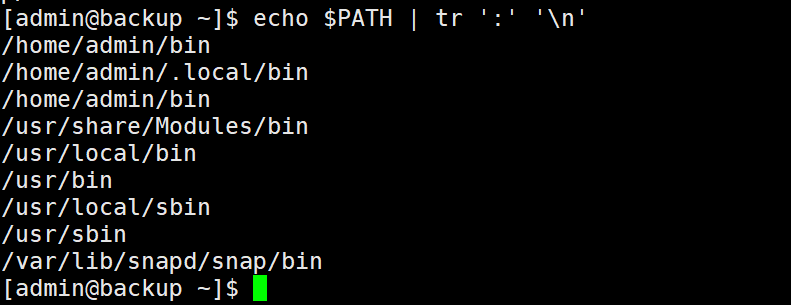
2) Ensure the script has executable permissions:
chmod +x ~/bin/your_script
The methods described in this article apply to all major Linux distributions, including Ubuntu, CentOS, RHEL, Debian, and Linux Mint. By properly configuring the PATH variable, you can significantly improve command line operation efficiency, especially in development environments and custom script management.