Command Description

Basic AT Commands

ATI displays the MT ID information
AT+CIMI queries the IMSI
AT+QCCID queries the ICCID
AT+CSQ queries the signal strength
AT+CGATT? queries the current PS domain status
MQTT Configuration Commands
AT+QMTCFG configures MQTT optional parameters
AT+QMTCFG configures MQTT optional parameters.
AT+QMTOPEN opens the MQTT client network
AT+QMTCLOSE closes the MQTT client network
AT+QMTCONN connects the client to the MQTT server.
AT+QMTDISC disconnects the client from the MQTT server
AT+QMTSUB subscribes to a topic
AT+QMTUNS unsubscribes from a topic
AT+QMTPUBEX publishes a message
AT+QMTRECV reads messages from the buffer

Process
Setting up EMQX
Access the download page: https://www.emqx.io/zh/downloads, select the appropriate version based on your needs
Upload the downloaded compressed package to the server (recommended to store in the root directory of C drive for easier subsequent operations), and extract it to the specified path (e.g., C:\emqx).
Press Win+R, type cmd and press Enter to open the Windows command line interface.
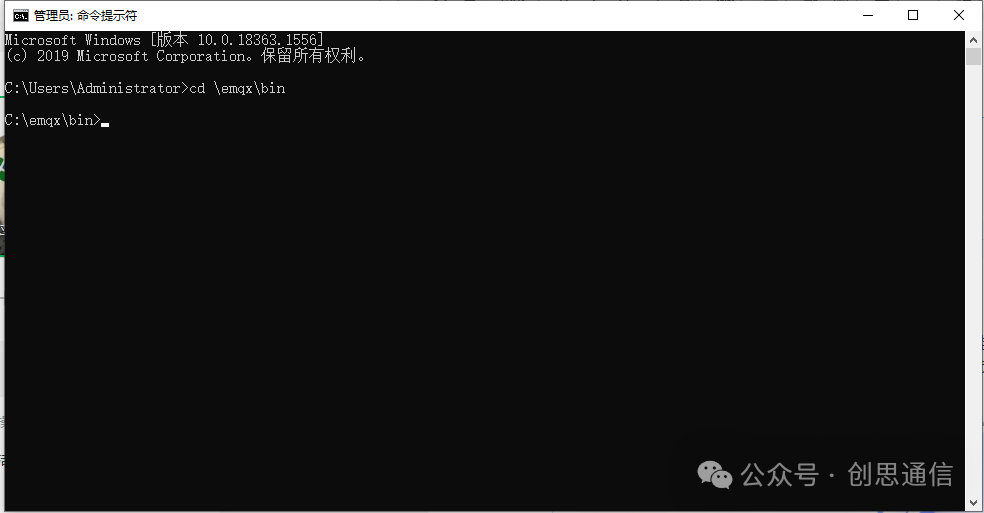
Type cd C:\emqx\bin (replace with the actual path if different), and press Enter to enter the bin folder.
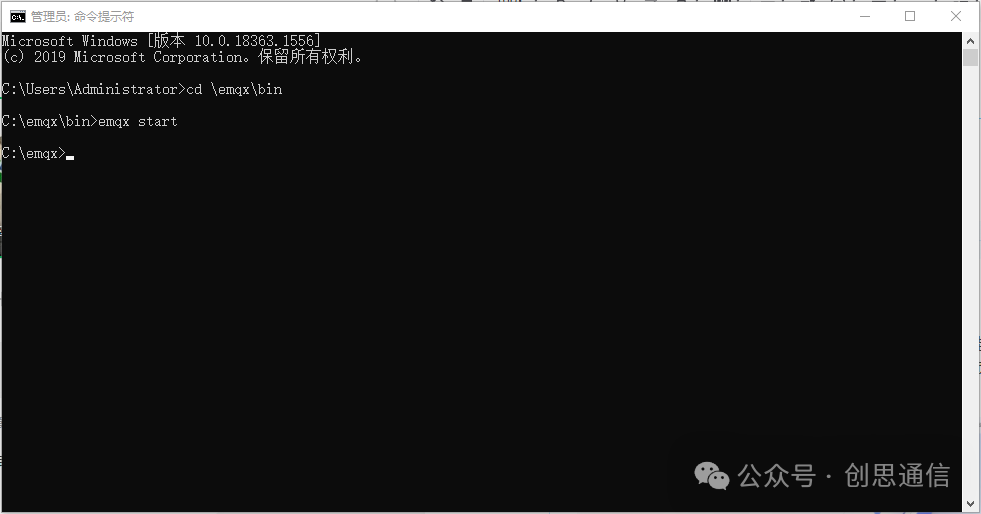
Type emqx start and press Enter to execute the start command.
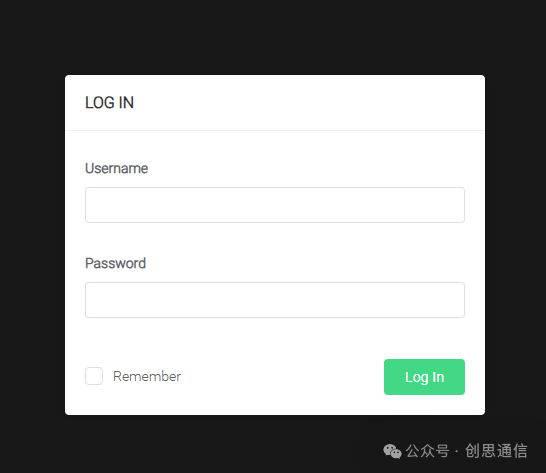
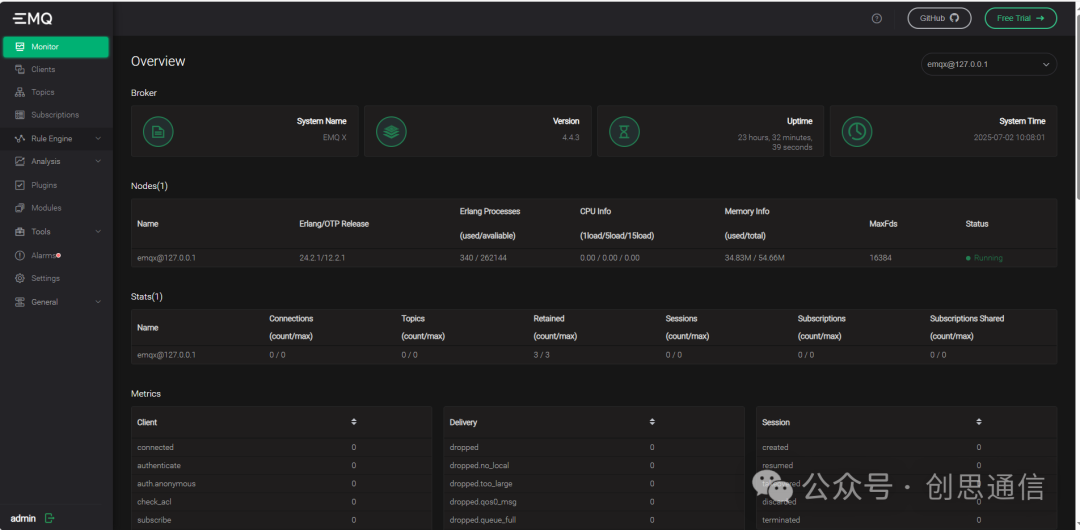
Open the browser and enter the server’s public IP and management port: http://PublicIP:18083
Log in to the system: default username: admin, default password: public
After deploying on a public server, it can be accessed from any device using this IP address for remote management.
4G Module Wiring
4G Module —– USB to TTL
VCC —– 5V
GND —– GND
TX —– RX
RX —– TX
Physical Wiring
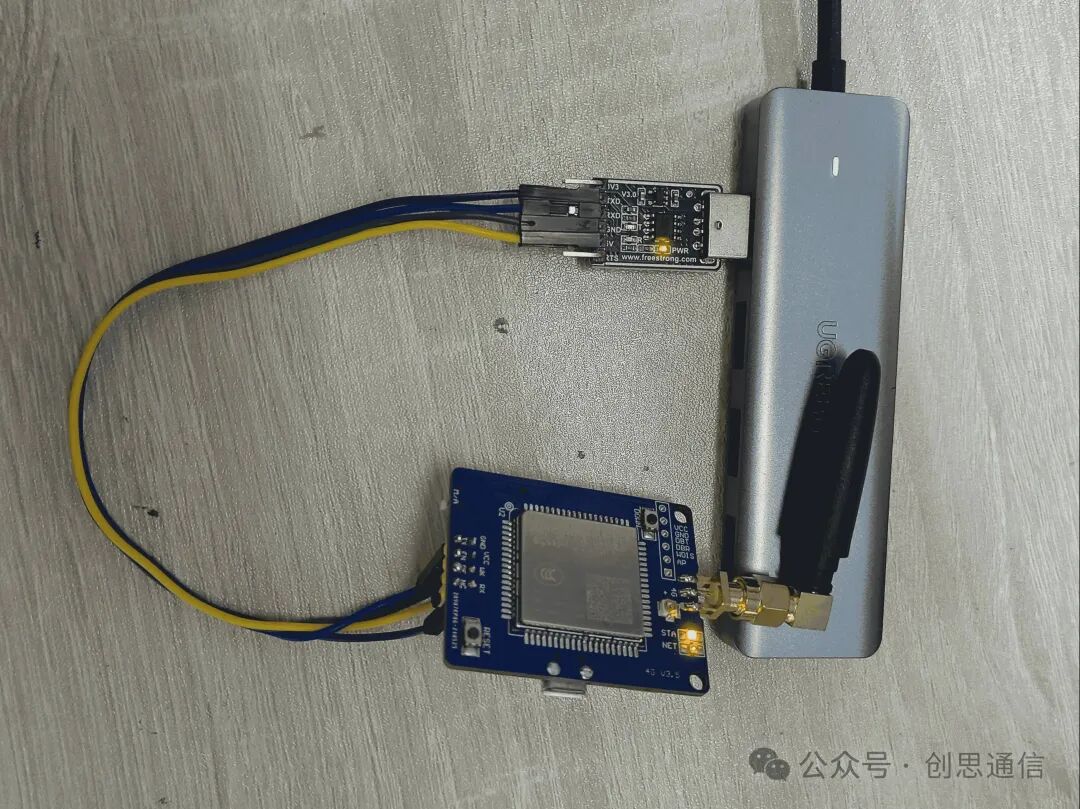
Connecting to the EMQX Platform
Connect the USB to TTL module to the device, open the serial debugging assistant, select the corresponding communication port, and set the baud rate to 115200. Then, by sending AT commands, the device can connect to the EMQX platform, completing data upload and downlink operations.
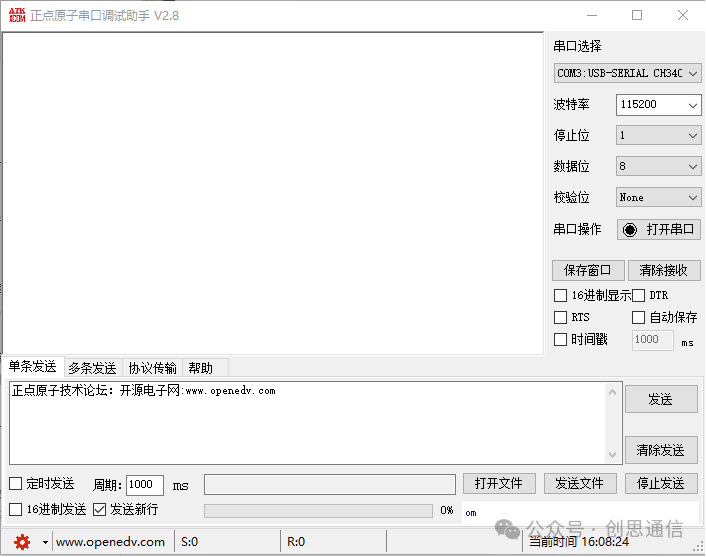
AT Command Process and Command Results:
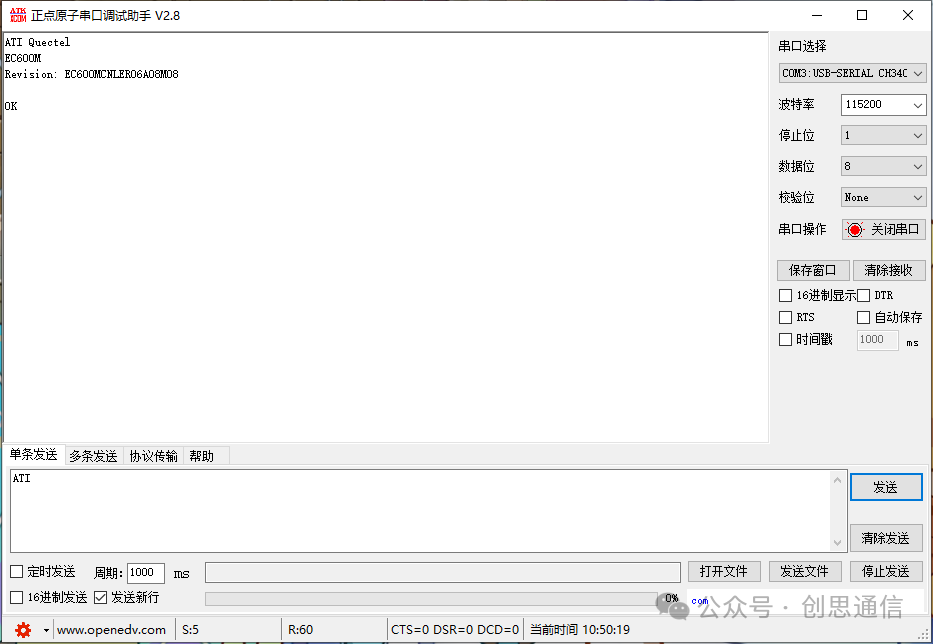
1. Query Module Information
Send command: ATI
Description: Query basic information such as module model and firmware version.
Expected response: Quectel EC600M
Revision: EC600MCN_LAAR02A07M1G OK
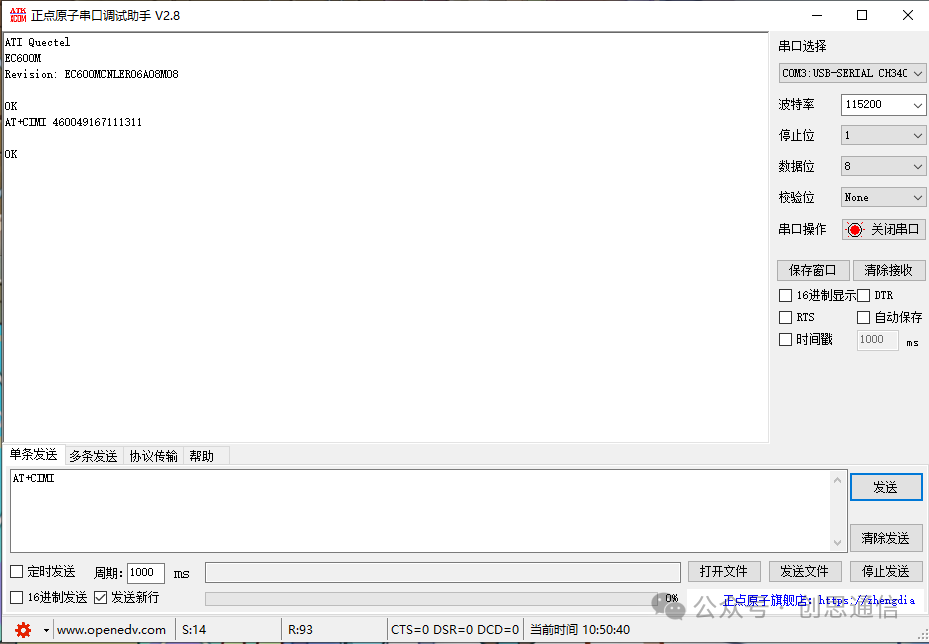
2. Query International Mobile Subscriber Identity (IMSI)
Send command: AT+CIMI
Description: Obtain the IMSI number of the SIM card for identifying mobile users.
Expected response: 460049167111311 OK
3. Query SIM Card ID (ICCID)
Send command: AT+QCCID
Description: Obtain the unique identifier of the SIM card.
Expected response: 89860471162180011311 OK
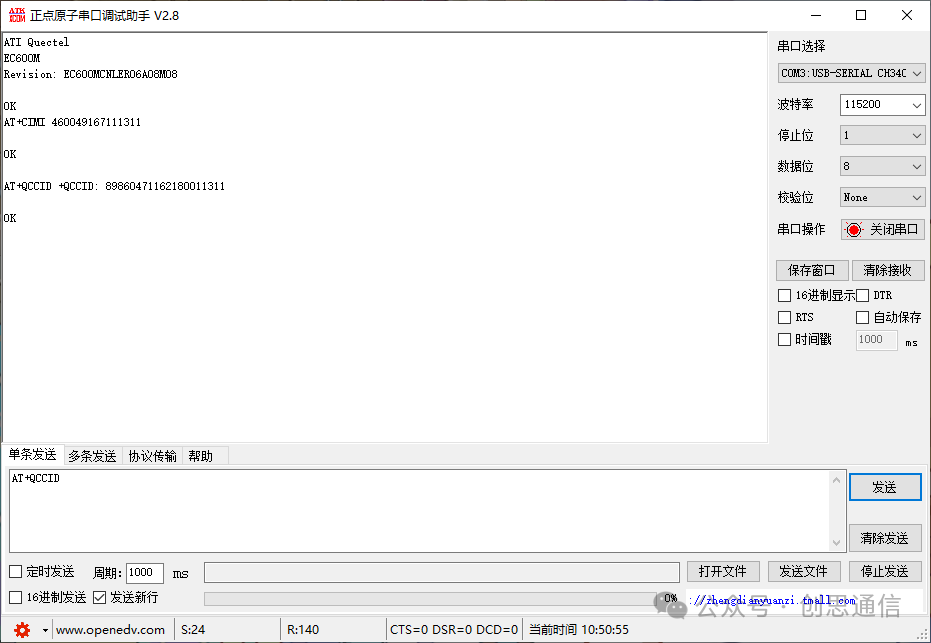
4. Query Signal Strength
Send command: AT+CSQ
Description: Check the current network signal quality (0-31, the higher the value, the stronger the signal).
Expected response: +CSQ:20,99 OK
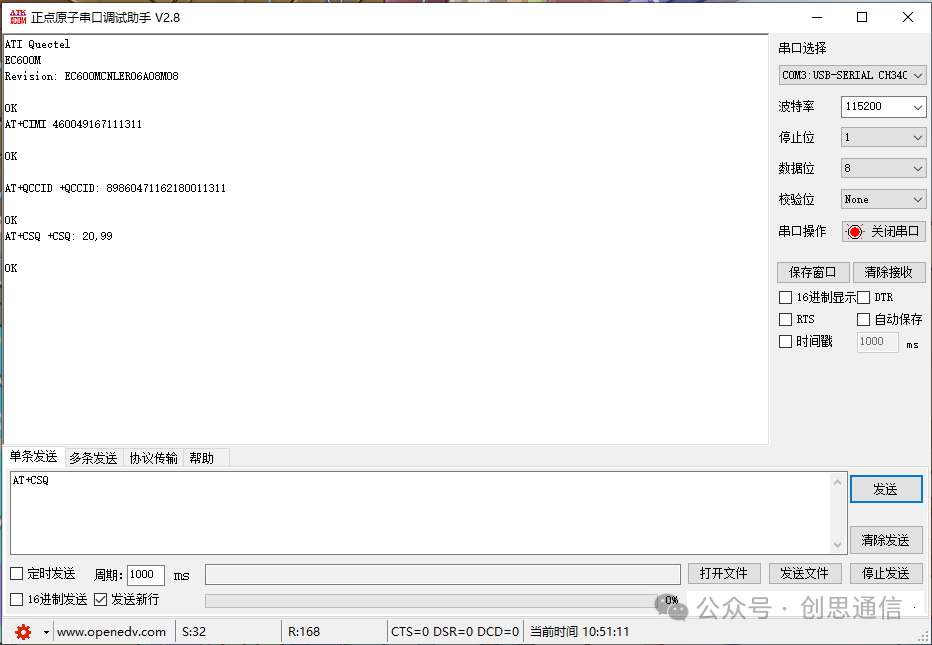
5. Query GPRS Attachment Status
Send command: AT+CGATT?
Description: Check if the module is attached to the GPRS network (1=attached, 0=not attached).
Expected response: +CGATT: 1 OK
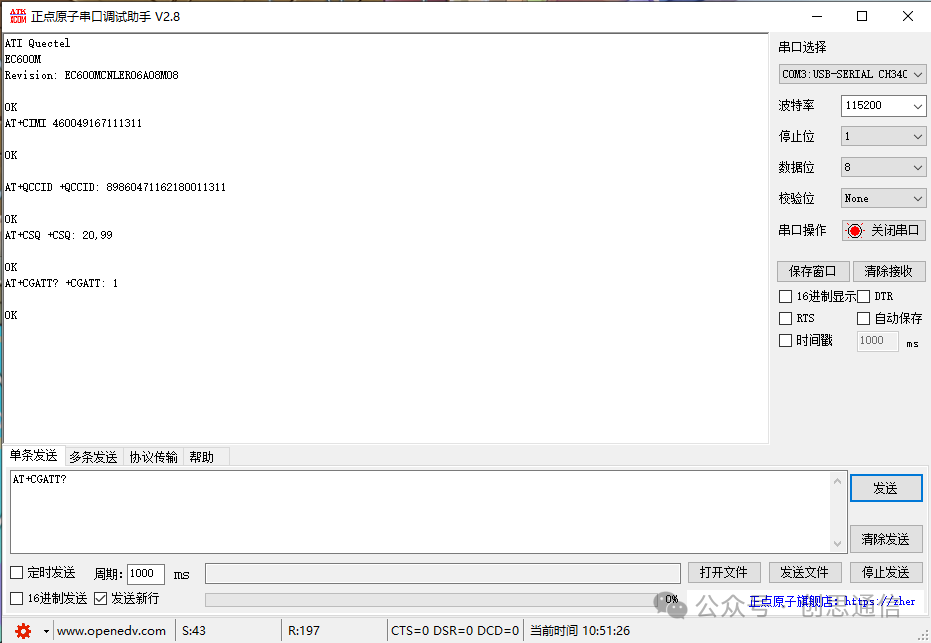
6. Configure MQTT Protocol Version
Send command: AT+QMTCFG=”version”,0,4
Description: Set the MQTT client (ID=0) to use MQTT v3.1.1 protocol.
Expected response: OK
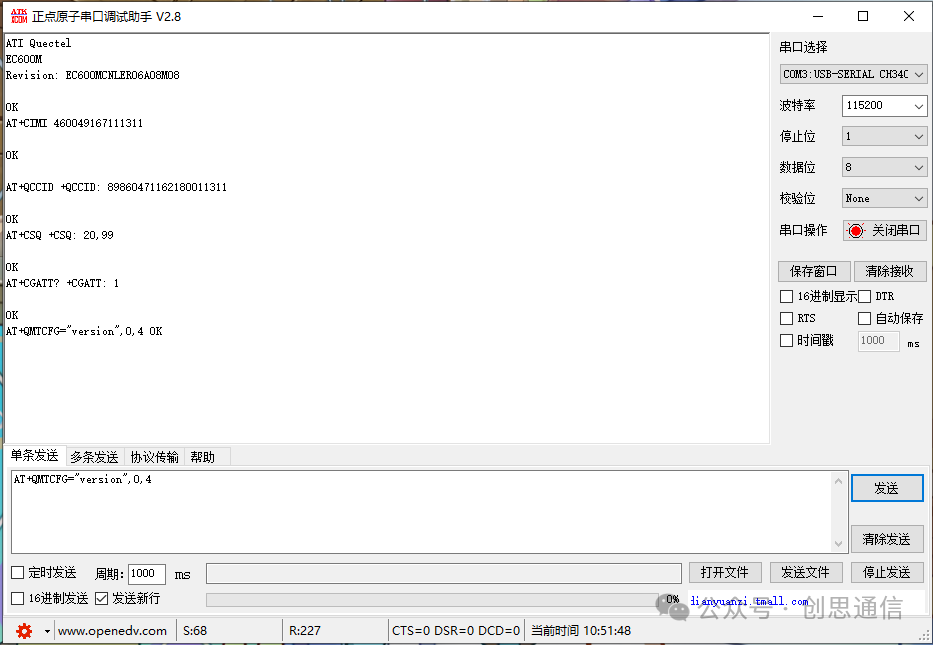
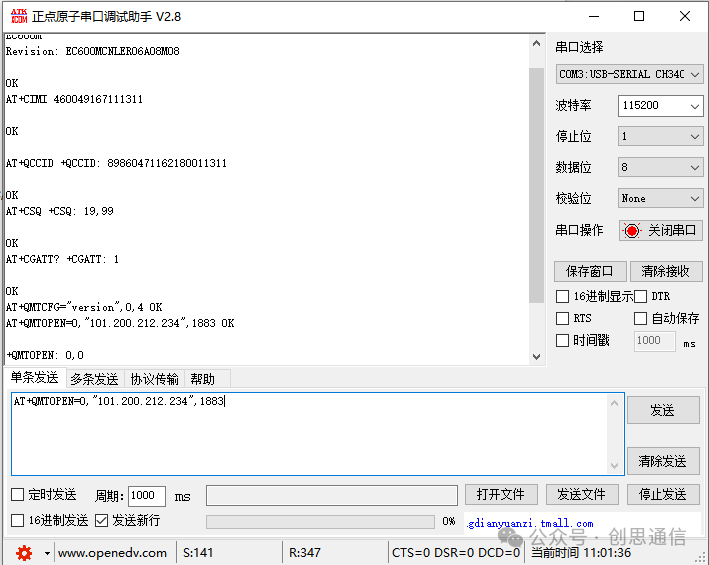
7. Open MQTT Connection
Send command: AT+QMTOPEN=0,”101.200.212.234″,1883
Description: Establish a server connection, MQTT client identifier is 0.
“101.200.212.234” is the MQTT server, and 1883 is the server port number.
Expected response: OK +QMTOPEN: 0,0
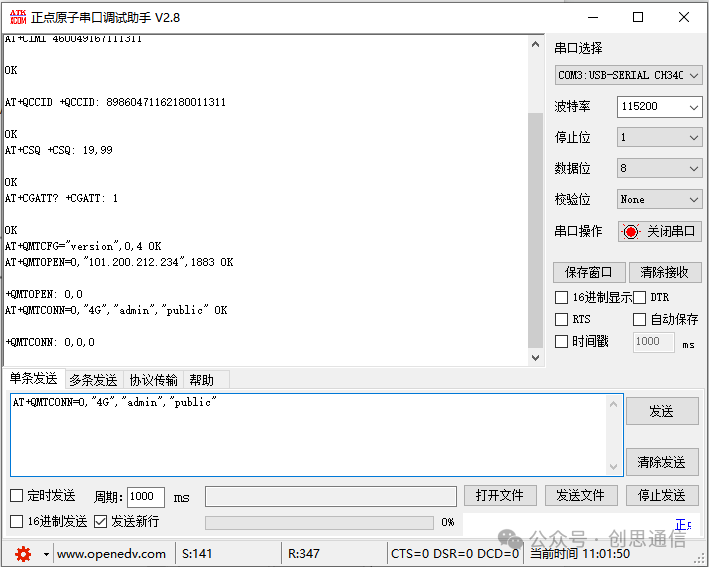
8. Connect Client to MQTT Server
Send command: AT+QMTCONN=0,”4G”,”admin”,”public”
Description: Parameter 0 is the MQTT client identifier, “4G” is the MQTT client ID, “admin” is the username, and “public” is the password.
Expected response: OK +QMTCONN: 0,0,0
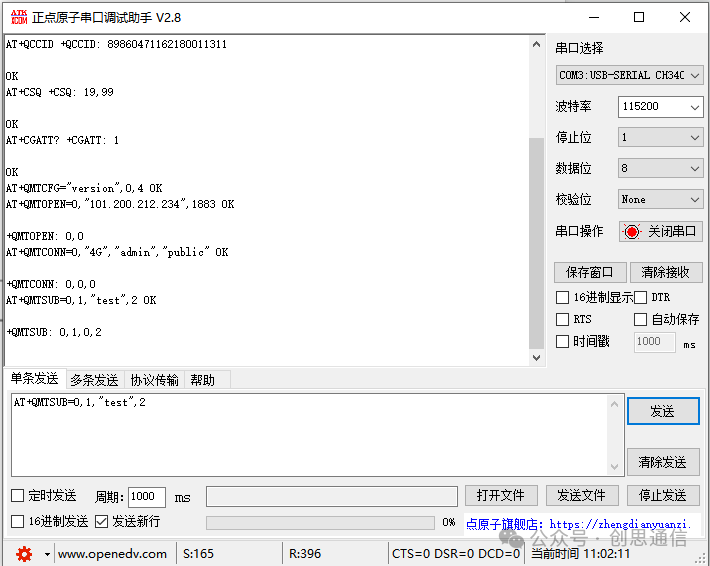
9. Subscribe to MQTT Topic
Send command:
AT+QMTSUB=0,1,”test”,2
Description: Subscribe to the topic set by the platform, 0 is the MQTT client identifier, 1 is the packet identifier, “test” is the subscribed topic name, and 2 is the QoS level.
Expected response: OK +QMTSUB: 0,1,0,2
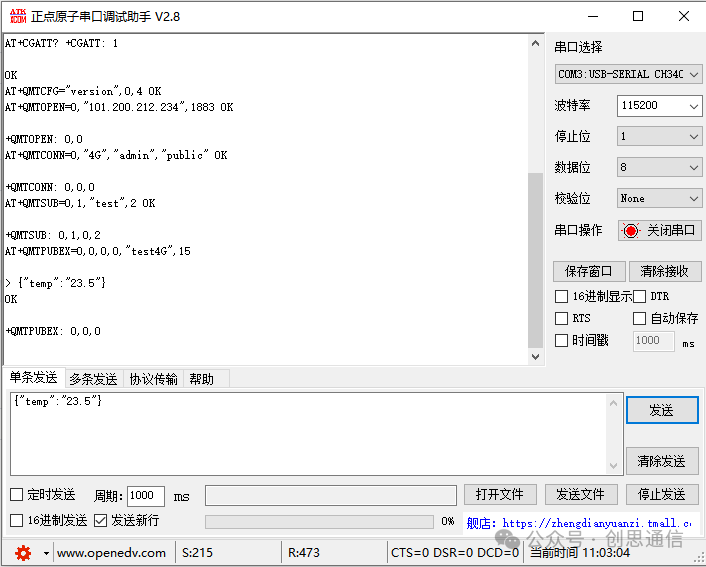
10. Publish MQTT Message
Send command:
AT+QMTPUBEX=0,0,0,0,”test4G”,15
Description: Prepare to publish an MQTT message to the specified topic (length 15 bytes).
Expected response: >
At this point, send data: {“temp”:”23.5″}
Final response: OK +QMTPUBEX: 0,0,0
EMQX Platform Data Interaction Operations:
In the left navigation bar, select “Tools” → “WebSocket” to enter the WebSocket interaction page.
Enter the target server’s IP address, fill in the WebSocket server port, input the topic to listen to, and click the “Subscribe” button to establish topic listening. Input the target topic for data reporting, which will be used for subsequent message sending.
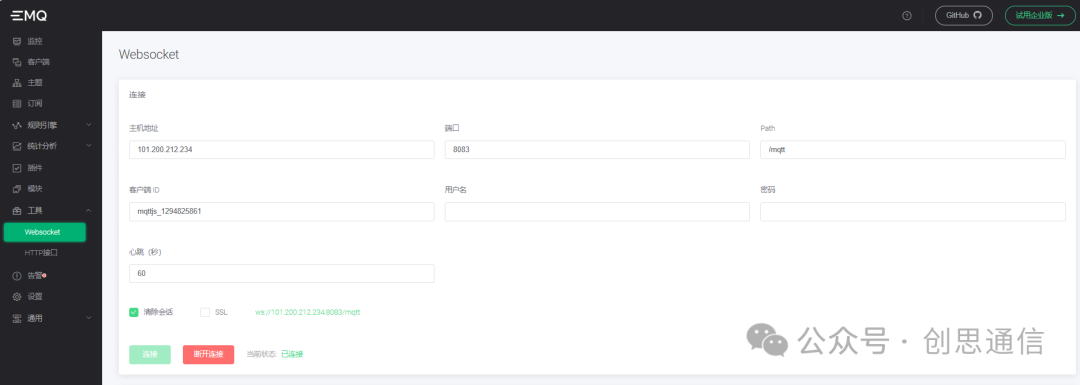
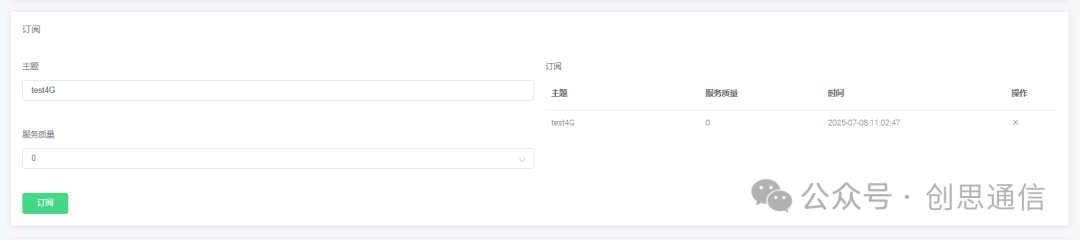
In the [Subscribed Message List], you can view the reported data content in real-time.
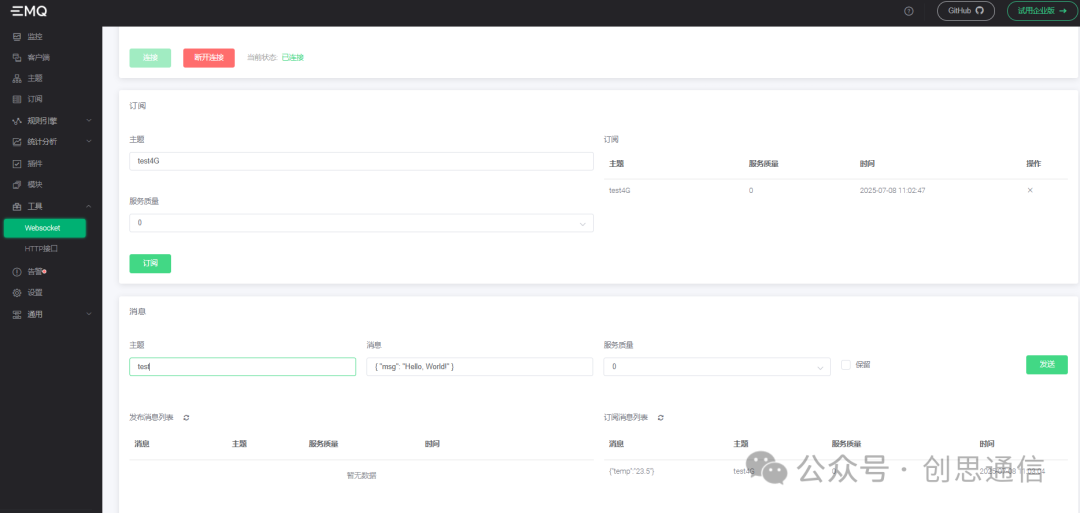
Platform Data Downlink Operations
In the message input box, enter the command content to be sent down, ensure the published topic is the target topic subscribed by the device, and click the [Send] button. The platform will push the command to the device via WebSocket.
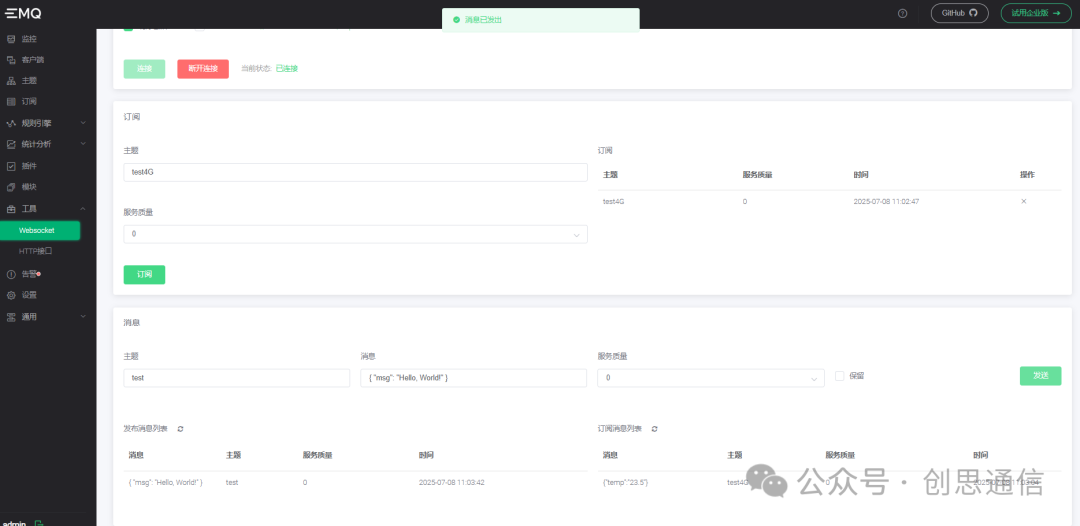
In the serial debugging assistant, you can monitor the status of the data received by the device in real-time:
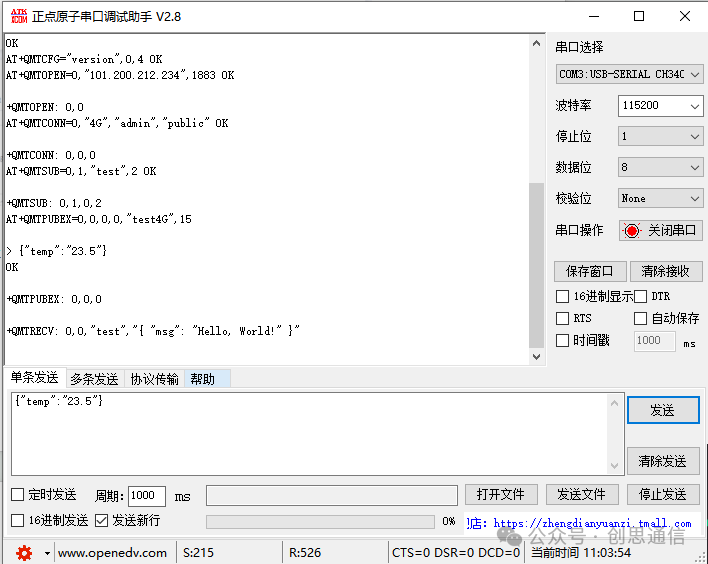
Summary of Commands
config.css
ATI
AT+CIMI
AT+QCCID
AT+CSQ
AT+CGATT?
AT+QMTCFG="version",0,4
AT+QMTOPEN=0,"101.200.212.234",1883
AT+QMTCONN=0,"4G","admin","public"
AT+QMTSUB=0,1,"test",2
AT+QMTPUBEX=0,0,0,0,"test4G",15
{"temp":"23.5"}
Purchase Link
https://item.taobao.com/item.htm?id=638309299841